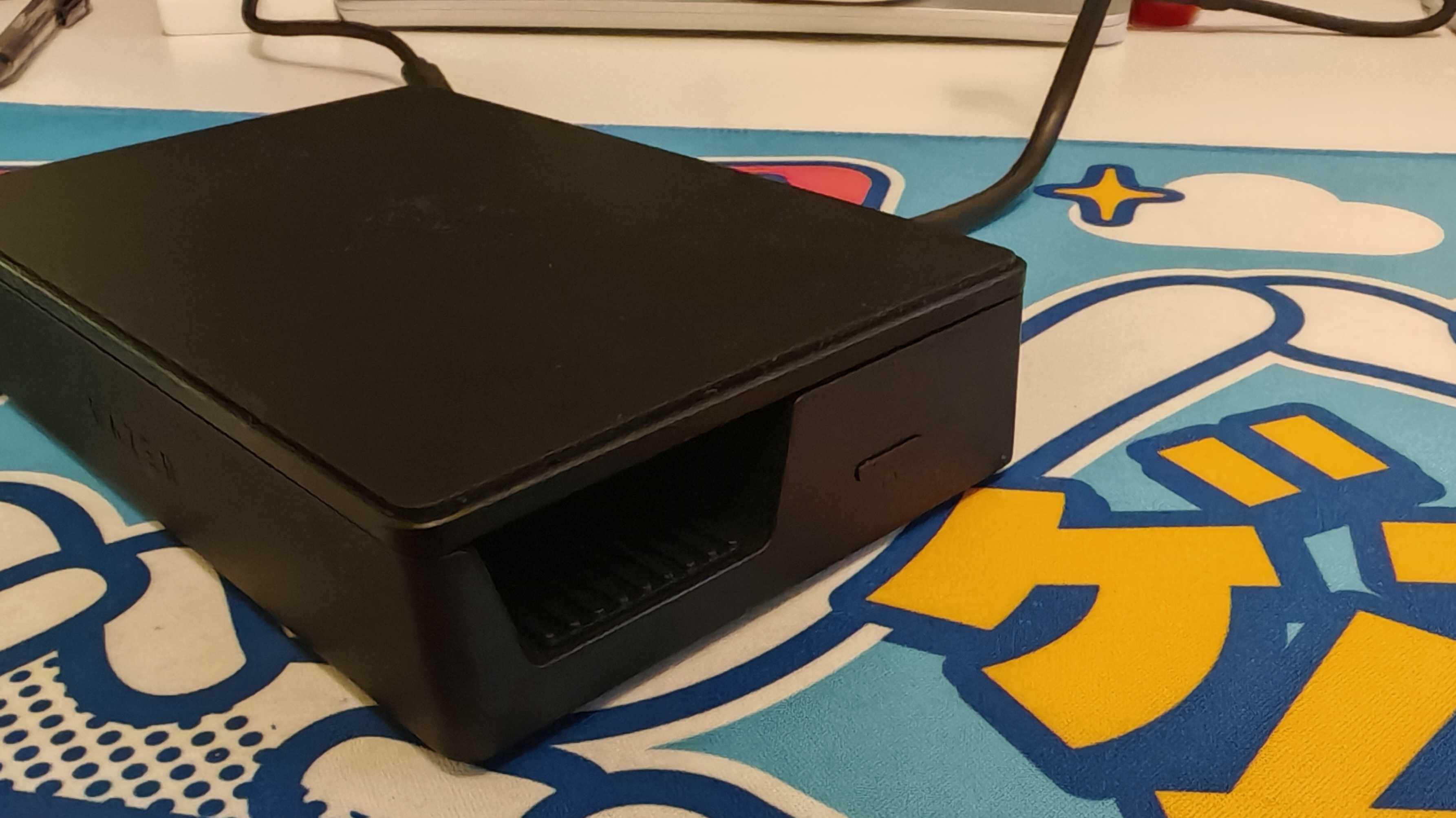
The Razer Handheld Dock Chroma is the most stylish Steam Deck dock I’ve ever seen, offering a sleek all-black aesthetic that compliments the handheld PC perfectly in addition to some pleasingly bright RGB lighting.
While a similar price to the official Valve offering (and notably more expensive than the many standard laptop docks out there that also work with Steam Deck), it ranks among some of the best Steam Deck accessories thanks to a nifty integrated stand that provides a neat way to adjust the position of your Deck if you intend to play without an external display. This can also be folded down for easy transport and the use of durable metal components makes it easy to stash in a rucksack on the move without having to worry about potential damage.
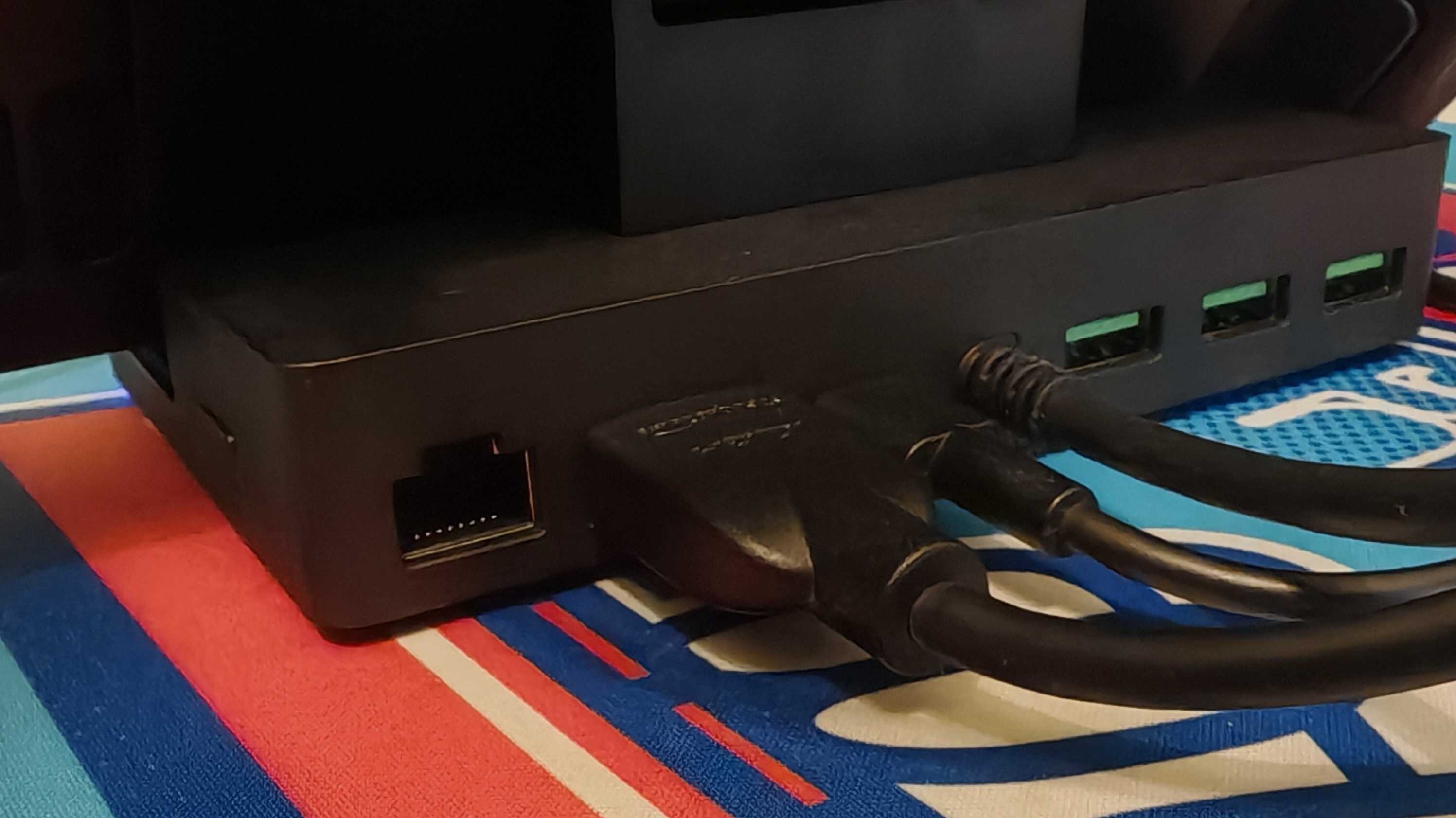
There is also no shortage of ports, with the dock coming equipped with a USB-C input for charging, three 5 Gbps USB-A ports for your various controllers, a Gigabit Ethernet (GbE) port, and an HDMI 2.0 video output. The lack of a DisplayPort option is a shame, especially as there is one present on the official Steam Deck Dock, but realistically the up to 4K 60hz / 1440p 120Hz of HDMI 2.0 is going to be more than enough if you’re keen to hook your Steam Deck up to a TV.
While clearly designed with the Steam Deck in mind, the Razer Handheld Dock Chroma is also fully compatible with other handheld PCs including the Asus ROG Ally and even some Android gaming tablets.
There might be cheaper alternatives out there, but the overall proposition of the Razer Handheld Dock Chroma makes it well worth considering if you’re after a premium option.
Image 1 of 3
(Image credit: Future)
Image 2 of 3
(Image credit: Future)
Image 3 of 3
(Image credit: Future)
Razer Handheld Dock Chroma: Price and availability
Costs $79.99 / £79.99 / AU$149.95
Available via Razer and Amazon
More expensive than your average laptop dock
The Razer Handheld Dock Chroma is readily available in the US, UK, and Australia via Razer and online retailers like Amazon. It comes in at $79.99 / £79.99 / AU$149.95, which puts it around the price of the official Valve Steam Deck Docking Station (which is $89 / £69). It’s quite good value compared to Valve’s offering, as it benefits from the adjustable stand and addition of RGB.
If you’re on a budget, however, you’re better off going for one of the countless cheaper laptop docks available via Amazon. These are not specifically designed for the Steam Deck, but generally will still work. To give an example, the Anker 332 USB-C Hub (5-in-1) costs just $34.99 / £19.99 and offers a cheaper but still effective way to get your Steam Deck on an external display.
Razer Handheld Dock Chroma: Specs
(Image credit: Future)
Razer Handheld Dock Chroma: Design and features
Robust and sturdy design
Adjustable stand
RGB lighting
The Razer Handheld Dock Chroma has a very sleek design, coming in a slick matte black. It looks like a small rectangular box when taken out of the packaging, with the adjustable stand portion positioned flush on top of the box.
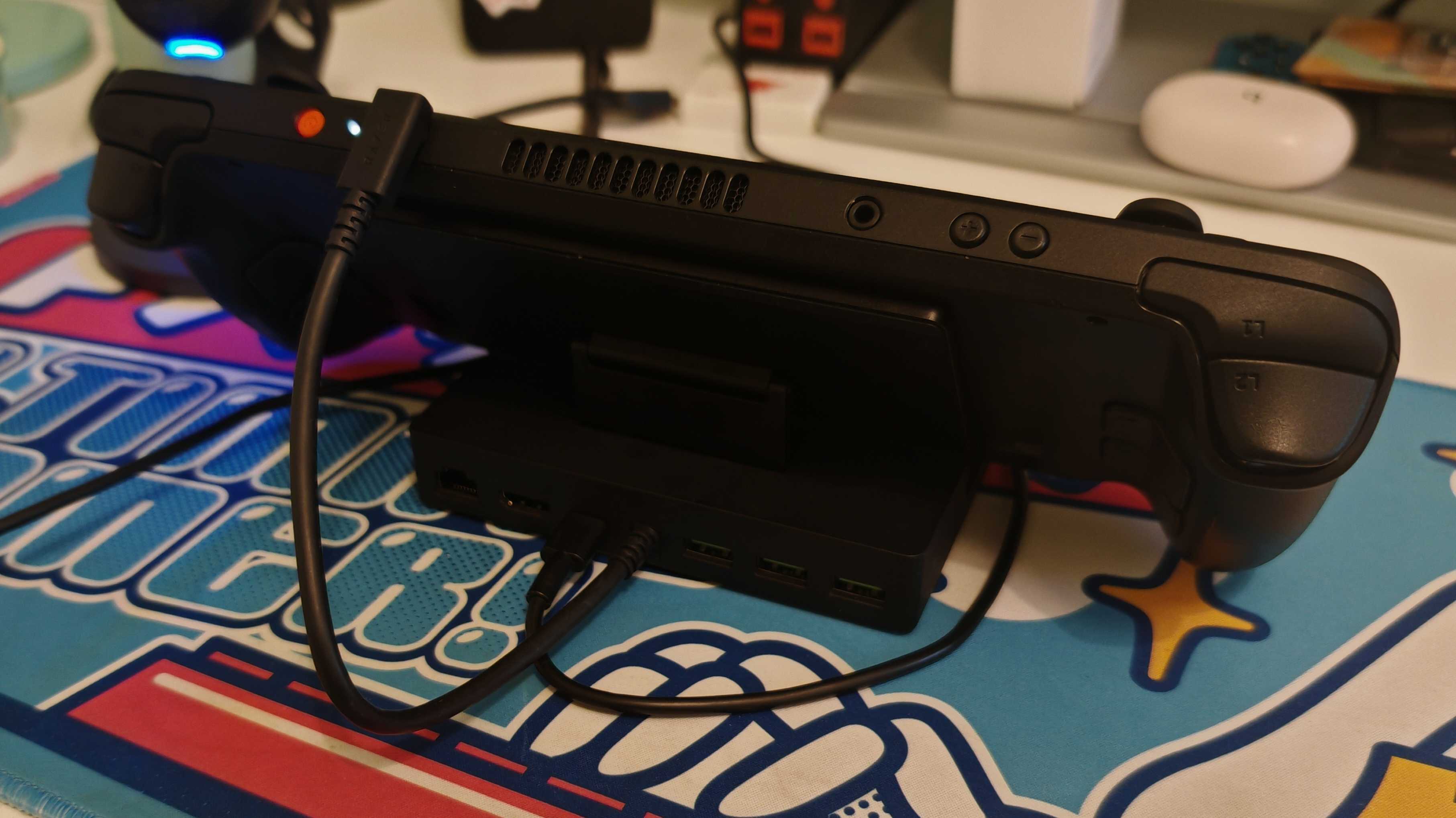
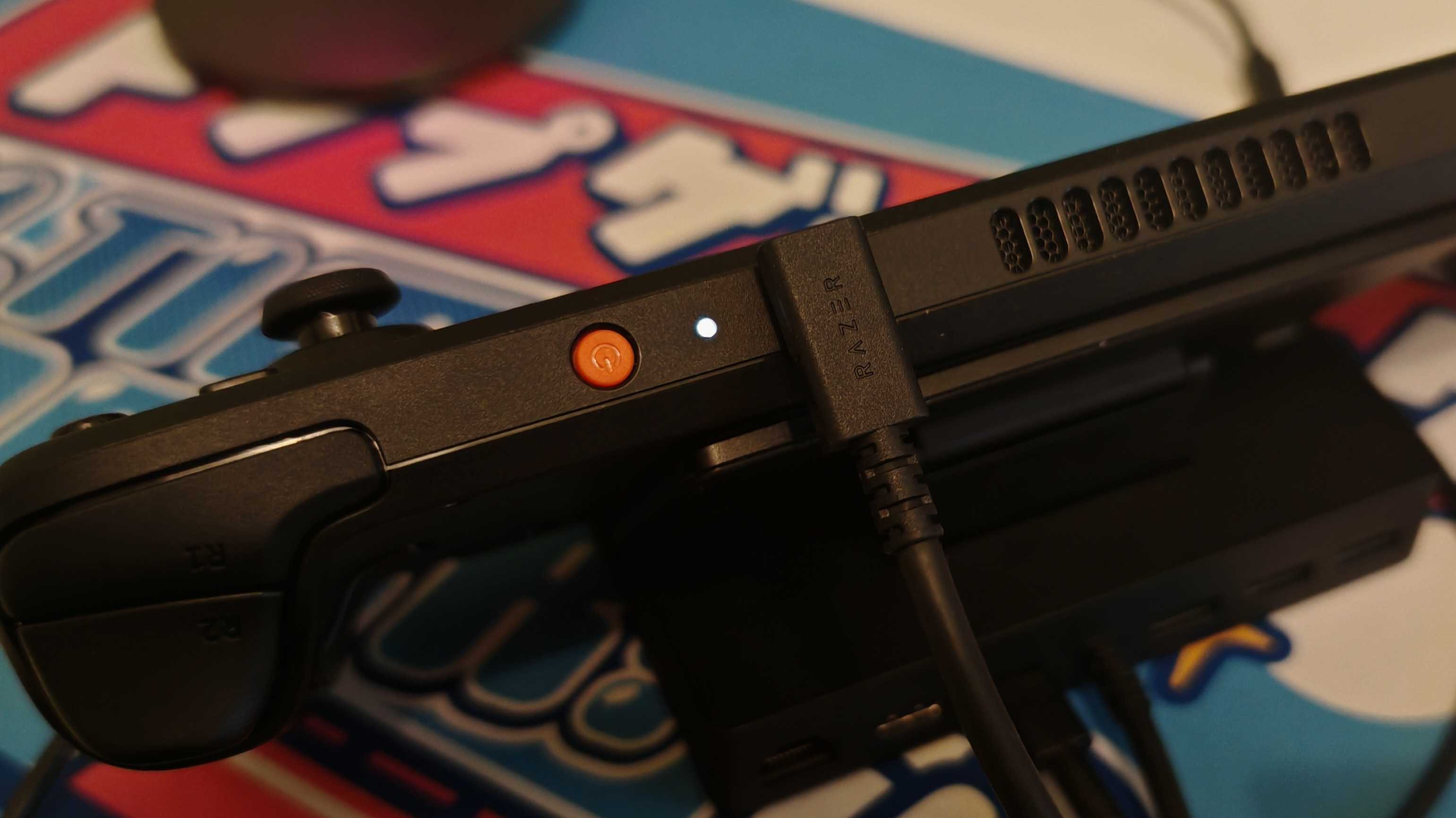
To set it all up, you simply have to pull the stand out and slot it into place, which creates a sturdy little shelf where your Steam Deck can rest while it’s plugged in via the attached USB-C cable. A ribbed rubberized strip helps support the Steam Deck when it’s docked, preventing it from sliding out easily and stopping it from picking up any scratches from the dock itself.
The stand is adjustable, with a few positions allowing you to angle your Steam Deck or a more vertical or horizontal orientation - which is great if you don’t intend to use an external display and want a clear view of the system’s screen from your seat. It also helps when you’re using the other supported devices, be that the Asus ROG Ally or a gaming tablet. I tested the recently released Lenovo Legion Tab Gen 3 in the dock and, after some small adjustments, it was in the perfect position for watching videos or playing some Call of Duty: Warzone Mobile with a wired controller.
The majority of the Razer Handheld Dock Chroma is constructed with sturdy-feeling plastic, with a layer of soft foam on the underside to prevent slippage. The shelf where the Steam Deck sits is a robust metal, which is not only hard-wearing but also feels suitably premium given the price. At the bottom of the front of the dock is a thin RGB lighting strip that illuminates when the dock is in use. This is bright and attractive, with a plethora of in-built modes that you can cycle through via a small button on the right-hand side of the dock.
On the back of the dock are all your ports. There’s one HDMI 2.0, 3 x USB-A, 1 x Gigabit Ethernet port, and a USB-C port used for 100W power delivery with passthrough charging. This is a decent selection, though not as many options as you would get with a more specialist bit of kit like the Anker Prime Charging Docking Station (14-in-1, Dual Display, 160W).
(Image credit: Future)
Razer Handheld Dock Chroma: Performance
Perfect for Steam Deck
Seamless set up
Easy to store in a bag
The Razer Handheld Dock Chroma is perfect for Steam Deck and there’s very little to fault it on in performance terms. You simply slot the Steam Deck in, plug in your display, and use the USB-C ports for any desired accessories, be that a keyboard and mouse or a quality gamepad like the Xbox Wireless Controller, and you’re ready to play on your monitor or TV. It’s about as seamless as you can get and I didn’t encounter any problems getting it all set up on a variety of screens throughout my testing.
The lack of HDMI 2.1 support here is a shame on paper, especially compared to alternatives like the BenQ beCreatus GR10, though practically doesn’t really make that much of a difference. In my testing, I was not able to find a single game that I would be able to run on my Steam Deck OLED at an 8K resolution, or in 4K at above 60 fps.
Compared to other Steam Deck docks, the Razer Handheld Dock Chroma is also impressively portable. Being able to fold everything flat makes it easy to stash in your bag alongside your Steam Deck. It’s heavier than most given the incorporation of metal, but it’s hard to complain about that when the result is a product that really feels like it could take a beating if you happened to drop it out on your travels.
(Image credit: Future)
Should I buy the Razer Handheld Dock Chroma?
Buy it if...
You want a great-looking Steam Deck dock With its slick design and RGB lighting, the Razer Handheld Dock Chroma is one of the best-looking Steam Deck docks out there today. Pick it up if you’re willing to spend more on an accessory for aesthetic reasons.
You want to use it without a monitor The adjustable viewing angles of the Razer Handheld Dock Chroma are a big plus, making it significantly easier to play in the dock without an external monitor.
You want a sturdy dock The incorporation of metal and general sturdiness of the Razer Handheld Dock Chroma is also superb. This is a dock that you can stash in your rucksack without fear of it picking up any substantial damage.
Don't buy it if...
Pure value is your number one concern There are plenty of generic laptop docks that also work with the Steam Deck, and come in significantly cheaper than the Razer Handheld Dock Chroma.
Also consider...
Want some alternatives to the Razer Handheld Dock Chroma? Check out these two strong options.
BenQ beCreatus GR10 The BenQ beCreatus GR10 is more expensive than the Razer Handheld Dock Chroma and lacks RGB, but it does offer HDMI 2.1 support for those eager to crank up the video quality. It’s also a lot lighter.
Anker Prime Charging Docking Station (14-in-1, Dual Display, 160W) The Anker Prime Charging Docking Station (14-in-1, Dual Display, 160W) is a serious bit of kit that offers the complete desktop docking solution. Although designed for laptops, it also works with the Steam Deck and, while pricey, does frequently go on sale.
I tested the Razer Handheld Dock Chroma for over a week, during which time I played plenty of games on my Steam Deck OLED including lots of Disco Elysium and Dragon Quest 3 HD-2D Remake in addition to a few hours of play on the Lenovo Legion Tab Gen 3 gaming tablet.
Throughout my time with the dock, I tried a variety of monitors and TVs in addition to accessories such as the Asus ROG Harpe Ace Aim Lab Edition mouse, Endgame Gear Kb65he keyboard, Xbox Wireless Controller, and more. I constantly compared my experience with my hands-on time with other laptop docks like the Anker 332 USB-C Hub (5-in-1).
The BenQ GW2486TC is a great monitor for those that just need more screen real estate. It helps that there are some included features to make hours of use a bit more palatable, such as the ones focused on minimizing eye strain. After all, not everyone needs an ultra widescreen 8K monitor with HDR and a super fast refresh rate. Most of us just want more space while working. This monitor does that.
It also helps that it is very affordable for an external monitor. Sure, this is just a 24-inch model with quite a few limitations, like a 1080p resolution with a somewhat limited color coverage – you shouldn’t be using this for most types of color correction and editing. And there’s no KVM (keyboard, video, mouse) switching on hand, either. But, it’s got great ergonomics to help you get the most comfortable view of your work.
So, if you’re okay with those compromises, meaning you’re not also a gamer or creative, and can skip out on the unfortunate lack of cable management, this might be one of the best business monitors for you.
BenQ GW2486TC: Price and availability
(Image credit: Future / James Holland)
How much does it cost? $189.99 / £149.99 / AU$289.00
When is it available? Available now
Where can you get it? Available in the US, UK and Australia
The best monitors come in at all sorts of price points, and you usually have to pay a bit more than the BenQ GW2486TC Eye-Care Monitor. The going price of this monitor, $189.99 / £149.99 / AU$289, is about as reasonable as it gets.
While you can find some other great deals such as the 27-inch gaming-oriented Arzopa M1RC with its £239 / $269 MRSP out there, they’re few and far between. Of course, the Arzopa does have QHD (2560 x 1440p) resolution and a 180Hz refresh rate. But it’s missing speakers and the eye-care oriented features of the BenQ reviewed here.
If you need more features, you’re most likely going to have to spend a bit more. The 4K BenQ PD2705UA has about every feature one could imagine as well as the kind of color coverage and accuracy for editing work, unlike the GW2486TC. You can even split the screen between two different sources as well as use KVM. It’s also more than double the price at $549.99 / £549.99 / AU$739.
Value: 5 / 5
BenQ GW2486TC: Specs
BenQ GW2486TC: Design
Fantastic ergonomics for personalized viewing angles
Good port selection including USB-C with power delivery
No cable management
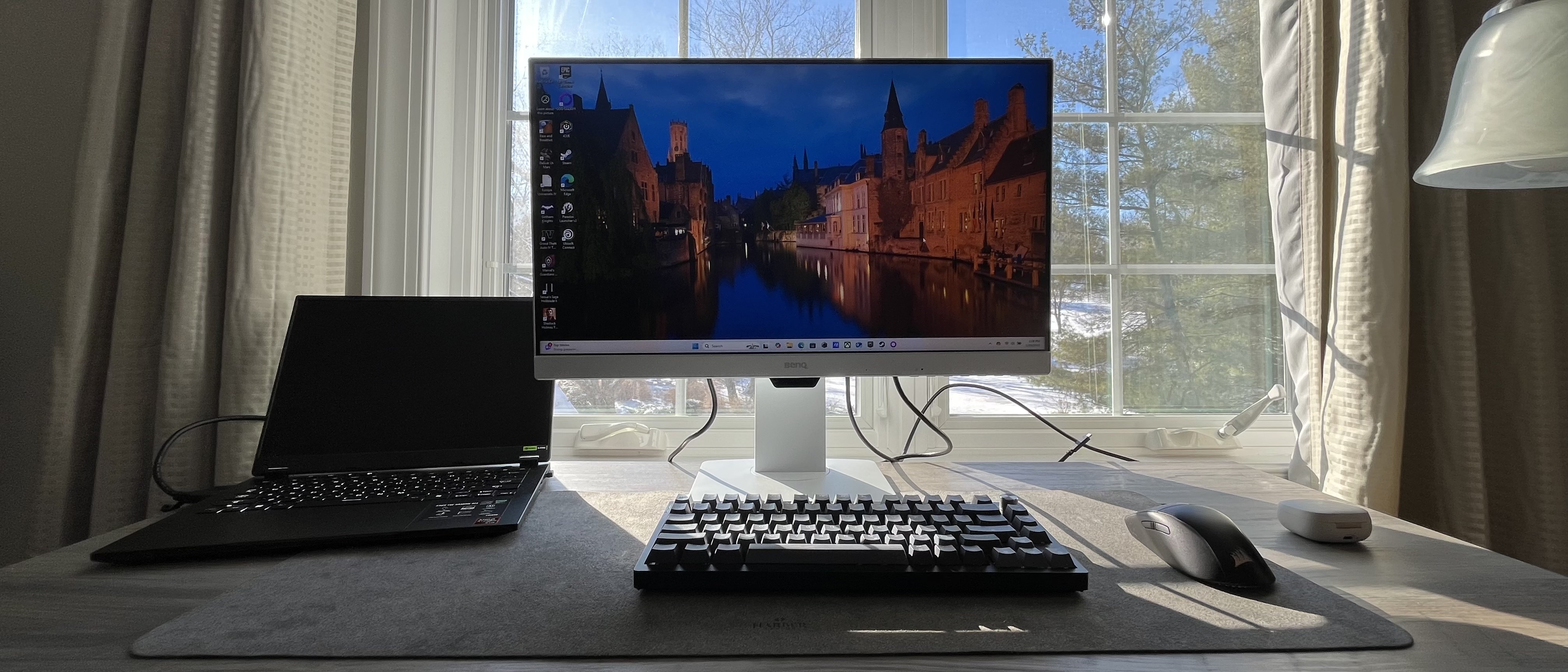
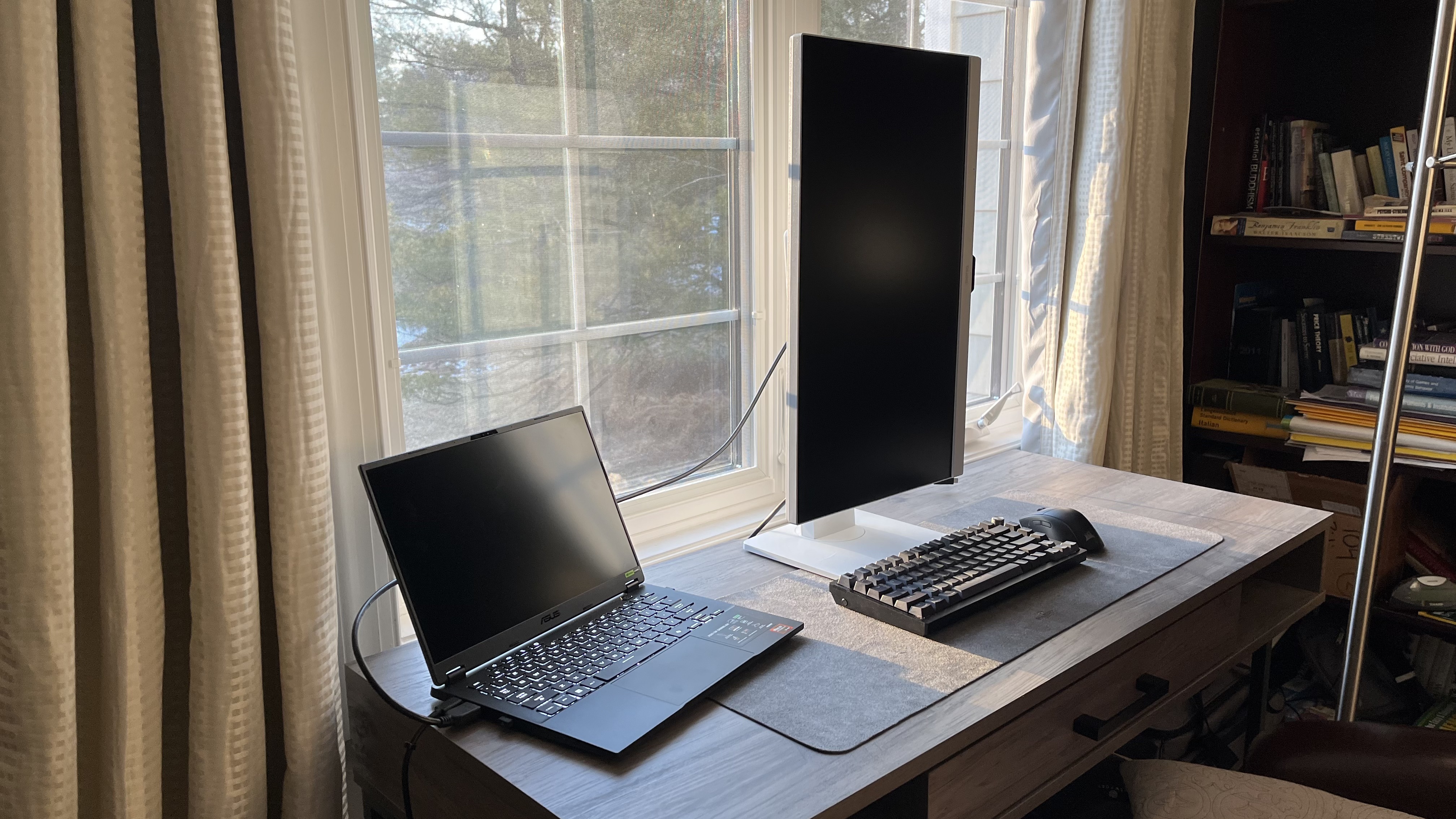
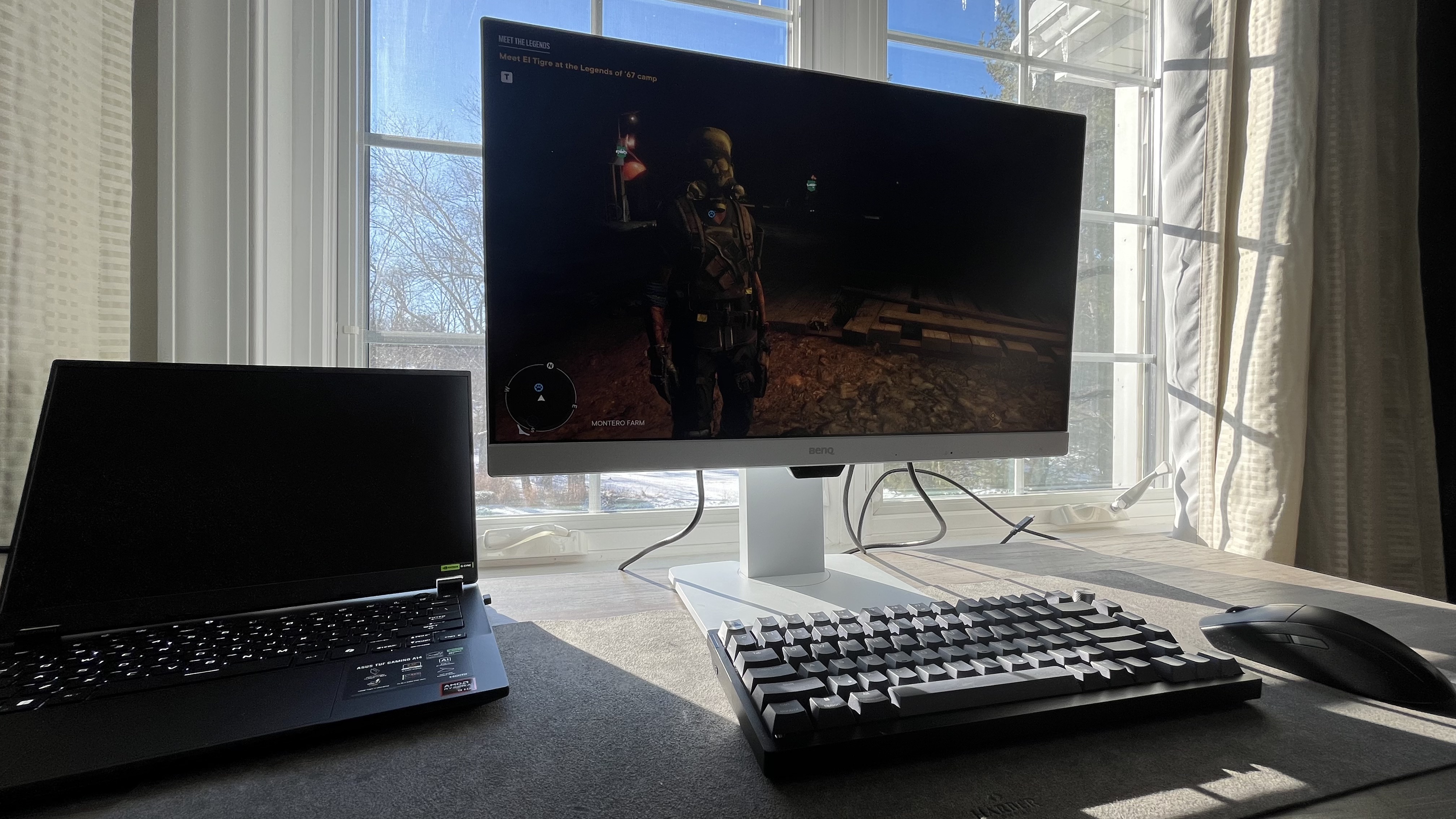
The BenQ GW2486TC Eye-Care Monitor might be cheap, but it is an attractive looking monitor. In all-white, it’s neither drab or boring. In fact, the worst thing about this 24-inch monitor is probably its display panel, which is a basic IPS 1080p one with a typical 178-degree viewing angle.
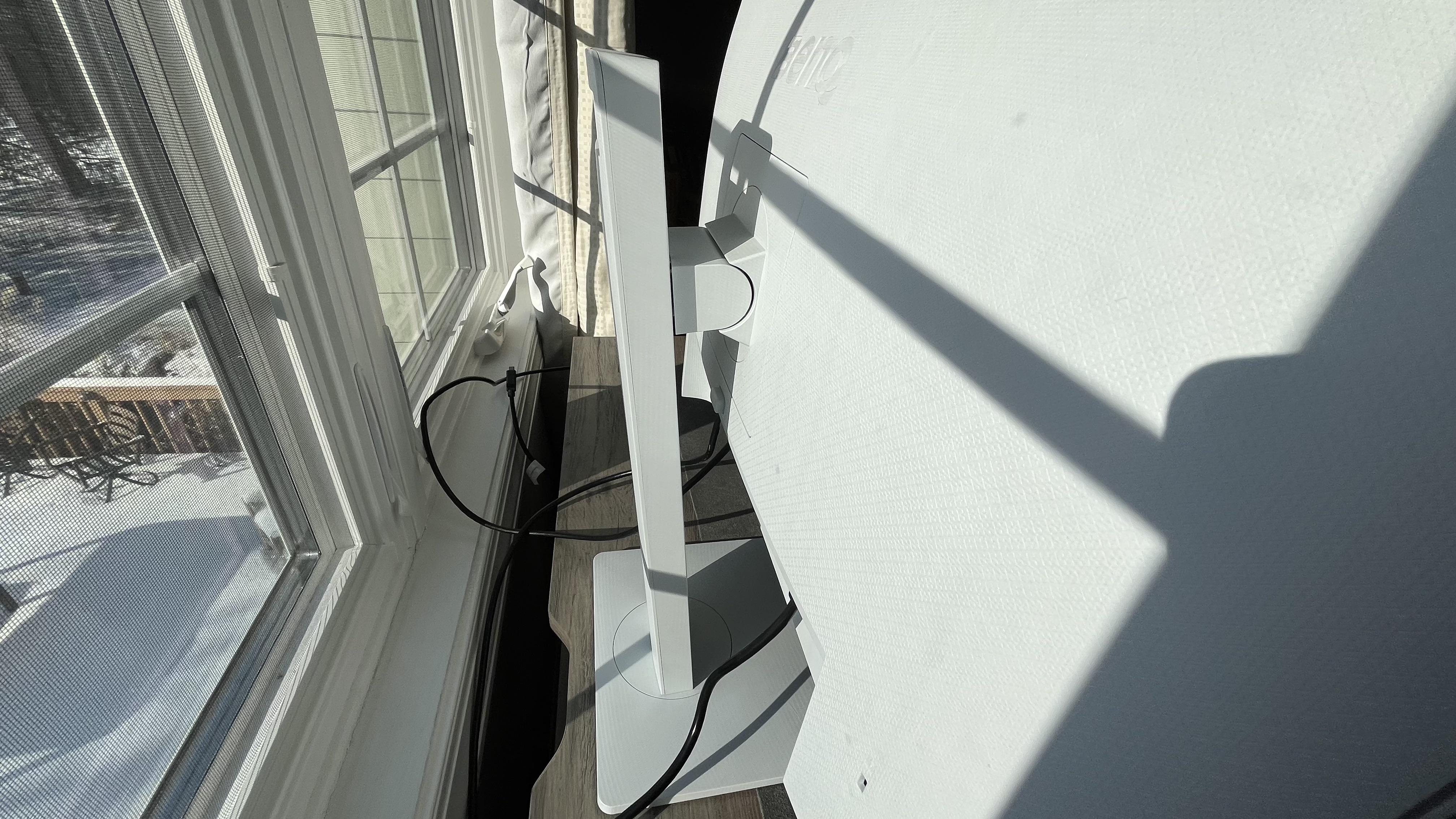
But when it comes to this monitor’s design, there’s plenty to like, particularly the ergonomics. Thanks to its tall stand, there’s 130mm of height adjustment. Once you have at eye level (or wherever you prefer to have the monitor seated), there’s a 45 degree swivel either left or right, a five degree downward tilt and a 20 degree upward one, not to mention a 90 degree pivot in either direction if you need the display in portrait for some reason (like coding).
Image 1 of 4
(Image credit: Future / James Holland)
Image 2 of 4
(Image credit: Future / James Holland)
Image 3 of 4
(Image credit: Future / James Holland)
Image 4 of 4
(Image credit: Future / James Holland)
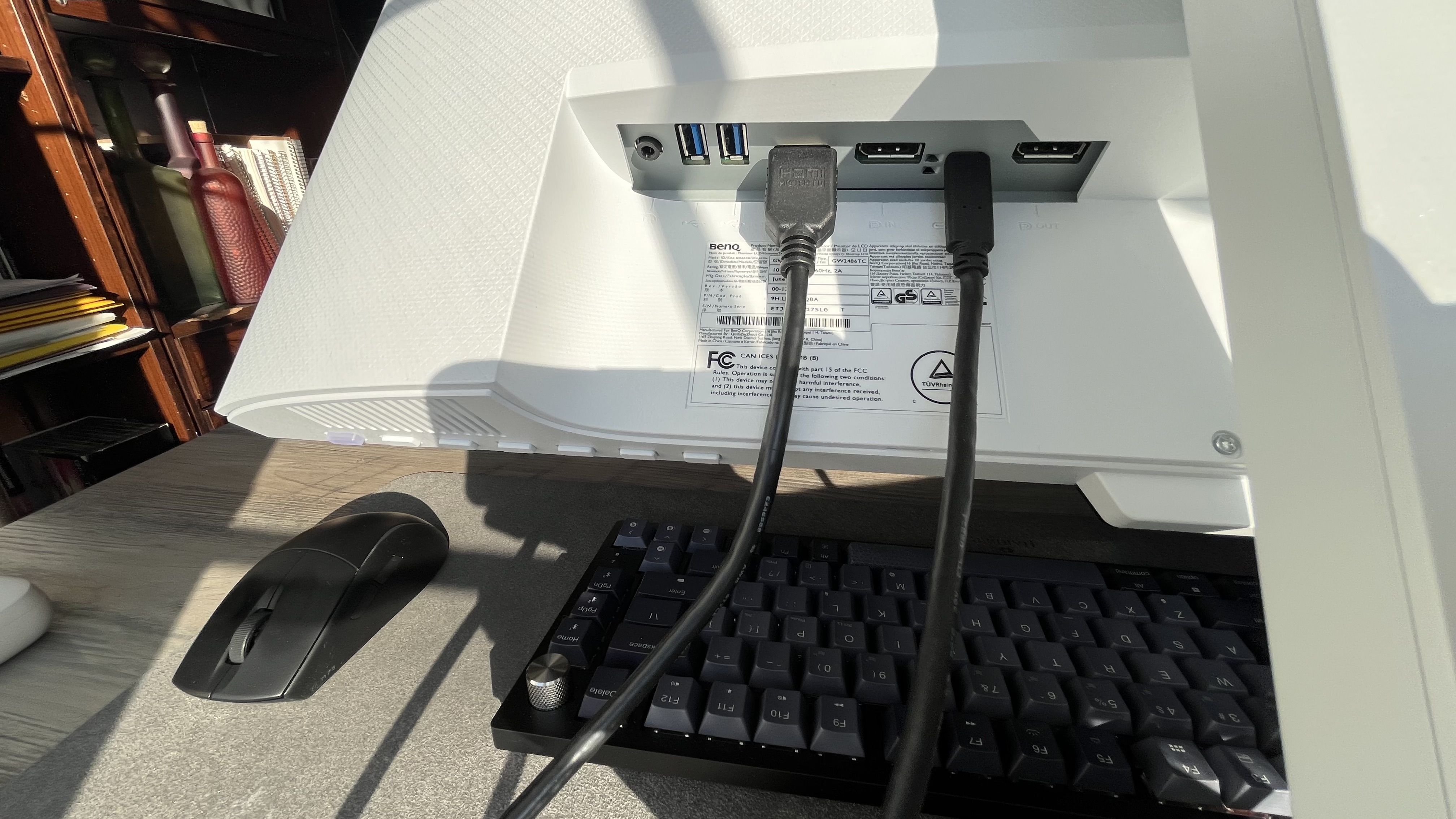
The only real issue I have with the BenQ GW2486TC Eye-Care Monitor’s design is the fact that there’s no real cable management. There is a hole at the top of the stand that, to me at least, looks like it’s to pick up the monitor that could be conceivably used for cable management. However, the ports all face downward so that is fairly inconvenient.
As far as ports go, there’s a decent array including one DisplayPort 1.4, HDMI 1.4, USB-C with 65W power delivery (enough for an Ultrabook but not a gaming laptop), and two USB-A downstream ports for charging up accessories. However, those USB ports are not for KVM and don’t do any passthrough to the source computer. On the bright side, this monitor can be daisy chained with another for more screen real estate.
Design: 4 / 5
BenQ GW2486TC: Features
OSD Menu is easy to navigate
A number of eye-care modes help with long sessions in front of the screen
Plenty of additional modes for various work purposes
(Image credit: Future / James Holland)
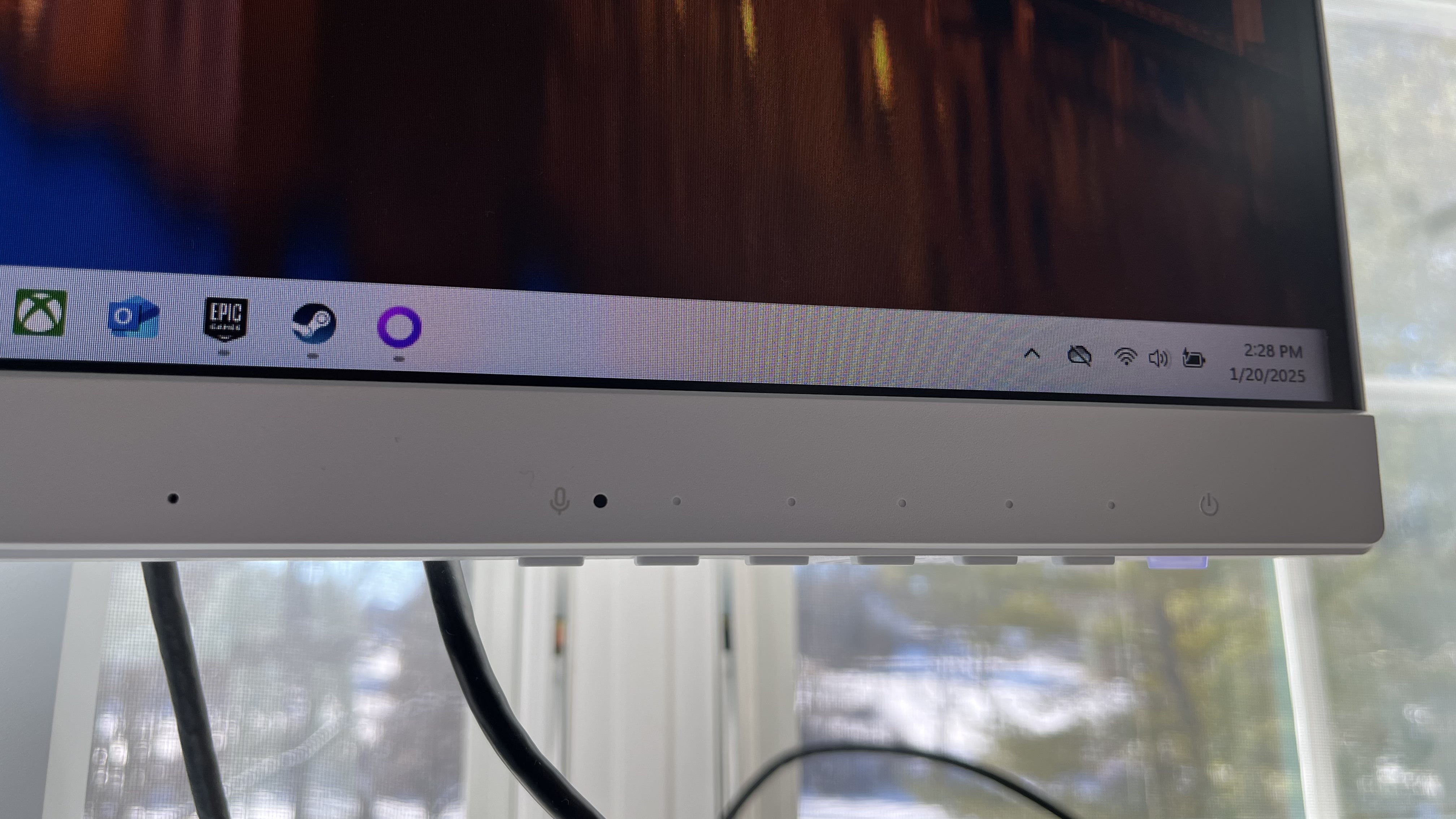
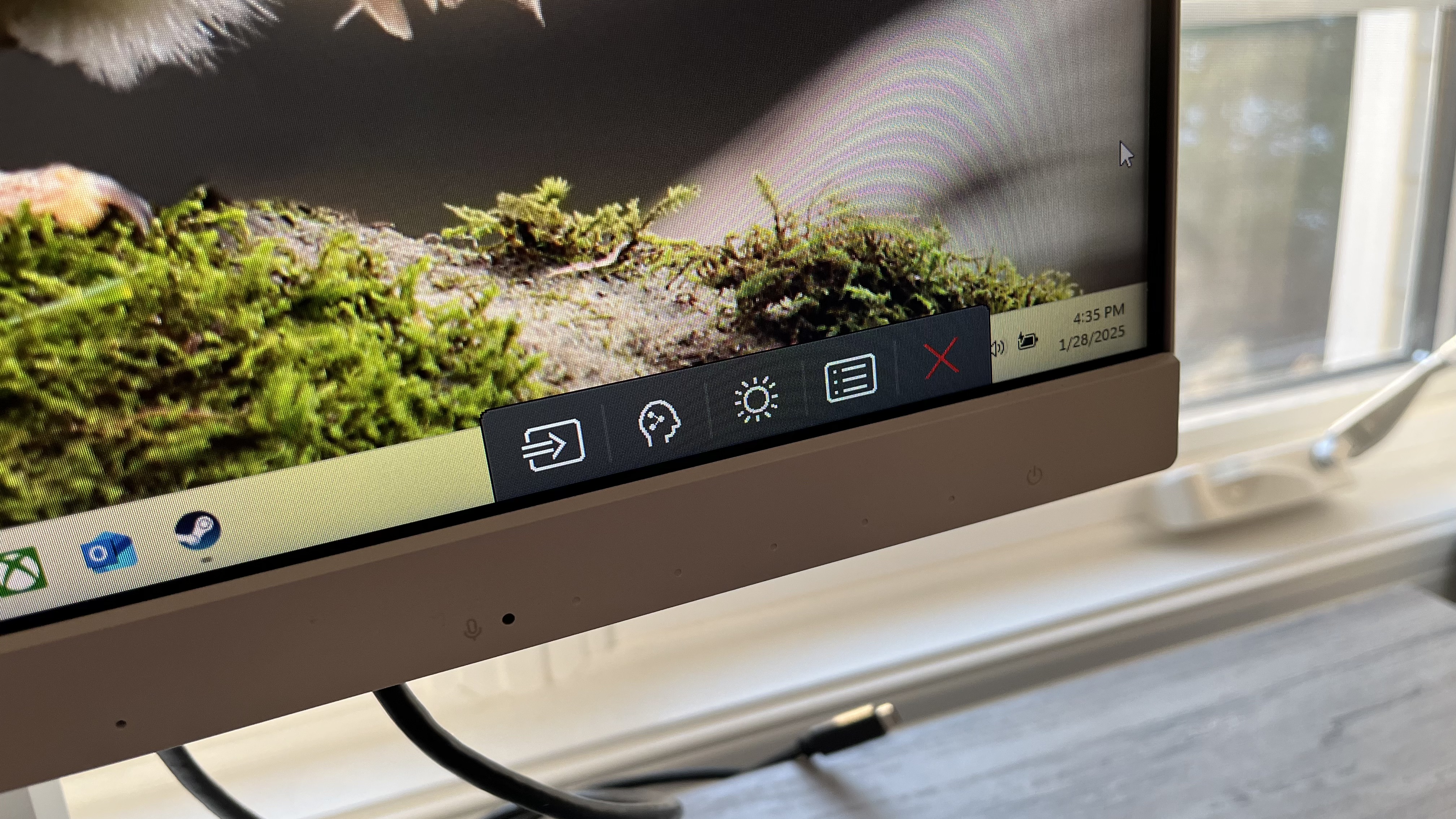
The OSD menu is pretty straightforward to use on the BenQ GW2486TC Eye-Care Monitor. Instead of a single joystick for control, there are a number of buttons along the bottom right corner of the monitor. Whenever you press any of the buttons, the OSD menu pops up with an overlay on your screen showing icons for categories. Once you select a category, the OSD opens up deeper menu options while providing icons for what each button does. Overall, it’s very straightforward to navigate, whether you’re changing modes, messing with specific settings like color temperature or adjusting audio settings.
Where this monitor shines best is in its various modes, particularly the eye-care oriented ones, meant to minimize eye strain from sitting in front of a screen too long. Not only are there modes that limit the amount of blue light, as well as one to adjust for color weakness, but it has its brightness intelligence gen 2 tech, which automatically adjusts screen brightness according to ambient light for what’s most ideal. And, I found it to work fairly quickly. There are also modes for coding, ePaper, sRGB, and MBook that are helpful to have on hand, even if these aren’t necessarily all that unique.
Features: 4.5 / 5
BenQ GW2486TC: Performance
Screen is good, but nothing special, except for a faster refresh rate
Audio quality is passable
Comes with built-in mic with noise cancellation
(Image credit: Future / James Holland)
When it comes to performance, it’s critical to take the BenQ GW2486TC Eye-Care Monitor for what it is – a budget-oriented office monitor. You’re not getting a wow factor here, nor should you. The IPS panel is a basic 1920 by 1080 resolution with a solid color coverage of 99% sRGB. Its 250 nits is good enough for office use, but can be a bit dark when using it for certain types of media. While I did use this for some gaming and had no issues with it, this is certainly not where it excels, especially with a 1300:1 contrast. It’s fine for that purpose, helped along by a 100Hz refresh rate (despite having a 5ms response time).
The audio quality on monitors is usually nothing special. The BenQ GW2486TC is no exception. The two 2-watt drivers offer enough volume for anyone sitting at their desk who doesn't want to purchase or fiddle with external speakers, though they’re worth it in my humble opinion. There’s not much in terms of low-end from the downward-facing speakers – no surprise there – and, overall, are fairly boxy sounding. The best thing one can say about the audio is that it’s there and it’s not terrible. For an office monitor, that’s generally good enough.
It’s worth noting that there’s also a built-in microphone with adjustable noise cancellation for use with zoom calls.
Performance: 3.5 / 5
Should I buy the BenQ GW2486TC Eye-Care Monitor?
Buy it if…
You want a productivity monitor on a budget
If you have limited funds but you want a monitor for productivity, the BenQ GW2486TC Eye-Care Monitor is an ideal one thanks to the eye-care features, USB-C port, and flexible ergonomics.
You need great ergonomics
This monitor can go into a portrait orientation in either direction, has a broad height adjustment range, and can swivel and tilt enough so that it can properly face you no matter your setup.
You need USB-C
Even now, not all monitors come with a USB-C port. If you need one to connect your MacBook Air, for example, you can not only do that, but you can charge it in the process.
Don’t buy it if…
You need cable management or KVM
This is a budget monitor so there are some things missing that one would find on pricier models, such as cable management or KVM. If you’re a neat freak or want to connect more than one computer, you should invest in a monitor with one, or preferably both, features.
You want a higher resolution
The panel on this monitor is fairly basic so you’re limited to 1080p. If you want a sharper resolution for any reason, it’s worth spending the extra cash for it.
Also Consider
Arzopa M1RC
The Arzopa M1RC might be missing some of the productivity-oriented features and appointments of the BenQ, but you get a sharper QHD resolution and an even faster 180Hz refresh rate for not much more money.
If you want a little more out of a productivity-oriented monitor, consider the BenQ PD2705UA. It’s more than double the price but has a much sharper image, KVM, and side-by-side picture as well as picture-in-picture for those with two computers, not to mention HDR and cable management.
I used the BenQ GW2486TC Eye-Care Monitor regularly for a month. I tested it with various games and media, used it for work, and tested out its various eye-care modes. I spent some time listening to the speakers. And played around with the ergonomics.
The BenQ GW2486TC Eye-Care Monitor has shown itself to be a capable monitor for productivity, particularly for those on a budget who don’t need things like KVM and don’t care about cable management.
I’ve tested a lot of tech gear over the years from laptops to keyboards and speakers, and so have been able to use my expertise towards giving an honest and fair opinion, not to mention a critical eye, to any product I test.
Philips 5000 Series Dual Basket Air Fryer XXL Steam: One-minute review
There are plenty of dual-drawer air fryers on the market these days, but not too many come with a steam function. And that’s where the Philips 5000 Series Dual Basket Air Fryer XXL Steam comes in – as the name suggests, you can use the steam to not just cook meals, but it can even be used to clean the air fryer.
Cooking with steam means you can make dumplings or steamed vegetables easily, but the Philips 5000 Series XXL also has an air fryer+steam combo mode that I found to be quite handy. This not only cooks meat to perfection, retaining moisture, but also allows for crispy skin and crackling, albeit will need a few extra minutes air frying the perfect results.
In fact, pretty much everything I cooked in the Philips Series 5000 XXL turned out to be really good, although I’d recommend not bothering with the presets. They’re handy as a guide, but unless you have the exact amount of food that preset was meant for, it’s not going to cook your meal to perfection. Given its dual drawers, you can sync cook times, no matter what you have in either of them, but you can’t replicate the settings across both drawers because of their difference in size.
However, having the power of steam means you’ll need to deal with a few caveats. For starters, it’s available only for the larger drawer, so you will need to plan out what food item goes into which drawer before you start cooking. That also means steam cleaning is only available for the larger drawer and it requires you to manually scrub the basket and drawer anyway. So it’s not quite the magical solution I was expecting it to be. Well, at least both drawers, and the basket and tray, are dishwasher safe.
Given how well it cooks, though, it would be easy to recommend, particularly if you want steam cooking. You will, however, need to shell out a decent amount of cash for the privilege.
(Image credit: Sharmishta Sarkar / TechRadar)
Philips 5000 Series Dual Basket Air Fryer XXL Steam review: price & availability
Announced November 2024
Launch price of £249.99 / AU$499, but available for cheaper now
Not available in the US at the time of writing
Philips came out with two dual-basket air fryers at around the same time in late 2024 – the 3000 Series and the 5000 Series. Both also have single-drawer options, but it’s only the 5000 Series Dual Basket model that has the steam functionality.
At launch, it came with a list price of £249.99 / AU$499 in the UK and Australia, but can now be had for £179.99 / AU$349. It’s currently not listed for purchase in the US.
This review is based on the Australian model with SKU NA551/00. The model available in the UK is NA555/09 with a brushed-steel finish.
I think the discounted price is quite competitive and could be excellent value for some users, especially those who’ll really make good use of the steam functionality to cook (the steam-clean mode is superfluous). That’s not to say it’s cheap, but it isn’t too much more in some markets compared to other dual-drawer models.
Philips 5000 Series Dual Basket Air Fryer XXL Steam review: specifications
Philips 5000 Series Dual Basket Air Fryer XXL Steam review: design
800ml removable water reservoir on top of appliance
Non-stick coating makes it easy to clean
Clear touchscreen display, but requires small learning curve to master
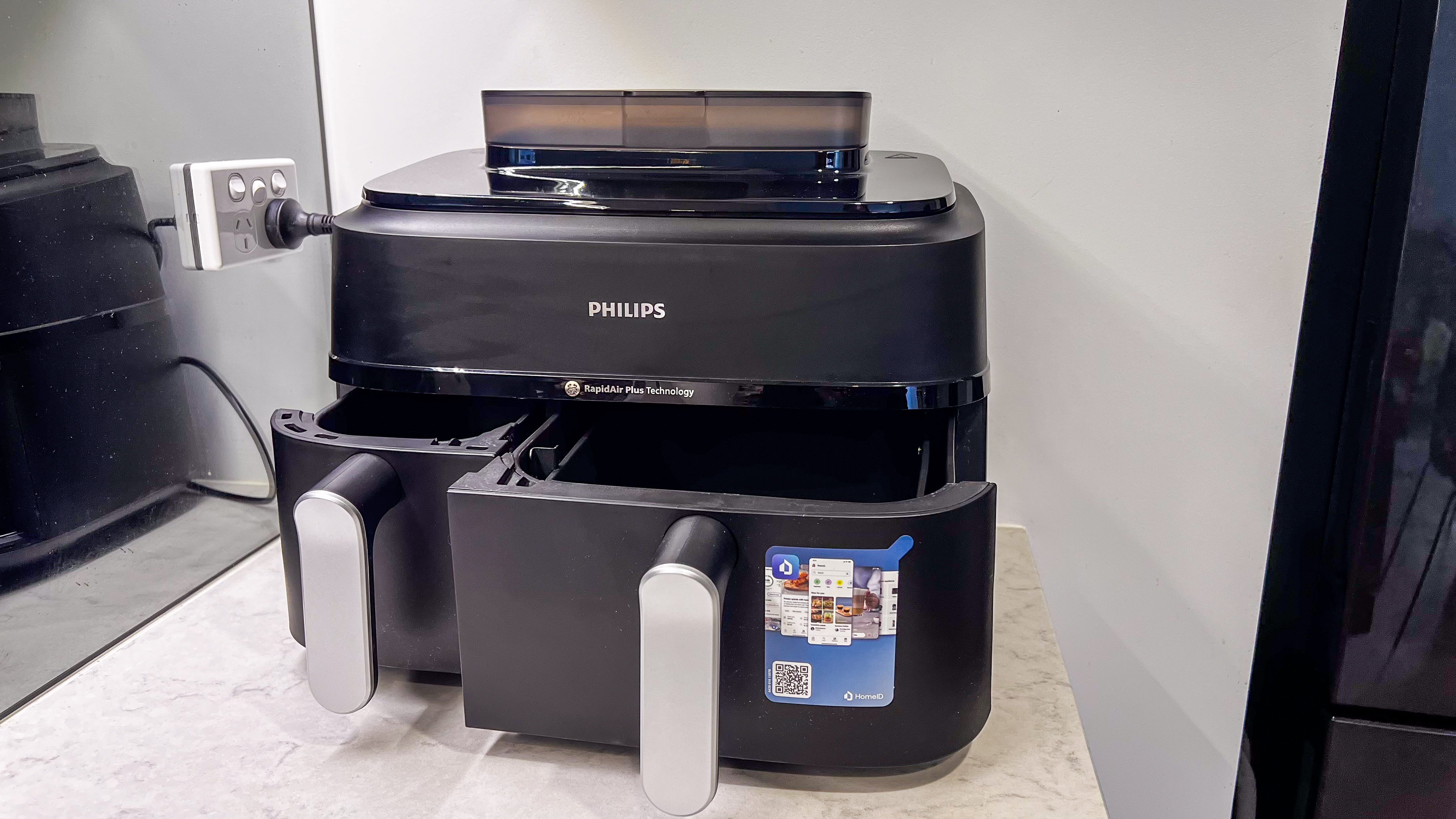
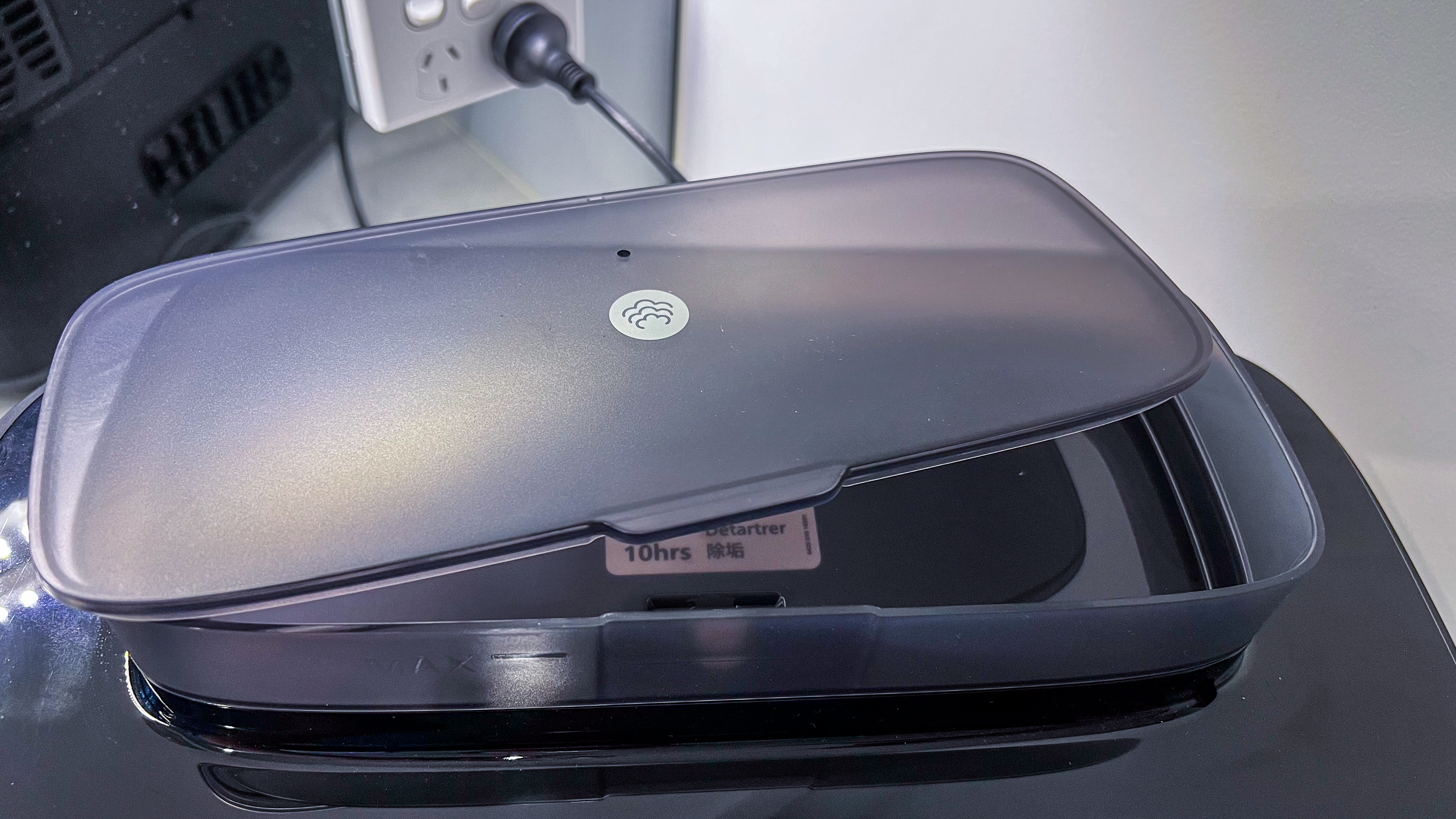
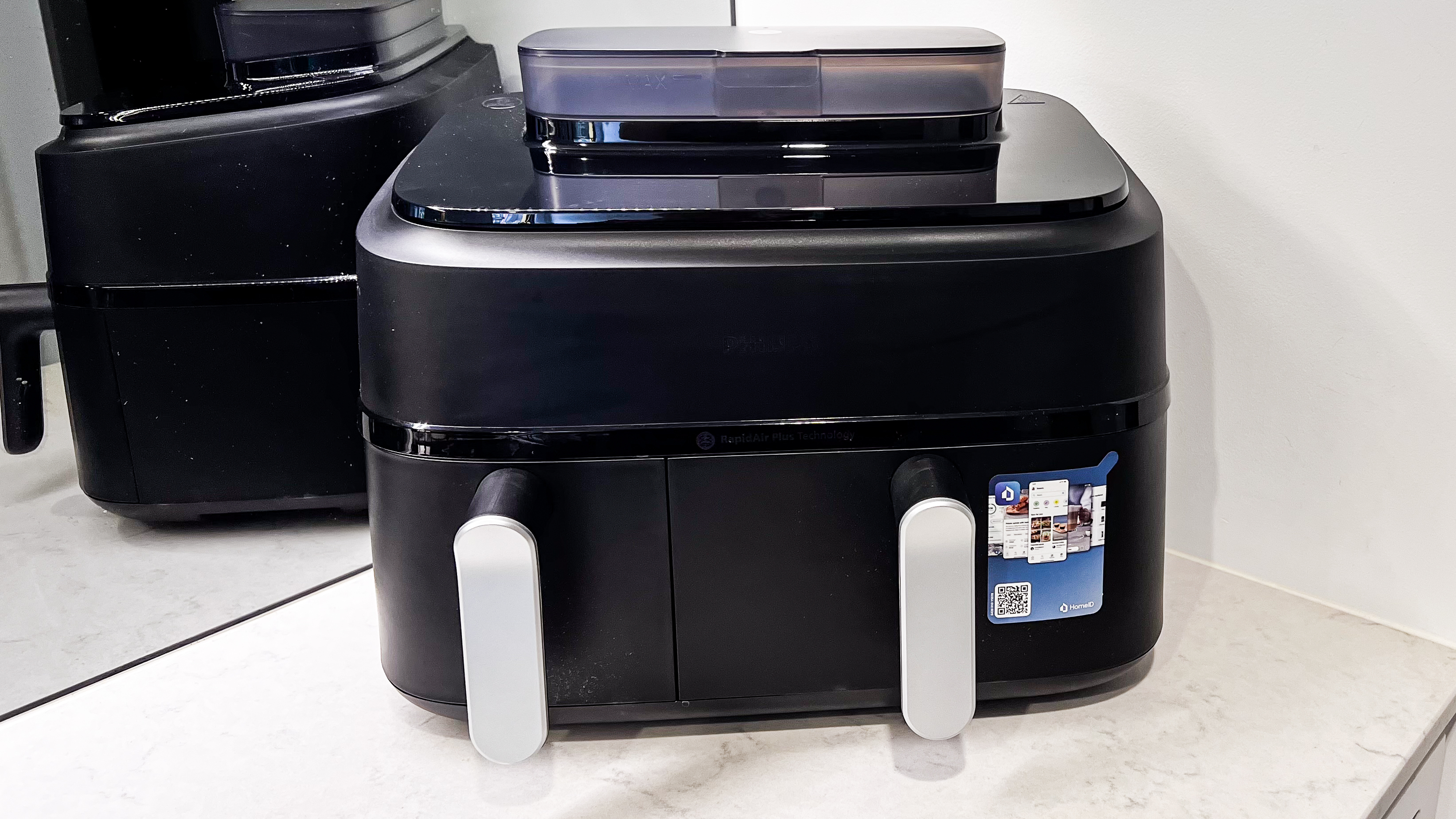
If you’re already familiar with dual-basket air fryers, the Philips 5000 Series XXL Steam is not going to look too different, except for one very distinct feature – there’s a small rectangular plastic reservoir on the top to hold up to 800ml of water. It’s translucent, so you can see the level as it gets used up, and it has a cloud icon to indicate what could only be billowing steam. If you don’t notice the water level going down, there’s no need to worry as a warning light will appear on the touchscreen display.
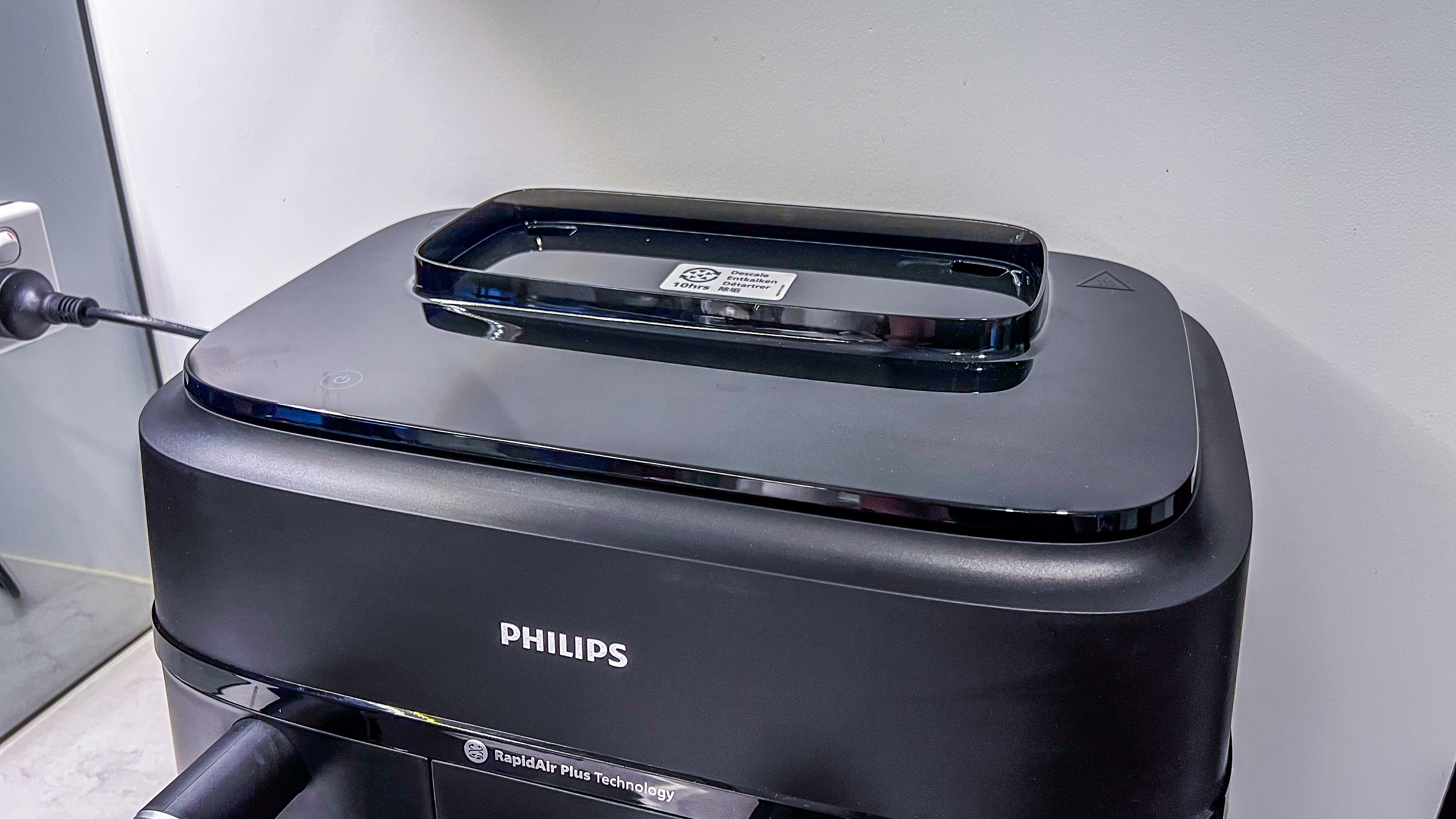
The tank can be removed and washed, and it’s best not to leave any water in there when the appliance is not in use to avoid scale build-up. The good news is that the Philips 5000 Series Dual Basket XXL Steam has a descaling cycling built in, but better safe than sorry.
Like many dual-basket air fryers, the two drawers are different sizes – a larger 6L basket and a smaller 3L one. Philips says the larger drawer can fit a whole chicken in it, but you will need to make sure it’s not too large a chicken, and although the total 9L capacity sounds like a lot, it may not be enough for a family of four. And it’s only the bigger drawer that has steam functionality.
Image 1 of 3
The water reservoir has a cloud icon on its lid to indicate billowing steam(Image credit: Sharmishta Sarkar / TechRadar)
Image 2 of 3
Both drawers, the large basket and the small tray are non-stick and dishwasher safe(Image credit: Sharmishta Sarkar / TechRadar)
Image 3 of 3
The water reservoir fits into its own little niche(Image credit: Sharmishta Sarkar / TechRadar)
Having two drawers means the whole appliance has a large footprint, but it’s not overly large compared to other similar air fryers on the market. It is, however, slightly taller because of the water reservoir on the top.
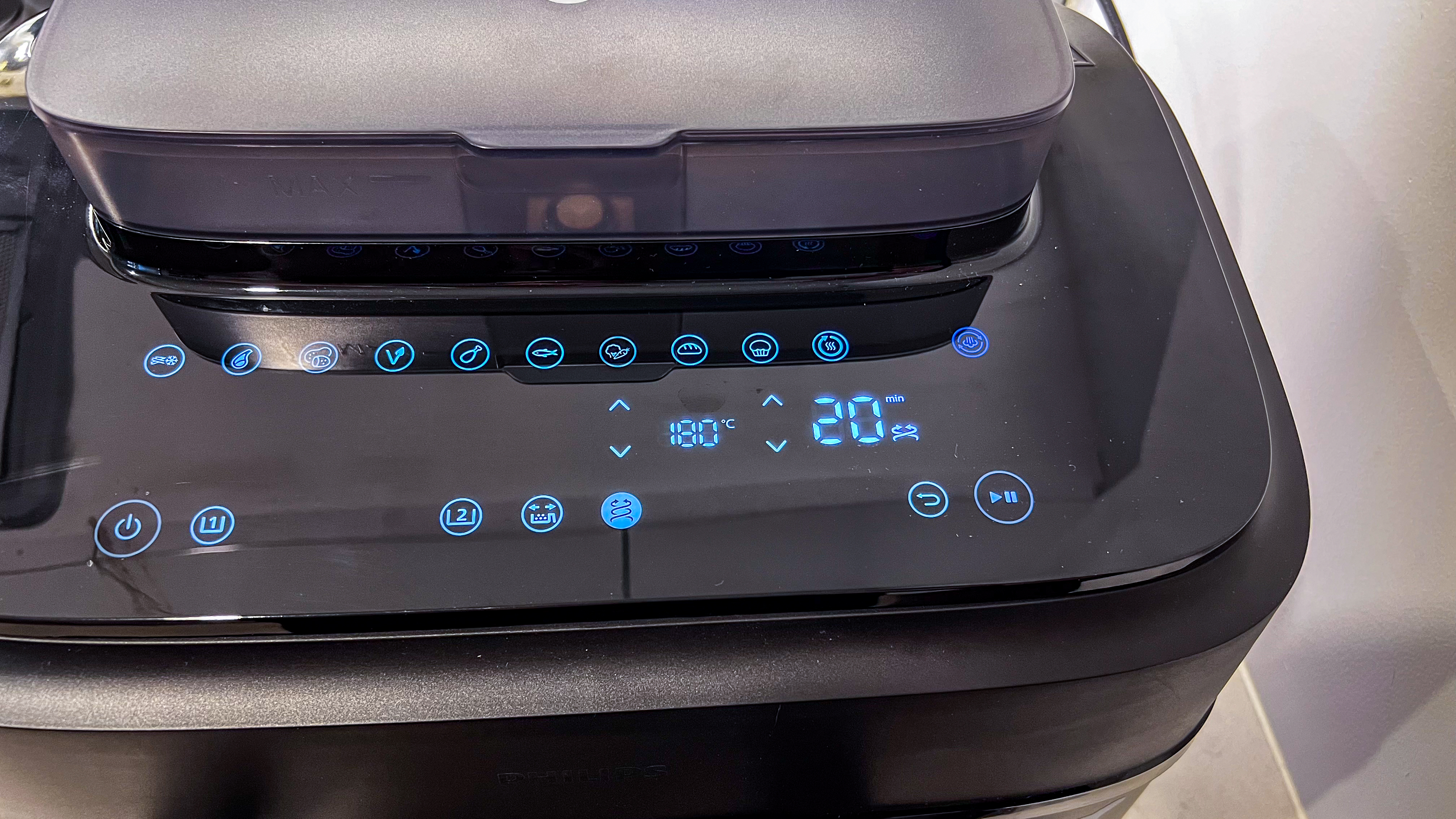
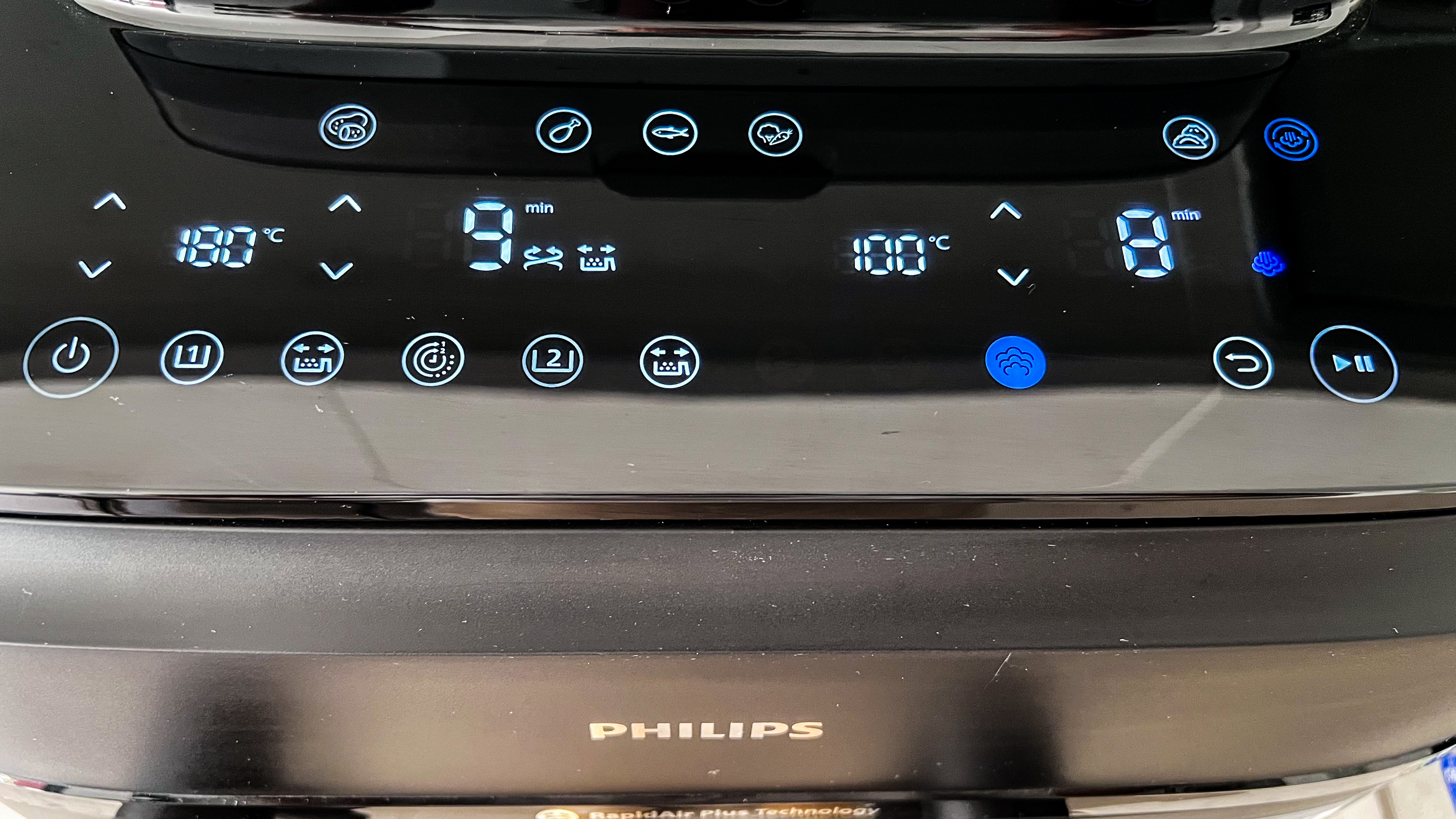
The touchscreen display is very clear when it comes on, even if you have bright overhead lights shining down on the reflective surface. The top line of icons are the presets, below which you can choose the time and temperature for each drawer. There’s even the option to sync cooking times if you want. If you’re already familiar with air fryers, you won’t have much trouble finding your way around the functions on the display, although the steam cooking, air fry+steam combo, steam-clean mode and descaling option will be new to most people.
Unfortunately Philips doesn’t provide a proper user manual in the box – it has some diagrams, but they’re not easy to wrap your head around. A detailed manual is available on the HomeID app, which can be accessed via the QR code in the box or on the machine itself, but it’s not easy to find – after some digging, I found a link to the PDF buried in a Quick Guide article for the Series 5000 Dual Basket Steam air fryer.
The rear of the appliance is quite plain, but Philips provides cable management in the form of a clip-on brace. Above this are the two vents that, when you use steam, will puff rhythmically.
(Image credit: Sharmishta Sarkar / TechRadar)
All of Philips’ air fryers have one thing in common – the raised pattern at the bottom of the drawers. This is to help the company’s proprietary RapidAir technology circulate hot air within each basket more efficiently. This pattern also means you can’t cook directly in the drawer, as some other brands allow you to do. Both the drawers on the Series 5000 Dual Basket XXL Steam are non-stick, but no mention has been made on what the material actually is. That said, the large basket, the two drawers and the small tray are dishwasher safe.
One thing to keep in mind with the large basket: it might appear square, but it’s not. So if the basket isn’t fitting, just turn it around and slide it in. The basket has small silicone-covered feet that are prone to pressure, which can happen if you’re handwashing it. This causes the feet to move out of position and not let the basket fit back into the drawer – if this happens, you can gently reposition them.
• Design score: 4.5 / 5
(Image credit: Sharmishta Sarkar / TechRadar)
Philips 5000 Series Dual Basket Air Fryer XXL Steam review: performance
Very useful time-sync functionality and shake reminders
Plenty of presets, but they are guides only
Not a smart (connected) air fryer
It might take you a while to get used to using steam in an air fryer, but once you do, it’s hard to not keep going back to it – I, for one, couldn’t stop experimenting with it. I used most of the functions on this air fryer and disappointments were rare – it really does cook nearly everything very well. From tender steaks to steamed dumplings, I can hardly fault it.
That said, nothing I made was using the presets. I found very quickly that unless you plan to cook the exact amount of fries, meat or vegetables the presets were designed for, you will not get the right results. The presets on the Philips 5000 Series are guides only, but you can always adjust cook time and temperature for better results.
During my testing I found that manual input of cook time and temperature was the best and, of course, you can always pull a basket out to check on what’s happening to see if any adjustments are needed. Opening a drawer will pause the air dryer – both drawers, in fact – and it automatically restarts when you push the basket back in. Time and temperature adjustments can be made while the appliance is running.
One thing to keep in mind with the Philips 5000 Series XXL Steam is that there is no preheat function here. This isn’t unique to this machine, with others like the Russell Hobbs Satisfry Dual Basket air fryer (available only in the UK) also missing out on it. A preheat would have been nice for things like cooking steaks, but I got good results even without it, albeit after a couple of attempts to get the right temperature and time settings for the perfect cook (medium for me, thanks).
Image 1 of 2
Cheese and garlic crumpets before cooking...(Image credit: Sharmishta Sarkar / TechRadar)
One of the first cooking modes I tried in the 5000 Series Dual Basket XXL Steam was air fry+steam. This feature works by pumping steam and hot air alternately, so you will hear the sound change rhythmically. The chicken drumsticks that I experimented with were tender and moist, but the skin didn't get crispy. I popped them back in for five minutes more at 200ºC for just air frying, giving me wonderfully juicy chicken legs with crispy skin. The other dish I used the air fry+steam function was pork belly and, again, the meat was lovely, but I did have to use the air-fry mode to crisp up the skin. I’d imagine you could even use it to make some cakes if you want a fudgy interior, but I didn’t have any recipes (or ingredients) on hand to experiment with when it comes to baking during my testing of this air fryer.
I found the steam-only function rather useful though. Not only is it good to steam vegetables for a side, you can even make dumplings in this air fryer. The only issue here is the pre-planning. Given you have only one drawer (the larger one) with steaming abilities, you need to figure out beforehand what you should cook in it. For example, if you have a large piece of meat that you want to cook (time-synced) alongside vegetables, you’ll likely need to forgo steamed veg as the meat won’t fit in the smaller drawer. In which case, you will need to use the 6L basket twice, which isn’t ideal. However, if you’re making steamed fish with some roasted vegetables on the side, you can do them both together by putting the latter in the 3L drawer.
Image 1 of 3
Halloumi cooked in the air fryer(Image credit: Sharmishta Sarkar / TechRadar)
Image 2 of 3
Chicken drumsticks cooked using the air fry+steam mode, then crisped for 5 minutes by air frying only(Image credit: Sharmishta Sarkar / TechRadar)
Image 3 of 3
Stuffed portobello mushrooms cooked in the Philips air fryer(Image credit: Sharmishta Sarkar / TechRadar)
I found that the 800ml maximum water capacity in the reservoir will last you no more than an hour’s worth of cooking time, so you may need to refill it if you have anything that needs longer cooking. This Philips air fryer also has a maximum temperature of 200ºC, which isn’t as high as some other air fryers are capable of, but I found it still produces lovely crackling anyway.
Time synchronization works well and I appreciate that there is a shake reminder too. I love me some crispy, deep-fried bitter gourd (a childhood favorite) and I didn’t even need to lay the slices down in a single layer. The shake reminders were great when I just plopped handfuls in each basket to air fry and, at the end of 27 minutes, I had a Tupperware box full of my fave snack.
I cooked halloumi in the air fryer, as well mushrooms, steak and frozen foods. No matter what I threw at it, the results were to my liking, although I will emphasize that the presets won’t necessarily be too useful for first-time users.
Dumplings steamed in the large basket alongside prawn and chorizo skewers(Image credit: Sharmishta Sarkar / TechRadar)
As good as the cooking is, I was disappointed by the steam-cleaning function. As wonderful as it sounds on paper, it’s not quite what Philips makes it out to be – you will need to manually wash the basket and drawer to remove all traces of grease and burnt food after a 15-minute steam cycle, then pop it back in for a 2-minute hot-air drying session. Moreover, only the 6L basket has the advantage of steam to loosen caked-in grease. Thankfully both drawers and baskets are dishwasher safe.
Given it uses water, there is a descale mode available, but I haven’t had the appliance long enough to try it and, even after three months, have not seen any deposits in the water reservoir.
So while I would love to score this air fryer higher just for its cooking performance, I have to dock marks for the caveats surrounding the steam functionality.
• Performance score: 4 / 5
(Image credit: Sharmishta Sarkar / TechRadar)
Should I buy the Philips 5000 Series Dual Basket Air Fryer XXL Steam?
Buy it if...
You’d love to cook with steam in an air fryer
While most air fryers let you do more than just air fry (like bake, roast, grill and more), the Philips 5000 Series Dual Basket takes it one step further and offers the steam function too. Importantly, it allows you to combine air frying and steaming, which is good for tender meat.
You want excellent results, no matter what you cook
This is a high-performing air fryer, even if you don’t always use the steam function. If you are comfortable experimenting, you’ll hit the right notes each time you cook in it.
You want to cook mains and sides together
While not unique to this Philips air fryer, the ability to make a main dish and a side simultaneously is time-saving. And you can have them both ready at the same time. This even works well if you have something steaming in the main drawer and something else in the smaller basket.
Don't buy it if...
You’re a first-time air fryer user
Not only is the user manual difficult to access, the cooking presets on this air fryer are just a guide and won’t work unless you have the exact same amount of the precise food it was made for. This cooking appliance will need some experimentation.
You can’t justify a premium air fryer
Despite being available at a competitive price, there are cheaper air fryers available. If you don’t need the steam function, you’ll be able to save by opting for a single-drawer air fryer. This also means you won’t need the extra space to store a two-drawer air fryer.
You have a large family
While the total 9L capacity sounds good on paper, the larger 6L drawer won’t fit a large chicken. In my opinion, this air fryer is suited to a 2-3 person household.
Also consider
Ninja DoubleStack
Offering two drawers but not taking up as much space, Ninja’s DoubleStack is one of a kind. In our tests, it produced some excellently cooked results, although you won’t have the power of steam here. Read our in-depthNinja DoubleStack review
Tefal Easy Fry Grill and Steam XXL 3-in-2 Air Fryer
Not widely available, and we haven’t tested this model yet, but it’s one of the few air fryers to offer steam cooking too. It’s a single-drawer model, so won’t take up as much room on your countertop as the Philips, but it is priced higher.
How I tested the Philips 5000 Series Dual Basket Air Fryer XXL Steam
Used for five weeks to cook a variety of meals
Cooked mushrooms, steak, cheese, chicken, fish and much more
Tested most cooking functions and presets
(Image credit: Sharmishta Sarkar / TechRadar)
For a period of five weeks, I cooked nearly all my dinners in the Philips 5000 Series Dual Basket Air Fryer XXL Steam, as well as some lunches and a few snacks during the weekends. This gave me plenty of time to test several of the presets (I didn’t try the bread one though) and experiment with most of the cooking modes.
I’m not much of a baker at the best of times, but I did try to make some banana muffins in the air fryer, which didn’t quite turn out as I expected them to, but that had to do with my recipe rather than any fault of the appliance.
However, I also cooked various meats in the two drawers to test the roast, air fryer and air-fry+steam combo functions. These included a scotch fillet, chicken thighs and legs, a pork belly and beef sausages – the latter in the smaller basket.
The vegetables I cooked – both air fried and steamed – included broccolini, potatoes, cauliflower florets, carrots and snow peas. I also cooked some halloumi and portobello mushrooms.
In addition to cooking, I also tested the steam-clean mode a few times. I hand-washed the baskets and drawers most of the time but, when space allowed, I even put them in my dishwasher. The only function I couldn’t test during my review period was the descaling as there were no visible marks to tell me if the feature was working optimally or not.
If we’ve all come to rely on FiiO for anything, it’s for specification and performance that’s out of proportion with the amount of money it’s asking for a given device. The latest product to demonstrate this happy knack in action is the FiiO JM21 digital audio player.
It’s compact, it’s more than adequately built and finished, it’s specified like a much more expensive device, and it’s simple to set up and use. Battery life is well above average for a product of this type, in much the same way that the price is well below. You can spend getting on for twice as much money on a Sony equivalent and it won’t buy you anything more where the quality of construction or the standard of specification is concerned.
So, does it sit among the best MP3 players on the market? It's an unequivocal yes from us.
FiiO JM21 review: Price and release date
(Image credit: Future / Simon Lucas)
Released January 2025
Priced at $199 / £179 / AU$369 (approx.)
The FiiO JM21 digital audio player was announced at CES 2025 and launched towards the end of January 2025. In the United Kingdom it currently sells for around £179, while in the United States it goes for $199. Customers in Australia are likely to have to part with AU$369 or thereabouts.
FiiO JM21 review: Features
(Image credit: Future / Simon Lucas)
2 x Cirrus Logic CS43198 DACs
Balanced and unbalanced headphone sockets
Bluetooth 5.0 with SBC, AAC, aptX HD, LDAC and LHDC codec support
You have to hand it to FiiO – it may have set out to produce the most affordable digital audio player it could realistically manage, but that doesn’t mean it’s felt the need to scrimp on the features.
Which means the FiiO JM21 is ready for any eventuality. It’s fitted with twin Cirrus Logic CS43198 DAC chipsets for compatibility with resolutions up to 32bit/384kHz and DSD256, and these are paired with high-performance op-amps in a fully balanced layout. Its main control, DAC and headphone amp sections are shielded and isolated in their own zones in an effort to reduce signal interference and cross-talk.
Wired outputs consist of 3.5mm and balanced 4.4mm headphone sockets – the 3.5mm socket is a hybrid number that can be used as an SPDIF output for use with an external DAC. The USB-C slot that sits between them can be used for data transfer as well as battery-charging and the 2400mAh battery is good for more than 12 hours of playback between charges. That's as long as you’re using the unbalanced output and not going to town with volume levels, of course.
The JM21 has three ‘gain’ settings, each with a different volume curve. This is especially useful if you intend to use the FiiO as a source hard-wired to an amplifier or a powered speaker – set the output to ‘LO’ and no harm will come to your equipment – and it also means the JM21 should have no problem driving even quite demanding headphones. And if you connect the FiiO to a laptop (for instance) via its USB-C socket, it can function as a USB DAC and enhance your listening pleasure more than somewhat. Used this way, it’s able to deal with 32bit/768kHz and DSD512.
Where wireless connectivity is concerned, the JM21 is both a Bluetooth transmitter and receiver. When it’s sending to headphones, wireless speakers or what-have-you, its Bluetooth 5.0 is compatible with SBC, AAC, aptX HD, LDAC and LHDC codecs. Use it as a receiver and it can deal with SBC, AAC and LDAC. Dual-band Wi-Fi is on board, of course, and the JM21 is DLNA compatible and supports Apple AirPlay, too.
There’s plenty more, from the custom crystal oscillators (with ceramic gold-plated bases) that are screened at the femtosecond level to ensure consistent, stable output to the proprietary ‘digital audio purification’ system that separates the main processing module to the co-processing equivalent. But by now I think the broad point is made: the compact form-factor and relatively low price of the JM21 is not reflected in its specification.
Features score: 5 / 5
FiiO JM21 review: Sound quality
(Image credit: Future / Simon Lucas)
Open, detailed and composed presentation
Good tonal balance and a fair amount of dynamism, too
Not absolutely comfortable at highest volumes
Everything is relative, of course, and everything needs to be put into context, but when you keep the price of the FiiO JM21 uppermost in your mind, it’s hard to find meaningful fault. That doesn’t mean I’m not going to give it a good go, you understand, but between you and me I’m struggling…
No matter if you listen wirelessly via the aptX codec to something like the Bowers & Wilkins Pi6 true wireless in-ears or the Dali IO-8 using aptX HD, using a pair of Sennheiser IE900 connected to the player’s 4.4mm balanced output, or make the FiiO part of a full-size system by connecting it to a Naim Uniti Star using the unbalanced 3.5mm output, it’s a composed, lively and admirably detailed listen. No matter if you listen to a DSD256 file of Mike Oldfield’s Tubular Bells, a 24/96kHz FLAC of When We All Fall Asleep, Where Do We Go? by Billie Eilish or a 16bit/44.1kHz file of De La Soul’s 3 Feet High and Rising, the JM21 doesn’t put a foot wrong. It’s a remarkable little device.
It balances the frequency range really nicely – from the deep and textured low frequencies to the politely shining top end and all points in between, there’s an evenness of emphasis and a lack of choppiness that speaks of a properly sorted player. It hits hard at the bottom end, but with no lack of control: its straight-edged attack means rhythmic expression is confident and convincing. There’s bite and drive at the top end, but it’s composed and never even hints at becoming hard or edgy. And in between, the mid-range is open and revealing, so a vocalist is allowed complete expression of the character and motivations.
(Image credit: Future / Simon Lucas)
The tonal balance is equally well-judged. It’s on the cool side of neutral, but not by very much and not to the detriment of the music it’s playing. Meanwhile, the attention to detail the JM21 demonstrates is really admirable – even those transient details in a recording that are gone almost as soon as they arrive are picked up on and put into appropriate context.
The fact that the FiiO establishes a quite large and easily understood soundstage doesn’t do any harm, either. Even a borderline-chaotic stage like that which Mike Oldfield creates is opened up by the JM21, and the amount of properly defined space it can put between each element of a recording is quite something. There’s plenty of space on the ‘left/right’ axis and even a stab at creating a proper sensation of ‘front/back’, too. Dynamic headroom is considerable, so when a recording indulges in big shifts in intensity or volume, the player has no difficulty in keeping up and making them absolutely apparent.
In fact, as far as I can tell the only way to make the FiiO JM21 sound anything other than entirely comfortable and confident is to wind the volume up towards ‘ill-advised’ levels. When it’s playing at its upper limits, some of the three-dimensionality of its presentation goes astray, dynamic variations become flattened, and the overall sound gets rather shouty. But you should pay attention to your parents/doctor/own common sense – you really shouldn’t be listening at this sort of volume anyway.
Sound quality score: 5 / 5
FiiO JM21 review: Design
(Image credit: Future / Simon Lucas)
121 x 68 x 13mm (HxWxD)
Aluminium and plastic construction
156g
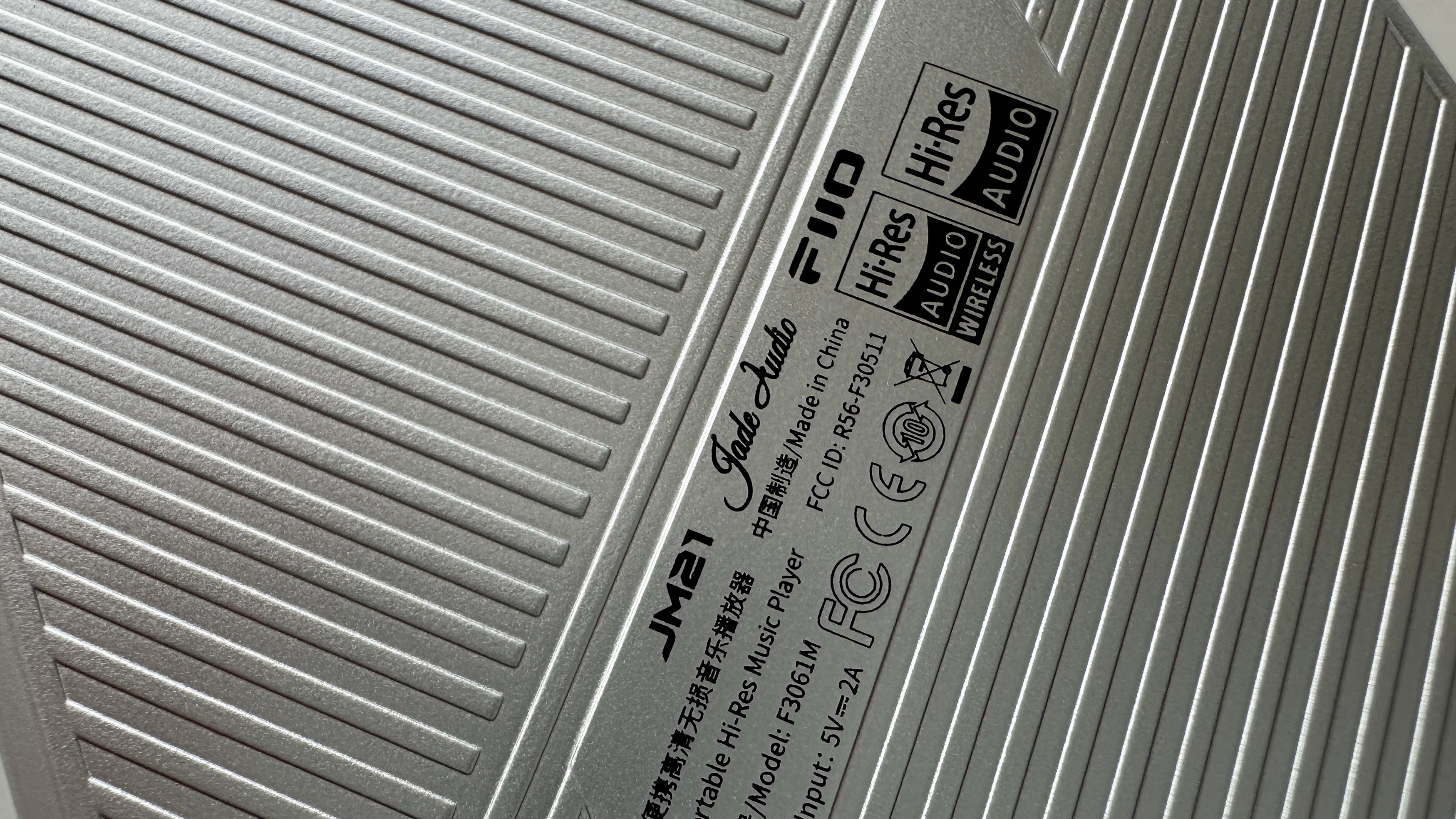
You don’t see many ‘two-tone’ digital audio players, do you? The FiiO JM21 is one, though. It's impeccably built and finished from a combination of high-quality plastic and aluminium, is sky blue on its top half and silver on the bottom. The bottom is quite interestingly textured, too – although you may not get to experience this, as FiiO supplies the player pre-fitted with a protective transparent plastic case.
The top of the machine is basically all touch-screen - it’s a 4.7-inch, 750 x 1334 affair, and it’s big enough and bright enough to display a lot of information without becoming illegible. Despite the relatively large screen, though, at 121 x 68 x 13mm (HxWxD) the JM21 is smaller than even the most compact smartphone, and at 156g it’s no kind of burden to a pocket.
Design score: 5 / 5
FiiO JM21 review: Usability and setup
(Image credit: Future / Simon Lucas)
Android 13
3GB RAM, 32GB ROM (of which 22GB is usable)
8-core Qualcomm Snapdragon 680 processor
The FiiO JM21 uses an extensively adapted version of Android 13 as an operating system, and thanks to an 8-core Qualcomm Snapdragon 680 processor it’s fast and stable in operation. FiiO is open enough to acknowledge that Android 13 is fairly memory-hungry, though, and given the JM21 has just 3GB of RAM available (in order to keep both costs down) it suggests only loading those essential music-streaming apps and avoiding peripheral stuff. It also suggests avoiding running multiple apps simultaneously if at all possible.
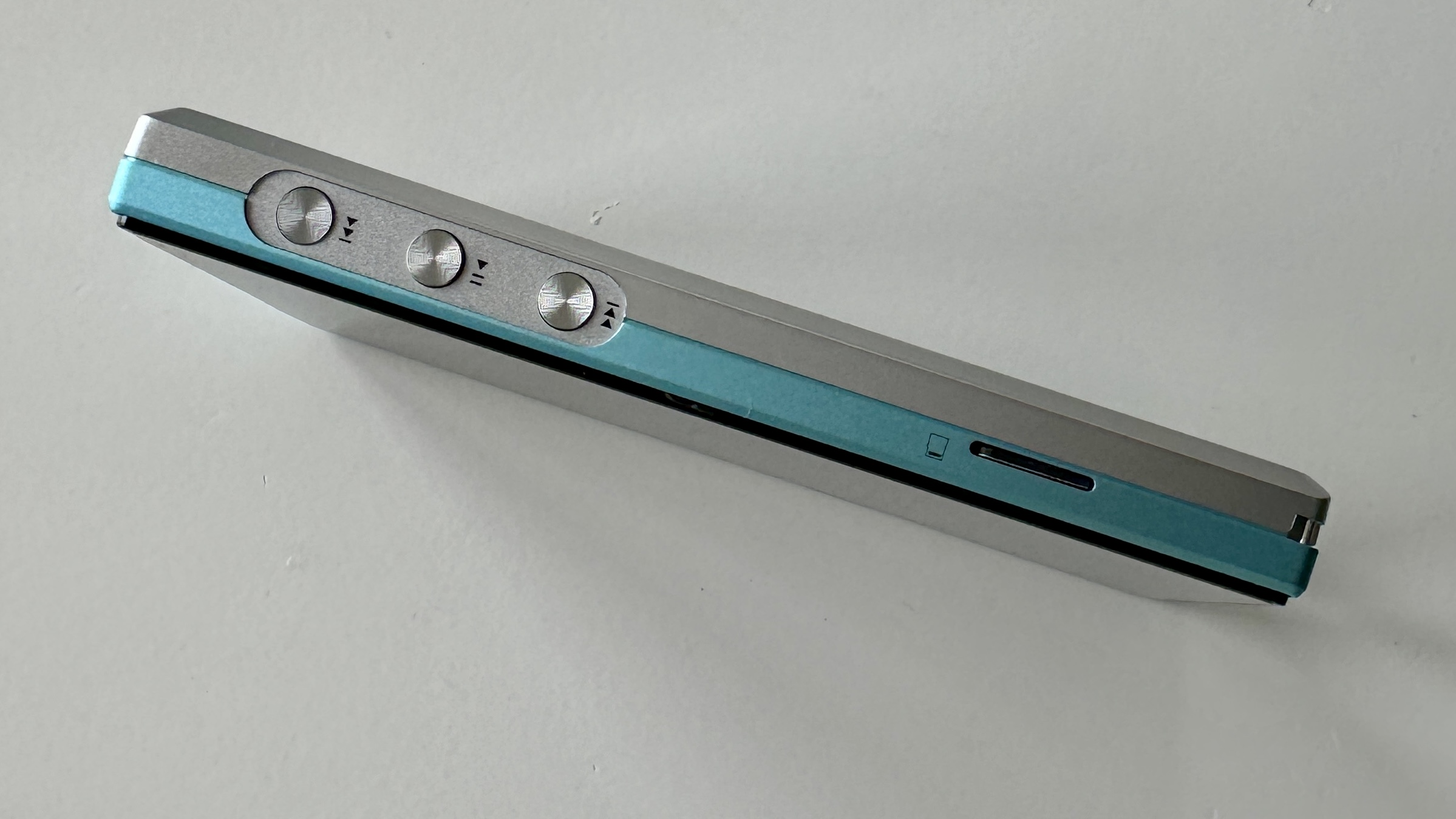
The 22GB of usable ROM isn’t going to last long, but there’s a microSD card slot on one side of the player - and it can handle memory cards of up to 2TB, which is enough to store all the hi-res stuff you could possibly want to listen to.
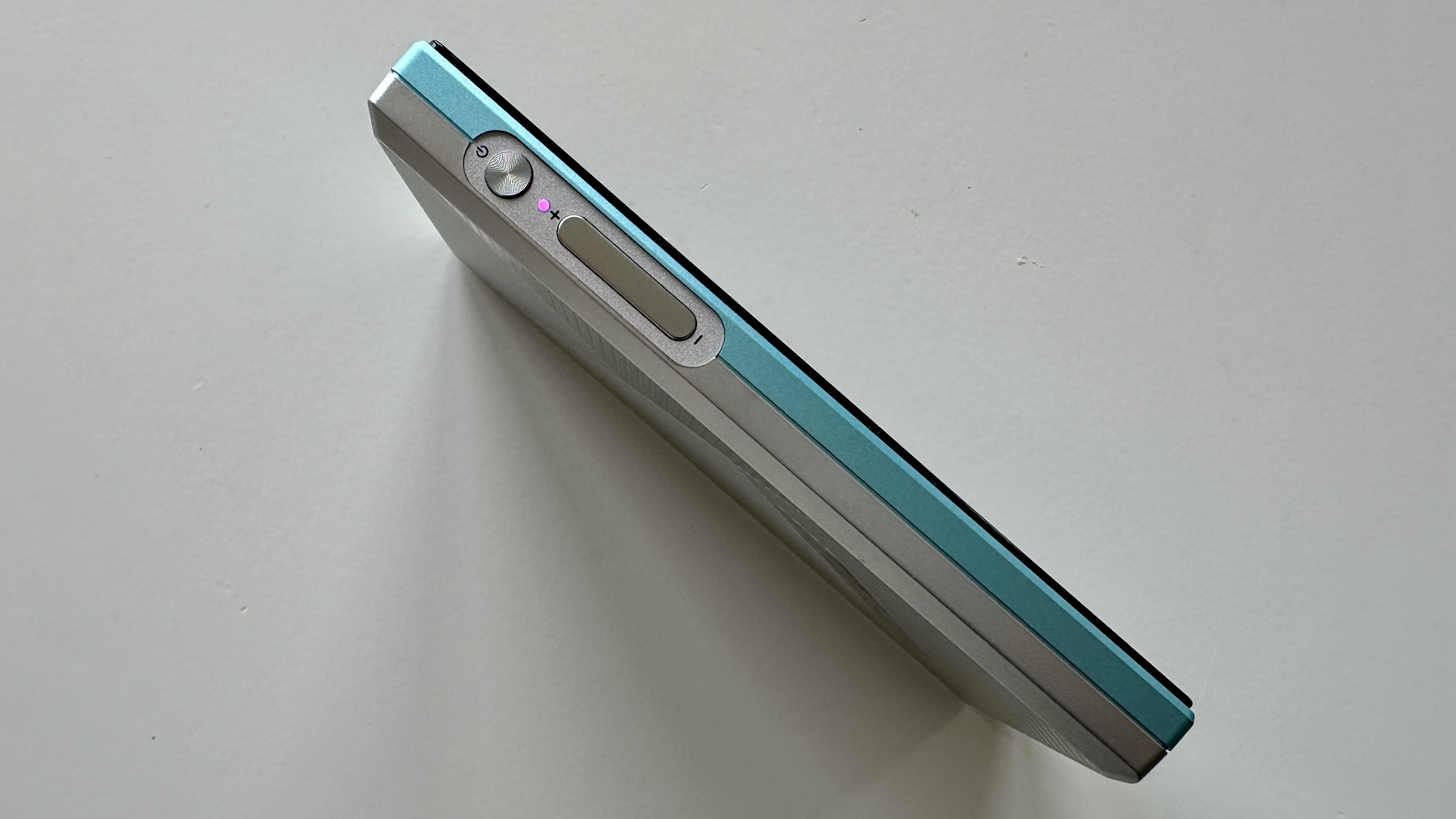
Physical controls are arranged on the edge of the player, too. On the left side (as you look at it) there’s a power on/off button with an LED tell-tale just below it. Beneath there is a volume up/down rocker. On the right, meanwhile, there’s play/pause, skip forwards and skip backwards. Everything you need, in other words, and just as reliable and positive in their action as the touchscreen controls are.
Setting up the JM21 is simplicity itself for anyone who’s ever owned a smartphone. Charge the battery (from ‘flat’ to ‘full’ takes around two hours), put the player on your local network, install the apps you need to install (only the essentials, remember), and away you go. I’m struggling to think of how it could be any more straightforward.
Usability and setup score: 5 / 5
FiiO JM21 review: Value
I’ll say it as directly as I can, for the avoidance of doubt: the FiiO JM21 is tremendous value for money, at $199 / £179 / AU$369 (approx.). It’s as well-made and -finished as any sub-£500 digital audio player you care to mention, it’s specified beyond its asking price, and it sounds great when playing at real-world volumes.
Yes, it could do with more internal memory - but then the physical size, as well as the price, would very probably increase. SO make sure to budget for a microSD card of worthwhile capacity - you’ll still be in possession of a great-value portable music player.
Value score: 5 / 5
Should I buy the FiiO JM21?
Buy it if...
‘Small and affordable’ fits your digital audio player wish-list Other devices from other brands are as compact, but none are as aggressively priced
You want one of the very best pound-for-pound digital audio players around Sure, bigger and pricier alternatives sound even better, but they’re quite a lot bigger and an awful lot more expensive
You admire a two-tone finish It’s not a huge point of difference, to be fair, but the multicoloured nature of the FiiO JM21 is pleasing (to me, at least)
Don't buy it if...
You don’t own a microSD card and don’t intend to buy one There’s not much internal memory here, and even less of it is usable
You’re determined to listen at top volume Some of the FiiO’s admirable composure and spaciousness goes astray if you insist on listening at the sort of levels you’re supposed to avoid
FiiO JM21 review: Also consider
Sony NW-A306
The problem here is that the FiiO JM21 has, at a stroke, made such products as the Sony NW-A306, which previously constituted ‘entry level’, look overpriced and sound pretty ordinary. The Sony is more poised when playing at the biggest volumes, sure, but there’s not a huge amount in it – certainly not to justify the extra outlay. See our full Sony NW-A306 review
Activo P1
As for the Activo, which always looked a bit weird, it's made to look (and sound) almost juvenile by the FiiO JM21. So, all in all, ‘also consider’? Consider spending a great deal more money if you want to make a meaningful upgrade on the JM21… Read our full Activo P1 review
How I tested the FiiO JM21
Tested for two weeks
Listened to both streamed and downloaded content
Tested with both wired and wireless headphones, Bluetooth speaker and amplifier
First things first: I installed the Presto Music and Tidal music streaming service apps via the Google Play store, and I also inserted a 512GB SanDisk microSD card loaded with lots of high-resolution content into the player’s slot.
Then I used a variety of wired and wireless headphones (including, but not limited to, some Sennheiser IE900 in-ear monitors via their 4.4mm socket and a pair of Bowers & Wilkins Px8 connected via Bluetooth), as well as connecting the player to a Bose SoundLink Max Bluetooth speaker and to a full-size stereo system by connecting its 3.5mm output to a line-level input on a Naim Uniti Star amplifier/network streamer.
And at every stage, I listened to lots of different types of music, stored in a number of different file types, and used a variety of Bluetooth codecs when the FiiO was connected wirelessly.
The ROG Pelta is another banger device from Asus’ gaming division. Compatible across most platforms with wired (via USB-C, no 3.5mm in-line sound) and wireless (Bluetooth and 2.4GHz dongle) connectivity, the Pelta gets the important things right and skips the over-the-top extras.
The headphones, which are a step down in price and features from the flagship ROG Delta II, axe things like an extensive battery life, full-range size adjustment, extra cushioning and excessive RGB (though you’ll still find a programmable, glowing ROG logo on both sides).
Simplifying the things that made the Delta II such an attractive headset into a more affordable unit makes sense when it feels like everything is getting expensive around us. The same microphone and 50mm audio drivers are used between the Delta II and the Pelta, so you’re not missing out on sound and performance, but perhaps you’ll miss the comfort and battery life boasted by the top model.
Moreover, the greater points of adjustment present on the Delta II would have been welcome on the Pelta, as it can be difficult to find that comfort sweet spot when you only have three size options instead of telescopic arms. The microphone will also be tiresome if you’re the type to remove it when it’s not in use, as its plastic exterior needs to align perfectly with that of the headset if it’s to make a successful connection.
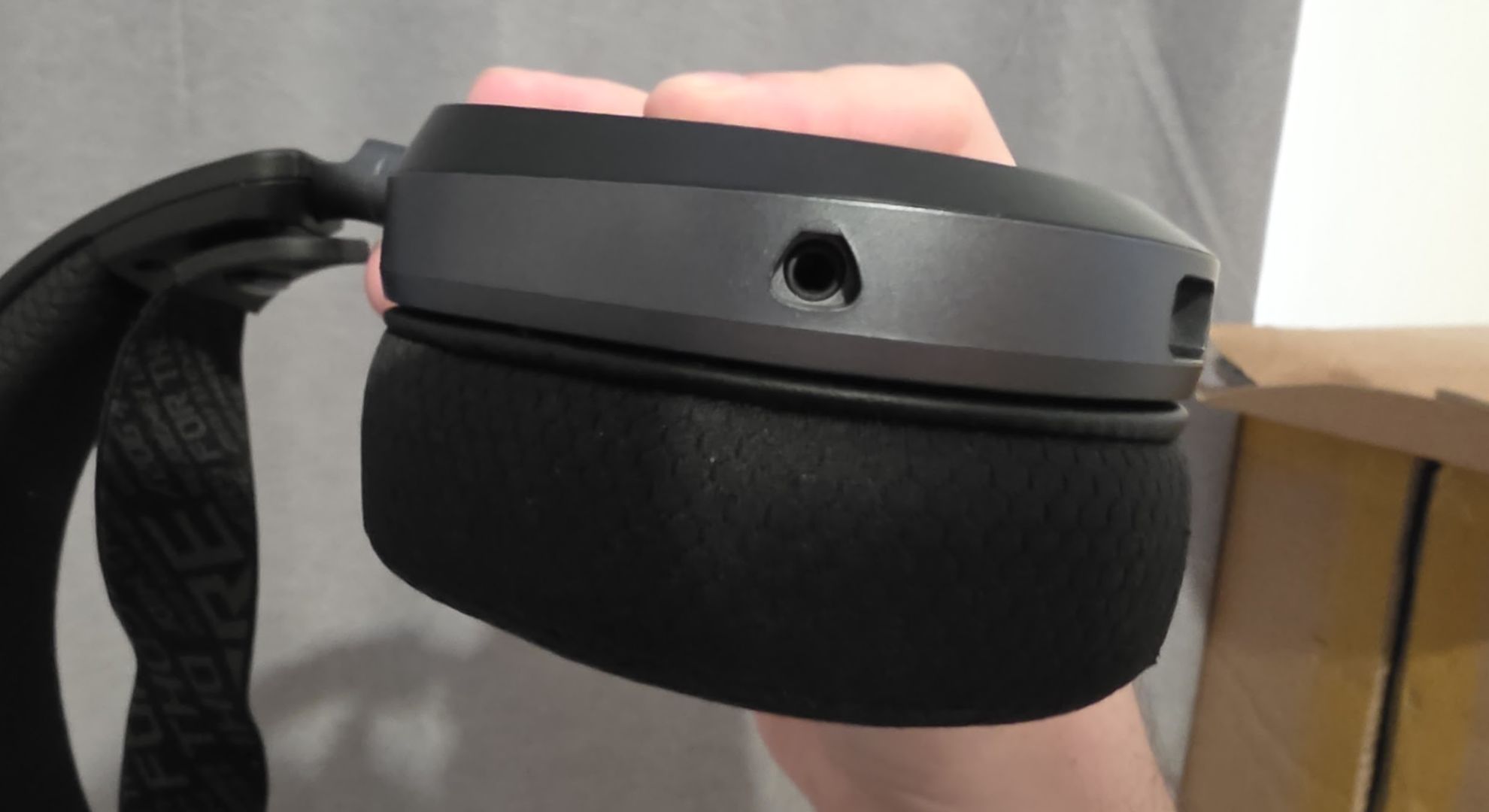
Finally, there’s no 3.5mm headphone jack for audio between your machine and your headphones (again, unlike the Delta II), so if you want to connect this thing over a wired connection, you’ll need to settle for a USB-C cable. Not a huge issue, but it may be a dealbreaker for some users.
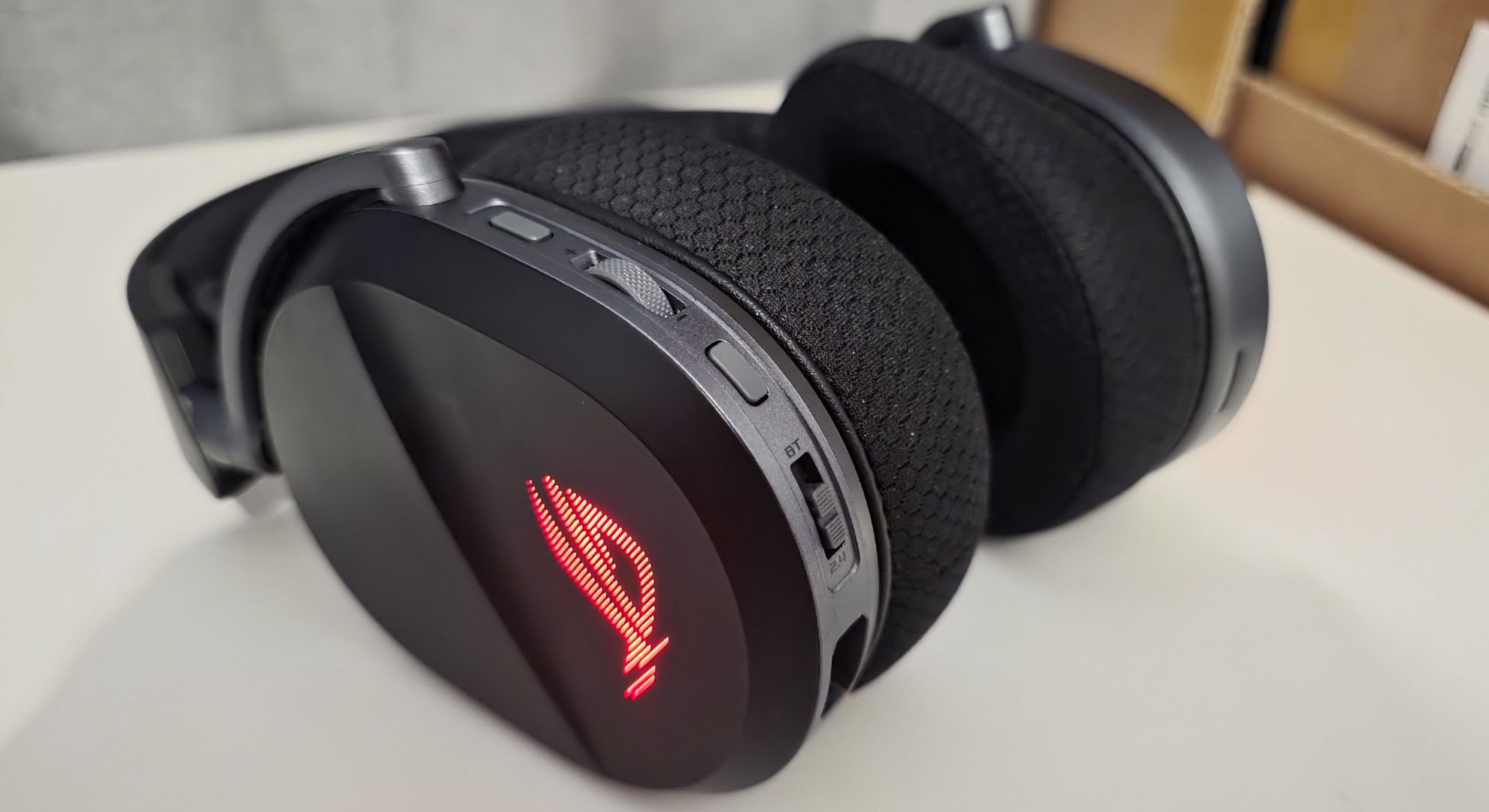
For me, though, I’ve been very satisfied with this headset and its feature set. I’ve enjoyed it for the features it offers, including a useful pause/play button on the side and a slider that toggles between Bluetooth/off/2.4GHz, and I’d happily continue to use it instead of my Logitech G Pro X2 headset.
(Image credit: Zachariah Kelly / TechRadar)
Asus ROG Pelta: price and availability
How much does it cost? $129.99 / £124.99 / AU$269
When is it available? Available now in US/UK, coming soon to Australia
Where can you get it? Available in the US, UK, Australia and other regions
Coming in at a much lower price point than the ROG Delta II headphones (those were priced at $229 / £219 / AU$369 when they released late last year), the Pelta streamlines a lot of what made the top-end ROG headset so good. In our ROG Delta II review, we criticized the headphones for perhaps being a bit feature light, and the Pelta keeps this up but at a much more attractive cost.
That being said, even the ROG Pelta is in hot competition with more feature-rich rivals, such as the SteelSeries Arctis Nova 5 ($129.99 / £129.99 / AU$299) and its companion app. The Pelta, though, doesn't give the impression it's losing out on the features front.
(Image credit: Zachariah Kelly / TechRadar)
Asus ROG Pelta: Specs
Asus ROG Pelta: Features
50mm titanium-Plated Diaphragm Drivers
Immersive stereo sound
Great physical buttons on the left cup
The Pelta recontextualizes the ROG headset offering. The Delta II was already skimping on extras when it was released last year, but the Pelta adapts the Delta II’s impressive upgrades (in particular its titanium drivers) into a much more affordable package.
That means, for the most part, you’re getting the same high-end beast but cheaper. The 20Hz - 20KHz audio frequency response is the same across both units, as is the 100Hz - 10KHz microphone.
I’ll swear by the sound quality and microphone quality of the Pelta. It’s rich, deep and loud, maintaining high-quality sound to its loudest volume and allowing for a lot of customization in ROG’s Armory Crate application. Though heavy bass does suffer compared to a headset like the Logitech G Pro X2.
The 900mAh battery capacity is impressive, offering up to 90 hours with lighting off and 60 hours with it on. Using the headset casually across four weeks, between games and watching TV shows and Twitch streams, I only needed to charge it twice while having the RGB enabled. It’s an acceptable battery life and a welcome downsize from the enormous 1,800mAh battery in the Delta II.
(Image credit: Zachariah Kelly / TechRadar)
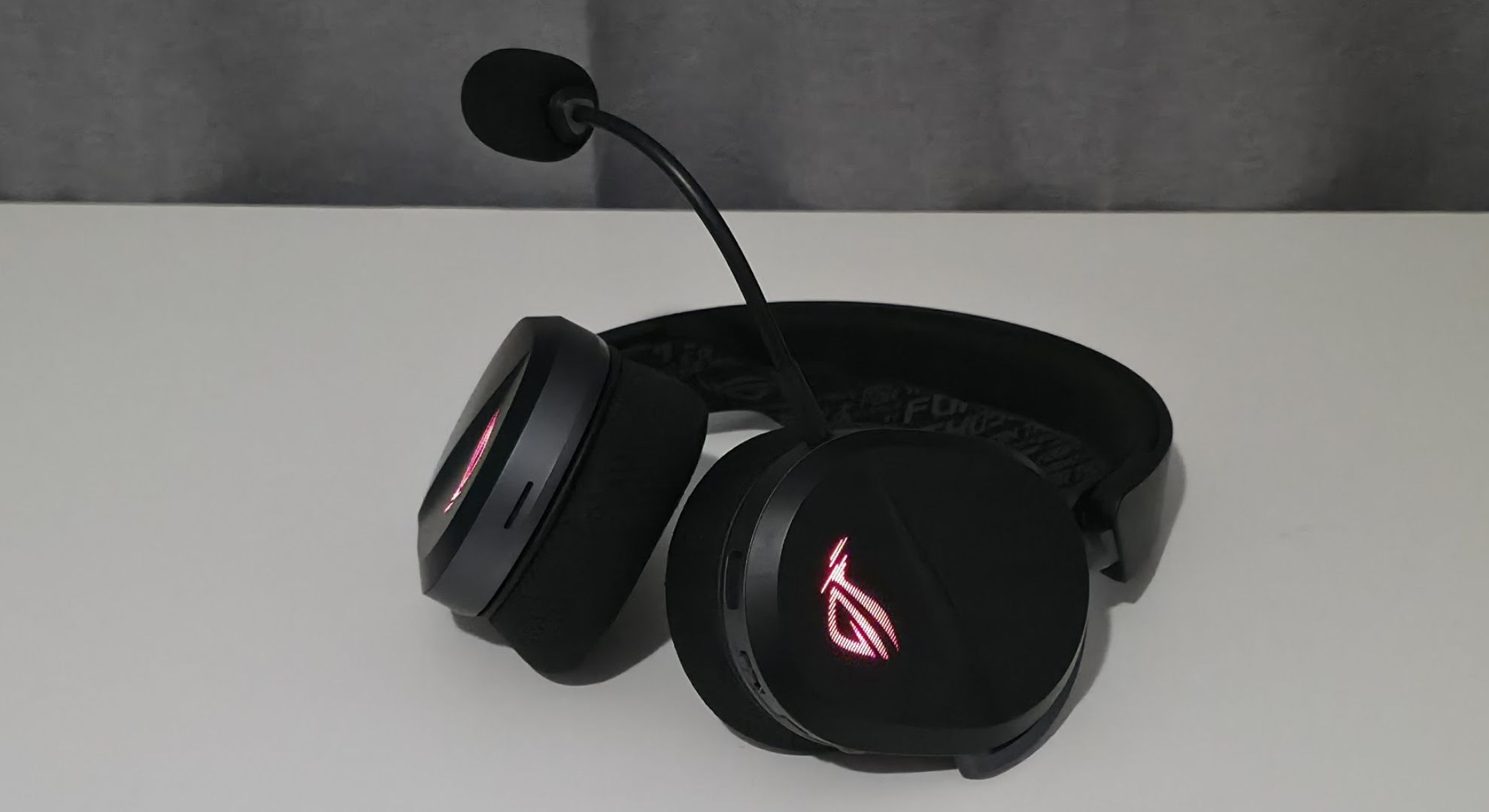
The microphone is removable and can be bent around freely, though I found putting the microphone back into the jack could be a pain if you don’t align it just right, due to its unique triangular shape.
Finally, the buttons present on the headset feel very sensible. A volume wheel is there with a decent amount of travel for your fingertip, alongside a microphone off/on button and, my favorite, a pause/play button. Given I'd been using a keyboard that doesn’t have media controls during my testing period, this has been a fairly useful feature and one that I hope more headsets adopt. The off/on slider is mixed with a connection toggle – the central position selects off, sliding up selects Bluetooth, and down selects 2.4GHz. A soundbite played through the headset will indicate if it’s turning on or off and if it’s connecting to either the dongle or Bluetooth.
Just keep in mind that the ROG Pelta uses a USB-C dongle – in case you don’t have a free USB-C port on your device, this may present itself as an issue.
Features: 5/5
Asus ROG Pelta: Sound quality
High-end audio in a cheap unit
Terrific adjustment options
Good but not the best deep bass
Carrying over the audio quality from Asus’ top gaming headset, the ROG Pelta doesn’t disappoint where it matters. The standard stereo sound profile is well balanced for all kinds of audio-visual media, which of course includes games, but it’s also fit for music streaming, TV shows and movies. Sound is crystal clear even with the volume cranked to maximum, though bass depth may leave you craving something with a bit more punch.
Asus’ ROG Armory Crate app offers a decent user experience for making sound quality adjustments. For the most part, I set the headset to the ‘communication’ sound profile as it offered the balanced mix I preferred the most (as I switch between a racing, shooting, RPG and sim game quite readily), though I was pretty blown away with the depth of the FPS preset, which made projectiles and explosions in Marvel Rivals really jump out at me. Still, finding the mode that set the best experience across all uses kept me from constantly dipping in and out of Armory Crate, so that’s what I did.
(Image credit: Zachariah Kelly / TechRadar)
Of course, you don’t merely have to use a preset. There are plenty of sliders to fiddle with so you can tailor the sound to your ears, and there’s also some useful sliders for bass boosting, voice clarity and voice compression.
The microphone quality was a bit middle-of-the-road, but I didn’t expect breathtaking clarity. The much more expensive Logitech G Pro X2 has the same microphone arrangement and produces similar results. You’ll have no problem being understood with this microphone, but it’s certainly not broadcast spec.
On the whole, the headset's sound quality is immersive and had no trouble bringing the worlds of Avowed,Marvel Rivals, Forza Horizon 5, The Headliners and other games to life.
Sound quality: 4.5/5
(Image credit: Zachariah Kelly / TechRadar)
Asus ROG Pelta: Design
Comfortable ear cushions
Only three points of adjustment
Microphone can get a bit annoying
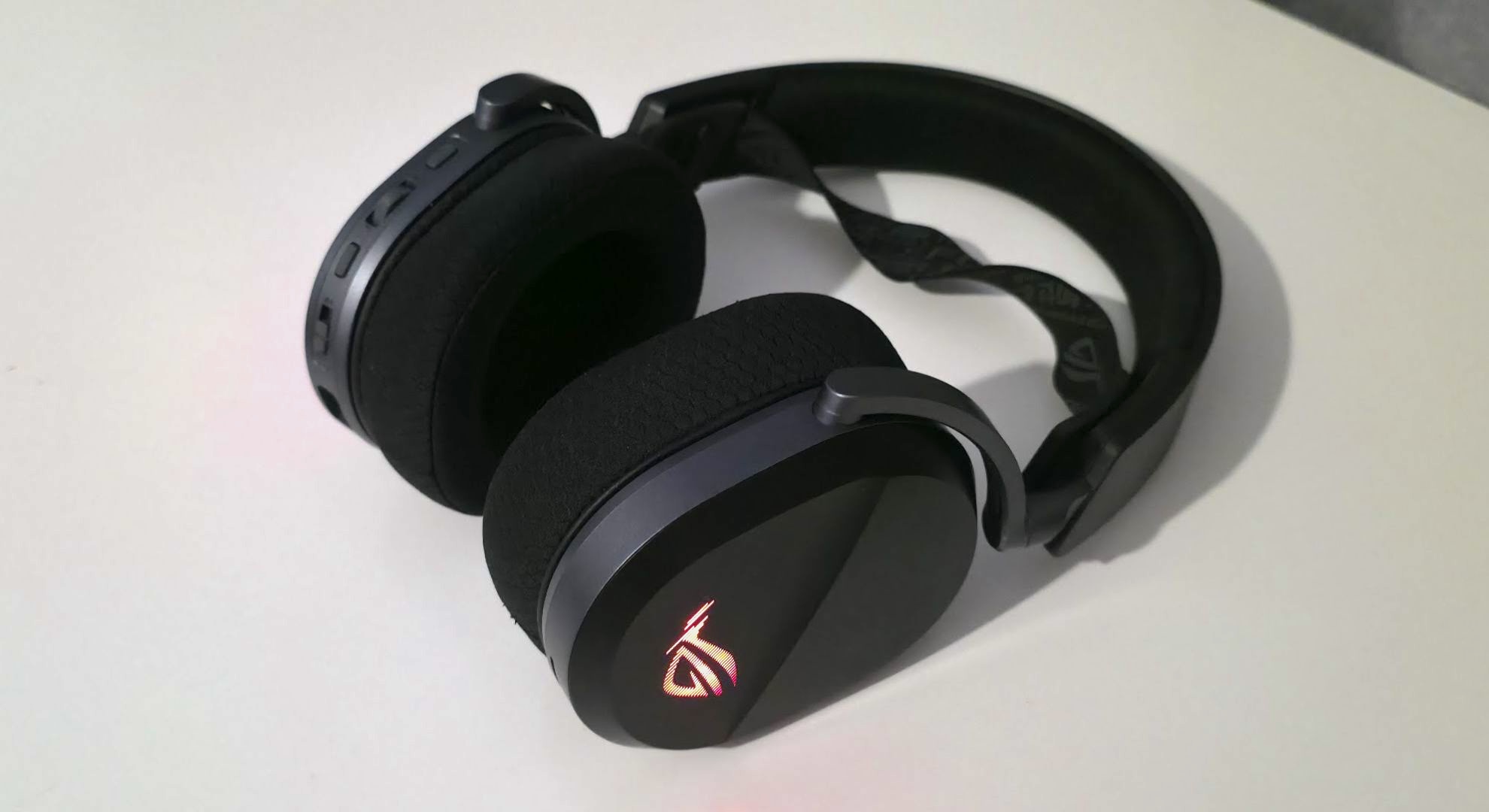
I’m content saying that these are extremely comfortable headphones, particularly for long gameplay sessions in the summer. My home doesn’t have air conditioning, and I’ll typically play games at my computer for hours, often leading to discomfort in and around my ears from the sweat and the constant contact. The ROG Pelta headset hasn’t been irritating my skin as much as other headsets have in the past, and I feel like I can play for longer durations with its comfortable cushioning.
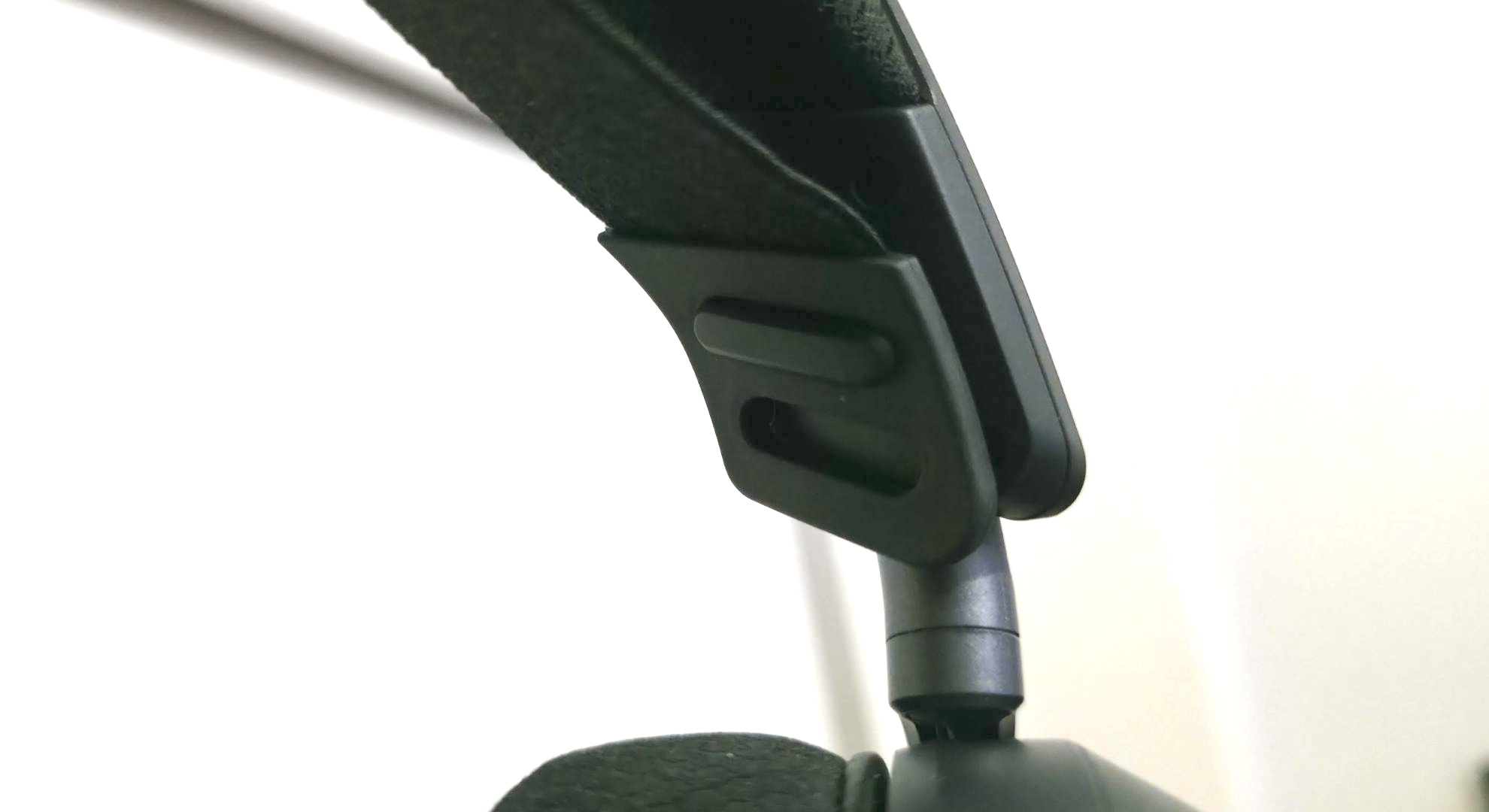
Still, design is another area where the Pelta took a noticeable step down from the Delta II. It features slightly lower-end mesh fabric cushioning around the ears (as above, I personally found this fine), along with only three points of size adjustment for the headband as opposed to the telescoped design you’ll find on many other high-end headsets. This means that it can be difficult to find that comfort sweet spot and, unlike telescoping headsets, you’re stuck with the one size you’ve selected unless you go through the (admittedly easy) process of removing and reapplying the headband. This is no dealbreaker and, indeed, the sizing options are far reaching enough to satisfy a good range of users.
(Image credit: Zachariah Kelly / TechRadar)
The only other thing that irked me on the design front was the microphone. It’s surrounded by a triangular plastic casing and needs to be inserted at the exact angle. It’s not easy if you aren't looking at the port while plugging it in, and it’ll feel firmly inserted even if the jack isn’t making proper contact with the port. This led to some audio technical difficulties on Discord a couple of times, but once you catch it, it’s easy to identify.
The inclusion of a red light on the end of the microphone boom to indicate if you’re muted or not is also a great feature and I appreciated it being there.
Design: 4/5
Should you buy the Asus ROG Pelta?
Buy them if...
You want high-quality sound without the price tag
Sporting the same drivers as the ROG Delta II, you’ll likely be comfortable with the sound achieved by the Pelta.
You’re already in the ROG-o-sphere
For the sake of lowering the amount of peripheral programs on your computer, you may want to skip these if you don’t want Armory Crate.
Don’t buy them if…
You’re an Xbox gamer
Due to the lack of a 3.5mm jack, the Pelta isn’t natively compatible with Xbox consoles.
You’re concerned about it fitting on your head
The three size options may be a bit limiting if you tend to take some time to find the perfect fit for your head.
Also Consider
Asus ROG Delta II
More premium and more expensive, the ROG Delta II might be attractive for its longer battery life, greater comfort and more flashy RGB.
Mostly used for gaming, also used for watching TV and music streaming
From the moment I received the Asus ROG Pelta for review, I immediately got to work testing them. I used the headset across a mix of Windows devices and my Samsung Galaxy S25 Ultra phone, but I primarily used them for gaming.
The games I tested the headset with include Marvel Rivals, Avowed, The Headliners, Forza Horizon 5. Across these games, I changed up my audio settings with the ROG Armory Crate app, and used both the Bluetooth and 2.4GHz connections, along with the wired connection. I would play games and watch shows for hours on end with the Pelta headset and often wear them while doing housework and cooking.