Wednesday, April 30, 2025

I tested the StatusCake website monitoring review and found it to be a good entry-level website monitoring solution and ideal for small businesses

Website monitoring is an essential business solution that helps you ensure your web addresses stay live at all times. Downtimes may happen, though, which is why it's important to have a website monitoring tool that instantly notifies you in these situations, identifies the issues, and fixes them promptly.

StatusCake is a popular website monitoring solution trusted by the likes of Netflix, Verizon, UNICEF, Accenture, and IBM, among others. It offers 8 types of basic uptime monitors, SSL and domain monitoring, and customizable dashboards. Its beginner-friendly approach makes it a less complex tool than most other website monitors.

Hang around till the end as we explore in more detail everything there is to know about StatusCake. From its best features, pricing, and interface to support options and best alternatives, there’s a lot to uncover.

StatusCake: Plans and pricing

StatusCake offers two paid plans in addition to a free forever plan. We found the free plan pretty bare-bones, as it comes with only 10 uptime monitors, checking at an interval of 5 minutes. Still, it can come in handy for personal projects or occasional checks.

If and when you need more, consider upgrading to its Superior plan at $20.41/month. Here, you’ll get up to 100 uptime monitors with a check interval of 1 minute. You also get page speed monitoring and server and domain monitoring on this plan.

That said, the Superior plan is admittedly a bit on the expensive side, especially considering the set of features it offers. For instance, Host Tracker offers database monitoring, detailed logs, transaction monitoring, maintenance scheduling, and customizable reports at just $18/month.

The highest-tier StatusCake plan is the Business plan priced at $66.66/month, offering 300 monitors with a check interval of just 30 seconds. This is ideal for businesses that need to constantly monitor their web addresses.

It's worth noting that this plan also offers multi-user access, which makes it a good choice for team-oriented businesses. You also get a detailed dashboard and the option to customize email alerts as per your brand voice.

StatusCake: Features

As mentioned earlier, StatusCake offers 8 types of website checks: HTTP, HEAD, TCP, DNS, SMTP, SSH, PING, and PUSH. The monitor can check at an interval as low as 30 seconds – you can even choose to monitor constantly without any specified interval. StatusCake can run checks from as many as 28 locations, and you have the option to choose up to 3 servers while setting up a new monitor.

If you have a lot of web addresses to monitor, you can choose to add the URLs in bulk instead of creating each monitor manually. This bulk monitor supports three types of tests: HTTP, HEAD, and PING.
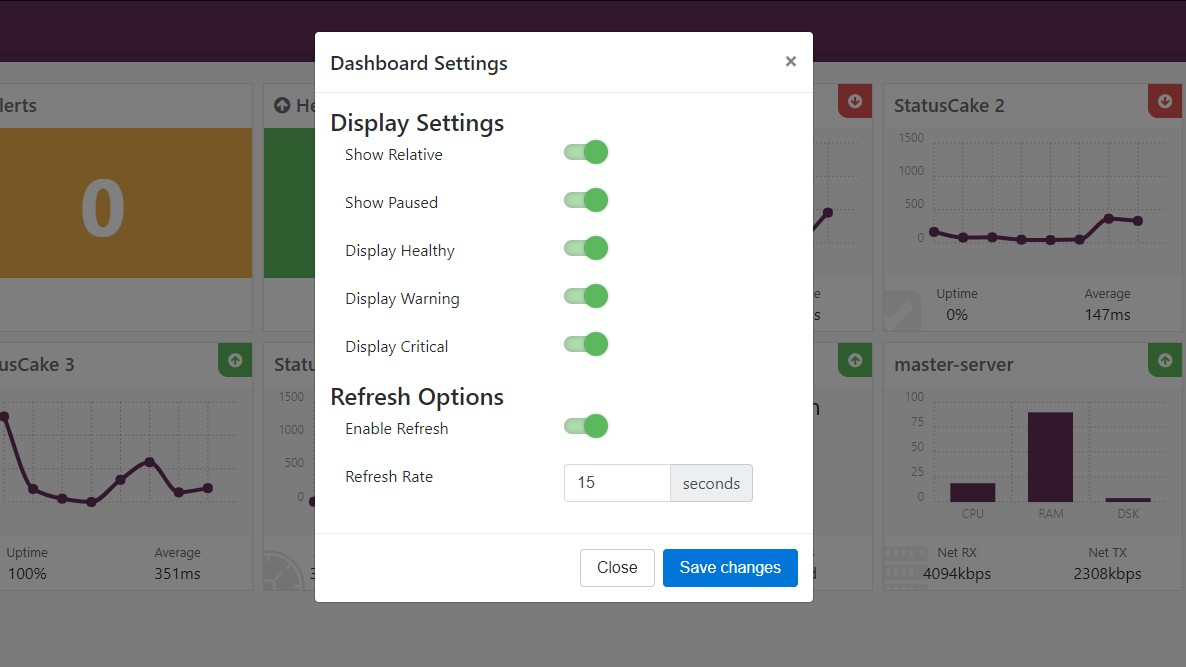
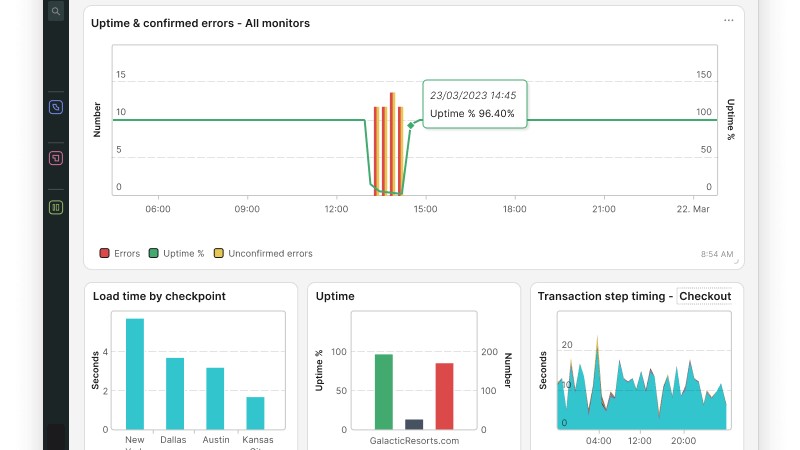
StatusCake dashboard settings

(Image credit: StatusCake)

Besides these checks, you can even run speed test checks for various web addresses from as many as 12 locations. While this may not be much, it covers almost all major business hubs, like Singapore, Japan, and the UK.

What we liked the most about StatusCake is its ability to send notifications to an entire group of contacts at once. You can easily create a new contact list by adding the email addresses and phone numbers of the recipients.

Choose this group while setting up a new monitor, and StatusCake will send all alerts and notifications to all members in that group. This will benefit businesses that have a dedicated IT team for monitoring their web pages. The monitor offers 12 integrations to get alerts on, including Telegram, Discord, Slack, and Microsoft Teams.

Besides basic uptime monitoring, StatusCake also keeps a check on your SSL certificates and notifies you before they expire. The same is true for domain expiry. You can also set up a custom maintenance window during which the tests will be paused, preventing any negative impact on your uptime percentage and alerts.

A rather hidden feature of StatusCake is keyword monitoring. You can add specific keyword triggers while setting up monitors. For instance, if you’re monitoring a competitor’s website, you can choose to be notified only when words like ‘sale’ or ‘discount’ pop up.

StatusCake: Interface and in use

StatusCake’s interface is pretty simple and easy to use. All the steps for adding a new monitor are pretty self-explanatory. Simply add the URL and choose the monitoring frequency and contact group. Then, select the number of servers you want the check to run on and set keyword alerts, if any.
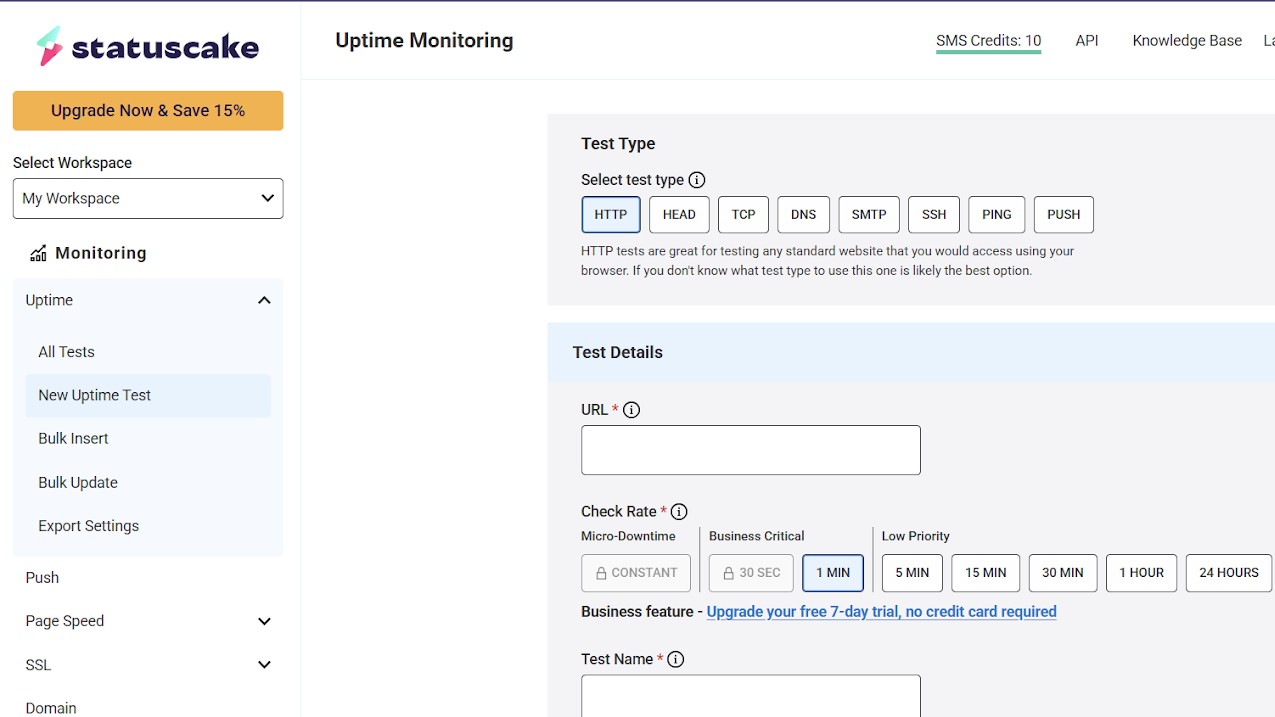
StatusCake interface

(Image credit: StatusCake)

A rather noteworthy positive of StatusCake is that you can add tags to each of your monitors for better organization. For example, all uptime tests in the US (or any other region for that matter) can be clubbed together.

StatusCake also does a good job with its dashboard, allowing you to build customizable ones quickly. These dashboards give you a live view of any website errors so that you can always stay on top of your website performance.

StatusCake: Support

We found StatusCake’s support a little less prompt than some other website monitoring solutions. It offers a live chat option, which you can access from the bottom right of your screen. However, it's not 24/7. You’ll have to wait for the support team to be online to get a reply. Moreover, there are no options to contact them directly, either.

That said, there’s a rich collection of articles and blogs explaining various features. This helps you get started and explore each feature in more detail. There are also a lot of podcasts to keep you abreast of the best monitoring practices.

StatusCake: The competition

Although StatusCake is a good monitoring solution, it may not be ideal for all businesses, especially large ones. Here are some alternatives you can consider.

Uptime.com is a comprehensive monitoring solution that offers more than 30 types of basic checks and advanced transaction monitoring, API checks, and real user monitoring (RUM). RUM checks are essential to gauge various website parameters like bounce rates and load times as it fetches data from real user interaction.

API checks help you check if all embedded APIs on your website are working perfectly or not. Similarly, using transaction checks, you can set up custom element checks on your website, such as clicking a button, adding products to your cart, checking out, and so on. That said, Uptime.com can be a tad expensive, with plans costing as high as $285/month.

Host Tracker can be a more affordable solution with plans starting at just $9.90/month. Here as well, you get the luxury of transaction and API monitors, as well as database monitoring, task cron scheduling, and maintenance scheduling. However, you won’t get RUM monitoring with Host Tracker.

StatusCake: Final verdict

StatusCake is a decent website monitoring tool with almost every single essential feature, including various types of uptime monitors, SSL and domain monitoring, speed tests, and customizable dashboards. Plus, you can set up public reporting pages and schedule downtime maintenance to manage your uptime better.

Setting up and using a monitor is pretty straightforward, too, making StatusCake a beginner-friendly choice. You can choose various locations to run tests from and form a contact group to send notifications to an entire team. Handy for businesses with dedicated departments. What’s more, you can also choose to receive these notifications on platforms like Slack, Telegram, and Discord thanks to a useful bunch of integrations.

StatusCake comes with a free plan and scales up gradually as per your needs. The paid plans start at $20.41/month, which may not be the most value-for-money option. Also, StatusCake lacks features like transaction monitoring and real user monitoring, making alternatives like Uptime.com and Uptrends a better choice.

FAQs

Who is StatusCake best for?

StatusCake is an excellent choice for small, team-oriented businesses. It offers basic uptime monitoring, speed tests, and SSL and domain checks. Plus, you can add various members of your team to a contact group who will then receive alerts simultaneously. The platform is also very easy to use, making it ideal for small businesses that may not have dedicated IT teams.

What is the difference between website monitoring and content monitoring?

A website monitor helps you keep an eye on your website and sends you alerts if it notices any downtime. This makes sure your websites stay live at all times, and you do not lose business due to random outages.

A content monitoring tool, on the other hand, notifies you whenever there’s any change in the content of a website. This comes in handy for competitor monitoring, regulatory compliance, SEO optimization, and analyzing customer sentiments.
We list the best website defacement monitoring services.

I tested iFi's flagship Valkyrie DAC and found it capable of staggeringly complete sound –but portable it isn't

iFi iDSD Valkyrie: Two-minute review

iFi is a company that seldom goes anything other than ‘all-in’ – and with the new iDSD Valkyrie headphone amp/DAC it’s decided to try and make the best ‘portable’ headphone amp/DAC it possibly can.

‘Portable’ is a relative term, of course, and not only is the Valkyrie’s portability debatable when considering including it in our roundup of the best portable DACs, but the idea that you’d want to carry around a device you’ve spent £1699 (or equivalent) on is perhaps an odd one too. But for desktop or full system use, this iFi has an awful lot going for it.

And that’s the case no matter if you’re talking about design, build quality, the standard of finish or the way it sounds. It’s an individual looker, for sure, and it is unquestionably built to last. And when it’s working on your raw digital audio files, the results can be almost humbling – this is an extraordinarily detailed, precise and yet entertaining listen. It’s real ‘iron fist in velvet glove’ stuff the Valkyrie trades in – it’s controlled, energetic, insightful and, above all, musical. And that last word especially is by no means a given, even if you’re spending an arm and a leg.

For some, the seemingly limitless options to fiddle with the filtering, upscaling and processing of digital audio information might seem a bit daunting. For others, the idea that iFi is leaving the end user to have such a big say in the ultimate sound will seem like an admission that it doesn’t quite know what ‘best’ sounds like. For the rest of us, though, the iDSD Valkyrie will be a source of endless fascination as well as of enjoyment.

iFi iDSD Valkyrie review: Price and release date

iFi iDSD Valkyrie on gray table

(Image credit: Future)
  • Released of March 25, 2025
  • Priced $1,699 / £1,699 / AU$2,999 (approx.)

The iFi iDSD Valkyrie launched on March 25, 2025, and it costs the same £1699 now as it did then. In the United States it will set you back a slightly more palatable $1699, while in Australia it goes for AU$2999 or something very like it.

I don’t think I will be startling anyone when I observe that this is quite a lot of money for a portable (or, as iFi prefers, ‘transportable’) DAC/headphone amp. Really, the only alternative of any profile that’s contesting the same area of the market is Chord’s equally wilfully named Hugo 2 - which means the Valkyrie is competing against at least one hugely accomplished rival…

iFi iDSD Valkyrie review: Features

iFi iDSD Valkyrie on gray table

(Image credit: Future)
  • Quad Burr-Brown PCM1793 DACs
  • Numerous processing options
  • 20000mAh battery power for 18 hours of constant operation

Yes, there are three headlines as regards ‘features’ just above here – but in all honesty I could have chosen from quite a few others. ‘A trowel’ is too small an implement to indicate what iFi has used to lay it on with here.

I have to start somewhere, though, so I may as well start with battery power. There are four batteries fitted to the Valkyrie which means it will run quite happily for as much as 18 hours before it needs charging – and its quick-charge facility means it can be brimmed inside three hours.

Getting digital information into the Valkyrie and decoded analogue information out again can be achieved in quite a number of different ways, but what happens to it in between is subject to quite a lot of user-defined variation. Fundamentally, digital audio stuff is given the once-over by a quartet of Burr-Brown PCM1793 DACs, but they’re operating in conjunction with an FPGA (field programmable gate array) that allows a bewildering number of processing, filtering and upscaling options to be brought to bear if you so desire.

There are six filtering options, from the light-touch ‘bit perfect’ to the heavy-handed ‘apodising’ and points in between – upsampling to resolutions way beyond the native resolution of the incoming signal can be facilitated this way. PCM and DSD files can be upsampled to DSD512 or a colossal DSD1024, which means incoming content can have its sample rate adjusted in quite a few ways.

And not for the first time where one of its more upmarket products are concerned, iFi has included JVC Kenwood’s ‘K2’ processing that was originally developed back when 16bit/44.1kHz compact disc standard ruled the roost – it intends to help restore information that might have disappeared during the original remastering from analogue to digital. And naturally enough the upgraded ‘K2HD’ that reflects the more recent move to hi-res content is included too.

As well as the physical digital and analogue inputs, the Valkyrie is fitted with Bluetooth 5.4 wireless connectivity – and it’s compatible with top-of-the-shop, state-of-the-art aptX Lossless codec compatibility too. iFi has been demonstrating its impeccable facility with Bluetooth for quite some time now, and the implementation of the as-good-as-it-gets standard bodes very well indeed.

Features score: 5 / 5

iFi iDSD Valkyrie review: Sound quality

iFi iDSD Valkyrie on gray table

(Image credit: Future)
  • Lavishly detailed and insightful
  • Open, spacious and well-defined
  • Your favourite sonic balance is in there somewhere…

I’m going to have to assume you’ve taken your investment seriously, and have spent as long as it takes to find the sonic balance within the Valkyrie’s endless permutations that suits you best. During this journey you'll have discovered that it’s possible to make the iFi sound overprocessed and unnatural – but, of course, this is what ‘trial and error’ is all about.

Once you get where you want to be, though, there’s very little that’s erroneous about the way the Valkyrie deals with your digital audio information. It’s only slightly perturbed by very compressed, low-resolution content, and it doesn’t at all mind about the type of music you like to listen to. It’s forgiving of partnering equipment, no matter if it’s headphones or a full-on system. And it is capable of peering into a recording on a forensic level and returning with an absolute stack of relevant information that it is only too willing to impart.

A recording like Nick Drake’s Which Will that’s stored as a 24bit/96kHz FLAC file illustrates a lot of what is so enjoyable and so impressive about the Valkyrie. Its midrange fidelity is, quite frankly, stunning. There’s an immediacy about the vocal performance here, an utterly natural tonality, that makes every aspect of the singer’s performance – attitude, emotional state, character, phrasing, breath-management, you name it – completely apparent. And, what’s more, makes it sound natural, unforced and alive.

The spare instrumentation of the recording is equally alive – the tonal balance the iFi strikes is convincing, and the stage on which this performance occurs is confidently defined. Frequency response is smooth and even, attention to harmonic detail is fanatical, and there’s the sort of unity and togetherness of presentation that I more readily associated with the vinyl format.

A 24bit/48kHz FLAC file of James Holden’s Common Land allows the Valkyrie to demonstrate martial low-frequency control and an unequivocal way with rhythmic expression. Bass sounds are rapid, loaded with variation, dynamic as can be, and with the sort of straight-edged attack that means the tune just snaps. At the opposite end there’s substance to treble information that nicely balances out the bite and crunch the iFi brings, and again the Valkyrie observes the attack, the onset, of top-end sounds with complete attention.

I get the strong impression that the Valkyrie is able to bring the best from any partnering equipment no matter if it’s a system or a pair of headphones, and no matter how much or how little this equipment costs. Even if the digital audio information is getting into the machine via Bluetooth, the output is never less than coherent and convincing. Naturally if you decide you want to upsample a 320kbps MP3 file of The Roots’ Dynamite! to DSD1024 it’s possible to discern a process at work behind the actual sound you’re hearing - but you’ll appreciate that I’m taking things to extremes here.

Sound quality: 4.5 / 5

iFi iDSD Valkyrie review: Design

iFi iDSD Valkyrie on gray table

(Image credit: Future)
  • Arrives in a large wooden box
  • As winged as the name demands
  • Superb standard of build and finish

You can’t suggest iFi hasn’t put the hard yards in where the design of the iDSD Valkyrie is concerned. This is a product that’s been designed to within an inch of its life. In some ways this ‘designing at all costs’ impacts on outright usability (as we shall see), but never let it be said iFi doesn’t offer a bit of visual drama to go along with all that performance.

So the Valkyrie arrives in a substantial wooden box that stretches the definition of the word ‘transportable’ more than somewhat. Inside is the device itself (a not insignificant 30 x 160 x 172mm [HxWxD] and 882g) along with a necessarily large (and unarguably beige) carry case, a selection of connection cables and adapters to cover every eventuality, and a mains adapter.

The device itself is dramatically angular in a manner, says iFi, that evokes "the majestic wings of a Valkyrie's horse" – which is ambitious, no two ways about it. And let’s face it, only by comparing it to a horse does the iDSD Valkyrie seem anything other than very large. I’ve been using the equally special iFI i DSD Diablo 2 as my reference headphone amp/DAC for a while now, and I used to think it was quite big. Not any more.

There’s no arguing with the standard of build and finish here, mind you. The fit is even, the panel gaps are very tight indeed, and there’s even a suggestion of tactility about the casework. Used as a system device in a domestic setting or on a desktop it’s a singular and diverting looker.

Design score: 4.5 / 5

iFi iDSD Valkyrie review: Usability and setup

  • Multi-function sockets and buttons
  • Lilliputian labelling for these sockets and buttons
  • Almost too much user input into setup

So yes, as I said: this determination to ensure the iDSD Valkyrie is Fully Designed has led to some compromises where usability is concerned. It has a fair few sockets and buttons on both sides and both ends – but in all honesty it could do with a few more, because too many of them are fulfilling more than one function.

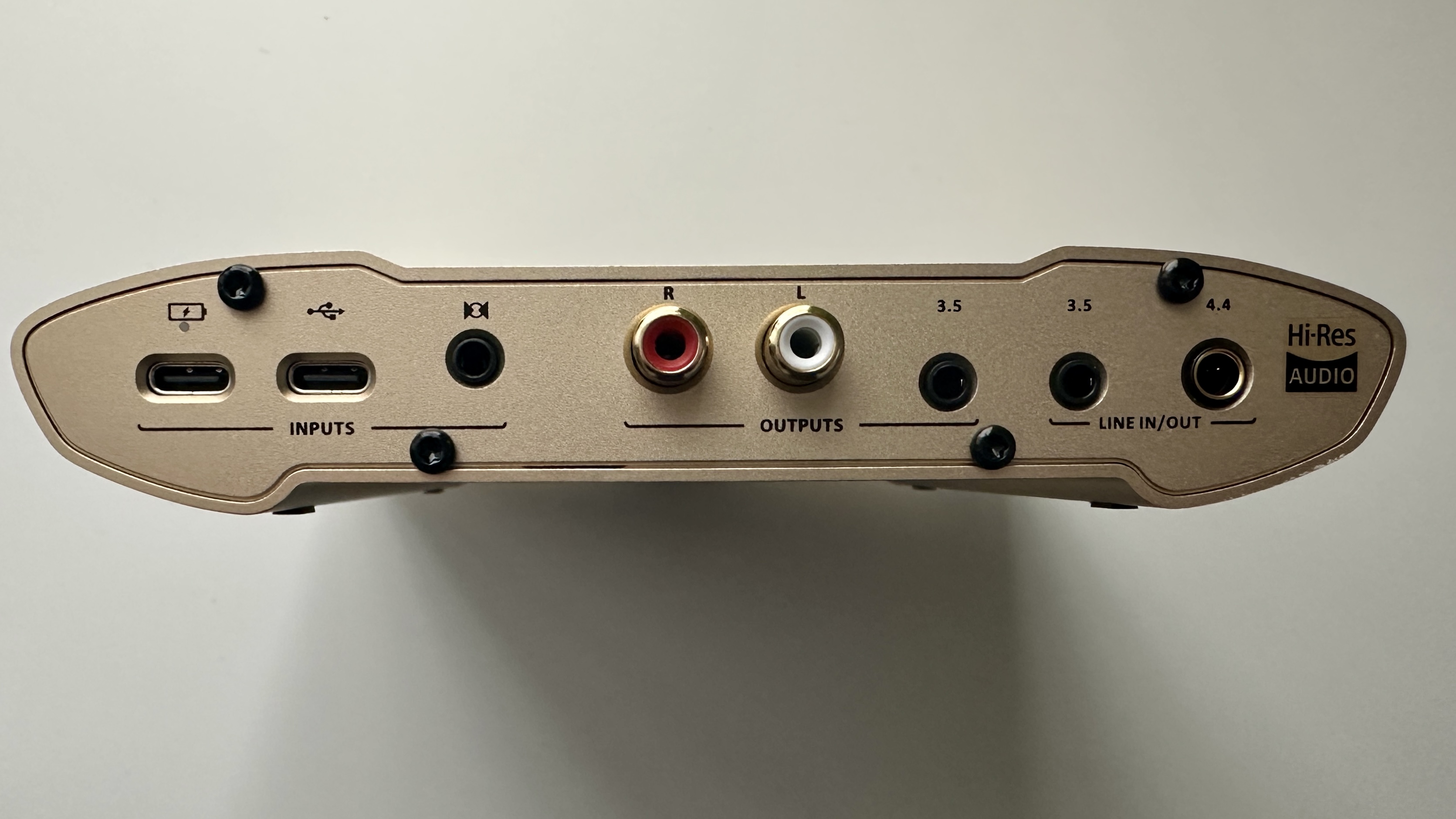
For instance, on the rear panel there’s a USB-C socket for charging that quartet of batteries and another for data transfer. Then there’s a hybrid optical/coaxial 3.5mm digital input, and a pair of stereo RCA analogue outputs. After that there are two analogue connections – one is an unbalanced 3.5mm socket and the other a balanced 4.4mm alternative - and both of them function as both inputs and outputs.

Up front there’s another 4.4mm balanced analogue output – this one doubles as an output for MEMS headphones. There’s also another 3.5mm unbalanced analogue output, with a (relatively) large volume/mute control-cum-power on/off dial in the centre. A button that allows you to cycle through your numerous filter options and to initiate upsampling to DSD (512 or 1024) is adjacent to a button that deals both with input selection and turns K2 or K2HD processing on or off.

On the bottom of the chassis there’s the usual iFi ‘iEMatch’ switch for finessing output relative to the demands of your headphones, and on the top there are two little buttons dealing with available audio modes. One switches the ‘XSpace’ mode (designed to improve imaging) on or off, and also governs the three different types of power output levels, while the other gives access to ‘XPresence’ mode (for extra midrange grunt) and ‘XBass II’ mode (take a wild guess). It also allows you to access menus on the little screen on the top of the device, turning the volume control into a turn/push dial to navigate them.

When I suggested many of the sockets and buttons on the Valkyrie are overburdened, I really wasn’t joking.

And if you’ve read the ‘features’ section, then you’ll know that as the end user you have plenty of legwork to do before the Valkyrie is set up to your satisfaction in purely sonic terms. All of the sound modes, in conjunction with all of the filter options, allied to all of the processing and upsampling possibilities, mean it will take time and effort to get the point you deem optimal.

Usability and setup score: 3 / 5

iFi iDSD Valkyrie review: Value

Like almost everything that gets reviewed at techradar.com, the ‘value’ the iFi iDSD Valkyrie represents is subjective.

Is it ten times better than one of iFi’s own admirable little USB DACs that cost a tenth of the price or less. Of course it isn’t; gains at the very top of the food chain have always been incremental. But if you want what is approaching ‘ultimate’ where a product of this type is concerned, well, it’s going to cost you.

And don’t be in any doubt, the results here are profoundly impressive.

Value score: 4.5 / 5

Should I buy the iFi iDSD Valkyrie?

Buy it if...

You’re after a uncompromised headphone amp/DAC experience
When it comes to flexibility and – most of all – performance, there are very few alternative products around that can get close to the Valkyrie

You enjoy design for design’s sake
Does the Valkyrie have to look like this? No, it doesn’t - but the fact that a company has decided to make a product look as interesting as it sounds is to be applauded

You fancy a lot of say in the way your headphone amp/DAC sounds
So many options, so many combinations… it’s almost like being wholly in charge of the sound you get to experience

Don't buy it if...

You’re short of time
So many options, so many combinations… this is not a plug-and-play device by any means

You’re short of space on your desktop
I’m quite tidy when it comes to my work station, and yet I had to move things, straighten things and tidy things away to make space for the Valkyrie View Deal

You don’t see all that well
The word I’m going with to describe the labelling of inputs, outputs and controls on the Valkyrie is ‘miniscule’View Deal

iFi iDSD Valkyrie review: Also consider

The obvious rival to the iFi iDSD Valkyrie, and the reigning ‘madly expensive and oversized headphone amp/DAC’ champion is the Chord Hugo 2 – which can be found for around the same fee as the Valkyrie these days (but launched at £1,800 / $2,175 / AU$4,500). In its own way it’s just as oddball a product as the iFi – it’s been eight years since it launched, and I’m no closer to understanding what each of the color combinations that constitute a user interface actually mean. But it’s a staggeringly accomplished performer nonetheless.

How I tested the iFi iDSD Valkyrie

I connected the iDSD Valkyrie to a MacBook Pro (running Colibri software) via its USB-C socket, and I also connected it via its digital optical input to a Rega Apollo CD player.

I connected a FiiO M15S digital audio player wirelessly using the LDAC codec. I used a pair of Sennheiser IE900 in-ear headphones via their 4.4mm balanced connection as an output, along with a pair of Bowers & Wilkins Px8 via the 3.5mm unbalanced output – and I also connected the Valkyrie to a main reference system (Naim amplification, Bowers & Wilkins loudspeakers) using its RCA outputs. And then I fed it a lot of music, of different file types and sizes, and of different genres, in an effort to find something the iFi doesn’t excel at.

And then I had to accept that ‘excel’ is simply what the iFi iDSD Valkyrie does.

I tested Uptrends website monitoring and found it has everything a business could need, from extensive features to free tools

A robust website monitoring tool delivers data like page load speeds, downtime reports, and unexpected outages, allowing you to ensure your business stays online and visible at all times.

Uptrends is a renowned website monitoring tool offering features like synthetic transaction monitoring, browser monitoring, and real user monitoring. Plus, you only need to pay for the features you use thanks to a per-feature pricing structure.

Read on as we lay out the best features, pricing, ease of use, and support options of Uptrends. We’ll also compare it with a couple of its top rivals to see how it stacks up.

Uptrends: Plans and pricing

Uptrends follows a fairly different pricing structure than its peers. Instead of bundling features in different plans, it offers each feature separately. Here’s how much each feature will cost you.

This way, you’ll only have to pay for the features you want to use. For instance, small businesses and startups may only need uptime monitoring, which costs just $5.10/month. However, this pricing structure can seem expensive if you need all the features – you’ll then have to shell out at least $43.82/month in total.

Although not the cheapest, Uptrends still delivers great value for money. Other providers offer all these features only on their high-end plans, which can cost anywhere between $50 and $250 per month. Even then, the number of checks is generally capped, which isn’t a concern with Uptrends.

What's more, Uptrends offers as many as 15 free tools, including a DNS checker, website speed test, uptime test, and ping test. This can be mighty helpful to startups and small businesses looking for free monitoring options. In comparison, Uptime.com only offers 3 free tools.

Uptrends: Features

Uptrends’ global monitoring solution is ideal for large organizations with a worldwide presence. You can check the status of your web pages from as many as 233 locations (checkpoints). No other monitoring service offers such a large pool of servers. Besides basic HTTPS monitoring, you can also set up custom DNS monitors and SSL certificate monitoring.

One of its core features is browser monitoring – also known as full page check (FPC). This FPC monitor loads your webpages in a real browser (Chrome or Edge) to measure the website's performance as experienced by your visitors.

This includes evaluating the scripts, third-party elements, images, and CSS components of your website. Uprends then generates a detailed waterfall chart to give you a quick overview of all running FPC checks.

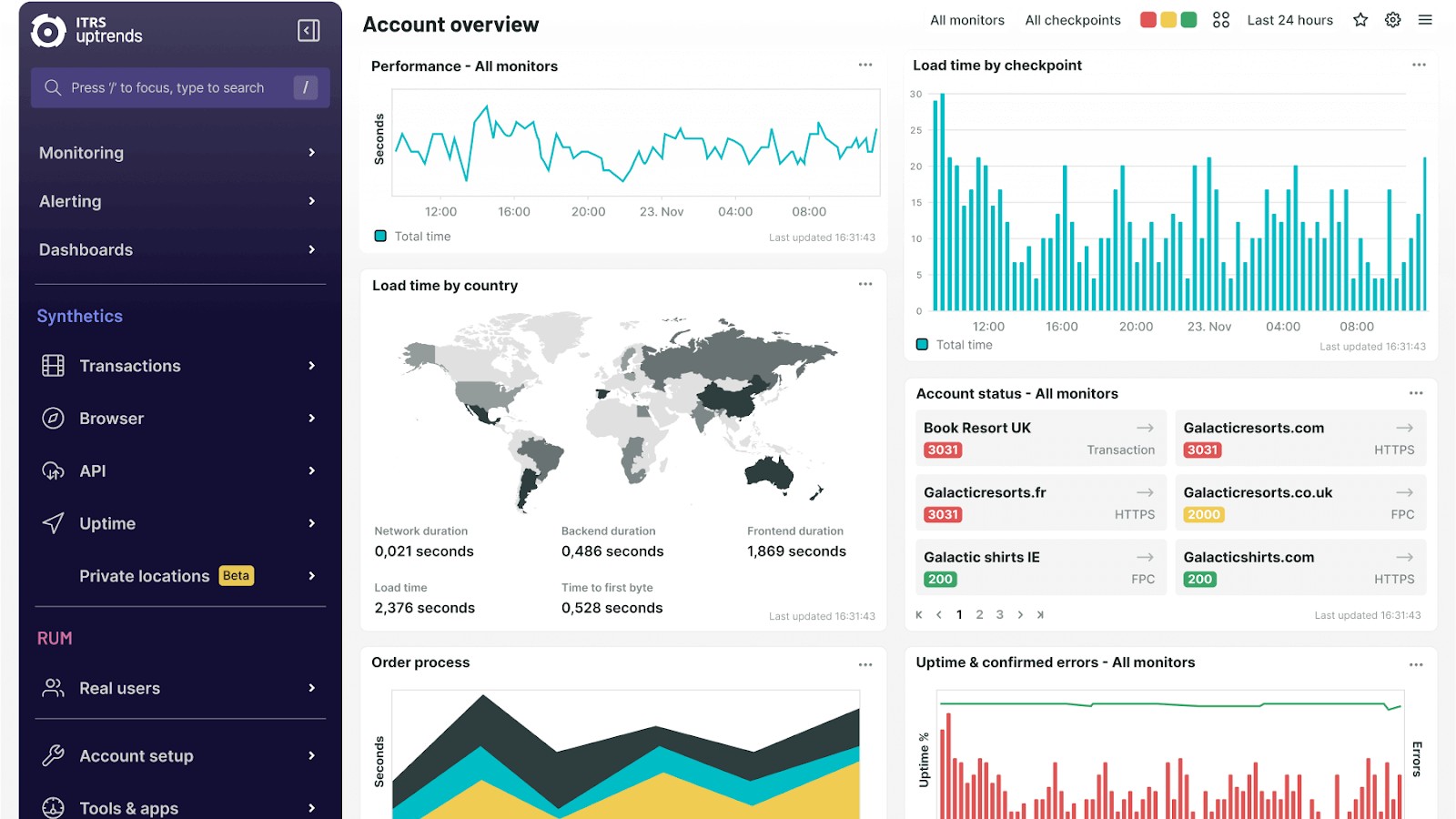
Uptrends uptime monitoring

(Image credit: Uptrends)

If you have a business that relies on curating a flawless customer website experience, Uptrends’ transaction monitoring can come in handy. This monitor allows you to test every component of the user journey on your website, including aspects like logging in, scrolling, searching for products, shopping cart checkouts, payments, and more.

The platform also offers a handy Chrome extension for recording the transaction flow you want to monitor.

We also liked Uptrends’ prompt alerting mechanism. You can choose to receive downtime notifications on SMS, email, or phone call. The platform also allows integration with popular tools like Slack, MS Teams, and other business applications.

What makes Uptrends a complete website monitoring platform, though, is Real User Monitoring (RUM). RUM uses real user data to drill down on metrics like page load times, DOM and render duration, time to first byte, and page ready time.

All of this (and more) data is pulled into simplified charts, which then help you identify potential issues. For instance, you can use a bar chart to view page load times from various locations and browsers and identify the locations where your pages load the slowest.

Uptrends: Interface and in use

The interface is pretty data-driven – you’ll find a lot of charts and stats right at the center of your dashboard. Although we believe this to be a positive, as it's a no-nonsense approach, some users may find it a little overwhelming.

As is the case with other apps, there’s a panel on the left-hand side, allowing you access to all Uptrends features.

Uptrends account overview

(Image credit: Uptrends)

Uptrends comes with several predefined dashboards but also allows you to add custom dashboards by selecting metrics and filters that are essential to measuring performance.

The platform has recently revamped its interface to integrate various monitoring modes like synthetic and RUM. There’s even a 360-degree overview dashboard, which gives you a quick one-screen snapshot of all your website metrics.

Uptrends: Support

We found the software’s customer support options ideal for business needs. Your first port of call would be to raise a support ticket on the platform. You can draft your message and even attach a file to explain your issue better.

Moreover, there’s also a live chat option at the bottom of the screen. Initially maneuvered by AI, the chatbot is quick to connect you to a human agent so that you can sort out your issues without much hassle.

Besides this, you’ll find an extensive web knowledge base and help articles on the platform, which will guide you through setting up various monitors and help you conquer the initial learning curve. However, there’s no live call support, which is admittedly a standard in the industry.

Uptrends: The competition

Although Uptrends is a complete website monitoring solution, it may not be the best choice for all businesses, especially because of its distinctive pricing structure. Here are some alternatives you can look at instead.

UptimeRobot is a more affordable option. You can get started at just $7/month and enjoy features like HTTP, port, and ping monitoring. It also comes with a nifty keyword monitoring tool that sends you alerts in case there are any content changes on a given page. However, this may be too basic for large businesses.

If you need something more advanced, you can choose Uptime.com, which offers more than 30 types of checks. The platform runs comprehensive RUM checks with as many as 1.5M data points, as well as private location checks and microtransaction checks.

Each check can also be run from multiple locations simultaneously. However, Uptime.com can be expensive, too – plans start from $20/month and go all the way up to $285/month.

Uptrends: Final verdict

Uptrends has everything a business could need – from synthetic transaction and API monitoring to detailed browser and real user monitoring. One of the best things about the platform is that you can monitor the status of your webpages from 233 global locations, which could be a game-changer for multinational businesses.

Plus, Uptrends offers a feature-wise pricing structure where you only have to pay for the features you actually use. The good news keeps coming, as there are 15 free tools, including those for global uptime testing and website speed testing, a DNS checker, etc.

The interface is also easy to use and offers a lot of visual charts to understand the available data better. Overall, Uptrends covers all the bases really well, meaning it's splurge-worthy.

FAQs

Does Uptrends offer a free plan?

While there’s no free plan as such, Uptrends offers 15 free tools. From checking your website’s speed and global uptime to running a DNS check and ping test, there’s a lot you can do for free.

Additionally, Uptrends has a different pricing structure, seeing as it comes with feature-wise plans. For instance, you can get the uptime and availability monitoring plan for just $5.10/month. This means you only need to pay for the functions you want to use.

Why is website monitoring important?

A website monitoring tool keeps an eye on your web addresses and ensures downtimes are not left unattended. It sends you instant alerts whenever there’s an issue with any component on your website, which might have been slowing it down.

Website downtimes can lead to financial losses, after all, not to mention they can also harm your brand reputation and image. If a user finds your website isn't working, it’s highly unlikely they’ll return. That’s why it’s important to ensure your website stays live at all times.

Check out the best website defacement monitoring service.

I tried out the Lenovo ThinkPad P14s Gen 3 (AMD), and found this speedy laptop has supreme battery life

This review first appeared in issue 342 of PC Pro.

Lenovo’s P series of laptops is designed for speed, with more expensive configurations than this offering discrete workstation-class Nvidia processors to tie in with its ISV certification. The P14s is a slimline version, which means less powerful chips and – in this case at least – integrated graphics. But don’t imagine it’s slow: turn to the graphs and you will see the ThinkPad P14s vying for top position in many tests.

That’s despite the fact it includes a Ryzen 5 processor with six cores compared to the 12 found in the Core i7-1260P, with AMD’s strength due to them all being fast performance cores. Lenovo supports the AMD Ryzen Pro chip with 16GB of high-bandwidth LPDDR5 memory, although this is soldered to the board; if you want more, upgrade to 32GB at the time of ordering for an extra £90. You can replace the 512GB SSD yourself, with a handful of crosshead screws in your way, but doing so will void the generous three-year warranty.

This laptop’s greatest performance came in our battery tests, lasting for over 16 hours in both our video-rundown and light-use benchmarks. Left idling, it kept going for an astonishing 20 hours. It’s reasonably light at 1.4kg, albeit no match for the similarly long-lasting HP Elite Dragonfly G3 (1.1kg) and Dynabook Portégé X40 (1kg).

The P14s’ keyboard lacks the finesse of the ThinkPad T14s, with a harsher feel to the keys and no backlight, but the glass-coated trackpad is just as glorious and they share near-identical IPS panels. Both provide 1,920 x 1,200 pixels with a matte finish and, while it lacks the vividness of an OLED screen, the P14s covered a fine 81% of the DCI-P3 gamut compared to 71% for its sibling. With a contrast of over 1,800:1, clean whites and a peak of 409cd/m2, it’s one of the best screens here.

Lenovo squeezes six connectors onto the left edge: a 3.5mm jack, HDMI, USB-A port, two USB-C ports (not Thunderbolt 4, merely USB 3.2 Gen 2) and an always useful Ethernet port. The right-hand side is dominated by the vent necessary to keep the processor cool, but Lenovo still finds room for a second USB-A port and a smart card slot.

This isn’t an exciting laptop – music sounds harsh, for instance – but it has plenty to offer business users, including a high-quality 1080p webcam, which supports Windows Hello, within the thick top bezel. If you need to square the circle of strong performance and supreme battery life, it’s the best choice here.

We've listed the best laptops for graphic design and the best laptops for drawing and digital art.

Tuesday, April 29, 2025

I tried out Datadog, read what I thought of this top-notch and comprehensive website monitoring solution

Website monitoring is an essential part of the suite of business tools these days. After all, you cannot afford for your website to be down for even just a few minutes. Besides financial loss, it can hurt your brand’s reputation and market image.

Datadog offers top-notch website monitoring software that comes included with Real Time Monitoring (RUM), which is monitoring based on real user interactions. You also get robust synthetic monitoring, which allows you to test every component of your website. Business giants like Netflix, Adobe, Airbnb, and Spotify trust Datadog to manage their infrastructure.

If you want to know more about this all-around website monitor, stick around until the end. In this article, we’ll discuss Datadog's features, pricing, and interface, and also give you a couple of alternatives to consider.

Datadog: Plans and pricing

Datadog has separate plans for synthetic monitoring and real user monitoring, much like Pingdom. However, Datadog goes a step ahead and breaks these plans down further – it offers dedicated plans for API testing, browser testing, and mobile app tests.

The API testing plan costs $5/month for 10K test runs. The Browser Testing plan costs $12/month per 1,000 test runs, and the Mobile App Testing plan costs $50/month per 100 test runs.

There are two plans for RUM too, one with session replay and one without it. The RUM with Session Replay plan costs $1.80/month for 1,000 sessions, while the RUM plan (without replay) costs $1.50/month for 1,000 sessions.

These limits are enough for any small to midsized business, making Datadog an affordable solution. Except for the mobile app testing plan, you’ll only have to pay $18.80/month for RUM and synthetic monitoring. This is cheaper than the likes of Uptime.com, whose plans can cost as high as $67 to $285 per month.

Apart from website monitoring solutions, Datadog also offers a complete security suite with solutions like cloud and application security management, runtime code analysis, CI pipeline visibility, and network monitoring – each function has a separate plan.

Datadog: Features

Datadog’s Real User Monitoring is one of the best across the board. It churns out essential website performance data such as Core Web Vitals and load times by harnessing data from real user experiences.

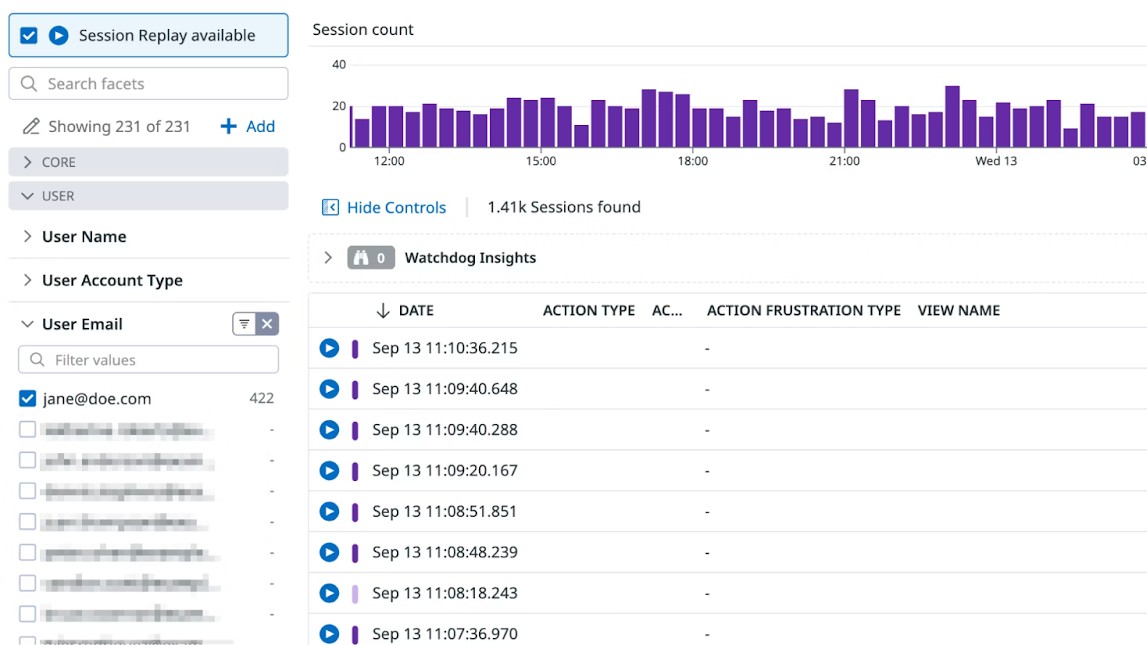
The best thing about Datadog is that you can view session replays to pinpoint the exact cause and instance of the issue. This lets you collect and process every error, resource, and action during each session. Users' actions can vary from checkout button clicks, taps, and more. You can even track custom metrics that are critical to your performance.

Datadog real user monitoring

(Image credit: Datadog)

Datadog also offers comprehensive Mobile Real User Monitoring (Mobile RUM) functions that test your app's stability, identify and address app crashes, and assist in resolving any glitches.

Its no-code web recorder makes it pretty easy to build customizable assertions that work on all the latest devices and operating systems. Datadog is also smart enough to avoid any UI changes so that you do not get any false positives.

Datadog’s API tests are ridiculously easy to create. You can access its API Catalog to access your overall HTTP test coverage and then build API checks for any untested endpoints in just a few clicks. Datadog’s AI-generated Synthetics swiftly identify any business-critical flows so that you can create the right test in a matter of seconds.

However, Datadog doesn’t stop at just detecting errors; it also helps in quick resolution by grouping related errors automatically so that you’re not bombarded with error notifications. You can run a simple faceted search to find out more about how these errors started and evolved.

Datadog also has one of the most extensive collections of third-party integrations, allowing you to set up custom workflows with as many as 800+ applications. Apps for various categories such as alerting, automation, caching, incident management, and log collection are available.

Datadog: Interface and in use

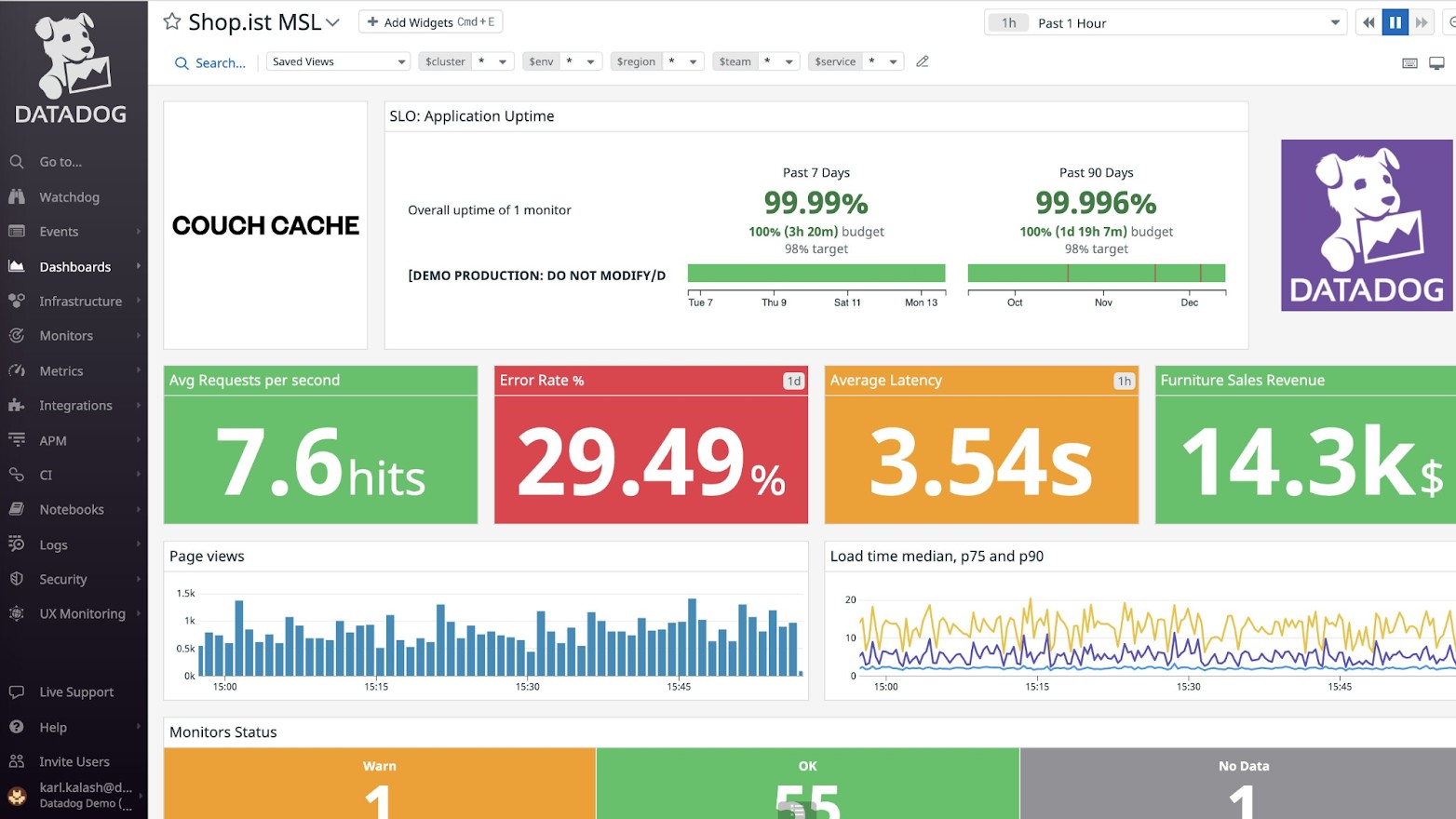
Datadog’s dashboards are filled with interactive charts and graphs that give you a quick snapshot of all running website checks. This graphic-oriented approach makes it easy for administrators to spot and resolve any errors.

Adding a new monitor is pretty straightforward. You simply need to select the request type, name it, add the URL, select locations you want to track from, and define alerting conditions.

Datadog dashboard

(Image credit: Datadog)

When you create a synthetics test, Datadog collects data and generates dashboards about your stack, browser applications, overall test performance, private locations, and events. There are similar dashboards for API checks and browser checks, too.

If you’re running RUM, you’ll see a performance summary tab with immediate summaries of each app's vitals, error deployments, and user analytics.

However, given the number of functions and dashboards Datadog offers, you’ll need a bit of time to get the hang of the platform. There are tons of videos on the platform that guide you through the setup and day-to-day use of the platform.

Datadog: Support

Datadog offers decent support with all its paid plans. Chat support is available from 10 am EST to 7 pm EST on weekdays, while email support is available during business hours (8:00 PM Sunday - 9:00 PM Friday EST, excluding holidays). You can expect a reply within 2 hours for business-critical issues and 48 hours for general issues.

While this is good enough customer support, Datadog does offer something better. If yours is a large organization that needs 24/7 technical support, you can purchase Datadog's Premier support plan, which costs 8% of monthly spend ($2,000 minimum). However, you need to make a minimum of a one-year commitment for this plan.

Under this, you get 24/7 email, chat, and phone support, with response times as low as 30 minutes. Besides this, there’s a designated team of global support engineers as well as priority handling for escalations. Simply put, this will be just like having an in-house IT team dedicated to Datadog issues.

Datadog: The competition

Pingdom is a robust monitoring solution offering as many as 44 plans across synthetic and real user monitoring with different check thresholds. This makes it as ideal for small businesses that need to run just 10 uptime tests in a month as it is for large businesses that want to run, say, 30,000+ checks.

Much like Datadog, Pingdom also offers customizable graphical dashboards. Its top-level dashboards provide a quick summary of all website performance and page-level metrics to help drill this information deeper.

If you’re looking for something more affordable and value-packed, Host-Tracker can be a good option. Its plans start from just $9.9/month, allowing 10 website checks. You can add additional websites at just $0.70/site. In addition to synthetic monitoring, Host-Tracker also checks the IP DNS blacklist and Google’s unsafe websites list to ensure your websites aren’t blacklisted. However, it doesn’t offer RUM.

Datadog: Final verdict

Datadog is a one-stop solution for all your website monitoring and security needs. You get both real user monitoring and synthetic monitoring, like API tests, browser tests, and mobile app testing.

Each function is offered as a separate plan so that you have to pay only for the features you use. This is ideal for small businesses with limited needs. Datadog’s extensive information-driven dashboards make it a very intuitive platform. These dashboards are fully customizable, allowing you to drill data down as per your needs.

Plus, Datadog is one of the few monitoring solutions that offer a dedicated plan for premium support, with 24/7 call, email, and chat support. That said, such extensive features also come with a bit of a learning curve. However, there are a lot of resources and videos on the platform to help beginners out.

FAQs

Who is Datadog best for?

Datadog is an all-around business solution offering services like security monitoring, network monitoring, log management, and synthetic and real user monitoring. It's ideal for businesses of all sizes since it offers feature-specific plans. For instance, if you only need real user monitoring, you can get started for as low as $1.80/month.

Large businesses can also benefit from customized plans and a dedicated customer support plan that offers 247 chat, phone, and email support – something you won’t get with any other website monitoring solution.

What is website monitoring?

Website monitoring is the process of constantly checking your websites to ensure they're up and running. This is performed by specially designed tools, or website monitoring solutions, that alert you in case there are any unexpected downtimes. These tools also help businesses get insights into how users interact with their websites and improve components that have been slowing down user experience and load speeds.

We've also listed the best website defacement monitoring service.

I tested the HP EliteBook 840 G9, and found it to be an elegant, easy-to-manage laptop that’s packed with quality

This review first appeared in issue 342 of PC Pro.

HP offers a staggeringly large array of business laptops, with the 800 series sitting in the mid-range. If you want lower prices, choose the 600 series; for the lightest designs, head to the 1040 or Dragonfly series. Even within the 800 series there’s a huge choice, so if you prefer a 2-in-1 design or AMD chips there will be something for you.

The 840 G9 is based on Intel’s 12th generation Core chips, in this case the i7-1255U. With only two performance cores, it’s no match for the i7-1260P in tasks that exploit multiple threads, but it will blast through everyday jobs with ease. Its low power demands also helped the 840 G9 last for between nine and 14 hours in our battery tests, and if the 256GB SSD isn’t big enough, you can open up the chassis and add a second (but physically smaller) M.2 SSD.

At 1.5kg it isn’t the most portable machine around, but it’s sleek and – for a business laptop – stylish. There’s no Ethernet port, but an HDMI port accompanies two USB-C Thunderbolt 4 ports on the left-hand side. USB-A ports sit on either side, and while our review unit doesn’t include a nano-SIM slot it is available on variants.

There’s no shortage of security features. On the left you’ll find a smart card reader, with a fingerprint reader tucked under the cursor keys plus a Windows Hello-compatible webcam. HP makes much of the 840 G9’s conferencing abilities, and its 1440p webcam is certainly above average. We weren’t blown away by its Auto Frame capabilities – this works but is stutter-y – but we do love the clear audio picked up by the dual-array mics. These cancel out background noise, too.

HP integrates its Wolf Security package within the laptop, but there’s only a single year’s subscription as standard. If you buy direct from HP, you can triple this – and upgrade the single year of return-to-base warranty to three years of on-site cover – for £179. Be careful, though, as you may end up with a Sure View screen (see our Dragonfly review for its pluses and minuses) rather than the excellent panel in our test unit.

We were similarly impressed by the quality of the keyboard, which combines the excellent traits of quietness with a cushioned yet decisive action. It would be a pleasure to belt out a report on this machine. You can even play music in the background, with one of the better pairs of speakers in evidence here.

This is a well-built laptop that may have taken our Labs Winner award if it wasn’t for the limited warranty and the question marks over which screen comes with which model.

We also rated the best 4K monitors.

Monday, April 28, 2025

I tested the new Bluetooth speaker boss and let me tell you, it's better than the old boss

JBL Flip 7: Two-minute review

Meet the news boss, handily better than the old boss and even more of a class-leader than before. JBL has not rested on its laurels with the Flip 7, the latest version of its all-conquering portable Bluetooth speaker series, and the result is an obvious front-runner that will leave its nominal rivals gasping.

You get plenty of power (35 watts, in fact) to motor its two-driver speaker array. You get 14 hours of playback (16 if you’re happy to do without some low-frequency presence). You get Auracast compatibility and the chance to listen to genuinely hi-res content if you hard-wire the Flip 7 to an appropriate source via its USB-C socket. You get access to a good control app, the ability to form a stereo pair with another JBL Flip 7, and your choice of quite a few vibrant finishes.

What’s almost best is the sound the JBL makes. By the standards of small-ish portable speakers, it’s an open and detailed listen, punchy but controlled at the bottom end, has impressive dynamic headroom and the sort of clarity and positivity that eludes all but the very best Bluetooth speakers at anything like this price.

Best of all, though, is the fact that all of this talent, tactility and robustness is yours for $149 / £129 / AU$179. There isn’t as complete an alternative available for anything like as aggressive a price as this.

JBL Flip 7 review: Price and release date

  • Released March, 2025
  • Officially priced at $149 / £129 / AU$179

The JBL Flip 7 went on sale during March 2025, and in the United States it costs $149. That translates to £129 in the United Kingdom, and around AU$179 in Australia.

That the majority of its most obvious competitors have been directly inspired by previous Flip models is neither here nor there – class-leaders are there to be shot at, and this seventh generation of Flip has a lot to live up to as well as some good alternatives to deal with.

JBL Flip 7 portable Bluetooth speaker on a white surface

(Image credit: Future / Simon Lucas)

JBL Flip 7 review: Specs

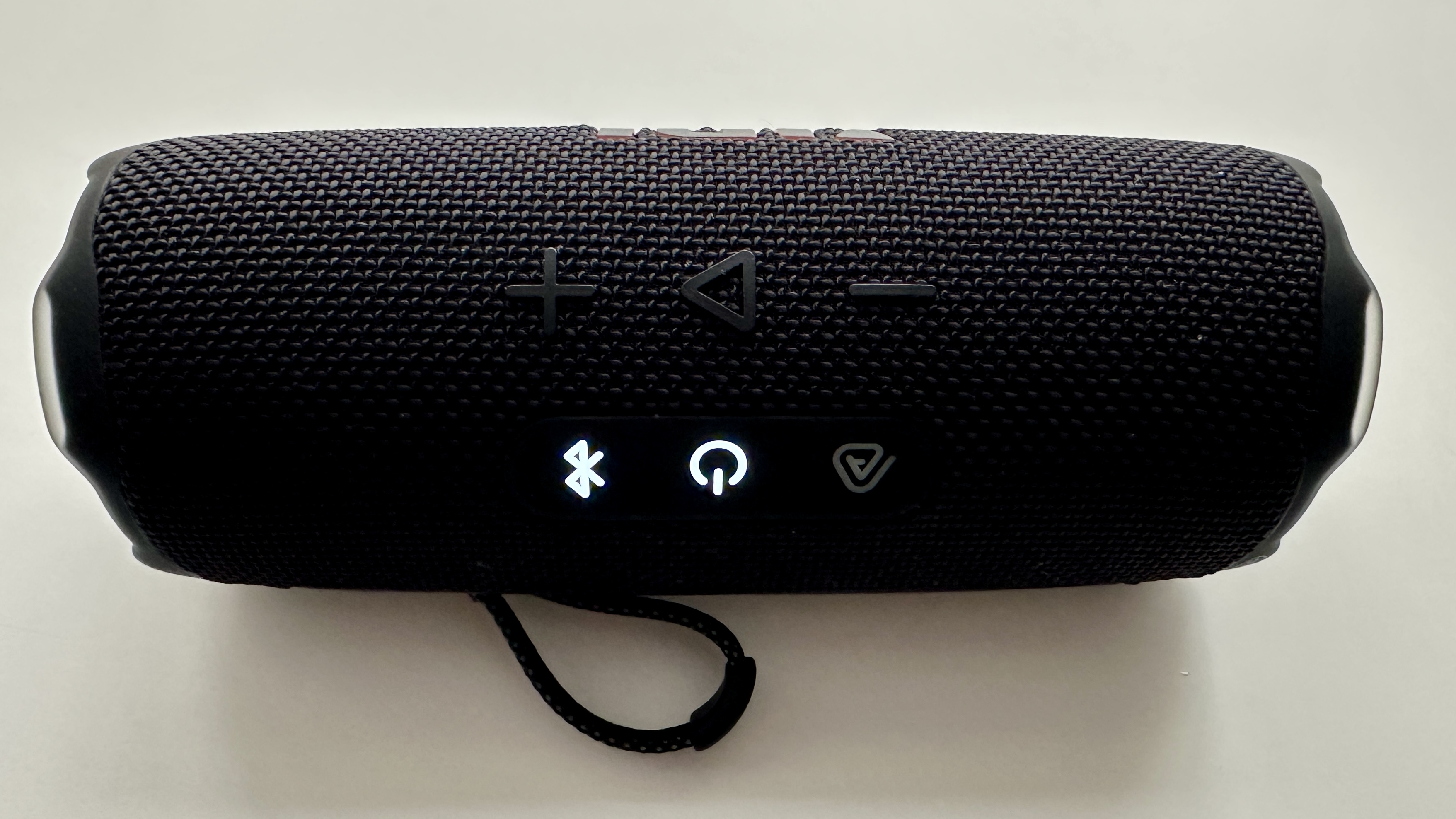
JBL Flip 7 portable Bluetooth speaker, with Power and Bluetooth lights on, on white surface

(Image credit: Future / Simon Lucas)

JBL Flip 7 review: Features

  • 45 x 80mm mid/bass driver, 16mm tweeter
  • Bluetooth 5.4
  • 60Hz - 20kHz frequency response

For wireless connectivity, the Flip 7 uses top-of-the-shop Bluetooth 5.4 – it’s compatible with SBC and AAC codecs, which is not anyone’s idea of ‘top-of-the-shop’ but in the context of the product is perfectly adequate.

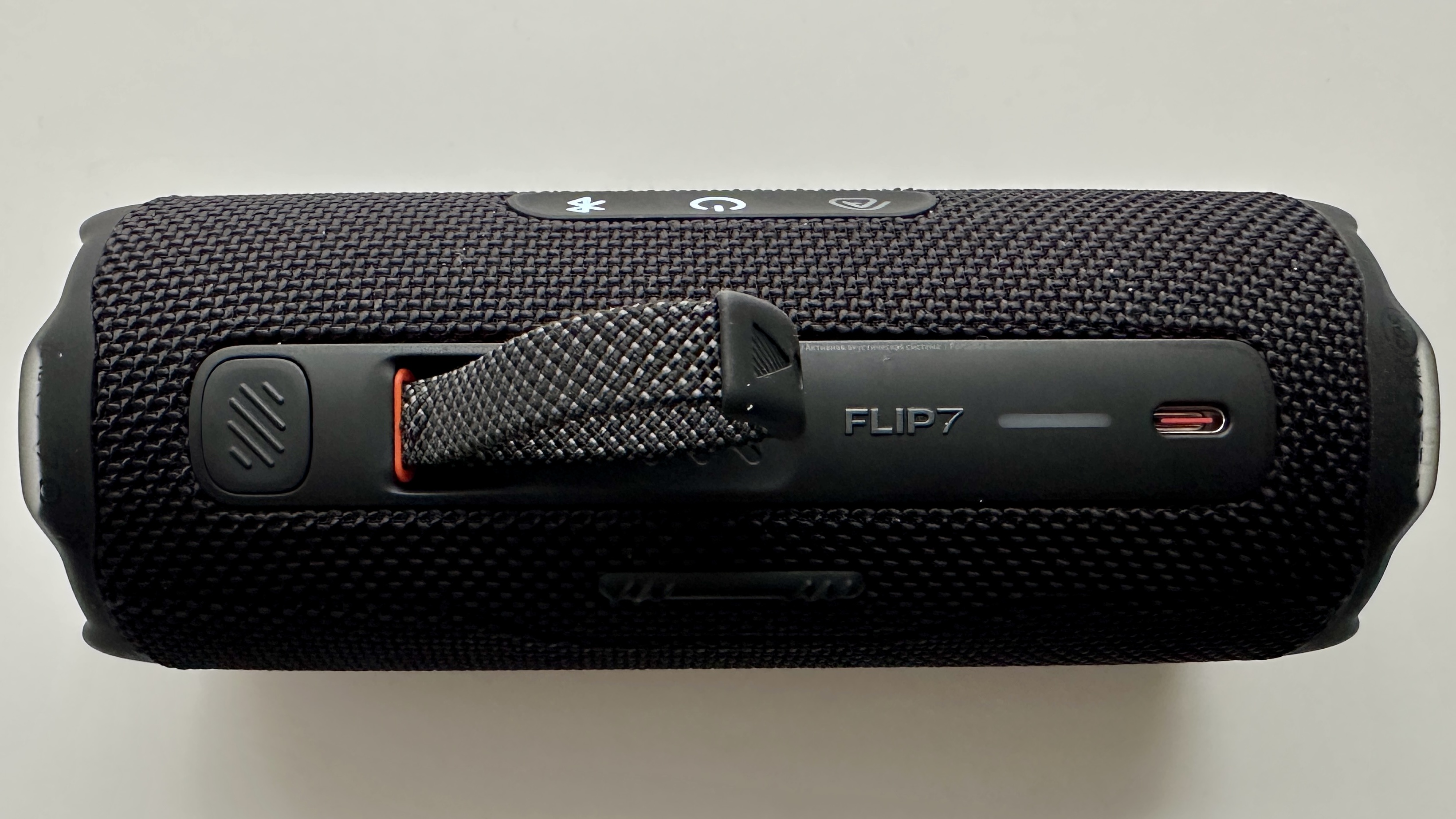
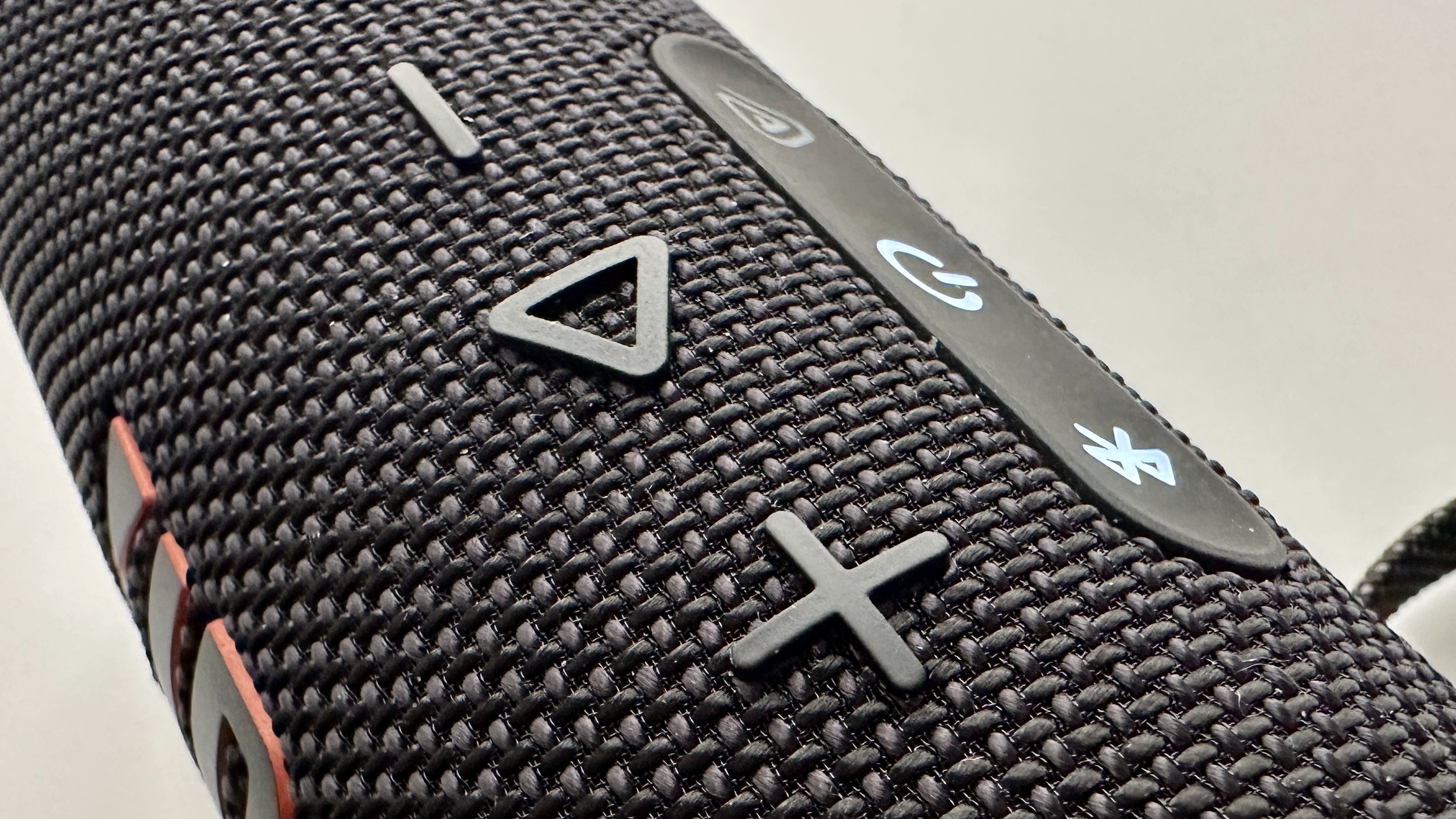
For the first time, here’s a JBL Flip that can be hard-wired to a source of music. The USB-C socket is used for charging the speaker’s battery, of course, but it can also be used for data transfer and, when connected to an appropriate source, it’s able to churn out genuinely high-resolution (24bit/96kHz) stuff. Just hold down the big, bold ‘play’ button on the speaker as you plug in your USB-C cable and you’ll be ready to go.

No matter your method of getting content on board, it’s delivered to your ears by a 45 x 80mm ‘racetrack’ driver taking care of midrange and bass, and a 16mm tweeter for the higher frequencies. The big driver gets 25 watts of power in order to do its thing, and the tweeter another 10 - and there’s no denying that a 35 watt output in a product of this size is plenty. It’s an arrangement that JBL reckons is good for a frequency response of 60Hz - 20kHz.

Another Flip first is Auracast compatibility. So, as well as being able to form a stereo pair with a second Flip 7 (albeit none of the previous models), you can hook up as many Auracast-enabled products as you like into a single entity for simultaneous playback.

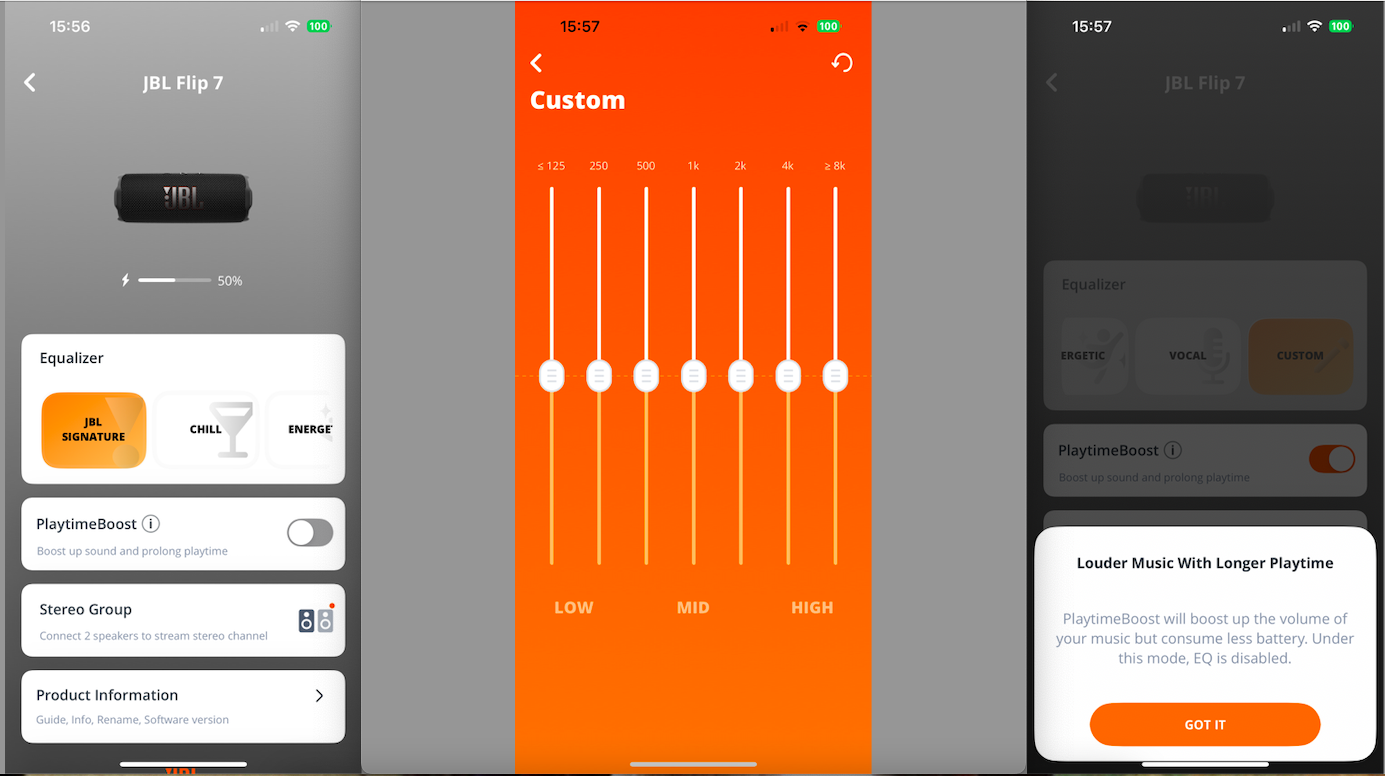
Meanwhile, JBL’s proprietary ‘AI Sound Boost’ technology analyzes the music that’s playing on the fly in an effort to minimize distortion and (according to the company) liberate greater scale and bigger bass. An opposing technology is ‘PlaytimeBoost’ – it reduces low-frequency activity in an effort to eke out additional battery life.

  • Features score: 5/5

Carry strap of the JBL Flip 7 portable Bluetooth speaker, on a white surface

(Image credit: Future / Simon Lucas)

JBL Flip 7 review: Design

  • Choice of seven finishes
  • IP68 -rated
  • Carry strap and carabiner

‘Rugged’ isn’t too strong a word to describe the Flip 7's design. Anyone familiar with previous Flips will recognize the almost-cylindrical shape, the eminently grabbable 70 x 183 x 72mm (HxWxD) dimensions and the rubber’n’fabric construction. By the standards of affordable portable Bluetooth speakers, the Flip 7 looks and feels built to last, especially if you choose the camouflage (or ‘squad’) finish. That said, the other six available colours are all nice enough in their own way and you’ll certainly find something to suit you.

‘Rugged’ is definitely the word to describe this speaker’s durability, though. An IP68 rating is class-leading, and means the Flip 7 is basically immune to dust or moisture unless you really go out of your way to try and disprove that idea. The beach, the pool, the festival… none of these environments should present any kind of problem to the JBL. And the company has enhanced the Flip 7’s portable go-anywhere credentials by fitting a little detachable fabric carry-strap and providing a carabiner in the packaging.

Build quality is great, the choice of materials is judicious, and the standard of finish is beyond reproach. I like to try and find a 'yes, but…' where the design and construction of a product like this is concerned, but frankly I’ve got nothing.

  • Design score: 5/5

JBL Flip 7 portable Bluetooth speaker top panel

(Image credit: Future / Simon Lucas)

JBL Flip 7 review: Sound quality

  • Detailed, direct and confident sound
  • Plenty of punch and dynamic headroom
  • Rhythmically adept

JBL has turned out plenty of very good portable Bluetooth speakers in its time, and its ‘Flip’ series has generally been very good indeed. So when I say the Flip 7 is the best so far, I don’t say it lightly.

In every area of sonic performance, the Flip 7 outperforms its asking price to an almost startling degree. Operating wirelessly and with a Qobuz-derived 16bit/44.1kHz file of Fugazi’s Waiting Room playing, the JBL is a confident and entertaining listen. It digs deep into the low frequencies, hits with real determination, and shapes bass sounds with such conviction that rhythms are given full expression. There’s plenty of variation at the bottom end, too, thanks to detail levels that are the equal of those higher up the frequency range.

The midrange is balanced and communicative, so a voice as idiosyncratic as Teddy Hill’s during I Just Dropped In (To See What Condition My Condition Was In) is loaded with character as well as the minutiae of his technique. It exists in a nice little pocket of space, thanks to an open and well-defined soundstage that seems to defy the physics of a small device with a couple of drivers facing dead ahead. The top of the frequency range is bright but not edgy, and just as detailed as everything going on beneath it. Overall tonality is nicely natural and consistent from top to bottom.The Fugazi tune is a good showcase for the JBL’s ability where big dynamic shifts are concerned, but Anxiety by Doechii is an even better demonstration of the speaker’s ability to deal with the more minor, but no less important, dynamics of tonal and harmonic variation. The Flip 7 is an attentive, eloquent performer with the sort of directness of sound that makes every tune seem somehow alert and alive.

Really, there’s no meaningful downside. It’s possible to interfere with the sonic balance JBL has hit upon by playing fast and loose with the seven-band EQ in the app, of course, but why would you? The Flip 7 sounds just right exactly as it comes out of the box.

  • Sound quality: 5/5

Trio of screenshots showing the JBL Flip 7 connected to the JBL app, including EQ settings

(Image credit: Future / Simon Lucas)

JBL Flip 7 review: Usability and setup

To be fair it’s difficult to get ‘usability and setup’ wrong when it comes to affordable Bluetooth speakers, but that doesn’t mean some brands haven’t given it a good go. JBL, though, is not one of those brands and the Flip 7 can be set up and used by anyone of reading age.

Control is available using the big, rubberised buttons on the device itself – ‘play/pause’, ‘volume up/down’, ‘Bluetooth pairing’, ‘Auracast’ and ‘power on/off’ are available. The JBL ‘Portable’ app that’s free for iOS and Android is also available - and it’s as stable, as logical and as useful an app as we’ve all come to expect from the company. It offers an indication of battery life, the ability to create a stereo pair, allows you to switch ‘PlaytimeBoost’ on or off, and features a seven-band EQ as well as a selection of presets. You can check for firmware updates and wireless connect multiple speakers for what JBL is confident is “an instant party”.

Some 14 hours of battery life is not to be sniffed at, of course – it turns ‘usability’ into an all-day event. And with ‘PlaytimeBoost’ switched on, you can go for as many as 16 hours if you don’t mind a little shortfall in bass power.

  • Usability and setup: 5/5

JBL Flip 7 portable Bluetooth speaker turned on its side and stood on a white surface

(Image credit: Future / Simon Lucas)

JBL Flip 7 review: Value

If you’ve read this far, I’d hope you understand the JBL Flip 7 is approaching ‘no-brainer’ status. It offers very decent value for money in every respect: it’s properly made and finished, is built to survive fairly major disasters, looks and feels good, and sounds better than any price-comparable alternative. It has some very useful extended functionality and will play for hours at a time before it needs charging.

What else do you want? Jam on it?

  • Value score: 5/5

JBL Flip 7 portable Bluetooth speaker end panel laid flat on a white surface

(Image credit: Future / Simon Lucas)

Should I buy the JBL Flip 7?

Buy it if…

You enjoy energetic, detailed sound
The JBL is adept where rhythms, dynamics and detail levels are concerned, and it is a lively, entertaining listen at the same time.

You’re in any way careless
A class-leading IP68 rating means the Flip 7 is your best choice in pretty much every circumstance.

You like a long listen
As long as you’re not listening at top volume, the Flip 7 should run for an easy 14 hours between charges. That should be long enough, let’s face it.

Don’t buy it if…

You want to involve your older Flip speakers
Flip 7 will only pair with other Flip 7s, it has no backwards compatibility.

You’re in a hurry
Charging from ‘flat’ to ‘full’ takes a relatively leisurely two-and-a-half hours.

JBL Flip 7 review: Also consider

Sonos Roam 2
The Sonos Roam owes a lot to the JBL Flip range, and the current Roam 2 costs a chunk more than a Flip 7, but it’s a very good speaker nonetheless. As long as you can live with the knowledge that the Sonos control app might suddenly burst into flames again, it’s well worth considering.
Read more in our Sonos Roam2 review.

Tribit Stormbox Flow
You could also sacrifice some of the JBL’s hardwearing go-anywhere appeal and save yourself a few quid while gaining a stack of battery life and consider the Tribit Stormbox Flow. No, it’s no looker and no, it’s not exactly a featherweight, but the sound is good and 30 hours of playback at a time is straightforwardly impressive.
Read all about it in our Tribit Stormbox Flow review.

How I tested the JBL Flip 7

  • Tested for about a week, mainly indoors but also by the sea
  • Played a variety of music types
  • Listened to the Qobuz app on iPhone smartphone, FiiO M15S high-res audio player and via USB-C

I used the JBL Flip 7 on my desktop, of course, but it’s an ideal candidate for use on the pebbly and windswept beaches around the United Kingdom's south coast too, and so I took it with me whenever I was near the sea.

I wirelessly connected it to an Apple iPhone 14 Pro and a FiiO M15S, and used its new USB-C functionality to hard-wire it to an Apple MacBook Pro, too. It was nothing but a pleasure to listen to every time.

Read more about how we test

  • First reviewed: April 2025

I tried Codev and found it to be one of the easiest to use no-code platforms to use

Codev is a no-code platform that relies exclusively on Artificial Intelligence (AI) to help transform natural language descriptions into web apps. In this review we’ll delve into its features, interface, ease of use, integration and extensibility, deployment and maintenance, pricing and documentation, and compare it with its competitors.

Codev: Features

Codev is one of the simplest no-code platforms, which also makes it one of the easiest to get started with, even for first timers.

As we’ve mentioned, Codev is one of the growing number of no-code platforms that leverages AI to create apps. The use of AI makes it dead simple for non-developers to create web apps without writing a single line of code.

All you need to do is describe your app idea in regular English, and Codev will take care of the rest. The platform will analyze your input to build your app together with all the necessary components, styling, and functionality for the app.

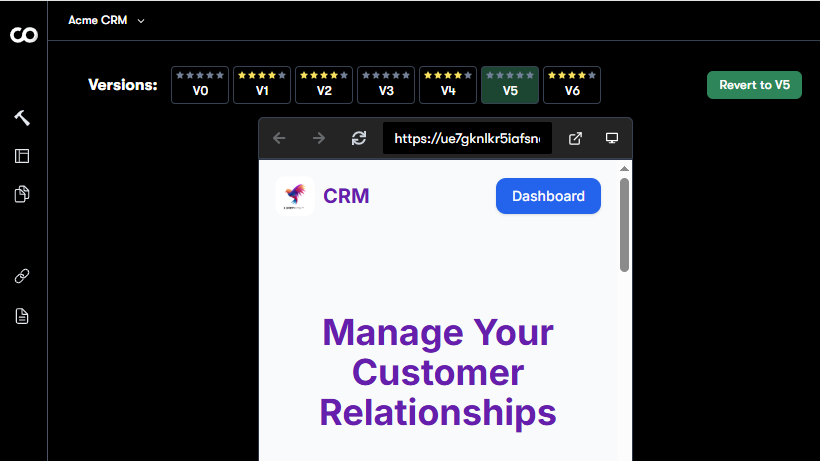
You can then again use AI to keep refining the app. Very helpfully, the platform will keep track of all the iterations of the app, and you can revert to any previous version with a single click.

You can also upload images to the platform, which you can then ask it to use in the app. This is helpful for things like app logos, custom headers, product images, and such.

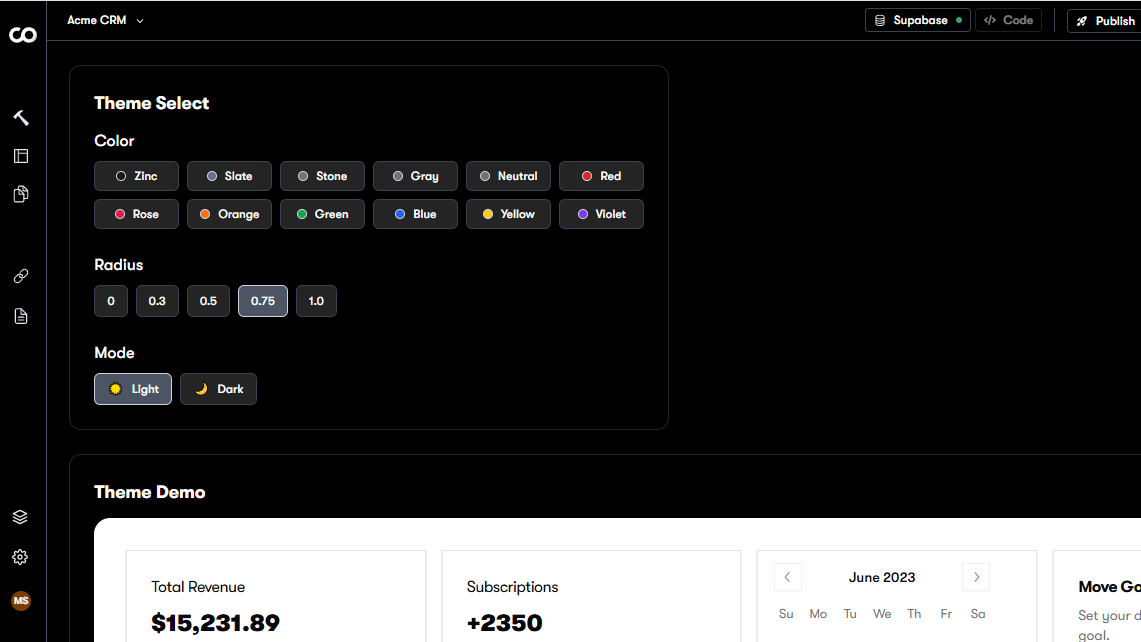
Besides AI, the platform also lets you customize the broader look, and feel of your apps with just a few clicks. You can, for instance, change the primary color to align the app to your brand, adjust the corner radius, and switch between light or dark modes.

Creating an app with Codev

(Image credit: Codev)

Codev can work with the open source Firebase-alternative, Supabase, which uses PostgreSQL to add databases to your apps. You can also use it to roll in authentication services, like user sign ups and logins.

By default, all Codev apps are responsive, which means they can adapt to different screen sizes and devices. This ensures that your apps provide a consistent user experience across desktops, and smartphones.

When you are done, you can also transfer your project to a GitHub repo, which is a helpful feature if you need to make manual code edits to your apps.

Codev: Interface and Ease of Use

Thanks to its limited number of features, Codev has a simple, and straightforward interface, unlike many of its peers. This makes it very approachable, especially if you are new to no-code app development platforms.

Once you’ve entered the prompt, the platform will start building the app, and detail each and every step.

Remember however, that you can only add authentication services, and databases to your app at the start of the app creation process.

One of the good things about Codev is its verbosity. The platform details each and every step in the app creation process. For instance, it’ll tell you how it’s going about putting together the backend (the database structure), and assembling the frontend (user interface).

It’ll also list all the features it has implemented, like contact listing with search, contact creation with form validation, and such. Codev will also list all that you can do with the app in simple language. Finally, the platform will also offer suggestions on how you can improve the first iteration of the app.

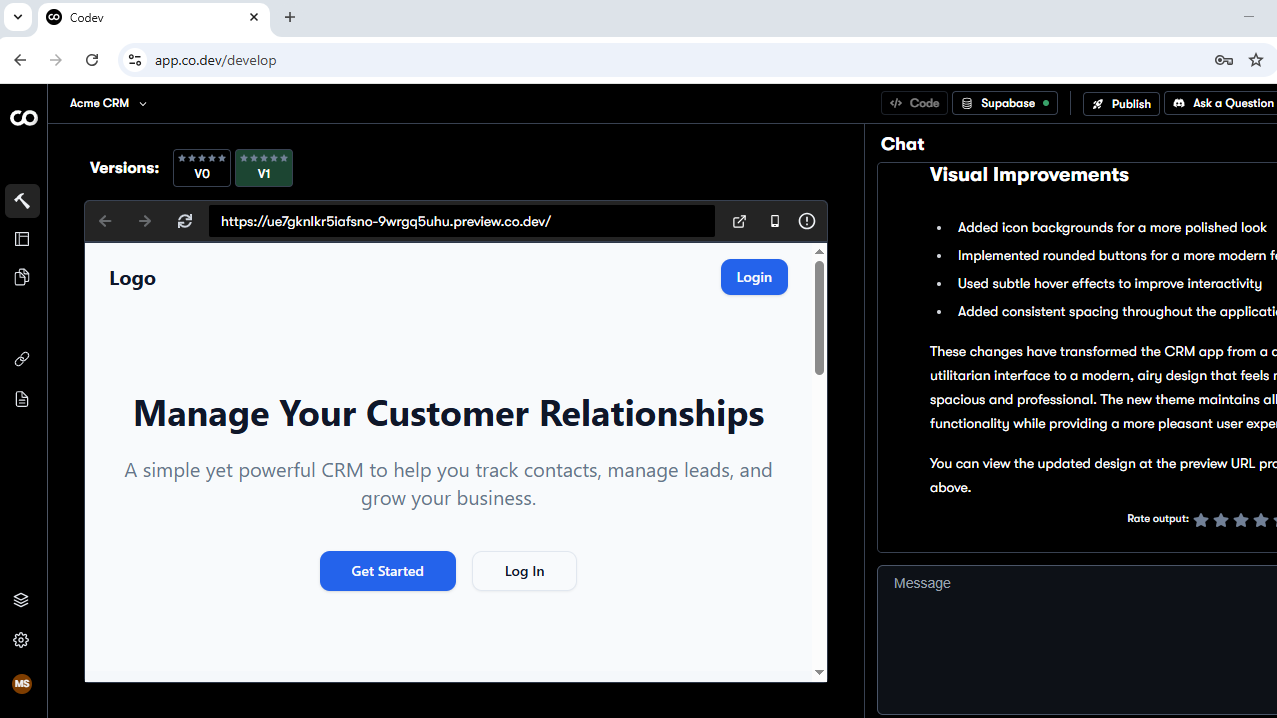
Once it’s done building the app, you can preview it on the left side of the screen. By default, the preview shows the desktop view, but you can also switch to the mobile view.

You can also optionally rate the output as well, based on how closely the app meets the requirements you specified in the AI prompt. The platform keeps track of all iterations of the app above the preview. Interestingly, you can switch, and preview any version, before you decide to revert to an older instance.

Selecting a theme for the web app

(Image credit: Codev)

There’s also a button to view the error log, in case it ran into any during the build. If you do get an error, you can use the Attempt Fix button to let the platform resolve the issue on its own.

Unlike many of its peers, Codev doesn’t include a designer to help fine tune the various elements in your app, such as the titles. However, you can use the Select Element option to hover, and mark the elements you want to refine. You can then describe how you’d like to modify these elements to Codev’s AI.

Codev: Integration and Extensibility

Codev relies on the Next.js framework to power its apps. The platform also does

Server-Side Rendering (SSR) and Static Site Generation (SSG) to pre-render the web apps on the server, which helps improve its initial load times, and SEO ranking.

The platform also uses the Prisma Object-Relational Mapper (ORM) to simplify database interactions, and make it easier to build data-driven apps.

As we’ve pointed out earlier, Codev gets its database from Supabase. Earlier, the platform offered a code download feature, but you can now hook it up with your GitHub account, and ask it to transfer your web app to a GitHub repo.

This is especially useful for advanced users who want to manually make changes to the code, or perhaps collaborate with other developers. Remember though, there’s no provision to upload the exported code back into Codev.

Codev: Deployment and Maintenance

Once your app is ready, you can publish it with a single click. By default, the platform will publish the latest version of the app. However, you can publish any of the earlier versions as well.

Listing the different app versions

(Image credit: Codev)

As with its peers, Codev too publishes apps to its own subdomain. The advantage of this is that you don’t have to distract yourself with the nitty-gritties of web hosting. That said, you do have the option to deploy the app to your own custom domain.

Remember however, that any changes made to the app will not be reflected in the deployed version automatically. Instead, you’ll have to manually republish the app, while ensuring you select the latest version of the app.

Codev: Pricing and Documentation

Codev's pricing model offers flexible options in order to cater to a wide range of users, from startups to larger businesses.

The Free tier offers a limited number of features, but is good enough for exploring the platform. You can use it to query the AI 15 times a month, with a maximum of five messages a day.

If that number’s too low for you, there’s the $19/month Lite plan that offers 50 additional AI queries per month, with no daily limits. You can have up to five private projects in this plan, and publish projects to a custom domain as well. This plan also lets you transfer the code for your app to your GitHub repo.

If you are looking to publish more than one app, switch to the $49/month Pro plan, which allows you to publish an unlimited number of apps to an unlimited number of custom domains. The plan also offers an additional 150 AI messages, gives you early access to new features, and access to the platform’s developers.

In terms of documentation, Codev has a handful of tutorials that cover best practices for writing effective prompts, supabase setup, and authentication. The share update, and details about new features via their official blog.

Support is dispensed through Codev’s Discord channel, and Pro users can also seek support from the platform’s developers.

Codev: The Competition

Codev competes against three other platforms, all of which make extensive use of AI to democratize app development.

First up, is the newly launched Hostinger Horizons, which offers more integration like payment gateways. And while it won’t send code to your GitHub repo, it does let you download and edit it offline. Also, unlike its peers, you can interact with Horizons AI using several non-English languages, as well as through voice prompts.


Then there’s Lovable, which can do everything you can with Codev, and then some. For instance, it offers two-way sync with GitHub, pre-built templates, a Figma-like visual editor, and more.

Codev: Final Verdict

Codev’s best feature is its use of AI to design, and debug the app, which makes the platform usable by non-programmers as well.

However, Codev has a limited set of features, as compared to its peers. It also doesn’t have a visual GUI editor, nor any templates to jump start the app creation process. The platform also can only make web apps, and not mobile apps, or even progressive web apps (PWAs).

All things considered, Codev comes across as a barebones AI-powered no-code platform that offers the bare minimum features you need to spin up a Minimum Viable Product (MVP) with minimal effort.

Here’s a list of the best laptops for programming.

Sunday, April 27, 2025

I used the Cuktech 20 Power Bank for a week to charge my laptop and it’s quick, powerful, and totally overkill for most people

Cuktech 20 Power Bank: review

The Cuktech 20 Power Bank has a high power output and large capacity, designed for charging laptops and similar devices while traveling. As you would expect from a battery of this ilk, it’s quite a handful. It’s thick across its depth, although thankfully it’s not as wide, nor is it as heavy as I was expecting.

This makes the Cuktech 20 Power Bank reasonably portable all things considered, although it’s slightly more cumbersome than some rivals with similar specs.

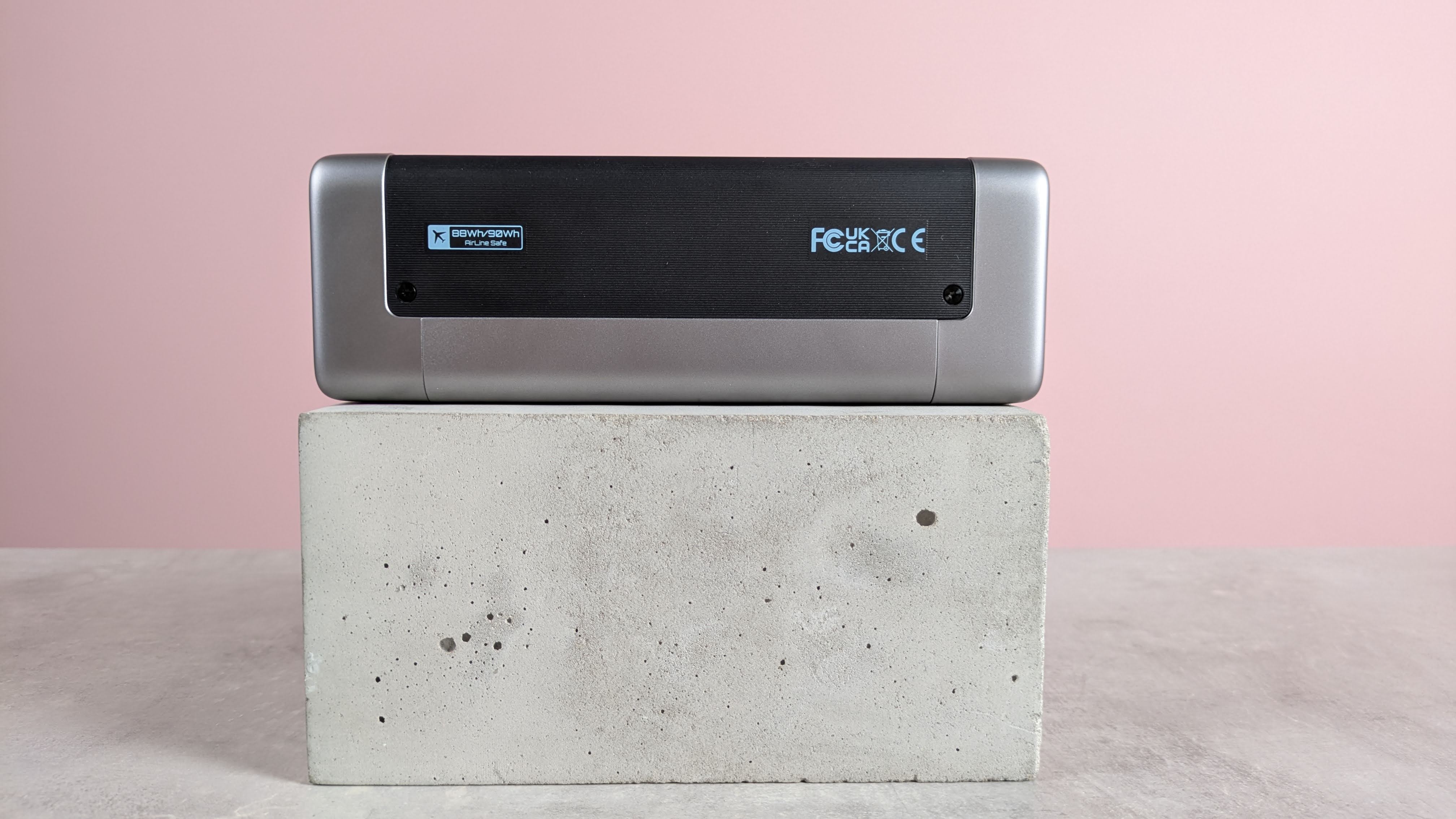
Thankfully, the Cuktech 20 Power Bank is still airline safe despite its size, since it falls below the TSA’s 100Wh limit. It’s also useful that this is clearly labelled on the side, so if an agent is ever doubtful, you can at least show them.

Cuktech has tried to inject some interest into its appearance as well, with its two-tone design and translucent front panel, and I did appreciate the linear texture on the sides, which aids grip and feels premium to the touch. However, this is still a rather austere looking brick, albeit one that’s perhaps a bit more sleek than some of the best power banks.

One of the standout features of the Cuktech 20 Power Bank is the screen, which displays various information, such as the battery life and estimated charging time, as well as the wattage, voltage, and amperage for each port in real time. There’s also a handy indicator to tell you whether a port is delivering or receiving power.

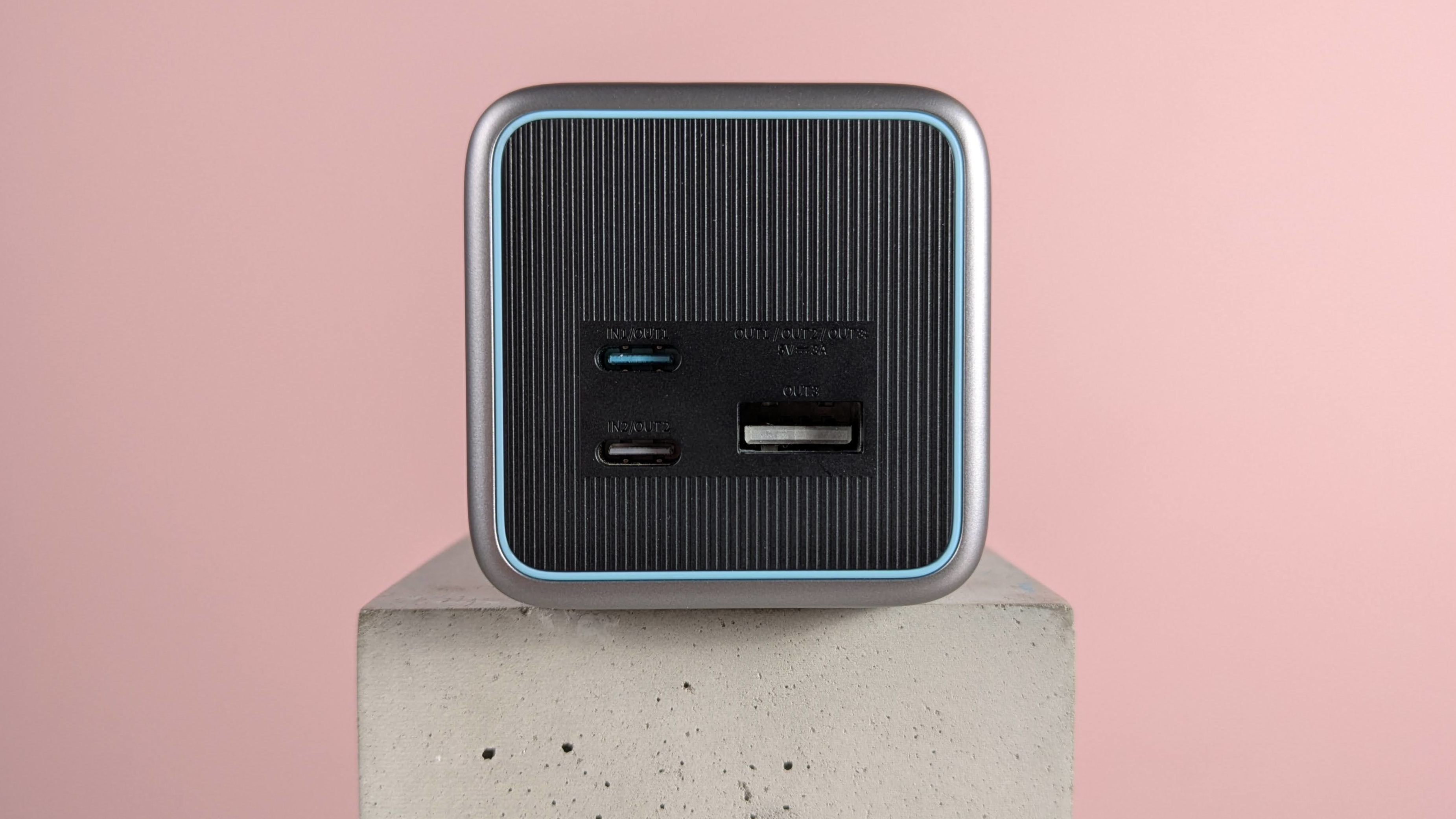
Although this information is certainly useful, it’s a shame the display area is quite small. It’s also a shame that given its size, the Cuktech 20 Power Bank only has three ports, as other power banks of this ilk can squeeze in one or two more. Still, at least two of them are USB-C, and both are input and output capable.

The first USB-C port has an output of 140W, whereas the second tops out at 60W. The USB-A port, meanwhile, has a maximum power output of 30W. Despite this, the maximum output doesn’t quite add up to 230W, but 210W – which is still plenty of power for a brick this size.

Charging via all three ports simultaneously is also supported, while an additional trickle charging mode is available for charging low current devices, such as earbuds and smartwatches, which can be activated by double pressing the power button.

It took just under two hours for the Cuktech 20 Power Bank to charge an HP Chromebook Plus, which has a 58Wh battery, from empty to full via the most powerful USB-C port, which is a solid performance. The estimated time given by the bank was accurate for the most part too, closely matching that of the Chromebook’s, although figures went awry at the tail-end of the charge.

The Cuktech 20 Power Bank lost 82% of its charge in the process, which unfortunately means you’ll likely only get one laptop charge out of it, but this is expected given the capacity – and if it did have more juice in the tank, it would likely exceed flight limits. Charging the bank itself took two hours from empty to full in, which is another impressive performance.

When charging the bank itself, it’s a shame that the screen goes off, although fortunately this can be changed in the settings. Also, there’s a handy LED strip running vertically below it that repeatedly fills up to indicate charging, which also looks stylish – for what that’s worth.

I should mention, however, that my first attempt to charge the Cuktech 20 Power Bank failed. After 30 minutes or so, I noticed it wasn’t receiving any charge, despite my cable being attached correctly. I’m not sure if this was because the bank was expecting to deliver an output rather than receive an input, but a simple re-plug fixed the issue. I can also report that I only experienced this once during my testing, so I can only presume this was a one-time glitch.

If you’re looking for another large yet flight-ready power bank, the Anker Laptop Power Bank is a great alternative. It’s slightly cheaper than the Cuktech 20 Power Bank, but it has more convenient features, such as two built-in USB-C cables, one of which can be looped to create a carrying handle. It has less total power than the Cuktech 20 Power Bank (165W), but this is still plenty for many people’s needs.

But if you do need over 200W of total power, in a reasonably portable and flight-ready package, the Cuktech 20 Power Bank is a solid pick for charging laptops and the like on the go.

Close-up of ports on Cuktech 20 Power Bank, on plinth with pink background

(Image credit: Future)

Cuktech 20 Power Bank review: price & specs

Side view of Cuktech 20 Power Bank, on plinth on desk with pink background

(Image credit: Future)

Should I buy the Cuktech 20 Power Bank?

Buy it if…

You want plenty of power
With 210W of total power, the Cuktech 20 should be enough for all kinds of devices.

You still want to fly with it
Despite its power and size, the Cuktech 20 is still airline safe, which is helpfully labelled on one side.

Don't buy it if…

You want something small
The Cuktech 20 does a good job of keeping things compact, but it's undeniably thick, which can be inconvenient.

You want something cheap
With all that power comes a high price, and there are some equally capable but slightly cheaper alternatives out there.

Cuktech 20 Power Bank review: Also consider

Anker Laptop Power Bank
Not only does it have the same capacity as the Cuktech 20 Power Bank, the Anker Laptop Power Bank has features two integrated USB-C cables, one of which doubles as a handy carrying loop. It’s about the same size and weight as the Cuktech 20 Power Bank, and is similarly flight-ready, but costs slightly less. At 165W, it’s less powerful – but still not exactly what you’d call weak. Read our Anker Laptop Power Bank review.

!!!!!!!!!!

Popular Posts

Categories

Blog Archive