Tuesday, September 30, 2025

I reviewed the JBL Charge 6 Bluetooth speaker, and if you want big, high-quality sound for a great price, it's unbeatable

JBL Charge 6: Two-minute review

The JBL Charge 6 portable wireless speaker isn’t as closely related to the outgoing JBL Charge 5 as it might first appear. Oh, in physical terms they’re closely related – but the Charge 6 adds some nice new specification upgrades, as well as a very useful carry handle, in an effort to maintain the Charge’s position as the pre-eminent mid-priced option among the best Bluetooth speakers.

So as well as 45 watts of power and an impressive frequency response of 54Hz - 20kHz, the JBL Charge 6 can be hard-wired via USB-C in order to deliver true hi-res audio. It will run for 24 hours from a single charge – longer if you don’t mind sacrificing some bass response – and can act as a charger for your smartphone.

Two JBL Charge 6 units can form a stereo pair, and it can connect to any Auracast-enabled speakers for as numerous a speaker system as you fancy. An IP68 rating and a predictably robust standard of build and finish means it is happy in pretty much any environment.

And in action, the Charge 6 is a deft and assertive listen with a whole lot of positives about the way it deals with your audio files. Over Bluetooth, it’s punchy and detailed in equal measure, with a nice tonal balance and fairly even frequency response. Up the ante with some hi-res stuff via USB-C and it gains additional dynamism, insight and rhythmic positivity.

Really, only lowering volume to ‘background’ levels can upset it – quite a lot of its direct and expansive nature goes astray when you try to listen quietly. This thing is made for fun.

So yes, ‘Charge 6’ turns out to be a little more than just ‘Charge 5 +1’, and it's as good as speakers this size, at this price, get right now.

JBL Charge 6 review: Price and release date

  • Released in April 2025
  • Officially priced at $149 / £129 / AU$179

The JBL Charge 6 is on sale now, and in US you can find it for $159, in the the United Kingdom it sells for £169 (unless you decide you fancy the rather lively purple or red finishes, which for some reason are £5 less expensive), while in Australia it goes for AU$229.

That's a similar price to the JBL Charge 5 at its launch, though the older model can now be found in the $120-$140 region regularly, or is £119 in the UK at the time of writing.

The Charge 6 is a good price for this kind of speaker – for example, it's priced similarly to the Sonos Roam 2, which is much smaller and less powerful than this, but the JBL doesn't have the multi-room Wi-Fi skills of the Sonos.
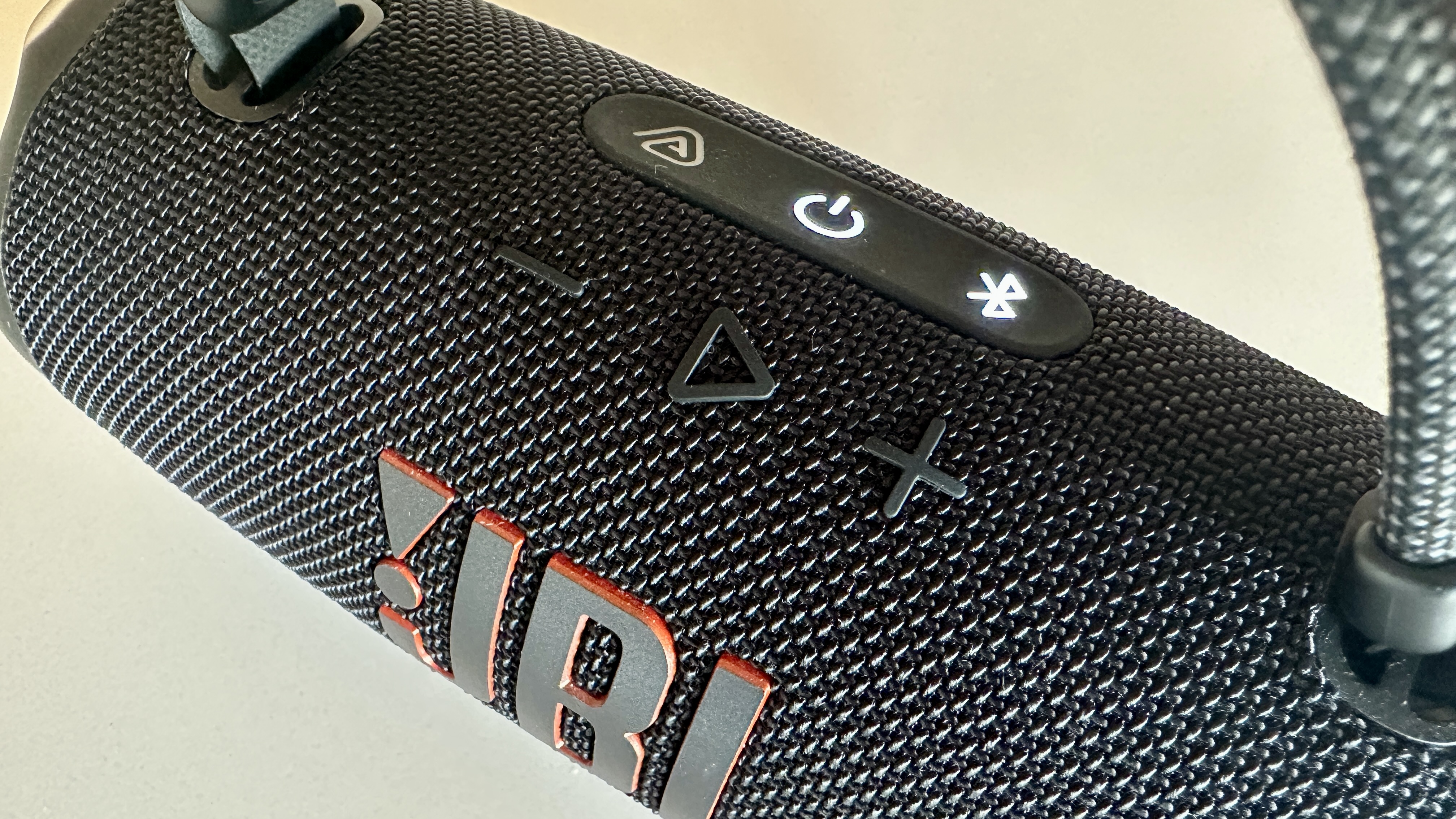
The JBL Charge 6 viewed from the top, showing its controls and logo

(Image credit: Future)

JBL Charge 6 review: Specs

Weight:

1.37kg

Dimensions:

229 (W) x 99 (H) x 94 (D) mm

Battery life (quoted):

Up to 24 hours (28 with boost mode)

Connectivity:

Bluetooth 5.4 with SBC and AAC codecs

Drivers:

53 x 93 mm mid/bass 'racetrack' driver, 20mm tweeter

Aux-in:

No (USB-C audio passthrough)

Charger port:

USB-C

Microphone:

No

Waterproof rating:

IP68

JBL Charge 6 review: Features

  • 45 watts of power
  • 54Hz - 20kHz frequency response
  • 24 hours of battery normally, can be boosted to 28 hours

When it comes to a wireless connection, the Charge 6 uses Bluetooth 5.4 (good) and is compatible with SBC and AAC codecs (less good, but normal).

Unlike a lot of nominal rivals, though, the JBL has a USB-C slot that can be used for data transfer as well as for charging its battery, meaning that if you connect it to an appropriate source, hi-res audio of up to 24bit/96kHz can be yours (very good indeed).

The battery itself will run for around 24 hours (as long as you’re not absolutely blasting the volume), and if you switch ‘playtime boost’ on, that number rises to 28 hours in exchange for a rather obvious curtailing of low-frequency presence.

This is basically as long as battery life gets for portable speakers – certainly for speakers that are actually easy to carry around.

The JBL will even act as a power bank, so you can connect your phone to the USB-C port to charge it if push comes to shove – but this will, of course, eat into the Charge 6’s own battery life. From ‘flat’ to ‘full’, by the way, takes a fairly leisurely three hours.

No matter how the audio information makes it onboard, it’s attended to by 45 watts of Class D power driving a 20mm tweeter and a racetrack mid/bass driver. It's basically the same speaker setup as the JBL Flip 7, but with bigger speakers in all cases and more power – lovely.

In conjunction with the passive radiator at each end, JBL claims this arrangement is good for a frequency response of 54Hz up to 20kHz.

  • Features score: 4.5/5

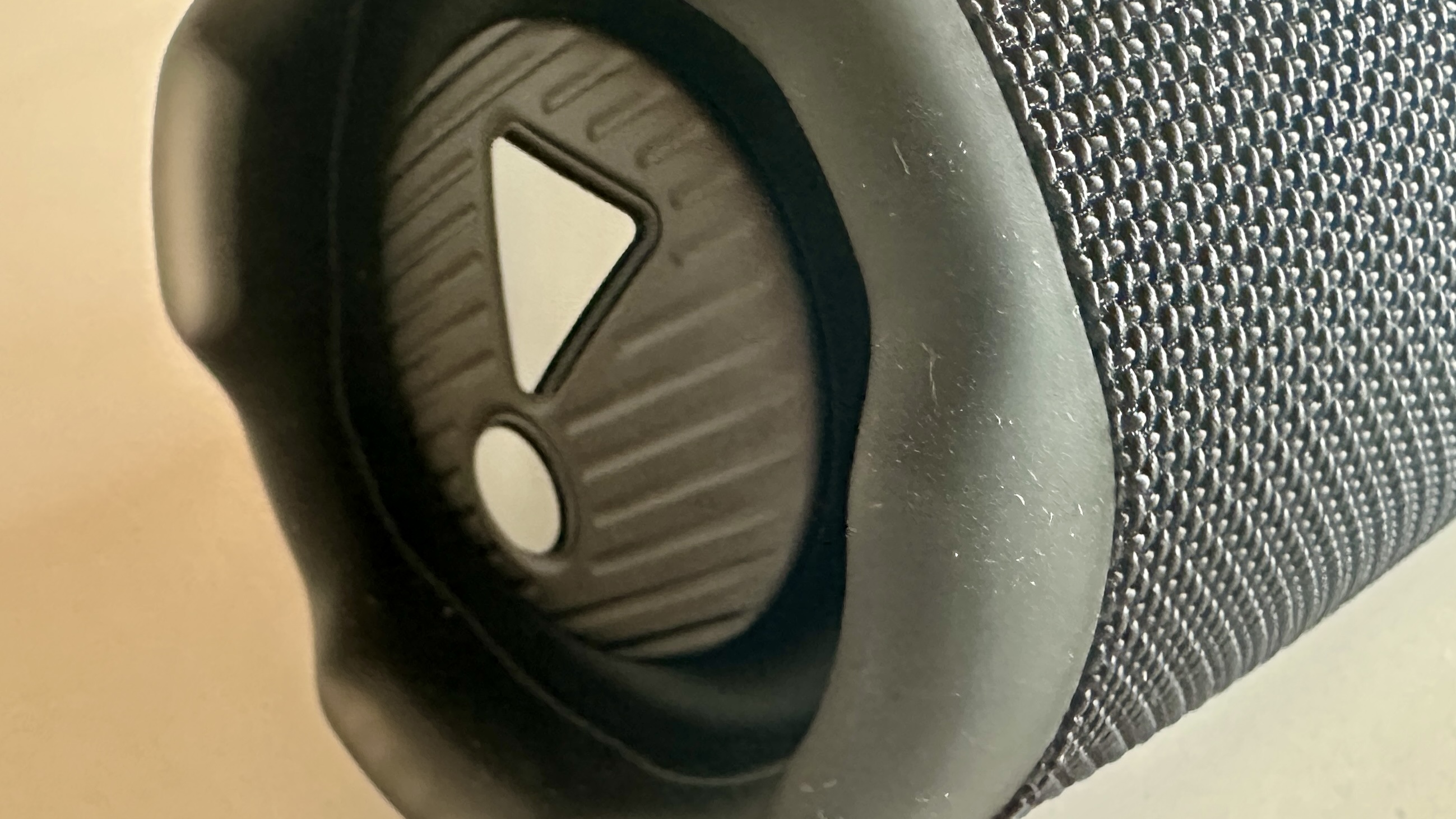
The JBL Charge 6's bass reflex port

(Image credit: Future)

JBL Charge 6 review: Sound quality

  • Big and punchy (but also deft and detailed) sound
  • Capable of significant volume
  • Loses interest at lower levels

You might think you know what you’re getting, sound-wise, when you look at the Charge 6. And in some ways, you’d be right – give it a stream of Outkast’s The Way You Move and the JBL delivers it with scale and considerable substance. Its sound is big and weighty, and there’s plenty of drive and momentum to ensure the rhythm is expressed with real positivity.

But the Charge 6 is no blunt instrument. It retrieves and reveals plenty of detail, is more than capable of handling the transient or minor events in the recording, and is just as adept at describing the harmonic variations as it is the broad dynamic strokes of ‘quiet’ and ‘loud’. Sure, it’s an energetic and quite forceful listen – but it pays just as much attention to the light and shade of a recording as it does the attack.

Its frequency response is fairly even; there’s a slight skew to the bottom end, sure, but it’s nothing fatal. And its tonal balance is equally well-judged, so there’s crisp presence at the top end to balance the punchy lower frequencies – and in the midrange, the JBL makes the character and technique of a vocalist pretty apparent.

Switch to a 24-bit/96kHz FLAC file of The Past is a Grotesque Animal by of Montreal, served to the Charge 6 via USB-C, and the entire presentation steps on. The soundstage opens up yet further, detail levels enjoy a big uptick, and the amount of space available to each element of the recording makes for greater overall scale.

Dynamic headroom increases, the unity of the frequency range is made more apparent, and the control of low-frequency activity makes for a rhythmically positive and articulate sound.

It’s worth noting that many of these uncomplicatedly enjoyable aspects of music-making are rather diminished should you decide to listen to the Charge 6 at volumes levels of ‘modest’ or below.

The JBL is not especially tolerant of being treated as a ‘background listening’ device, and a fair amount of its directness and assertiveness deserts it in the circumstance. No one puts Baby in the corner, so it seems…

  • Sound quality: 4.5/5

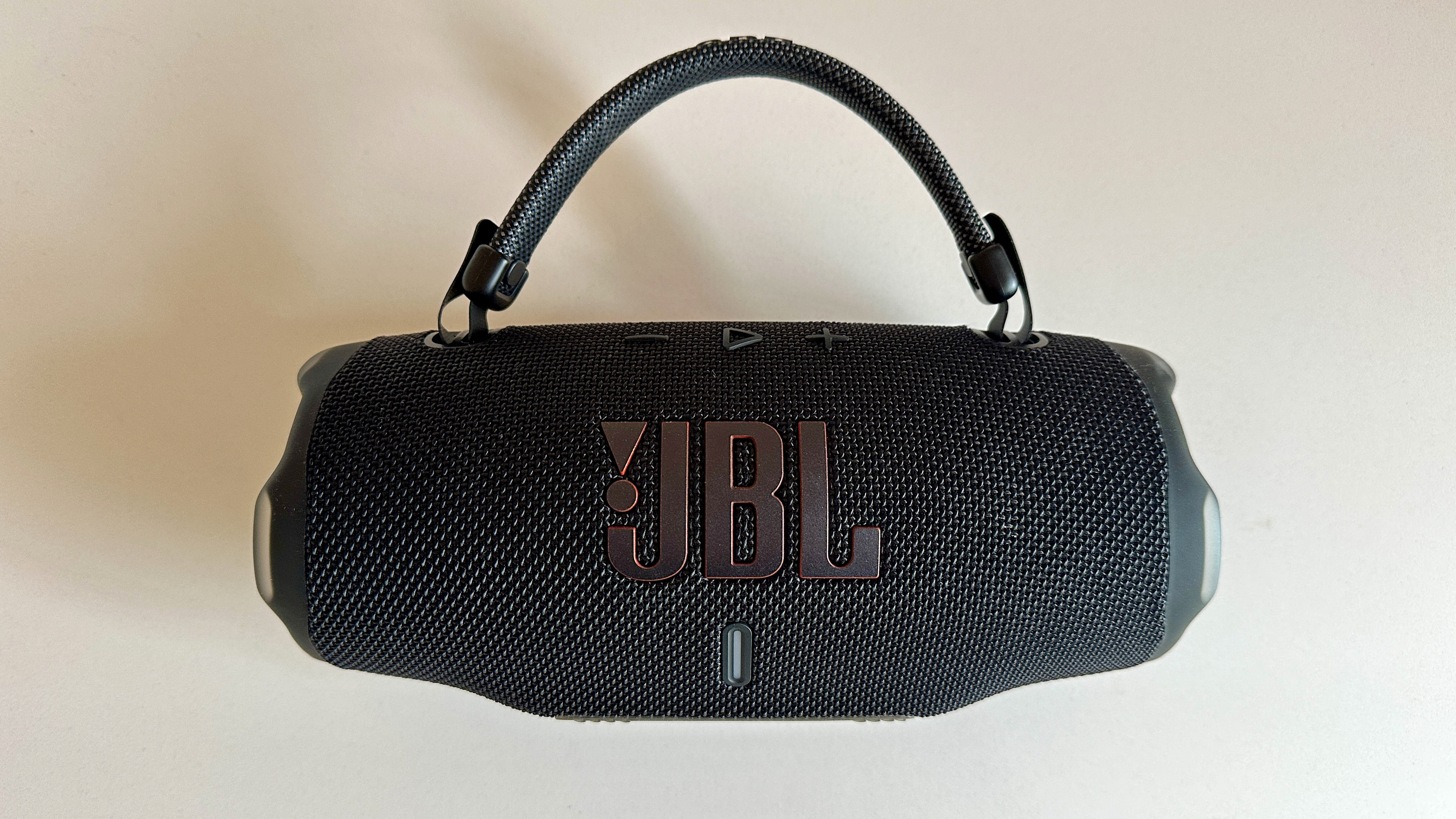
The JBL Charge 6 shown from the front, including its carry handle

(Image credit: Future)

JBL Charge 6 review: Design

  • IP68-rated for dust and waterproofing
  • Seven finishes, and useful carry handle
  • Reasonably compact at 229 x 99 x 94mm

In broad terms, it’s JBL Charge business as usual here. The speaker is almost cylindrical, with a flattened area on the bottom for it to rest on. Each end of the almost-cylinder features some sturdy rubberization to protect the passive radiator (and its rather alarming ‘!’ branding) at each end.

A few physical controls are arranged across the top, at the rear there’s a USB-C slot, and the entire thing is wrapped in hardwearing fabric.

Changes in design over the outgoing Charge 5 are very few – but they’re all significant. Those rubber end caps are now even more robust than before. The material that covers almost the entire speaker is now 100% recycled material. The controls are in two rows for even greater ease of operation.

The IP rating has risen from a very acceptable IP67 to IP68 – which indicates the Charge 6 is virtually impregnable. And there’s now a flexible, branded carry-handle that fits to the top of the speaker and means it’s more easily portable than before.

A choice of seven different finishes runs from a business-like black to a camo number JBL calls ‘squad’. No matter the color you choose, though, you’ll be in possession of a carefully designed and beautifully built portable speaker.

  • Design score: 5/5

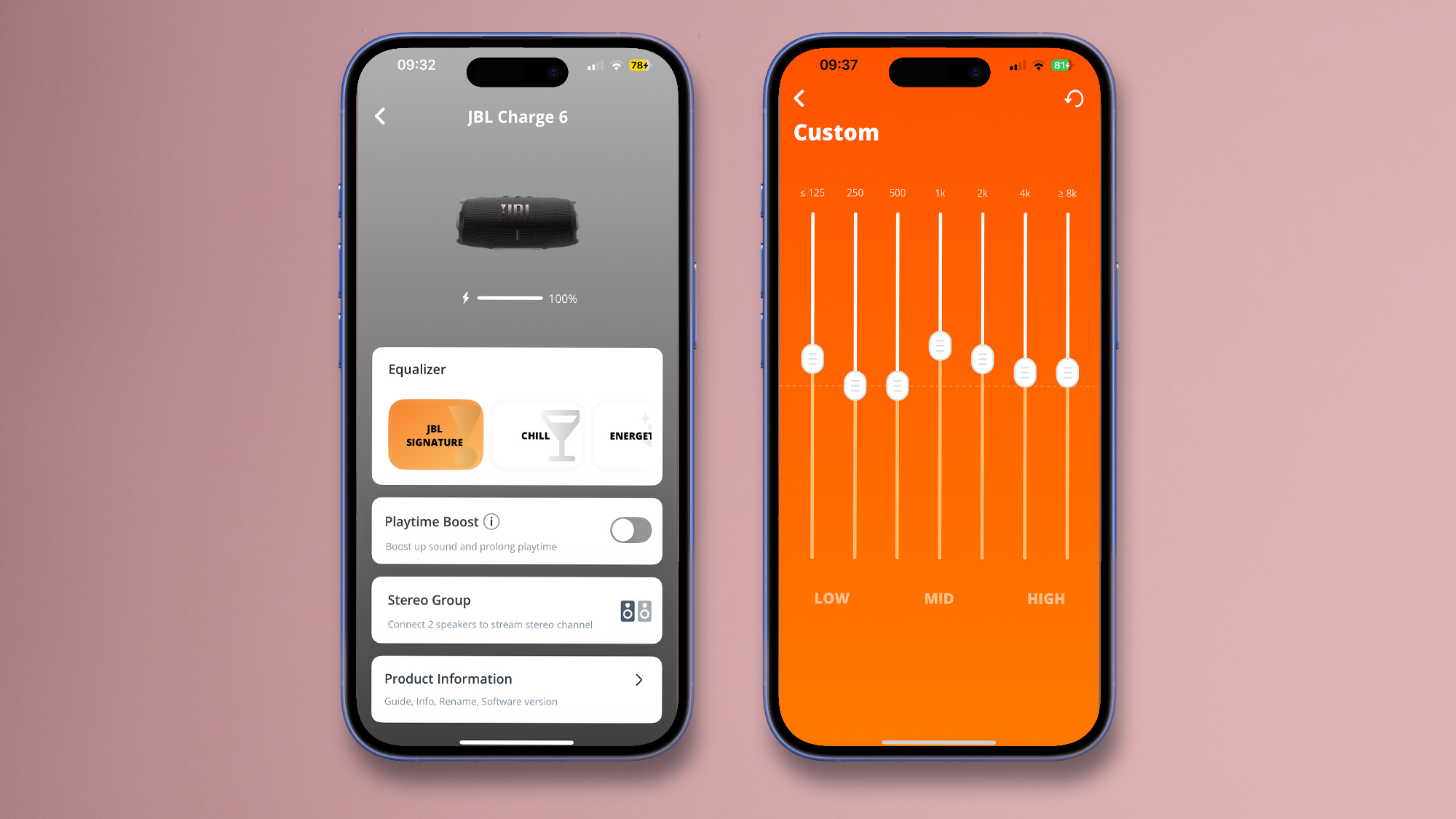
The JBL Charge 6 app showing the equalizer and the main menu

(Image credit: Future)

JBL Charge 6 review: Usability and setup

  • JBL ‘Portable’ control app
  • A few physical controls
  • Auracast and stereo pairing

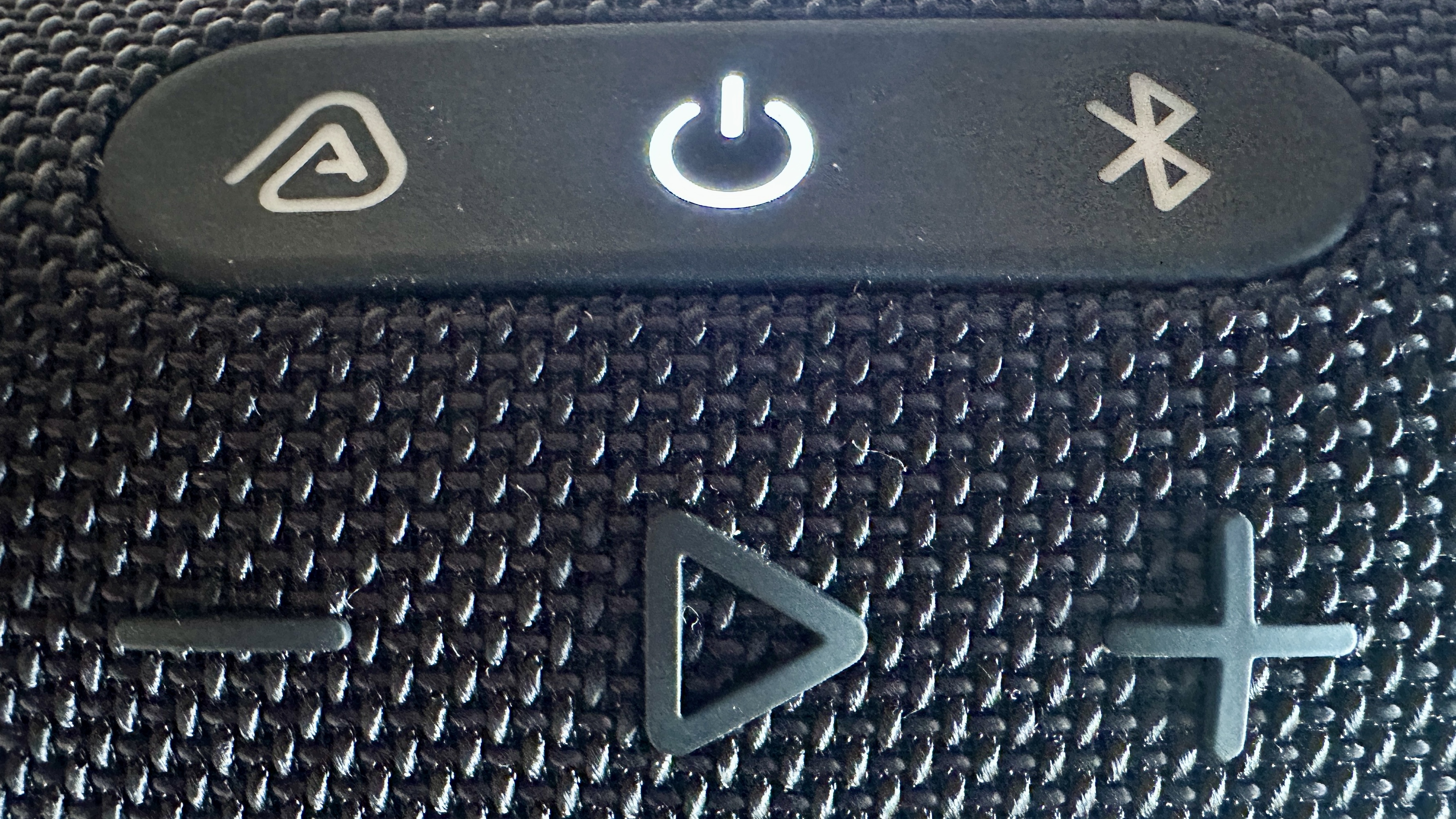
The two rows of physical controls on the Charge 6 cover volume up/down, play/pause, power on/off, Bluetooth pairing and Auracast pairing – as long as the other speakers in your prospective group are Auracast-enabled, there’s no practical limit to the number of speakers you can join together or the amount of space you can cover.

Each of the controls is reliable, and very positive in its action – and the ability to pair two Bluetooth devices at a time is very welcome too.

The company’s ‘Portable’ control app is a useful little number too. Here’s where you can form a stereo pair with another Charge 6, check out a number of EQ presets or establish some of your own, check on battery life, and turn on ‘playtime boost’.

It’s a clean and stable app that’s a cut above the sort of thing some rival portable speakers are accompanied by.

  • Usability and setup: 5/5

The JBL Charge 6's controls

(Image credit: Future)

JBL Charge 6 review: Value

If you want it for background listening, look elsewhere for your Bluetooth speaker, and spend less money while you’re at it – the five-star JBL Flip 7 would work nicely.

But if you decide to let it do its thing, the JBL Charge 6 has more than enough sonic talent to justify its asking price – and the fact that it’s so well made, so hardy and so very usefully specified only seals the deal.

  • Value score: 5/5

Should I buy the JBL Charge 6?

JBL Charge 6

Attributes

Notes

Rating

Features

Can't fault the battery life, USB-C connectivity, or Auracast option – higher-res wireless would be nice, though

4.5/5

Sound quality

Powerful, well-balanced and more detailed than you expect – especially in its USB-C mode

4.5/5

Design

Tougher than ever, made from more recycled material, and with a useful handle

5/5

Usability and setup

Very easy, with just the right amount of controls on the device, and a good app

5/5

Value

Reliable, long-lasting, great-sound – feels like a superb option for the price

5/5

Buy it if…

You want balanced and vigorous sound from your speaker
The Charge 6 may look a bit of a bruiser, but it’s a deft and insightful (as well as bruising) listen.

You like a bit of hi-res audio
Hard-wired via USB-C to an appropriate source, the JBL can be a genuinely hi-res device.

You want ‘portable’ to mean ‘portable’
That new carry-handle makes more of a difference than you might think.

Don’t buy it if…

You are likely to do your listening at modest levels
The JBL gives away quite a lot of its sonic animation at low volume.

JBL Charge 6 review: Also consider

Sonos Roam 2
This hits the Charge 6 more-or-less head-on where price is concerned, and in its own way it's just as adaptable a listen, with multi-room over Wi-Fi on offer instead of USB-C audio and Auracast. Its battery life is relatively miserly, though, and it doesn’t have the outright scale of sound to compete either.
Read more in our Sonos Roam 2 review

Bose SoundLink Plus
This is just as robust as the JBL Charge 6, both in the way it’s constructed and the way it sounds. It doesn’t lose interest at lower volumes, either – but it’s not quite as deft a performer as the JBL, and it’s a little more expensive too.
Read more in our Bose SoundLink Plus review

How I tested the JBL Charge 6
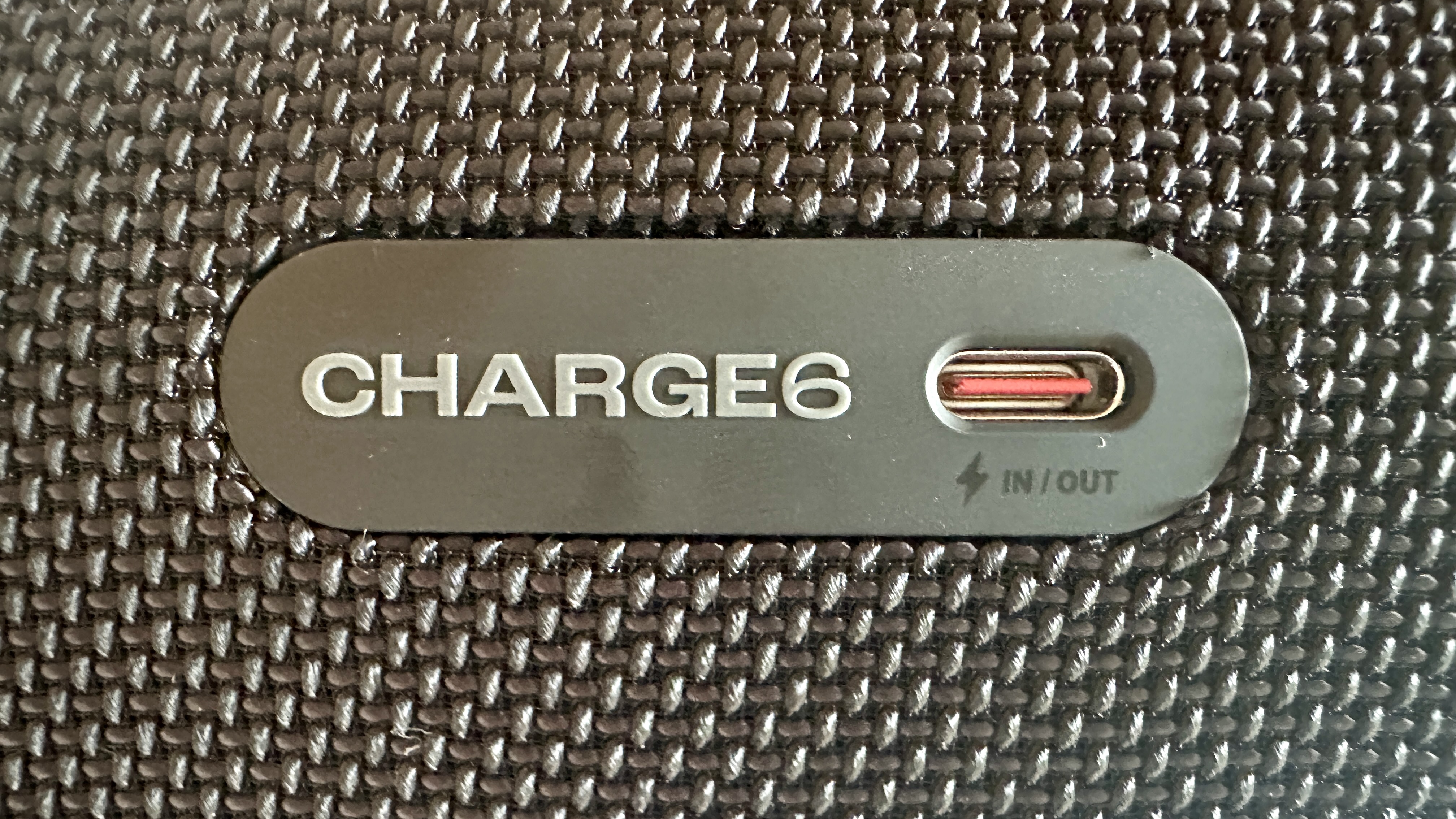
The JBL Charge 6's USB-C port

(Image credit: Future)
  • Tested for over a week
  • Tested in a variety of real-world locations
  • Connected wireless and wired, with a variety of file types

I connect the JBL Charge 6 via Bluetooth to an Apple iPhone 14 Pro, an Apple MacBook Pro and a FiiO JM21 digital audio player.

I also connected it to the laptop via USB-C, where the Colibri software on the machine allowed the Charge 6 to play authentically hi-res content.

I listened indoors and outdoors, at a variety of volume levels and to a variety of types of music. And I did all this for well over a working week (and sometimes at the weekend too).

Read more about how we test

  • First reviewed: September 2025
I tested Gmail and found it an excellent and reliable platform for business and personal use

Gmail is the world’s most popular email platform, with a stunning user base of over 1.8 billion. In other words, over 20% of the world’s population uses Gmail in individual or business capacity.

Given that Gmail is free, easy to use, and is operated by Google, the company behind the world’s leading search engine, it’s no surprise that Gmail is very popular. However, does that translate into Gmail being the best email provider for you? What are its features, and how does it fare against competitors? This guide will answer these questions.

I’ve thoroughly reviewed Gmail to help you determine whether it’s the best email platform for your personal or business needs. Read on to learn about Gmail in detail, including its pricing, ease of use, security, and key features.

Gmail: Plans and pricing

You can use the personal version of Gmail for free. However, like most things, it’s free up to a certain point. Users have up to 15 GB of free storage for pictures, videos, other documents, and other attachments in their email inbox. If you exceed 15 GB, you’ll either need to delete files to free up more space or pay for additional storage.

Extra Gmail storage requires a Google One subscription, with the lowest tier being $20 annually for 100 GB of storage. Ultimately, Gmail offers excellent storage capacity for free – most users don’t surpass 15 GB, except they’ve used Gmail for a long time or use email much more frequently than others.

Businesses can pay for an advanced version of Gmail via Google Workspace. The business tier increases the cloud storage allocated to each employee, and businesses can create emails attached to their custom domain. It’s the same Gmail interface, but with features designed for business use and a custom domain to give employees a more professional appearance.

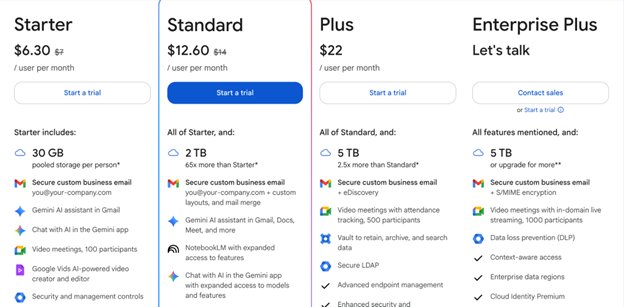
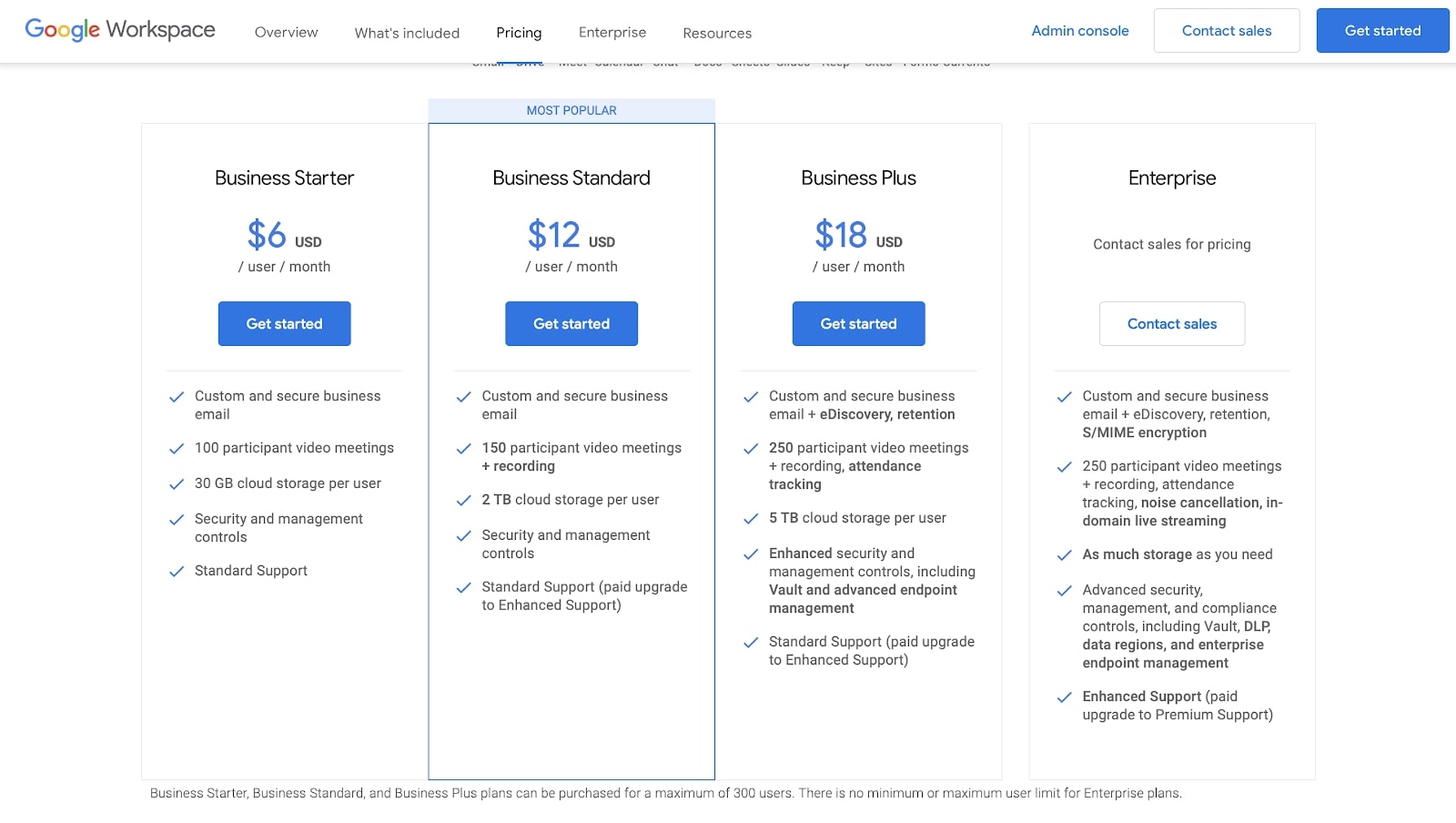
Google Workspace plans start from $7 per user per month, which provides 30 GB of storage per account, double the free limit. The Standard plan costs $14 per user per month, providing 2 TB of storage per account. The Plus plan costs $22 per user per month and unlocks 5 TB of storage per account. These plans are reasonably priced, given the massive amount of storage space they provide.

Gmail 1

Business plans are limited to 300 users, except for the Enterprise plan which has no limit (Image credit: Google)

Gmail: Features

Sending and receiving emails are the primary features you’ll expect from Gmail. You can compose emails and send them to your desired email addresses. The maximum number of recipients per email is 500 for free accounts and 2,000 for Google Workspace accounts. However, most users aren’t hitting this limit, so I see no issues here.

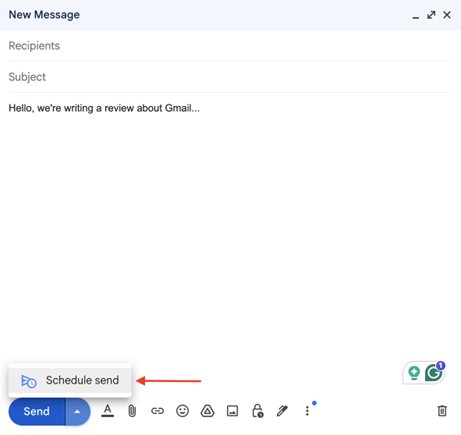
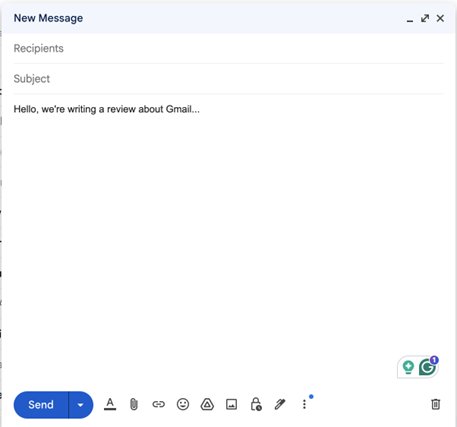
I like that Gmail lets you send scheduled emails. You don’t always have to send emails immediately after you type them. Instead, you can set the email to send at a specific time. This feature comes in handy in many endeavors, such as sending birthday wishes ahead of time and sending event reminders to colleagues.

In this era of artificial intelligence (AI), Gmail hasn’t been left behind. Google has invested significant resources in incorporating AI features that have made Gmail much more intuitive than before.

For instance, I enjoyed the Smart Reply feature, which crafts quick, automated responses to emails. The AI system reads your email and suggests quick responses, such as “Well noted, I’ll work on it,” “Here it is,” or “I’ve attached the document here,” among others. The suggested responses are based on the content of the email you’re replying to.

The Smart Reply feature may sound trivial, but it helped me a lot. It gets tiring having to retype mundane responses to personal and work emails – the feature saved me a lot of time here, which I spent creating detailed responses for the emails that needed them.

I also enjoyed the Smart Compose feature, which functions as an AI assistant when typing emails. It can read your mind… just kidding, it can’t. It analyzes the words you’ve already typed and suggests the next words and phrases. It’s right many times, but can be amusingly wrong. The good thing is that you can hit enter whenever it gets the right suggestion and ignore it if the suggestion isn’t right. Smart Compose saved me considerable time when typing emails.

Gmail 2

Gmail boasts plenty of features to optimize the user experience (Image credit: Google)

Apart from intuitiveness, security is a key issue when choosing an email platform. Spam attacks have become more sophisticated due to AI tools that have made text generation a breeze. Hence, security is more important than ever, and Gmail delivers well in this criterion.

By default, Gmail has spam filters that analyze incoming emails and rate their likelihood of spam. If found to be spam, an email is automatically sent to the spam folder. From my experience, Gmail’s filters ensnare most spam messages, but some crafty ones occasionally make it through. When I encountered such an email, I immediately blocked the address and deleted their emails.

False positives can also occur. Some legitimate emails, such as password recovery attempts, might be sent to the spam folder, but you can always visit the spam folder and transfer such emails to your main inbox. If you mark an email in the spam folder as “Not Spam,” further emails from that address will land in your main inbox.

Another crucial security feature I liked is “Confidential Mode,” which allowed me to set expiration dates for emails. For instance, I sent an email containing sensitive information to a friend and set it to self-destruct a day after sending. I also set passcodes for specific emails, and the recipient needed this passcode to read the content– I gave them the passcode via SMS and other communication channels.

Likewise, with Confidential Mode, you can prevent recipients from copying, forwarding, or downloading the contents of your email. However, this feature doesn’t prevent users from taking screenshots of the photos and text – it just makes it difficult to transfer the content directly via email, so be careful about the information you send.

Gmail always prompts users to enable two-factor authentication, which adds an extra layer of security to your email account. With this feature enabled, no one can access your account simply by having your Gmail credentials. Logging in also requires a unique one-time PIN sent to your phone number or other Google-linked devices. Without this PIN, no one can log in to your account on a new device.

I advise always enabling two-factor authentication for your Gmail account. This overlooked feature protects you from most malicious attacks. According to Microsoft, two-factor authentication is the antidote to 99.9% of security attacks.

Gmail offers advanced encryption to protect emails during transmission, ensuring they can only be read by the intended recipients. All emails and their attachments are automatically scanned for malware, and any suspicious ones are blocked. Note that the scanning isn’t perfect; some suspicious attachments may slip through, so avoid opening any attachment from an address you aren’t familiar with.

If you’re like me, who frequently sends and receives emails, your inbox can easily get cluttered, and sorting through vast numbers of emails can get tiring. Fortunately, Gmail lets you organize your inbox and make your emails easy to navigate. You can create labels, such as “Work,” “Family,” “Newsletters,” and “Shopping,” and add specific emails to each of them, or automatically label emails based on the sender’s address. Whenever you want to view a specific group of emails, you can simply click on the relevant label.

For example, if you want to read your daily newsletters, you can click on the “Newsletters” label and see the new emails sent from the addresses you’ve previously marked.

Similarly, you can create custom filters to archive, forward, or even delete emails originating from specific addresses. Gmail’s labels and filters help you automate email sorting and reduce the time you spend navigating your messages.

Gmail seamlessly integrates with other Google tools you may be familiar with. For example, you can upload files to Google Drive and attach them to your email by clicking a few buttons. I found this feature handy when sending large files that would have taken a long time for the recipient to download– instead, the recipient could simply access the file online on Google Drive.

Google Meet isn’t the most popular videoconferencing app, but I liked its smooth integration with Gmail. I could start Google Meet calls directly from my Gmail interface and switch back to emails when done, while on the same browser tab.

Other notable integrations include Google Calendar, which allows you to create events from emails and set reminders, and Google Tasks, where you can convert emails directly into tasks on your to-do list.

Gmail: Interface and in use

Gmail’s interface is one of its main strengths. I think the user-friendliness is the main driving force behind Gmail’s popularity, although being affiliated with Google also helps a lot.

I’ve tested many email platforms, and Gmail stands out for its intuitiveness. Everything feels easy to navigate, even as a first-time user. It helps that first-time users don’t have cluttered inboxes that can make navigation more challenging. Yet, even with a packed inbox, I’ve discussed how filters and labels let you simplify navigation.

The features are neatly arranged on the left side of your dashboard, where you can quickly sort through them. You can switch between your main inbox and other folders smoothly. You can sort through spam, trash, sent, scheduled, and other email categories without a hitch. The Compose button is boldly displayed at the top-left corner, and the menu for composing and sending emails is easily understood at a glance.

Gmail 3

Gmail’s user-friendly interface makes it easy for even amateur users (Image credit: Google)

You can access Gmail from your web browser or download the app on your desktop (Windows and macOS) or smartphone (iOS and Android). The app works exactly as the website, but has faster loading times and offline access.

Gmail: Support

I’ll rank Google’s support as decent. It’s not the most outstanding, but it isn’t bad either. Users have access to an extensive knowledge base that details all Gmail’s features and provides guidance on troubleshooting common issues.

If you encounter any problems, the knowledge base and official Help Center should be the first places to seek help. Likewise, if you’re a new user who wants to learn the ins and outs of Gmail, the Help Center should be the first place to consult.

Gmail is a free tool, so don’t expect much direct help as a personal user. Google has a support team, but they’re more focused on enterprise customers who pay for Google Workspace and other tools.

For paying Google Workspace subscribers, Google offers decent support. Response times vary according to your plan, but the support team doesn’t take long to reply to email complaints.

Gmail: The competition

Gmail is the most dominant email platform worldwide, but it has no shortage of competitors. Many free email platforms have tried to chip away at Gmail’s market share for a long time, with mixed results. The two rivals I’d like to highlight are Zoho Mail and Proton Mail.

Zoho Mail offers a free version for personal use, just like Gmail. However, this free plan provides just 5 GB of storage, unlike Gmail’s 15 GB. Zoho is more competitive on the business side, with plans that are more affordable than Gmail, although Gmail still offers more storage.

Businesses can subscribe to Zoho Mail for as low as $1 per month per user, while a Google Workspace subscription starts at $6 per month per user. Zoho Mail isn’t as user-friendly as Gmail. In fact, I got confused several times as a new user, but it’s a more affordable email solution for businesses with limited budgets.

Proton Mail is a secure email solution that offers end-to-end encryption, self-destructing messages, password-protected emails, and adherence to robust Swiss privacy laws, among other features. I wouldn’t say it’s more secure than Gmail, as Gmail offers many of the same features optionally. However, Proton Mail is more geared towards privacy and doesn’t have advertisements.

The drawback is that Proton Mail isn’t as intuitive as Gmail, and the free plan is much more limited, e.g., 6 GB storage compared to Gmail’s 15 GB storage. You’ll need a paid plan to enjoy most of Proton Mail’s features.

Gmail: Final verdict

Gmail is an email platform that I recommend any day and at any time, both for personal and business use. I can summarize the reason as “it just works.” Gmail provides the email features you’ll need, even on the free plan.

The paid plans are more expensive than other options, but the intuitiveness and seamless integration with other Google tools make it worthwhile if your business can afford it. Gmail is a solid choice that makes emailing an enjoyable experience.

We've also featured the best email clients.

Monday, September 29, 2025

MSI Stealth A16 AI+ review: thin, light, and hot

MSI Stealth A16 AI+: Two-minute review

Some of the best gaming laptops are those that are portable enough for you to take on the go with you, whether it's because you’re a commuter or just because you want to use your laptop in various places - and love to game.

With more options hitting the market over the past year thanks to the release of Nvidia’s 50 series graphics cards, we've been eagerly awaiting MSI's new edition of its Stealth series, the MSI Stealth A16 AI+.

The good news is that the new MSI Stealth A16 AI+ is once again a formidable gaming laptop, deftly balancing powerful performance with a sleek design, making it a candidate for our best thin and lightweight gaming laptops buying guide.

While its battery life leaves something to be desired and it can run hot under pressure, its vibrant OLED screen, robust build, and exceptional gaming capabilities make it a compelling choice for those looking for a portable powerhouse.

It's a strong contender in the competitive gaming laptop market, offering a premium experience for both work and play, but it comes at a (high) price: $2,899 / £2,199. While this is the average price for laptops featuring these specifications, that doesn’t take away from the dent it leaves in your wallet.

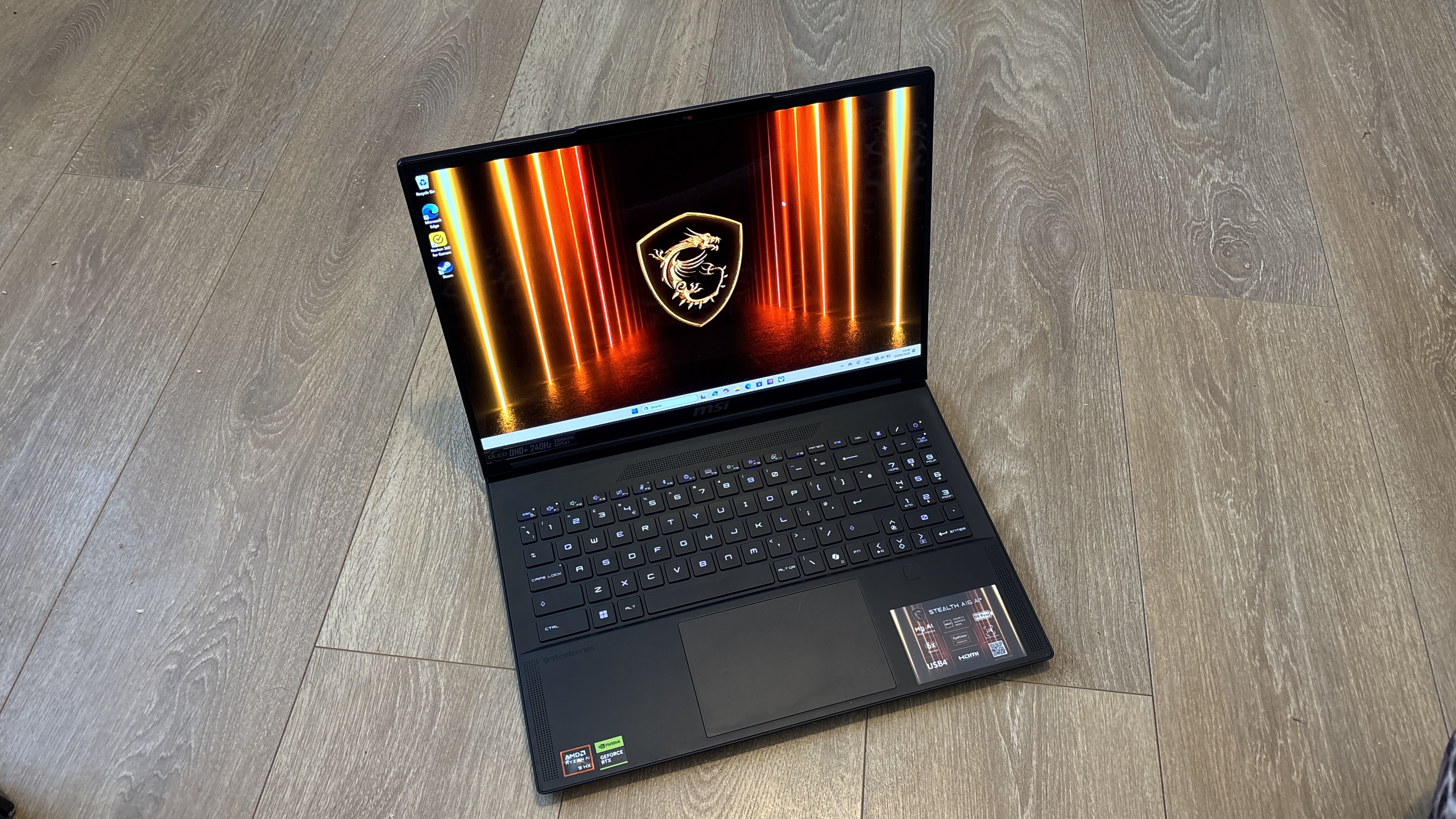
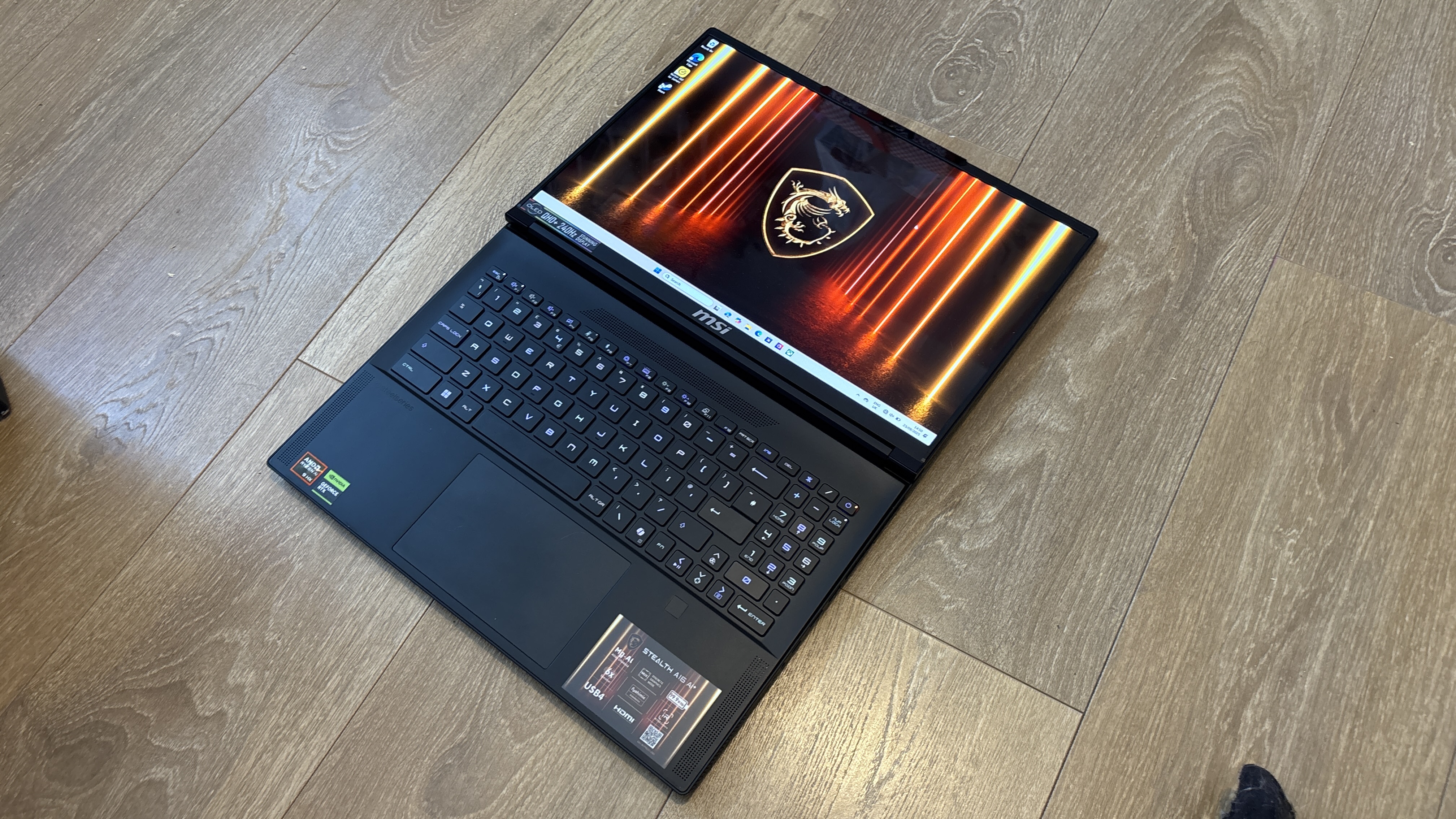
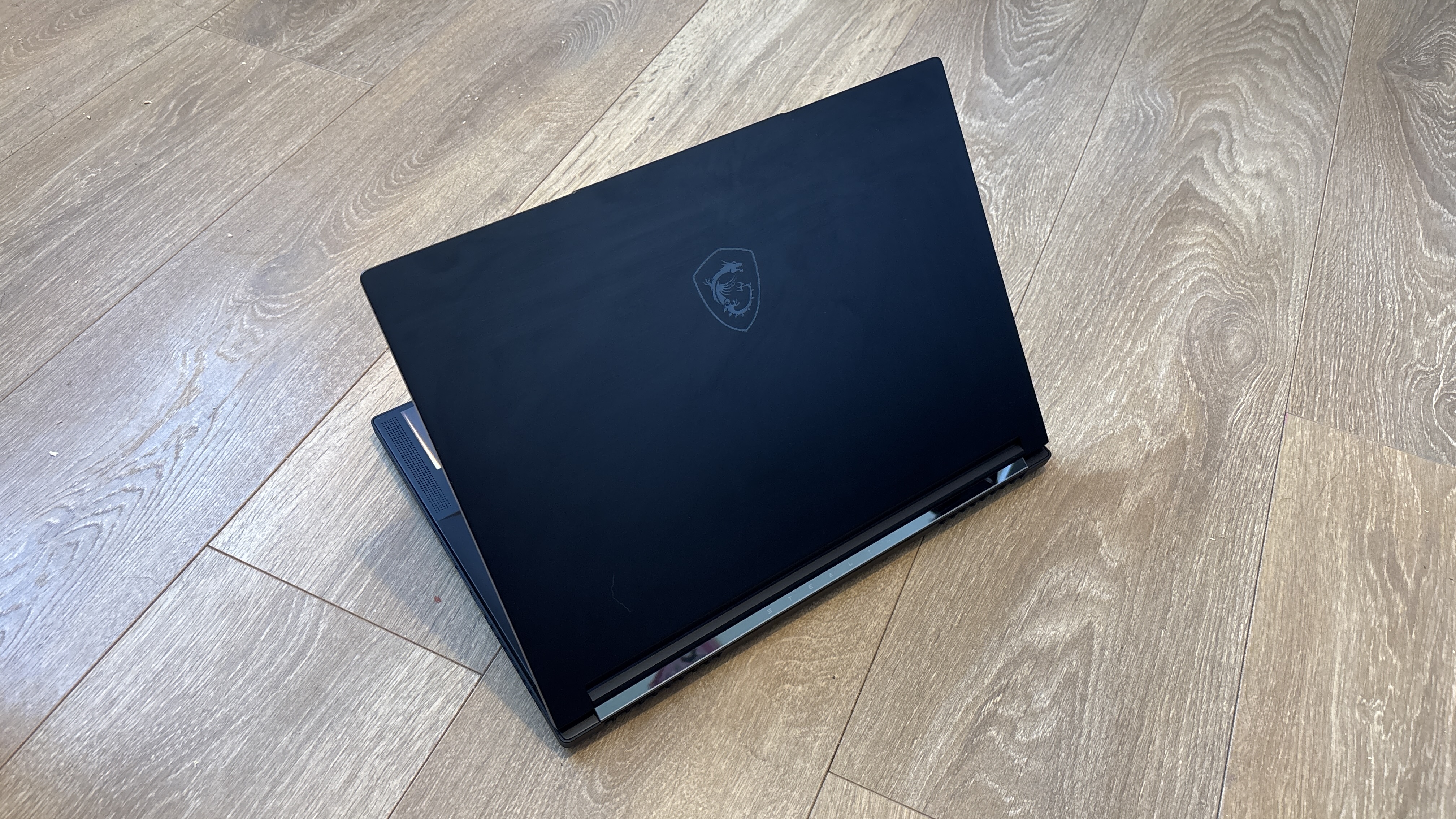
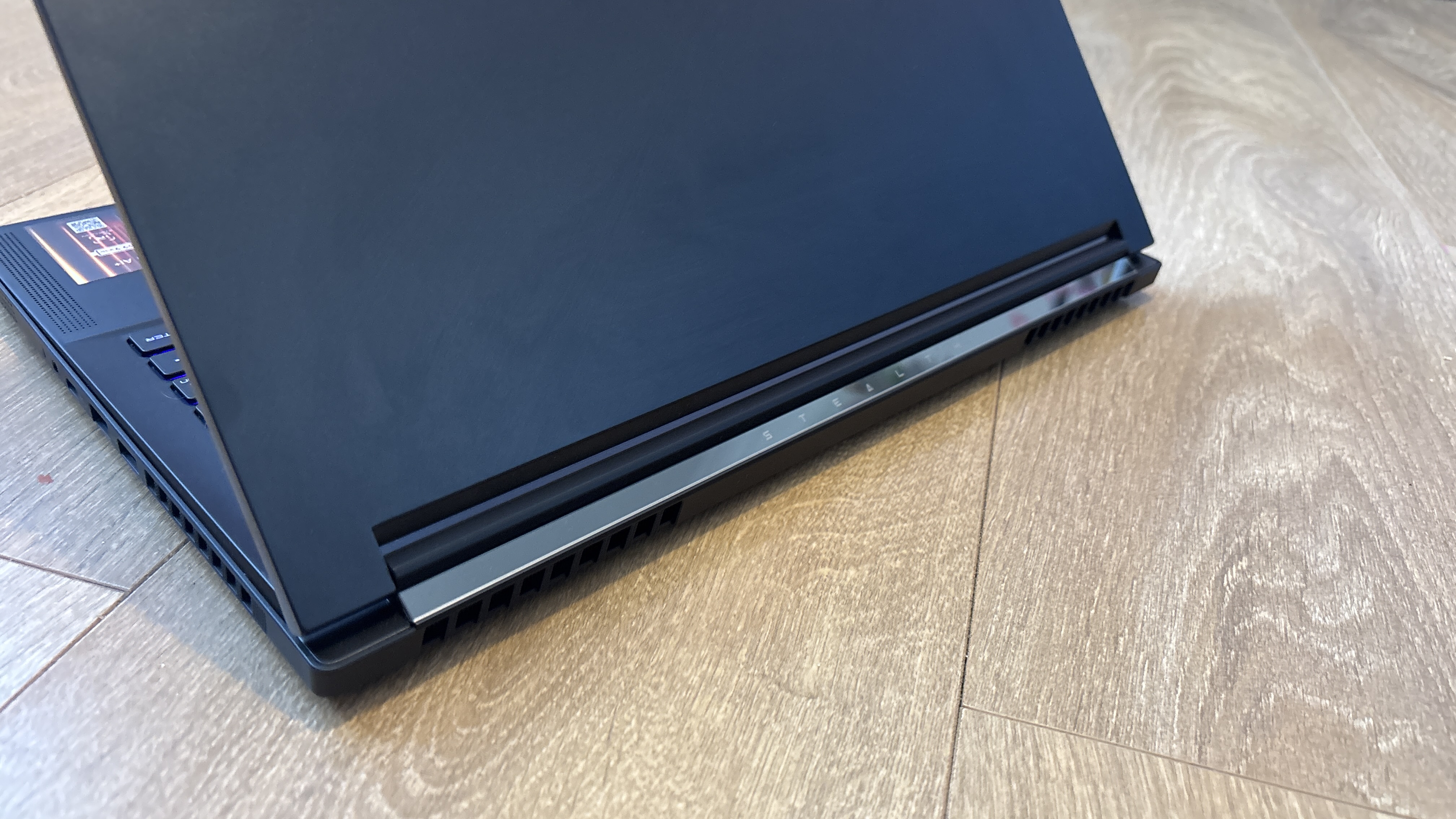
MSI Stealth A16 AI+ on wooden surface

(Image credit: Future)

MSI Stealth A16 AI+: Price and availability

  • How much does it cost? $2,899 / £2,199
  • When is it available? Now
  • Where can you get it? US, UK, and some European regions

You can pick up the Stealth A16 AI+ for $2,899 / £2,199 which is an average price for laptops which feature the Nvidia GeForce RTX 5070 Ti. You can customize the MSI Stealth A16 AI+ to come with the more powerful RTX 5080 and RTX 5090 GPUs, but this will increase the price by quite a bit - however, even then, the MSI Stealth A16 AI+ remains reasonably priced compared to the competition.

Currently, you can purchase the Stealth A16 AI+ in the US, UK, and select European countries.

While there’s currently no confirmation as to when the device will be coming to other markets, MSI does typically release its products in other regions later down the line.

  • Value: 3 / 5

MSI Stealth A16 AI+: Specs

The Stealth A16 AI+ impresses with its potent specs: an AMD Ryzen AI 9 HX 370 processor, up to an Nvidia GeForce RTX 5090 GPU, 64GB LPDDR5X memory, and a 2TB SSD, making it a future-proof powerhouse for demanding tasks and gaming.

MSI Stealth A16 AI+ 5070 Ti

MSI Stealth A16 AI+ 5080

MSI Stealth A16 AI+ 5090

Price:

$2,899 / £2,199

$3,299 / £2,249

$3,999 / £3,399

CPU:

AMD Ryzen AI 9 HX 370

AMD Ryzen AI 9 HX 370

AMD Ryzen AI 9 HX 370

Graphics:

Nvidia GeForce RTX 5070 Ti

Nvidia GeForce RTX 5080

Nvidia GeForce RTX 5090

RAM:

64GB LPDDR5X

64GB LPDDR5X

64GB LPDDR5X

Screen:

16-inch Widescreen Display - QHD+ (2560 x 1600) - OLED - 240Hz

16-inch Widescreen Display - QHD+ (2560 x 1600) - OLED - 240Hz

16-inch Widescreen Display - QHD+ (2560 x 1600) - OLED - 240Hz

Storage:

2TB SSD

2TB SSD

2TB SSD

Ports:

2x USB-A, 1x USB-C, 1x HDMI, 1x Ethernet port, 1x Audio jack

2x USB-A, 1x USB-C, 1x HDMI, 1x Ethernet port, 1x Audio jack

2x USB-A, 1x USB-C, 1x HDMI, 1x Ethernet port, 1x Audio jack

Wireless:

Wi-Fi 7, Bluetooth 5.4

Wi-Fi 7, Bluetooth 5.4

Wi-Fi 7, Bluetooth 5.4

Camera:

HD Webcam

HD Webcam

HD Webcam

Weight:

2.1kg

2.1kg

2.1kg

Dimensions:

355.8 x 259.7 x 19.95 mm

355.8 x 259.7 x 19.95 mm

355.8 x 259.7 x 19.95 mm

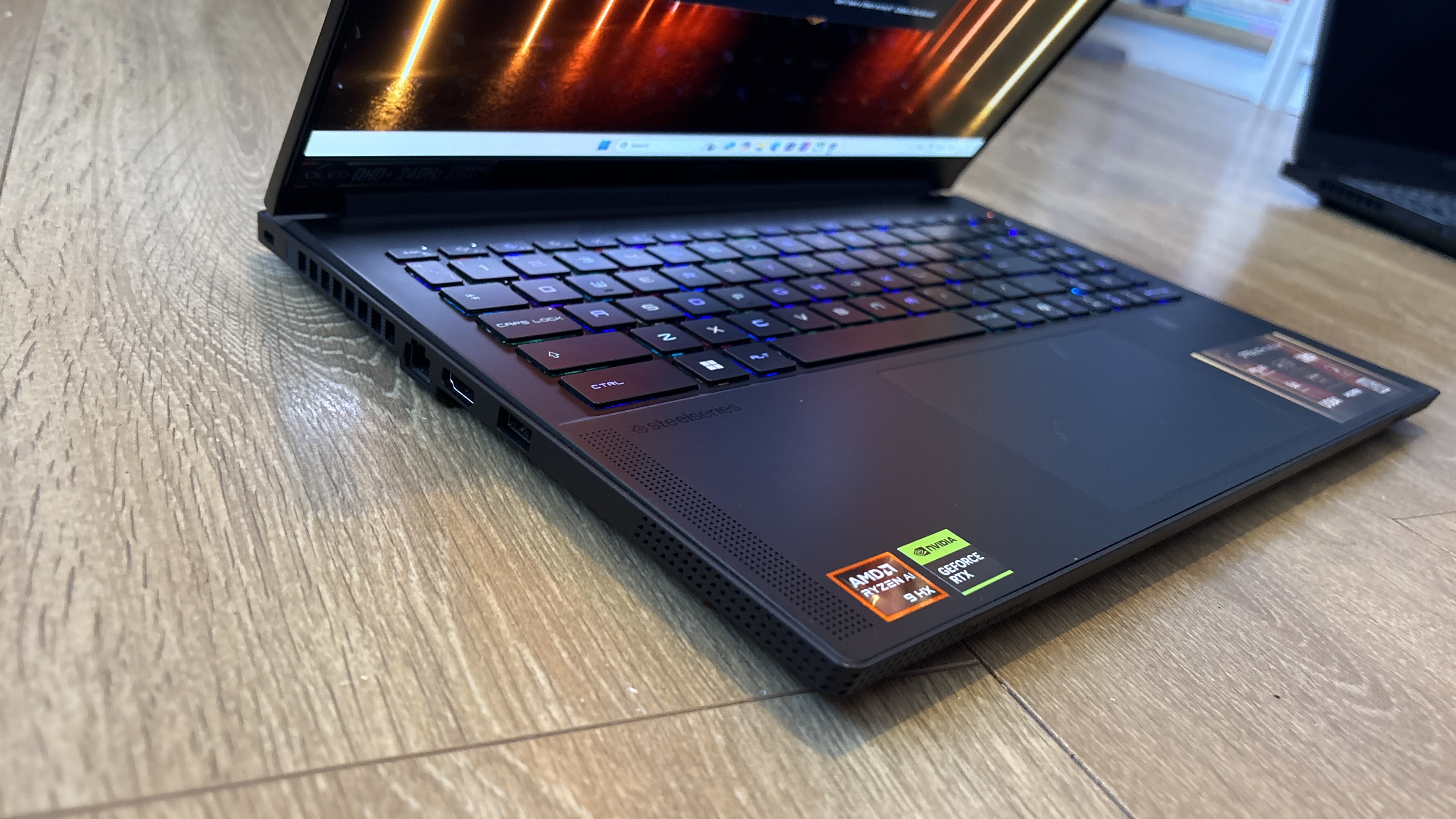
MSI Stealth A16 AI+ on wooden surface

(Image credit: Future)

MSI Stealth A16 AI+: Design

  • Thin and light for its size
  • OLED display is fantastic
  • Good selection of ports

The Stealth A16 AI+ features a sleek and understated design, perfect for both professional environments and gaming setups. Its chassis feels robust yet surprisingly lightweight, making it an excellent companion for those who need to work or play on the go.

The narrow bezels around the display add to its modern aesthetic and maximize screen real estate, drawing you deeper into your content.

MSI has been generous with port selection, ensuring you're well-connected without the constant need for adapters.

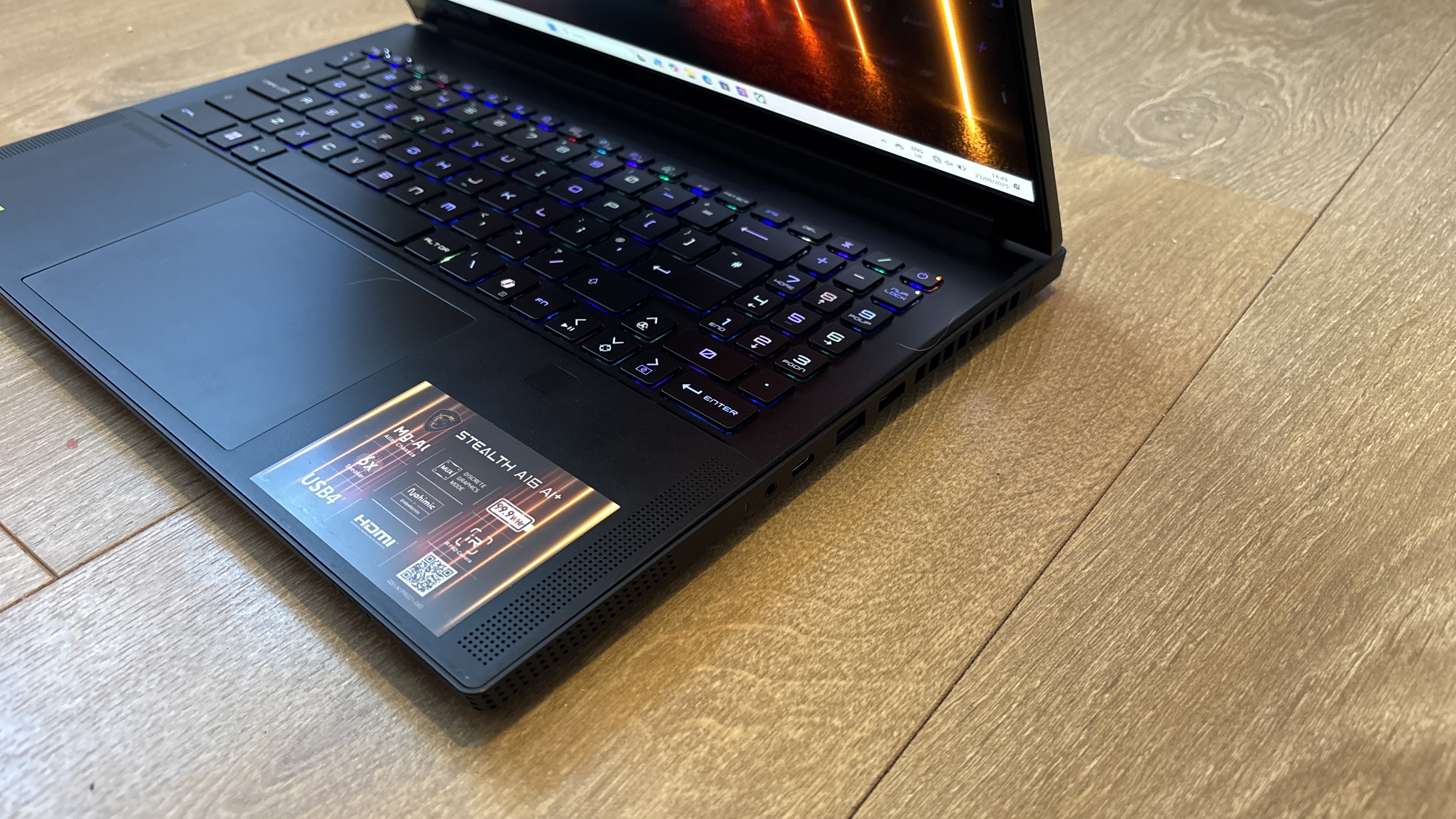
You'll find a versatile array of ports, including multiple USB-A and USB-C ports, an HDMI output for external displays, and an Ethernet port for reliable wired internet.

MSI Stealth A16 AI+ on wooden surface

(Image credit: Future)

This comprehensive connectivity is a significant advantage, especially for gamers who need a load of peripherals or frequently switch between setups. However, if you’re hoping to run a streaming setup from this laptop you may need a USB adaptor so you can hook up a webcam and microphone too (though the included webcam and mic array do a fine job if you're not planning on doing professional-level streaming).

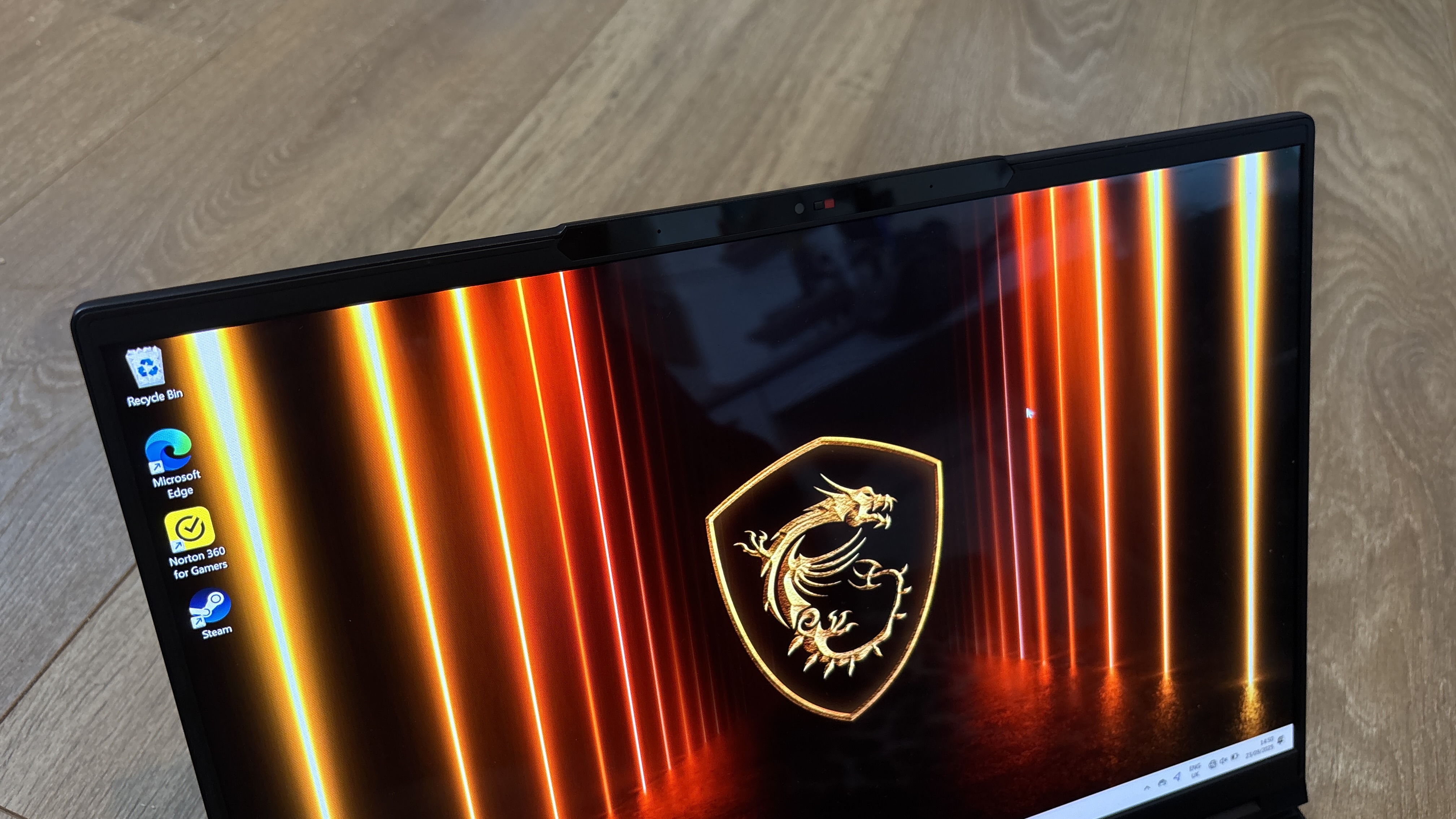
The OLED screen itself is a highlight, offering vibrant colors and sharp detail that enhance everything from those AAA story games to high-definition movies. Its ample size provides an immersive viewing experience, whether you're deep into a creative project or enjoying a casual browsing session. The more I use OLED screens, the more I wish they would become the industry standard.

MSI Stealth A16 AI+ on wooden surface

(Image credit: Future)

Despite its large screen, the overall size and weight of the Stealth A16 AI+ remain impressively manageable for a gaming laptop at less than 2cm thick. It’s also relatively lightweight when compared to alternative gaming laptops on the market at 2.1kg - for example, the MSI Raider A18 HX comes in at 3.6kg.

  • Design score: 5 / 5

MSI Stealth A16 AI+: Performance

  • Excellent gaming performance
  • Good at multitasking
  • Can get hot
Benchmarks

These are the results of our benchmarking tests for the MSI Stealth A16 AI+:

3DMark: Night Raid: 38,762; Fire Strike: 30,723; Time Spy: 13,384
GeekBench 6: 2,930 (single-core); 15,398 (multi-core)
CrossMark: Overall: 1,897 Productivity: 1,982 Creativity: 1,765 Responsiveness: 1,729
Total War: Warhammer III (1080p, Ultra): 176fps ; (1080p, Low): 380fps
Cyberpunk 2077 (1080p, Ultra): 105fps ; (1080p, Low): 176fps
Dirt 5 (1080p, Ultra): 206fps ; (1080p, Low): 287fps
PCMark 10 Battery Life: 4 hours 57 mins
TechRadar movie test: 4 hours 45 mins

During our testing, this laptop consistently delivered exceptional performance across a variety of demanding applications and, crucially, in the latest AAA gaming titles.

Whether it was playing Cyberpunk 2077 at ultra settings or engaging in fast-paced combat in Call of Duty: Modern Warfare III, the Stealth A16 AI+ maintained impressively high frame rates, ensuring a smooth and immersive experience.

This was with the Nvidia GeForce RTX 5070 Ti inside, so if you buy a model with the more powerful RTX 5080 or 5090 GPUs, then you're going to get even better gaming performance.

MSI Stealth A16 AI+ on wooden surface

(Image credit: Future)

I was able to render breathtaking visuals without a hitch. Even with ray tracing enabled, the laptop held its own, providing a stunning level of graphical fidelity that truly elevates the gaming experience.

Beyond gaming, the processor handled intensive multitasking and content creation with ease, making it a truly versatile machine for power users.

One thing to note is that the laptop did get quite hot and loud when running games at ultra, opening a lot of intensive programmes at once, or when benchmarking. While it wasn’t too hot to use the keyboard - an issue I’m seeming to face more and more in the world of gaming laptops, it was certainly worth noting.

MSI Stealth A16 AI+ on wooden surface

(Image credit: Future)

The speakers on the laptop are decent - they certainly get the job done - but you won’t be able to take advantage of directional audio within games.

  • Performance score: 4 / 5

MSI Stealth A16 AI+: Battery life

  • Not brilliant battery life
  • Very short when gaming

While MSI promised up to 13 hours of video playback, I found that the Stealth A16 AI+ just didn’t deliver anywhere near this.

During my time testing the MSI Stealth A16 AI+, I noticed that the battery life was closer to around six hours when using the laptop for general browsing or watching videos, which came down to about an hour when playing intensive games.

In our battery life benchmark, we got just shy of five hours in both the PCMark 10 edition and our own TechRadar movie test.

  • Battery life: 2 / 5

MSI Stealth A16 AI+ on wooden surface

(Image credit: Future)

Should I buy the MSI Stealth A16 AI+?

Attributes

Notes

Rating

Price

The value of the laptop is pretty average when compared to alternatives on the market with the same specs.

3 / 5

Design

This laptop has an immaculate design featuring a decent array of ports and remaining light when compared to alternatives.

5 / 5

Performance

You get exceptional performance from this laptop but it does get quite hot and loud.

4 / 5

Battery life

The battery is significantly below the promised lifespan which is very disappointing.

2 / 5

Total Score

This is a well-priced thin and light laptop with some excellent components that means it offers fantastic gaming performance. However, it can get quite hot, and battery life isn't the best.

3.5 / 5

Buy it if...

You need a sleek gaming device
You want a gaming laptop that's also highly portable and can be used for work on the go.

Screen quality is important to you
If you want a vibrant OLED screen for an immersive visual experience, then this could be the laptop for you.

You want a powerful device
This is a powerful machine that can handle demanding AAA gaming titles and intensive multitasking with high frame rates.

Don't buy it if...

You want to go all day without charging
If you want a long battery life for extended use away from a power source then this isn’t the laptop for you.

You are on a tight budget
While this laptop is priced fairly compared to alternatives, this doesn’t mean it won’t put a dent in your wallet.

You are sensitive to laptop heat and fan noise
This laptop gets very hot and loud when you’re using intensive software or playing demanding games.

MSI Stealth A16 AI+ review: Also consider

MSI Stealth A16 AI+

Asus Zenbook A14

Apple Macbook Pro 16-inch (M4 Pro, 2024)

Price:

$2,899 / £2,199

$1,399.99 / £1,099.99 / AU$2,899

$2,499 / £2,499 / AU$3,999

CPU:

AMD Ryzen AI 9 HX 370

Snapdragon X X1 26 100 Processor with Qualcomm Hexagon NPU up to 45TOPS

Apple M4 Pro (14-core)

Graphics:

Nvidia GeForce RTX 5070 Ti

Qualcomm Adreno GPU

Integrated 20-core GPU

RAM:

64GB LPDDR5X

4GB DDR4

24GB unified memory

Screen:

16-inch Widescreen Display - QHD+ (2560 x 1600) - OLED - 240Hz

14.0-inch, WUXGA (1920 x 1200) OLED 16:10 aspect ratio, LED Backlit, 0.2ms response time, 60Hz refresh rate, 400 nits

16-inch, 3456 x 2234 Liquid Retina XDR display (mini-LED, 1,000 nits sustained brightness, wide color P3 gamut, ProMotion technology)

Storage:

2TB SSD

16GB LPDDR5X on board

512GB SSD

Ports:

2x USB-A, 1x USB-C, 1x HDMI, 1x Ethernet port, 1x Audio jack

1x USB 3.2 Gen 1 Type-A, 2x USB-C, 1x HDMI, 1x 3.5mm Audio Jack

3x Thunderbolt 5 (USB-C), HDMI, SDXC card slot, 3.5mm headphone jack, MagSafe 3

Wireless:

Wi-Fi 7, Bluetooth 5.4

Wi-Fi 6E (802.11ax) (Dual band) 2*2 + Bluetooth 5.3

Wi-Fi 6E (802.11ax), Bluetooth 5.3

Camera:

HD Webcam

FHD camera with IR function to support Windows Hello

12MP Center Stage camera with support for Desk View

Weight:

4.6 lbs (2.1kg)

2.16 lbs (0.98kg)

4.7 lbs (2.2kg)

Dimensions:

355.8 x 259.7 x 19.95 mm

31.07 x 21.39 x 1.34 ~ 1.59 cm (12.23 x 8.42 x 0.53in ~ 0.63in)

14.01 x 9.77 x 0.66 inches (356 x 248 x 17mm)

If you're in the market for a new laptop, here are some alternatives to the MSI Stealth A16 AI+...

Asus Zenbook A14
For those seeking a premium, ultra-lightweight, and highly portable laptop, the Asus Zenbook A14 is an excellent choice. It offers a powerful processor and a stunning OLED display, all within a design optimized for superior portability.

Read our Asus Zenbook A14 review

Apple Macbook Pro 16-inch (M4 Pro, 2024)
For intensive tasks such as 3D animation or demanding video rendering, the Apple MacBook Pro, with its M4 Pro processor, offers superior performance. Read our Apple MacBook Pro 16-inch (M4 Pro, 2024) review.

How I tested the MSI Stealth A16 AI+

  • Tested for two weeks
  • Used in a variety of scenarios
  • Ran benchmarks and played games

For two weeks, the MSI Stealth A16 AI+ served as my primary laptop for both work and leisure.

I thoroughly integrated it into my daily routine, using it for typical workdays, evenings spent gaming and watching movies, and even general browsing. To assess its portability and performance outside my usual setup, I also brought it to various remote work locations.

Beyond everyday use, I conducted comprehensive benchmark tests using software like 3D Mark and in-game tools to evaluate its performance.

Small but perfectly formed, the De'Longhi Dedica Duo is my new favorite entry-level espresso machine

De'Longhi Dedica Duo: two-minute review

The De'Longhi Dedica Duo is an excellent entry-level espresso machine that looks great and performs extremely well, despite its modest price tag.

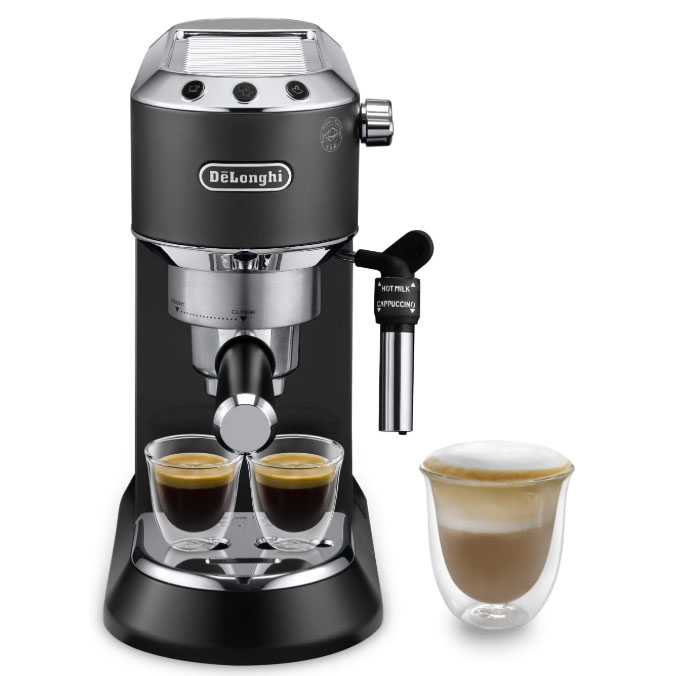
It has a similar appearance to its predecessor, the De'Longhi Dedica Style, but with some key improvements – including a wider drip tray that can accommodate two espresso cups. The steam wand has been upgraded with a cool-touch handle and a knurled control dial for better grip, and the machine is available in a choice of four colors (including three gelato-inspired pastel shades).

The Dedica Duo's accessories, such as the color-coordinated portafilter handle, feel robust. It comes with two pressurized portafilter baskets, a coffee scoop, a pin tool, a descaler pack, a tamper, and a stainless-steel milk pitcher. The water tank is easily accessible at the back, with a hinged lid to keep water fresh, and it can be fitted with an optional water filter.

De'Longhi Dedica Duo espresso machine dispensing espresso

(Image credit: Future)

The machine is operated by illustrated buttons on top for single shot, double shot, cold brew, and steam. Colored lights on these buttons indicate the machine's status, requiring reference to the manual for full understanding.

Although it takes a little while to heat up, the Dedica Duo delivers a good shot with a fine grind consistently. There is some minor dripping after the pump finishes due to the absence of a three-way solenoid valve.

The Dedica Duo's cold-extraction mode, while slower than preparing hot espresso, is much faster than traditional overnight cold-brewing and produces a full, mellow flavor. This cold brew is versatile, suitable for drinking straight, with milk and ice, or in blended drinks and cocktails.

My only real complaint is that the system of lights to indicate the machine's current status and any problems (such as scale, or air in the system) can be confusing, and you'll find yourself having to refer back to the manual quite regularly while you're getting a handle on things. Other than that, though, this is an easy machine to recommend and worthy of a full five stars.

De'Longhi Dedica Duo: price and availability

  • Released in August 2025
  • List price of $299.95 / £279.99 (about AU$600)
  • Sold in the UK and US, but not yet in Australia

The De’Longhi Dedica Duo launched in August 2025 with a list price of $299.95 / £279.99. At the time of writing (September 2025), it isn't yet available in Australia, but hopefully that will change soon.

At that price, it's one of the most affordable espresso machines I’ve tested in the past year. The Casabrews 5418 Pro is in the same entry-level bracket with a list price of $299.99 (about £220 / AU$460), but it’s clear that Casabrews has cut quite a lot of corners, and it can’t compete with the Dedica Duo for build quality and performance.

  • Value score: 5/5

De'Longhi Dedica Duo: design

  • Updated design with refined details and new colors
  • Wider drip tray to accommodate two espresso cups
  • Accessories feel substantial and well made

The De’Longhi Dedica Duo is a compact, smart-looking espresso machine. At first glance it bears a strong similarity to its predecessor, the Dedica Style. It’s almost exactly the same size, but on closer inspection you’ll notice lots of refinements and improvements.

Most noticeably, the Dedica Duo comes in an updated range of colors, with classic stainless steel accompanied by soft shades of white, pink and green, which De’Longhi says were inspired by different flavors of gelato. Candy-colored appliances have become increasingly popular in 2025, and they look good, with a satin finish rather than gloss.

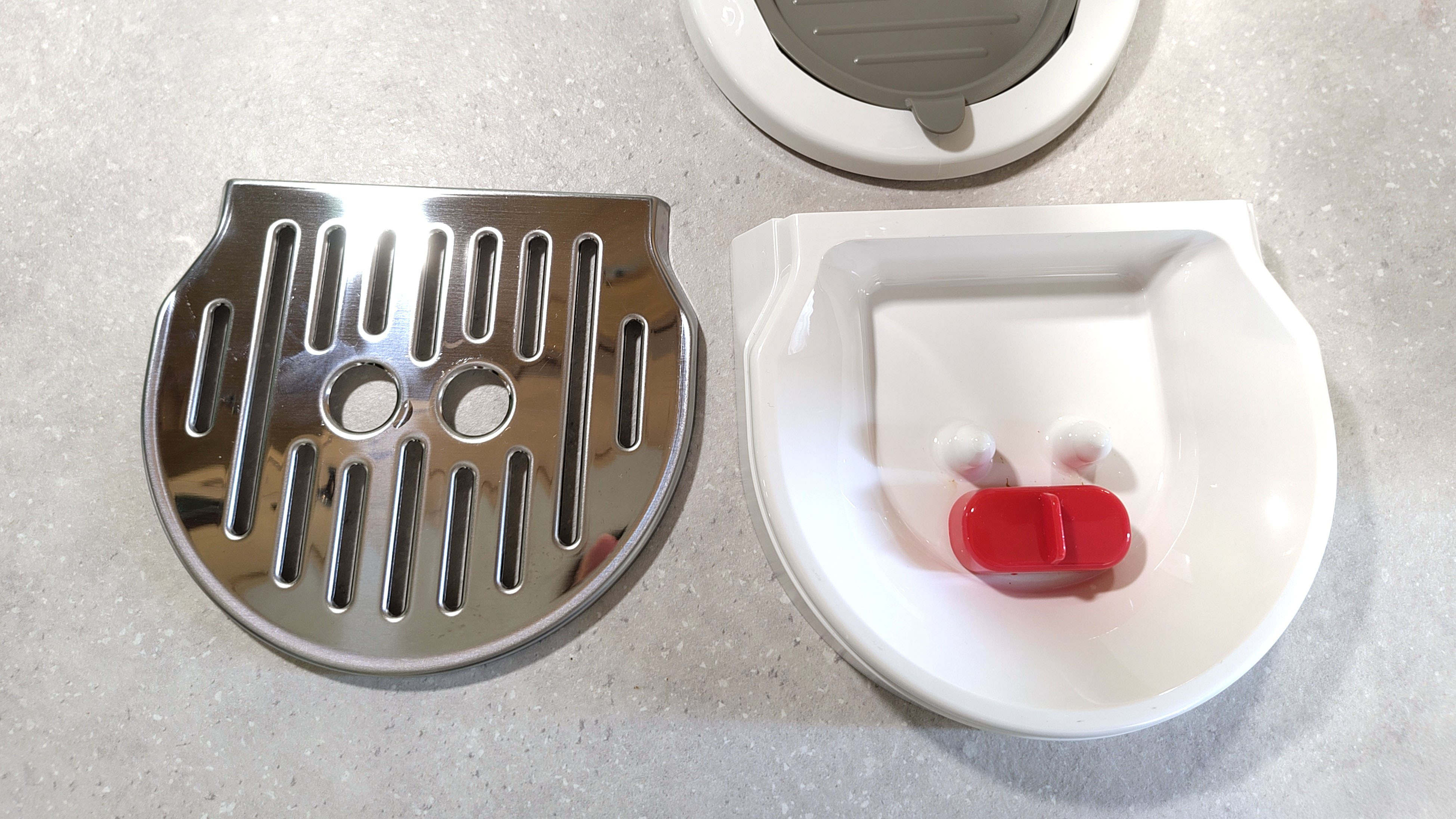
For me, one of the most notable updates is to the drip tray, which is now considerably wider, making it easier to fit two espresso cups underneath the portafiter when pulling a double shot. If you have a particularly tall cup, you can remove the stainless steel grille and place the cup directly on a removable ridged plate at the bottom of the tray. A nice touch, and one that helps make clean-up easier.

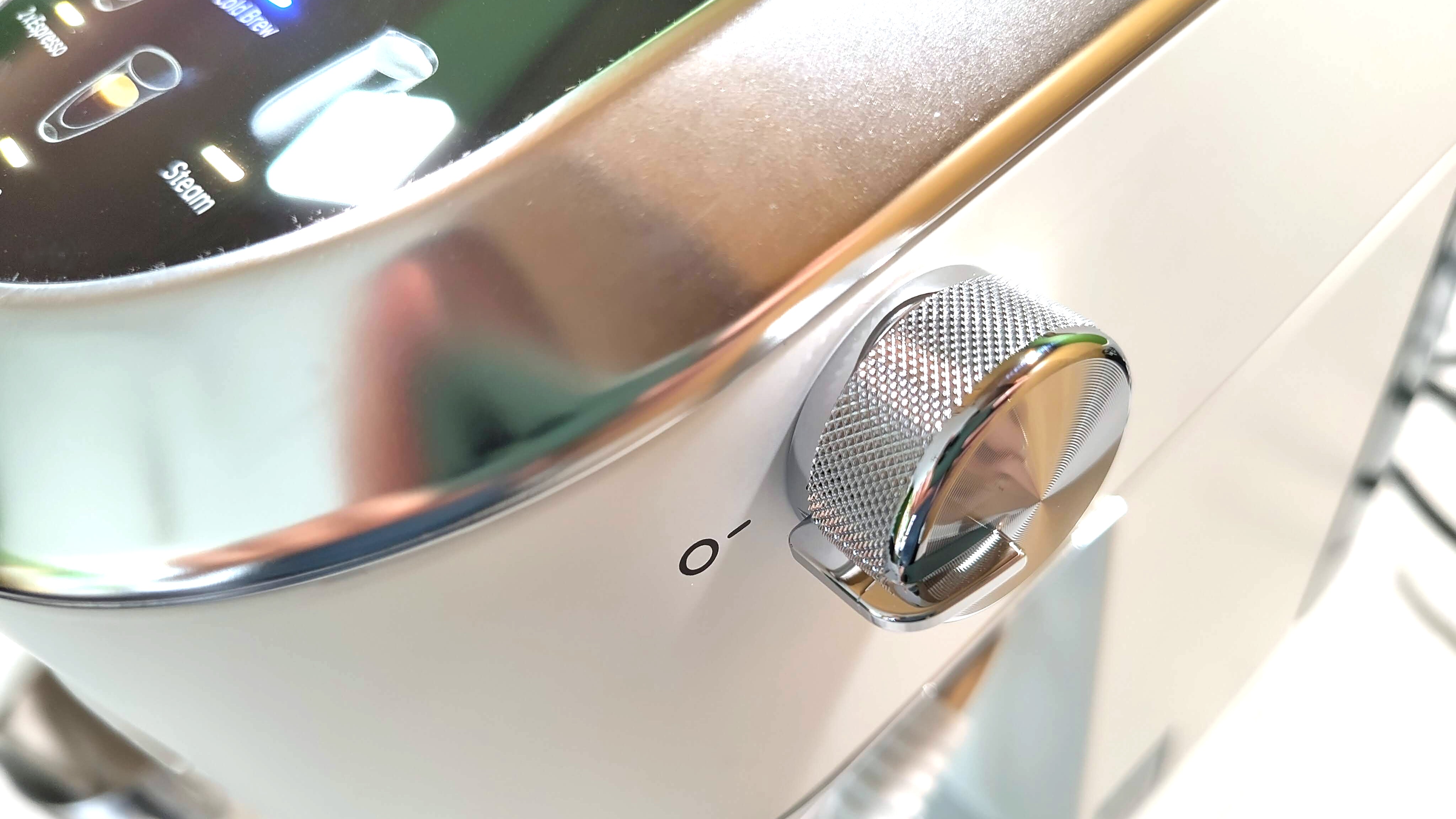
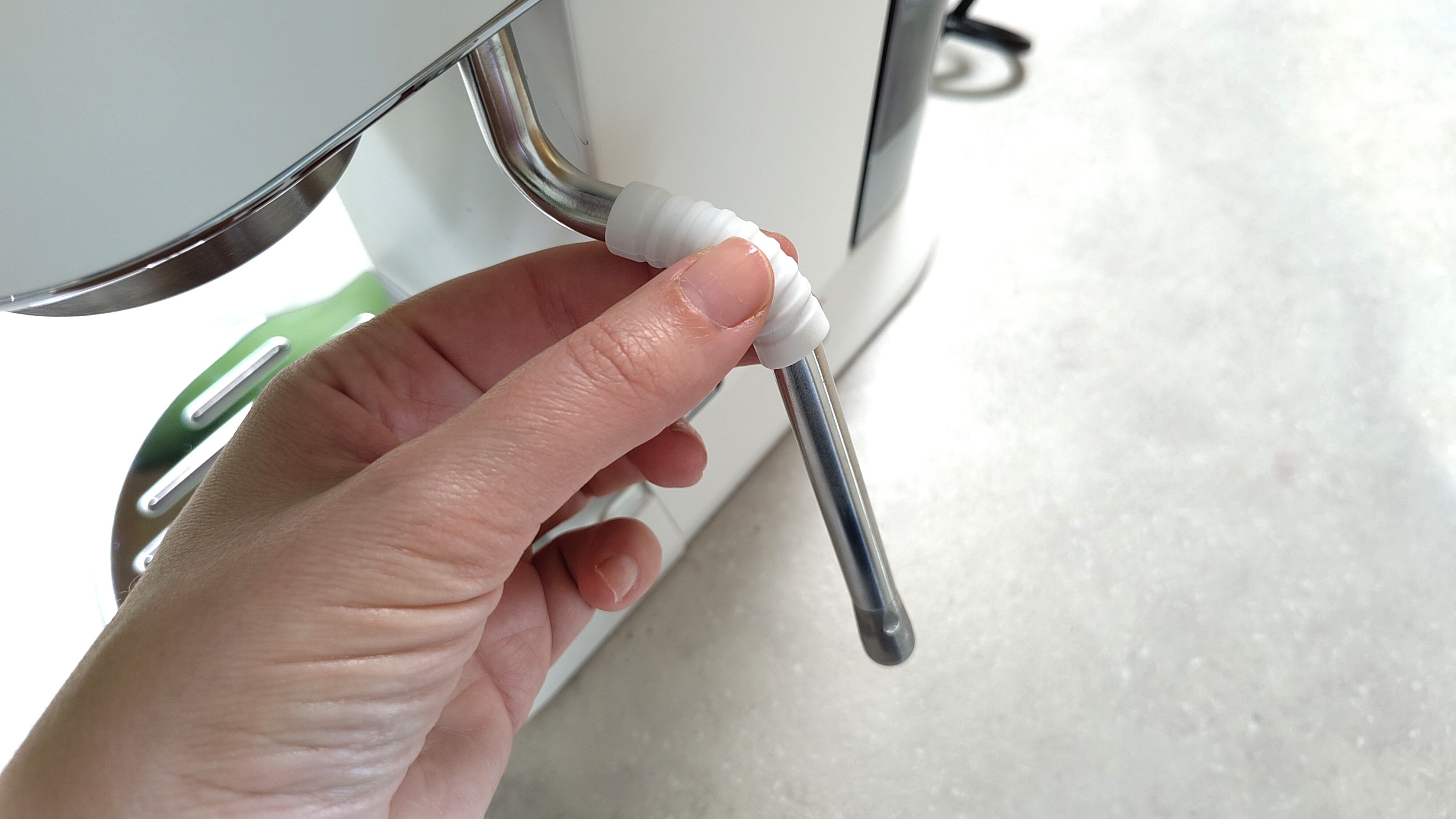
The steam wand now has a cool-touch handle, which is a nice upgrade, and its control dial sports a knurled texture that looks good and provides extra grip. The wand doesn’t bend, but it does pivot, and its angle makes it easy to achieve a good whirlpool movement when texturizing your milk.

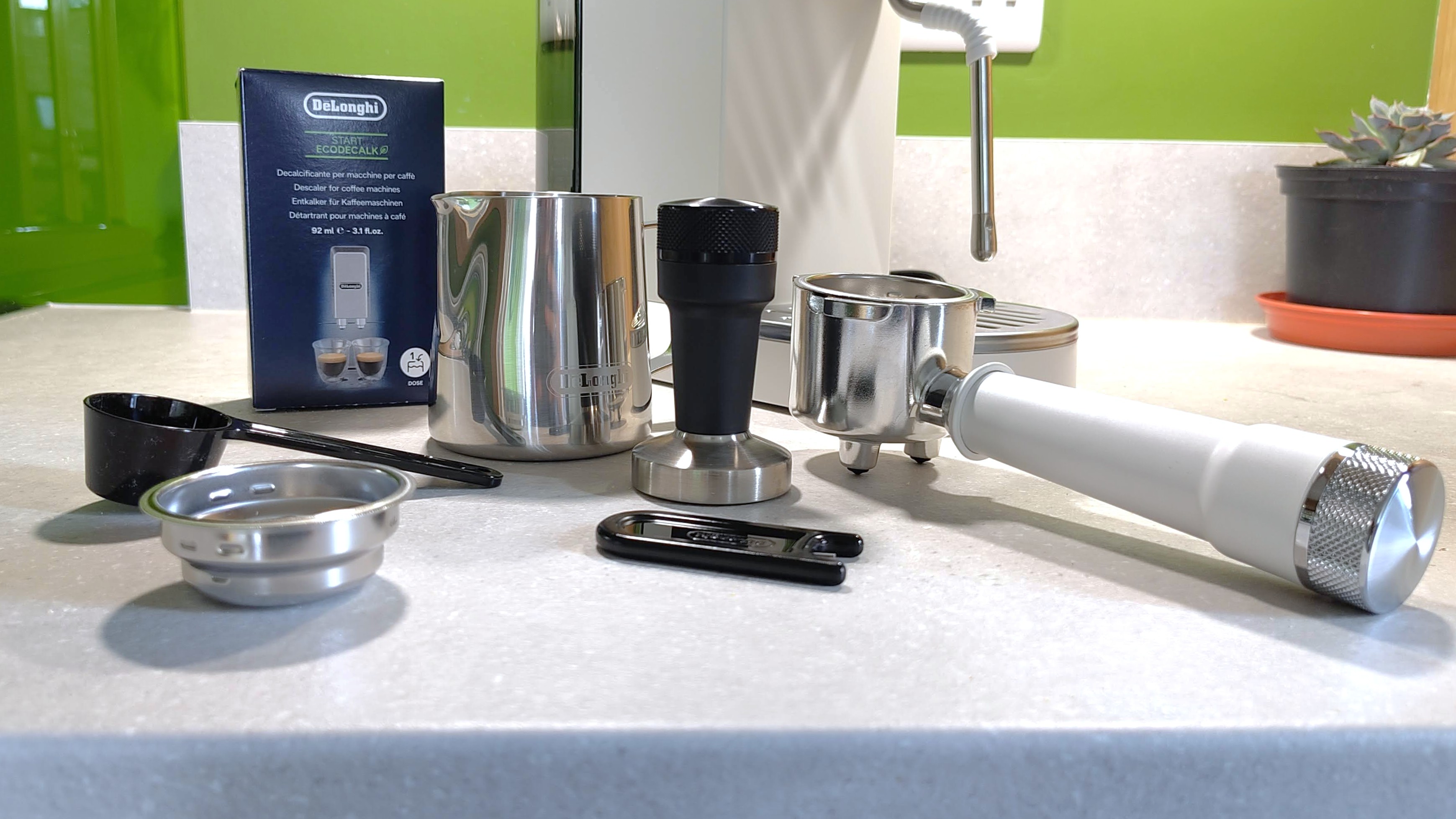
All of the Dedica Duo’s accessories feel robust in the hand, unlike those of some other entry-level coffee machines I’ve tested recently (I’m looking at you, Casabrews). The portafilter handle is satisfyingly weighty, with a textured end that matches the steam wand dial, and is colored to match the body of the machine.

You get two pressurized portafilter baskets (one for single shots and one for doubles), a coffee scoop, a pin tool for clearing the hole of the steam wand if it becomes blocked, a pack of descaler, a weighty tamper that makes it easy to put sufficient pressure on your ground, and a stainless steel milk pitcher (with a fine spout ideal for pouring latte art).

De'Longhi Dedica Duo coffee machine accessories

(Image credit: Future)

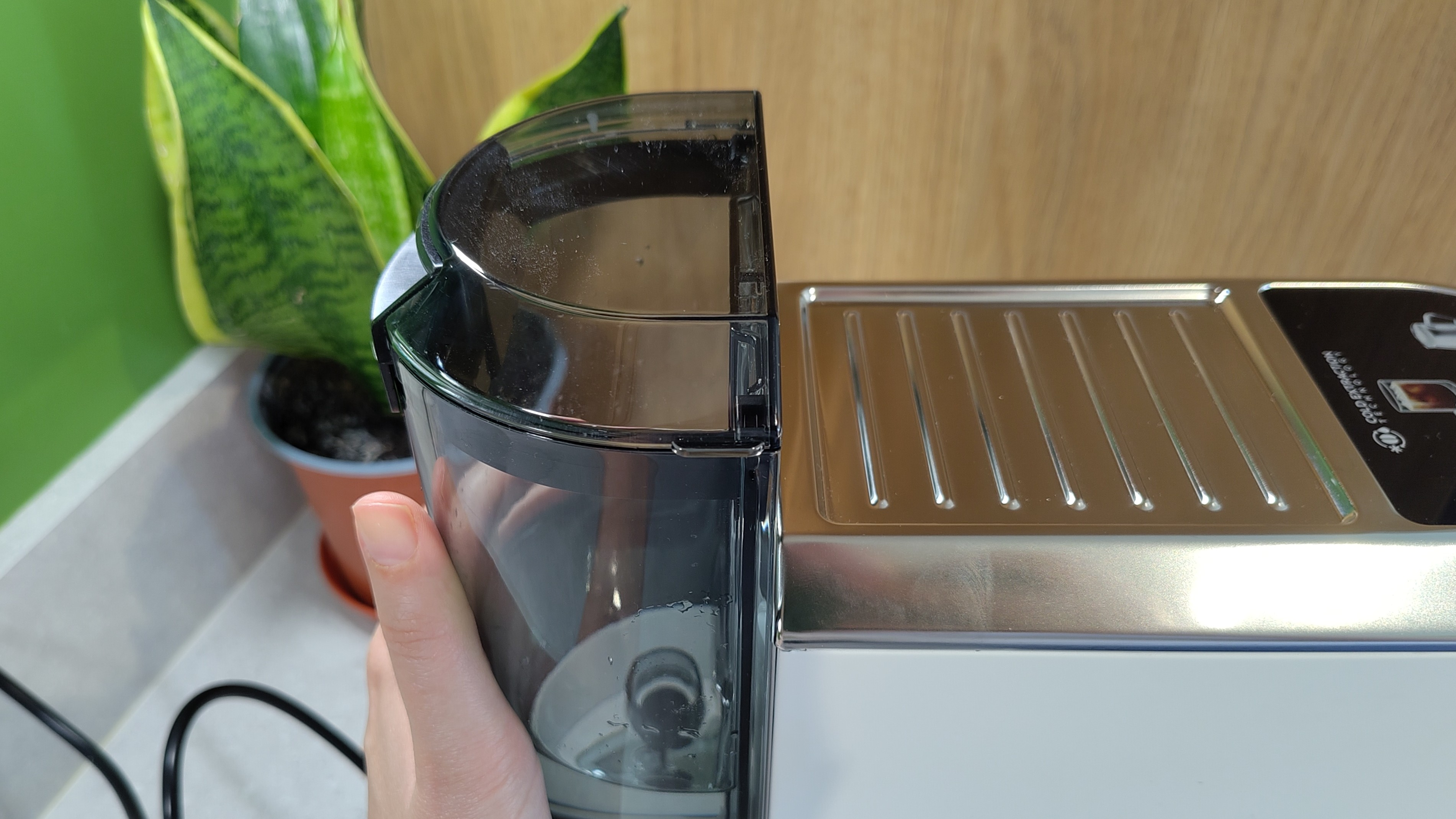
The machine’s water tank slides onto the back, and has a sturdy-feeling hinged lid to keep water fresh. It can also be fitted with an optional water filter, but this needs to be purchased separately. The tank lifts out easily and is simple to slot back into place. You’ll need to pull the machine away from the wall to do this, but it’s so small and light, this shouldn't present a problem.

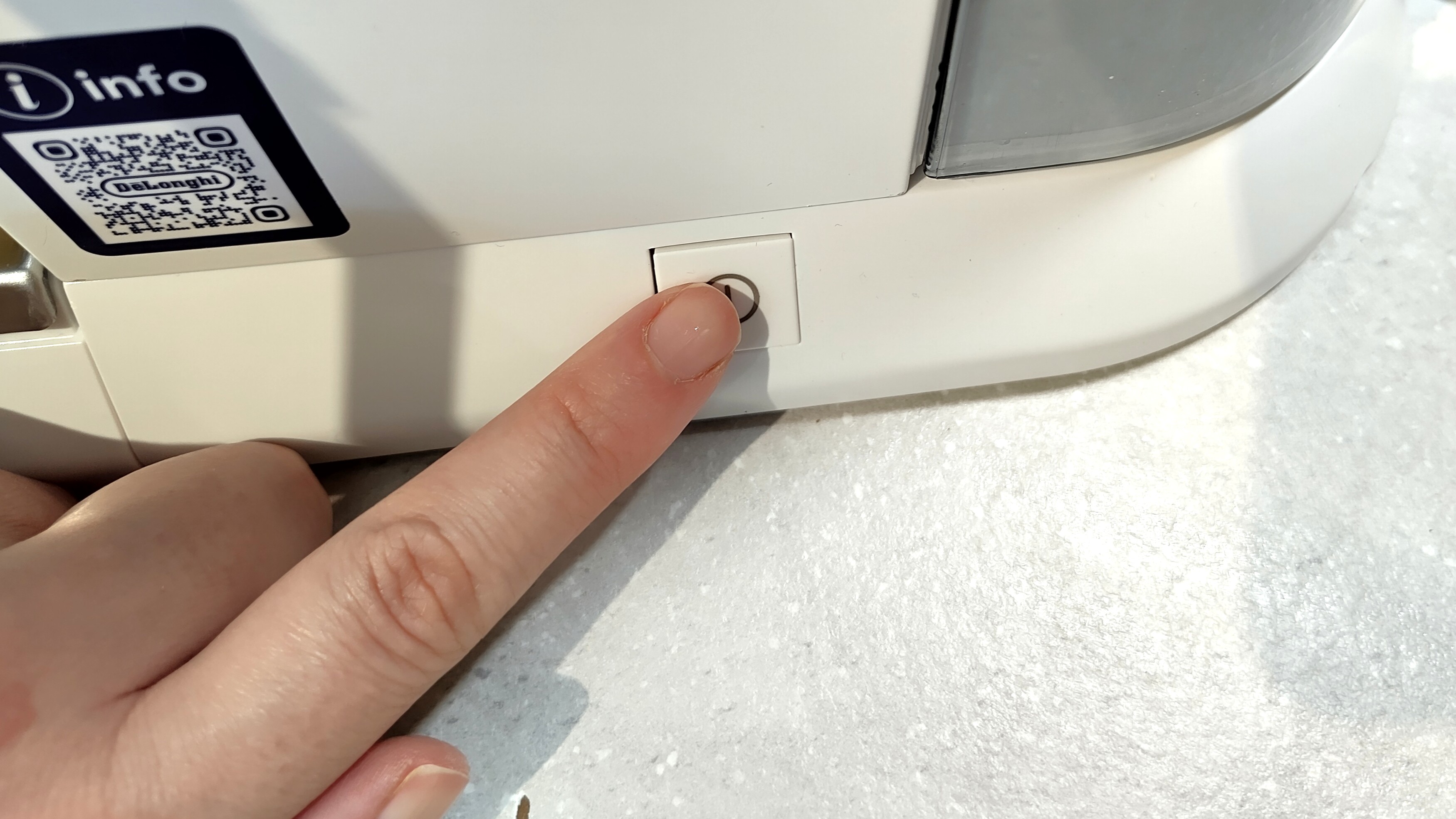
The Dedica Duo has a power switch on its right-hand side, and is operated using a set of illustrated buttons on top: single shot, double shot, cold brew, and steam. Pressing combinations of these buttons, or pressing and holding, provides access to certain menus, and the colored lights on them give you information about the machine’s current status, so it’s useful to keep the manual on hand for reference. For example, a solid white light on only the steam button means there’s probably air in the system that needs clearing.

  • Design score: 5/5

De'Longhi Dedica Duo: performance

  • Steady pressure for consistently extracted hot espresso
  • Cold-extraction works well, too, producing a smooth flavor
  • System of indicator lights can be confusing

The Dedica Duo is an excellent entry-level espresso machine, providing the steady pressure necessary for preparing consistently good coffee. The Casabrews 5418 Pro I reviewed a few weeks ago was so variable, it had me questioning whether I actually knew how to make espresso at all; the Dedica Duo has restored my faith in my own abilities. It takes a little while to heat up, but once it does, and the espresso buttons on top are illuminated, you can be confident that you're going to get a very good shot. I've been using a fairly fine grind for my coffee, and the results have been faultless.

There's no three-way solenoid, so you can expect a little dripping after the pump has finished, but that certainly isn't the end of the world.

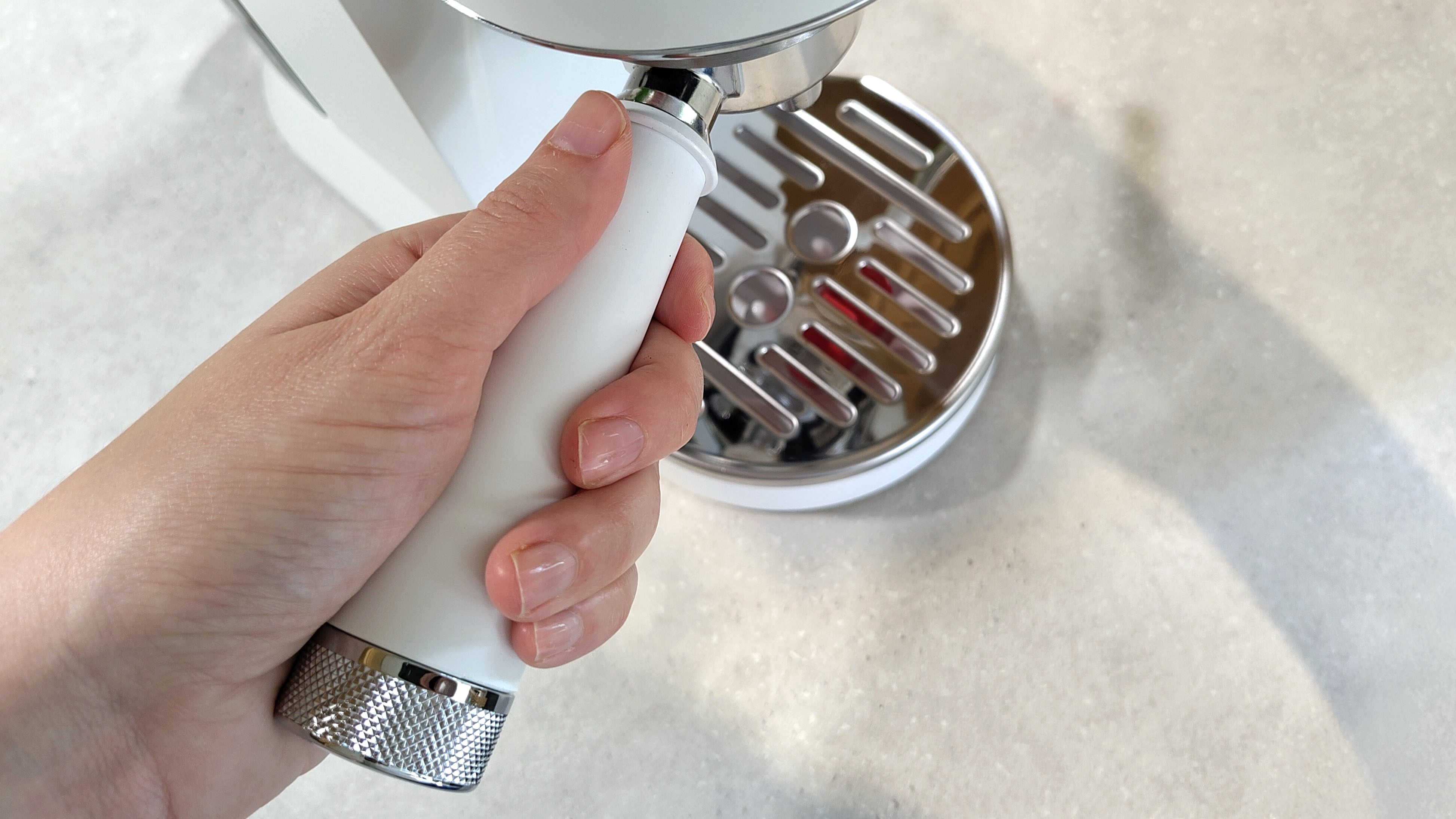
Inserting portafilter handle into De'Longhi Dedica Duo espresso machine

(Image credit: Future)

The Dedica Duo’s star feature is cold extraction, and it works very well. Whereas some other espresso machines I’ve tested recently create "chilled" drinks by asking you to fill a cup with ice and then dumping a shot of hot espresso on top, the Duo’s cold brew mode bypasses the Thermoblock heater and uses ambient-temperature water direct from the tank.

This takes longer than brewing hot espresso (measured in minutes rather than seconds), but it's still a lot faster than preparing cold-brewed coffee in the traditional way (by infusing the grounds in the fridge overnight), yet the resulting flavor profile is very similar. The flavor is full and rounded, but more mellow than the same coffee extracted hot. Whether you drink it straight, add milk and ice, or use it in blended drinks and cocktails, it’s very tasty.

It’s worth noting that the Dedica Duo isn’t a quiet machine. Unlike some advanced machines from the likes of KitchenAid or Jura, the Duo has no space in its compact chassis for sound-deadening material, so you’ll be able to hear its pump working away at full volume. Pumping water doesn’t take very long, though; but if you’re sensitive to noise then it’s something to be aware of.

For me, the only disadvantage of the Dedica Duo is the system of lights that change colour and/or blink to indicate your machine’s status or any problems. These aren’t always self-explanatory, and until you’ve learned what they all mean, you’ll find yourself referring back to the manual regularly. Perhaps it would be better to have a small row of status lights for common issues in the interest of clarity.

  • Performance score: 5/5

Should you buy the De'Longhi Dedica Duo?

De'Longhi Dedica Duo score card

Attribute

Notes

Score

Value

Very reasonably priced, squarely in the "budget" bracket for an espresso machine of this type.

5/5

Design

Modern and stylish, with thoughtful touches such as a wide, adjustable drip tray and cool-touch steam wand.

5/5

Performance

Brews consistently well hot or cold, with steady pressure from the pump. Status lights can be confusing, though.

4.5/5

Buy it if

You're shopping for your first espresso machine

The De'Longhi Dedica Duo is much better made than most coffee makers in this price bracket, and the designers haven't cut corners to keep its price down.

You have limited space

At just 15cm wide, the Dedica Duo is one of the smallest espresso machines I've ever tested. It tucked in easily beside my toaster, and I'm sure you'll find space for it, even on a countertop that's short on space.

Don't buy it if

You don't want cold extraction

The biggest difference between the Dedica Style and Dedica Duo is the latter machine's cold espresso mode. If you're not intending to use that, you could save some cash by opting for the older Dedica Style instead.

You're an experienced barista already

The Dedica Duo only comes with pressurized filter baskets, so if you want the control of a single-walled basket, you might be better off looking elsewhere.

De'Longhi Dedica Duo: also consider

If the De’Longhi Dedica Duo doesn’t sound like quite the right espresso machine for you, here are two alternatives in the same price bracket, both of which come highly recommended.

De’Longhi Dedica Style

If you’re unlikely to use the Duo’s cold brew function, you could save a little cash by opting for the older Dedica Duo. It doesn’t look quite as modern, and we found it difficult to fit two espresso cups onto its drip tray, but it’s still an excellent little entry-level espresso machine that comes highly recommended.

Read our full De’Longhi Dedica Style review

Breville Bambino Plus

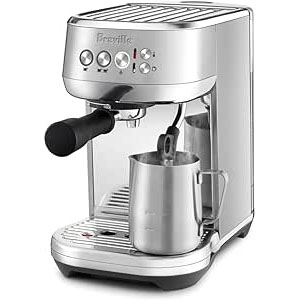
The Bambino Plus is another compact espresso machine that comes highly recommended for beginners making their first foray into speciality coffee. Unlike the two Dedica machines, it has an adjustable steam wand with three texture and temperature settings, making it easier for newcomers to prepare the right type of foam for lattes, cappuccinos and other drinks.

Read our full Breville Bambino Plus review

How I tested the De'Longhi Dedica Duo

I used the De'Longhi Dedica Duo for three weeks in place of my usual coffee machine, and brewed coffee using a blend of fresh Brazilian and Colombian arabica beans, freshly ground using a Sage Dose Control Pro grinder. I used the tamper provided with the machine to tamp the coffee. I tested the steam wand with chilled, full-fat dairy milk and oat milk.

I flushed the machine with hot water before and after brewing to make sure it was clean, and purged the steam wand and wiped it with a damp cloth after making each drink.

For more information, see how we test, rate, and review products at TechRadar.

First reviewed September 2025
I tested Google Calendar, and found it excels at helping manage day-to-day schedules

A digital calendar is one of the most sought-after tools, both for personal and professional use. It helps you plan your schedule ahead of time and adhere to it, instead of juggling random activities, which often leads to confusion. The best calendar apps are a productivity booster, especially in the workplace.

If you need a calendar app, you have an endless list of options to choose from, both free and paid. Google Calendar is one of the top options known for its simplicity and ease of use. I’ve reviewed Google Calendar extensively so that you don’t have to go through the same hassles. Read on to learn about its pros, cons, features, and what sets it apart from the competition.

Google Calendar: Plans and pricing

Google Calendar is a freemium tool. The free version is designed for personal use, unlocking access to a detailed calendar where you can plan your schedule and receive reminders.

However, the free plan lacks the features designed for business use, such as the ability for employees to create appointment booking pages and reserve conference rooms at the office. It also lacks the collaborative features that businesses get when they pay for a Google Workspace plan.

Google Calendar review

(Image credit: Google )

Google Workspace unlocks access to the premium features of the Calendar app, as well as other tools like Google Docs, Sheets, Slides, and Meet. It’s a single stone that kills multiple birds in corporate settings; companies gain access to many valuable tools that help employees collaborate seamlessly and boost their productivity.

Google Workspace has three pricing plans: Starter, Standard, and Plus. The Starter plan costs $6 per user per month. It unlocks 30 GB of storage for each account and the core features of Google Calendar. However, this plan doesn’t include the ability to create appointment booking pages.

The Standard plan costs $14 per user per month. It provides 2 TB of storage per account, which covers information stored on Google Calendar and other Google apps. This plan unlocks the ability to create appointment booking pages and direct integration with Gemini, Google’s artificial intelligence (AI) assistant. Gemini is very helpful when using Google Calendar, a topic I’ll dive into later.

The Plus plan unlocks access to everything on the Standard plan and upgrades the available storage space to 5 TB per account. There’s no difference in the core Calendar features available in the Plus and Standard plans. Instead, the difference lies in the Plus plan having advanced security features and access to a digital vault for organizations to retain data for an extended period.

There’s notably an Enterprise Plus plan, but without standard pricing. This plan is targeted at large organizations that want to negotiate custom deals with Google’s sales team.

Each Google Workspace plan has a 14-day free trial period that enables you to test its features. You can also use the free Google Calendar app to test the core features and get a good hint of what to expect on a Google Workspace plan.

Google Calendar: Features

Google Calendar is designed as a daily companion where you can record future events and receive reminders when due. You have a calendar with all the future dates, and you can set events on specific dates and choose to receive reminders at particular times.

For example, you can choose to receive a reminder two days before or a day before an event. A reminder will be sent to your email address or via a push notification if you’ve downloaded the Calendar smartphone app.

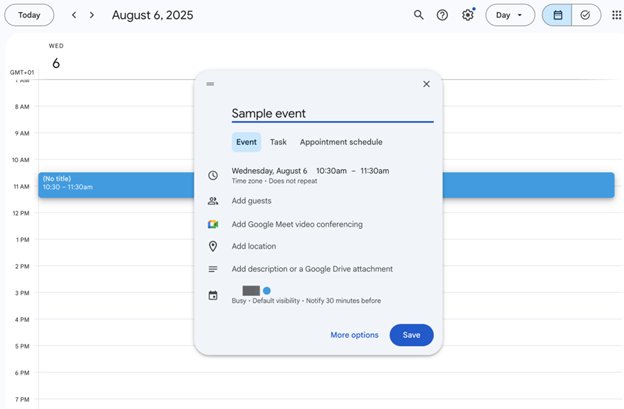
Google Calendar lets you add many details when creating an event. First, you'll add the title, location, and time. Then, you can add guests by entering their email addresses, and Google will send them an invitation to the event. If the event happens to be a videoconference or webinar hosted on Google Meet, you can generate a video meeting link that’ll be sent to invitees.

Google Calendar 2

Google Calendar integrates with Gmail, Google Meet, and other Workspace productivity apps (Image credit: Google)

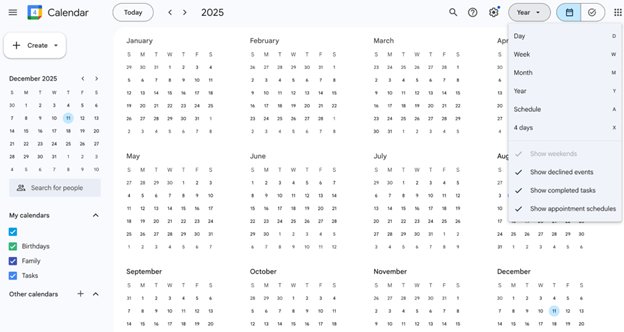
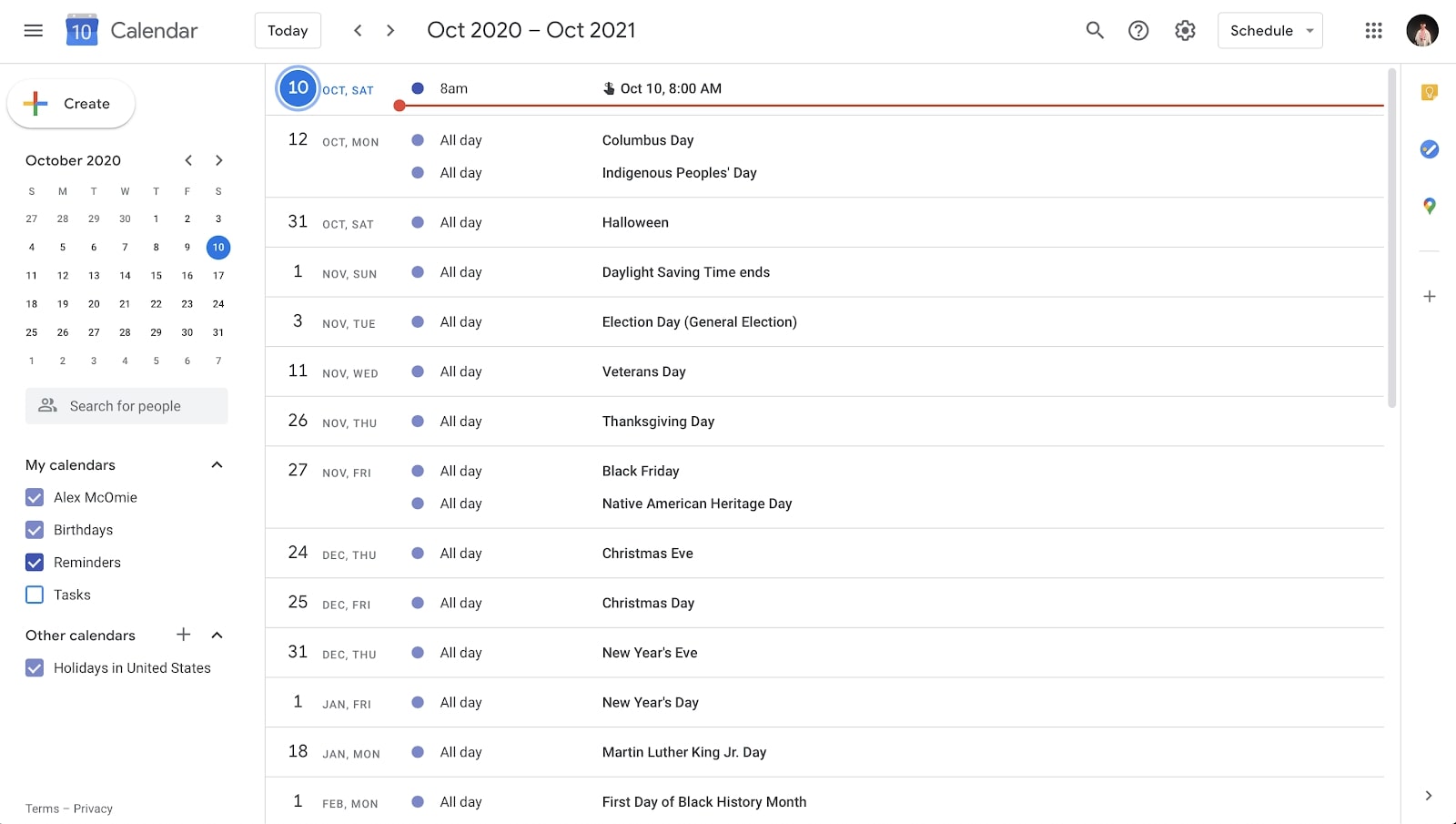
After adding events, you can monitor them easily from your dashboard. Picture a calendar listing all the dates in a year: all the future dates you’ve added events for will be highlighted, and you can click on any date to view the event. You can also switch the calendar view from the whole year to a specific month, week, or day.

What I’ve discussed above are the core Google Calendar features, but there’s much more to the app, especially for paid Google Workspace subscribers. If your business subscribes to Google Workspace, multiple employees can have shared calendars that foster collaboration.

For example, you can create an organization-wide calendar that lets employees keep track of important company events. Any upcoming meetings, holidays, and other events will be posted on this calendar, and each employee will receive reminders.

An assigned administrator can control access to this calendar, i.e., by choosing which accounts can add events to the calendar or can only view existing events. When someone adds an event to the organizational calendar and sets a reminder, all other people with access to the calendar will be notified.

Employees can also share their personal calendars with select colleagues. For instance, a team leader can share a calendar with their subordinates, giving them insight into the team leader’s schedule and the ability to book meetings directly with their team head. Different work teams can create their calendars to keep tabs on each other’s schedules and ensure they don’t set events on conflicting dates.

A memorable feature I used is the Gemini integration. Google unveiled its Gemini artificial intelligence (AI) assistant in 2023, in response to the AI boom spearheaded by OpenAI’s ChatGPT. In 2024, it announced direct Gemini integration with Google tools, including Calendar, for Workspace subscribers.

The integration lets you interact with Gemini directly from your Calendar dashboard instead of using it as a separate app. Gemini can perform many tasks to help you manage your schedule.

For example, I asked Gemini to create events for me rather than spend the time to do everything manually. I asked it about specific events, i.e., “When is [event name] scheduled to be held on the calendar?” This is the tip of the iceberg, as Gemini can do much more. It’s like having a virtual assistant to help you plan your schedule.

Google Calendar review

Google Calendar can display daily, weekly, or monthly schedules or a list of upcoming events (Image credit: Google )

Users can create appointment booking pages via Google Calendar. Essentially, you’ll create a professional booking page and set your desired dates and time slots for people to book meetings. Colleagues and clients can visit the link and schedule a meeting, and you’ll be notified about every booking.

If you’re a professional who provides consultation services, you can require clients to pay to book a meeting directly from the booking page. This feature works by integrating a Stripe account to accept the payments.

Google Calendar has extensive integrations with other Google tools. For example, the Gmail integration provides a seemingly trivial but valuable feature: When you receive an email about any event, it can be automatically added to your schedule with just a click. Generally, you can convert any email directly into an event on your calendar.

Another example is the integration with Google Chat, which allows multiple people sharing a calendar to chat on the same dashboard. This way, colleagues can chat about calendar-related topics without juggling separate apps or browser tabs.

Google Calendar also has integrations with third-party tools. An example is Slack, a popular business messaging app. The Slack integration enabled me to view upcoming events and receive reminders directly on Slack instead of juggling between it and Google Calendar. I also scheduled meetings directly from Slack, and these meetings were automatically added to my Google Calendar dashboard.

Another third-party integration I tried is Todoist, a well-known task management app. The integration enabled me to sync tasks from Todoist to my Google Calendar dashboard.

I enjoyed using Google Calendar to manage my schedule. It’s not just an effective calendar app but one of the most collaborative ones I’ve used. Other apps may offer more advanced features, but Google Calendar excels at enabling people to create and manage shared calendars. It’s second to none in collaborativeness and simplicity.

Google Calendar 3

(Image credit: Google)

Google Calendar: Interface and Use

Simplicity is a highlight of using Google Calendar. It has a noticeably straightforward interface that is easy to grasp. The homepage is the calendar, and you can sort through it to pick any date. Then, you can add an event to the date and set when to receive the reminder.

After setting events, you can always monitor them from your dashboard, which provides a complete view of your calendar. Click on any date in the calendar, and you’ll see any events set on that date. You can switch the calendar between different views (year, day, week, month, or any specific time frame). All the features are neatly arranged and easy to find in the top and left menus.

You can access Google Calendar from your web browser or download the Android or iOS mobile app. The mobile app makes it more convenient to monitor your schedule on the go, with the same features as the web browser version.

Google Calendar: Support

Google Calendar users have access to ample support resources. As a free user, your main support resource is the official Google Calendar help center, although it’s also useful for paid subscribers.

The official help center contains guides concerning all Calendar features. It’s the first place to consult to troubleshoot any issues with the app. In my case, I faced just a few issues with Google Calendar, mainly learning how to use some complex features. The help center quickly resolved these issues.

There’s also an official help community where you can ask questions and get answers from other Google users. This community provides valuable help for free users facing complex issues.

Paid subscribers can access direct support from Google’s team. The team is available 24/7 via email, live chat, or telephone, and is known for resolving customer issues quickly. While free users don’t have access to this direct support, the Google Calendar help center is sufficient to resolve most issues. Google Calendar’s intuitive interface minimizes the amount of help you’ll need in the first place.

Google Calendar: The competition

Apple Calendar and Calendly are the main Google Calendar competitors I’d like to highlight. Both are robust calendar apps with unique pros and cons when compared to Google Calendar.

Just like Google Calendar is extensively integrated with other Google apps and the Android operating system (which is owned by Alphabet, Google’s parent company), Apple Calendar is extensively integrated with Apple apps and the broader iOS ecosystem.

Apple Calendar is pre-installed on iPhones and has a simple, intuitive design similar to Google Calendar. Calendar data is encrypted, and users have full access to their Calendar when offline. However, Apple Calendar lacks the collaborative features offered on a Google Workspace plan. It’s designed for personal rather than business use.

Calendly is a calendar app designed for businesses to automate many scheduling tasks. It has more advanced appointment scheduling features than Google Calendar, including the ability to handle round-robin scheduling and other complex team scheduling demands. Calendly is also much more customizable and has a broader library of third-party integrations than Google Calendar.

However, Calendly is a more expensive option, considering that you’re paying only for a scheduling tool, unlike a Google Workspace subscription that unlocks both the Calendar app and many other Google tools. Calendly is a good option for large businesses with complex scheduling needs, while Google Calendar is more suitable for small-to-mid-sized firms.

Google Calendar: Final verdict

Google Calendar strikes an ideal balance between functionality, simplicity, and pricing. Given the other tools available as part of a Google Workspace subscription, it’s a cost-effective option for small to mid-sized businesses, enabling them to manage schedules effectively and ensure employees stay on the same page.

Google Calendar doesn’t have the most advanced features, but it’s sufficient for day-to-day schedule management, and the intuitive interface makes it a good choice for companies across diverse industries.

We've also featured the best calendar apps and the best productivity tools

!!!!!!!!!!

Popular Posts

Categories

Blog Archive