NZXT Player PC (5070 Intel Edition): Two-minute review
The NZXT Player PC (5070 Intel Edition) is an ideal PC for the kind of gamer interested in building a gaming desktop, but finds picking parts and the process of assembly overwhelming. The price does reflect that, as you could conceivably save a few bucks doing everything yourself.
That said, the NZXT Player PC (5070 Intel Edition) is a well-built and organized machine that’s easy to get into for future upgrades, while offering the convenience that the best gaming PCs provide. And with the powerful internals, it can do just about whatever one could want.
(Image credit: Future / James Holland)
You’ll find that some of the best desktops with higher spec’ed CPUs and GPUs have more oomph, but that’s more important if you’re rendering video or 3D projects. For gaming, what this desktop has to offer is more than enough.
As long as you’re willing to cover the price tag, there’s little to fault here. My only nitpick is that there isn’t a clear way to expand internally as opposed to swapping and upgrading parts. This might be minor for many people, but for those who haven’t built a PC, this might be a sticking point.
After all, this kind of desktop is going to be more appealing to those who don’t want to go with the usual pre-built machines and their proprietary parts, but aren’t yet ready to build their own.
NZXT Player PC (5070 Intel Edition): Price & availability
(Image credit: Future / James Holland)
How much does it cost? $2,033 (about £1539 / AU$3,162) When is it available? Available now Where can you get it? Available in the US
The NZXT Player PC (5070 Intel Edition), along with the other models on offer, is only available in the US. And since this model only has one configuration, it has one price: $2,033 (about £1539 / AU$3,162). NZXT does have a controversial PC rental option called NZXT Flex that is essentially like leasing a gaming PC available to consumers, but that doesn’t seem to be available for this model.
The price tag of this model is not cheap, but it’s not surprising either. If you want to build your own, getting an Nvidia GeForce RTX 5070 will set you back at least $549 / £549 / AU$1,109 if not more (especially if you live in the US with impending tariffs). That’s a quarter of the cost of this computer just in the GPU.
Consider that the RTX 5070 is not quite the upgrade over the previous generation’s 4070 Super one would expect, you can get most of the way there performance-wise with something like the Alienware Aurora R16, which ran for $1,749 / £1,349 / around AU$2,670 at launch and is still available at certain retailers at a discount. It is a little older, but it’s also a little more compact.
However, if you compare the NZXT model reviewed here to the current version of the Maingear MG-1 (our review is from last year so the components are older), which costs $2,049 for a similar model, specifically with a Intel Core Ultra 5 245K, NVIDIA GeForce RTX 5070, 16GB RGB DDR5 6000MT/s, and 1TB SSD, you can see that the NZXT Player PC is not overpriced. It does come with more RAM than the Maingear MG-1, though the MG-1 comes with more customization options, including a completely personalized front panel.
Value: 4 / 5
NZXT Player PC (5070 Intel Edition): Specs
(Image credit: Future / James Holland)
The NZXT lineup is interesting insofar that there are a number of models in the company’s prebuilt lineup totaling twelve unique listings, but they all revolve around three models – the Player: One, Player: Two, and, of course, Player: Three – differentiated by the case.
Of course, they’re all slightly different with a range of CPUs, GPUs, and so forth. The NZXT Player PC (5070 Intel Edition) uses the H5 Flow case that the Player: One and Player: One Prime uses. This model reviewed here is the most powerful NZXT model with this case with a 20-core Intel Core Ultra 7 265KF CPU, an NVIDIA GeForce RTX 5070, and 32GB of RAM, not to mention 2TB SSD storage. There’s not really any customizations here, so you have to choose the model that fits your budget and performance needs.
NZXT Player PC (5070 Intel Edition) specs
Price:
$1,999.99
CPU:
Intel Core Ultra 7 265KF
Graphics:
NVIDIA GeForce RTX 5070
RAM:
32 GB (2 x 16 GB) DDR5 5200MHz
Storage:
2TB NVMe M.2 SSD
Ports:
Front I/O: 1x USB 3.2 Type-A, 1x USB 3.2 Type-C, 1x Headset Audio Jack
Back I/O: 6x USB 3.2 Type-A, 2x USB 3.2 Type-C, DisplayPort, Mic In / Line In / Line Out
Wireless:
Wi-Fi 7 / BlueTooth
On the bright side, there’s plenty of after-the-fact customization available with the NZXT Player PC (5070 Intel Edition) since the parts are standardized, such as a Z890 motherboard. And getting inside the desktop is very simple, which I’ll get into in the next section.
NZXT Player PC (5070 Intel Edition): Design
(Image credit: Future / James Holland)
Lots of venting
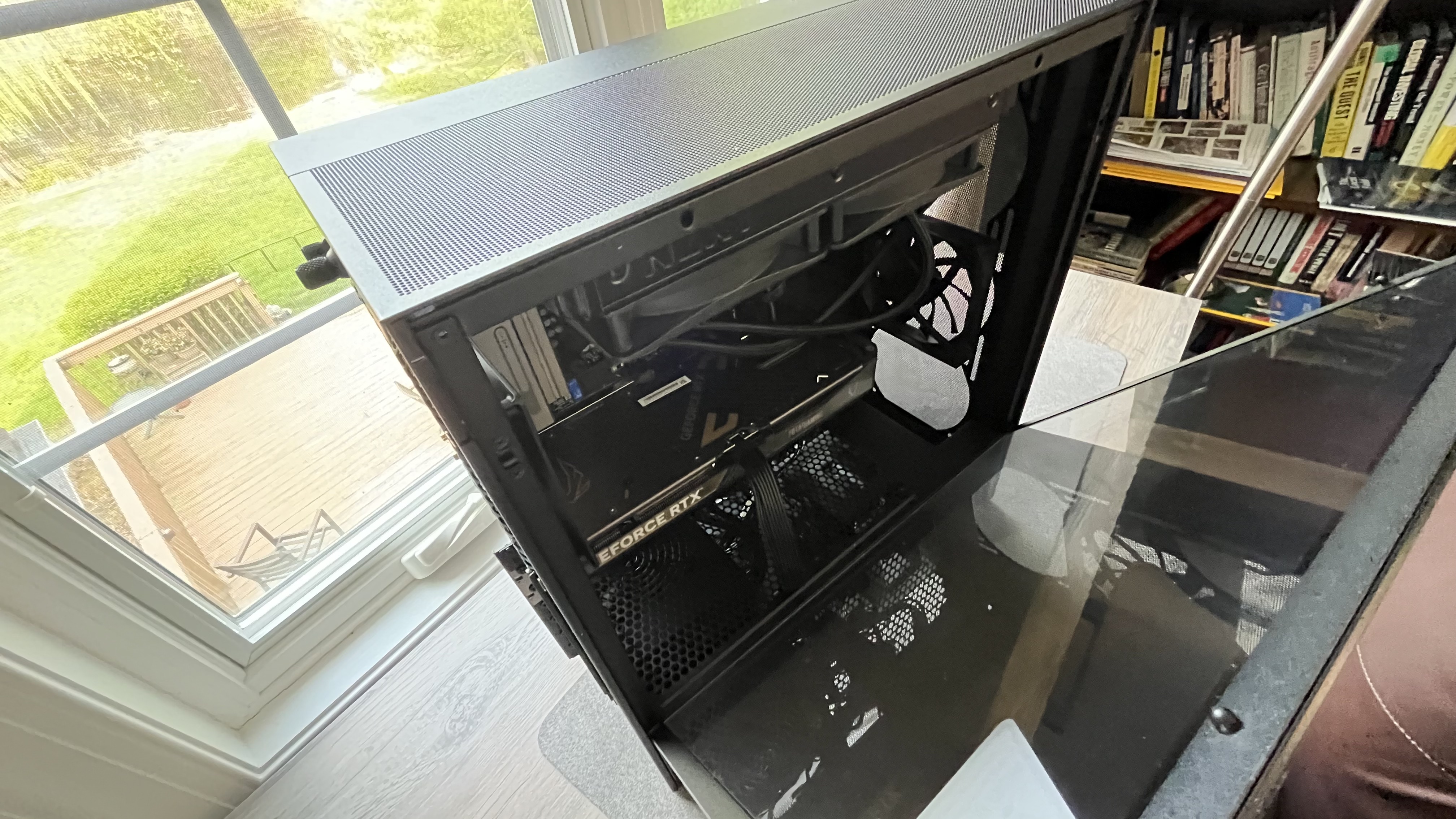
Tool-less tempered glass side panel
No clear expansion slots inside
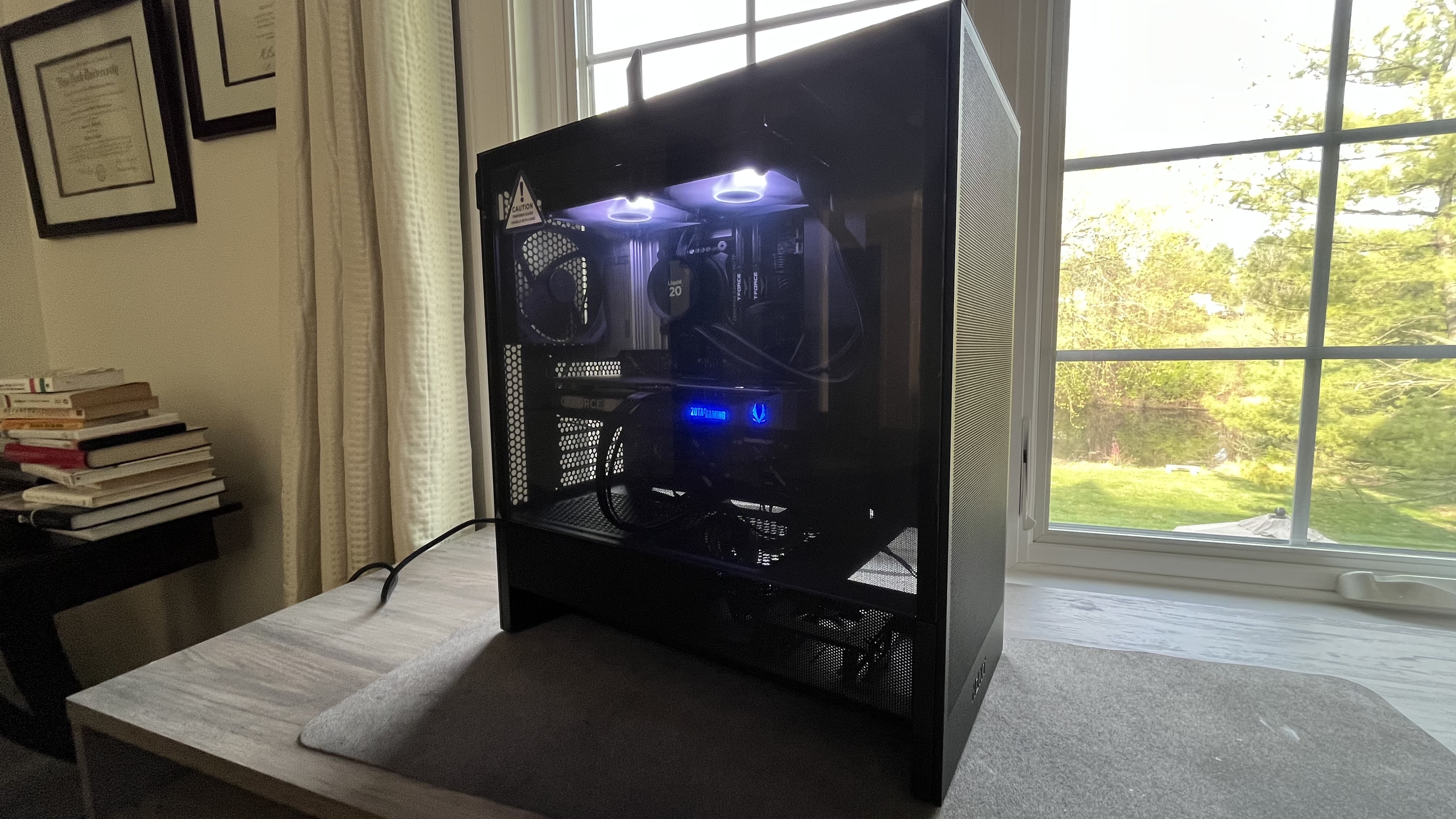
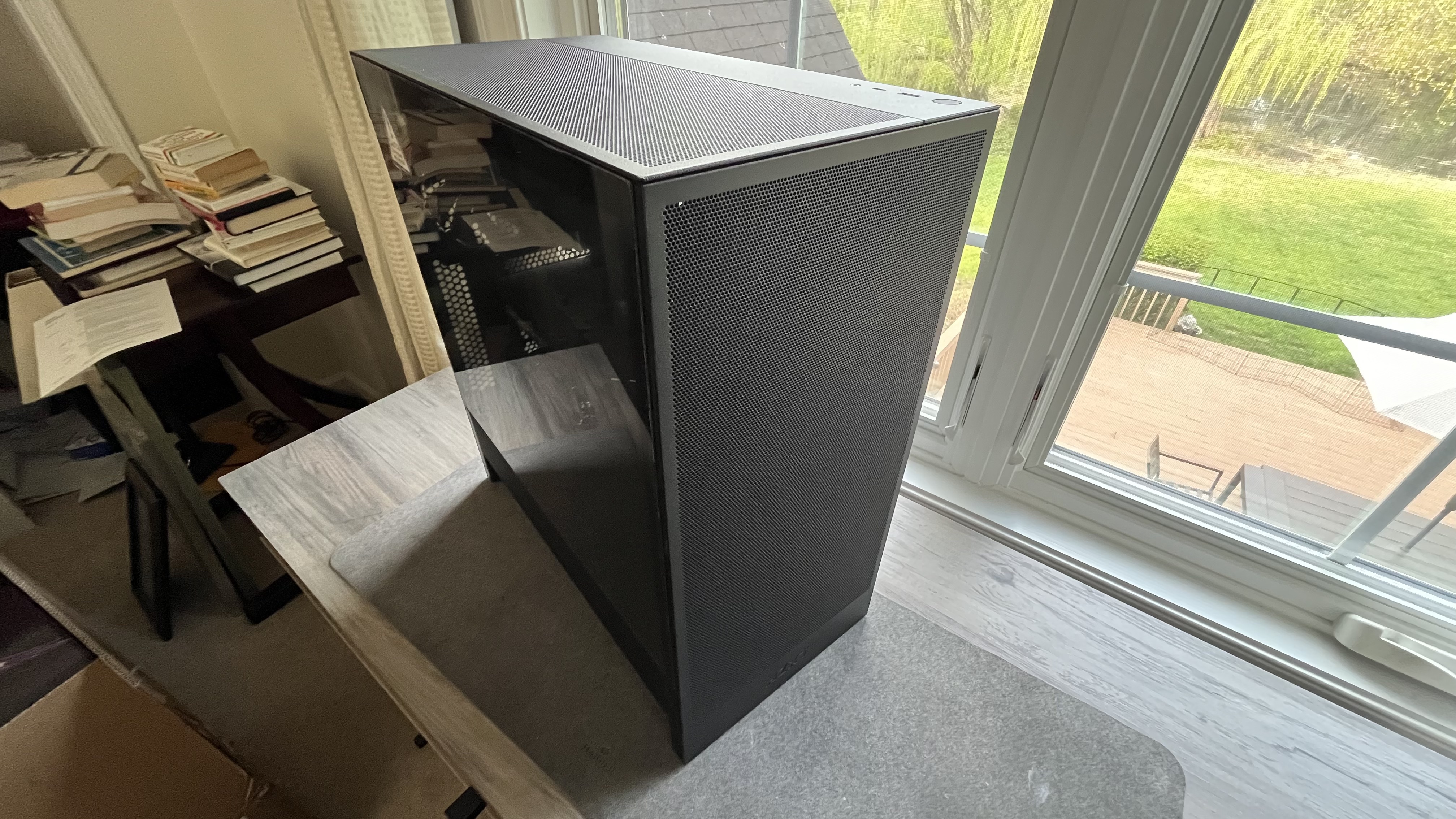
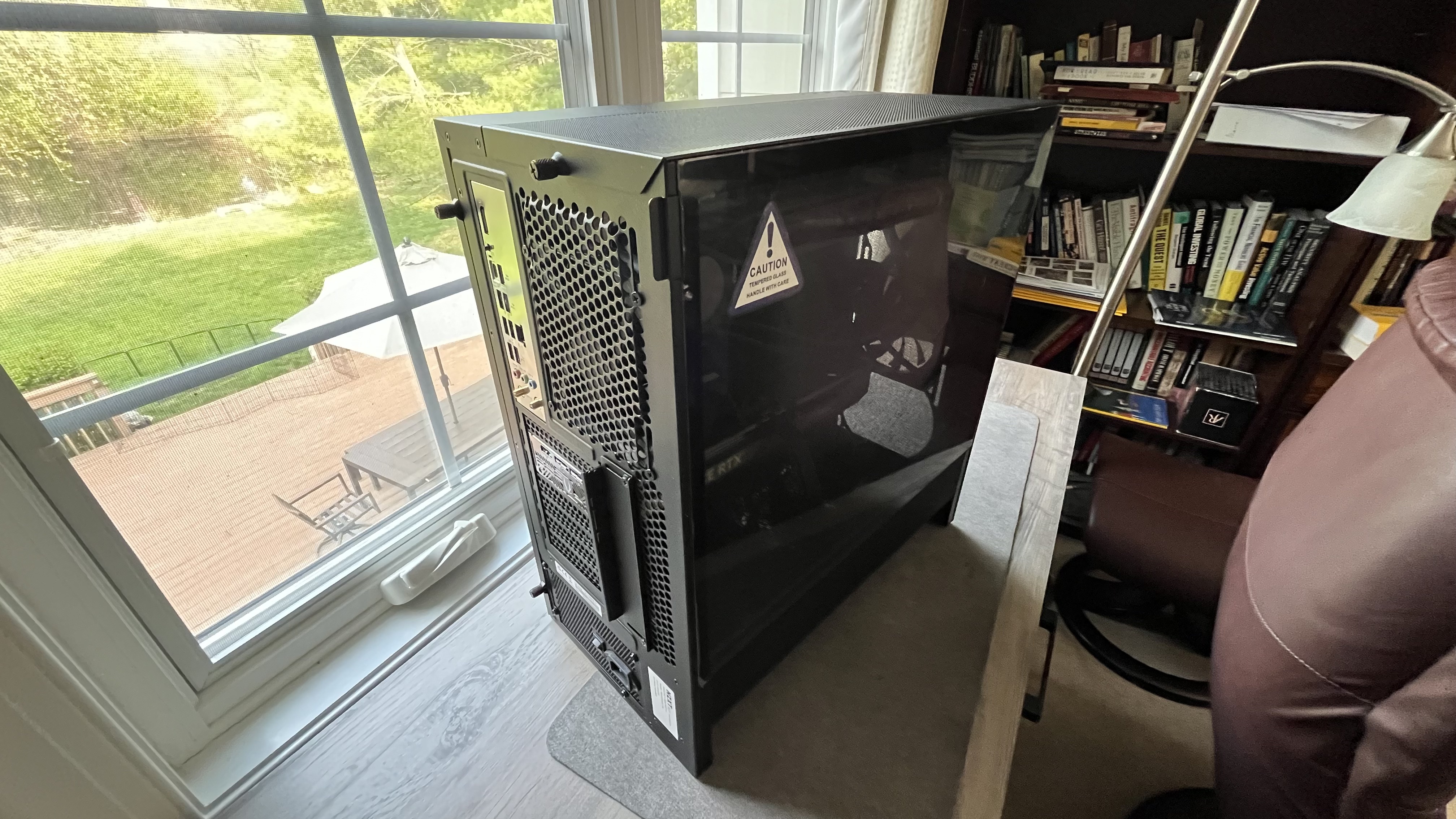
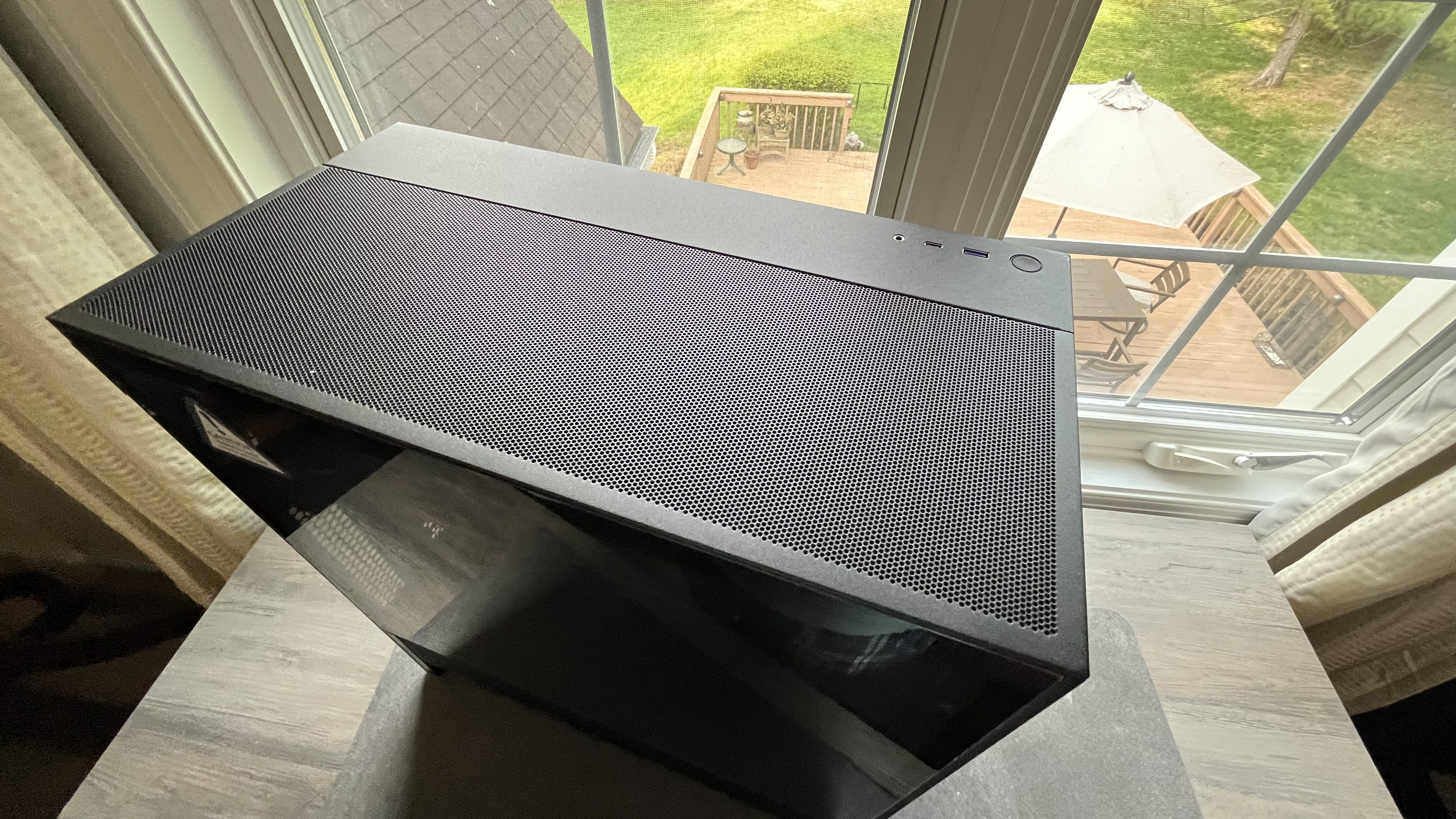
The NZXT Player PC (5070 Intel Edition) uses the black version of the company’s H5 Flow case (the case itself is also available in white), which is a compact mid-tower ATX form, measuring 18.31 x 8.86 x 16.93 inches (465 x 225 x 430 mm). The “Flow” in its name refers to all of the venting covering the front, top, back, and bottom of the case to keep things cool.
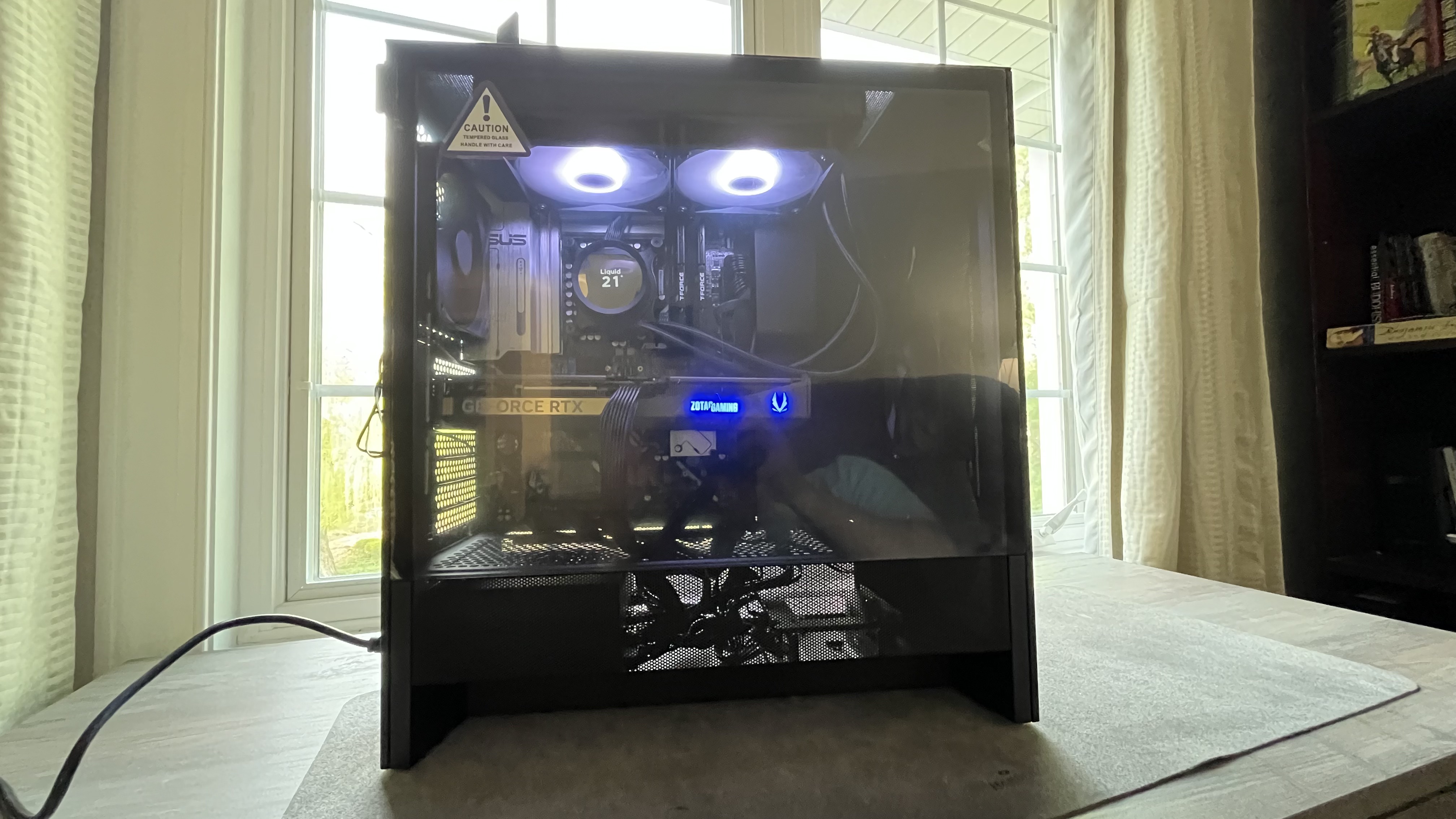
Most of the case is a very durable galvanized steel (SGCC), but the side panel is made of tempered glass so you can easily see what’s inside. And the internals are arranged very cleanly in a way that’s fairly aesthetically pleasing. Most of the wiring is hidden or fed into a compartment at the bottom that’s separated by a steel plate so that you can only see it through the venting near the bottom of the case.
(Image credit: Future / James Holland)
It’s worth noting that the top fans do have some backlighting but the NZXT Player PC does not come with RGB lighting despite the fact that this case is available with RGB. At least, the side panel is also a nice touch because it allows tool less entry, allowing for easy upgrades and swaps without having to grab a screwdriver.
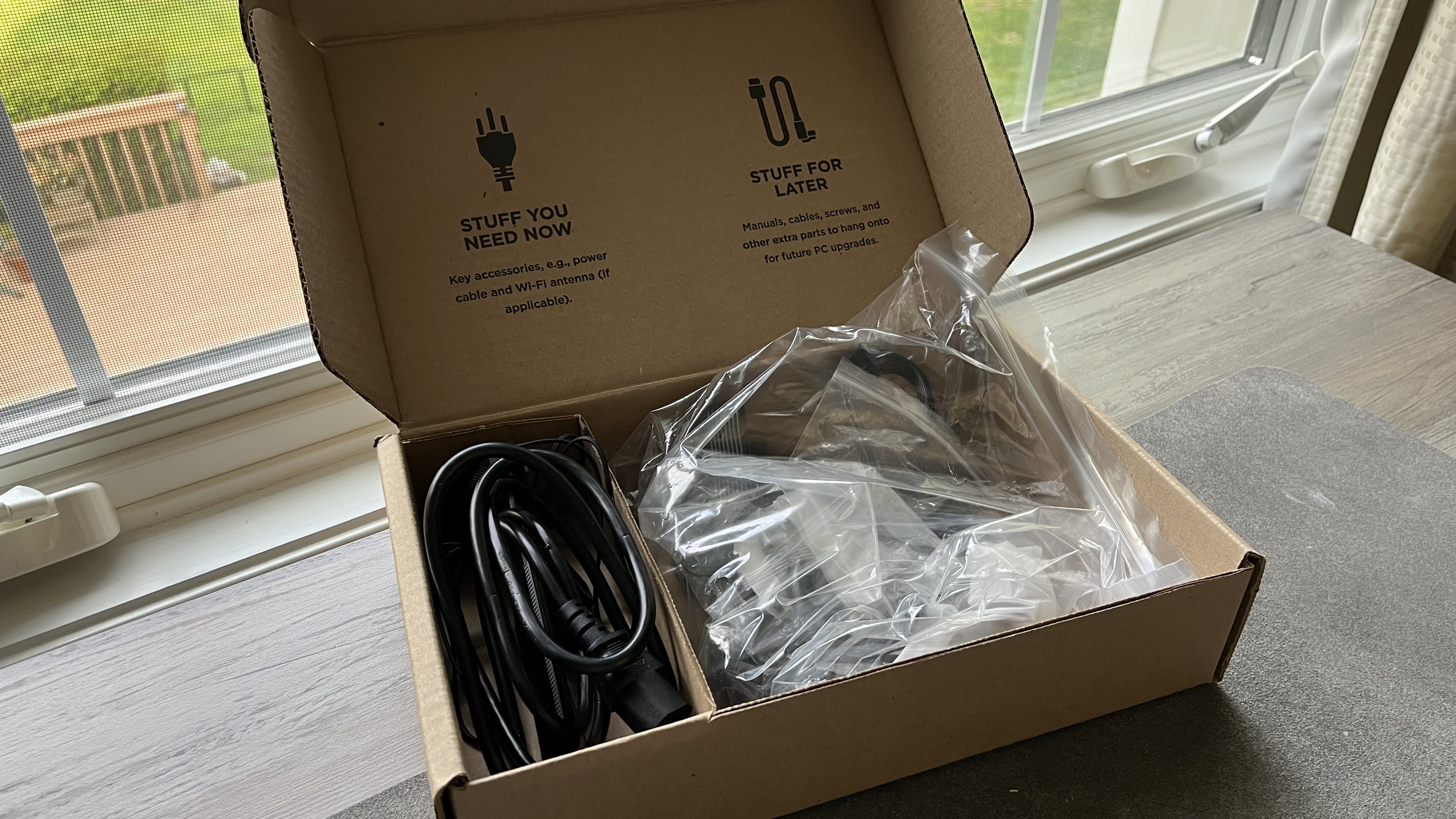
As far as ports go, there’s quite the selection. There’s a USB-C, USB-A, and headphone jack on top of the case next to the power button. And on the back, there’s an additional six USB-A along with two USB-C ports, three audio jacks, and, a bit more unusually, it has attachments for an included Wi-Fi Antenna that helps boost its Wi-Fi 7 support.
(Image credit: Future / James Holland)
All in all, it’s a pretty impressive-looking PC. Being very nitpicky, it’s not apparent where any expansion slots are for upgrades. I didn’t see any additional places for an SSD either on the motherboard or anywhere else inside the case even though there’s plenty of space.
Design: 4.5 / 5
NZXT Player PC (5070 Intel Edition): Performance
(Image credit: Future / James Holland)
Powerful internal components
Easily runs performance-heavy games
Stays fairly cool under duress
NZXT Player PC (5070 Intel Edition) CPU benchmarks
Benchmark
Score
Geekbench 6.4 Single-core
3,081
Geekbench 6.4 Multi-core
18,984
Crossmark Overall
2,298
Crossmark Productivity
2,159
Crossmark Creativity
2,495
Crossmark Responsiveness
2,166
Unless there’s some poorly planned layout or issues with a case that cause overheating, you can usually tell how a gaming PC will perform almost completely based on the internal components.
Considering, then, that the NZXT Player PC (5070 Intel Edition) has an Intel Core Ultra 7 265KF with 20 cores and 20 threads as well as 25 TOPS, an Nvidia GeForce RTX 5070, and 32GB of DDR5 5200Hz RAM, it’s no surprise that it’s able to run all the latest games at or near the highest settings.
NZXT Player PC (5070 Intel Edition) GPU benchmarks
Benchmarks
Score
3DMark Fire Strike
45,049
3DMark Time Spy
21,414
3DMark Fire Strike Ultra
14,727
3DMark Time Spy Extreme
10,943
3DMark Speed Way
5,855
3DMark Steel Nomad
4,967
3DMark Port Royal
14,139
I’ve had no issues not only playing games like South of Midnight, Monster Hunter Wilds, Baldur’s Gate 3, and Cyberpunk 2077 but running them at High or Ultra settings on an ultrawide 5K monitor with HDR on, which requires quite a bit of power in and of itself. I didn’t have any issues with screen tearing, stuttering, or any other performance-related issues. And all the games stayed at the 165Hz refresh rate the monitor supports.
NZXT Player PC (5070 Intel Edition) gaming benchmarks
Game
Average FPS
Black Myth: Wukong (Cinematic, 1080p)
60
Cyberpunk 2077 (Ultra, 1080p)
70
Monster Hunter Wilds (Max, 1080p)
83
Shadow of the Tomb Raider (Very high, 1080p)
201
Total War: Warhammer III (Ultra, 1080p)
182
It’s also worth mentioning that I’ve never had Cyberpunk 2077 boot up as quickly as it did on this PC. Speaking of that game, it’s still a very demanding title with all its updates for newer tech like DLSS 4.
Yet, running the game only pushed the system a little, and the overall affair stayed fairly cool, thanks to the various fans placed around inside the case.
Performance: 5 / 5
Should I buy the NZXT Player PC (5070 Intel Edition)?
Attributes
Notes
Rating
Value
The price tag is high, but it’s what one would expect for a computer sporting an Nvidia GeForce RTX 5070 GPU.
4 / 5
Design
Tool-less entry, lots of venting, and a durable, clean build are all part of the package. Too bad, expansion slots aren’t well marked and you can’t upgrade to RGB.
4.5 / 5
Performance
There’s little to fault when it comes to performance as the desktop can do it all gaming-wise.
4.5 / 5
Average rating
It’s a little pricey, but the convenience, durability, and performance are all worth it.
4.5 / 5
Buy it if...
You want a powerful gaming PC
The NZXT Player PC reviewed here has enough power to handle any gaming situation. Whether you want something capable of supporting a 5K ultrawide monitor, high ray tracing, DLSS 4, and any other performance-heavy technologies, this PC can do it.
You want easy upgradability
Sure, there’s only one configuration out of the gate. But, once you have the PC in hand, its tool-less entry and use of standardized parts make upgrading the CPU, GPU, RAM, or anything else pretty straightforward.
You want an attractive-looking PC
With all the ventilation, tempered glass side panel, and clean, organized internal setup, this is an attractive, if straightforward-looking desktop.
Don't buy it if...
You want lots of options
While you can certainly upgrade quite easily after the fact, you can’t do so or customize when purchasing. If that’s important to you out of the gate, then you should probably look elsewhere.
You’re on a budget
As good as the NZXT Player PC is, it’s not cheap. There are other options, including within the company’s own product line, that are more affordable. You just have to be willing to go with less powerful components.
Also Consider
If our NZXT Player PC (5070 Intel Edition) review has you considering other options, here are two desktops to consider...
Alienware Aurora R16
The Alienware Aurora R16 is compact with great port selection, more than adequate ventilation, and, most importantly, excellent performance. It does have an aesthetic that can’t decide if it’s for professional settings or gamers, but that’s a small complaint. Though the R16 has been discontinued by Dell, it’s available through some online retailers and at a discount.
Maingear MG-1
The Maingear MG-1 is powerful if pricey, and comes with a lot of customization options – many more than NZXT including the ability to get a personalized front panel. Of course, depending on the upgrades, it can get very expensive, but, as they say, you get what you pay for.
How I tested the NZXT Player PC (5070 Intel Edition)
Tested for a couple of weeks
Used it for heavy gaming
Spent some time looking at the build
I used the NZXT Player PC (5070 Intel Edition) for a couple of weeks, mainly using it for heavy gaming. I poked around inside the desktop to get an idea of the quality of the parts, as well as explored the software to see what tricks this desktop had up its sleeves.
The NZXT Player PC (5070 Intel Edition) is a gaming PC that’s ideal for the kind of person who wants all the benefits of building one’s own desktop, but doesn’t want to for the headaches that come with doing so. It has the kind of quality control and clean build that one doesn’t always see in prebuilts, while making it convenient to get inside and swap out parts.
I’ve spent the last few years reviewing tech gear for gaming and otherwise, where I’ve gotten a feel for what to look for and how to put a piece of kit through its paces to see whether it’s worth the recommendation.
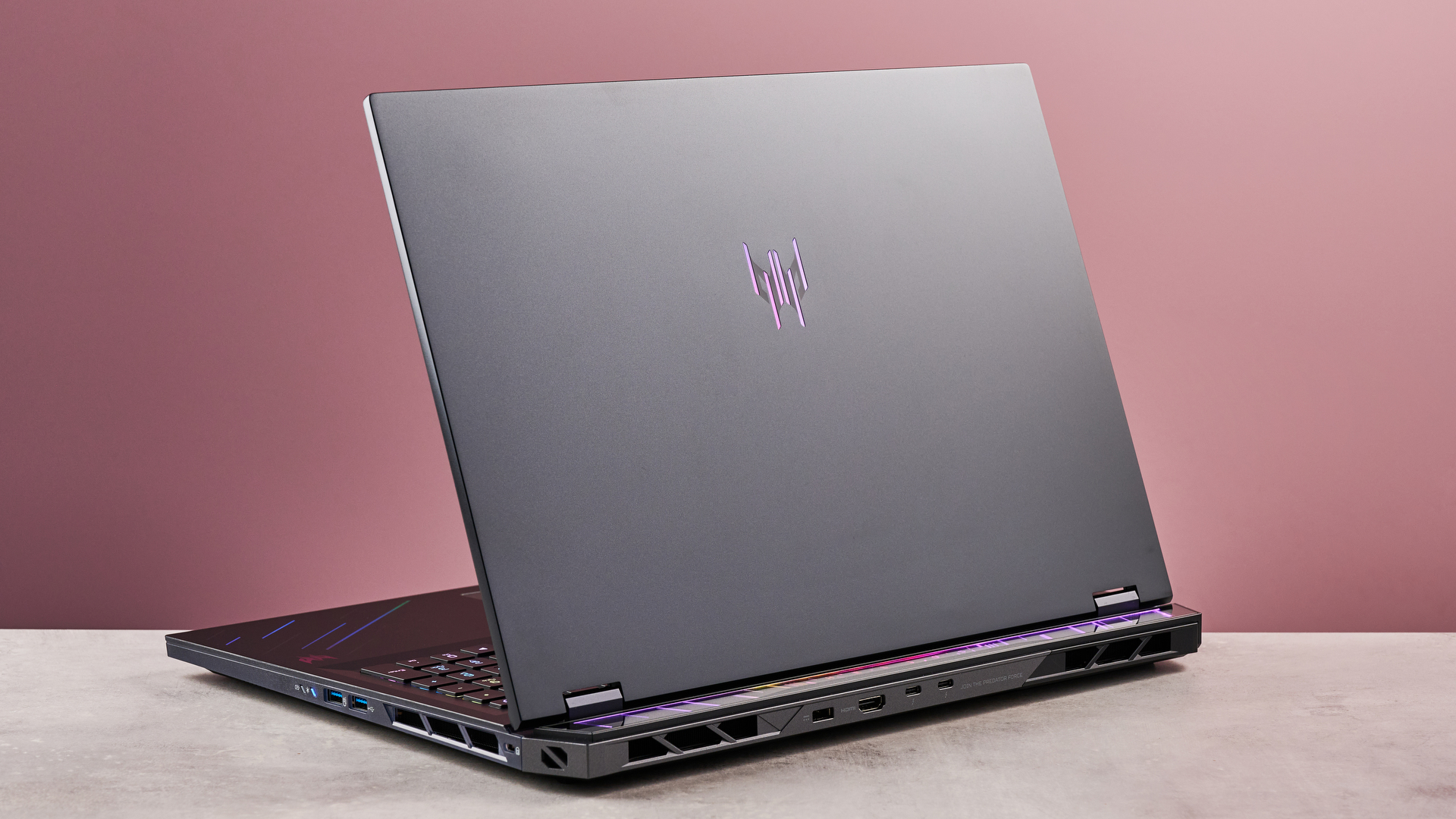
The Acer Predator Helios 18 AI is a top-tier gaming laptop with a phenomenal spec that’s sure to whet the appetites of even casual gamers. Despite what lurks inside, its exterior is remarkably restrained. At 18 inches, it's obviously very large, but the black finish and lack of branding keep its profile reasonably low. However, that large rear protrusion and ostentatious RGB lighting give away its intentions.
I think Acer has done well to keep the Predator Helios 18 AI as slender as possible. Of course, this is all relative given the size of laptop we’re dealing with here, but it’s impressively thin for the most part, although it thickens at the rear.
Build quality is also excellent, equaling the best gaming laptops in this regard. Premium materials are employed everywhere, and the hinge for the lid is smooth and easy to operate, while offering plenty of stability once set.
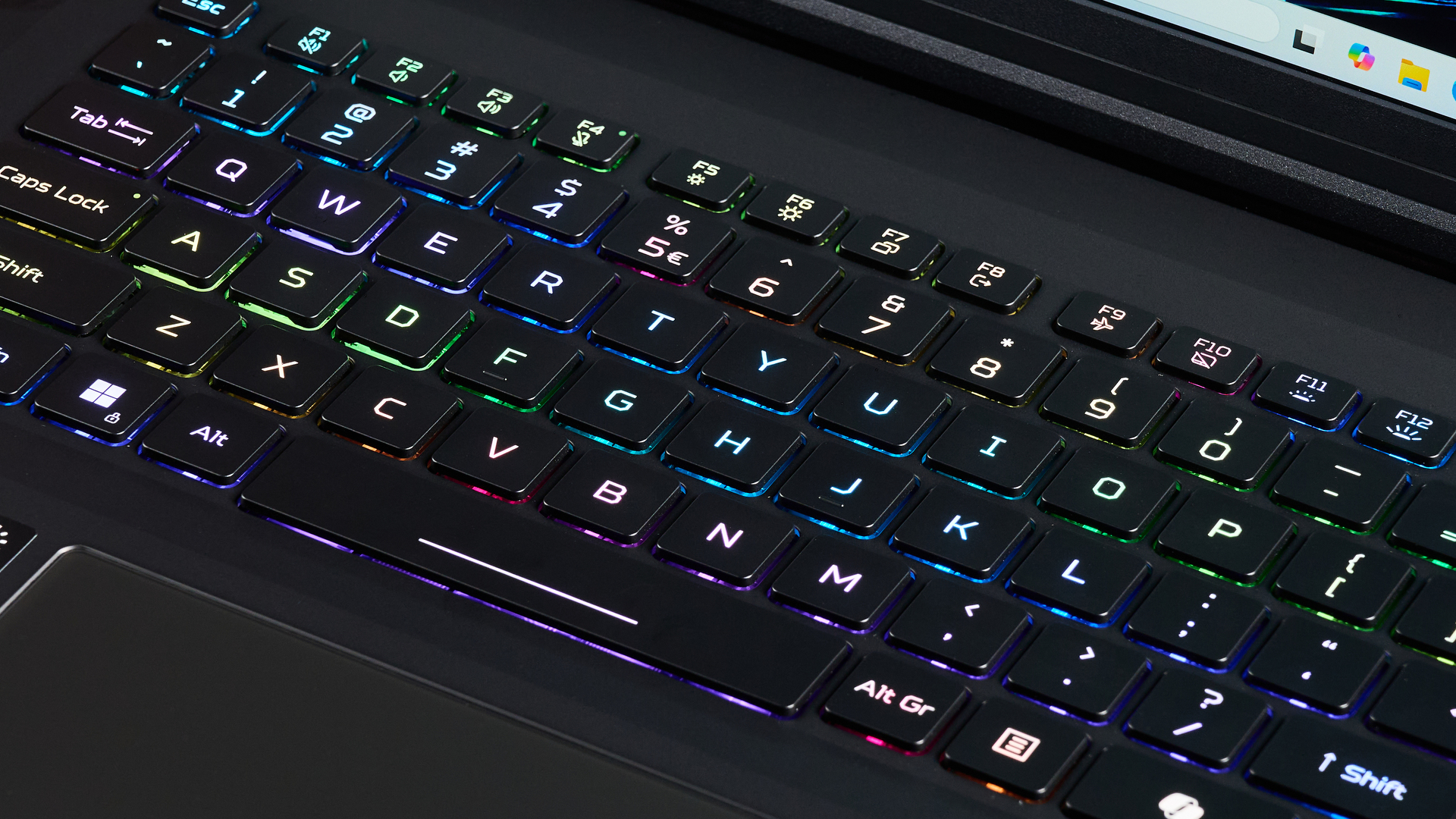
The keyboard is tactile and snappy, and the generous spacing of the keys makes it easy to type and game on the Predator Helios 18 AI. The number pad somewhat compromises the layout, though, with the space bar paying the highest price; it’s a little too short for my liking.
On the other hand, the large trackpad does a fine job of not interfering while using the keyboard, with accidental contact failing to register in my experience. It’s also very smooth and accurate, should you wish to use it over one of the best gaming mice.
Considering its mighty spec, the Predator Helios 18 AI performs as well as you might expect. Cyberpunk 2077 and Doom: The Dark Ages ran with aplomb, each delivering fps figures in the hundreds with maximum graphics settings, including those for ray tracing.
(Image credit: Future)
You will have to endure constant fan noise when gaming, but thankfully this isn’t egregious when the default Balanced mode is selected in the Predator Sense app. The Predator Helios 18 AI also generates a fair amount of heat, which can spread to the sides and the keyboard after a while. Again, though, this isn’t bad enough to cause an issue.
The biggest price you’ll have to pay for all this performance is… well, the price. Starting at $3,000, the Predator Helios 18 AI is incredibly expensive. I struggle to think who’ll need such a large and powerful laptop, and be willing to pay this much for one.
Of course, the entire gaming laptop market is a premium one, but there are better value alternatives out there if you don’t need an 18-inch display and triple-digit frame rates, such as the excellent Razer Blade 16 (2025) or the MSI Katana 15 (2023), the latter of which we think is currently the best budget gaming laptop around.
Acer Predator Helios 18 AI review: Price & Availability
Starts from $2,999.99 / £3,499.99 / AU$7,299
Hugely expensive
Better value alternatives
The Predator Helios 18 AI starts from $2,999.99 / £3,499.99 / AU$7,299 and is available now. It comes with spare WASD and arrow keys, as well as a thermal pad upgrade kit for the RAM.
You don’t need me to tell you what an eye-watering sum this is. It’s understandable considering the spec, and my review unit was even more outlandish, equipped with a 3840 x 2400 display and 192GB of RAM(!).
Prices are similar to the Razer Blade, which performs similarly too. If you want something that’s even better value, the MSI Katana 15 (2023) is, in our view, one of the best budget gaming laptops around, if you’re happy to game at 1080p.
Value: 2.5 / 5
Acer Predator Helios 18 AI review: Specs
Acer Predator Helios 18 AI Specs
Acer Predator Helios 18 AI Base Config
Acer Predator Helios 18 AI Review Config
Price
$2,999.99 / £3,499.99 / AU$7299
TBC
CPU
Intel Core Ultra 9 275HX (24 Cores), 2.70 GHz
Intel Core Ultra 9 275HX (24 Cores), 2.70 GHz
GPU
Nvidia GeForce RTX 5080 (16GB)
Nvidia GeForce RTX 5090 (24GB)
RAM
64GB DDR5
192GB DDR5
Storage
2TB PCIe NVMe SED SSD
2TB PCIe NVMe SED SSD
Display
18-inch WQXGA (2560 x 1600), 16:10 ComfyView (Matte), 250Hz, IPS
18-inch WQUXGA (3840 x 2400), 16:10 ComfyView (Matte), 250Hz, IPS
Ports and Connectivity
3 x USB-A, 2 x USB-C, 1 x RJ-45, 1 x SD card, 1 x HDMI, 1 x 3.5mm audio in/out; Wi-Fi 7, Bluetooth 5.4
3 x USB-A, 2 x USB-C, 1 x RJ-45, 1 x SD card, 1 x HDMI, 1 x 3.5mm audio in/out; Wi-Fi 7, Bluetooth 5.4
Battery
99Wh
99Wh
Dimensions
401 x 308 x 29.6mm
401 x 308 x 29.6mm
Weight
3.5kg / 7.7lbs
3.5kg / 7.7lbs
Acer Predator Helios 18 AI review: Design
(Image credit: Future)
Large but surprisingly thin
Relatively understated
Excellent build quality
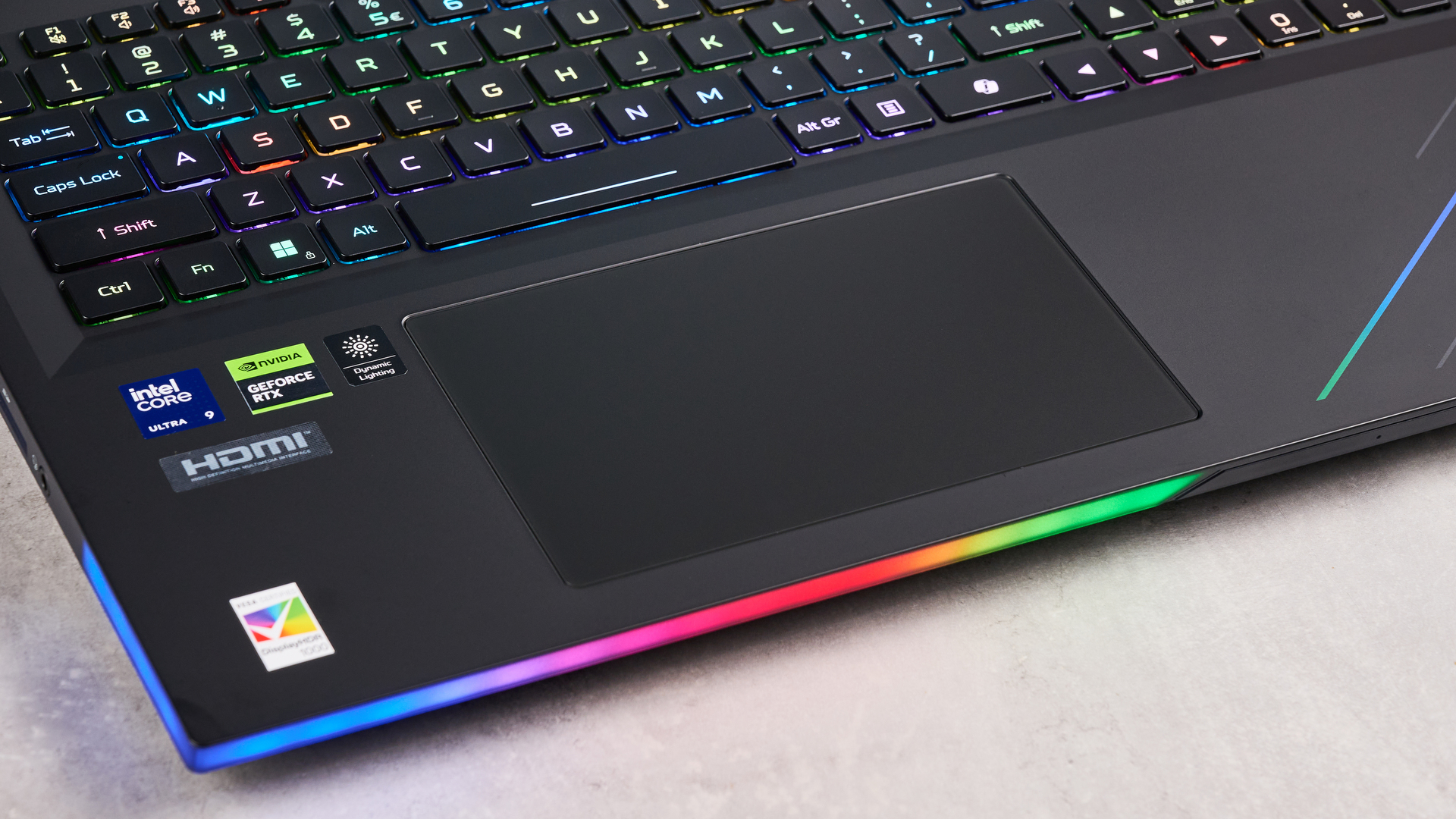
Given its large display size, the Predator Helios 18 AI is a reasonably understated gaming laptop. The rear bulge that extends beyond the lid hinge gives it some distinction, and the RGB lighting can light up the whole unit like a Christmas tree if you want it to (the bar that runs along the front edge and wraps around the side is especially striking). But switch this off and you’ll struggle to tell it apart from the best business laptops.
It’s quite bulky, although I think the Predator Helios 18 AI does an admirable job of keeping its dimensions contained considering the beastly components that lay within. The front end is reasonably thin, but thickens as it moves towards the back. This increased size does allow for larger vent openings, though, so it’s a worthy sacrifice to improve cooling performance.
The overall build quality is hard to fault. All the materials that are used look and feel premium and durable. The lid is also impressively smooth to operate yet remains sufficiently stable when set in position.
Underneath you’ll find three feet that run across the width of the Predator Helios 18 AI, and they provide plenty of grip on desktop surfaces. They also raise the chassis from the surface by a significant degree, again allowing for improved ventilation.
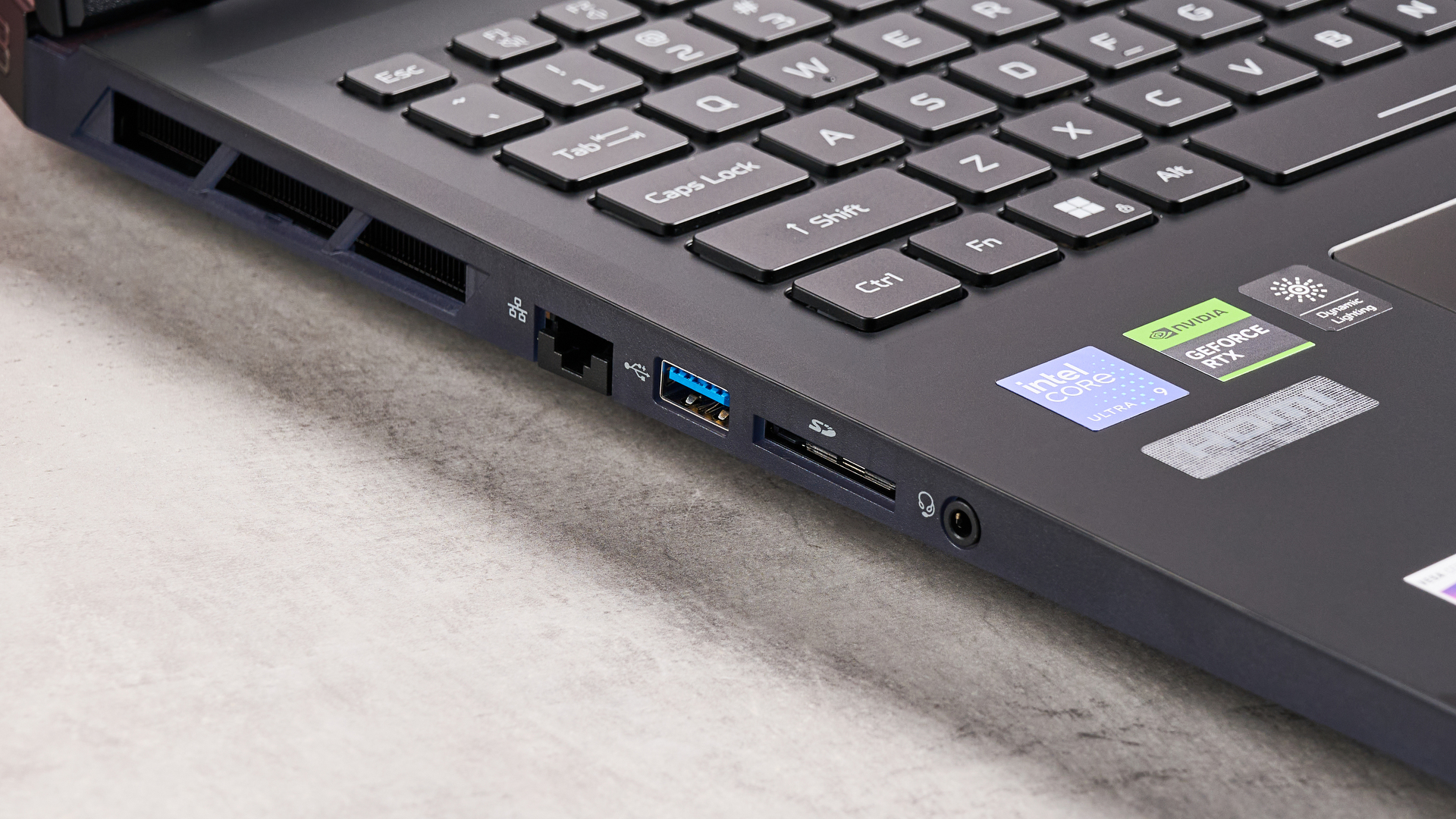
There are plenty of ports on the Predator Helios 18 AI. On the left, you’ll find an ethernet and a USB-A port, as well as an SD card slot and a 3.5mm audio in/ out jack. On the right are two more USB-A ports, which is a sensible location considering this is where you’ll likely be connecting external peripherals.
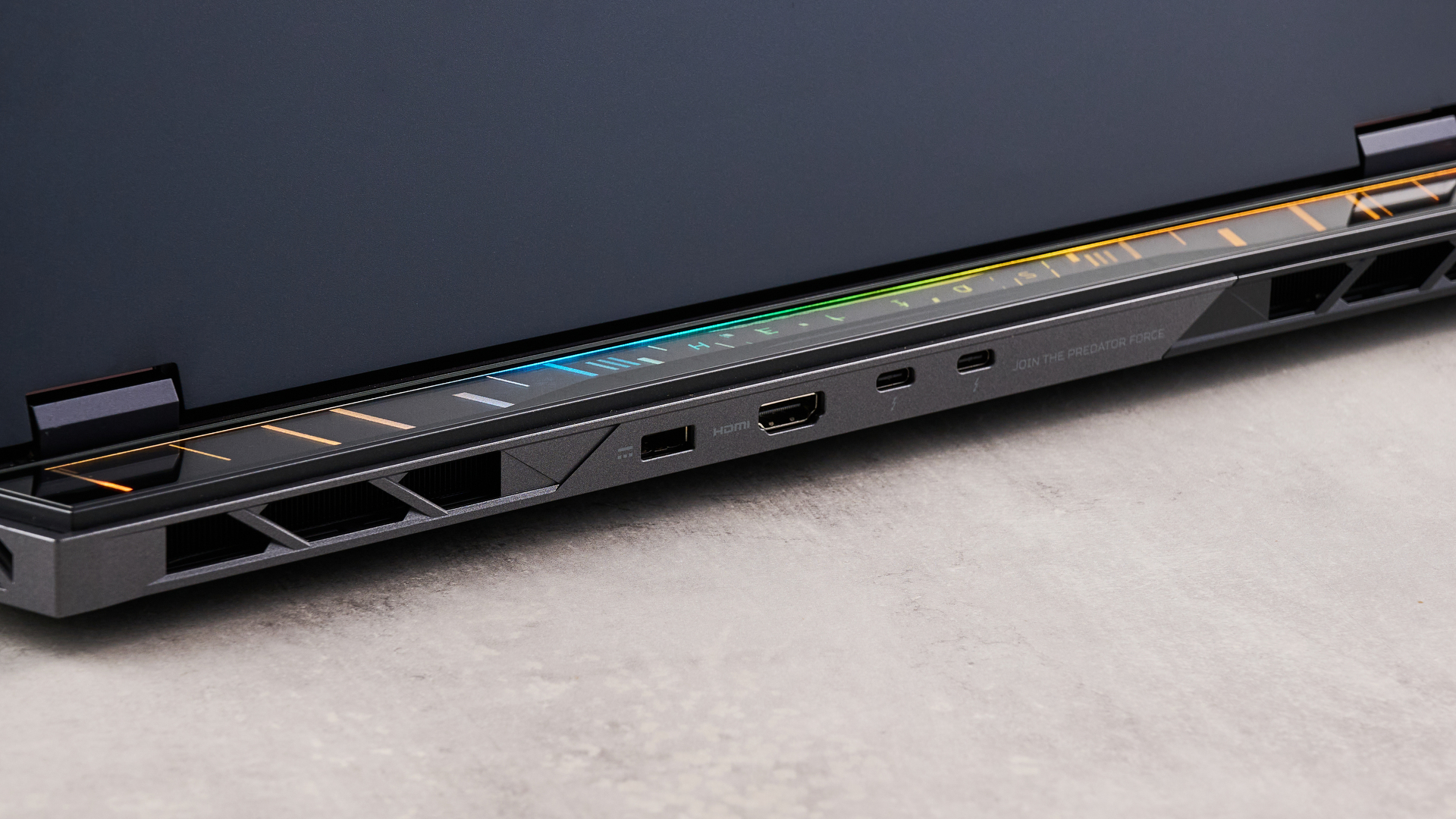
On the rear are two USB-C ports, an HDMI port, and a large power cable port. As you would imagine, the power supply is large, but unfortunately the cable running from the brick to the jack end is quite short. Owing to my setup, this meant I had to keep the brick on my desk rather than placing it on the floor, which was quite the inconvenience.
Design: 4 / 5
Acer Predator Helios 18 AI review: Performance
(Image credit: Future)
Fantastic AAA performance
Vibrant and sharp display
Some fan noise and heat
Gaming with the Predator Helios 18 AI didn’t get off to a particularly auspicious start. When I ran Cyberpunk 2077 for the first time, the game’s benchmark function recorded a disappointing 42fps, with the maximum 3840 x 2400 resolution and Ray Tracing: Ultra preset selected.
Some tinkering with the graphics settings resulted in modest improvements to performance, but it wasn’t until after restarting the game a couple of times that things suddenly improved: I started getting about 100fps, even in busy in-game environments, without lowering the resolution or any other graphical settings.
Similar figures were achieved when I played Doom: The Dark Ages, although I did have to change the DLSS mode from Auto to Ultra Performance to get there. Thankfully, this made no discernible difference to the image quality.
And on that front, both games looked fantastic on the WQUXGA display. Colors were accurate and vibrant, if very slightly washed-out. This is a common issue on many IPS displays, but here the effect did little to detract from the awesomeness of the visuals.
The ultra-high 3840 x 2400 resolution in my review unit offered incredible levels of sharpness, while the high response times resulted in super-smooth gameplay. It’s also capable of very high brightness levels, which helps to keep pesky reflections at bay.
(Image credit: Future)
Acer Predator Helios 18 AI Benchmarks
Here's how the Acer Predator Helios 18 AI performed in our series of benchmark tests:
Geekbench 6.2:
Single - 2,803
Multi - 16,720 Cinebench R24:
Single - 125 13.89x
Multi - 1,728 3DMark:
Fire Strike - 36,158
Time Spy - 17,341
Port Royal - 12,994
Night Raid - 60,951 PCMark10:
8,885 Cyberpunk 2077:
1080p Low - 469fps
1080p Ultra - 361fps
1080p Ray Tracing: Overdrive - 128fps Battery test:
Movie playback - 3 hours and 2 minutes
PCMark10 (Gaming) - 1 hour 27 minutes
Fan noise is constant when gaming on the Predator Helios 18 AI, but I didn’t find it distractingly loud. The volume increases considerably if you set the Predator Sense profile to Performance mode, though – then you’ll really need one of the best PC gaming headsets to drown out the noise.
The Predator Helios 18 AI does a good job of keeping temperatures down. Its underside doesn’t get too hot, although over time heat leaks out of both sides, which can be a little distracting for your mouse hand. After a couple of hours of gaming, I noticed the bottom of the keyboard became quite hot, too, especially around the space bar.
It wasn’t hot enough to make using the keyboard a problem, though. And what’s more, the keyboard on the Predator Helios 18 AI is great to game with. The keys are clicky but damped enough to make them tactile.
They’re a little on the small side (although they’re generously spaced apart), owing to the inclusion of the aforementioned number pad. This compromises the layout somewhat – especially the space bar, which isn’t as long as I would’ve liked, and therefore somewhat awkward to hit with my left thumb.
The trackpad on the Predator Helios 18 AI is large and very smooth, making it easy to use. Mercifully, it also appears unaffected by contact with the sides of your palms, meaning it won’t accidentally register movements while your hands lean over it to use the keyboard.
Performance: 5 / 5
Acer Predator Helios 18 AI review: Battery Life
(Image credit: Future)
Large 99Wh capacity
Underwhelming longevity
Quick to charge
The battery life of the Predator Helios 18 AI isn't particularly impressive. Despite its 99Wh capacity, it lasted just under 90 minutes PCMark10's battery test for gaming scenarios.
This makes it considerably worse than the Razer Blade 16 (2025), which managed about an hour more, but much better than the MSI Katana 15 (2023), which didn’t even last one hour.
Charging the Predator Helios 18 AI back up to full is a surprisingly quick process, though – and given the size of the power brick, you would hope it would be.
Battery Life: 3.5 / 5
Should I buy the Predator Helios 18 AI?
Acer Predator Helios 18 AI Scorecard
Attributes
Notes
Rating
Value
The Predator Helios 18 AI is incredibly expensive, and only worth it if you need the absolute best gaming performance in laptop form.
2.5 / 5
Design
The Predator Helios 18 AI is very large, but is admirably thin considering what’s inside. It’s brilliantly made, too, and the RGB lighting is tastefully vibrant.
4 / 5
Performance
My review unit had an RTX 5090 and an Intel Core Ultra 9, so naturally its performance is out of this world. The display is excellent, too.
5 / 5
Battery Life
The Predator Helios 18 AI can't last an especially long time, but at least it's capable of replenishing quickly.
3.5 / 5
Total
There’s no denying this is a ferocious gaming machine; you can’t really ask for more from a gaming laptop. But the astronomical price puts it beyond the reach of many gamers, and there are many better value propositions out there.
3.5 / 5
Buy it if...
You want the best portable performance
With Nvidia RTX 5000 series GPUs available, the Predator Helios 18 AI can achieve astonishing fps figures, while the CPU and configurable RAM are equally capable components.
You want a large display
At 18 inches, the screen is more than big enough for laptop gaming, and renders AAA titles in all their glory.
Don't buy it if...
You want to save money
You’ll need plenty of cash to buy even the base model, and there are better value options out there.
You want a truly portable device
You’ll want something much smaller and lighter than the Acer Predator Helios 18 AI if you’re constantly on the go.
Acer Predator Helios 18 AI review: Also Consider
Razer Blade 16 (2025)
We were already big fans of the Razer Blade 14 from 2024, but the Blade 16 (2025) surpasses it in many ways. Like the Predator Helios 18 AI, it too can be equipped with an RTX 5090, and is built to a similarly high standard. It’s a shame there’s no 4K option this time round, though, and it’s still about as expensive as the Predator Helios 18 AI. Read our full Razer Blade 16 (2025) review.
MSI Katana 15 (2023)
Our current pick as the best gaming laptop for those on a budget, the MSI Katana 15 (2023) gets the balance right between price and performance, impressing us with its 1080p gaming. The trackpad and battery life might be weak points, but these are areas in gaming laptops where we’re willing to forgive shortcomings. As your first foray into the sector, it’s a great place to start. Read our full MSI Katana 15 (2023) review.
How I tested the Predator Helios 18 AI
Tested for a few days
Played AAA games
Extensive PC gaming experience
I tested the Predator Helios 18 AI for a few days, during which time I played games such as Cyberpunk 2077 and Doom: The Dark Ages, both AAA titles that provide stern tests for rigs owing to their demanding, cutting-edge graphics.
I also ran TechRadar’s series of benchmarking tests, including a battery test where I played a movie on a continuous loop until the Predator Helios 18 AI shut down.
I have been PC gaming for over a decade, and during that time I have experienced a number of systems and components. I have also reviewed laptops previously, as well as copious amounts of gaming hardware.
If you enjoy diverse content like me, torrenting is an easy way to access it. It involves exchanging files via the BitTorrent protocol and can be done via torrent clients. I’ve embarked on a mission to test many torrenting clients to help users choose the best ones. Today, I’m focusing on qBittorrent, a prominent app in the torrenting community.
qBittorrent is a free and open source torrent client, and compatible with the most popular desktop operating systems. I tested it extensively to provide an honest opinion. Read on to learn about its features, user-friendliness, security, and other vital factors.
qBittorrent: Versions
qBittorrent is compatible with the three most popular PC operating systems; Windows, macOS, and Linux. I use a macOS PC and easily downloaded qBittorrent from the official website. You can also do this for the Windows and Linux versions.
However, I noticed that qBittorrent does not have an Android app. I like torrenting clients with Android apps that let me control my PC’s torrenting activities from a smartphone.
I didn’t expect iOS compatibility, as Apple famously doesn’t allow torrenting apps to appear in its App Store.
(Image credit: Future)
qBittorrent: Features
qBittorrent has the typical features of a torrenting app. To download content, I needed to get the .torrent file from an external source. This file contains the metadata of the relevant content to be downloaded, and qBittorrent reads the information to kickstart the download.
If you don’t have the .torrent file, you can provide the magnet link for the relevant content. A magnet link is a hyperlink containing the same metadata as the .torrent file. I pasted multiple links into qBittorrent, and it downloaded the required content without hassle.
I also downloaded content via RSS feeds. This feature lets users subscribe to a specific RSS feed and automatically download new torrents added to the feed. For example, if you subscribe to an RSS feed of your favorite series, you can automatically download all new episodes.
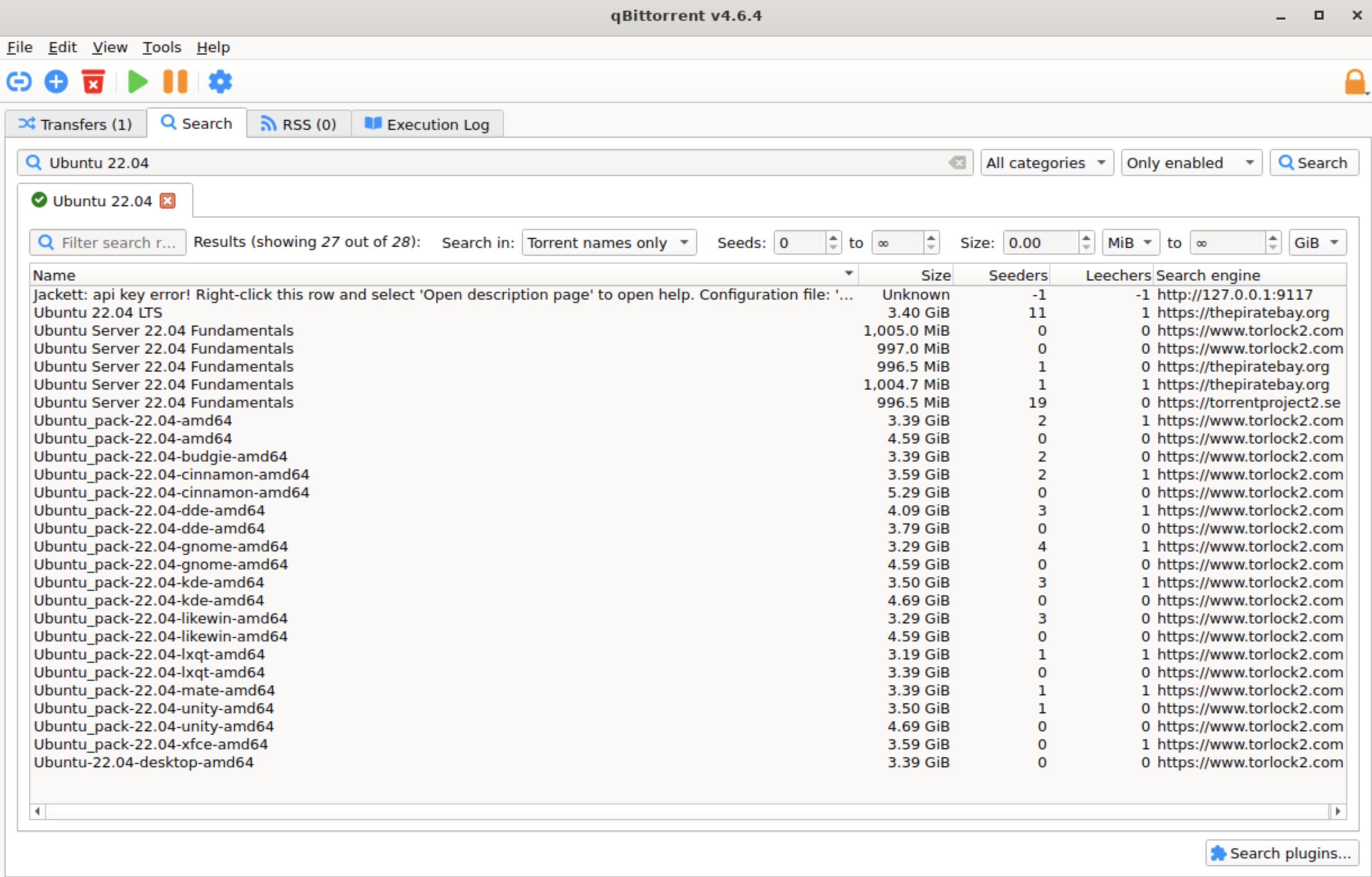
I like that qBittorrent allows plugins that provide extra functionality. My favorite is the search plugin that lets you find torrent files within the app. Instead of spending time discovering and downloading these .torrent files on external websites, I did that directly on qBittorrent, enabling much faster downloads.
There’s no single search plugin for qBittorrent. Instead, the app is compatible with numerous unofficial plugins built for torrenting clients. Installing a search plugin was a noticeably simple process.
(Image credit: Future)
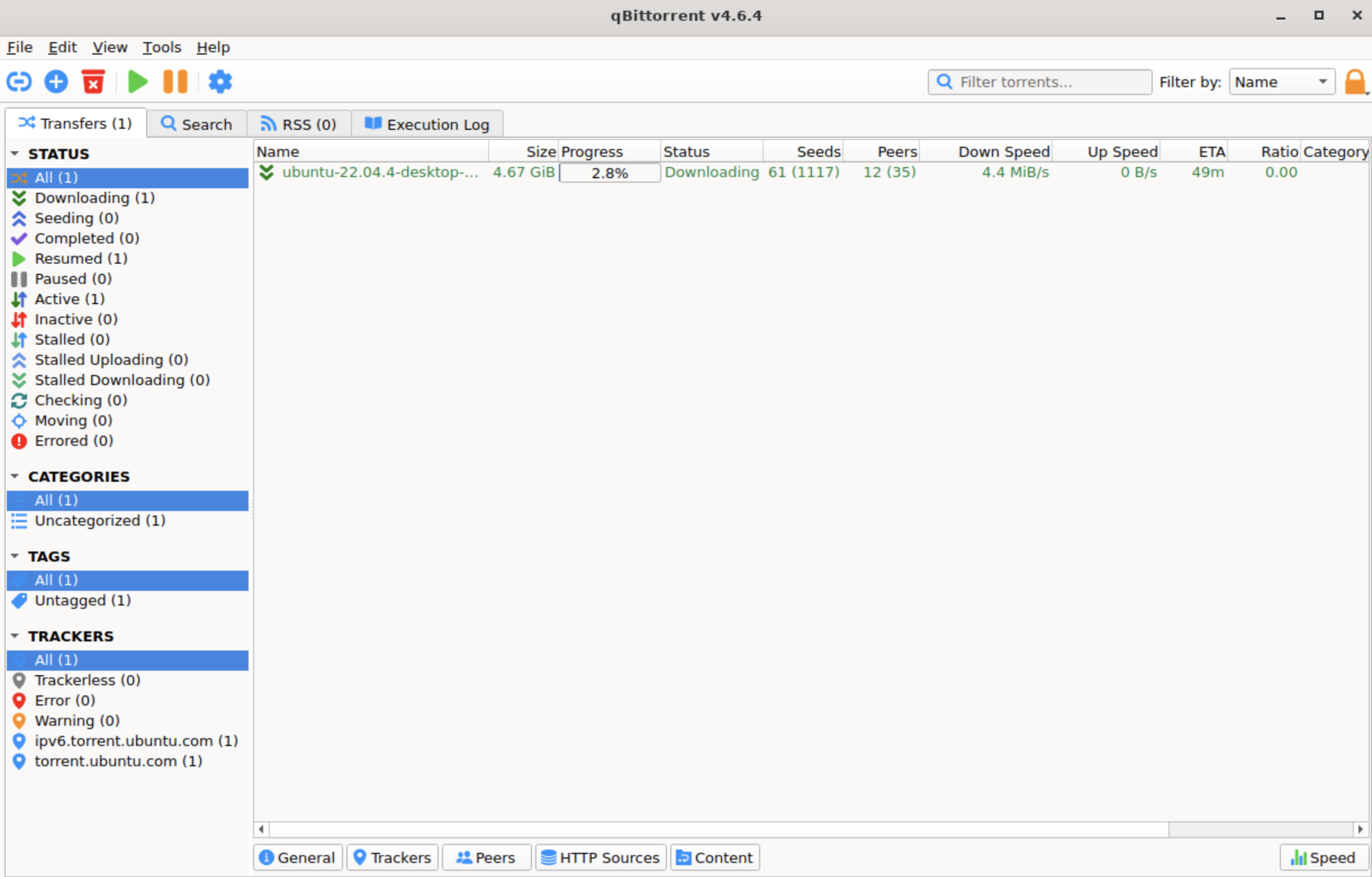
Torrenting works when users exchange files via the BitTorrent communications protocol. When you download specific content on qBittorrent, you automatically become a seeder uploading that content for other users to download. This process of simultaneous downloads and uploads enables users to freely access content via qBittorrent and other torrenting clients.
Whenever I use a torrenting client, I always seek to limit my upload speeds to conserve bandwidth. qBittorrent makes this easy. You can limit the upload speed to any level you’re comfortable with, ensuring you upload files for other users without consuming excessive bandwidth.
I appreciated that qBittorrent gave me significant control over my torrenting activities. For instance, I could queue torrents and prioritize specific downloads over others. I could also select specific files within a torrent instead of downloading the whole package. For example, this feature comes in handy if you have a software package missing a few crucial files. You can download just the missing parts instead of re-downloading the software package and wasting bandwidth.
This torrenting client supports IP filtering for security purposes. Users can upload blocklists and prevent any IP on that list from sharing files with their PC. This feature protects you from interacting with malicious actors sharing malware via torrenting clients.
Before downloading torrents, I always turn on a VPN for further security. A VPN routes your traffic through a secure remote server, preventing your ISP and other third-parties from monitoring your torrenting activities. I advise everyone to always use a VPN when torrenting.
My main complaint is that qBittorrent does not have an Android app that allows me to remotely control my torrenting activities. However, I was pleased that its remote control feature is available via a web interface.
The remote web interface is very similar to qBittorrent’s regular interface. You can use it to control your torrenting activities from another PC or smartphone, e.g., starting and pausing downloads on your home PC while at work. However, setting it up was complex, unlike Android apps where it’s usually straightforward.
qBittorrent: Interface and in-use
qBittorrent has a minimalistic interface that I enjoyed using. It’s not overtly modern yet not outdated. Features are arranged neatly on the left, configurations are accessible at the top, and the main dashboard lies on the right. Each feature incorporates a relevant icon that defines their functions. This uncluttered arrangement makes it easy to find any feature and tweak your desired configurations.
qBittorrent: Security
As mentioned, qBittorrent allowed me to block specific IP addresses from interacting with my device. This security feature is crucial because torrents are a common vector for introducing malware into unsuspecting devices.
qBittorrent has no ads and no history of negligent security practices. It’s a free tool maintained by volunteer developers, so there’s little incentive to sneak in adware for commercial purposes, which a handful of torrenting clients are guilty of.
Despite its standard encryption and other security features, I reiterate my advice to always turn on a VPN before using qBittorrent.
qBittorrent: Final verdict
qBittorrent is a free, user-friendly torrenting client I genuinely enjoy using. It’s not as feature-rich as some clients I’ve tested, but it performs its functions well. It’s an ideal torrenting tool for anyone seeking easy access to digital content.
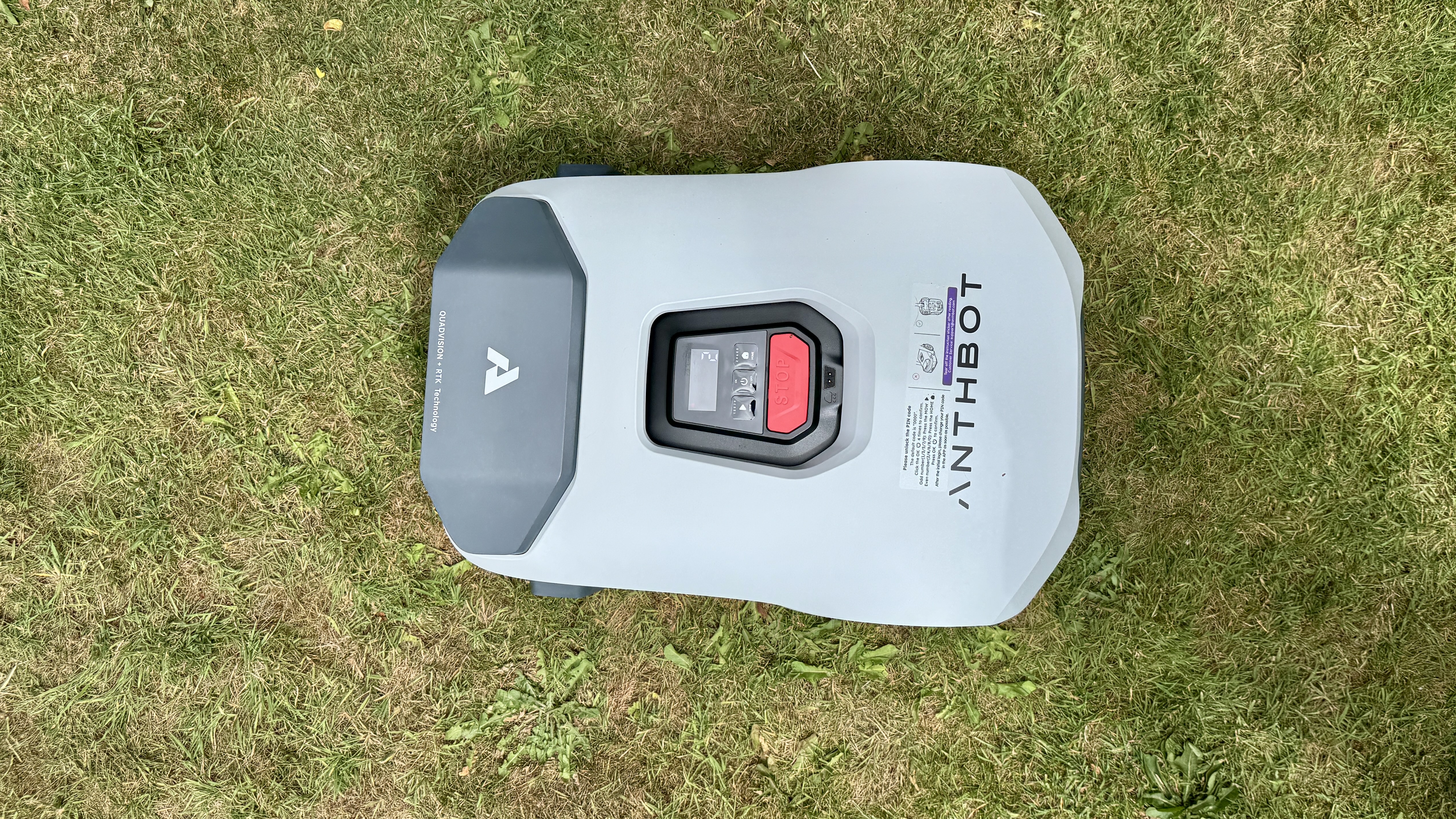
Like the very best in the latest tranche of self-guided robot lawn mowers, the Anthbot Genie requires no perimeter wires and no professionals to install it. Simply take it out of its box, set up its charging station and RTK receiver in a suitable spot and set it off on its way.
There are three versions to choose from, with different battery capacities making them suited to different lawn size. The Genie 600 is designed for lawns up to 0.22 acres / 900m², the Genie 1000 is for up to 0.49 acres / 2000m² and the Genie 3000 is for up to 0.89 acres / 3600m². For this review, I tested the 3000.
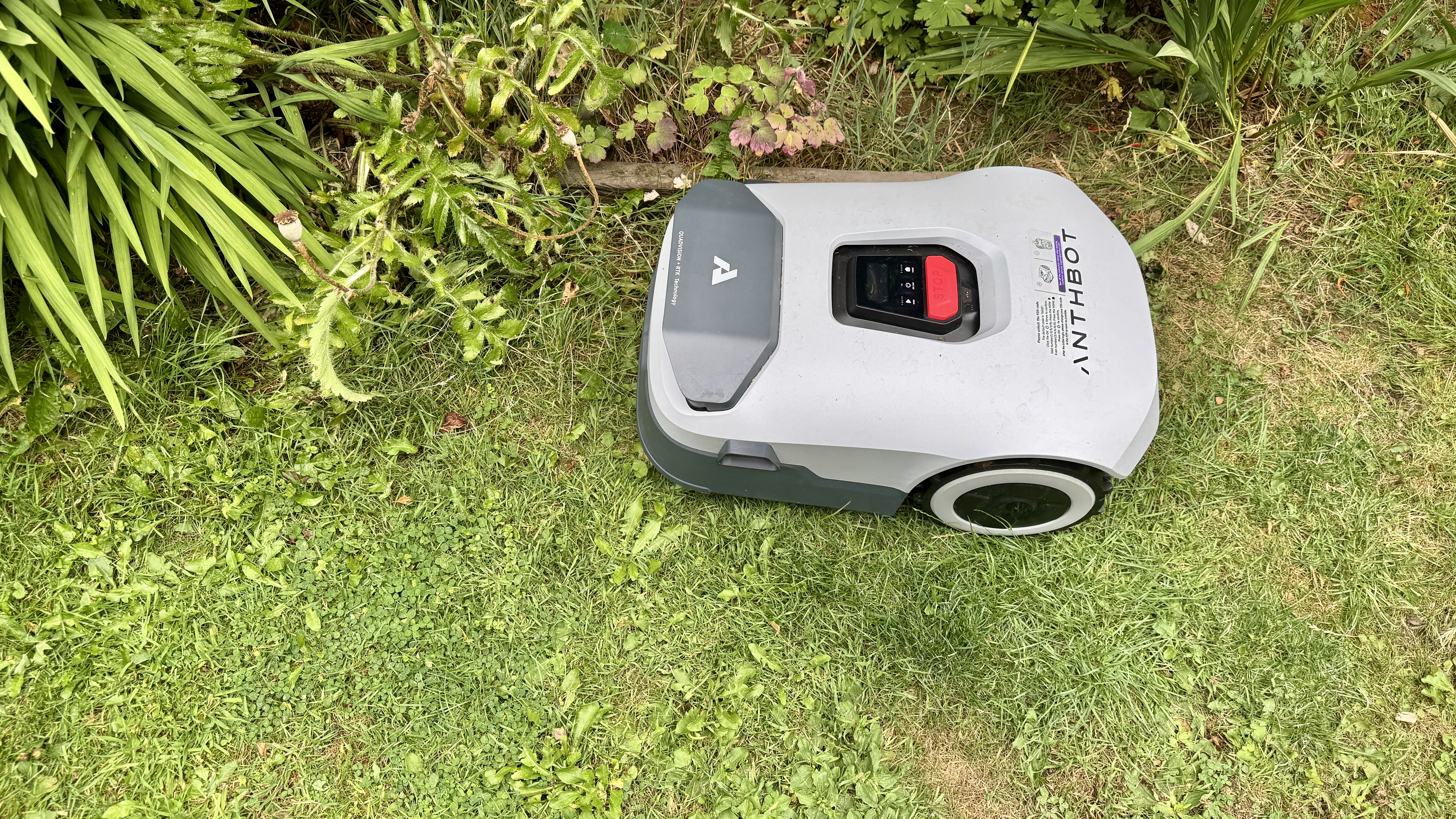
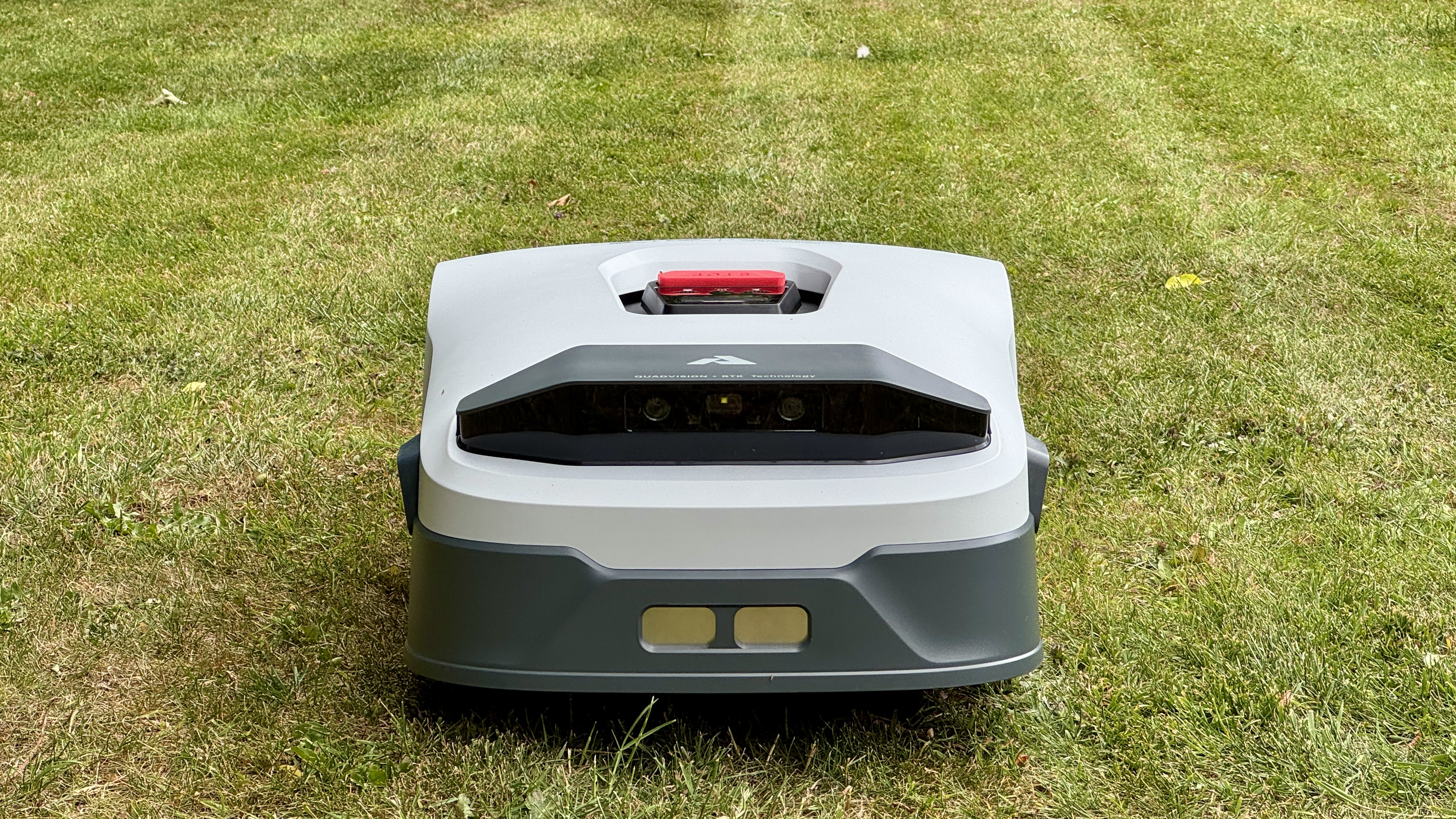
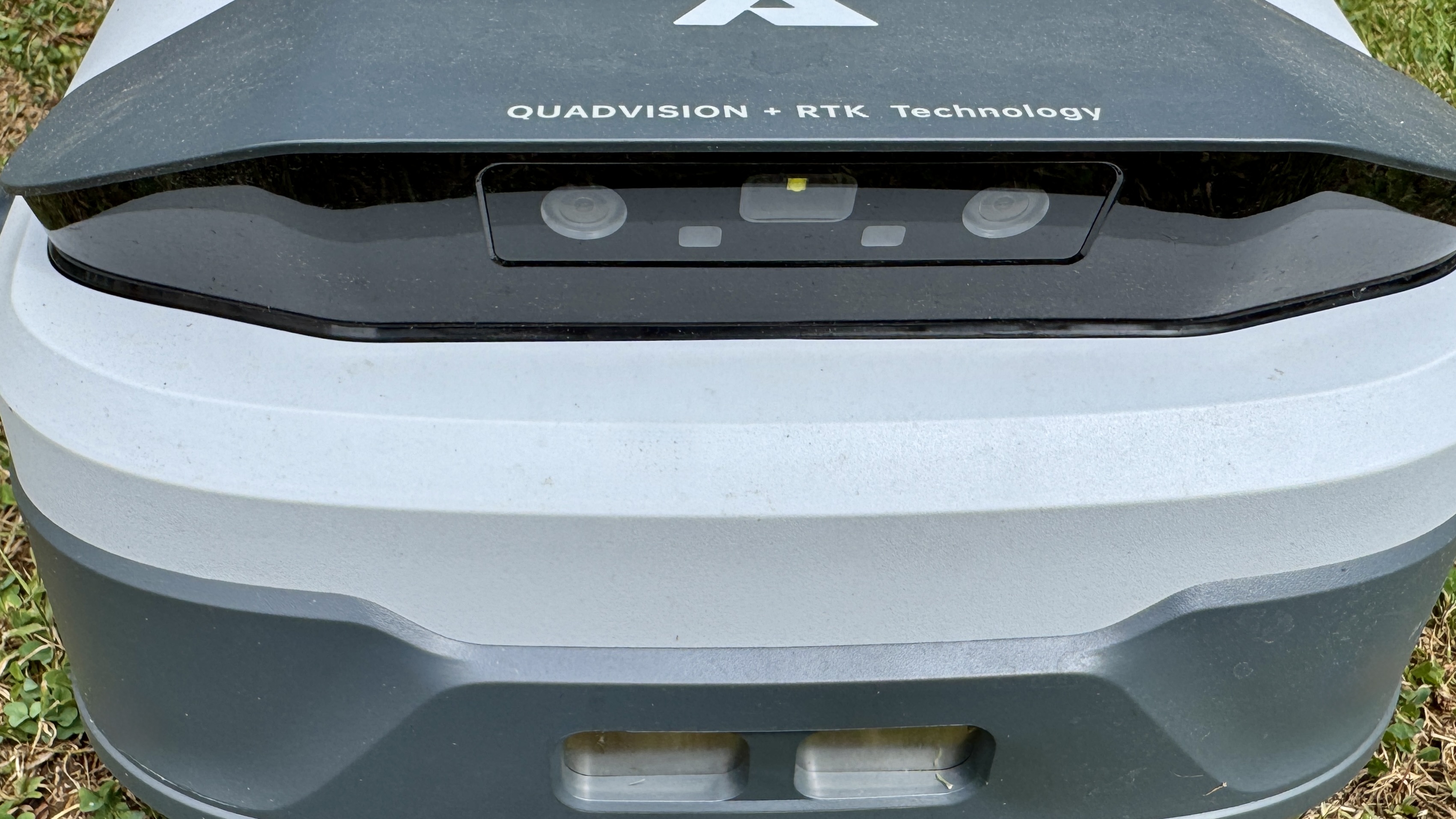
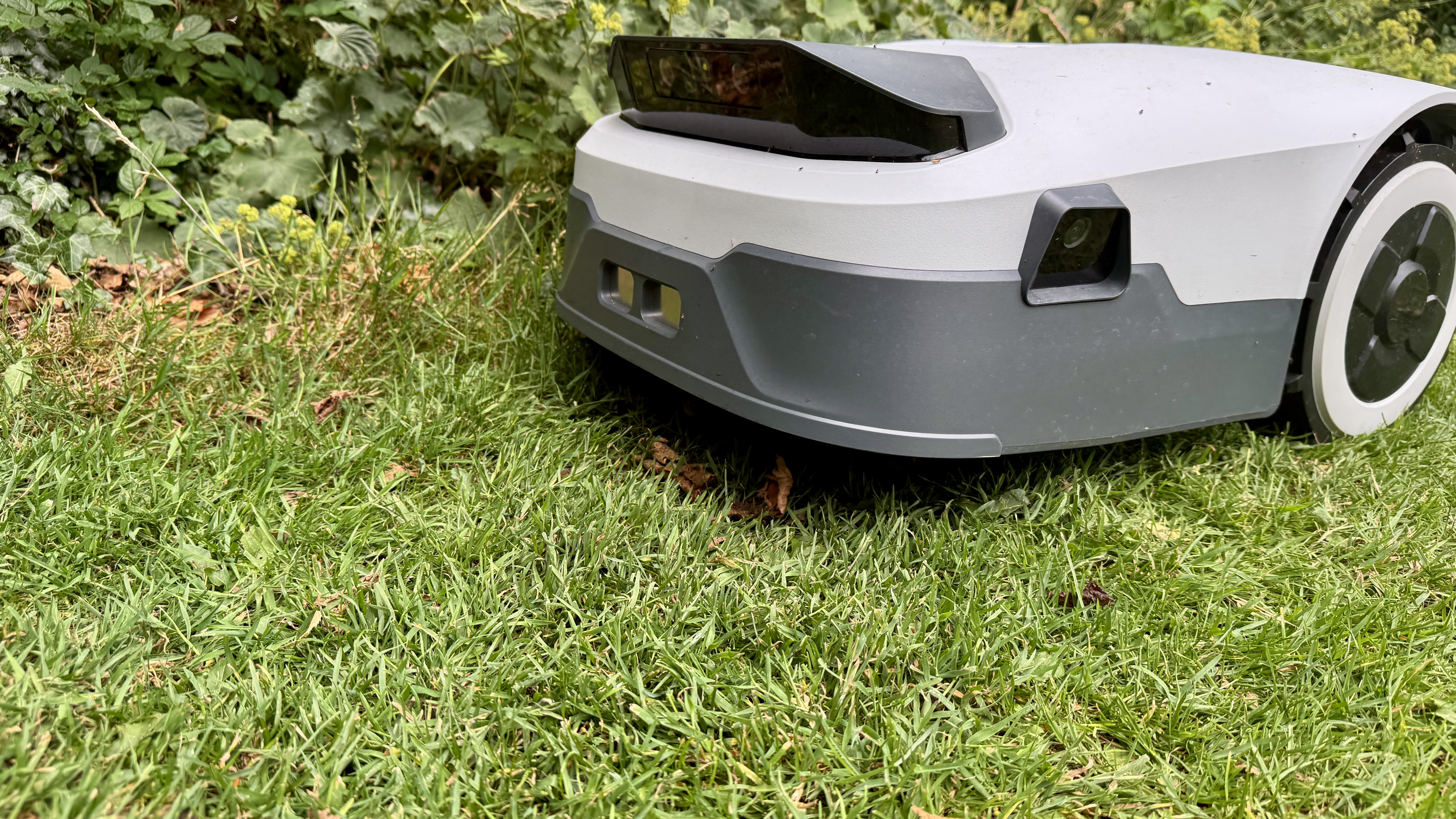
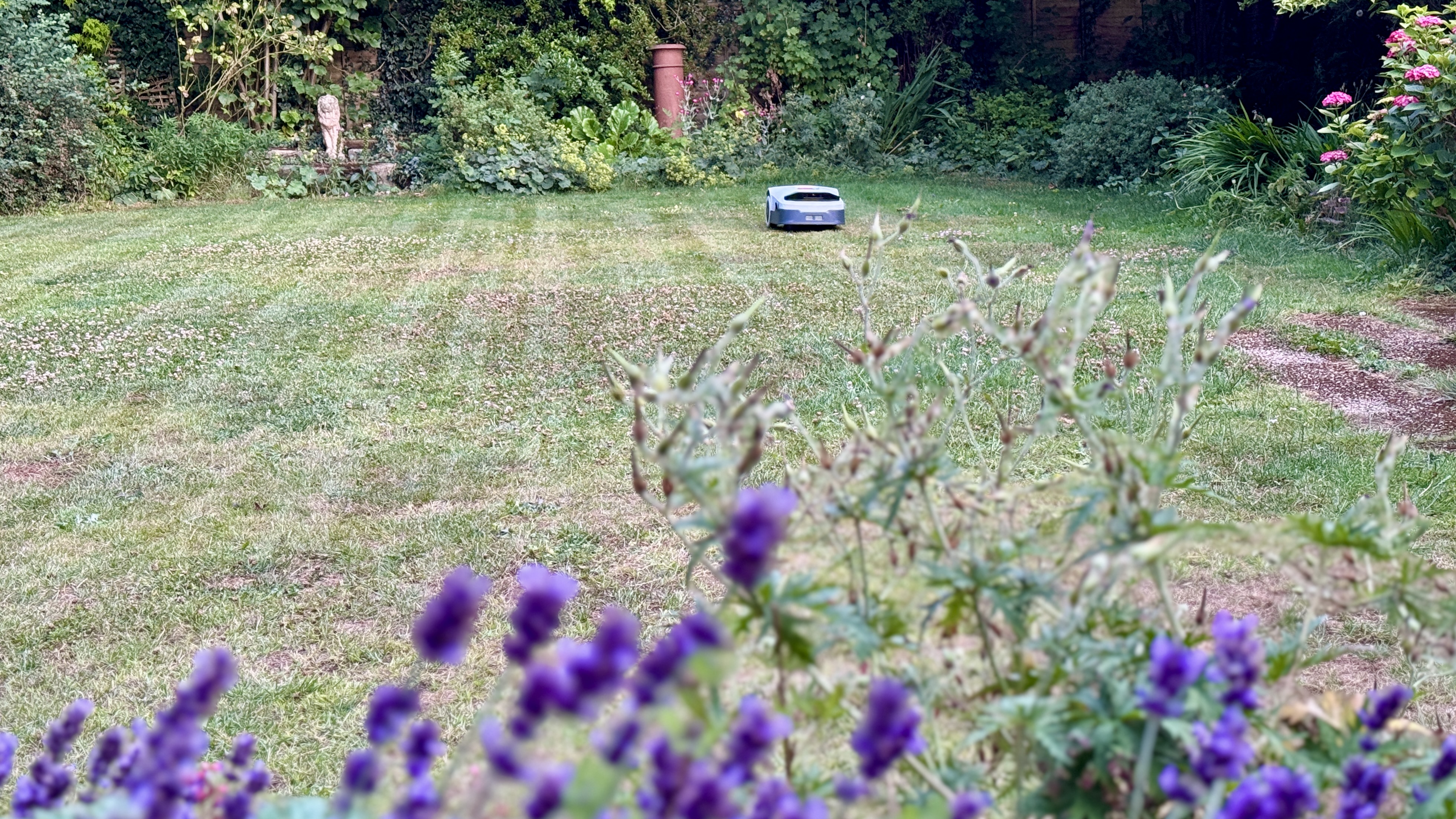
Although the Genie's 7.9 inch / 20cm cutting width isn't the widest on the market – that accolade goes to the five-star Mammotion LUBA 2 – what it lacks in size it makes up for in accuracy. Thanks to RTK-GPS and its AI-empowered 3D four-camera recognition technology, the Genie cuts in straight lines and navigates neatly around edges without the typical zig-zag chaos of older robot mowers. It's a sterling obstacle avoider, too.
However, its success may depend on the RTK receiver having a good line of sight to a range of satellites in the sky, and to that end it's a bit of a shame that a wall-mounting kit (to place the receiver above the tree-line) is an added extra rather than being included as standard. That said, positioning mine in the lawn next to the charge station – the only setup possible with the included equipment – worked just fine to me, even with a fair amount of tree coverage.
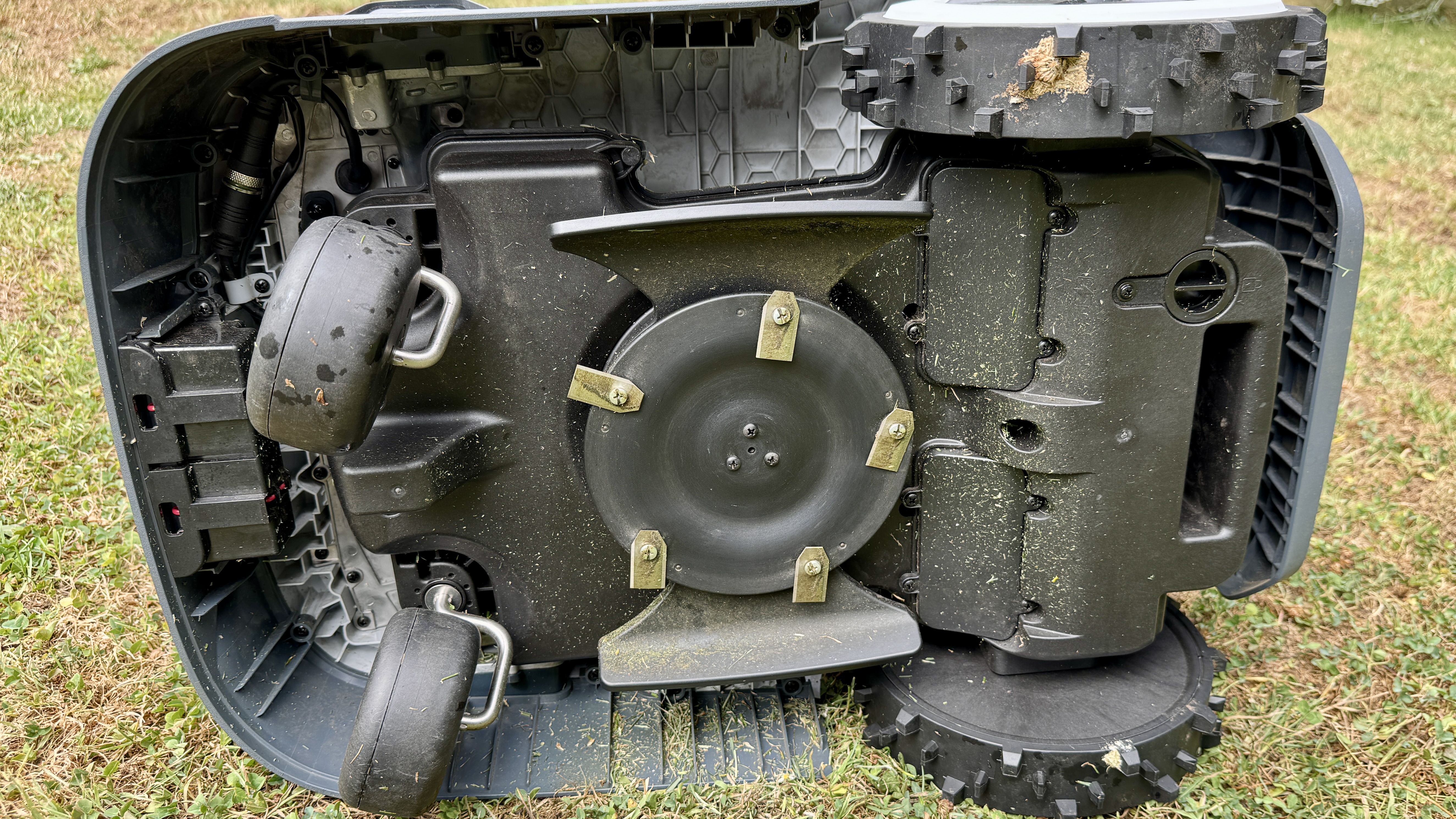
Like the vast majority of robot mowers, the Genie doesn't have a grass collector. Instead, its five-blade cutting disk snips off millimeters at a time, leaving the nitrogen-rich cuttings to fertilize the lawn. Its motorized cutting deck is easily adjustable in the app and lets you fine-tune your grass from a crisp trim to a lush, longer look.
If you're in the market for an easy-to-use robot that's reliable and easy to operate, you've found it. Read on for my full Anthbot Genie robot lawn mower review.
(Image credit: Future)
Anthbot Genie review: price & availability
List price: $999 to $1,359 / £999 to £1,699
Launch date: Spring 2025
Available: US and UK
The Anthbot Genie went on sale in Spring 2025, following a successful Kickstarter crowdfunding campaign. They're available to buy direct from Anthbot and Amazon in the US and the UK, and at list price they cost $999 / £999 for the Genie 600, $1,199 / £1,299 for the Genie 1000 and $1,599 / £1,699 for the Genie 3000.
Given that wire-free yard robotics is a relatively new thing, right now you can expect to pay big money for the privilege of never having to mow the lawn again. However, prices have already started to tumble and this will likely continue as more competition enters the market. In fact, at time of writing, all sizes of the Genie were heavily discounted in both the US and the UK. In the pantheon of robot lawn mowers, the Anthbot Genie's price structure can be considered quite reasonable given the huge amount of sci-fi tech involved.
3D Vision (4 Cameras) + All-round Physical Obstacle Avoidance
Maximum zones:
20 - 30
Anthbot Genie review: design
3 variants with different batteries for different lawn sizes
Navigates using RTK GPS and AI powered cameras
Wall mounting kit for RTK station is sold separately
Funny how the world of technology works. It takes just one company to create a new type of innovative product and within a year everyone's at it. Just look at robot vacuum cleaners. Once there was iRobot, then the likes of Roborock followed suit and, before we knew it, we were being bombarded with hundreds of robot vacs from companies we'd never heard of. Well the same thing is happening in the world of robot lawn mowers.
Although robot mowers have been out since the 1990s, I've never had the desire to review one because they've all required getting down on hands and knees and fixing, or burying, a ridiculously long boundary cable around the entire perimeter of the lawn and every outdoor ornament and piece of furniture. But that's all changed with the recent advent of RTK GPS-, camera-, and LiDAR-guided lawnbots that not only navigate a lawn – and any obstacles – with gobsmacking precision but cut grass in beautifully straight lines that make any lawn look immaculately snazzy.
(Image credit: Future)
Anthbot is one of those young upstarts and I've got to say that its design team has done its homework and designed one of the very best lawnbots I've so far tested – and a great looker to boot. In fact, it's getting rather difficult to write these reviews because every robotic lawn mower I receive to test seems to be a bit better than the last, and there are only so many stars one can give as commendation.
The Anthbot Genie is the latest addition to the fast-evolving world of smart robotic lawn mowers, and it brings some serious tech to the yard. This model is available in three battery capacities, which equate to the amount of lawn space they can realistically handle without having to return to recharge too often.
(Image credit: Future)
If you have a small urban-sized lawn, opt for the Genie 600 which has a reach of 0.22 acres / 900m² . If your lawn's a lot larger or you want the robot to cut an entire space without heading back to base for a recharge (remember, fewer recharge cycles equals a longer battery life) then opt for either the Genie 1000 which is suitable for lawns up to 0.49 acres / 2,000m² or the Genie 3000 which is capable of trimming a whopping 0.89 acres / 3,600m². All three variants are exactly the same size and have the same features, except the 3000 model can cut up to 30 different lawn zones while the other two can manage 20.
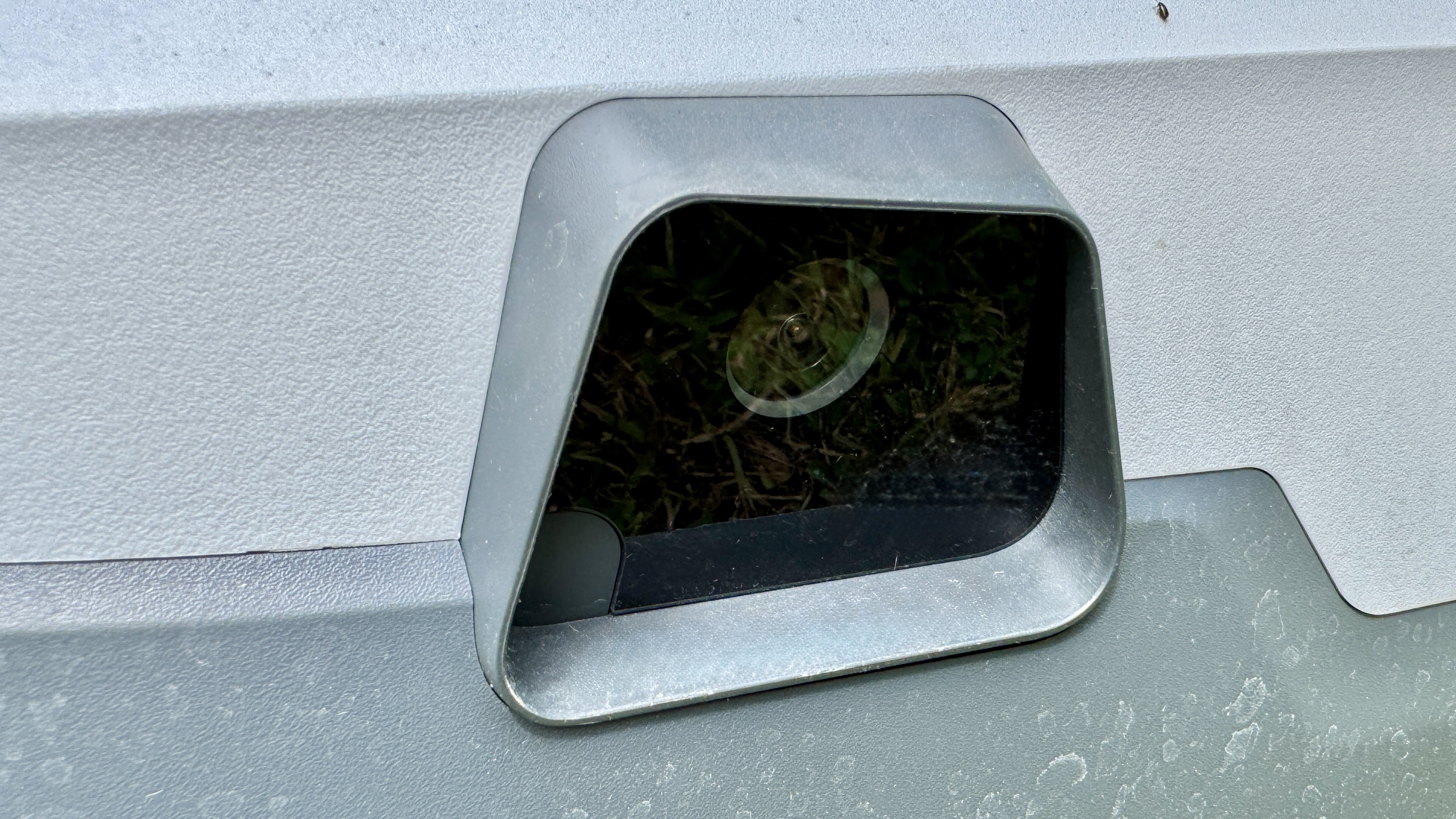
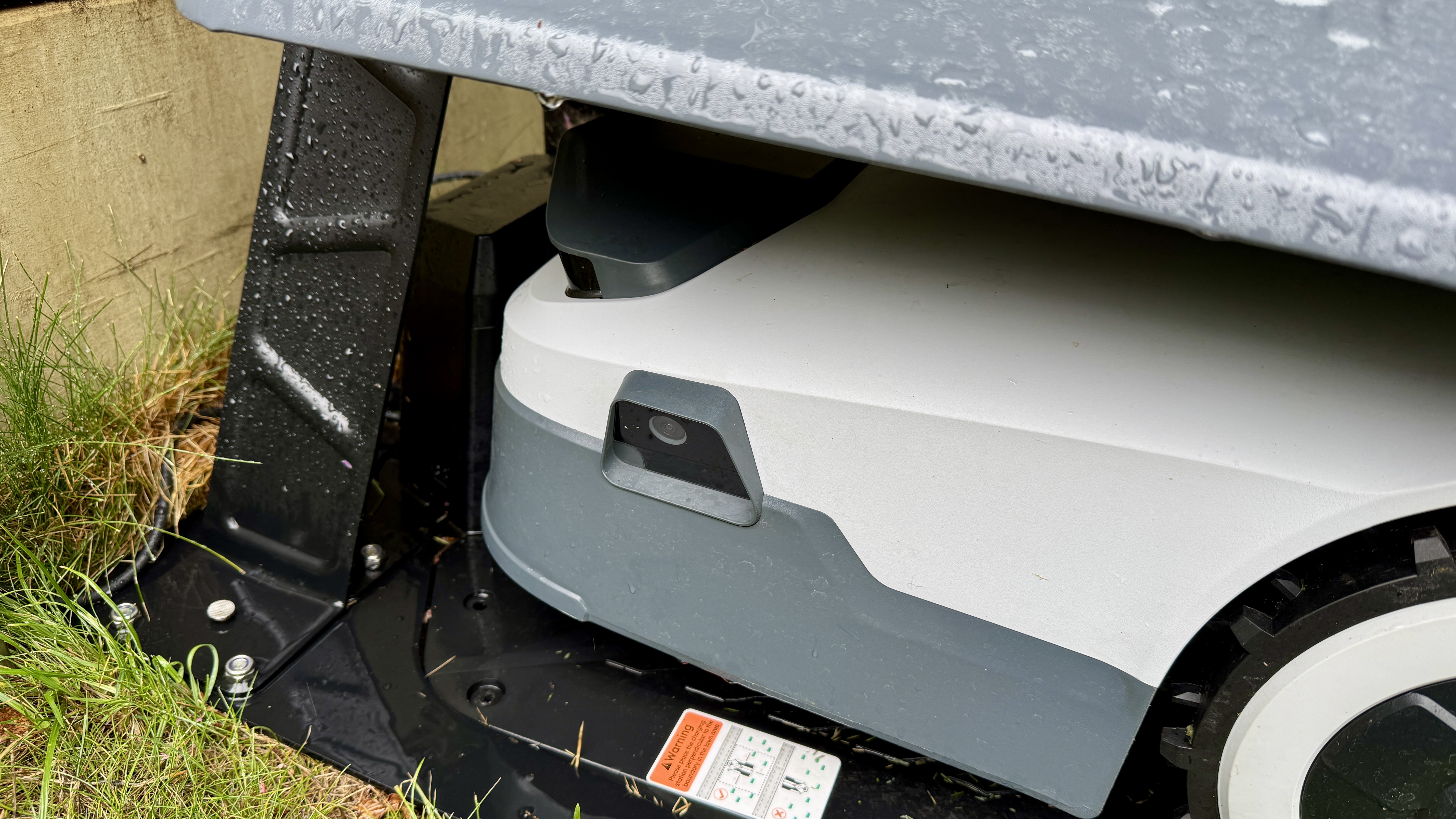
Unlike traditional robot mowers that rely on cumbersome boundary wires, the Genie uses advanced RTK-GPS combined with an AI-empowered navigation system comprising four cameras (including one on each side) that are said to provide '300-degree human-like vision and 360-degree collision sensing'. I believe it having seen it in operation.
(Image credit: Future)
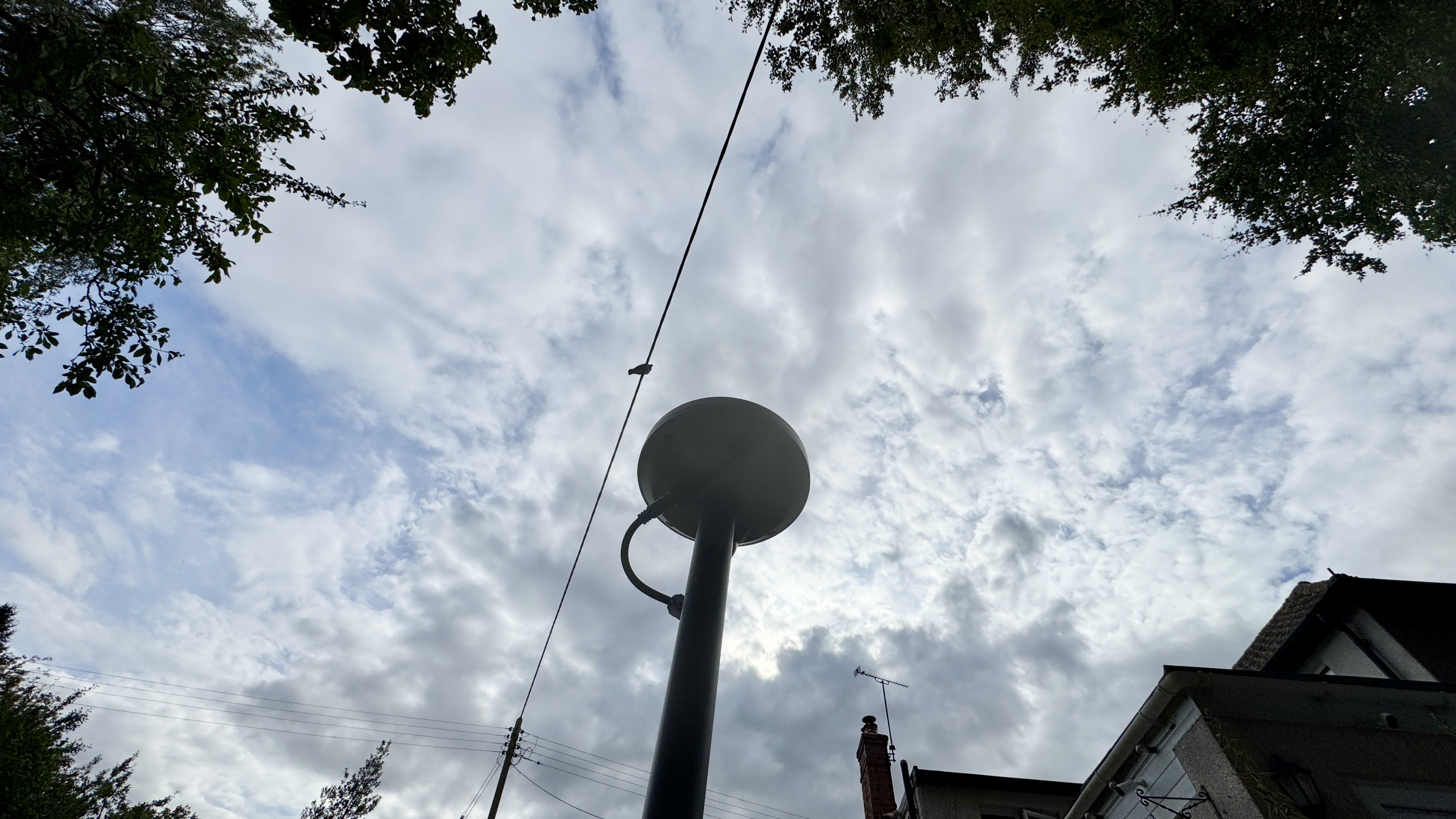
RTK-GPS uses an RTK receiver to correct satellite signals, making them accurate to within a few centimeters. The system requires the bot and the receiver to have direct line of sight to a large proportion of the sky. The idea is that if the GPS signal is weak or lost due to overhead obstructions, the lawn bot will switch over to camera-based navigation.
I should add that RTK-GPS, which is accurate to just a few centimetres, isn't suitable for every home layout because the package requires having an aerial spiked into the lawn within a foot of the charging station and with a clear line of sight to as many satellites as possible. My own lawn is surrounded by very tall trees and the RTK stations of every lawnbot I've so far tested have all been positioned to the side of two 80-foot beech trees.
In theory my yard should be the worst case scenario but, against all odds, I'm receiving signals from between 12 and 25 satellites at any given time – and with just 50 per cent or so of visible sky. So don't write off this model or any other without taking a good look at the sky around your home.
(Image credit: Future)
If your land space looks unsuitable, Anthbot sells a wall-mounting kit that enables you to attach the RTK receiver to a structure up high (so there's wider direct line of sight to satellites in the sky), and plug it into a separate power source to the charge station. Some other lawnbots, include wall-mounting kit with the initial bundle, but here it's an additional purchase.
When it comes to obstacle avoidance, this model features three levels of sensitivity (low, medium and high) and it's worth playing around with the settings to find the best solution for your lawn. I've been very impressed with the Genie's obstacle avoidance and you can read more about it in the Performance chapter below.
(Image credit: Future)
Right, let's get down to the stats. The Genie's 7.9 inch / 20cm cutting width may sound modest, but it's more than capable of maintaining a consistently neat finish on the lawn sizes it was designed for. Like all robot mowers, the Genie uses a spinning horizontal disc with razor blades attached to the outer edge. Some models like the Eufy E15 have just three blades, but this one has five.
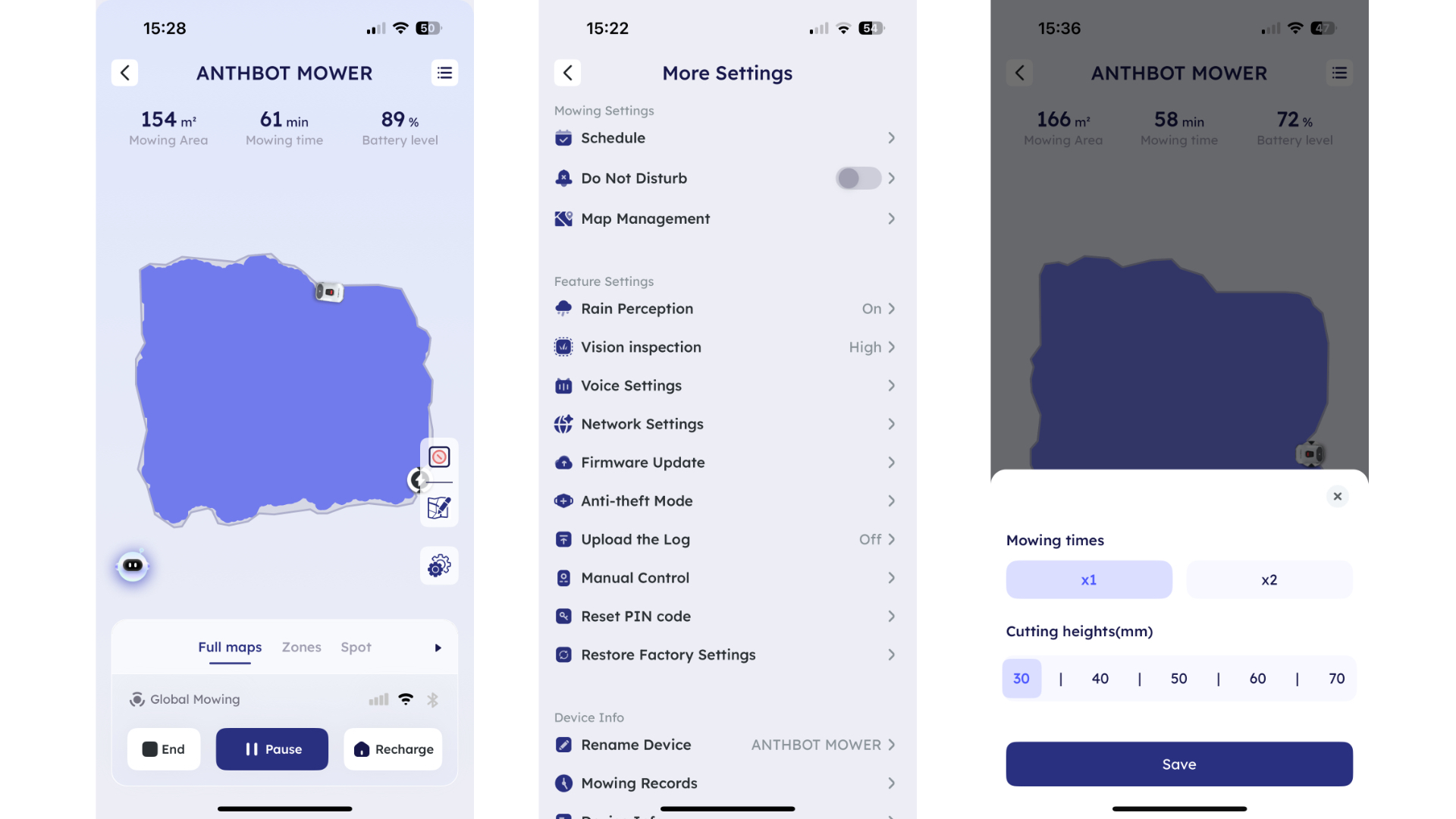
The Genie's motorized cutting height is fully adjustable between 1.2-2.8 inches in 0.2in increments (30-70mm in 5mm increments), allowing you to switch between a close-cropped summer lawn or a longer, lusher look in the cooler months. However, you won't see the 0.2in / 5mm increments on the app unless you tap on the dividing lines between each main measurement. Please fix this Anthbot.
Like 99 per cent of robot mowers, the Genie is a mulching model, so it finely chops grass into tiny nitrogen-rich clippings that naturally fertilize your lawn. That means no messy grass collectors and no piles of cuttings to dispose of. If the mower is set to perform two to three cuts a week, it will simply snip off a few days' worth growth and therefore not litter the lawn in cuttings.
All robot mowers are whisper-quiet when working; so quiet that you can hardly hear them from just a few meters away. This model's drive motor is a fraction louder than other lawnbots I've tested (around 58dB), but it's hardly audible when you're more than 8 meters away.
I sadly wasn't able to test the Genie's multi-zone function since I only have one lawn, but from what I've seen online, it behaves in the same way as other robot mowers and involves steering the robot like an RC car using the Bluetooth connection from one zone to another. As long as the path between the two zones is free of clutter – and especially gates and steps – the Genie will follow the same path every time it's out on a cutting spree. Impressively, this mower provides the option to create between 20 and 30 zones depending on the variant you've chosen.
(Image credit: Future)
If there are permanent obstacles within the lawn (beds, for example), you can create no-go zones so the mower doesn't try to cut them. As a step up from some competitor models, you can create these in-app with a few taps, just as you would with a robot vacuum cleaner. I should add that the Genie's navigation system will cover the vast majority of obstacle avoidance but it's good to have the no-go option for those who wish to make doubly sure that the robot will always avoid pitfalls like drop offs and ponds.
Like all robot mowers and vacs, the Genie can be easily programmed to run a regular schedule so the grass is always kept in tip-top condition. However, the Anthbot Genie app also features a Smart Lawn Care function, which automatically selects the best mowing strategy based on growth of the grass. I wasn't able to try out this function properly because my test period coincided with an ongoing drought that has prevented most UK grass from growing.
I did select the option but found it very confusing because it leapt straight into a schedule and the whole point of the function is that it chooses when to mow. If it's like Worx's Landroid Vision system, it should require input of grass type and then check local weather to create an automatic schedule.
Perhaps this feature will be improved going forward but for now I would suggest ignoring it and stick to your own schedules. Incidentally, like every other bot on the market, a rain sensor on top of the body automatically pauses mowing during wet weather and you can change the delayed mowing time from between one hour and eight hours.
(Image credit: Future)
Most mowers are capable of climbing inclines of 30% to 40% but this rear-wheel-drive model goes 5% more, meaning it's suitable for a slightly wider variety of landscapes. The two large and chubby front caster wheels help in this regard, but it's the oversized and heavy treaded rear wheels that provide all the traction. Nevertheless, there will be some lawns that are still too steep for this mower to handle. If that's your lawn, consider the all-wheel-drive Mammotion LUBA 2 or LUBA Mini which both boast amazing 80% incline ability.
Like most modern wireless robot mowers, the Genie is initially bound to one's WiFi and Anthbot account so any light-fingered thieves will basically have a brick on their hands. To further enhance security, a four-digit code is also required and if the robot is moved beyond its preset boundary, an alarm sounds on the robot and the user receives an emergency alert. Top marks in this respect.
According to the US and UK websites, Anthbot already has an after sales repair service in place in many territories – including the UK and US – with a 10 day turnaround in most cases. In fact, I've been very impressed by Anthbot's activity on Facebook in seeking feedback from current users regarding any improvements the company can make going forward.
Setup
The Genie arrived in a large box containing the mowing unit, a charging base, ample electrical cabling for an outdoor mains output and the RTK GPS antennae. I selected a space next to my Mammotion LUBA 2 and placed the antennae beside the charging station. This area is right beneath two 80-foot beech behemoths, a large horse chestnut and a small damson tree but, against all odds, every RTK system I've used has worked.
This one worked too, though it took a few minutes for the RTK receiver to log on to the prerequisite number of satellites. I'm actually amazed that these RTK-based lawnbots work at all on my lawn given the amount of trees surrounding it, and that just goes to show that there are a lot more satellites up there than you might think.
(Image credit: Future)
After turning it on and hearing the musical fanfare, you'll be asked to select the default pin code (0000). Even though the machine is also bonded to the owner's Wi-Fi and email address, this code is an extra line of defence against theft of the machine and should be changed to a personal code using the keypad on the unit or, better still, via the app. Just make sure to make a note of your own pin code because the product is a brick without it, and the only way to fix it is by contacting the manufacturer with proof of purchase.
All robots need to map the space they'll be working in; in this model's case, the Genie uses its RTK GPS and multi-camera system. Anthbot provides two methods for mapping a lawn: auto or manual. In auto the robot analyses the lawn's borders automatically, while manual involves driving the bot around the perimeter like an RC car.
I initially chose auto and the Genie mapped the lawn quickly without any messing about. It simply went to the nearest edge and mapped the entire lawn in about five minutes. That's a record! However, I've since discovered an excellent feature in the app that lets you manually expand the map by driving the robot even closer to the perimeter. Nice one Anthbot.
(Image credit: Future)
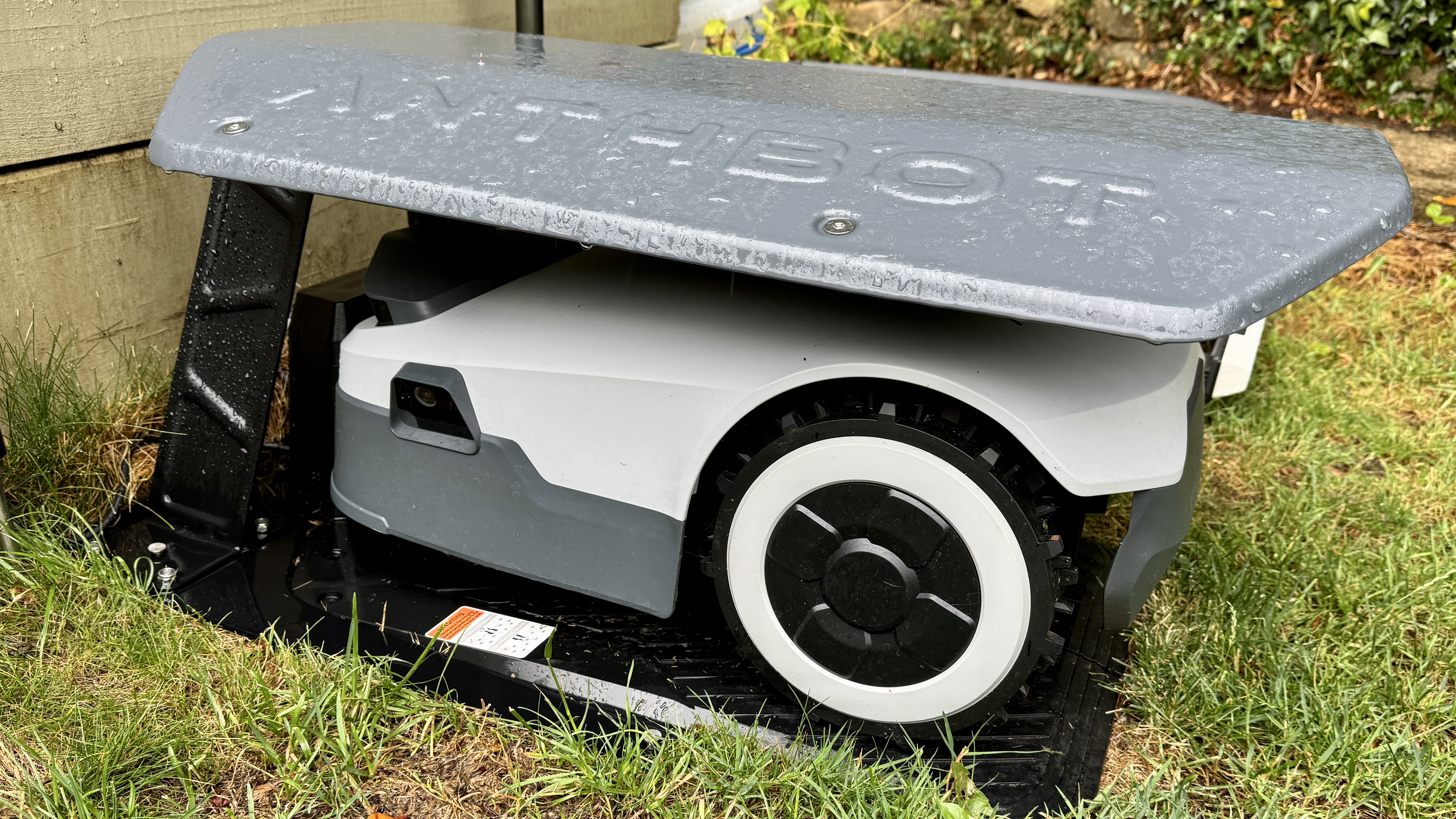
At this juncture I wish to give a shout out to the tailored Rain Cover for the Genie because it not only keeps the robot dry (even though its IPX6 waterproof) but, perhaps more importantly, it blocks out hot summer sun which could feasibly mess around with the bot's battery and electronics. The Anthbot garage is an impressive piece of kit in its own right since the main body is cast from solid steel and is so robust that I sense it would stand up to a tornado, let alone a gale.
Once the Anthbot Genie is all set up and ready to roll, it's simply a case of going into the app and setting a two- or three-day schedule, your preferred cutting height and obstacle sensitivity, and whether you want the robot to mow in vertical or horizontal stripes. And that's it. You can now retreat, safe in the knowledge that your lawn will always look neat and tidy, even when you're away on holiday.
Design score: 4.5 out of 5
Anthbot Genie review: performance
Impressive cutting performance
Superb navigation system
On-par obstacle avoidance
Every perimeter wire-free robot mower I've reviewed to date has performed surprisingly well, at least given the relative newness of this particular field of robotics. The Genie's 7.9 inch / 20cm cutting width may seem compact compared to the 15.7 inch / 40cm Mammotion NUBA 2, but I've been impressed by the precision of its cut – its five-blade disc spins at around 3,000rpm, slicing through grass stems like a pair of sharp scissors, leaving only the tiniest of mulched clippings in its wake. If programmed to perform regular cutting sessions during the main season, the nitrogen-rich clippings will soon disappear back into the lawn where they'll act as natural fertilizer.
Whether you set it to 1.2in / 30mm for a UK-style summer trim or 2.8in / 70mm for a longer cut that's more suited to US grass varieties, the Genie should maintain a consistent finish across varied lawn surfaces. The Genie's simple, replaceable blade system certainly handled my lawn's thick early summer growth with ease, leaving no clumps or uneven patches. However, it sadly hasn't seen much use during the past two weeks because the UK has been experiencing a series of heatwaves and all lawns in the southern region have shut down to some extent.
(Image credit: Future)
I've been especially impressed by the Genie's navigation system, which has never faulted in four weeks of using it. My base station is set to one side of my 170 square metre lawn with a gap of around 15 meters / 49ft to the side border and when the Genie leaves its station, it starts mowing in a straight vertical line from that point, missing the 1.5 metres of lawn width to its left and continuing to cut the largest section of lawn to its right.
It then moves to the left side of its first path to complete the rest of the lawn before moving to the edges, which it cuts remarkably well. I should add that its border cutting improved tenfold since I engaged the new 'edge-cutting' option and manually expanded the map by driving the robot closer to the border.
(Image credit: Future)
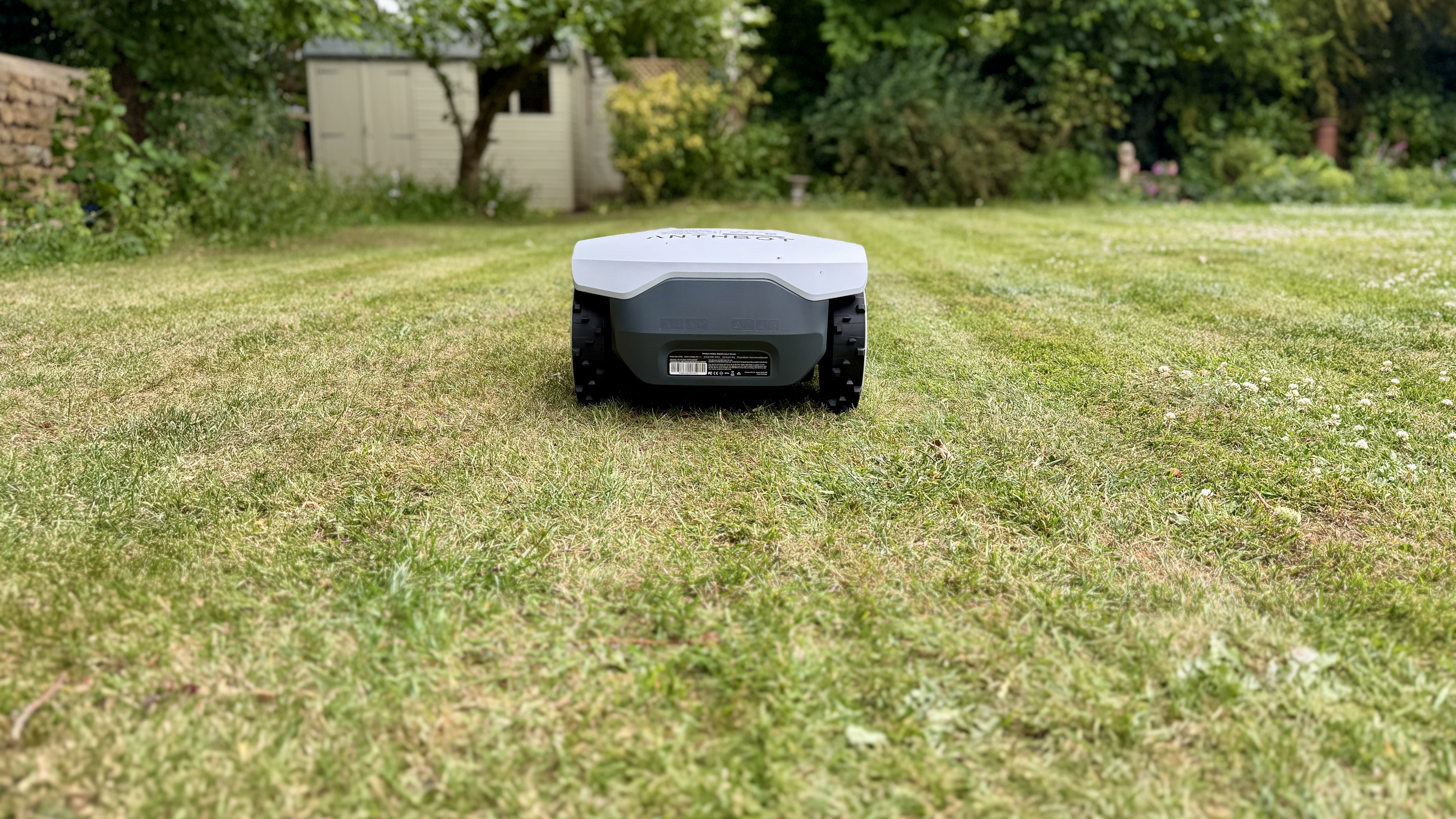
Granted, the Genie employs an unusual cutting pattern when compared to other lawnbots I've tested but, hey, it has always finished the task in about an hour so I have nothing to grumble about in this regard. All I know is that it creates lovely stripes in its wake. Yes, I still prefer the much wider tract of the Mammotion LUBA 2 but I'm getting more and more used to the narrower stripes that the majority of current bots create.
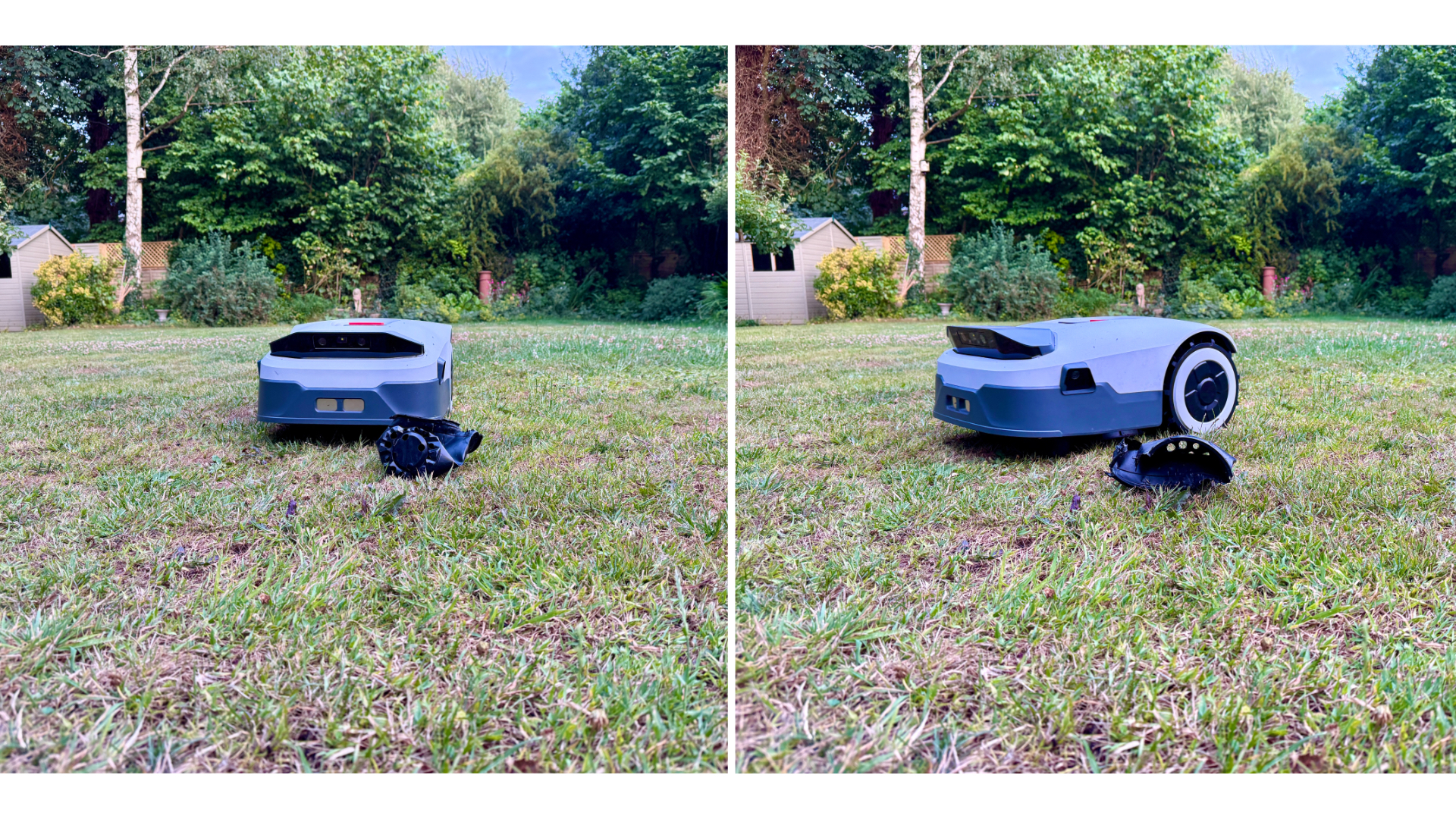
I've also been impressed by the Genie's better-than-average obstacle avoidance. I tested it using a variety of objects – from dog toys and tennis balls to a chewed-up plastic plant pot – and it avoided all of them with deft precision (the two extra side-mounted cameras most definitely helped in this area). In fact I was so impressed I decided to bring out the ping-pong ball that no robot mower has so far avoided. Unfortunately, this was too small an item even for the Genie, which makes me think that manufacturers adjust their respective robots to ignore the smallest of objects on purpose lest they mistake scattered leaves for obstacles and avoid them entirely.
(Image credit: Future)
I should add that my test lawn is perfect for any robot since it's rectangular shaped and with no inclines and no major obstacles in the way. Nevertheless, I have watched a few videos by other users with more challenging terrain and they've also been impressed with the Genie's performance.
One thing I have noticed is that the Genie 3000 I was sent to review has been able to cut my entire lawn and the edges with 72 per cent of battery remaining. Yes, this model is overkill for my lawn size but it just goes to show how energy-efficient the model's battery and motors are. If you can afford it, perhaps opt for a larger model than you need so you can cut down on battery charging cycles and have the available juice to cut extra lawn zones in the future.
Performance score: 5 out of 5
Anthbot Genie review: app
Easy to use
Receives quite regular updates
Some room for improvement
The Anthbot app is mostly excellent. This easy-to-use app allows the user to set cutting heights and angle of cut, create up to 30 mowing zones, programme different schedules for each and define no-go areas with a swipe of the finger. The app also includes real-time monitoring so you can check the mower's location, battery level and progress at any time, even if you're away from home.
(Image credit: Anthbot)
My test model recently received a comprehensive update with additions to cut horizontally, edit the lawn's boundary and choose from three levels of obstacle avoidance. However, I would love to see Anthbot improve its cutting angle feature so that it behaves more like Eufy's E15 model, which provides an animated map with an adjustable arrow that swivels the entire map of the lawn on its axis so you can easily view the direction in which the robot will cut.
Given that Anthbot's reps are very responsive and eager to address current users' suggestions, you can be sure there'll be more tantalising updates along the way.
App score: 4 out of 5
Should you buy the Anthbot Genie lawnbot?
Attribute
Notes
Rating
Value
In the arena of smart lawnbots, the Genie is very competitively priced. Deals are already easy to come by.
4/5
Design
Navigates using RTK GPS and 4 cameras on front and sides. Available in 3 battery capacities for different-sized lawns.
4.5/5
Performance
Exceptional performance with neat mowing, very accurate navigation and commendable obstacle avoidance.
5/5
App
Despite a few required tweaks, the Anthbot app is easy to use and pretty comprehensive.
4/5
Buy it if...
You want an easy time
This model is a breeze to use, with no major foibles to report.
You want lawn stripes
The Genie cuts in uniform parallel stripes.
You value reliable obstacle avoidance
With three levels of avoidance, this bot is a top dodger.
Don't buy it if...
Your lawn looks like the foothills of the Himalayas
With a 45% maximum gradient, this bot isn't suitable for very steep inclines.
You have lots of overhead obstacles
The Genie uses an RTK GPS navigation system, which relies on a decently clear view of the sky to allow it to talk to the satellites.
How I tested the Anthbot Genie
TechRadar employs a strict routine when testing equipment. Firstly I live with the robot for a week or two, letting it do its thing while observing its behavior. Then I get down to enacting some real-world scenarios like obstacle avoidance and introducing it to various types of borders to see how well it behaves. Robots can be very unpredictable so these tests can take a few hours to complete with lots of written observations. Once I'm satisfied that there aren't any major concerns, I'll start writing the review while very carefully considering the amount of stars each area of the product deserves.
The moment I took the ViWoods AiPaper epaper tablet out of its box, I was surprised at how light it was. It was already inside a thin magnetic case, with the stylus in its loop, and it still felt like the lightest 10-inch E Ink tablet I’d ever used. And that's despite the fact that it's taller than its competition at 10.65 inches rather than the average 10.3 screen size.
The closest (direct) competition is from the Onyx Boox Go 10.3, which also runs Android (albeit an older version) and is 4.6mm thick, tipping the scales at 375g. The AiPaper, on the other hand weighs 370g and is 4.5mm thick. I never expected the small 5g weight difference to be discernible but, interestingly, you can 'feel' it.
The AiPaper also looks very much like the Boox Go 10.3, with silver edges, whitish-grey bezels and the flush E Ink display that doesn’t have a frontlight. And that’s alright because the AiPaper is more for writers and other creative people than an ereader you’d take to bed at night. The best part about the design in my opinion: the stylus magnetically sticks over the screen rather than the sides.
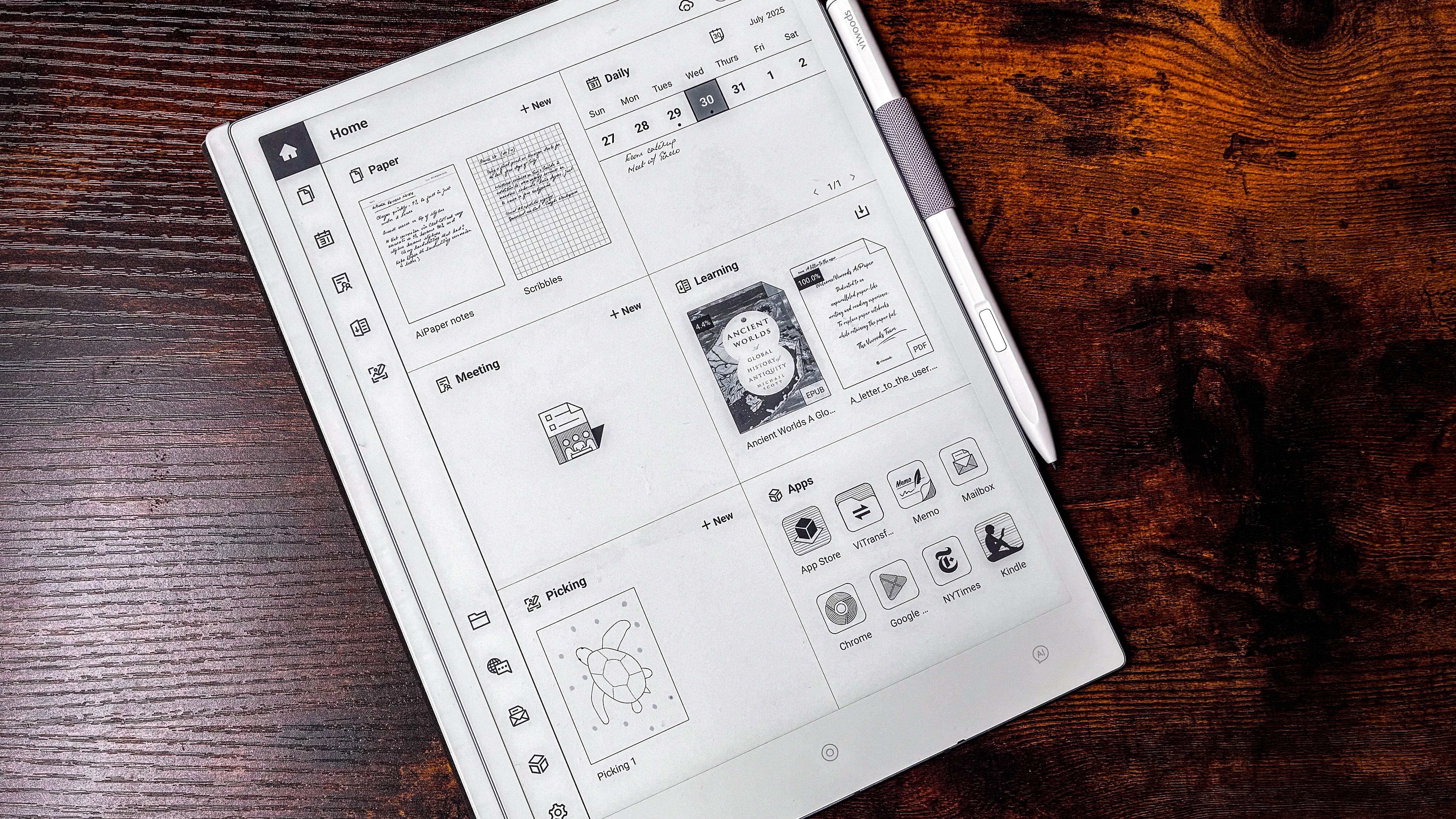
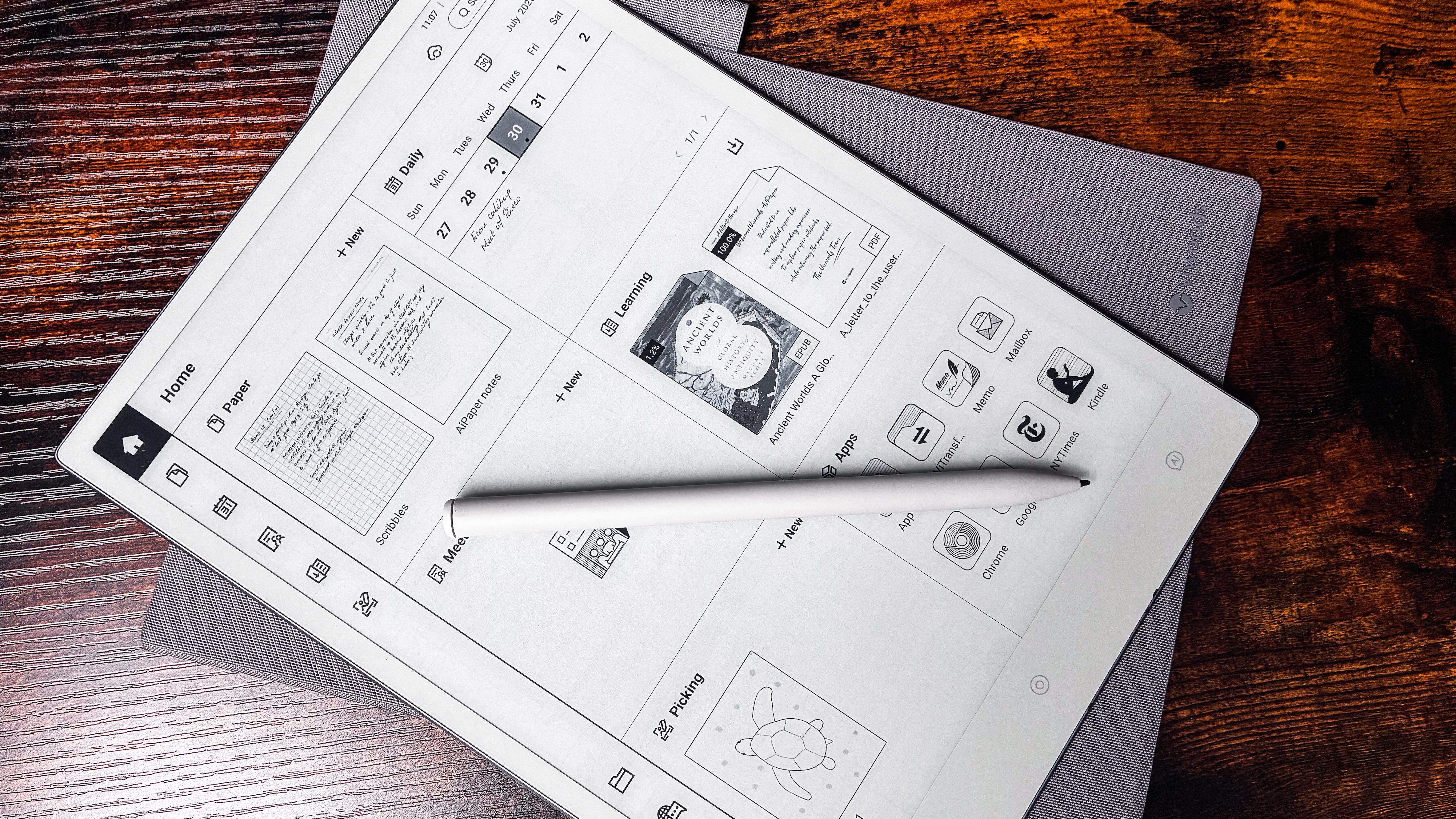
At its main function of being a digital notebook, it excels. Everything you need is neatly laid out on the homepage, so it’s very easy to get to grips with and the settings are simple to understand.
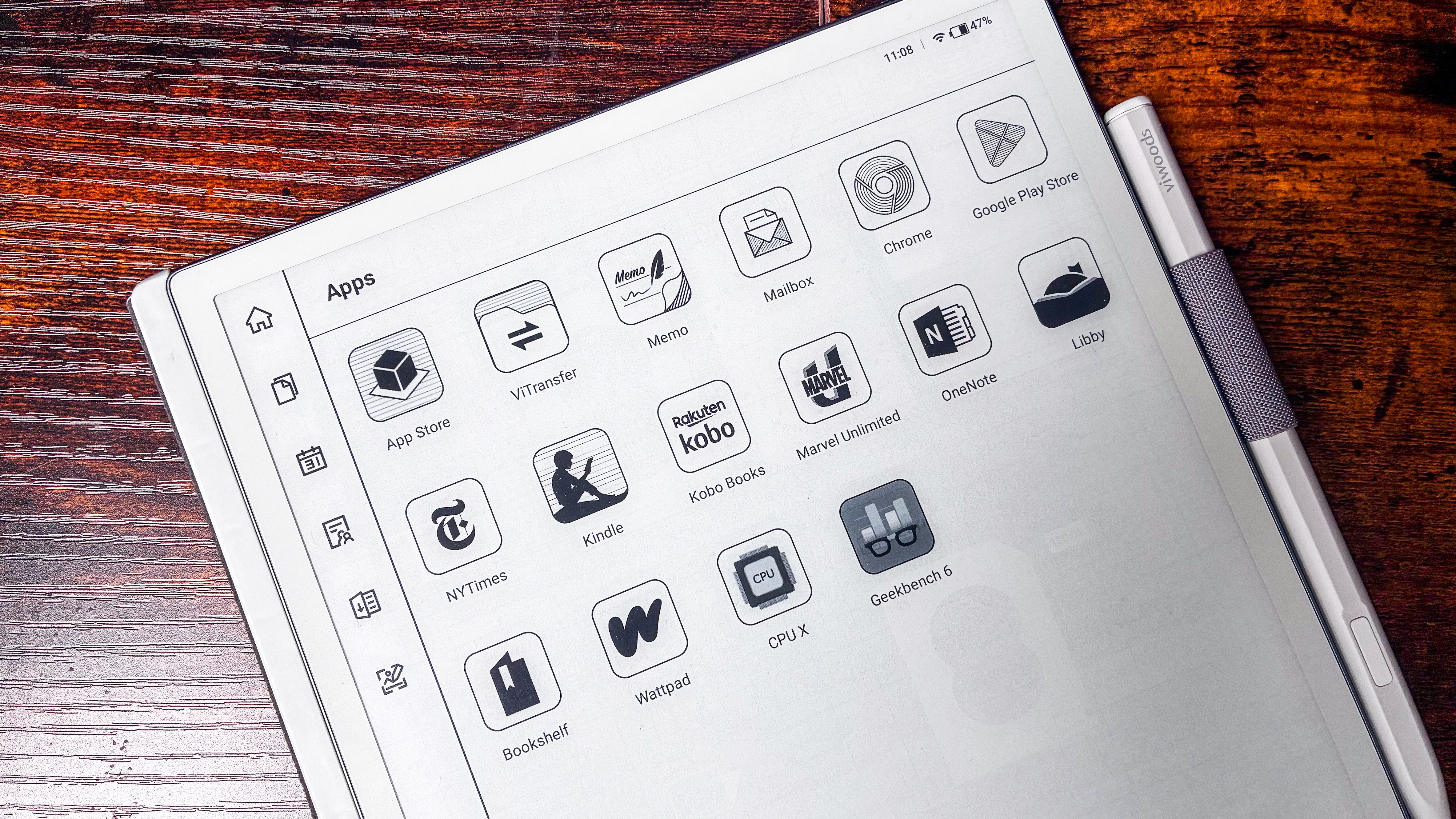
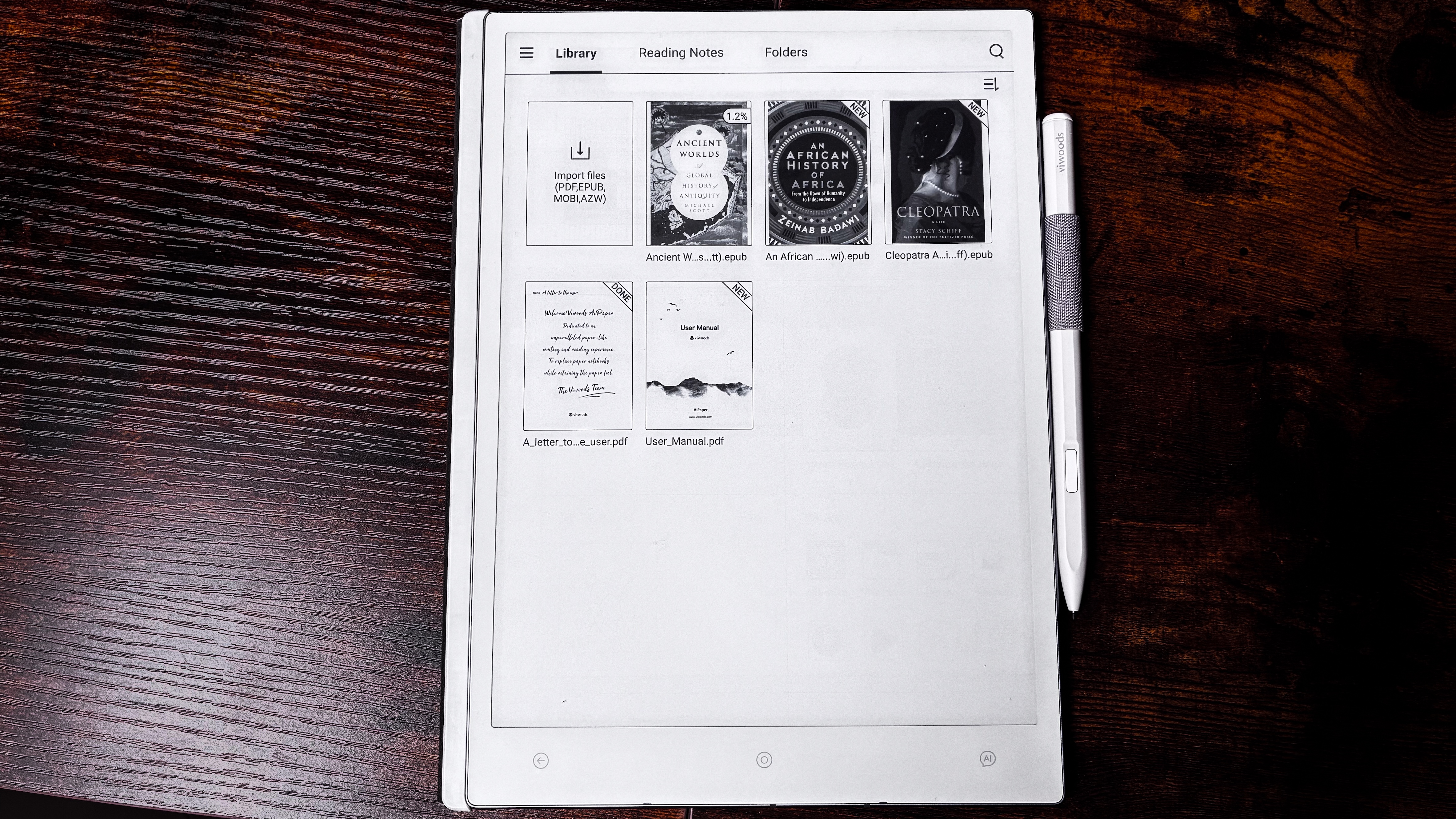
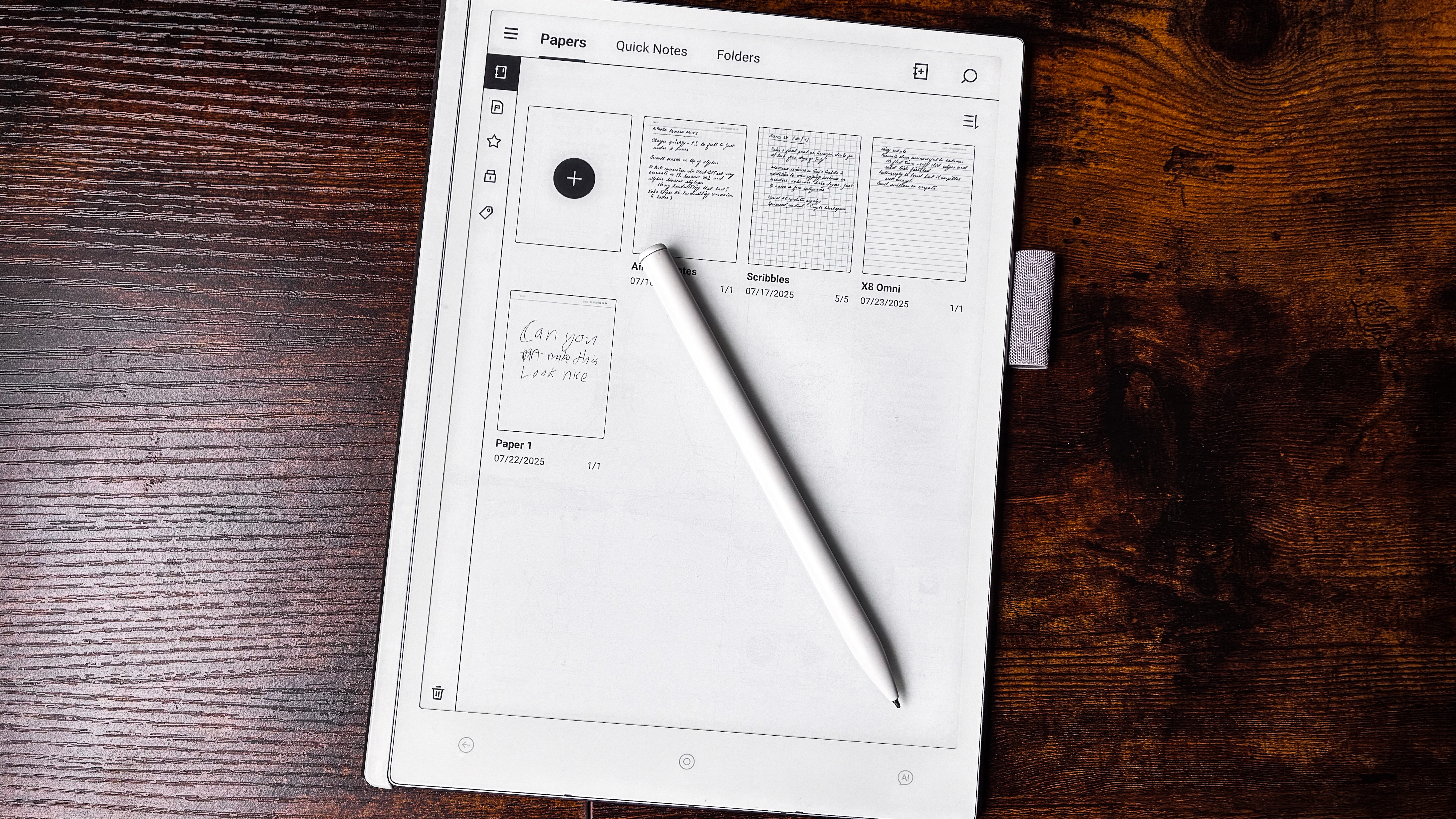
You can start writing on it straight out of the box (if it’s charged) because the first application you see is Paper (for notes). You also have easy access to a calendar, a digital sketchpad and a bunch of pre-installed applications that include Kindle, Kobo, OneNote, Libby and Wattpad, just to name a few.
There’s even a Mailbox to access your email on and, guess what, you can handwrite your reply and the built-in AI assistant converts it to text before sending. Watch out for the AI text conversion though – it’s not consistently accurate – so you may need to make edits before you send someone an email. You can even email your notes directly from the Paper app.
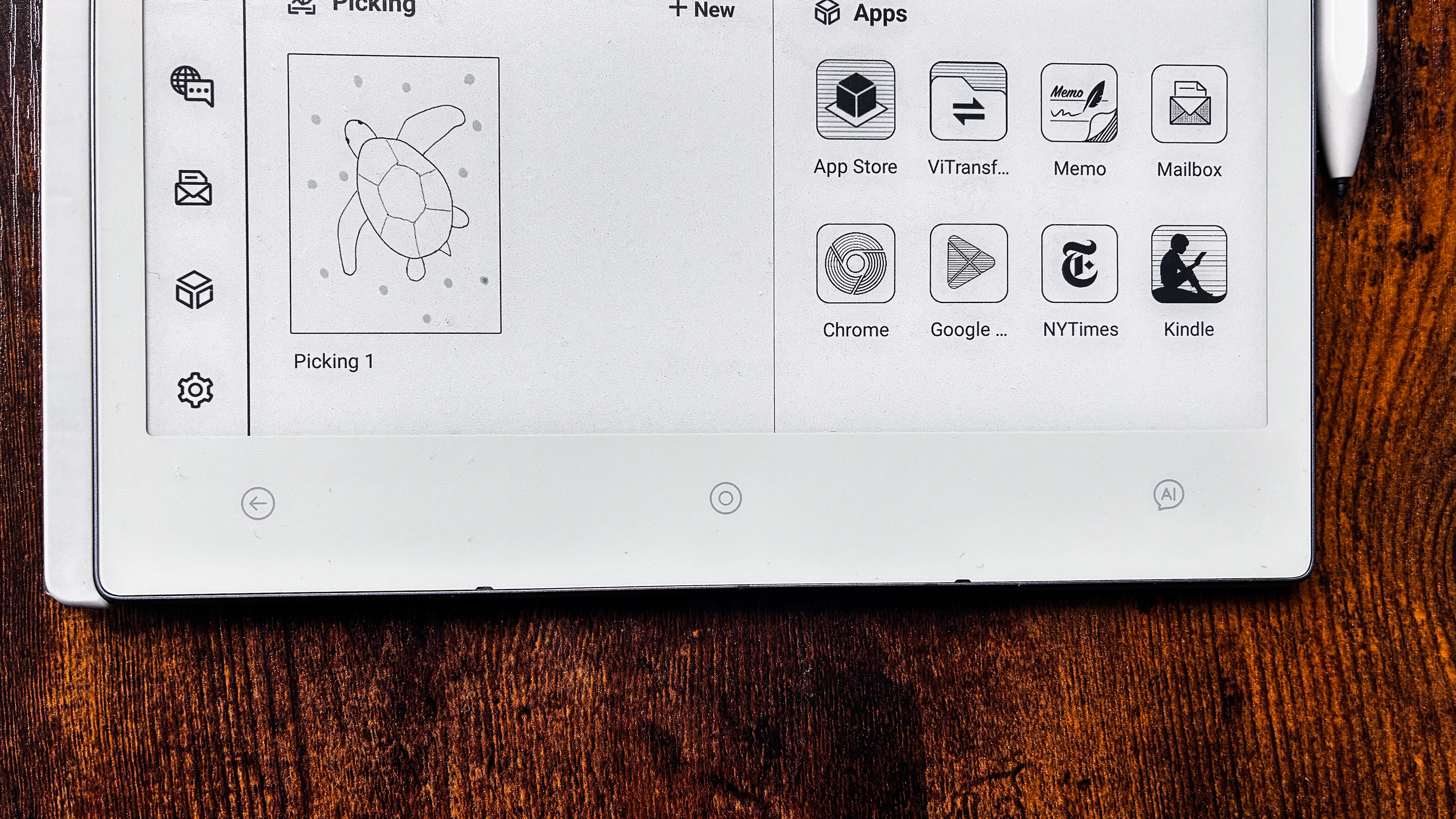
The home screen on the ViWoods AiPaper is neatly laid out, so everything is accessible quickly(Image credit: Sharmishta Sarkar / TechRadar)
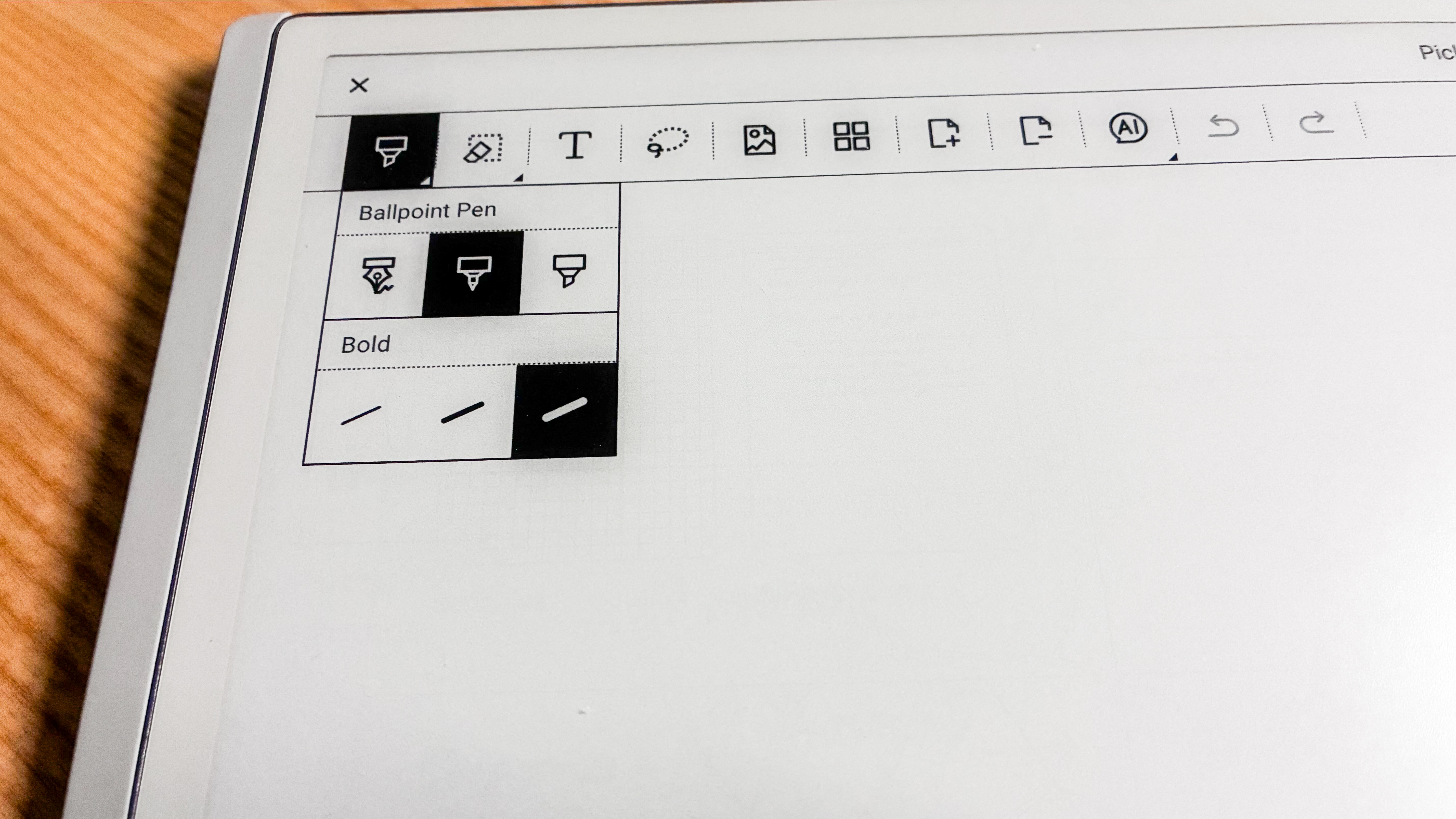
While there are plenty of pen options for writing, I was a little surprised that drawing only has three (each with three thicknesses) – competing tablets offer more for creativity. Stylus input, however, has no lag whatsoever and the nib moves smoothly over the screen. There’s just enough friction to give you the feel of paper and I quite enjoyed the writing experience.
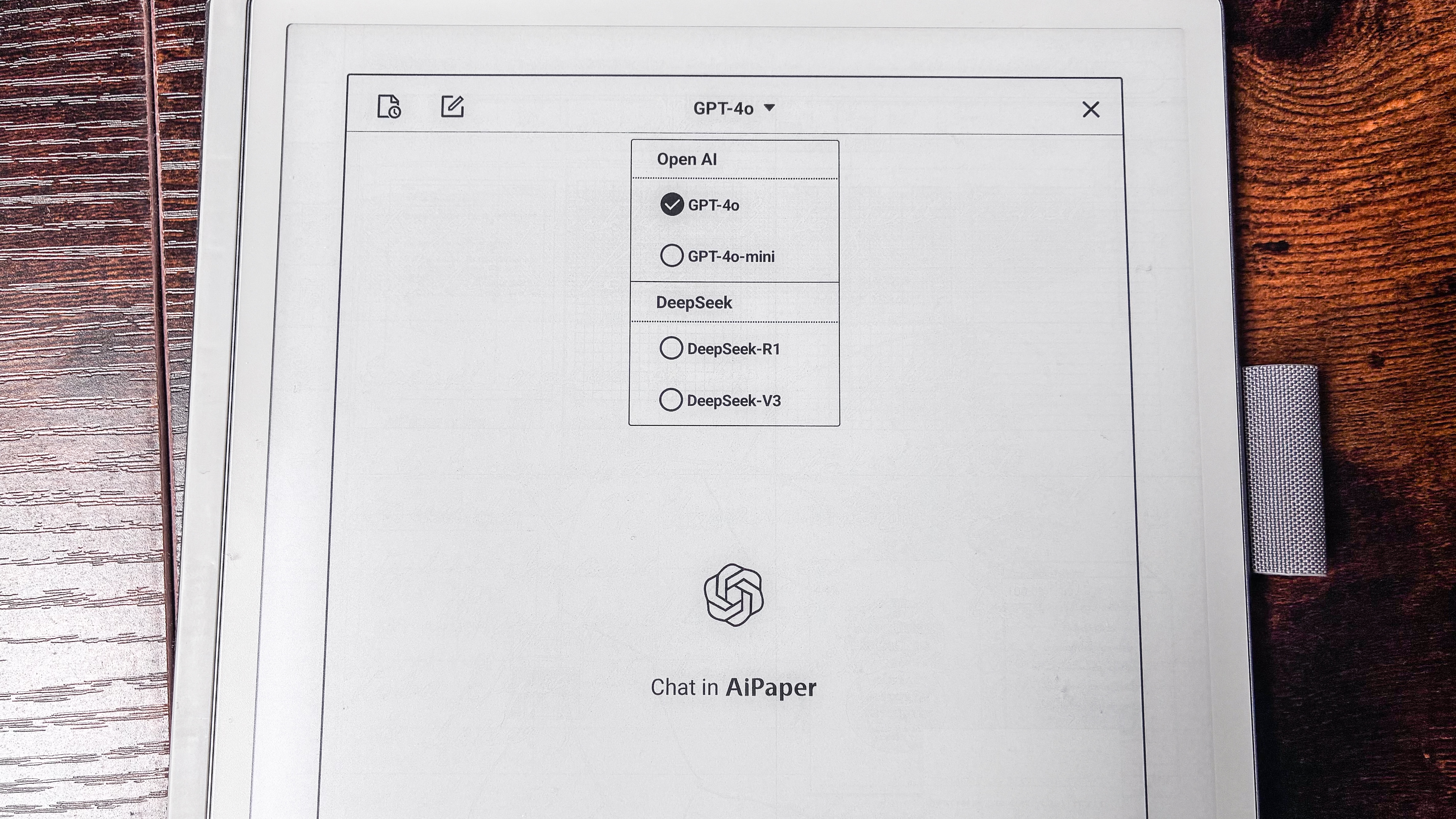
I appreciate the numerous templates and the separate calendar application too, even one called Meeting for jotting down minutes. Then there’s the AI button that gives you access to full-fat ChatGPT-4o or GPT-4o-mini. DeepSeek is also preinstalled. It's important to note, however, there are always risks with using AI, but if you're comfortable with it, it can be a fantastic productivity tool.
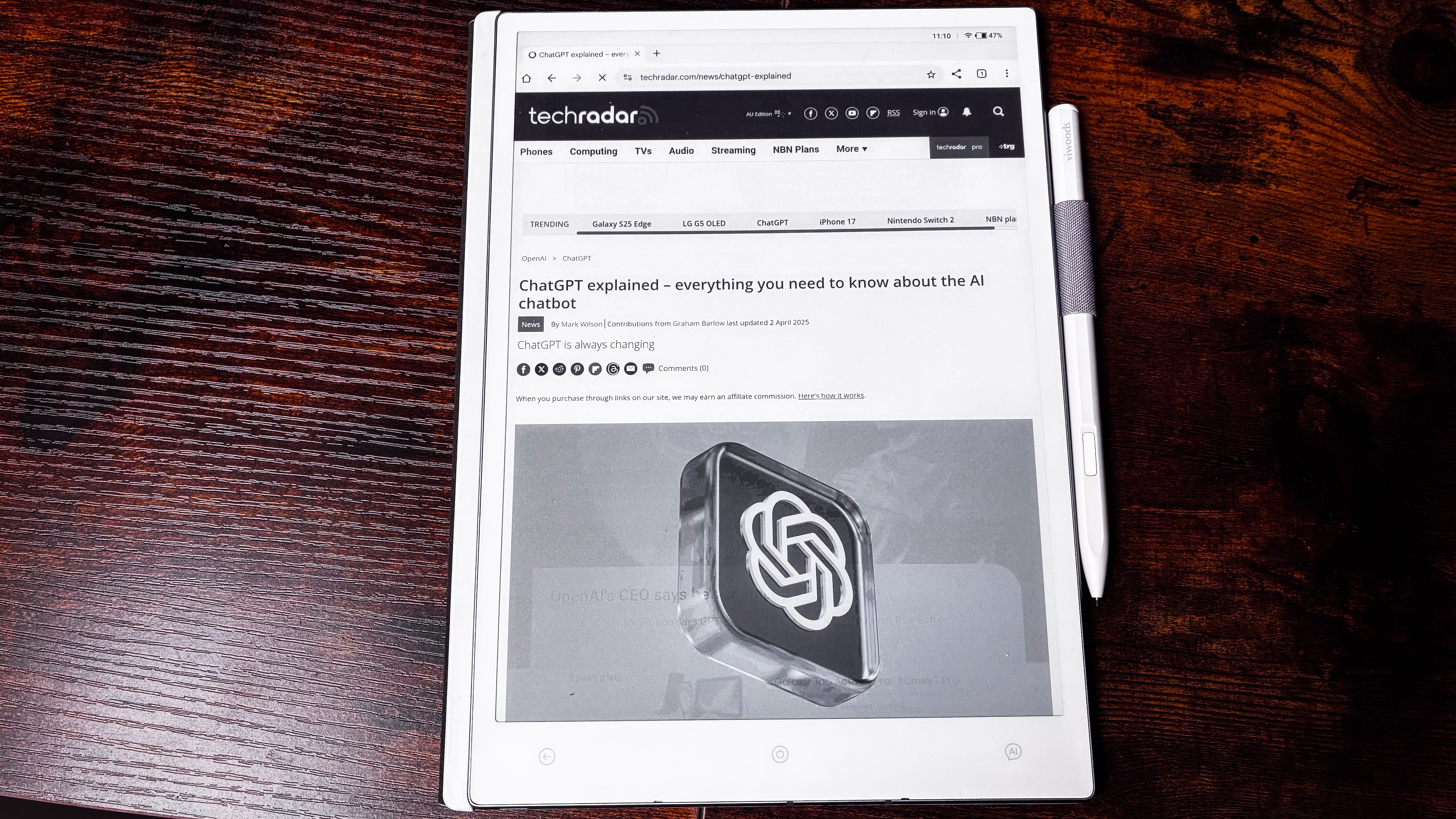
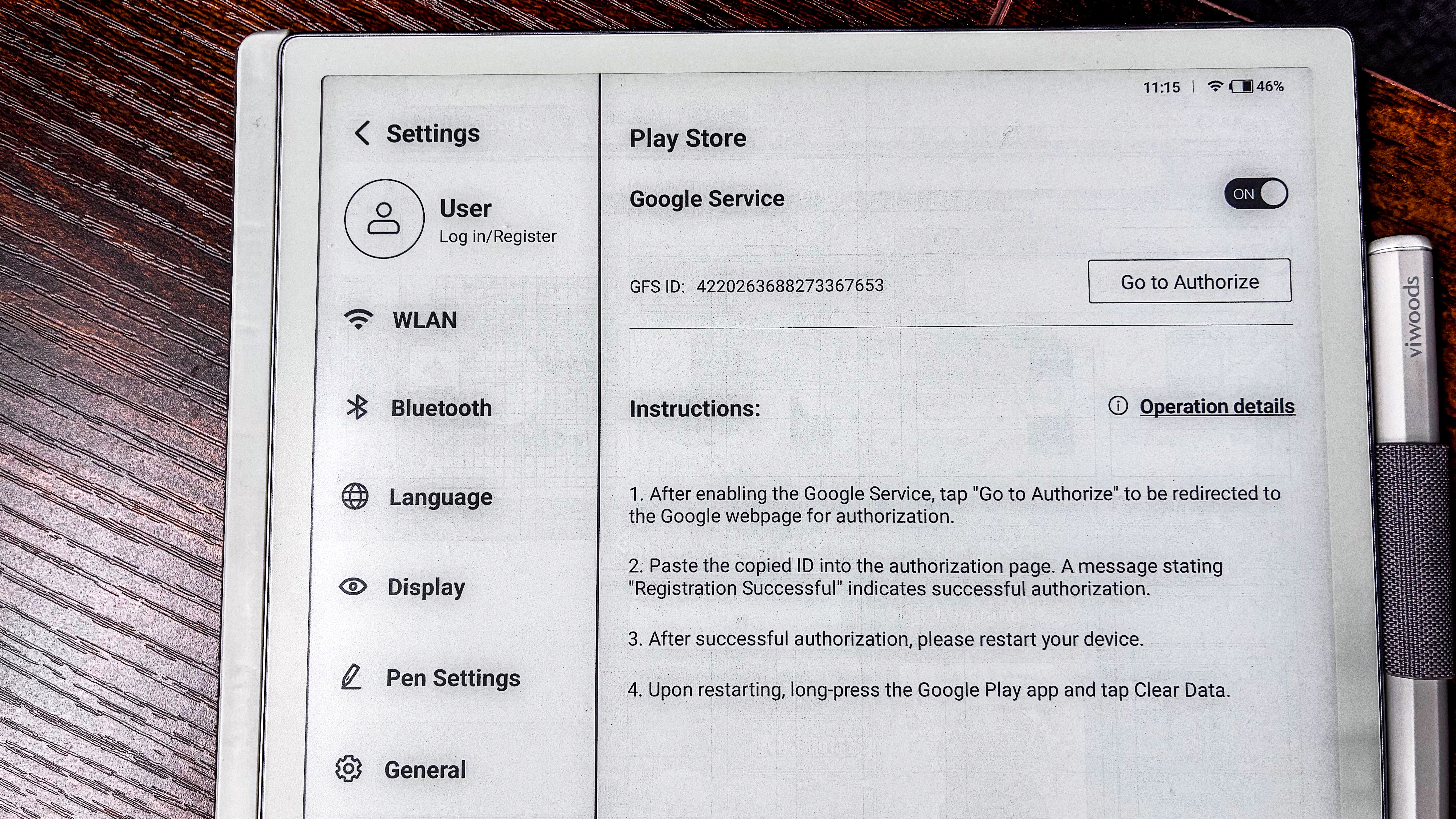
Chrome and the Google Play Store are also available out of the box. It uses a custom version of Android 13, but I found that the tablet I was sent for this review was not Play Protect Certified (meaning, I couldn’t access the Play Store at initial setup). I had to follow some steps to register the device and it was smooth sailing after that.
I won’t talk much about what it’s like to use as an ereader because that’s not its main function, and it has support for fewer file formats than some other brands with similar tablets, but they are the most common ebook formats, including EPUB, MOBI, CBZ and CBR. Moreover, without a frontlight, it may not be the best ereader for many users. PDF editing is possible if the document you’ve uploaded has edit capabilities.
Ghosting is a minor problem on this tablet, but I didn't notice it until I looked at the photos I had taken of the AiPaper. So it won't really be an issue when in use.
The entire setup is a lovely middle ground between reMarkable’s minimalist approach and Boox’s overcomplicated one – it’s well thought out and stands out as a unique alternative to its aforementioned competitors. There’s a heck of a lot more to unpack here (read on below for more details), but I really can’t get over the high asking price for this E Ink tablet – it's about $200 / £100 / AU$250 more than competing options even when discounted – although it could be argued that it justifies its cost just on performance alone.
Having Google Chrome preinstalled is fantastic(Image credit: Sharmishta Sarkar / TechRadar)
ViWoods AiPaper review: Price & availability
Released after a Kickstarter campaign in September 2024
Available to buy in the US since December 2024 and in Australia since March 2025
List price of $799 / £610 / AU$1,199; can be purchased from on Amazon
100-day free trial, but terms and conditions apply
There are two AiPaper tablets available from Chinese brand ViWoods – the larger 10.65-inch model reviewed here and a smaller 8-inch alternative called AiPaper Mini. The bigger device went on sale in the US towards the end of 2024, and has been available in Australia since March 2025.
The 10.65-inch E Ink tablet is not what I would deem 'affordable' – in fact, it’s the most expensive epaper device I’ve tested to date, with its $799 / £610 / AU$1,199 price tag making it costlier than the color reMarkable Paper Pro and the grayscale Supernote Manta.
That said, there is a slim case in the box, as well as the stylus and extra nibs too. In many other cases, you’ll need to buy the case separately, but this bundle is still very much in premium territory.
The ViWoods AiPaper Mini is also quite steeply priced ( listed for $599 / £455 / AU$939; discounts are available) compared to the likes of the 8-inch Kobo Sage, the 7-inch Kobo Libra Colour and the stylus-supported Boox Go 7 from Onyx. However, it too ships with a stylus while other smaller slates require you to purchase that separately.
Despite being a full-featured E Ink tablet running Android 13, it’s hard to justify even the discounted price, more so when you can get the Boox Go 10.3 for $379.99 / €419.99 (about £355) / AU$699. Even the reMarkable 2 would be a good alternative and save you money at full price. Price is the main reason why it gets some points docked in this review.
However, ViWoods stands apart from other brands by offering a 100-day free trial of its products when purchased directly from the brand's website, but there are a few other terms and conditions you will need to be aware of to take advantage of this offer. The tablets also come with a 14-month warranty for functional defects.
• Value score: 3.5 / 5
Writing on the ViWoods AiPaper is a wonderful experience, with several pen types and thicknesses to choose from(Image credit: Sharmishta Sarkar / TechRadar)
ViWoods AiPaper review: specs
Display type:
E Ink Carta 1300 with E Ink Mobius base
Screen size:
10.65 inches
Resolution:
300ppi (2560 x 1920 pixels)
Processor:
2GHz octa-core MediaTek MT8183
Frontlight:
None
Storage:
128GB (non-expandable)
Battery:
4,100mAh
Speaker:
None
Water protection:
None
Software:
Android 13
Connectivity:
USB-C, Wi-Fi, Bluetooth 5.0
File support:
7 (5 documents, 2 images)
Dimensions:
247 x 178 x 4.5 mm
Weight:
370g (without case and pen)
ViWoods AiPaper review: Design & display
Thinnest and lightest 10-inch E Ink tablet I’ve tested
Very nice 10.65-inch E Ink Carta 1300 display
Stylus is slightly thicker than most, but very ergonomic and lightweight
Built-in mic, but no speakers or microSD card tray
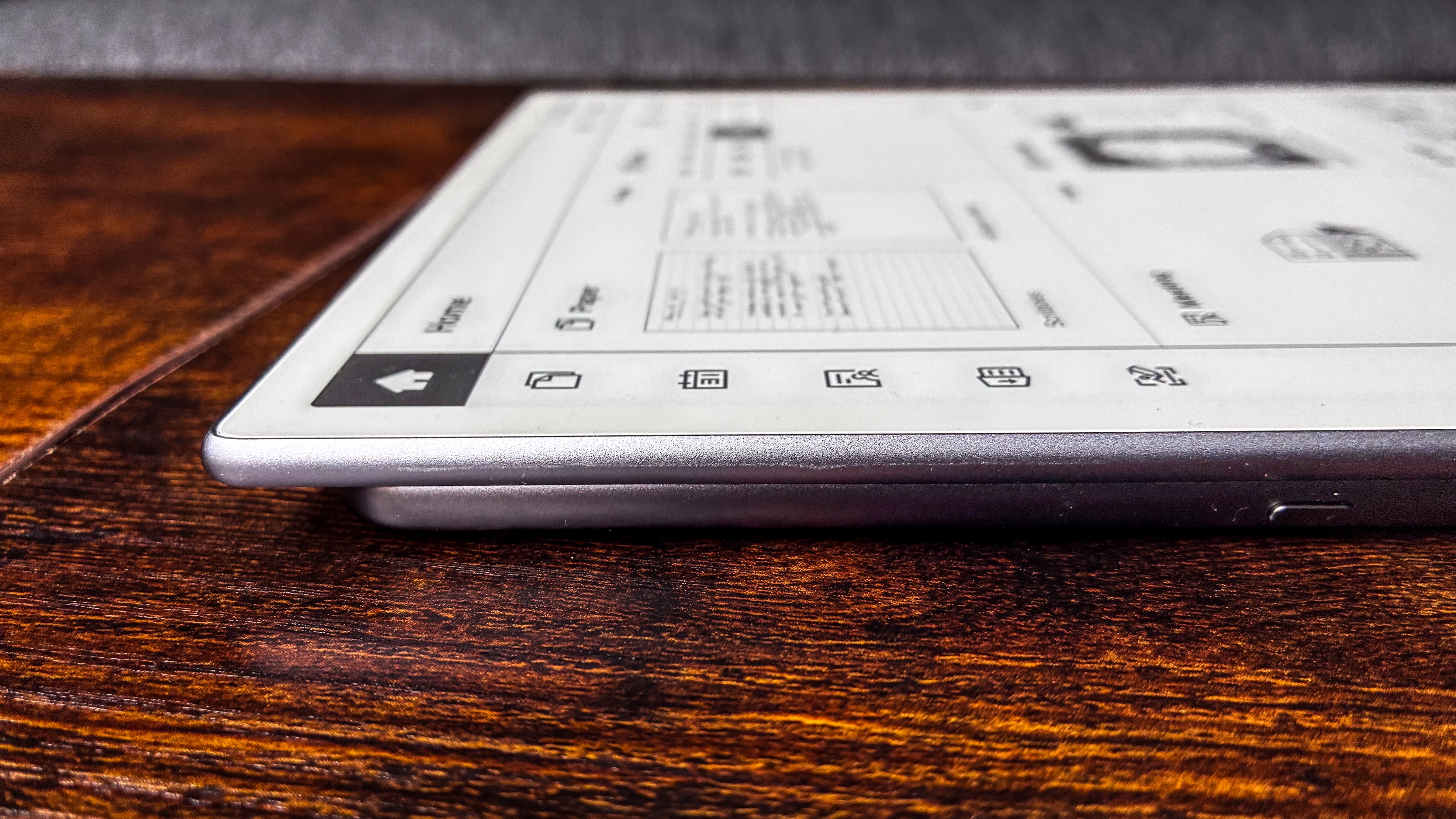
The overall design of the ViWoods AiPaper is familiar to me as it’s quite similar to the Boox Go 10.3 I’ve previously tested. The difference here is that it’s even lighter and thinner and, while you’d think that a 0.1mm thickness and 5g of weight difference wouldn’t matter much, think again. The moment I took the AiPaper out of its box – it was already encased in a magnetic folio with the stylus in its loop – it was noticeably lighter compared to all the other large-screen E Ink tablets I’ve tested.
It is, however, taller than other tablets like it. Its screen size comes in at 10.65 inches compared to the average 10.3 inches, but it doesn't add too much to the overall footprint – it's slightly taller than its counterparts. The thinness more than makes up for it, though.
And while the tablet itself has no protection against moisture, the supplied case is waterproof. Oh, and this magnetic folio barely weighs a thing too. The lack of waterproofing is not unique to the AiPaper – pretty much every single 10-inch epaper note-taking device I’ve tested has had no IP certification.
Image 1 of 3
There's a noticeable difference in thickness between the AiPaper lying on top of the Kindle Scribe (2024)(Image credit: Sharmishta Sarkar / TechRadar)
Image 2 of 3
The flush power button is home to a pretty accurate fingerprint scanner(Image credit: Sharmishta Sarkar / TechRadar)
Image 3 of 3
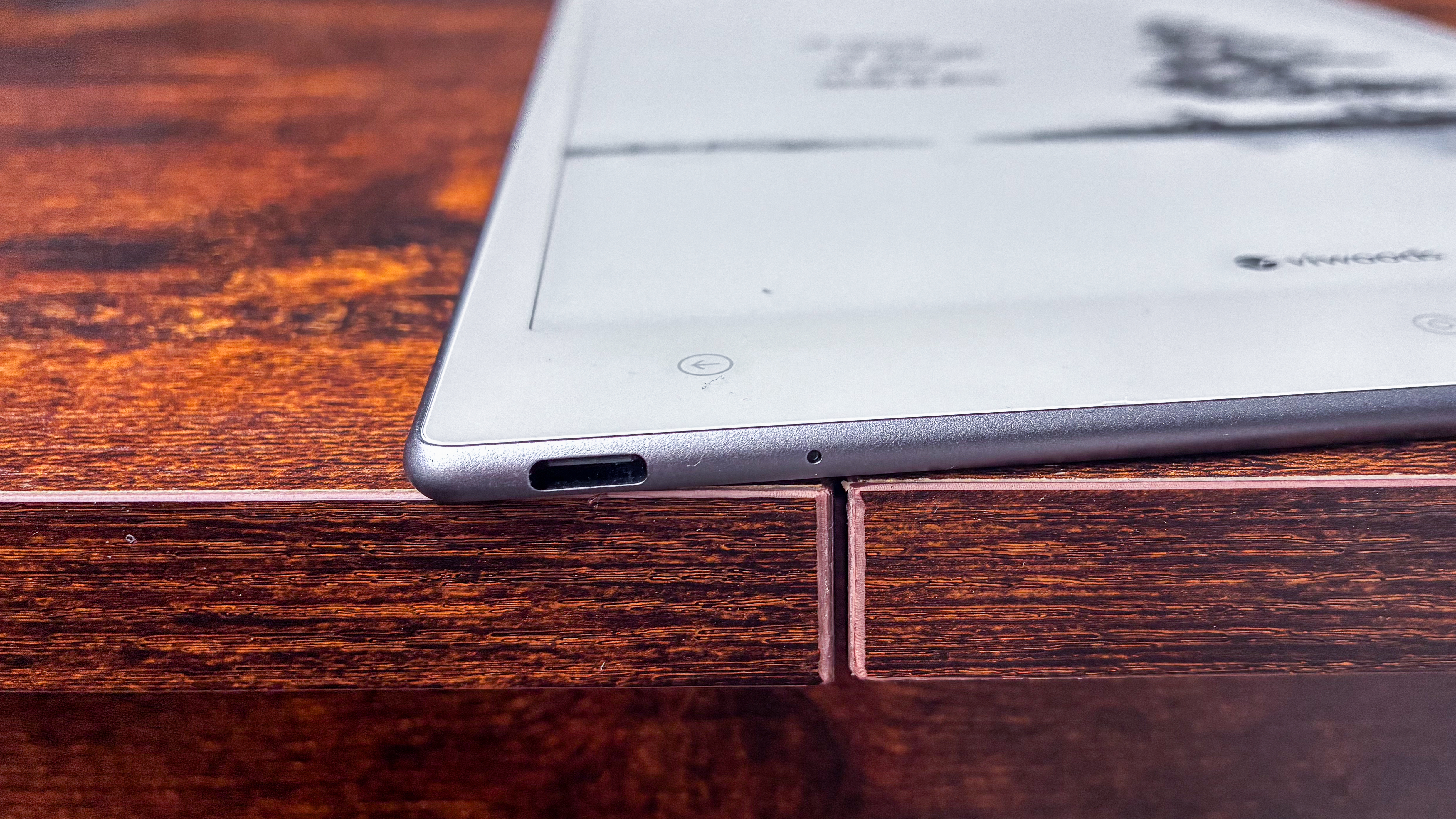
There's a mic right beside the USB-C port(Image credit: Sharmishta Sarkar / TechRadar)
Its lightweight design aside, the AiPaper looks lovely, with whitish-grey bezels and silver trimming along the four sides. The rear panel is a thin plastic sheet to match the bezels. The bottom bezel is broader and is home to three touch buttons that are very reminiscent of Android devices – back, home and AI. The last one opens up an application that gives you access to ChatGPT or DeepSeek, the choice is yours.
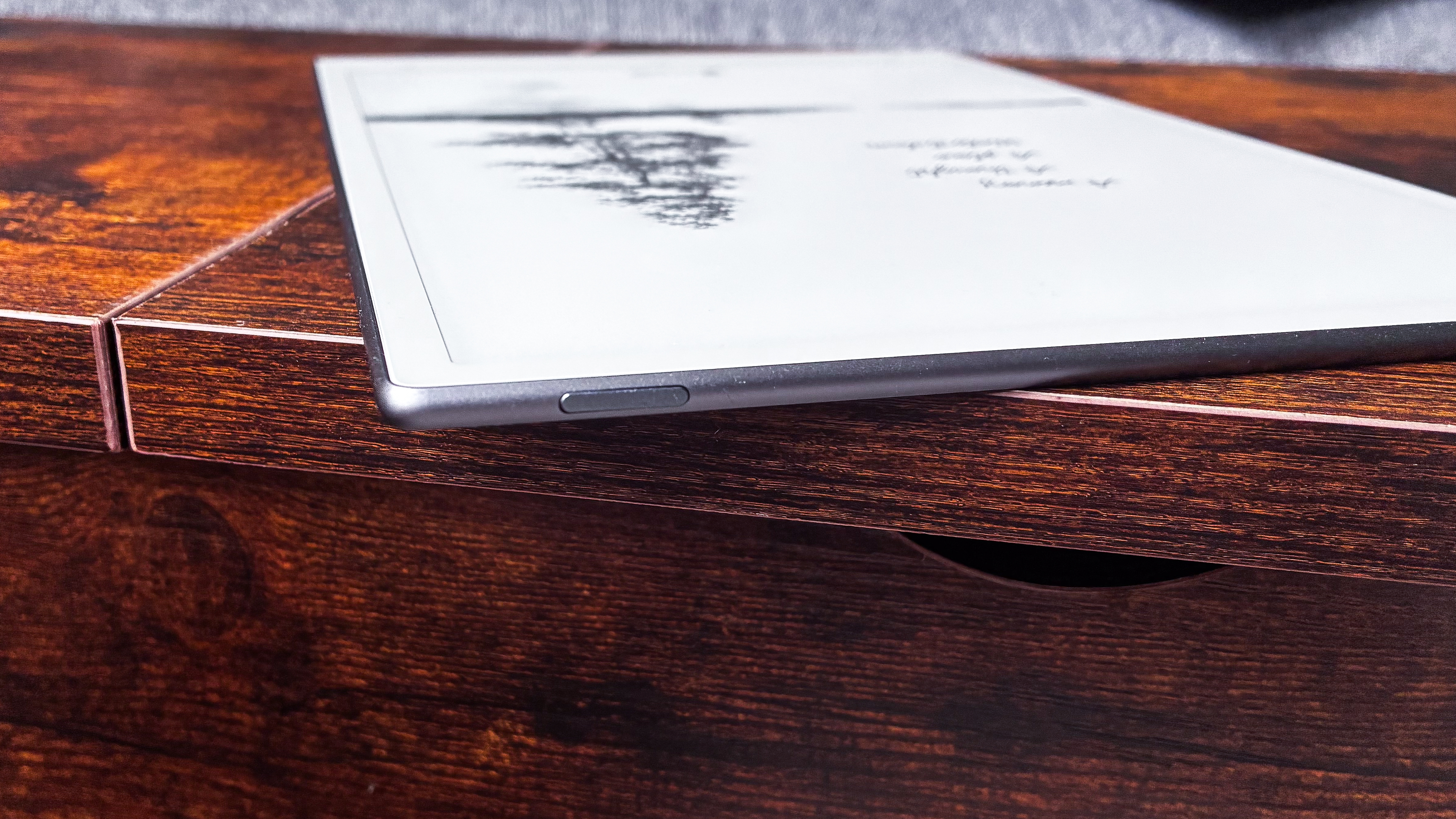
The only physical button on the device is to power it up (or down), which lies flush with the top edge and houses a fingerprint sensor. I thought such a thin surface would have trouble reading fingerprints, but I was wrong – it functioned well 95% of the time, but the raised edge of the case can get in the way sometimes which, for me, was the rest 5% of the time.
Image 1 of 2
The AiPaper Gen2.5 Stylus Pen magnetically secures to the top of the screen via its flat side and comes with two nib types(Image credit: Sharmishta Sarkar / TechRadar)
Image 2 of 2
The eraser on the top is spring-loaded and works quite well(Image credit: Sharmishta Sarkar / TechRadar)
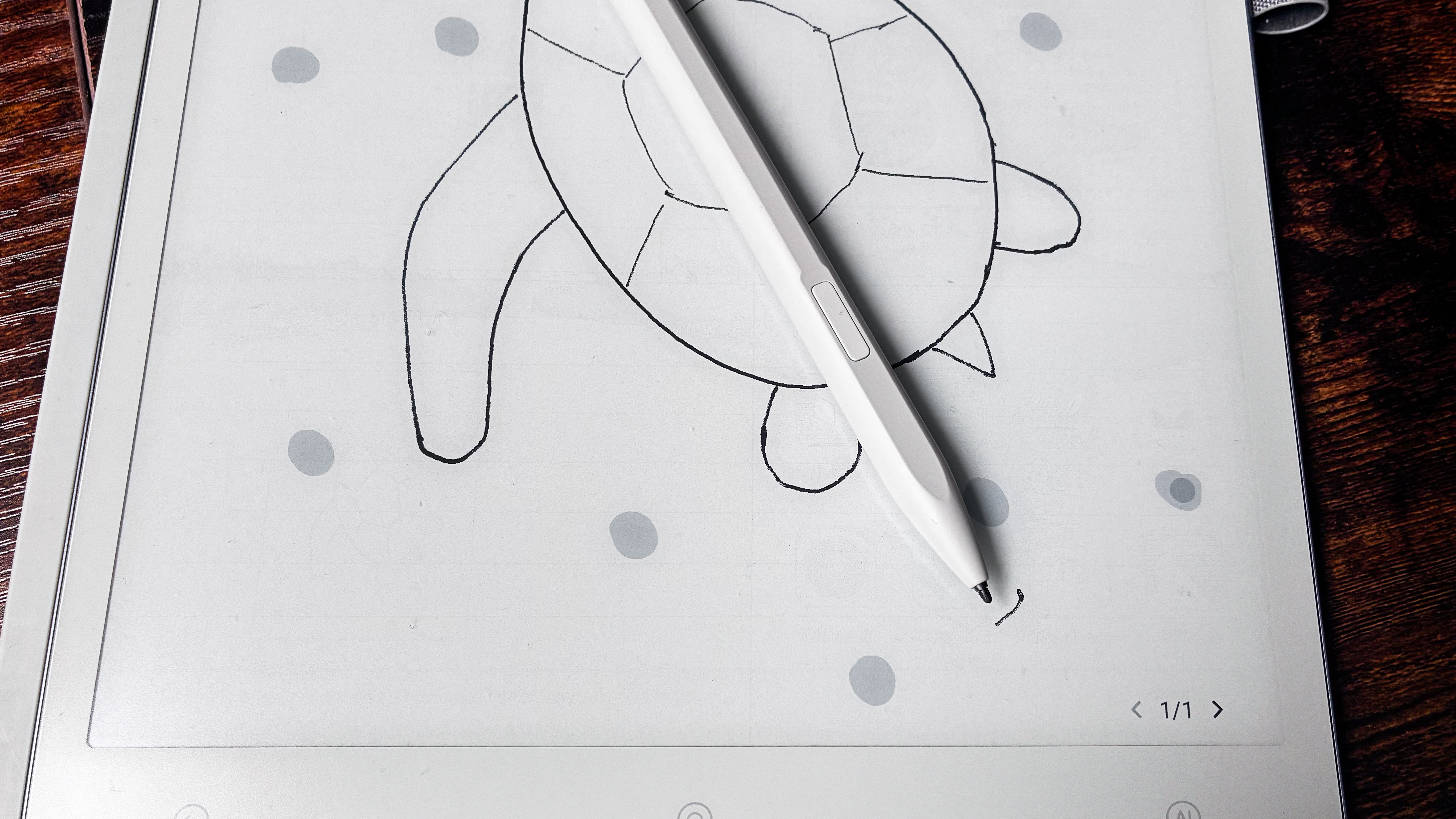
I should also mention the stylus separately as it’s a little broader than the pens used by most other brands – only marginally so – but it’s lightweight and ergonomic. It’s called the AiPaper Gen2.5 Stylus Pen and it's made from light-grey plastic to match the tablet. It features an eraser on the top and a button on the flattened length on its body.
That flat section is what secures the stylus magnetically over the display (as pictured above) and that’s an exceptional addition as the curved edges (or sides) of the tablet are so thin, there’s no way the pen would stick there, as is common in other models. The closer to the center of the screen you get, the stronger the hold, but it will stay anywhere on the top surface of the device.
For when you're in transit, though, the loop on the protective case will keep the Gen2.5 Stylus Pen safe.
It’s also the first stylus I’ve used that comes with two types of replacement nibs in the box – the default is a ‘smooth writing’ nib that’s soft and thus can wear out easily, but it can be replaced with a more ‘durable’ or harder nib if you wish. Swapping one out for the other is as simple as pulling out the used one to slide in the replacement until it clicks into place.
Both the stylus and the tablet use Wacom EMR technology, so even if you lose the Gen2.5 Stylus Pen, you can use an alternative that has the same tech. I tried the Boox Pen Plus that came with the Go 10.3 and it worked just fine.
You get access to the ViWoods user community, which can handy if you have questions or want to leave feedback(Image credit: Sharmishta Sarkar / TechRadar)
The display technology used here is seemingly a hybrid of two E Ink screens. ViWoods says the top rigid layer is the E Ink Carta 1300 for writing and reading on, and it sits on a flexible E Ink Mobius base. The slight flexibility it offers, according to ViWood, is meant to offer the "rebound" feel of paper when you write. I didn't quite experience it but then I have no complaints whatsoever with how it feels to write on.
Everything you write on this monochrome screen is sharp, with excellent contrast for the pen's markings. That means it's quite dark against the pale background, which makes handwritten notes very easy to read, particularly without a frontlight.
On the other hand, the contrast when reading ebooks in the Learning app (where the library sits) is a little lackluster when compared to the likes of the Amazon Kindle Scribe (2024) – the words on the page appear lighter in comparison (see the image below). That doesn't mean you can't use the AiPaper as an ereader, it just hasn't been optimized well for that purpose.
The screen also lacks a frontlight, although that in no way hampers its usability and a lightless display is hardly unique to ViWood. Neither the reMarkable 2 nor the Boox Go 10.3 have a frontlight and they’re both still very nice to use. While I would have preferred a frontlight myself because I’m a nighttime reader and I would have loved to use the AiPaper as an ereader as well, that is not its primary function – it’s a productivity tablet, so writing, sketching and scheduling are what it does best.
• Design & display score: 5 / 5
The three touch buttons on the bottom bezel are very reminiscent of Android devices(Image credit: Sharmishta Sarkar / TechRadar)
ViWoods AiPaper review: Software & user experience
Arguably the most important factor when choosing an epaper writing tablet for yourself would be its software and user interface. Where Kobo and Kindle use custom Linux operating systems, as does reMarkable, Boox and ViWoods have adopted Android.
The ViWoods AiPaper uses a trimmed-down, custom edition of Android 13 (compared to Android 12 on the Boox Go 10.3) that caters specifically to reading and writing. And, importantly, the entire setup is fantastic, far better than the Boox alternative which, in fact, has a more streamlined interface compared to older models from the brand.
On the AiPaper, the interface is a fabulous middle ground – neither too minimalist like reMarkable, nor too complicated like Boox.
Android OS and apps
Runs a custom version of Android 13
Very streamlined user interface
Nearly all applications you might need are already preinstalled, but there’s full access to the Play Store
The moment you switch on the ViWoods AiPaper, you’ll see the bottom right block already has a few apps preinstalled. Tap and you’ll find Chrome and the Google Play Store already there, ready for you to sign into.
The latter was the only real issue I ran into when setting up the AiPaper for this review: being unable to access the Play Store at the start. That’s because the device sent to me was not Play Protect Certified, meaning it hadn’t been registered with Google for Play Store access.
A little research told me that this is was not an isolated incident, although some users online have had no problems whatsoever. Getting this done, though, is very simple and ViWoods has a handy guide to help you.
Interestingly, ViWoods has implemented Android's 'long-press to copy and paste' functionality for this setup – I wish this would be expanded to all aspects of the tablet, wherein any handwritten, or at the very least text-converted, note can be copied across documents or applications. The feature already exists in the software, so it's just a matter of enabling it on a wider scale (although I'm not a developer and I can't speak to the feasibility of expanding it).
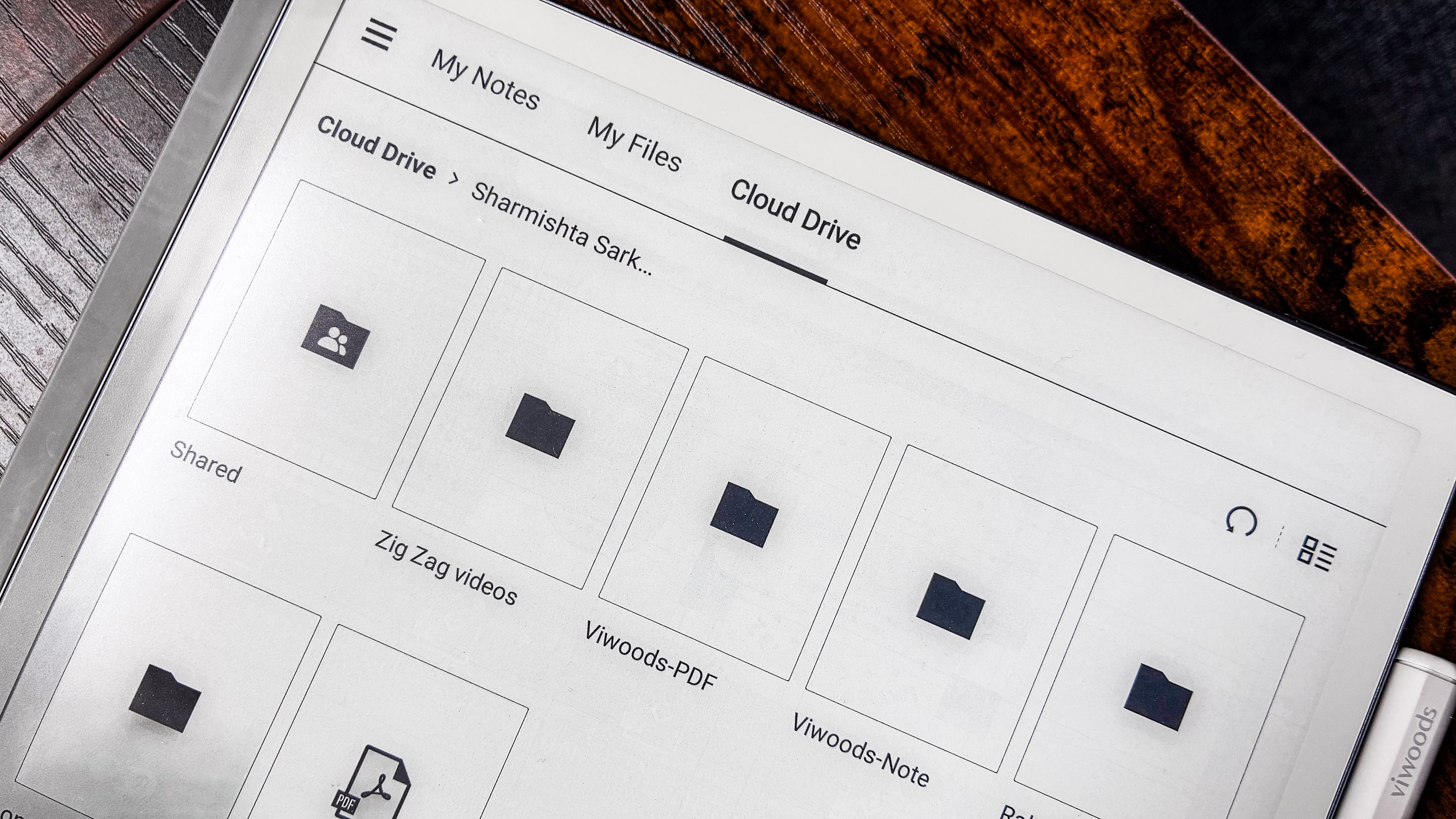
It also took three attempts to sync my Google Drive account to the tablet for cloud transfer of files despite being logged in on the first attempt. Why this happened is still a mystery to me.
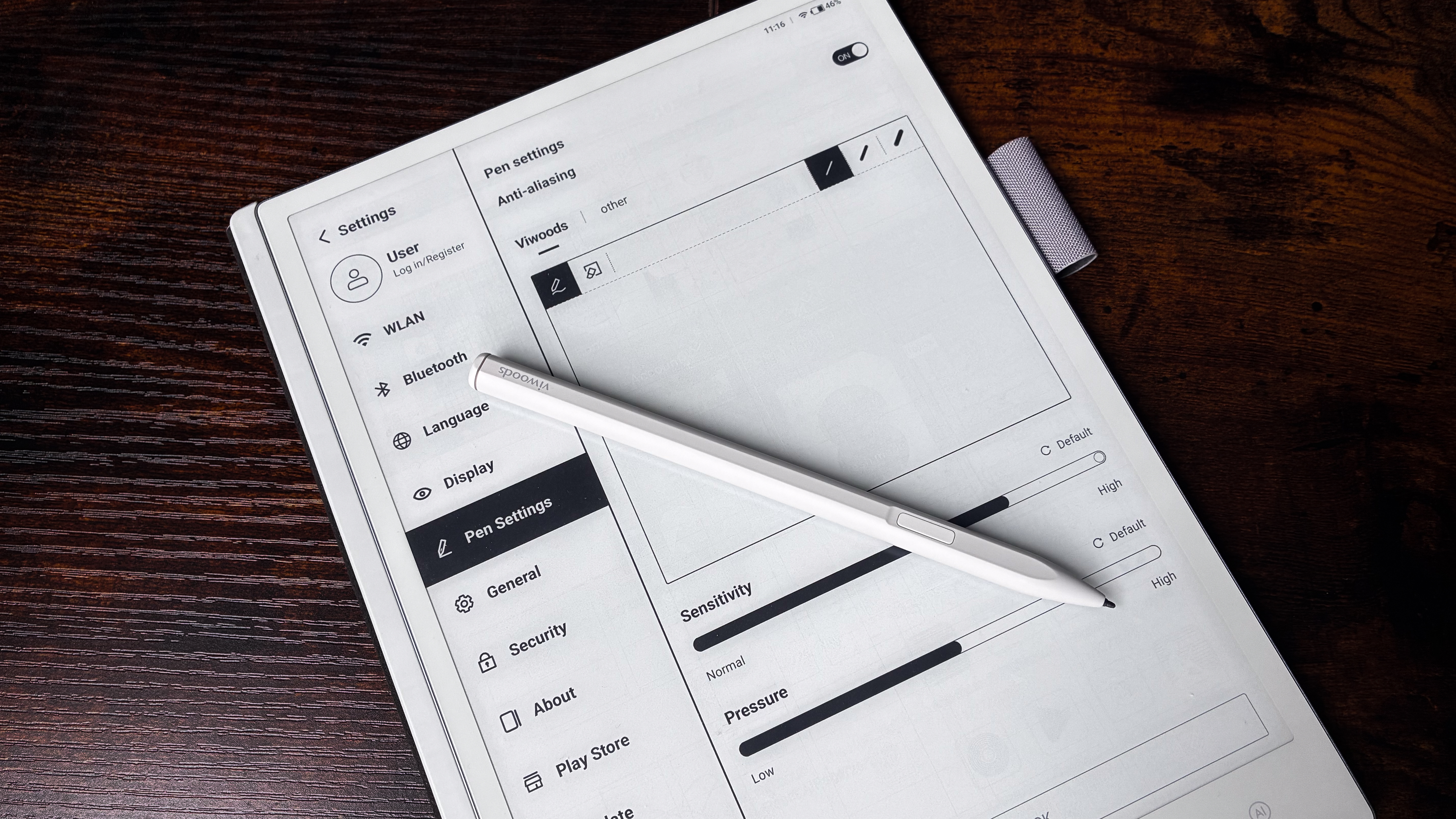
Image 1 of 3
Pen settings aren't too complicated, but I would have liked to reassign the button to something other than erase(Image credit: Sharmishta Sarkar / TechRadar)
Image 2 of 3
Play Store connectivity at inital setup may not be there and you will have to do so manually(Image credit: Sharmishta Sarkar / TechRadar)
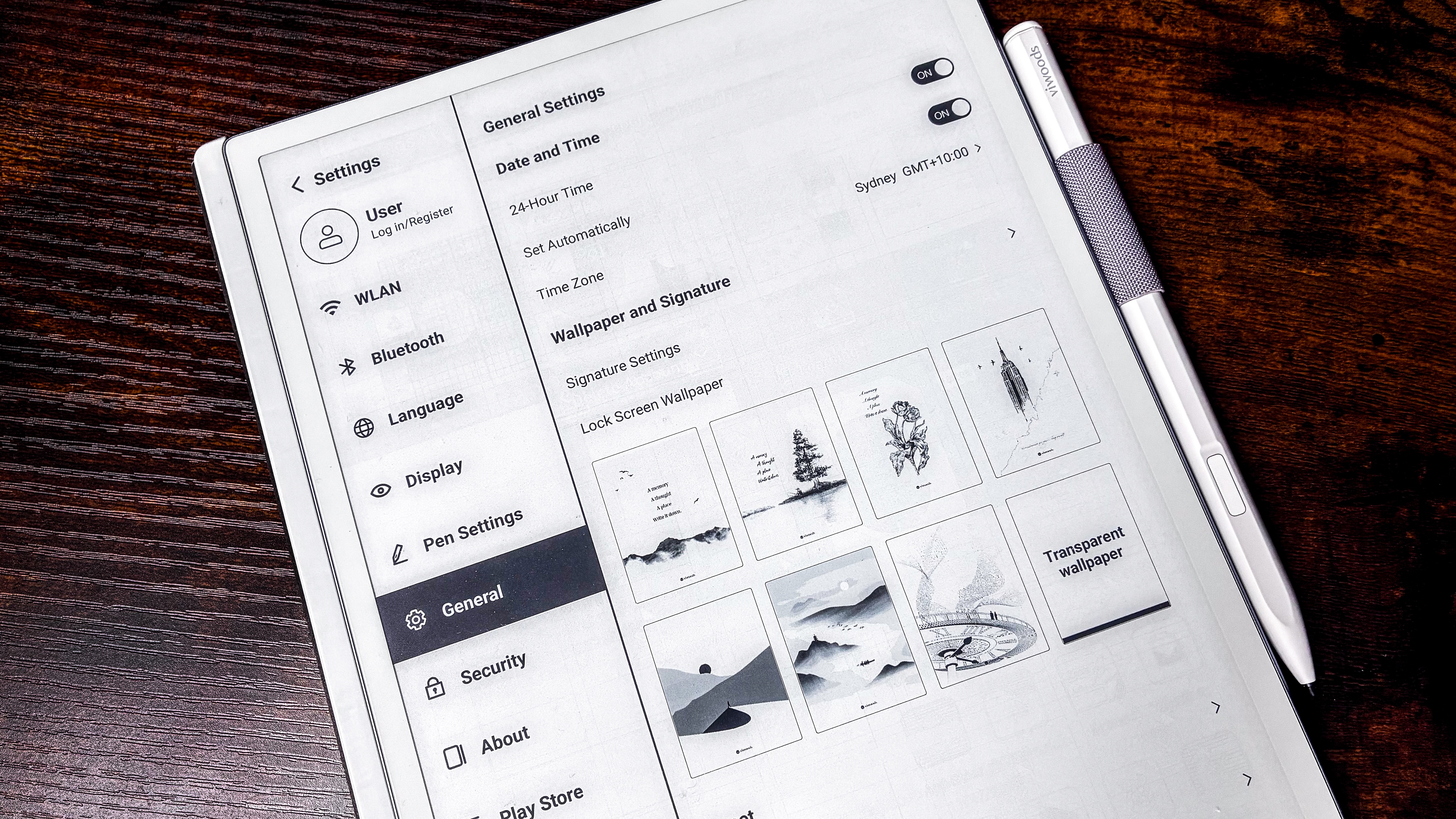
Image 3 of 3
General settings are simple and easy to understand(Image credit: Sharmishta Sarkar / TechRadar)
An unexpected surprise on the AiPaper that I haven't seen on any other tablet like this is email access. There’s a Mailbox application preinstalled that can be set up if you don't want to download Gmail or any other mail app but, interestingly, it allows you to handwrite your replies if you choose.
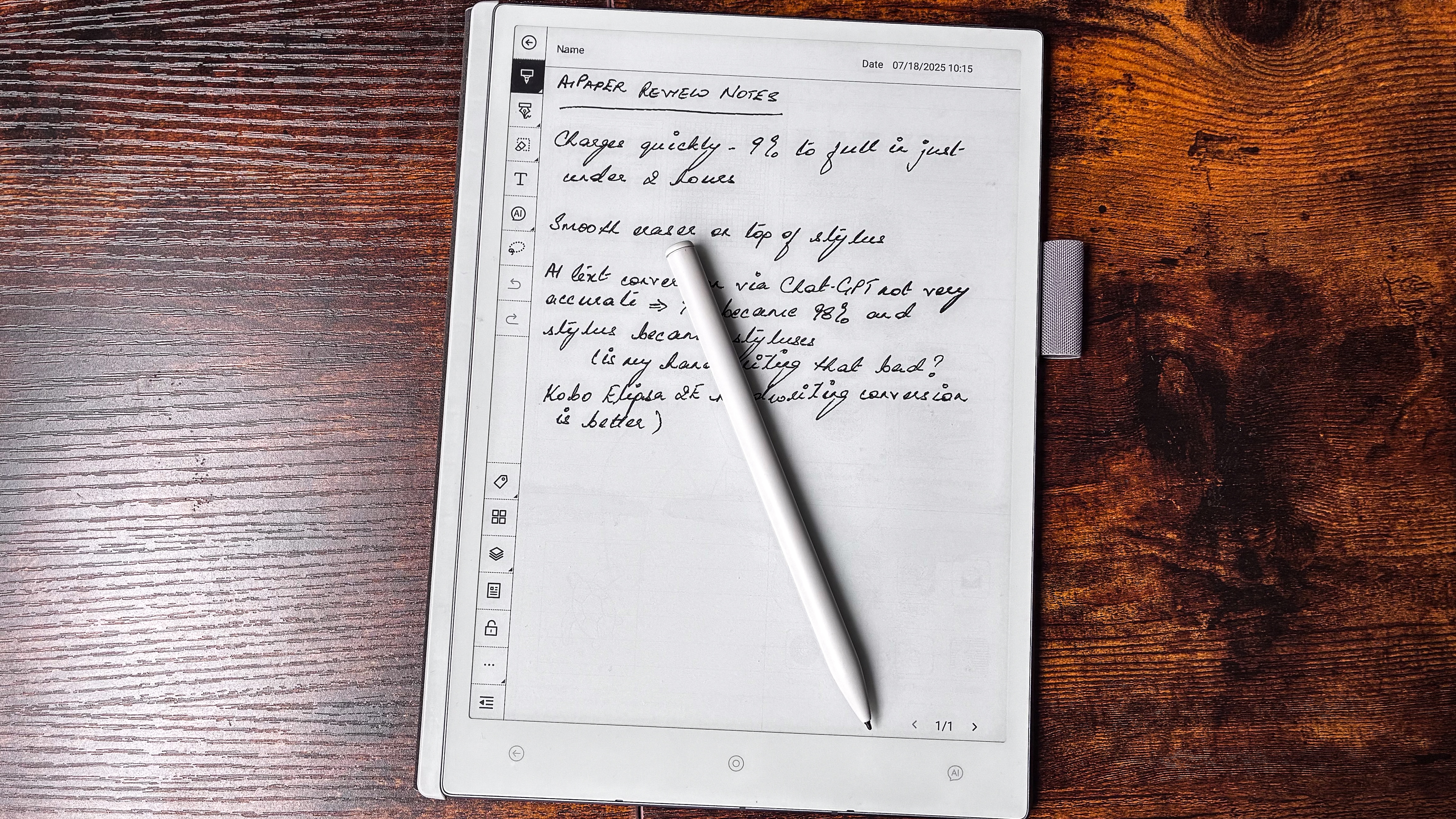
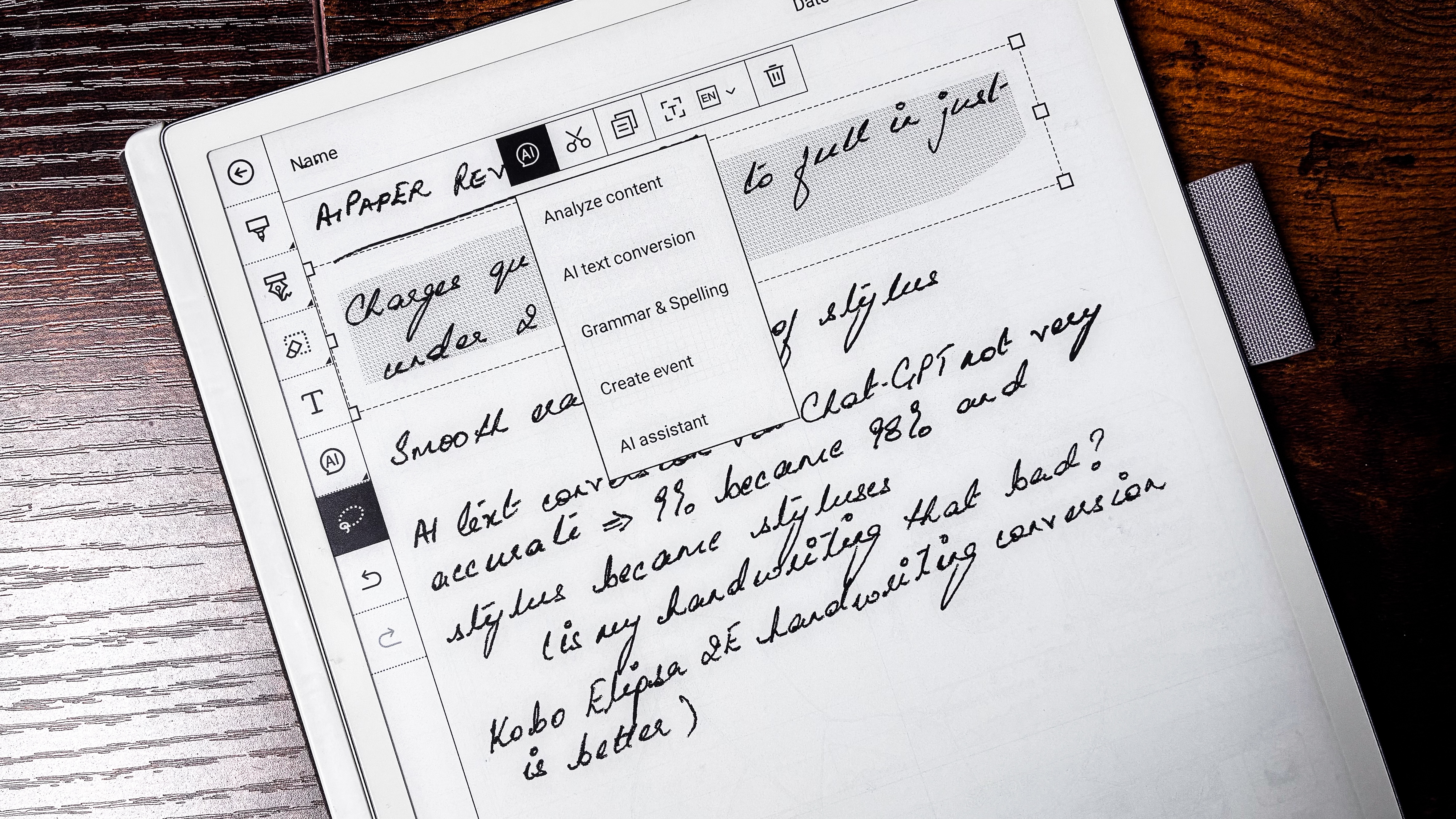
AI handwriting recognition is available on nearly every native application that allows you to use the stylus, but I found that the text conversion wasn’t always accurate and I pride myself on having a rather nice (and readable) handwriting. I’ve had no issues with handwriting recognition on the Kobo Elipsa 2E or the Kindle Scribe 2024 for example, so I’m surprised that the AiPaper is getting a few things wrong.
It’s not really a deal breaker as I found the onscreen keyboard just as easy to use to make any necessary edits. Unlike the Boox keyboard, which is a much more complicated affair with tiny keys, the ViWoods has big tiles and is very responsive.
Full access to the Play Store can be a huge plus if you're focused on productivity(Image credit: Sharmishta Sarkar / TechRadar)
I would normally be downloading the Kindle and Kobo apps on any other epaper tablet like this, but they were both already available to sign into. I was pleasantly surprised to find even the Libby app preinstalled, alongside the New York Times, Wattpad and a few more. So all I ended up adding was a couple of other productivity apps to test annotations and a couple of benchmarking tools to sate my own curiosity.
As I’ve already mentioned, the overall user interface is fantastic, lending itself well to a tablet like the AiPaper. You have everything you need at your fingertips, but you can always add more to make the most of Play Store access. You can also get involved with the ViWoods user community directly from the tablet in case you want to ask a question, leave feedback or get some help with any issue you have with the product.
One thing to note about the AiPaper is that, during my testing, my MacBook couldn't register the tablet in Finder, although ViWoods' promotional imagery indicates that should work. This means that the Android File Transfer app doesn't work, which was my experience with all Boox devices as well. I plugged the AiPaper into a Windows machine where it was available for file transfer via USB-C. I also couldn't get Wi-Fi Transfer to work, but this wasn't much of a deal breaker for me because cloud sync is quite quick. While Google Drive was my service of choice, Dropbox and OneDrive support is also available.
• Software score: 4 / 5
There are quite a few tools built into the native Paper (notes) application(Image credit: Sharmishta Sarkar / TechRadar)
Writing & productivity
Native notes app is full featured; voice input is available
Annotations are possible on several third-party apps
Smooth and lag-free stylus input
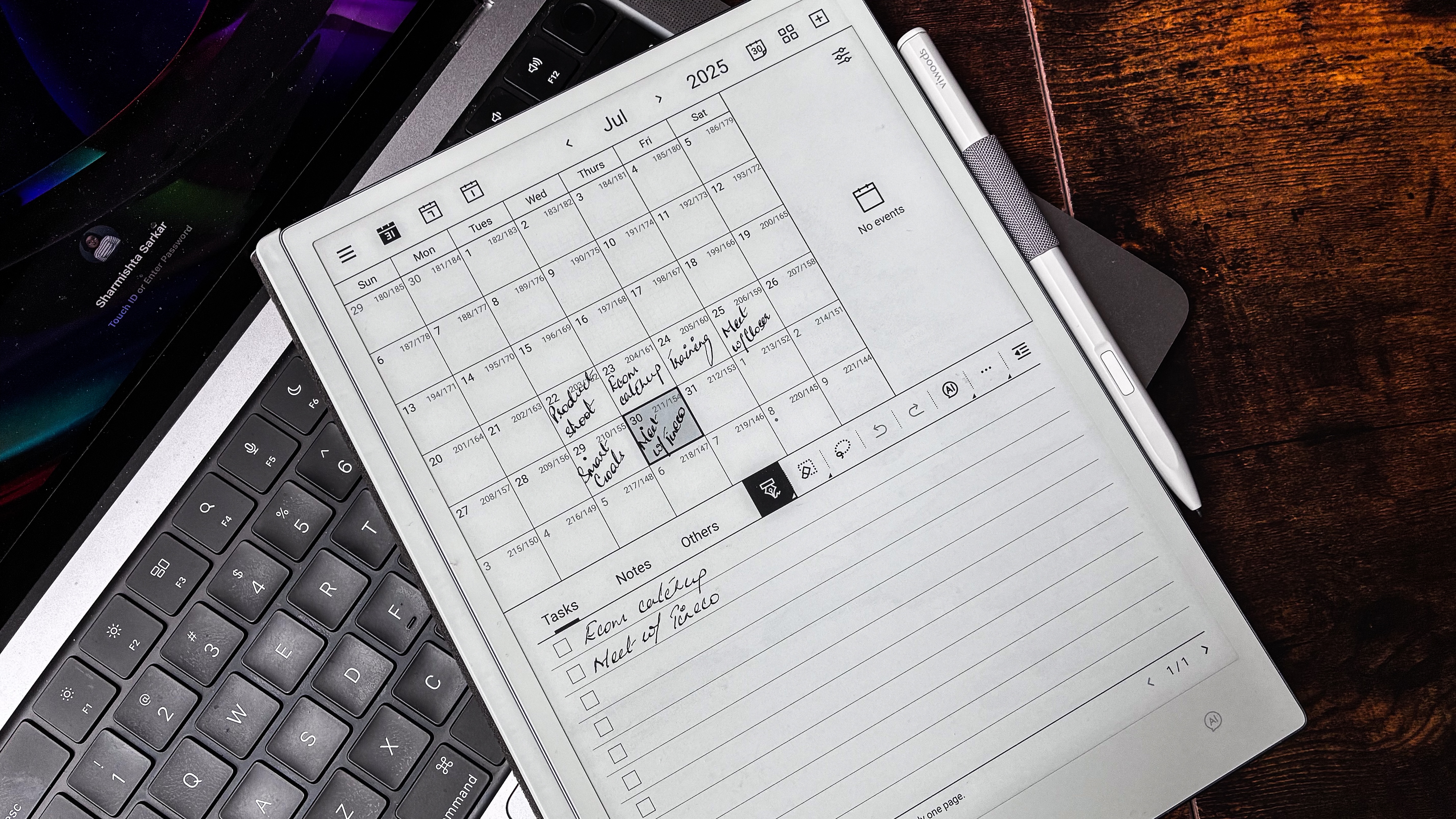
I can't help but extol the virtues of the writing and productivity features of the ViWoods AiPaper. From a dedicated notes application called Paper to another called Meeting for jotting down minutes, even a calendar application that allows you to write within each date box and list task for a specific date – you have plenty to get you started. And they all have voice input available if you’re feeling too lazy to write – even the diary entries!
Don’t want to use the native writing app? OneNote is preinstalled in the app drawer and it works well with the supplied stylus. You can download any other third-party notes application – I tried Evernote and Google Keep, both of which worked fine – and ViWoods says you can annotate any page, no matter which application you use.
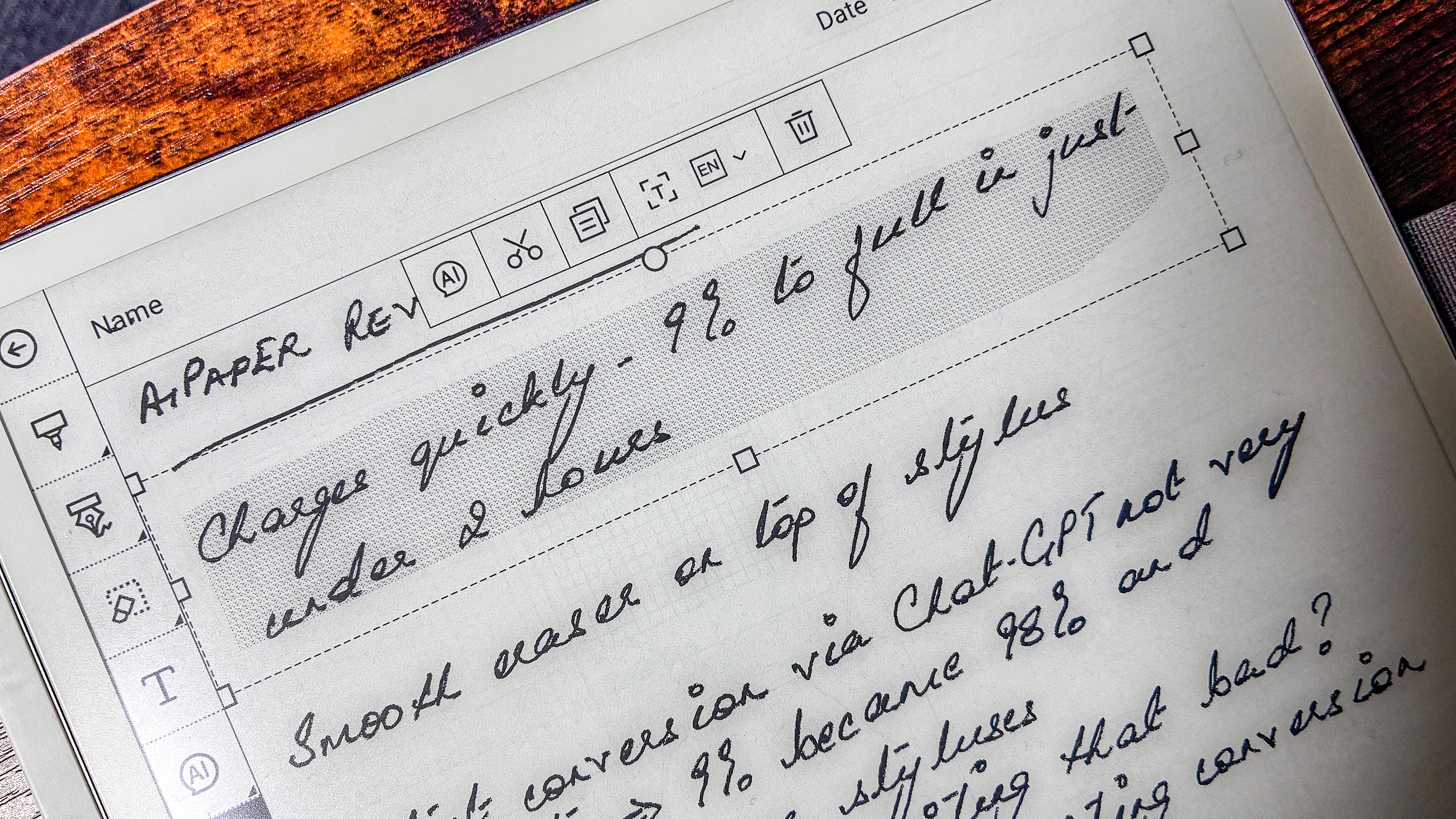
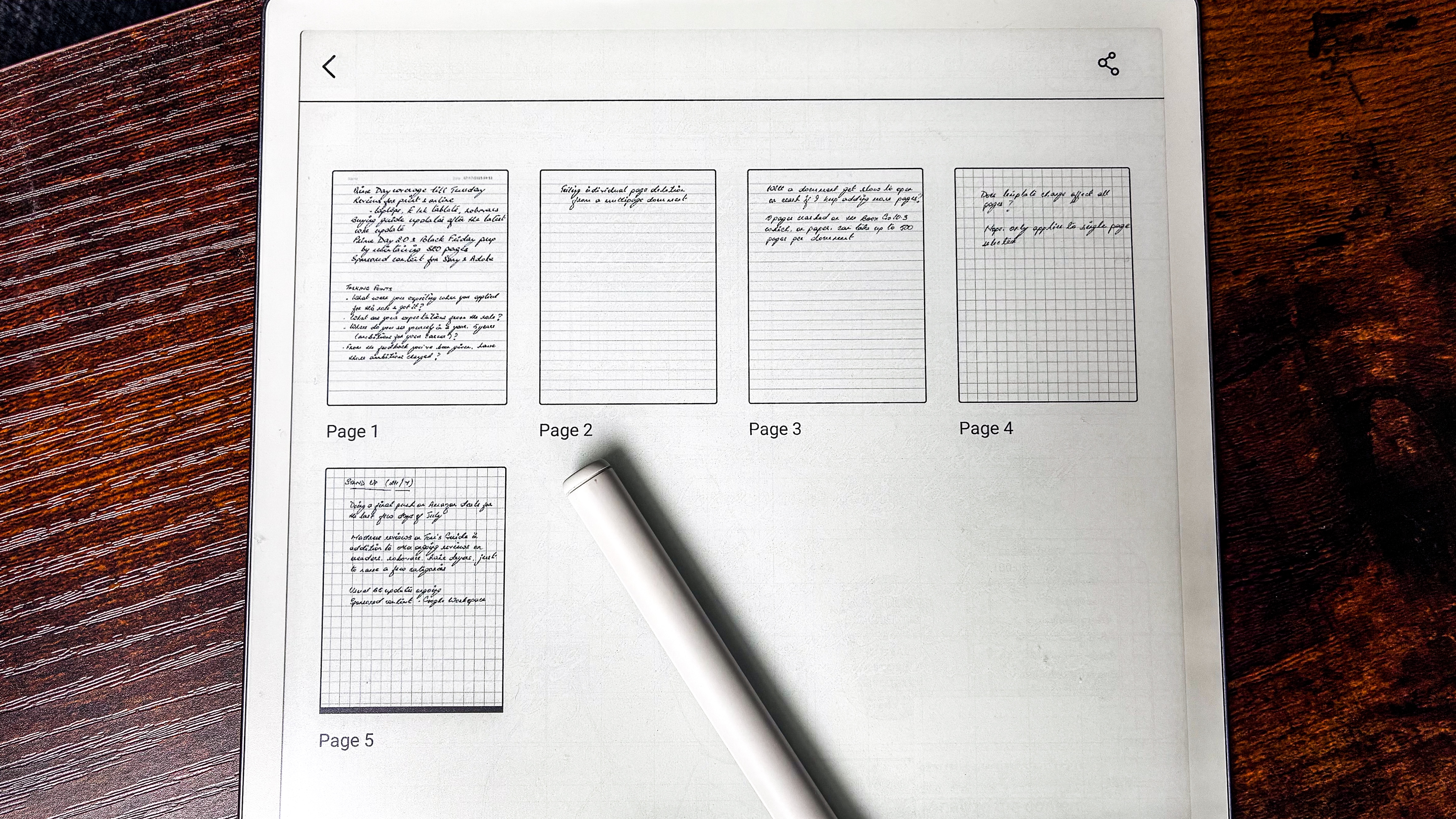
If you haven’t used any other note-taking application before, you’ll find more than enough in the native app. You can add pages and move them around easily enough, you can delete individual pages quickly by opening up a multipage document as a grid, you can change the template of individual pages… the list goes on. You can add layers, create tags, text boxes (or boxouts) and use a lasso tool to select text.
Image 1 of 2
It may not be my best handwriting sample, but I thought it was easy to read; the AI didn't agree(Image credit: Sharmishta Sarkar / TechRadar)
Image 2 of 2
At other times, though, it managed just fine(Image credit: Sharmishta Sarkar / TechRadar)
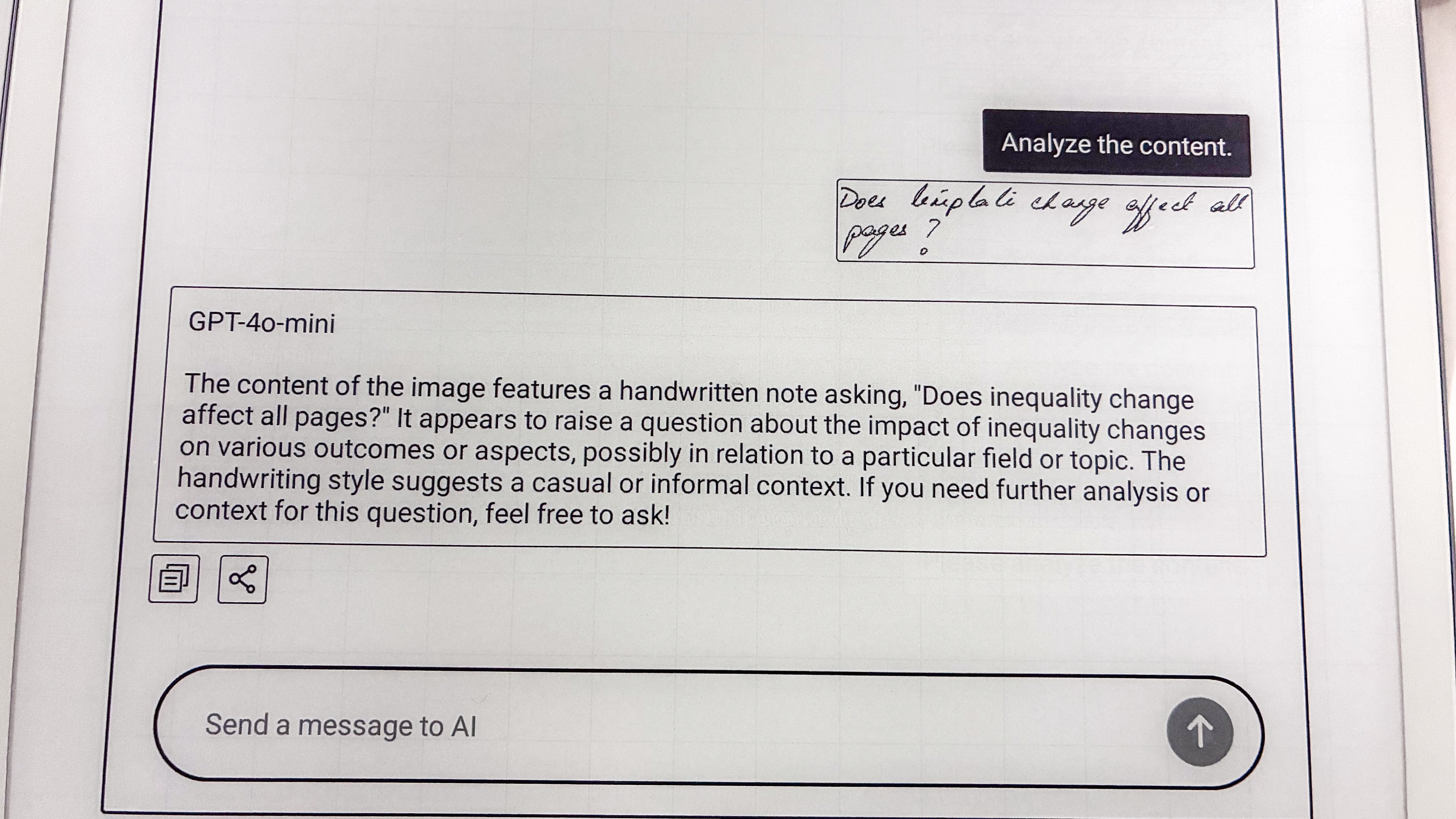
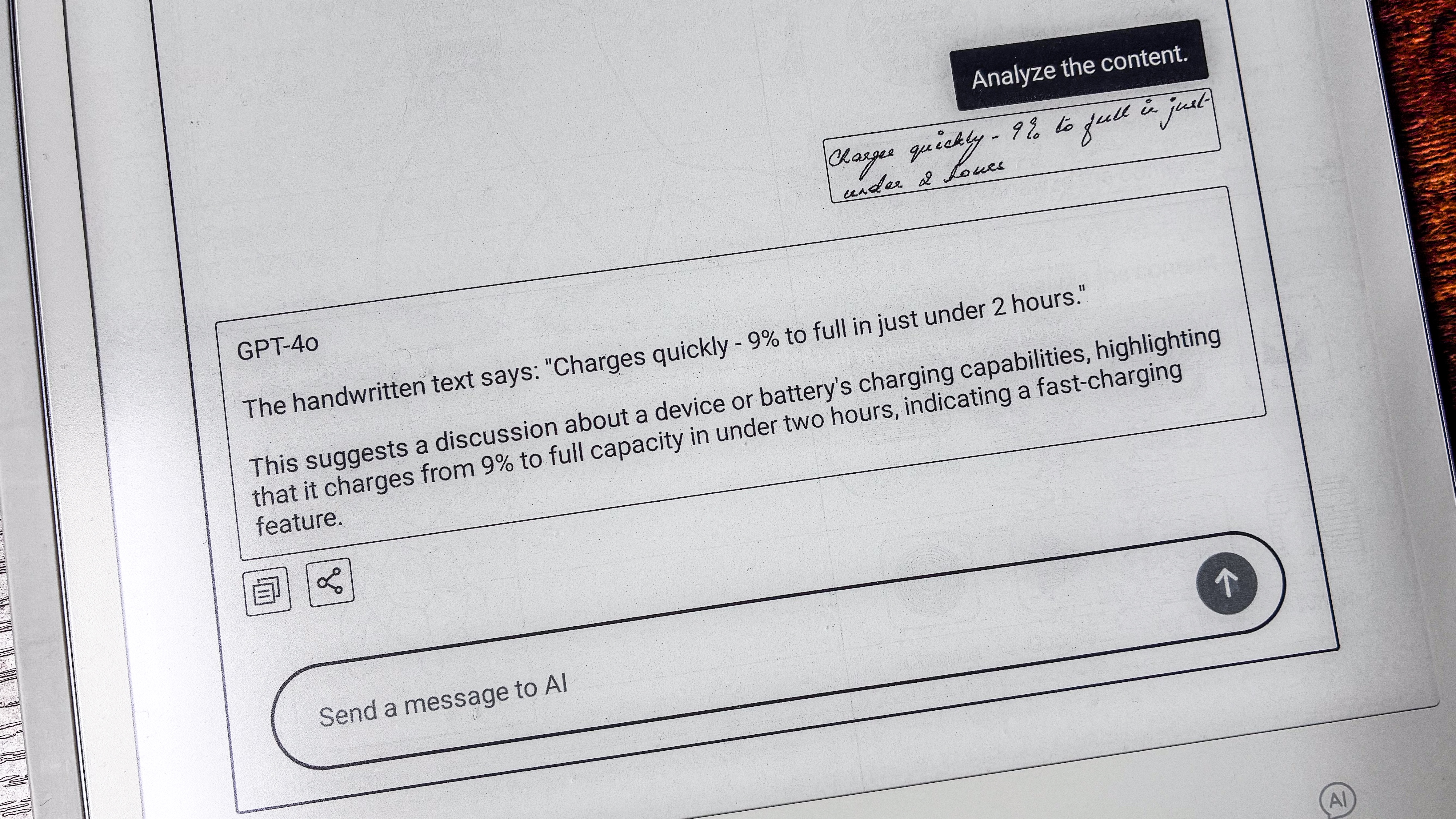
The AI button within the Paper application allows you to analyze text, convert a note into an email or convert handwriting into text. As I’ve already alluded before, AI conversions aren’t the best. For example (see the above image for clarification), I selected a handwritten question jotted down when making notes for this review: “Does template change affect all pages?” I selected it to be analyzed and the response from ChatGPT was: “The content consists of a handwritten note that appears to address the question “does bipolar change affect all pages?” The next time I got the same bit of handwriting ‘analyzed’, it became “inequality change”. C’mon, my handwriting isn’t that bad, surely!
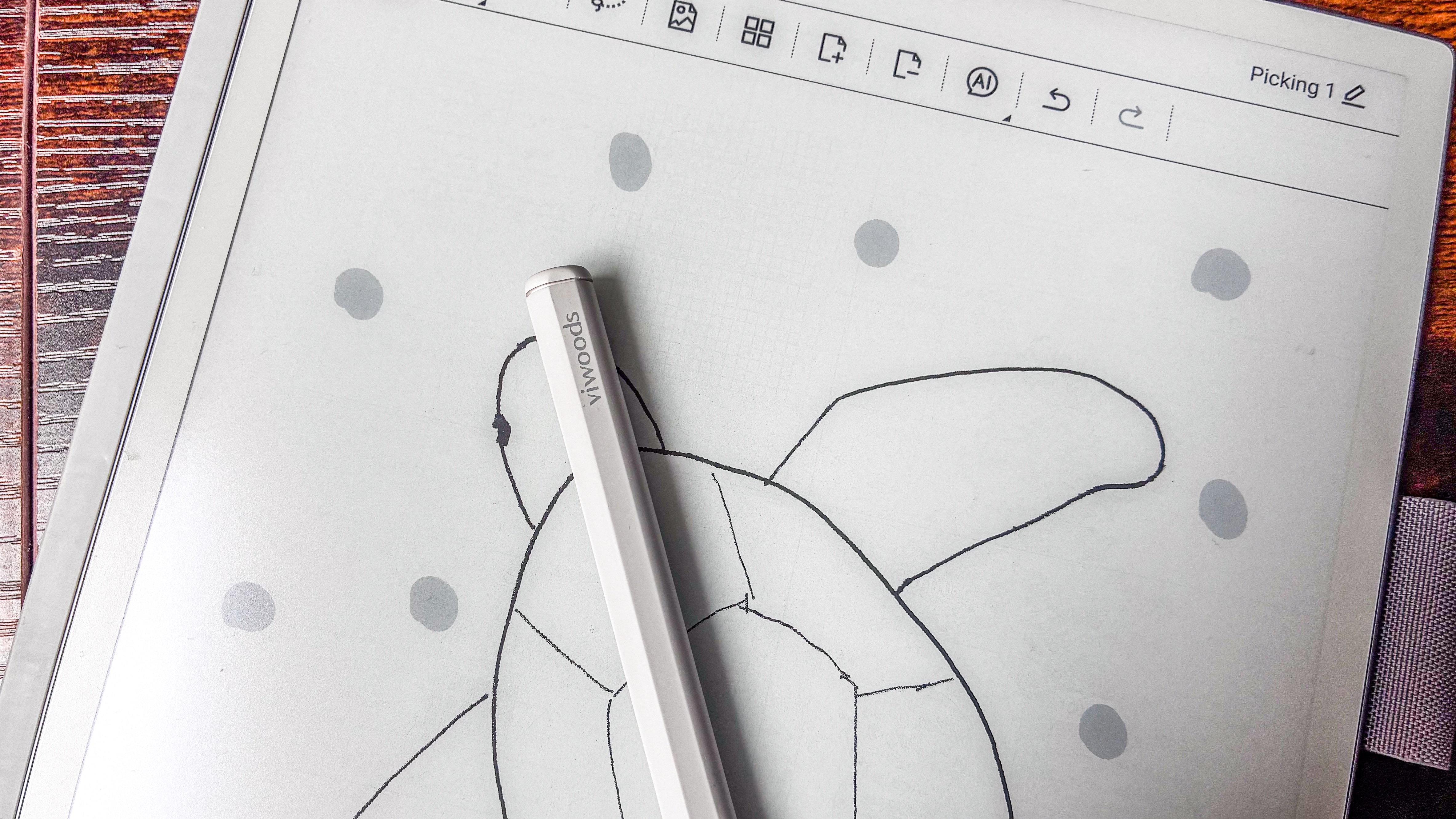
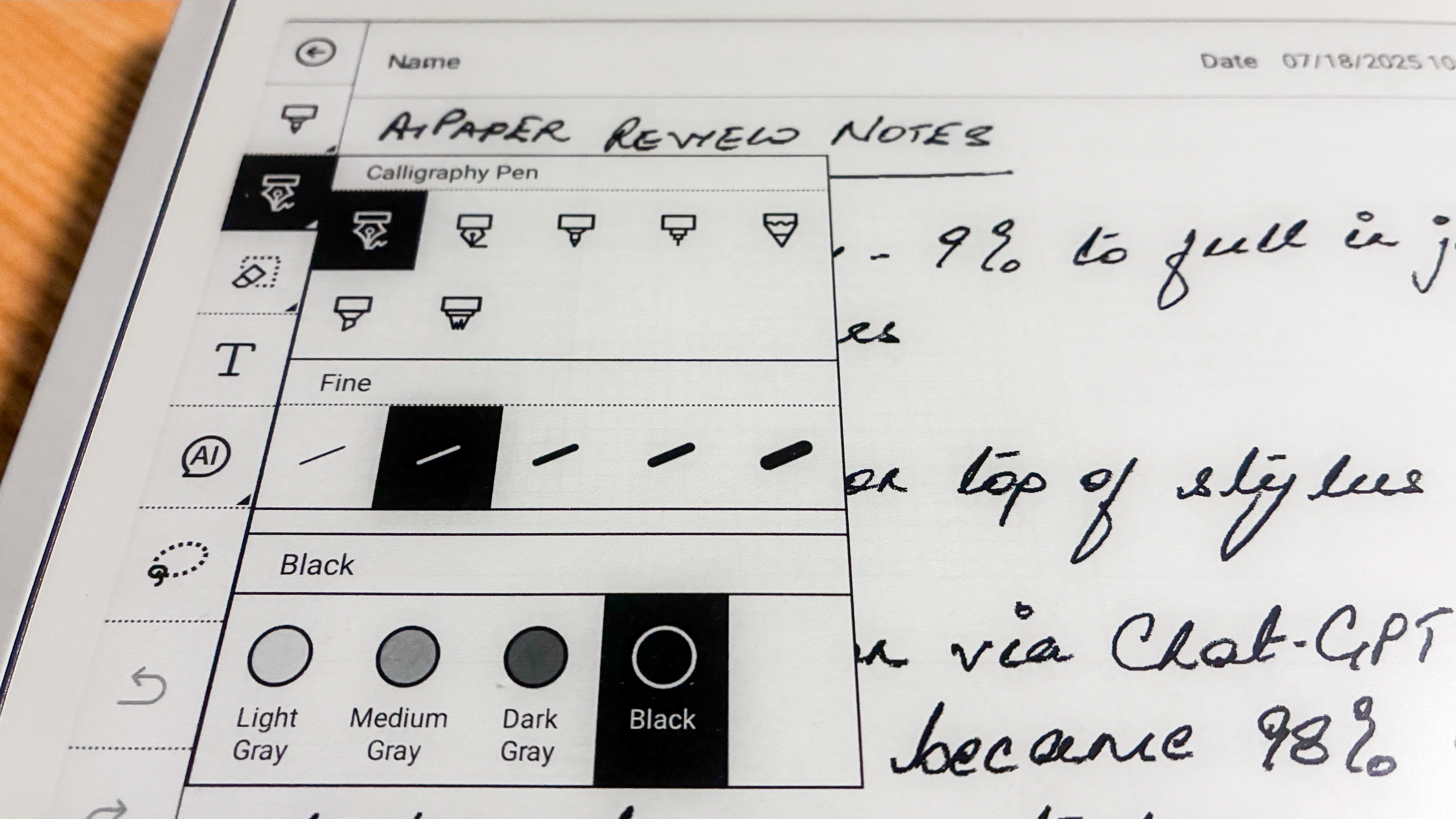
For writing, you have an extensive choice of pens – seven, in fact, with five thickness options and four grayscale colors. Strangely, though, these brush types are missing in the Picking application (used for drawing and sketching) which, instead, only gets three pen types with three thicknesses each. I think it should be the other way around.
Image 1 of 2
I appreciate the several pen and stroke options in the Paper app for writing...(Image credit: Sharmishta Sarkar / TechRadar)
Image 2 of 2
..but I'm surprised the same isn't available for the Picking (or drawing) app(Image credit: Sharmishta Sarkar / TechRadar)
With 4,096 pressure levels and up to 60º tilt sensitivity for the stylus, the same brush types for creativity would have been great for artists who don’t necessarily want a dedicated drawing tablet like the XPPen Artist Pro 14 (Gen 2). Then again, I can't draw to save my life, so perhaps the limited pens in the Picking app would suffice for most users.
So my main complaint is only with the AI-powered handwriting recognition, which intermittently found it hard to decipher my relatively neat notes, but worked fine when it came to a colleague’s bad scribbles. Yes, I'm taking it personally – and no, I won’t deduct any marks for that.
• Writing score: 4.5 / 5
Reading
Library is buried within another app
Wired and Wi-Fi file transfer didn't work with macOS as represented by ViWoods
Support for limited file formats, but more than enough for casual reading
With no built-in bookstore, you need to either use the browser (Chrome) to source content or import via wired or cloud transfer. I used the latter method to sideload a few titles I already own as, previously stated, my MacBook was unable to register the AiPaper and I found that OTG support (which is available on Android 13) has not been implemented on this tablet.
It was during this process when things got a little murky for me.
Image 1 of 2
Where to build the library was a little confusing on the AiPaper...(Image credit: Sharmishta Sarkar / TechRadar)
Image 2 of 2
..and, as a macOS user, I found cloud transfer to be the best way to sync files(Image credit: Sharmishta Sarkar / TechRadar)
When selecting to import (in my case from Google Drive), the AiPaper gives you two locations to save the ebooks – My Notes and My Files. The latter has a folder already called ‘e_books’, which is where I assumed I needed to build my library. Sure, that can be done, and this source uses the Bookshelf application to open EPUBs. However, the app doesn’t like sideloaded files (which I appreciate is a step to prevent piracy) and I couldn’t go beyond the book cover. It also needs an account to work.
I then saved the same titles to My Notes and that, dear reader, seemed to be where the default library is – tucked within the native Learning application. It supports a fair few common file formats, including EPUB, MOBI, CBZ and CBR, but I also found there's support for Kindle's AZW and AZW3.
The My Notes section is also where you can upload editable PDFs in case you need to fill a form or sign one.
Text is sharp on the screen, although I would have preferred more contrast to make the words on page darker but, again, it's not a deal breaker as you can add a little weight (thickness) to the text to make them appear darker.
There's a distinct lack of contrast for text on the AiPaper (right) compared to the exact same page on the Kindle Scribe (left)(Image credit: Sharmishta Sarkar / TechRadar)
You can either choose to swipe on the screen to turn a page or tap and I would recommend the latter – if you have a swipe gesture set up already for 'going back', that is the function that will constantly get triggered rather than turning to the next page. The top toolbar that appears when you first open a title can be made to disappear to leave a very clean page that you can annotate to your heart’s content.
I also found that the slightly larger screen made reading a much nicer experience than on the other 10.3-inch epaper tablets. The page layouts looked neater and, I suppose, the additional lines on a page do make a difference. That said, with no frontlight, it's clear that doubling as an ereader is not its priority.
• Reading score: 4 / 5
There's no speaker on the AiPaper, but Bluetooth connectivity will allow you to enjoy streaming music(Image credit: Sharmishta Sarkar / TechRadar)
ViWoods AiPaper review: Performance
Excellent overall performance on a very responsive screen
Mild ghosting across all applications
Good battery life but can consume more power during certain tasks
As I’ve already mentioned earlier in this review, the AiPaper uses a processor that’s quite powerful for a device like an epaper tablet. While the MediaTek MT8183 can make Chromebooks purr along smoothly at higher wattages with specific implementations, my benchmarking told me that ViWoods hasn't taken full advantage of what this CPU can achieve. Compared to the Qualcomm Snapdragon 680 SoC used in the Boox Go 10.3, the benchmark numbers are rather dismal for the AiPaper even though the expectation was that they'd be evenly matched.
For context, Geekbench 6 recorded a single-core score of 403 for the Boox and 299 for the AiPaper, while multi-core scores were 1261 and 1114 respectively. But forget the numbers: the implementation of Android and the amount of RAM available is, ultimately, what will determine how well an epaper tablet will perform in real-world use.
Image 1 of 3
There are a few very useful AI-powered features in the Paper app(Image credit: Sharmishta Sarkar / TechRadar)
Image 2 of 3
Reorganizing pages within a notebook is extremely easy(Image credit: Sharmishta Sarkar / TechRadar)
Image 3 of 3
Arguably one of the best native notes applications I've tried(Image credit: Sharmishta Sarkar / TechRadar)
And that's exactly what's in evidence here. Despite ViWoods not harnessing the full power of the CPU, it's the better performer compared to the Boox as the execution of the OS here and the 4GB of RAM (same as in the Go 10.3) combine to make things run very smoothly indeed. Moreover, the MT8183 CPU also has slightly better RAM speed, so the overall system performance is better here.
Whether it was opening apps, writing or using the on-screen keyboard, I found the AiPaper just that tiny bit quicker than the Boox. I initially didn't even notice the ghosting on the screen until I looked at the photos of tablet I had taken for this review; on the Boox, though, it can be quite evident.
There are three refresh rates available on the AiPaper and I found the default Best to be, well, the best. Fast and Ultra-Fast resulted in more ghosting in some applications, and didn't make a huge amount of difference while scrolling in apps like Chrome. Expect the occasional stutter when scrolling, though, which is more due to the limitations of the E Ink screen tech rather than a fault of the device.
Image 1 of 2
The instructions for getting Play Protect Certification isn't accurate on the tablet, but ViWoods has a better guide on its website(Image credit: Sharmishta Sarkar / TechRadar)
Image 2 of 2
Despite security risks involved with AI use, it can be a very handy productivity tool(Image credit: Sharmishta Sarkar / TechRadar)
Not a single application has crashed since I began using this tablet (three weeks to the time of publication) – in comparison, I ran into a problem with the Boox Go 10.3 when testing its native notes app. According to Onyx Boox, the Go 10.3 can take up to 500 pages per document, but it crashed after 10. The biggest handwritten document I had on the AiPaper was 15 pages and it showed no signs of slowing down. There were no hiccups with turning pages or bringing up the AI analyze/handwriting recognition on nearly every page of that document.
Battery life is decent but not as good as the Boox (the Snapdragon 680 is known for more efficient battery use) or the Kindle Scribe, and that's despite the AiPaper using a larger capacity pack. The 4,100mAh battery which will offer no more than two weeks of use if you spend an hour with it each day. On standby, you could get up to four weeks on a single charge.
This is because there are some tasks that drain more battery than others, like downloading apps from the Play Store or importing documents via cloud transfer, but you should still get a few days out of each top up even if you use it extensively.
Charging up is also quite quick – it went from 9% to full in just under two hours during my testing, and that was when plugged into a dock and not a wall charger.
• Performance score: 4.5 / 5
Even the case is so thin, it barely makes a dent in the overall weight of the device(Image credit: Sharmishta Sarkar / TechRadar)
Should I buy the ViWoods AiPaper?
Attribute
Notes
Score
Value
It might be the best epaper writing tablet I’ve tested, but it’s eye-wateringly expensive at full price.
3.5 / 5
Design & display
It’s both very thin and very lightweight, even with a case. And even though it uses a 10.65-inch display, its overall footprint isn't too much more. And the screen is lovely to use as well, although it lacks contrast.
5 / 5
Software & apps
An open Android ecosystem and an easy-to-use interface makes this a winner in my books, but it has a few minor issues.
4 / 5
Writing & productivity
The limited pen types for drawing could be a deal breaker for artists, but if productivity is priority over creativity, then the AiPaper will serve you well.
4.5 / 5
Reading
While the lack of a frontlight might be an issue for some, the AiPaper is a passable ereader.
4 / 5
Performance
No other epaper writing tablet I’ve tested has been as fast as the AiPaper – overall performance is fantastic. Battery life, however, is limited compared to other brands.
4.5 / 5
Buy it if...
You want top-notch performance from an epaper tablet
It's hard to fault the performance of the AiPaper. It's responsive, fast and, despite a little bit of ghosting, its default refresh rate is capable of handling most apps. ViWoods arguably has the best epaper tablet on the market in the AiPaper.
You want an open ecosystem, with the freedom to use any app you want
Running Android 13 means you get full access to the Play Store, so you can do a lot on this tablet. And interestingly, this is the first epaper tablet I’ve tested that has a native email app that allows you to handwrite your replies if you so choose.
You want the thinnest and lightest epaper tablet
I thought the Boox Go 10.3 was thin and light, but I hadn’t met the AiPaper then. Taking away the accolade of being the thinnest and lightest epaper tablet I've tested, even the AiPaper's case doesn't add much weight to the full package.
Don't buy it if...
You don’t want to spend too much money on an epaper tablet
Most 10-inch E Ink note-taking tablets are expensive, but the AiPaper has an eye-watering price tag. Even discounted, it costs more than its many competitors, but if money is no object, I can’t recommend it highly enough.
You need a lot of storage space
Honestly, 128GB of built-in storage is plenty for a device like the AiPaper, but if that’s not going to cut it for you, you’ll need to look for an alternative with expandable storage. There’s no microSD card tray here.
You read more than you write
If you’re not going to take full advantage of the AiPaper’s many productivity features, you’ll save a lot of money by opting for either a smaller epaper tablet like the Kobo Libra Colour or a relatively cheaper 10-inch option like the Kindle Scribe. Moreover, avid readers would prefer a frontlight, which the AiPaper misses out on.
ViWoods AiPaper review: Alternatives
As great as I think the ViWoods AiPaper is, it may not suit everyone. If you're keen to check out alternatives, I've listed three options below that offer something different from each other. They also come in at slightly different price points, so take a look at their specs comparison below listed alongside the AiPaper itself, and read on for a quick look at each.
ViWoods AiPaper
Onyx Boox Go 10.3
reMarkable 2
Amazon Kindle Scribe (2024)
Price
$799 / £610 / AU$1,199
$409.99 / €419.99 (about £355) / AU$699
From $399 / £389 / AU$669
From $399.99 / £379.99 / AU$649
Screen
10.65-inch E Ink Carta 1300
10.3-inch E Ink Carta 1200
10.3-inch Canvas 2
10.2-inch undisclosed E Ink Carta display (possibly 1200)
Resolution
300ppi
300ppi
226ppi
300ppi
Operating system
Android 13
Android 12
Linux-based
Linux-based
Storage
128GB
64GB
8GB
16GB / 32GB / 64GB
CPU
2GHz octa-core MediaTek MT8183
2GHz octa-core Qualcomm Snapdragon 680
1.2GHz dual-core ARM
Undisclosed
Battery
4,100mAh
3,700mAh
3,000mAh
Undisclosed
Waterproofing
None
None
None
None
File support
7
26
2
16
Speakers
None
Dual
None
None
Dimensions
247 x 178 x 4.5 mm
235 x 183 x 4.6 mm
246 x 188 x 4.7 mm
230 x 196 x 5.7 mm
Weight
370g
375g
403.5g
433g
Onyx Boox Go 10.3
Missing out on the thinnest epaper tablet accolade by a millimeter, the Boox Go 10.3 is a cheaper alternative that runs Android 12. If you aren’t too fussed about security updates, this might suit you better. Compared to the AiPaper, though, the user interface is a little over the top, but it’s a lot more streamlined than older Boox tablets. Read my fullOnyx Boox Go 10.3 reviewfor more information
reMarkable 2
Now a little long in the tooth, but if it’s writing and creativity that takes priority for you, the reMarkable 2 is a great option. You will, however, need a subscription to access your files and there’s no Play Store access either, but the minimalist user interface is distraction-free. Read my in-depthreMarkable 2 reviewto learn more
Amazon Kindle Scribe (2024)
If you prefer an epaper writing tablet that can double up as your ereader, then the newest model of the Kindle Scribe would be my recommendation. Its auto-brightness adjusting screen is downright fantastic to read on and writing on it is just as lovely. You will be enclosed in Amazon’s walled garden though, but if you already use the company’s services, then it’s a no-brainer. Read our fullAmazon Kindle Scribe (2024) reviewfor more details
How I tested the ViWoods AiPaper
Used for three weeks as main writing tablet
Uploaded a few EPUBs via cloud transfer to test reading
Downloaded a few Android apps, including benchmarking ones
It's not a deal breaker but I wish the AiPaper would register on my MacBook(Image credit: Sharmishta Sarkar / TechRadar)
I’ve tested quite a few epaper writing tablets in the last few years, so I’ve got a system in place when I receive a new model for review. Immediately after connecting to Wi-Fi, I go through the settings to see what I need to change to have taps and gestures set up just right for me, I also go through refresh-rate options and get rid of any nav ball that’s preinstalled (I find them very distracting on the page).
That done, it’s time to open up the native apps and see what’s on offer. In the AiPaper’s case, I started with the Paper application to start scribbling some random thoughts, then went sequentially through the pre-installed options, like calendar and drawing.
I found the Learning application a little confusing, but its purpose became clear when I tried to add a few EPUBs for testing its reading prowess.
I can’t draw to save my life, but I did try the Picking application as well, just to see what it was like. I also checked what kind of pen types (and nib thicknesses) were available for creativity.
I was chuffed to see the Kindle and Kobo apps were already preinstalled, but I downloaded a few other applications from the Play Store to test speed and performance. This included Geekbench 6 that I used to benchmark the CPU (just to sate my curiosity).
I plugged an external SSD into the USB-C port to see if there was OTG support and I also tried connecting the tablet to both a MacBook and a Windows laptop. I tested the AI app, personally preferring ChatGPT to DeepSeek, and tested the other AI-powered features in the Paper app.
Having reviewed epaper tablets from several brands, I have the experience to compare the ViWoods AiPaper to several other models in the market to score it fairly.