Friday, January 23, 2026

The more I tested the GMKtec NucBox M7 Ultra, the less it looked like it justified its 'Ultra' moniker

GMKtec NucBox M7 Ultra: 30-second review

Having just reviewed the GMKtec M5 Ultra, that prior investigation puts an interesting twist on the M7 Ultra now before me.

Because the M5 was built on a platform that wasn’t widely utilised, and the M7 Ultra turned out to be built on a platform from 2022 that nobody used at all.

However, don’t be put off by the older hardware, because this Ryzen 6000 series processor with Zen3+ architecture is well-suited for a mini PC. It has DDR5 support, USB4 and plenty of PCIe lanes, enabling the M7 Ultra to deliver a well-rounded and confident performance level that’s above any of the Ryzen systems that use DDR4 and the Vega 8 GPU.

It’s also got plenty of potential for upgrades, either internally with the SODIMM and M.2 slots, or externally via USB4. And it must also be one of the cheapest systems to come with Oculink, enabling the external connection of discrete graphics cards via its 64Gb/s interconnect.

Compared to a cutting-edge system, it only has eight cores (sixteen threads), the DDR5 is only 4800 MT/s, and while it is a PCIe 4.0 system, it only supports PCIe 3.0 on the M.2 slots.

Those caveats make me think that the M7 Ultra is suitable for someone who needs a little big more power, but not the performance of a Ryzen 9 or Ryzen AI machine.

For that person who does more than just basic office tasks, this might be ideal, and if they suddenly need more graphics performance, it can be added via Oculink.

Where this system is flawed is that it's slower than the M7 and M7 Pro that came before it. Given the silicon's age, this isn’t going to feature in our round-up of the best mini PC systems, but with a reasonably effective platform and plenty of ports, it's not junk either.

GMKtec NucBox M7 Ultra: Price and availability

  • How much does it cost? From $310/£260/€300
  • When is it out? Available now
  • Where can you get it? Direct from GMKtec and via online retailers

Much like the M5 Ultra, the M7 Ultra is offered in three basic SKUs that go from the baseline barebones system with no memory or storage, to an intermediate 16GB+512GB option that’s reviewed here, to the top spec with 32GB of RAM and 1TB of storage.

In the USA, these machines are priced at $309.99, $439.99, and $529.99, respectively.

GMKtec doesn’t have a specific UK outlet, but from the European site (e.g., de.gmktec.com), these systems are £260, £347 and £408, which, if you have DDR5 and an M.2 module, looks like a great deal. Euro prices are €299.99, €399.99 and €469.99. And all the M7 Ultras bought in Europe come with a free 8-in-1 USB docking hub reputedly worth €29.99.

I'm also seeing it available on both Amazon.com and Amazon.co.uk with similar pricing.

For those curious, based on the current exchange rates when writing this, the 32GB+1TB model is almost the same price no matter where you buy it, but the barebones model is 12% more expensive.

Another obvious question is how these prices compare with the M5 Ultra? In short, the M7 Ultra is about $50 more than the M5 Ultra for the barebones, and about $40 more for the 32GB+1TB option. When you consider that the M7 Ultra comes with USB4, uses DDR5 and is significantly faster, then the price difference is modest.

What I’d advise against is sourcing this via Amazon, as their systems only come with 512GB of storage, and the asking price is $489.99.

In this part of the review, I’d normally list the other mini PCs that use the same platform and how some are more expensive, and others are cheaper, but not today.

Unless I missed one, no other mini PC maker is using this platform, and I couldn’t find any retail computer, of any variety, that uses it. There are several mini PCs with AMD Ryzen 7 6800H, 6850H, and other “H” series chips, but these are not the same as the PRO 6850U.

Why is this the case? I’ve no information to share. It might be that AMD has TMSC make bins of many Ryzen 6000 mobile chips with no clear market, and now they’re having a clear out of those that didn’t sell.

Whatever the reason, this is a mid-2022 platform built on a fab AMD no longer relies on, and it might be that the GMKtec M7 Ultra is the one and only machine the AMD Ryzen 7 PRO 6850U gets to see the light of day.

Which might go some way to explain how competitively priced this system is.

  • Value: 4 / 5

GMKtec NucBox M7 Ultra

(Image credit: Mark Pickavance)

GMKtec NucBox M7 Ultra: Specs

Item

Spec

CPU:

AMD Ryzen 7 PRO 6850U( 8C/16T, up to 4.7GHz)

GPU:

AMD Radeon 680M, up to 2.2 GHz

NPU:

N/A

RAM:

16GB DDR5-4800 (8GB x 2) expandable to 64GB

Storage:

512GB M.2 2280 PCIe Gen 3

Expansion:

1x M.2 2280 PCIe Gen 3

Ports:

2x USB4, 2x USB 3.2 Gen 2 Type-A, 2x USB 2.0, 1x HDMI 2.0, 1x DisplayPort 1.4, 1x 3.5mm Audio, 1x Oculink

Networking:

2x 2,5GbE Realtek RTL8125, WiFi 6E, Bluetooth 5.2

OS:

Windows 11 Pro (pre-installed)

Base Power:

15W-28W

PSU:

19V 6.32A 120.08W

Dimensions:

132 x 125 x 58 mm

GMKtec NucBox M7 Ultra: Design

  • Decent build quality
  • Easy internal access
  • VESA mountable

There are two important things about GMKtec systems I like, and those are the build quality and the ease of internal access. And, the M7 Ultra doesn’t confront either of those expectations.

While the top and underside of this NUC are plastic, the part that is likely to take the greatest amount of abuse, the sides, is metal on all faces.

It’s a cool gunmetal grey, and the plastic top is painted to match.

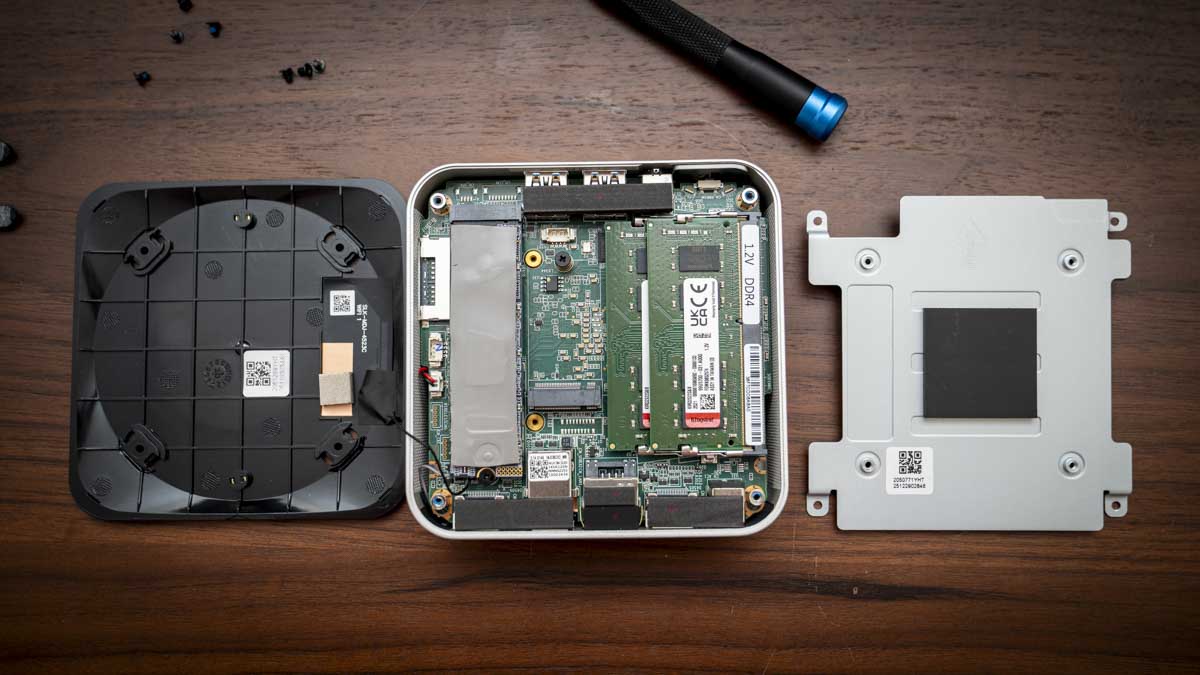
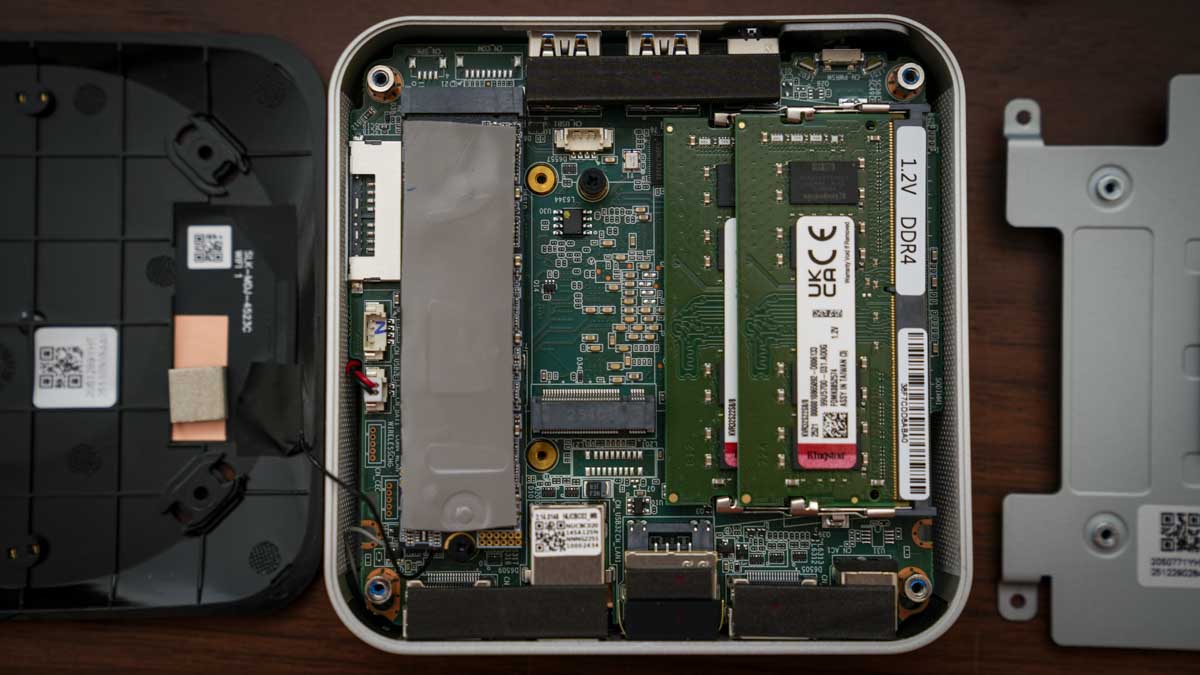
Access is remarkably straightforward, with the top rotating to come away, and with that removed, there are four large screws visible that most people should have a suitable screwdriver for.

I like that these are large, easily visible screws, not the tiny ones that ping under my desk before activating their inbuilt cloaking devices. These are only discoverable either with socked feet or the use of a stupidly powerful electromagnet.

Even I couldn’t misplace these screws was my first thought on seeing them.

With those removed, the DDR5-4800 modules and M.2 slots are unobscured, and upgrading either of them merely requires the replacement parts and a couple of spare minutes.

The memory modules were branded as GMKtec, but the chips had OEM Micro branding. Therefore, based on the repositioning of that source for memory, we won’t be seeing this in future GMKtec products.

Thankfully, you can swap the RAM with any DDR5-4800 SODIMMs of any brand, as long as they’re the same type and size.

GMKtec NucBox M7 Ultra

(Image credit: Mark Pickavance)

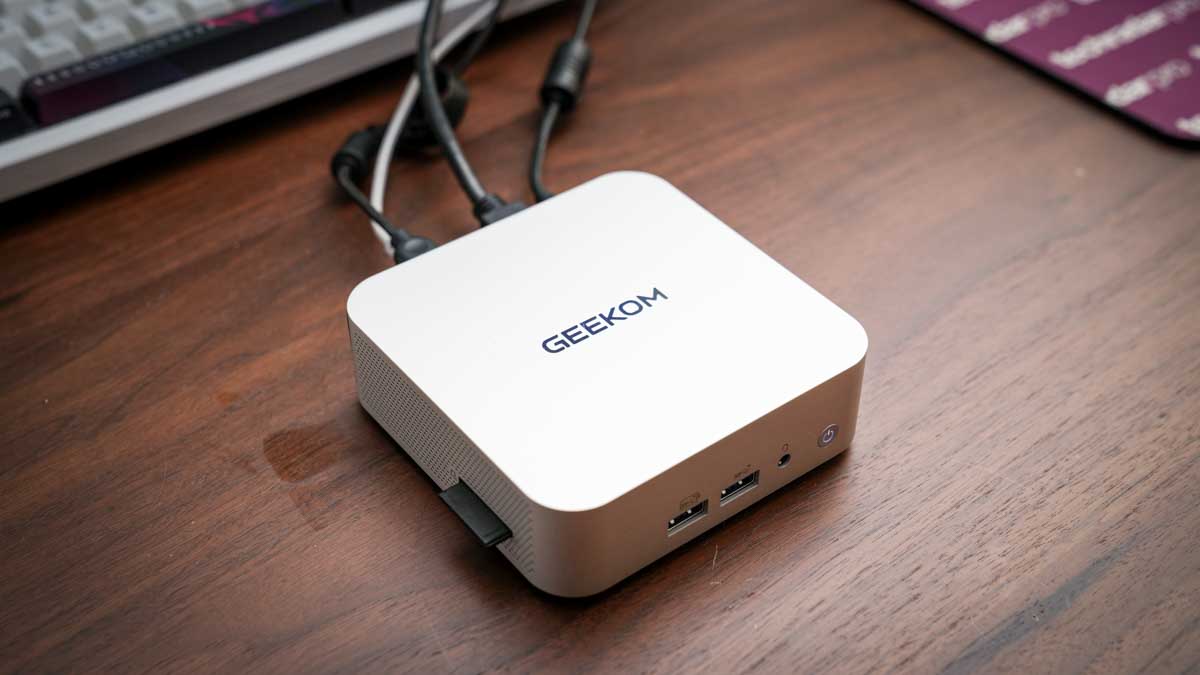
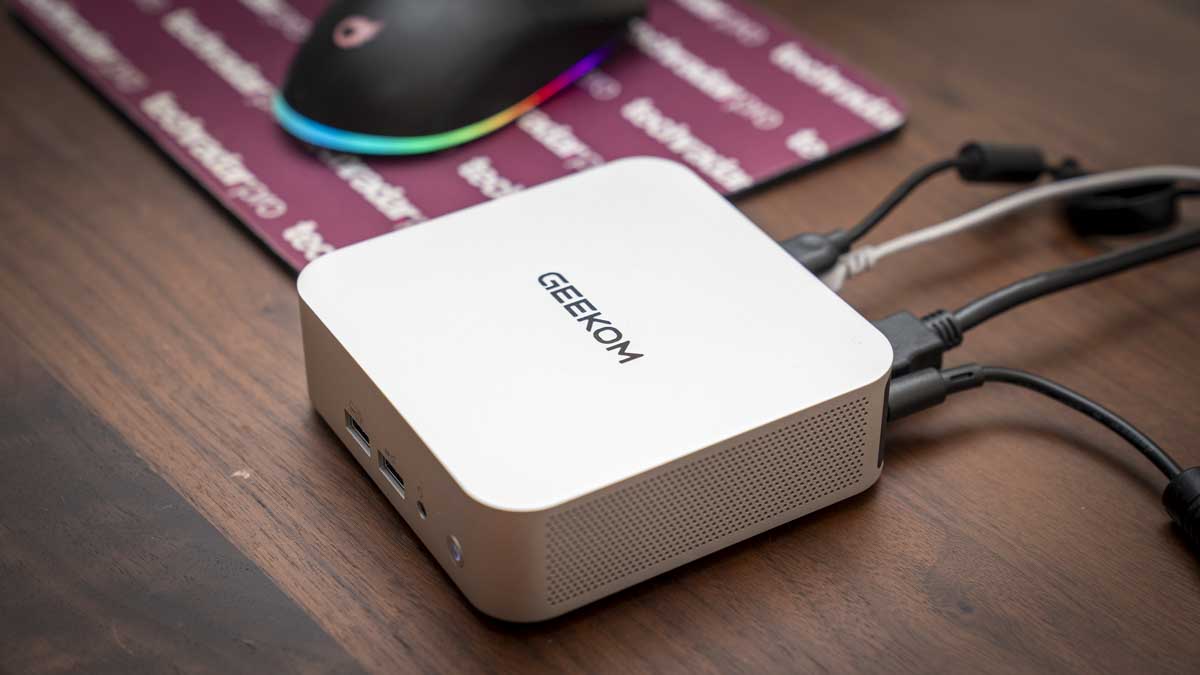
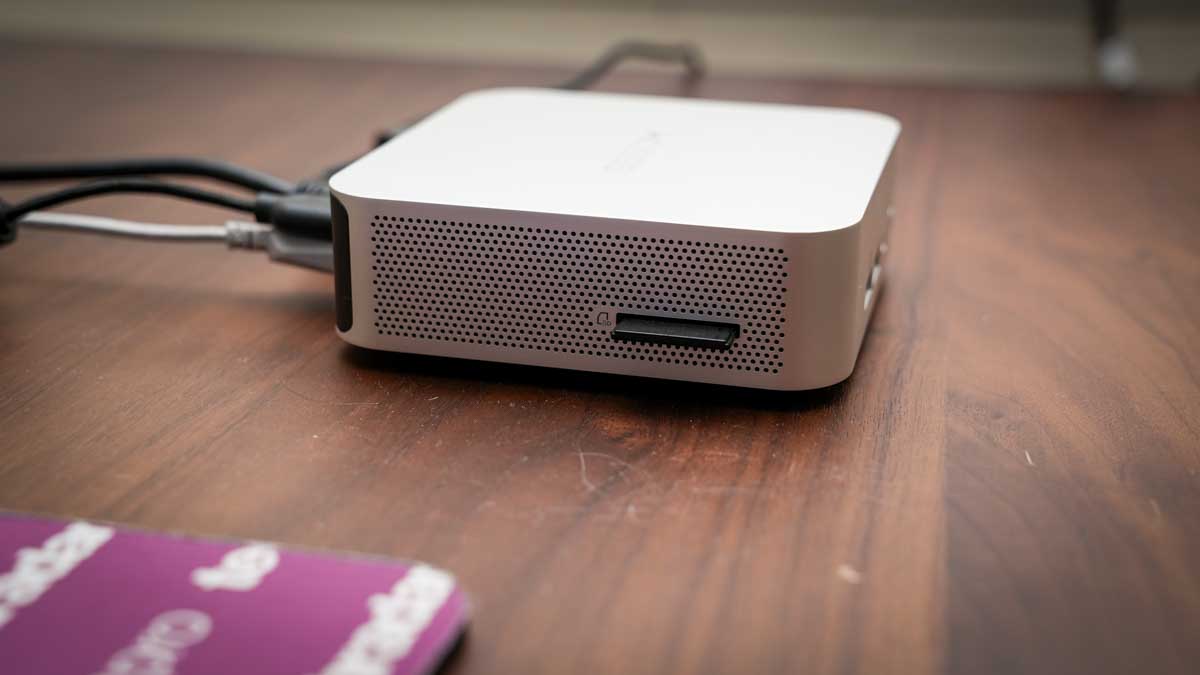
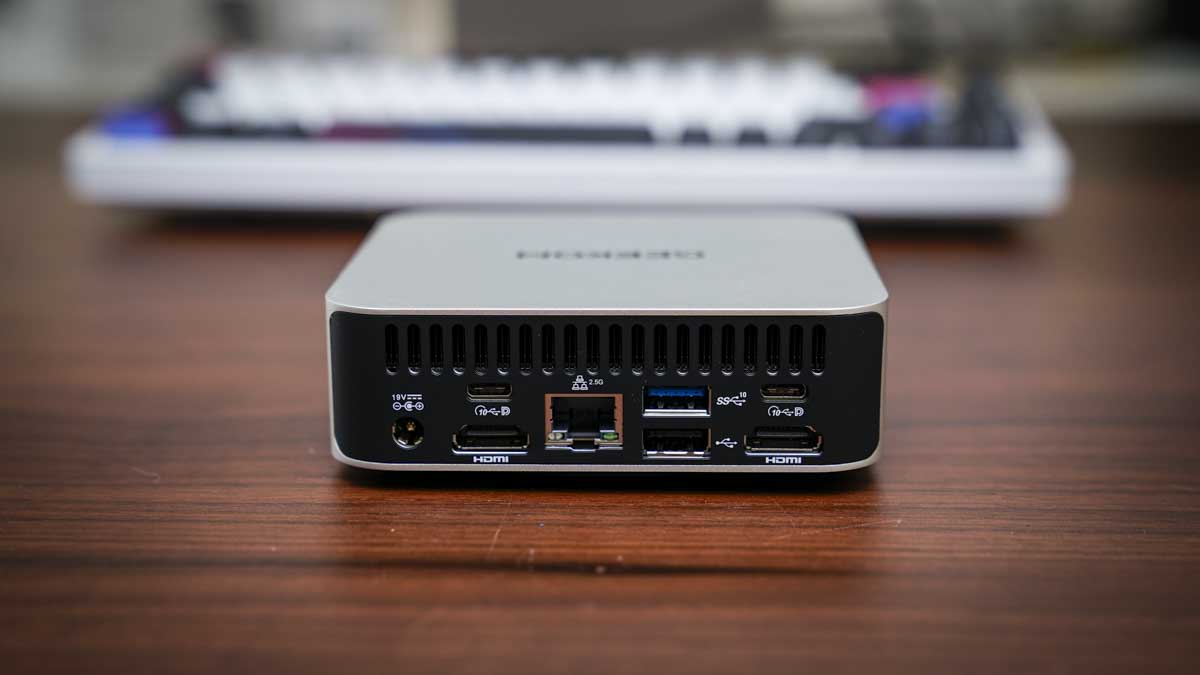
On the outside, the M7 Ultra doesn’t go off the beaten path with all the ports on the front or back, and those on the front are well placed for the attachment of storage. Both USB 3.2 Gen 2 Type-A ports are on the front, along with the USB4 port, the 3.5mm audio jack and the Oculink port. Oh, and the power button.

Maybe the Oculink port might have been better on the back, but there isn’t much room with dual 2.5GbE LAN sockets, dual USB 2.0, another USB4 port and both HDMI and DisplayPort.

One feature which is slightly controversial on the M7 Ultra is that hot air is ejected under the external ports, not above them. While there is the possibility that it might impact the connected cables, I can’t see this air getting heated enough to melt the insulation on these.

As GMKtec do with most of its systems, included with the M7 Ultra, is a plate that can be used to VESA mount the system to the back of a monitor. As the scale of this system might make it tempting for someone to pick it up and take it home, connecting it to the monitor is probably a good idea. For those seriously concerned about theft, it also has a security slot on the rear.

As with the M5 Ultra, the engineering, accessibility and port deployment are good, and there doesn’t appear to be any significant design issues with this design.

  • Design: 4 / 5

GMKtec NucBox M7 Ultra

(Image credit: Mark Pickavance)

GMKtec NucBox M7 Ultra: Hardware

  • AMD Ryzen 7 PRO 6850U
  • DDR5 Memory
  • Gen 3 PCIe M.2 Slots

The AMD Ryzen 7 PRO 6850U is a mobile processor featuring eight cores, launched in April 2022 as an offshoot of the Ryzen 6000 series. And, the closest silicon from the core series is the Ryzen 7 6800H, a Zen 3+ (Rembrandt) architecture chip made for Socket FP7.

AMD’s Simultaneous Multithreading (SMT) doubles the effective thread count to sixteen, giving it some potential for multi-threaded software.

Operating at a base frequency of 2.7GHz, boosting up to 4.7GHz when required, this silicon was part of the swansong of the 6nm process at TSMC before AMD moved to the 4nm fabrication in the 7040 series.

The thermal design power (TDP) is just 15W, but that can be bumped to 28W, making it highly energy-efficient. It supports DDR5 memory in a dual-channel configuration, with a maximum official speed of 4800 MT/s. It also supports 6400 MT/s for surface-mounted LPDDR5, but GMKtec hasn’t chosen to use that.

And, as I’ve alluded to already, this is the only PC I’ve found that uses this specific processor, so it now seems unlikely that a machine using the greater bandwidth memory is ever likely to appear.

Since Zen3+, AMD has evolved the Zen4 and Zen5 architectures, with more powerful GPUs, 8000MHz DDR5 options and larger core and thread capabilities.

In this context, the AMD Ryzen 7 PRO 6850U provides a solid underpinning to the system where it can run reliably for long periods and remain effectively silent.

GMKtec NucBox M7 Ultra

(Image credit: Mark Pickavance)

However, there are a few choices GMKtec made that are more nuanced than merely picking an older processor. One might assume AMD let this business have these at a bargain price.

As is often the case, this all revolves around PCIe lanes and how these critical resources are allocated. In this system, there are various draws on the bandwidth of the PCIe subsystem, which has twenty lanes of PCIe 4.0 at its disposal. The AMD Ryzen 7 PRO 6850U has an integrated USB4 controller, but it still needs at least four lanes for USB4 and at least four more for Oculink, leaving only eight lanes for everything else.

In that pile are all the other USB ports, dual 2.5GbE LAN ports, the small M.2 slot for the Wi-Fi, and most importantly, the two M.2 slots. However you dice this up, without using a PCIe switch, something had to give, and what gave here was the M.2 slots ended up being only Gen 3, not Gen 4.

I can see a strong argument that either one of the USB4 ports or the Oculink should have been sacrificed to provide Gen 4 storage, but that might have created a thermal issue for keeping the NVMe drives cool.

With the amount of bandwidth available, this was a tough choice, and GMKtec went with Oculink and two USB4 ports but downgraded the M.2 slots, for good or bad.

I’d have liked at least one Gen 4 M.2 slot, but I’m not the one trying to shoehorn all this technology into a tiny box.

  • Features: 3.5 / 5

GMKtec NucBox M7 Ultra: Performance

Mini PC

GMKtec NucBox M7 Ultra

GMKtec NucBox M5 Ultra

CPU

AMD Ryzen 7 PRO 6850U

AMD Ryzen 7 7730U

Cores/Threads

8C 16T

8C 16T

RAM

16GB DDR5 (2x8GB)

32GB DDR4 (2x16GB)

Storage

512GB AirDisk SSD

1TB NVMe

Graphics

Radeon 680M

Radeon Vega 8

3DMark

WildLife

9846

6711

FireStrike

4149

3154

TimeSpy

1495

1264

Steel Nom Lt.

1420

1035

CineBench24

Single

90

78

Multi

401

414

Ratio

4.47

5.29

GeekBench 6

Single

2096

1806

Multi

8582

5939

OpenCL

22656

12823

Vulkan

21484

11472

CrystalDisk

Read MB/s

3558

3624

Write MB/s

2520

2642

PCMark 10

Office

6973

5581

WEI

8

8.1

Given the modest price difference between the M7 Ultra and its M5 Ultra little brother, these seem the obvious systems to compare.

And, unsurprisingly, with DDR5 memory and the 12 cores of the Radeon 680M in its corner, the M7 Ultra is a good bit quicker than the M5 Ultra in the majority of the tests.

Although, for some curious reason, the CineBench24 multi-core test is a win for the AMD Ryzen 7 7730U over the AMD Ryzen 7 PRO 6850U. But these results aren’t replicated in Geekbench or PCMark 10.

Why Windows Experience Index scores the GPUs inaccurately in this instance is another mystery, but that's the precise result reflected here.

There is, however, a hollow aspect to this victory, which is that my results from the old GMKtec NucBox M7, which used the Ryzen 7 PRO 6850H, were much better, scoring 14909 for 3DMark WildLife. Given that the original M7 system used DDR4, something doesn’t add up.

Yes, this system is up to 50% faster than the M5 Ultra, but it should be even quicker than that. It’s like it's operating on a single memory module, though I checked that it isn’t.

Looking back at the original M7 and the M7 Pro, the M7 Ultra has less processing power and lower GPU performance than both of these.

Unfortunately, the M7 is out of stock, and the M7 Pro is discontinued, I suspect.

I’ve concluded that, unless there was a fault with my machine, the M7 Ultra has the unfortunate accolade of offering less power than the models it replaced, sadly.

  • Performance: 3 / 5

GMKtec NucBox M7 Ultra: Final verdict

GMKtec NucBox M7 Ultra

(Image credit: Mark Pickavance)

Not sure what to think about the GMKtec M7 Ultra, since it uses a processor no other machine has ever used and yet delivers performance numbers below those of its predecessors.

What’s the most curious thing about this system is that it uses DDR5 memory, but with the same 680M GPU, it's slower than the M7, which used DDR4. How is that possible?

The M7 Ultra's bandwidth should make it faster, not 66% of the M7’s speed in the 3DMark Wildlife benchmark.

I’m hoping that this system merely needs a firmware update to deliver the results the hardware should be capable of.

Because of these issues its not an obvious replacement for the M7 or the M7 Pro, but there are plenty of alternatives using Ryzen 6000 and 7000 chips that can perform better.

Should I buy a GMKtec NucBox M7 Ultra?

Value

Affordable system, especially barebones

4/5

Design

Easy access and a good port selection

4/5

Features

Odd processor, but Oculink and USB ports

3.5/5

Performance

Not as quick as it should be on paper

3/5

Overalls

Dissapointing follow-up to M7 and M7 Pro

3.5/5

Buy it if...

You want a medium-cost NUC
Not super-cheap but still affordable, the M7 Ultra has a specification that is suitable for users who need extra performance above an entry-level system. While not as fast as the original M7, it's still better than most Intel Core i5 systems.View Deal

You need a flexible NUC
Compared to some NUC designs, this one is remarkably flexible. With two 2.5 GbE LAN ports and dual M.2 slots, it can be used as a hardware firewall, media server or marketing display controller. But adding an Oculink port also enables it to be enhanced with a discrete video card, making it suitable for graphics-intensive tasks that the integrated graphics would not handle.View Deal

Don't buy it if...

You want ultimate performance
This is a mid-range mini PC, lacking the power of those with the fastest processors, such as the Ryzen AI Max+ 395. View Deal

Also consider

Geekom A5
The Geekom A5 mini PC delivers a decent user experience for office work in a small, easy-to-deploy package. It doesn't have a second M.2 slot, but it does have a SATA and a place for a 2.5-inch drive.
In testing it produced almost identical performance to the M5 Ultra, using its AMD Ryzen 5 7430U CPU.

Check out my Geekom M5 review View Deal

GMKtec NucBox M5 Plus
Another mid-tier mini system, this time the prior design from the same brand as the M5 Ultra. This one utilises the AMD Ryzen 7 5825U (8 cores, 16 Threads) CPU and features 1TB of onboard NVMe storage. Where this is slightly better than the A5 is that the second M.2 slot is 2280, and it has dual 2.5GbE LAN ports.

Check out my GMKTec NucBox M5 Plus review View Deal

Thursday, January 22, 2026

I watched all of Wonder Man on Disney+ — and the new Marvel TV show deserves a standing ovation for breaking the MCU mould

Light spoilers follow for all eight episode of Wonder Man.

2026 is a big year for Marvel. With its cinematic universe struggling to rediscover the consistency that defined its first decade, there's never been more pressure on highly-anticipated movies like Avengers: Doomsday and Spider-Man: Brand New Day to get people back onside.

And yet, it falls on Wonder Man, the comic book giant's first Disney+ show of the year, to convince casual fans that the Marvel Cinematic Universe (MCU) is worth sticking with or jumping back into. It's a wonderful thing, then, that Wonder Man is a franchise-disrupting, metatextual caper that's arguably the studio's most creative TV original since WandaVision.

I was born to play this character

Simon Williams preparing to record an audition tape in front of a ring light in Wonder Man

Yahya Abdul-Mateen II portrays Simon Williams, a down-on-his-luck, Los Angeles-based actor (Image credit: Marvel Studios)

Produced under the Marvel Spotlight banner, Wonder Man introduces us to Simon Williams (Yahya Abdul- Mateen II), a luckless and capricious actor struggling for work in the MCU's version of Hollywood.

Williams' tortured nature is captured with pitch-perfect intensity and gravitas by Abul-Mateen II

When Williams learns that Oscar-winning director Von Kovak (Zlatko Burić) is remaking 'Wonder Man', an in-universe movie that's also his favorite film of all time, Williams vows land the lead role. Well, as long as he can keep his biggest secret – as one of Wonder Man's teasers confirmed, that he possesses actual superpowers – under wraps.

Having superhuman abilities should be advantageous for a project like this, right? Not if you're Simon Williams, a serial overthinker whose passion for his craft often makes him difficult to deal with personally and professionally.

Simon Williams standing in a room with his hands in his pockets in Wonder Man

Williams' life is falling apart when we meet him in Wonder Man's premiere (Image credit: Marvel Studios/Disney+)

His failure to secure regular work and tendency to lose the roles he does get due to a passion interpreted as overzealous interference are, unsurprisingly, emotionally destabilizing moments for Williams. Add in your demonstrably powerful abilities appearing whenever you experience negative emotions, and that's a recipe for disaster.

That's especially true if Williams' abilities ever manifest while on set. The reason? Enhanced individuals are banned from working in Hollywood, so it's not the ideal profession for Williams, whose tortured nature is captured with pitch-perfect intensity and gravitas by Wonder Man's lead star Abdul-Mateen II.

DoDC Agent Cleary sitting at a diner table with Trevor Slattery in Marvel's Wonder Man

Trevor Slattery (right) has two options: help the DoDC or complete his prison sentence for his crimes as The Mandarin (Image credit: Marvel Studios/Disney+)

Wonder Man is as much Trevor Slattery's (Ben Kingsley) story as it is Williams', though.

A washed-up thespian and recovering substance abuser who we first met as fake terrorist The Mandarin in Iron Man 3, Slattery is an important cog in Williams' journey and the Marvel Phase 6 show's wider narrative.

Slattery is the uproarious fulcrum for many of Wonder Man's hijinks

Apprehended by the Department of Damage Control (DoDC) at an airport following his redemption arc in Shang-Chi, Slattery is coerced into helping the superhuman-monitoring US government agency keep track of Williams, whom it believes to be a highly dangerous individual.

Rather than position Slattery as a primary supporting character, though, Marvel installs Kingsley as the series' co-lead. It's a storytelling decision that not only allows Wonder Man to thoroughly examine this enigmatic and eccentric character's background, personality, and motives in greater detail than before, but also plays to Kingsley's strengths as an actor.

Utilizing the British icon's extensive affiliation with the Royal Shakespeare Company and penchant for playing characters as straight as possible, Wonder Man gives Kingsley a stage to really shine on. Equipped with Slattery's awkward and unfiltered persona, Kingsley is the uproarious fulcrum for the various hijinks that ensue throughout, too.

Just the two of us

Simon Williams standing with his hands on his hips as Trevor Slattery looks at him in Marvel's Wonder Man

Williams and Slattery are another absorbing buddy cop pairing to add to the MCU's growing roster (Image credit: Marvel Studios/Disney+)

Armed with either of these likeable albeit lost souls, Wonder Man would be an enthralling watch. The resolution to build its plot around both, then, is a match made in heaven.

The decision to build Wonder Man's plot around Williams and Slattery is a match made in heaven

From their initial encounters at a Midnight Cowboy screening and then the 'Wonder Man' auditions, where a regret-filled Slattery takes pity on Williams as he struggles to maintain his composure, they're a mesmerically mismatched pair that deserve to be added to the MCU's ever-expanding collection of charming double acts.

A two-hander in all but name, it's the kind of odd-couple dynamic that doesn't come along often, but produces all manner of on-screen fireworks from the outset.

Simon Williams standing with his hands on his hips and looking down as Trevor Slattery sits at a bar in Marvel's Wonder Man

Williams and Slattery's professional and personal lives become entwined as the story progresses (Image credit: Marvel Studios/Disney+)

It's a bond initially formed by their mutual love for their craft. Slattery sees his tactless and ego-driven self in Williams and uses his experience and calming influence to guide the less-seasoned actor through the murky world of Hollywood. It isn't long, though, before their student-teacher relationship blossoms into a genuine bromance – and, like me, you'll soon be rooting for them to individually and collectively succeed.

You'll soon be rooting for Williams and Slattery to individually and collectively succeed

That said, I'll admit my desire to root for them was strained at times. Whether it's the emotionally unavailable Williams occasionally shutting out his mentor, or Slattery's duplicity in trying to keep both Williams and the DoDC onside – honestly, at one point, I genuinely thought Slattery would fully betray his new friend – theirs is a companionship buffeted by numerous outside forces. Ultimately, though, the earnestness of their buddy-cop dynamic, plus the hardships these tragic characters have endured, is what'll make you cheer them on.

And all the world's a stage

Simon Williams and Trevor Slattery looking at Von Kovak in the latter's mansion in Marvel's Wonder Man

Von Kovak (right) will ultimately decide if Williams and Slattery land roles in his 'Wonder Man' movie remake (Image credit: Marvel Studios/Disney+)

With its intimate, dual-character-study-first approach, Wonder Man plays more as a tragicomedy with sitcom elements than a biting commentary on the corporate Hollywood machine.

Wonder Man doesn't hold up a taunting mirror to Hollywood in the same way that The Studio does

Sure, Wonder Man's metatextual layers run deep, and it doesn't shy away from the cutthroat nature of the entertainment business. However, it's not a fourth-wall-breaking project in the way She-Hulk: Attorney at Law or the Deadpool films are. Nor does it hold up a taunting mirror to Hollywood in the same way that The Studio does. Laugh-out-loud funny though Wonder Man is, it's not as outrageously chaotic or toe-curlingly hilarious in its takedown of the industry as that Apple TV Original is, or as scathingly satirical of the superhero genre like Prime Video's adaptation of The Boys is.

Trevor Slattery and Simon Williams having a conversation next to a car in Wonder Man

Riveting as Wonder Man is, it isn't without its missteps (Image credit: Marvel Studios/Disney+)

I don't consider those to be faults that Wonder Man possesses, but Marvel's latest small-screen offering isn't beyond reproach.

For one, its Williams and Slattery-absent Twilight Zone-esque fourth episode provides context for one of Wonder Man's early mysteries, but brings its primary narrative to a grinding halt just as it's really beginning to build momentum. Similarly, while its circumnavigation of Williams' complicated comic book history facilitates an easier MCU introduction for the character, this source material deviation will irritate some Marvel Comics purists.

And then there's the finale, which falls foul of the same problem that's plagued other Marvel TV Originals on one of the world's best streaming services. In its favor, it foregoes the archetypal – not to mention predictable – CGI showdown between hero and villain, which is a welcome departure from the Disney subsidiary's usual TV blueprint.

Nonetheless, just another five to 10 minutes showing how Williams has grown as an individual across its eight-episode run would've helped its pacing and stopped it from racing towards an ending that may be perceived as somewhat anticlimactic.

My verdict

Ultimately, though, those niggles didn't prevent me from having a blast with Wonder Man. Pardon the pun, but it's a wonderfully executed slice of television that's both a celebration of the performing arts and an eye-opening peek behind the curtain of an industry that continues to entertain us to this day.

It might be a bit on the short side, runtime-wise, and its narrative flow is a little uneven, especially in the first half. But, armed with a charismatic leading pair firing on all cylinders, and a story that'll resonate with anyone who's set out to achieve their wildest dreams and did so, Wonder Man deserves a standing ovation for proving nothing is impossible if you put your mind to it – and if you have a little help along the way.

Wonder Man releases in full on Tuesday, January 27 (North and South America) and Wednesday, January 28 (everywhere else). To learn more about the series ahead of launch, read my guide on everything we know about Wonder Man.

Follow TechRadar on Google News and add us as a preferred source to get our expert news, reviews, and opinion in your feeds. Make sure to click the Follow button!

And, of course, you can also follow TechRadar on TikTok for news, reviews, unboxings in video form, and get regular updates from us on WhatsApp too.

I’ve tested plenty of ereaders but the Onyx Boox Go 7 is the first Android-powered ebook reader I really like

Onyx Boox Go 7: Two-minute review

I received the Boox Go 7 months ago for review, along with the Boox Go Color 7 (Gen II), and I’m glad I delayed my testing. A few firmware updates since I tested its color sibling have improved overall performance and I now have the new stylus for it.

That’s right: the Go 7 is more than just a basic ereader, offering stylus support and a native Notes app that’s full featured. You’ll need to purchase the stylus separately, though, but that’s not unprecedented – you’ll need to do the same for the Kobo Libra Colour as well, for example. While the new InkSense Plus is an improvement over the older Boox InkSense pen previously sold, writing on the Go 7 isn’t as nice as I’ve experienced on other ereaders – there’s just not enough friction.

That said, the 7-inch E Ink Carta 1300 display here is the standout feature and there’s nothing more important for an ereader than its screen. Right from the start, it made the Go 7 the better device compared to its sibling – something I said in my Boox Go Color 7 (Gen II) review and I still stand by that statement – putting it on par with the likes of the current-gen Amazon Kindle Paperwhite (2024). Text is sharp and crisp, while the overall reading experience is enhanced by very snappy performance. Page turns are quick, whether you want to tap to turn or use the buttons.

Speaking of which, access to the Google Play Store gives you a lot more flexibility on how you want to use the ereader – the native apps are great, but if you have personal preferences for specific reading or productivity app, they’re easy to install, with fast load times and smooth third-party functionality.

Another reason I love a Boox device is the impressive file and font support. You can sideload a wide variety of files and fonts, and you don’t even need a wired connection for that – Google Drive and Dropbox support help with cloud transfer that’s quick and easy. Transferring directly from a USB-C external hard drive or portable SSD is also remarkably simple and very fast and, in all honesty, I don’t see the need to tether this device to a PC at all for file transfer.

The Boox interface has also improved but, as I’ve said before in many of my previous reviews, there’s still too much going on and some setting options are still hidden within the native app and accessed from different submenus. Better streamlining is definitely called for, which would be a huge help to first-time Boox users.

Another reason I’m docking marks from the Go 7 is its lack of waterproofing. Given its price tag and that all its main competitors have IPX8 certification, it’s a huge oversight. If you’re careful with it while traveling or reading by the pool, in the bath or near the kitchen sink, this is arguably the best Boox device I’ve tried in a long time.

A small handwriting sample on the Boox Go 7

(Image credit: Sharmishta Sarkar / Future)

Onyx Boox Go 7 review: price & availability

  • Released in April 2025 in most major markets
  • List price: $295.99 / €249.99 / AU$419
  • Available to buy directly from the Boox Shop and select retailers

It seems very strange to me that if you’re in the US and you shop directly from the online Boox Shop, the Go 7 costs more than the Go Color 7 (Gen II) – the latter is listed at $279.99, while the former is $295.99 at full price at the time of writing.

On the other hand, the pricing for Europe and Australia makes more sense: €249.99 and AU$419 respectively for the Go 7 compared to €279.99 and AU$459 for the color variant.

No matter where you live, the monochrome Go 7 is a relatively expensive ereader, although it can be argued that its price is justified by the open operating system and 64GB of onboard storage that’s expandable via a microSD card.

Moreover, its features include writing (although the InkSense Plus stylus will need to be purchased separately for $45.99 / €45.99 / AU$69) and built-in stereo speakers (sound isn’t great though). That said, not everyone will need the freedom that the Android operating system provides and the likes of the Kobo Libra Colour is cheaper at $229.99 / £209.99 / AU$379.95.

• Value score: 4 / 5

A book cover displayed on the Boox Go 7 ereader

(Image credit: Sharmishta Sarkar / Future)

Onyx Boox Go 7 review: Specs

Display type:

E Ink Carta 1300

Screen size:

7 inches

Resolution:

300ppi (1680 x 1264)

CPU:

Qualcomm Snapdragon 690

Frontlight:

Warm and cold

Storage:

64GB (expandable)

Battery:

2,300mAh

Speaker:

Stereo/dual

Water protection:

None

Software:

Android 13

Connectivity:

Wi-Fi (2.4GHz + 5GHz); Bluetooth 5.1

File support:

20 document; 4 image; 2 audio

Dimensions:

156 x 137 x 6.4 mm (6.1 x 5.4 x 0.25 inches)

Weight:

195g (6.9oz)

Onyx Boox Go 7 review: design & display

  • Crisp and clear 7-inch E Ink Carta 1300 display
  • Slim, lightweight and compact body with page-turn buttons
  • Features speakers and microSD card tray

The Go Color 7 II and the Go 7 are siblings, meaning they’re identical physically – the only difference being the screen technology they use. In fact, the design has been inherited from the original Go Color 7 and that’s not a bad thing at all.

Page-turn buttons on the Boox Go 7 ereader

(Image credit: Sharmishta Sarkar / Future)

The Go 7 is slim, lightweight and compact enough to take with you anywhere. And the page-turn buttons are well placed to be just where your thumb would sit when holding the tablet in one hand. Personally, though, I would still prefer the old Kindle Oasis asymmetry (still used in the Kobo Libra Colour) that had a little extra thickness along the larger bezel to make it more ergonomic. The thinness of the Go 7 can make the fingers hurt if you're someone who reads for long hours. Having a case to add some overall thickness helps with this little issue.

I love how the page-turn buttons feel and work – there’s a nice little feedback that makes them satisfying to use. They become volume-adjustment buttons if you’re using an app that doesn’t need scrolling or page turning, which is nice since you can listen to audio files here.

Buttons, speakers, card tray and USB port on the side of the Boox Go 7

(Image credit: Sharmishta Sarkar / Future)

As with the color variants (Gen I and II), the rear is textured, and there’s a small power button on the bottom right corner of the tablet. One slim edge is just thick enough to house a USB-C port for charging, as well as a microSD card tray and speaker grilles. A tiny mic is on the opposite edge.

Boox continues to steer clear of waterproofing for its ereaders, sadly, with the Go 7 also missing out. In my opinion, it’s an unforgivable oversight given its price tag.

A person holding the Boox Go 7 ereader

(Image credit: Sharmishta Sarkar / Future)

The star of the show, however, is the Go 7’s display. As its name suggests, it’s a 7-inch screen using E Ink’s Carta 1300 technology. This display has proved itself time and time again on other ereaders and does so again here where it’s been optimized well.

Text and images are displayed marvelously well and the anti-glare coating on top ensures bright overhead lights don’t distract when you’re reading. The LEDs for the screen are fantastic, far better than the screen light on the Go Color 7 II. The light is brighter and not nearly as yellow as on the color version of this ereader. In fact, I’m amazed at how different the two screens are – the Go 7 is practically perfect while the Go 7 II is fuzzy and too warm.

• Design & display score: 4.5 / 5

Onyx Boox Go 7 review: software & apps

  • Runs a slim version of Android 13 with excellent native apps
  • Full access to the Google Play Store offers a lot of freedom
  • Clean user interface, but some settings are hidden in submenus

An ereader running Android is an excellent choice for anyone who doesn’t want to get locked into either the Kindle or Kobo ecosystems. The freedom to use third-party apps or source content from any platform, can make a huge difference to the user experience.

That said, the native apps have plenty to offer and the average user may not even need to download anything else from the Play Store. The library app called NeoReader, for example, offers plenty of customization options that you don’t need to use MoonReader or KoReader… unless that’s really what you prefer. The same goes for the native Notes application too. There’s also a browser and music player, among other things.

Some of the third-party apps I’ve used on this Boox device are Kindle, Kobo and Evernote, but I’ve used Libby on a different Boox ereader.

The Boox interface has evolved into a much cleaner version of the convoluted UI from years past, but there’s still room for improvement. For example, it’s not at all obvious that there’s some library settings in NeoReader hidden on the top menu bar under More – it’s very easily missed unless you have the patience to explore every single menu option on the device.

The Notes app is also not available on the home screen navigation by default; you need to head into the device’s System Settings to find it and apply it to be visible if you plan to use it often. For me, given the Boox Go 7 has stylus support, the expectation is that the Notes app would be available by default on the home screen.

A memo on the native calender app on the Boox Go 7

(Image credit: Sharmishta Sarkar / Future)

I saw a major change in how the ebook styling menu in the library app was set up in 2025 and that’s been carried over, which is a good thing. However, the complications still exist: tap in the middle of the screen when an ebook is open to bring up the menu, choose Style and the setup is much cleaner than before, but you need to tap on More Settings to adjust fonts, spacing and margins. These are much easier to access on a Kindle or Kobo.

Long story short: I can see the Boox UI is improving, but there’s really just too much going on still and the average user doesn’t need so many customization options. I don’t think even a power user like me needs so many options on an ereader. Less is more, Boox.

• Software & apps score: 3.5 / 5

A handwritten note on the Boox Go 7

(Image credit: Sharmishta Sarkar / Future)

Onyx Boox Go 7 review: user experience

  • Arguably one of the best reading experiences on an electronic device
  • Full featured, but takes some learning to get it set up for individual needs
  • Not a great writing experience

Most of us read text-heavy books, so opting for a monochrome ereader makes economical sense as there’s really no point in opting for a color screen if you aren’t going to be viewing anything more than a book cover in color. But the Go 7 makes a much stronger case of being the better ereader compared to the Go Color 7 (Gen II) by offering a much nicer reading experience.

As I’ve already alluded to in this review, the screen on the Go 7 is a standout. Text is sharp and there’s good contrast too, making it one of the best Boox ereader I’ve used. This is further enhanced by the fact that page turns are quick, whether via a tap on the screen or the buttons. That said, individual books take a little longer than the Amazon Kindle Paperwhite (2024) to open, but all other library functionality is snappy. Boox really has done an excellent job of optimizing the E Ink Carta 1300 display for this device.

Text selection for highlighting or annotating is also quick, and it’s very precise if you use the InkSense Plus stylus. However, the Boox Go 7 doesn’t support global handwriting, which means you won’t be able to annotate or markup books using NeoReader – and that's despite a feature called FreeMark (which allows you to write on the screen when any app is open but not annotate). The native Calendar (for memos) and Notes apps are the only places where there's default stylus support.

This might seem restrictive, and for a power user like me, that definitely is, but the average user looking for a capable ereader won’t necessarily need all the bells and whistles of a more advanced epaper tablet like the Boox Note Air series.

If you did want to use the Notes app, though, be warned – the writing experience isn’t great. The InkSense Plus glides over the screen with barely any friction and it can be a little disconcerting at first, but you do get used to it. That said, there’s absolutely no lag and stylus input is instantaneous. I’ve used it to write and draw crude designs on the Notes app and didn’t mind it, but I would much prefer to use the Boox Go 7 as an ereader rather than a note-taker.

• User experience score: 4 / 5

Onyx Boox Go 7 review: performance

  • Fast and snappy performance
  • Occasional ghosting only when reading image-heavy books
  • Battery drain is higher compared to the competition

The Go 7 uses a Qualcomm Snapdragon 690 chipset paired with 4GB of RAM – the same combo powering the color variant – and performance is generally very good for an E Ink device.

While the NeoReader app isn't the fastest book loader, that's not a fault of the device but he application. However, using third-party apps is smooth, with quick loads and all other functionality within them working well. Where I’ve previously encountered third-party app crashes on older Boox tablets, I had no such issues here.

As with the Go Color 7 II, I found wired file transfer via OTG to be remarkably quick and, for the first time while testing a Boox tablet, I didn’t even bother using Google Drive or BooxDrop to access my ebooks. I only signed into my Google account to access the Play Store.

Thanks to the Carta 1300 screen, the Go 7 doesn’t suffer as much from ghosting as the color version. In fact, I had no ghosting while reading text-only books, but there was the occasional overlay when reading graphic novels, which is common when reading image-heavy titles on epaper displays.

A crude drawing of a turtle on the Boox Go 7

(Image credit: Sharmishta Sarkar / Future)

Battery life, however, is disappointing. The expectation from an ereader boasting a 2,300mAh capacity pack would last a few weeks, but in real-world use Android devices like the Go 7 don’t offer as much use on a single charge like a Kindle or Kobo.

If you have Wi-Fi switched on at all times, you’ll get about a week of use when reading about two hours a day and the screen brightness set at medium levels. You’ll eke out more with Wi-Fi (and Bluetooth) turned off and the light dim.

Start doing more than just read and you will see the battery drain even faster. The browser and music player are power hungry, and the more you jot notes, the quicker the Go 7 will run out of juice. Battery drain even in sleep mode is quite significant – something I’ve seen in nearly every Boox I’ve tested to date.

While there’s no quick charging here, you don’t need to wait too long for the battery to top up. On average, the Go 7 took about two hours to go from 9% or 10% to full over the several months I used it when plugged into a USB-C port of a 65W wall charger. It will be slower if you use a dock connected to your PC or a USB-A to C cable, but this is quite standard for most ereaders.

• Performance score: 4 / 5

Should I buy the Onyx Boox Go 7?

Attribute

Notes

Score

Value

It's a relatively expensive device, but its open Android ecosystem could justify its price for many users.

4 / 5

Design & display

Lightweight and compact, this is a fantastic spiritual successor to Amazon's Kindle Oasis, with an equally fabulous screen to read on.

4.5 / 5

Software & apps

While Android offers a lot of flexibility on a device like this, Boox's interface requires a steep learning curve to master.

3.5 / 5

User experience

If you're use it solely for reading and the occasional productivity feature, it's fantastic. There are, however, restrictions on where stylus use is supported.

4 / 5

Performance

There's barely anything to complain about when it comes to performance, although keep an eye on the battery drain.

4 / 5

Overall

Boox makes good ereaders, but the Go 7 is arguably my favorite.

4 / 5

Buy it if...

You want a fantastic screen on an ereader

Giving the 2024 Kindle Paperwhite a run for its money, this 7-inch E Ink Carta 1300 on the Go 7 is one of the best displays I've had the pleasure of using for reading ebooks. There just isn't enough friction to make writing as pleasurable, though.

The freedom of an Android operating system is enticing you

A lot has to be said to not being locked into the Amazon or Kobo walled garden. If you want to be able to use other apps on your ereader, this one is for you.

You want physical page-turn buttons on a lightweight and compact ereader

Even though the Kobo Libra Colour and the Go 7 share the same screen size, the latter has an overall smaller footprint and is 4g lighter. While that's neither here nor there, page-turn buttons make using ereaders nicer when holding in one hand.

Don't buy it if...

You want a no-frills, cheaper ereader

If the additional writing features and the ability to use third-party apps is overkill for your needs, you can save money by opting for, say, the base model Amazon Kindle (2024) or the Kobo Clara BW.

You don't need stylus support

If your sole purpose of getting a new ereader is only reading, then it would be economical to look at other options like the 7-inch Kindle Paperwhite instead.

You want a dedicated writing tablet

For users keen on making full use of an epaper tablet's writing features, you'd be better off looking at a larger 10-inch alternative. They'll cost you more, but a bigger screen is better for both productivity and creativity.

Onyx Boox Go 7 review: Alternatives

If you're not sure whether the Boox Go 7 is worth picking up, I've listed a few alternatives below, with the Kobo Libra Colour, despite its color screen, being its closest rival from a design perspective. There are other standard ereaders as well and I've listed their specs in the table below to help you compare them all.

Onyx Boox Go 7

Kobo Libra Colour

Kobo Clara BW

Amazon Kindle Paperwhite (2024)

Price

$295.99 / €249.99 (about £217) / AU$419

$229.99 / £209.99 / AU$379.95

$139.99 / £129.99 / AU$249.95

from $159.99 / £134.99 / AU$299

Screen

7-inch E Ink Carta 1300

7-inch E Ink Kaleido 3

6-inch E Ink Carta 1300

7-inch E Ink Carta 1300

Resolution

300ppi in B&W

300ppi in B&W; 150ppi in color

300ppi in B&W

300ppi in B&W

Operating system

Android 13

Linux-based

Linux-based

Linux-based

Storage

64GB (expandable)

32GB

16GB

16GB

CPU

Qualcomm Snapdragon 690

Undisclosed 2GHz dual-core chipset

Undisclosed 2GHz dual-core chipset

Undisclosed 1GHz dual-core chipset

Battery

2,300mAh

2,050mAh

1,500mAh

Undisclosed

Connectivity

Wi-Fi, Bluetooth, USB-C

Wi-Fi, Bluetooth, USB-C

Wi-Fi, Bluetooth, USB-C

Wi-Fi, Bluetooth (in select regions), USB-C

Waterproofing

None

IPX8

IPX8

IPX8

File support (including images and audio)

25

16

16

17

Speakers

Yes

No

No

No

Dimensions

156 x 137 x 6.4 mm

161 x 144.6 x 8.3 mm

112 x 160 x 9.2 mm

176.7 x 127.6 x 7.8 mm

Weight

195g

199.5g

174g

211g

Kobo Libra Colour

Its design looks dated, but the Kobo Libra Colour is my pick of the best ereader you can buy for good reason. Cheaper than the Go 7, it too has both reading and writing suites, but its overall interface is a lot more streamlined.
Read my in-depth Kobo Libra Colour review

Kobo Clara BW

If you don't want the writing features and a 6-inch ereader will suffice, the Kobo Clara BW is a good mid-range option to consider. It's waterproofed and offers seamless operation in a compact form factor.
Read my in-depth Kobo Clara BW review

Amazon Kindle Paperwhite (2024)

The 12th generation Kindle Paperwhite is a fantastic 7-inch ereader with a black-and-white screen that I'd recommend if you're already part of the Amazon ecosystem. With direct access to the Kindle Store and a smoother interface than Boox, its E Ink Carta 1300 is one of the best optimized in the business.
Read my in-depth Amazon Kindle Paperwhite (2024) review

How I tested the Onyx Boox Go 7

The Boox Go 7 ereader case with stylus and a set of spectacles

(Image credit: Sharmishta Sarkar / Future)

I might have had the Boox Go 7 for months, but I've used it on and off for maybe just two of those before writing this review. That's because I got distracted by other Boox devices...

I digress, though. For this review, I tried various ways to upload files, including signing into Google Drive. I moved one font folder over, but used the OTG support to import the ebooks I wanted on the device for my testing. I used the same method to transfer a couple of music files to test the built-in speaker as well.

I was sent the new InkSense Plus stylus towards the end of December and I was pleasantly surprised to see that setup was remarkably simple as long as the pen was charged.

From the Play Store, I downloaded the Kindle and Kobo apps to access my existing libraries and to test how third-party apps function. I also used Evernote and Libby on this device, plus downloaded CPU X to confirm what hardware was powering this device.

I used the stylus to both write and draw, but spent most of my testing hours reading. I did use the browser briefly.

I've been testing ereaders for nearly a decade now for TechRadar and built up a strong knowledge base to help me able to objectively compare different models from different brands – and the Go 7 definitely stands out.

Read more about how we test

[First published January 2026]

InMotion Hosting review

What types of hosting does InMotion Hosting offer?

InMotion Hosting offers everything from shared hosting for the most basic needs to dedicated servers.

Its managed WordPress hosting supports running anything from simple family blogs to heavy-duty business sites, while hosted WooCommerce and Prestashop plans can help you build a professional web store.

If it's raw server power you're after, VPS (Virtual Private Server), dedicated and cloud hosting plans cover everyone from expert personal users to international corporations.

Starting at the 8GB and higher plans, all VPS servers are using Gen 4 NVMe SSDs which can be 6x faster than SATA SSDs and up to 20x faster than traditional spinning drives.

There's a lot to consider, but next we'll look at some of these hosting types, find out what they offer, what they don't, and whether they could be a good choice for you.

Shared hosting 

Shared hosting is a system where your website and many others are stored on the same web server. Sharing both resources and costs means shared hosting can be slow, but it's also very cheap, and can be a good choice for smaller sites.

InMotion Hosting's shared hosting starts with its Core plan (from $3.19/mo for first-time buyers on a 3-year term). This includes a free domain, supports one website, provides 100GB of SSD storage, and offers unlimited bandwidth. The plan only comes with 10 email addresses (most accounts have no limit). There's also free SSL, malware protection, and 1-click WordPress installation, while the excellent cPanel has everything you'll need to manage your site.

The Launch Plan only supports 2 websites, but the Power and Pro plans scale this up with 10 and 40 respectively. They handle as many email addresses as you need, and have some unusual speedup features, including ultra-fast NVMe storage, for instance, something we rarely see with shared hosting.

Unsure about signing up for long-term contracts? Us too, but InMotion Hosting offers more protection than most with a 90-day money-back guarantee (three times the industry standard 30 days), for all of its shared and WordPress hosting plans, plenty of time to be sure if this is the right package for you.

Prices before and after renewal for a three year plan

Plan

Starting price

Renewal price

Core

$3.19

$10.99

Launch

$4.99

$13.99

Power

$4.99

$17.99

Pro

$10.99

$24.99

WordPress hosting with In InMotion Hosting

WordPress hosting with In InMotion Hosting (Image credit: Future)

WordPress hosting

WordPress is the world's favorite website creator, a one-stop tool which can build anything from simple personal sites to busy web stores and the most heavy-duty business-critical projects.

InMotion Hosting's shared plans have an automatic WordPress installer, good news if you're just looking to learn the basics. But its specialist WordPress hosting range goes further, with server-level speed optimisations, extra security to keep hackers at bay, automatic WordPress updates and more.

Prices start at only $3.69 a month over three years ($11.49 on renewal) for the WP Core plan. It's limited to one website and ten email addresses, but InMotion Hosting suggests a WP Core site could handle 20k visitors a month, more than enough for many users.

The $ 5.49-a-month WP Launch plan lets you host one more website (for a total of two) and provides enough resources to support 50k visitors a month, making it our budget pick.

These are capable plans, reasonably priced, with the power to handle (at the top of the VPS range) perhaps a million visitors a month. But the WordPress-specific features are much the same as you'll find with other providers. If you're after real WordPress power, WP Engine offers genuinely Premium themes, intelligent updating, smart performance optimizations, page speed testing, and more.

InMotion Hosting also offers what it calls UltraStack ONE for WordPress. These are special plans built on their VPS platform, albeit fine-tuned for mission-critical WordPress sites. These start at $33.33/mo (same price on renewal) if you sign up for a one-year term. UltraStack ONE plans come with a minimum of 8 vCPU and 8GB RAM, alongside NVMe storage, W3 Total Cache, Redis cache, and a 99.99% uptime SLA.

Prices before and after renewal for a three year plan

Plan

Starting price

Renewal price

WP Core

$3.69

$11.49

WP Launch

$5.49

$14.49

WP Power

$5.49

$18.49

WP Pro

$11.49

$25.49

InMotion Hosting shared hosting screenshot

InMotion's plans have lots of features as standard (Image credit: Future)

VPS hosting 

Virtual Private Server (VPS) hosting is a mid-range option which gives your website more server power, for a little extra cost. You're likely to see better and more consistent speeds, with fewer of the slowdowns that often happen with shared hosting.

InMotion Hosting has four VPS plans. These start at $9.99 a month over three years ($16.99 on renewal) for a plan with 8 GB RAM, 160 GB NVMe storage, and a 4 vCPU core server, and range up to $44.99 a month ($111.99 on renewal) for 32GB RAM, 460 GB NVMe SSD storage, and a 16-vCPU system.

Although these prices are higher than some, that's because they're stuffed with valuable features. Every plan gets a free migration, at least two dedicated IPs, and a choice of control panel. They're fully managed (InMotion Hosting support can help update your VPS and troubleshoot any server issues for you), and all plans come with Launch Assist, which includes two hours with their expert System Administrators to help you set up and optimize the server, migrate a previous site, or whatever else you need.

These are powerful products that could work for many levels of users. The 4 vCPU plan is ideal for mid-range sites that have outgrown shared hosting, or demanding projects that need more resources (a busy photography site where users can explore many image galleries, for instance). Upgrading to a more powerful VPS may help with sites where consistent performance is critical - a web store where just a brief slowdown might drive customers away - or if you need to host multiple sites on the same server.

Pricing before and after renewal for a three year plan

Plan

Starting Price

Renewal price

4 vCPU

$9.99

$16.99

8 vCPU

$19.99

$46.99

12 vCPU

$31.99

$76.99

16 vCPU

$44.99

$111.99

Minecraft server hosting

Like Hostinger, InMotion Hosting doesn’t promote its Minecraft Server Hosting offerings as much as it does its other services, but it’s worth checking out. Eight different plans are available from the minimal Grass server which is $6 per month and offers 2GB RAM, right up to its hefty Netherite server for $185 and providing 32GB RAM.

All server plans take less than five minutes to set up, include a dedicated IP address, full access to files, and 99.9% server uptime. There’s also DDoS protection and 24/7 server support. A 7-day money-back guarantee is a good way to try things out.

Its game control panel is reasonably intuitive to use and clearly laid out, so you can easily pick out different mods or types of server.

It’s these kind of things that ensure InMotion Hosting feature in our look at the best Minecraft server hosting.

Dedicated hosting 

Opt for dedicated server hosting and your site gets the full power of a server all to itself. No more unexpected slowdowns because a neighboring site is suddenly really busy, because there are no neighboring sites: the server is entirely yours. If you're running a large business-critical site, where speed matters, even when you're really busy, dedicated hosting is a must-see.

InMotion Hosting has five dedicated hosting plans. These have been beefed up significantly over the past few months, not just in capability, but also price. They now begin at $124.99 a month for a managed 4-core/8-thread, 16GB RAM, and 1TB SSD system, and range up to a hugely powerful plan that provides Xeon E-2388G chips with 8 cores/ 16 threads, 128 GB DDR4 RAM, and 2x4TB NVMe RAID-1 storage. That'll cover most sites and requirements, but if you're unhappy, a 'Build your own' plan allows you to choose whatever CPU, RAM, storage, and other features work for you.

These aren't the lowest prices around, but as with other InMotion Hosting products, that's because the company isn't skimping on the server specs. There's a 1Gbps network connection, unmetered bandwidth, at least 50GB of free backup space, free cPanel and WHM licenses, free SSL, free website migrations, and more.

It's good to see that InMotion Hosting now offers a data center in the Netherlands, as well as the US, a welcome performance boost if your main audience is outside of North America.

Overall, InMotion Hosting's dedicated products offer a capable full-featured service which can handle some of the most demanding business and speed-critical tasks.

Pricing before and after renewal for a one year plan

Plan

Starting price

Renewal price

Aspire

$124.99

$159.98

Essential

$189.98

$189.98

Advanced

$259.98

$259.98

Elite

$309.98

$309.98

Extreme

$339.98

$339.98

InMotion Hosting's website builder

InMotion Hosting's website builder solution (Image credit: Future)

Does InMotion Hosting have a website builder?

InMotion Hosting includes the BoldGrid WordPress Website Builder for free with all its plans. Choose a prebuilt starter site from 200+ industry-specific designs, drag-and-drop blocks (text, pictures, videos, forms, more) onto the page, and you can customize them with your own text and photos just like any other editor.

BoldGrid is easy to use, and a handy site-creating alternative if regular WordPress feels a little too intimidating. But it doesn't have a lot of features, and is really only suitable for creating small-scale sites.

HostGator's Gator website builder is also simple and seriously cheap (from $3.84 a month), but even the most basic plan supports a tiny web store and email campaigns. At the top of the market, Wix has great templates, stacks of features, an intuitive editor, and the power to handle almost any web task.

Surplus control panel options

Surplus control panel options (Image credit: Future)

How easy is InMotion Hosting to use? 

InMotion Hosting's customer account panel looks more appealing than most, with the usual text links replaced by 30+ colorful cPanel-like icons. Unfortunately, many of these are for functions you'd use rarely, if ever. Add another credit card; buy or transfer in a new domain; buy a Sucuri website security package; read InMotion Hosting's GDPR statement. These should be tucked away in a menu, not permanently taking up valuable screen real estate as though you might need them every day.

There's a separate set of icons for each hosting package you have, but they share a similar problem. There are some useful shortcuts, for example to launch cPanel, or Softaculous to install WordPress or hundreds of other apps. But many of the others are less helpful. How often do you think you'd use functions like 'Request Email Limit Exemption' or 'Simple CSR Request for 3rd party SSL', for instance?

Fortunately, you don't have to spend long in the account panel. One click launches Softaculous, you can have WordPress ready to go within a minute or two, and the excellent cPanel has all the email, file, database and other management tools you need to get your site running smoothly.

How fast is InMotion Hosting? 

We began our performance tests by signing up for an InMotion Hosting shared plan, then setting up a simple WordPress website based on a standard template.

Next, we measured our server's core WordPress performance. These are several segments of server performance vital to how well it can handle WordPress websites. Finally, we use the SIege testing tool to see how the website performs under increase loads of concurrent users.

WordPress benchmark testing (shared hosting)

CPU & Memory

Operations with large text data

10

Random binary data operations

6.93

Recursive mathematical calculations

6.16

Iterative mathematical calculations

8.34

Filesystem

Filesystem write ability

9.82

Local file copy and access speed

10

Small file IO test

9.8

Database

Importing large amount of data to database

10

Simple queries on single table

10

Complex database queries on multiple tables

7.08

Object Cache

Persistent object cache enabled

0

Network

Network download speed test

10

Overall

Your server score

8.5

WordPress benchmark testing (VPS)

CPU & Memory

Operations with large text data

4.9

Random binary data operations

6.38

Recursive mathematical calculations

4.07

Iterative mathematical calculations

6.01

Filesystem

Filesystem write ability

8.23

Local file copy and access speed

8.45

Small file IO test

9.92

Database

Importing large amount of data to database

7.12

Simple queries on single table

9.18

Complex database queries on multiple tables

3.14

Object Cache

Persistent object cache enabled

0

Network

Network download speed test

10

Overall

Your server score

6.1

In our core benchmark tests, InMotion Hosting's shared plans held up better than most others we've seen. Not only did it handle processing jobs quickly, but it also had robust database and filesystem performance.

What was a little unusual, though, was its benchmark results in the VPS space. This was primarily held down by mediocre performance in the CPU and memory space. However, the overall VPS benchmark score of 6.1 is still fairly decent and held its own against even cloud VPS providers like Cloudways.

Still, for four CPU cores running at 2.7 GHz, I expected a bit better performance.

Siege test

Concurrent users

5

9

15

Transactions

2311

4119

6756

Availability

96.25

96.15

96.31

Elapsed time

299.49

299.2

299.48

Data transactions

25.08

44.12

70.4

Response time

0.64

0.64

0.66

Transaction rate

7.72

13.77

22.56

Throughput

0.08

0.15

0.24

Concurrency

4.96

8.8

14.83

Successful transactions

2247

3966

6501

Failed transactions

90

165

259

Longest transaction

4.33

5.41

7.28

Shortest transaction

0.09

0.09

0.09

InMotion Hosting's performance under increasing user load was a bit surprising. Given the excellent core benchmark results, we expected it to handle user loads relatively well. However, we observed failing transactions even on a minimal 5-user load. Even stranger was the fact that the longest transaction times, even under heavy loads, weren't that high.

It's entirely possible that some of these failed transactions are due to the shared hosting servers' internal safeguards, rather than to specific performance issues.

What is InMotion Hosting's support like?

InMotion Hosting offers 24/7 US-based support via phone, email and live chat, a web Support Center, a customer exclusive Knowledge Base and community forums.

Their website has a 5,000+ articles, guides and tutorials on the full range of hosting topics, way more than you'll see with most providers. The search engine doesn't do a good job of sorting its results by relevance, so it might take some scrolling to find what you need, but there is a lot of detailed and helpful content to explore.

They also have a Customer Exclusive Knowledgebase which is constantly being updated with new guides. Customers must be logged into their AMP to access the knowledgebase.

Ticket support wasn't the fastest we've seen, with replies to even relatively basic product queries taking around four hours. These typically pointed us in the right direction, though sometimes didn't have all the details we'd expect.

Fortunately, live chat gave the best results. We found responses were speedy and helpful, and the agents were able to give us useful answers to any extra questions we asked.

Final verdict

Whether you're a total website newbie or a big business running a huge and high-traffic web store, InMotion Hosting has a fast and feature-packed product which can help. A must for your web hosting shortlist.

InMotion Hosting FAQs

What payment types does InMotion Hosting support?

InMotion Hosting accepts payment via credit or debit card, PayPal and U.S. purchase order or check.

Does InMotion Hosting offer refunds?

InMotion Hosting has a '100% satisfaction guarantee' which promises your money back if you ask for it within a very generous 90 days.

There are some exceptions. There's 90 days of protection for all shared hosting, 6 month and longer VPS and reseller hosting packages. But dedicated servers and monthly-billed VPS and reseller plans get 30 days.

Most hosts only give 30 days across the range, though, so even taking the small print into account, InMotion Hosting tramples over the rest.

Does InMotion Hosting have an uptime guarantee?

InMotion Hosting's website doesn't quote an uptime guarantee for shared hosting. Most hosts do a little more, typically claiming 99.9%, and with some explanation of how this is calculated and the compensation you might get if this isn't met.

The company looks to do better with VPS hosting, claiming each VPS is on a server 'with 99.99% uptime.' It doesn't use the word 'guarantee', though, and there's nothing in the small print to explain how this 99.99% is calculated or guaranteed.

Confusingly, the website quotes two figures for dedicated servers. At the top of the page it says servers are on a '99.99% uptime Tier 1 network'; at the bottom, it says current network uptime is 99.999%. Again, there's no mention of a guarantee.

We prefer hosts to offer more clarity, and offer compensation if expected uptime isn't met. For example, Scala Hosting's Uptime Guarantee says customers get all their monthly fees back if unscheduled downtime is greater than 1% (that's more than around 7 hours 18 minutes).

Where are InMotion Hosting's data centers?

InMotion Hosting has two US-based data centers in California and Virginia. It also provides another data center in Amsterdam. Even shared hosting users can choose which data center should host their website.

cpanel is included

cPanel is included (Image credit: Future)

What is my InMotion Hosting IP address?

If you need to connect your InMotion Hosting site to a domain managed elsewhere, it can help to find your web server's IP address.

To locate it, first log into the InMotion Hosting account management panel.

Scroll down and find your hosting plan in the list (it'll appear under your domain name).

Find and click your plan's cPanel icon (probably top left in the list.)

Your server IP address appears in the General Information panel on the left, in the 'Shared IP Address' box.

If you can't see a General Information panel, click the Server Information link, and look for the 'Shared IP Address'.

What are InMotion Hosting's nameservers?

InMotion Hosting's nameservers are ns1.InMotionhosting.com and ns2.InMotionhosting.com.

Cancel Plans From The Account Panel Subscriptions Area

Cancel plans from the account panel subscriptions area (Image credit: Future)

How do I cancel an InMotion Hosting product?

Point your browser at www.InMotionhosting.com, click Login top-right of the page, and log in using your regular InMotion Hosting credentials.

Click Billing, My Subscriptions.

If you see a red cross to the right of the subscription you'd like to cancel, click it and fill in the cancellation form. Your plan will remain active, but it won't renew and you won't be willed again.

If the Cancel column includes the text 'Set to Manual Renewal', the plan already has its 'auto-renew' setting turned off. You'll still receive email reminders just before the subscription is due to end, but if you're not interested, you can just ignore these and leave the account to expire.

!!!!!!!!!!

Popular Posts

Categories

Blog Archive