Saturday, February 28, 2026

If you love bass as much as I do, you’ll adore Skullcandy’s new gaming headset — but it comes at a hefty cost

Skullcandy Crusher PLYR 720: two-minute review

The Skullcandy Crusher PLYR 720 is an open-back headset with a bass-heavy sound designed to impart as much impact as possible when playing games.

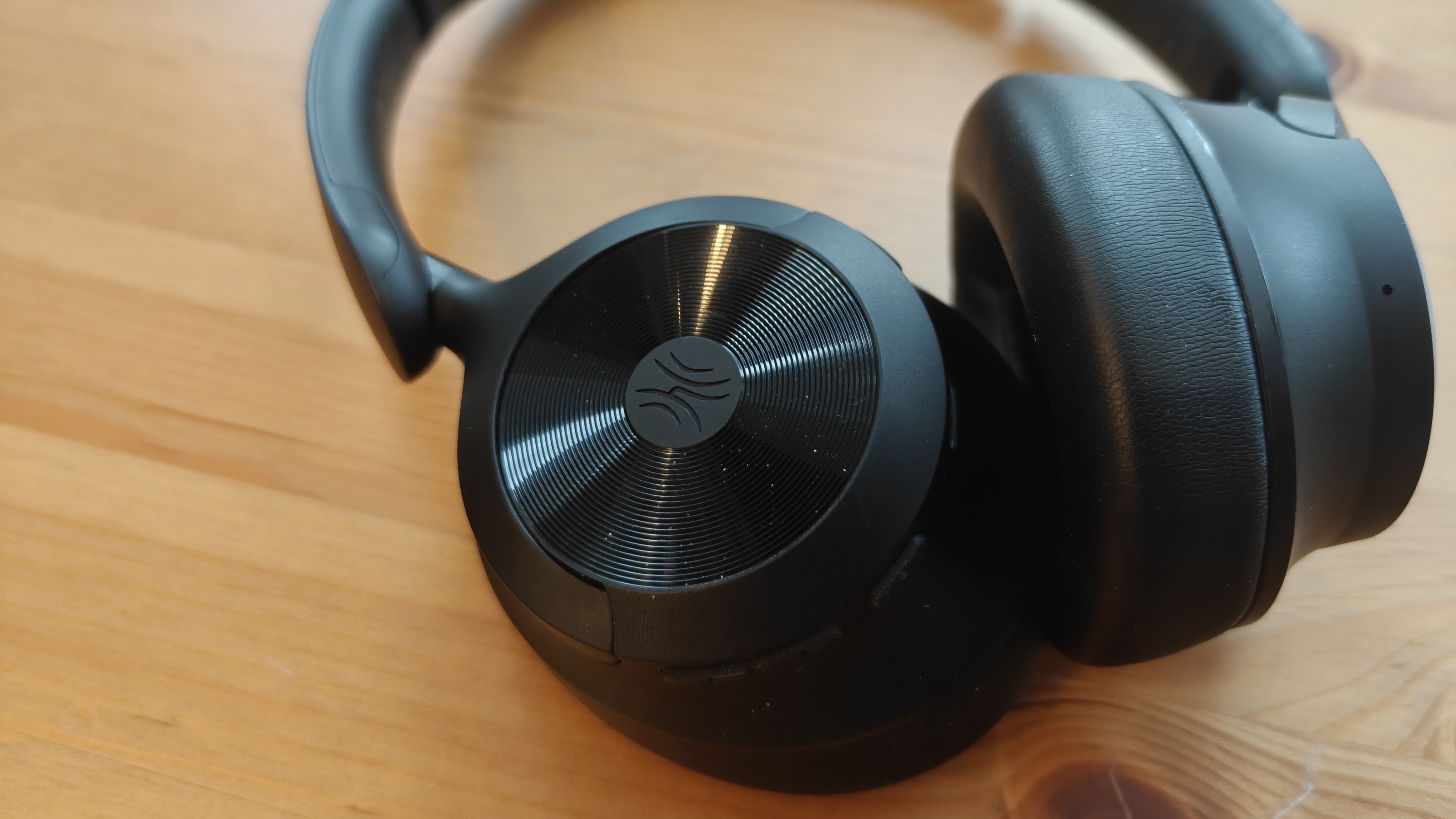
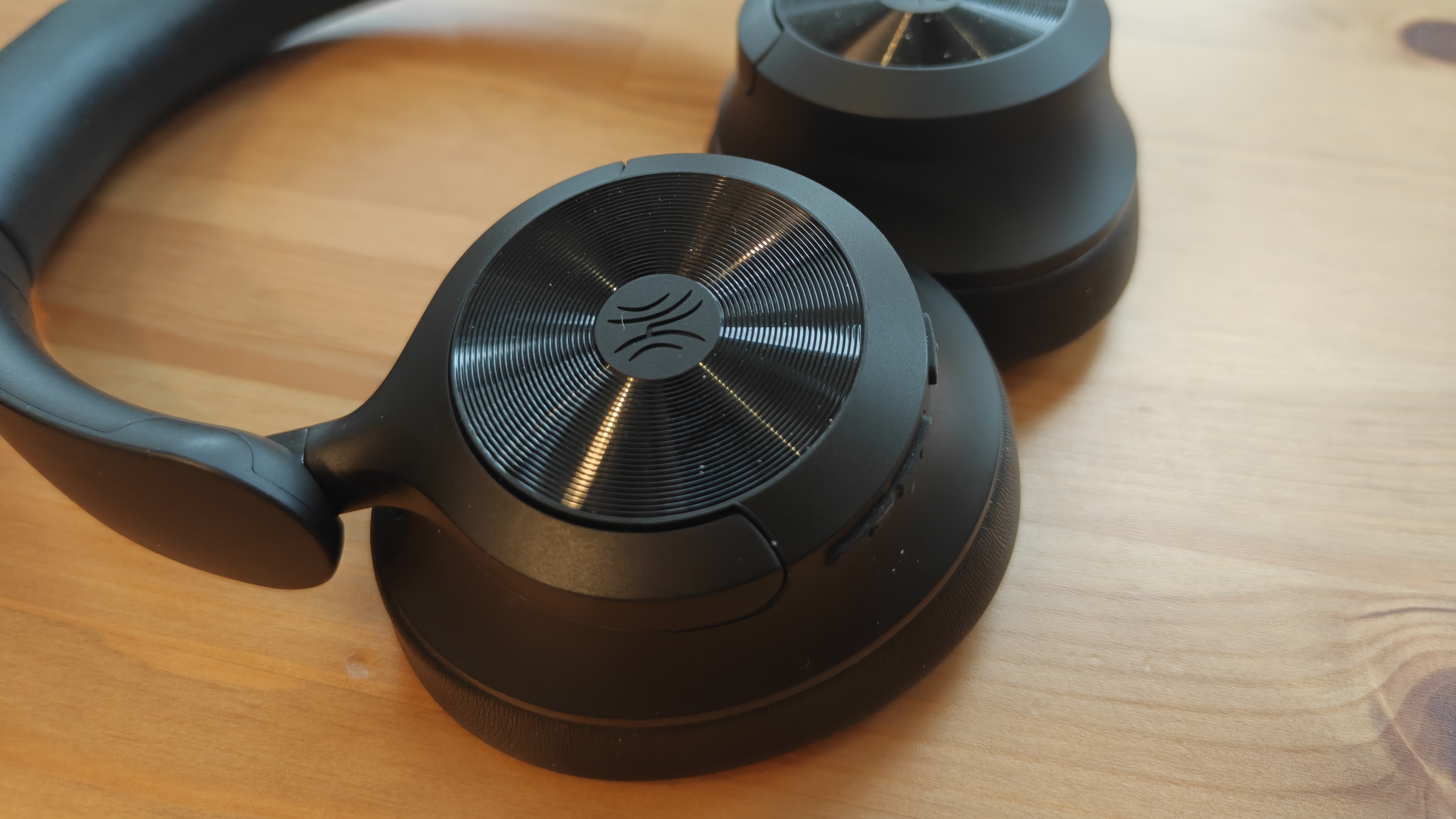
For a gaming headset, the Crusher PLYR 720 has quite a muted appearance; even the RGB lighting is restrained. In fact, the most prominent feature is the sheer bulk of the drivers, which are hard to ignore and aren’t exactly flattering when cupped over your ears.

The entire headset is built to a high standard. The materials feel premium and sturdy, and the various buttons and controls operate with a reassuring solidity. All this means the Crusher PLYR 720 ranks among the best wireless gaming headset in terms of construction.

Wearing the Crusher PLYR 720 is largely a joy, despite that aforementioned bulk. Even when wearing glasses, I experienced little fatigue on my ears or head, even after long sessions.

This is partly due to the thick padding of the earcups, although their inner circumference is smaller than you might imagine from the outside, which may be a problem for those with larger lobes.

The headband is also supremely comfortable. It has a second layer that stretches across the top of your head, therefore eliminating the soreness that single-layer headbands can cause — even those with soft padding.

However, the fit isn’t all that secure. Whenever I leaned my head back, the entire headset almost fell off completely, only saved by the grip of the headband.

Both the desktop and mobile apps for the Crusher PLYR 720 are easy to use and full of useful tweaks, complete with handy graphs and visualizations to help you make them. In my time with them, they ran smoothly without any glitches or stability issues.
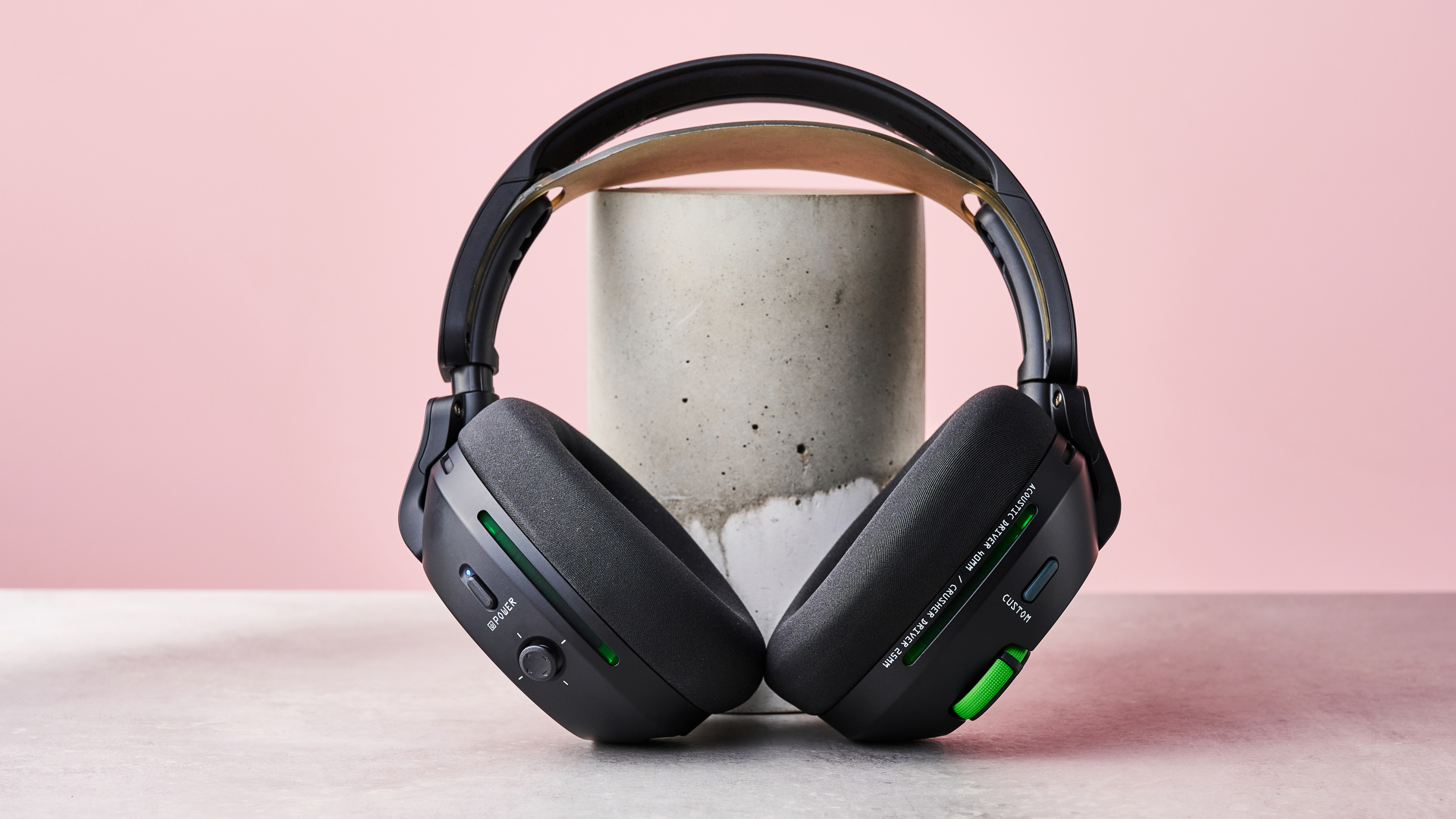
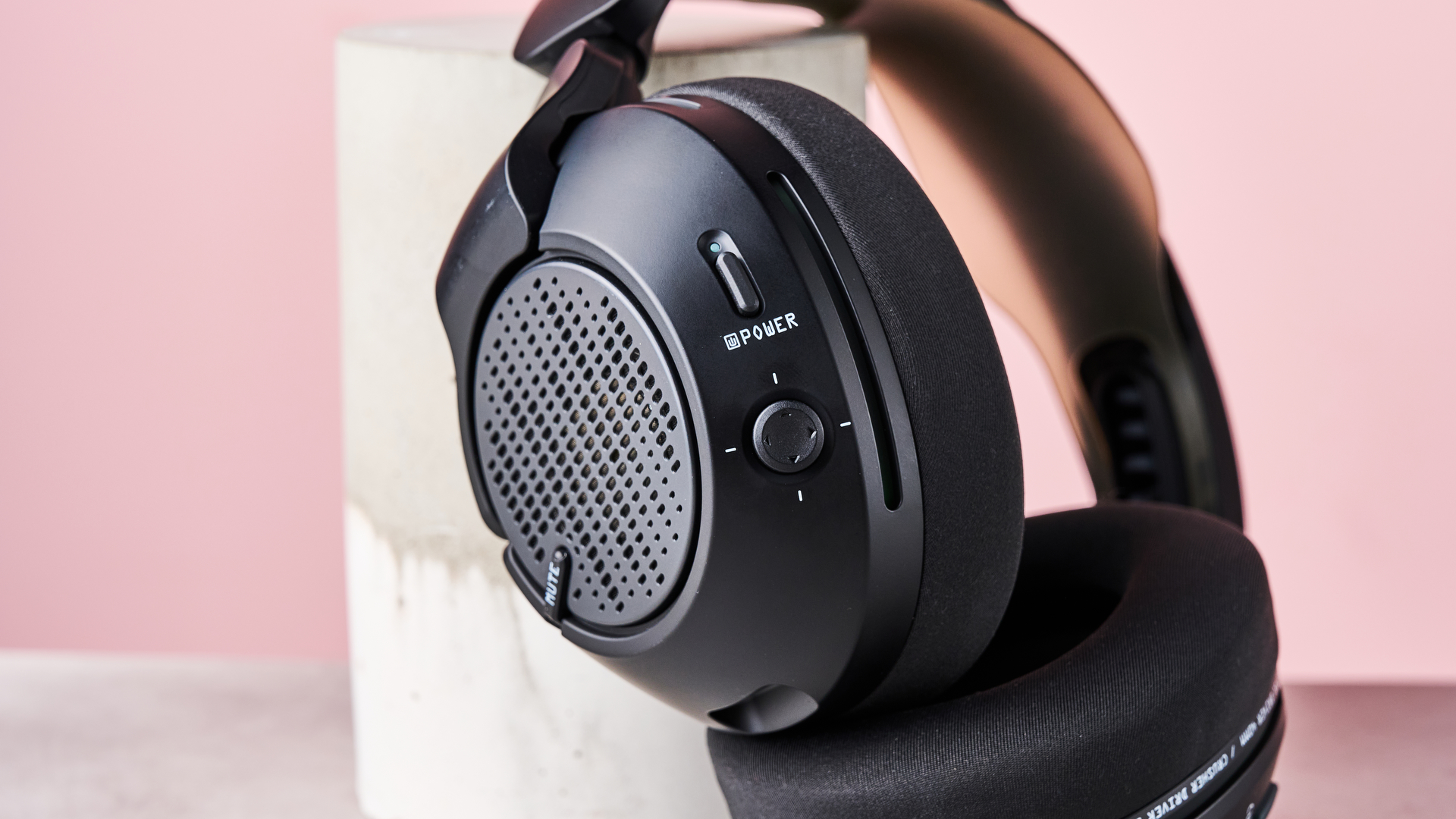
Skullcandy Crusher PLYR 720 leaning on plinth on desk with pink background

(Image credit: Future)

The overall sound quality of the Crusher PLYR 720 is excellent. When gaming, every detail is audible and impactful, even with the bass dialed back. However, it perhaps lacks the treble clarity of the best headphones around. This is somewhat forgivable when gaming, but less so when listening intently to music. I still found the Crusher PLYR 720 enjoyable for the latter purpose, though, and it’s a better gaming headset than many in this regard.

Given the name, it’s no surprise that Skullcandy’s Crusher feature is the sonic highlight. This allows you to crank the bass of the Crusher PLYR 720 to frankly absurd levels. How much you need to dial in depends greatly on the specific source, but at its best it adds an unparalleled amount of weight to low-end frequencies, from gunshots to kick drums.

The Crusher PLYR 720 also gets THX Spatial Audio support. The head-tracking feature works well enough, although it lacks precision and subtlety. The surround sound distance adjustments also fail to impart a sense of space all that accurately.

Along with these features, there’s also the obligatory EQ graph, with four presets and four custom slots for tuning your own. However, I didn’t find any tweaking useful, as the default flat mode was sufficient for every scenario.

The microphone offers plenty of clarity, too, rendering my voice without distortion. It’s a small shame the stalk can’t be manipulated to the same degree as gooseneck designs can be, but I found the positioning adequate nonetheless.

Connecting the Crusher PLYR 720 to various devices was quick and easy, whether it was via the 2.4GHz USB dongle or Bluetooth. Also, being able to connect to your smartphone and your gaming system simultaneously is a blessing, as this allows you to alter settings in the mobile app mid-play.

The battery life of the Crusher PLYR 720 is quite impressive. Skullcandy quotes a time of 48 hours, and I believe this figure. Over the course of several days, when used with a variety of platforms, all sonic features activated, and RGB lighting on, it still had juice left.

All of these quality features come at a price, though, as the Crusher PLYR 720 sits firmly at the premium end of the market. There are great wireless headsets for considerably less, such as the Razer BlackShark V3 and the Beyerdynamic MMX 150 Wireless, but if you need untold amounts of bass in your life, the Crusher PLYR 720 scratches that itch like nothing else.

Skullcandy Crusher PLYR 720 review: price & availability

  • $269.99 / £229.99 / AU$449.99
  • Available now in two versions
  • Top-end of the market

The Skullcandy Crusher PLYR 720 costs $269.99 / £229.99 / AU$449.99 and is available now. Two editions are available: Xbox and multi-platform. Both are the same price.

If you want to save some serious money, then the Razer BlackShark V3 might be for you. In our glowing review, we highlighted its comfortable, lightweight design that felt more premium than its mid-range price tag suggests, as well as its impressive noise isolation and versatile sonics. For these reasons, we think it ranks among the best PC gaming headsets around right now.

For those who prize audio quality first and foremost, the Beyerdynamic MMX 150 Wireless is a better option. We were impressed with its immersive sound stage, although we were less taken with its microphone. This headset is also a lot cheaper than the Crusher PLYR 720.
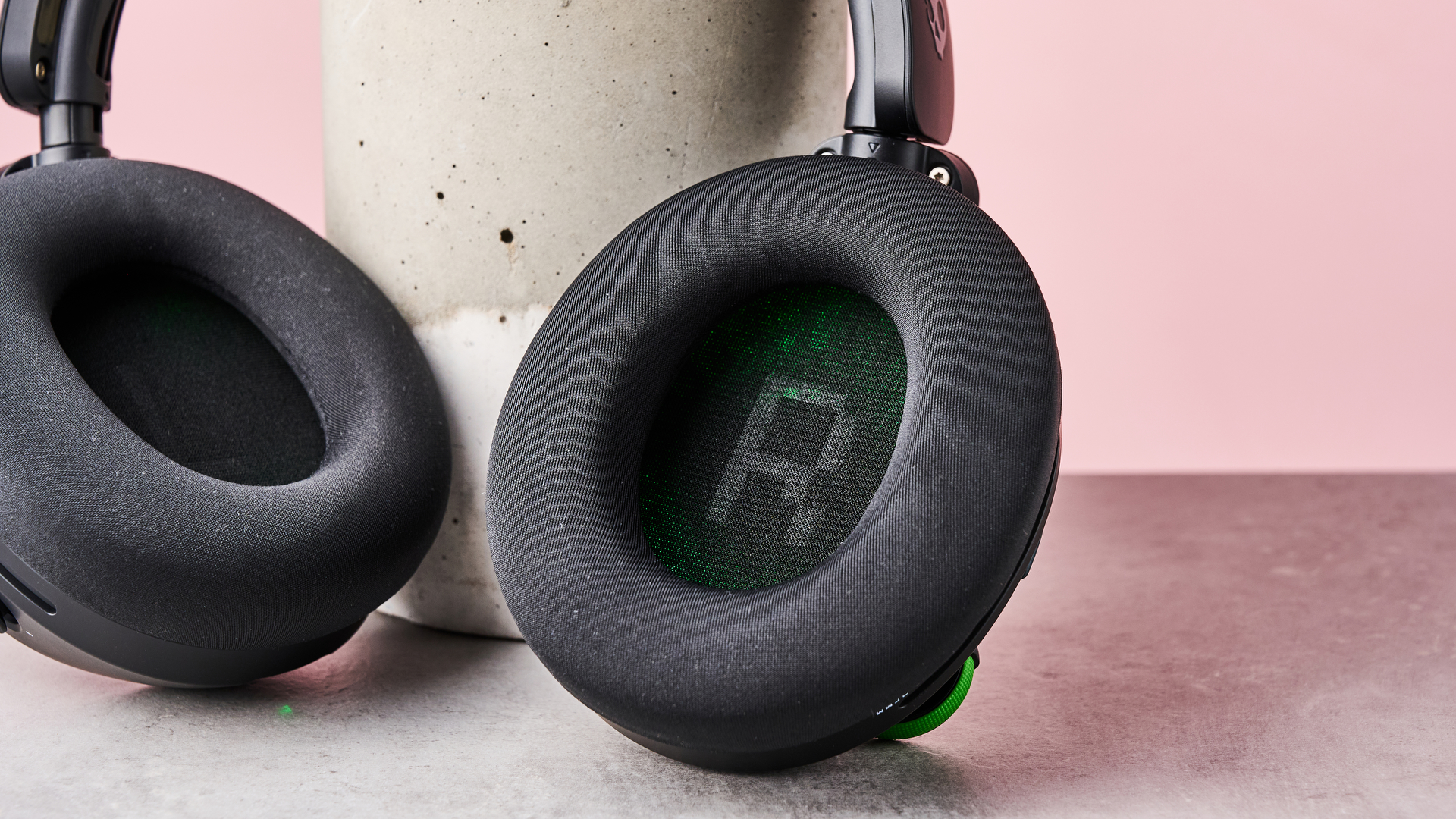
Close-up of inside of right-hand earcup of Skullcandy Crusher PLYR 720, leaning on plinth on desk against a pink background

(Image credit: Future)

Skullcandy Crusher PLYR 720 review: specs

Price

$269.99 / £229.99 / AU$449.99

Weight

0.78lbs / 354g

Compatibility

PC, Xbox Series X/S, PlayStation 5, Nintendo Switch, Android, iOS

Connection type

Bluetooth, Wired (USB-C, 3.5mm AUX), 2.4GHz wireless (USB-A dongle)

Features

THX Spatial Audio, Crusher bass enhancement, eight-band EQ, 4 sound presets, Sidetone mode, plug-in mic

Battery life

48 hours

Software

Skull-HQ (PC), Skullcandy mobile app (Android and iOS)

Close-up of outside of left-hand driver of Skullcandy Crusher PLYR 720, leaning on plinth on desk against a pink background

(Image credit: Future)

Skullcandy Crusher PLYR 720 review: design and features

  • Very comfortable
  • Excellent build quality
  • Plenty of audio-based features

For a gaming headset, the Crusher PLYR 720 has a reasonably muted style. The design is devoid of any gamer-aesthetic touches typical to many in this sector. The premium-looking and feeling matte black finish even lends an element of sophistication.

The RGB lighting is similarly subtle: there’s some illumination strained through small strips and a honeycomb mesh on the drivers, but the lion’s share is reserved for the inside of the earcups — which, of course, you won’t see when wearing the Crusher PLYR 720.

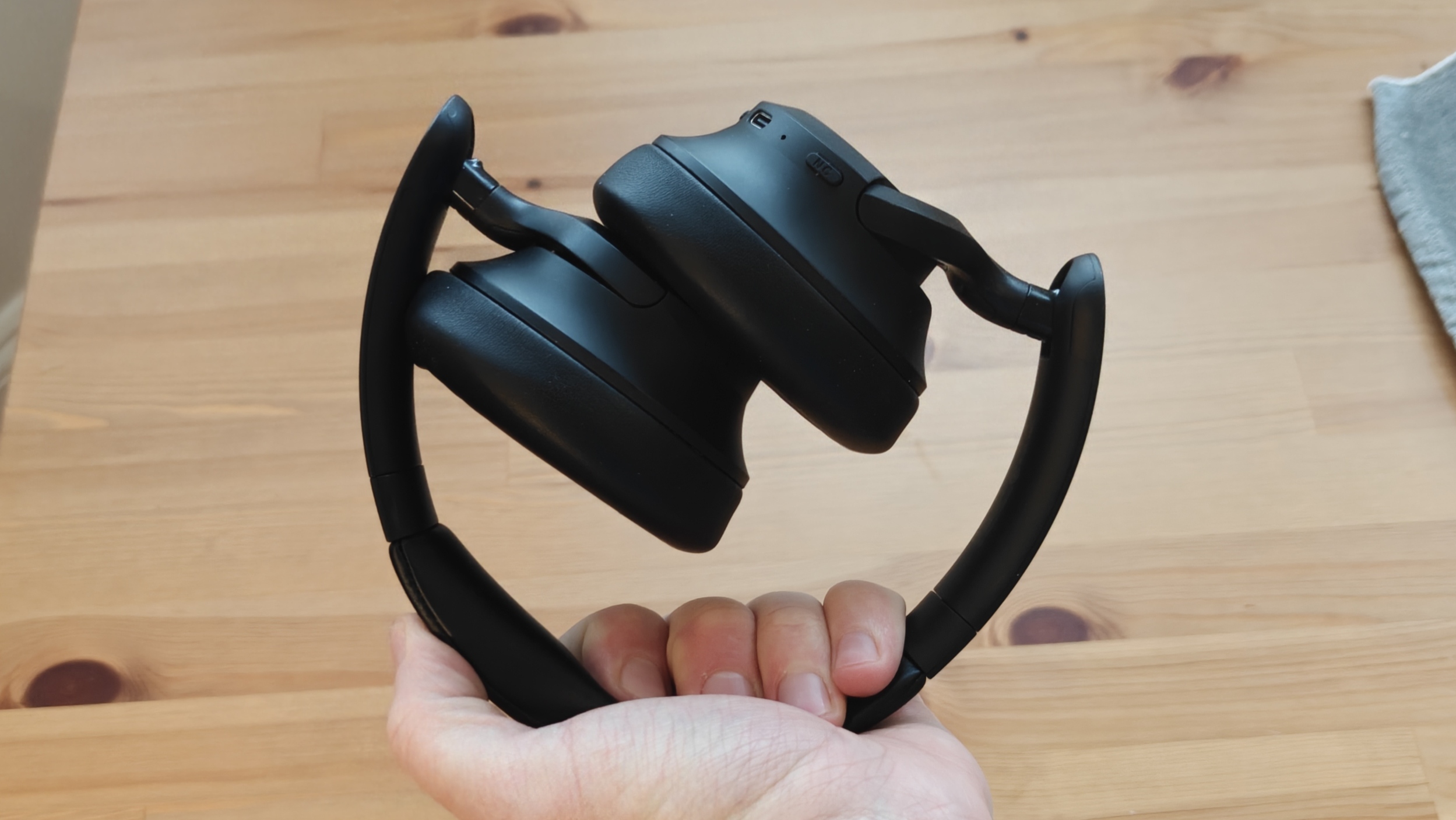
I should also highlight the build quality of the Crusher PLYR 720, as it’s excellent. Despite it being a relatively light unit, it feels sturdy and well-made. I particularly liked the 180-degree rotating drivers, which is convenient when you want to take a break and hang the headset around your neck.

What makes the headset stand out above all else, though, is the bulky drivers. They’re very wide, which makes the Crusher PLYR 720 less than ideal as a travel companion; not only because the drivers take up a lot of space, but also because they don’t look particularly fetching around your ears.

Despite this bulk, the actual inner circumference of the earcups is quite small. Personally, I didn’t find them too small for my ears, but it’s possible others might.

In fact, I found the Crusher PLYR 720 exceptionally comfortable all-round. There’s plenty of padding on the earcups, yet its fabric is more breathable than many. Also, as a glasses-wearer, I can confirm that the cups don’t present any issues when sat on top the arms of frames.

The headband is solid yet flexible, and feels reassuringly durable. You don’t get any padding here; instead, there’s a supplementary band, made from an elastic material to fit snugly on your head, running underneath the main one. I found this incredibly comfortable; I didn’t experience any aching or fatigue at all, even after long sessions, as I have with many other headsets.

The adjustments for the earcup height are also excellent. They have a sufficient range to accommodate various head sizes, and the operation of these adjustments is very smooth with no notching. Despite this, the cups remain at your chosen height setting with a surprising amount of stability, which impressed me.

However, the overall fit of the Crusher PLYR 720 isn’t particularly secure. The earcup padding provided little friction to the side of my head, so whenever I tilted my head back the entire headset moved with it; only the grip of the headband kept it from falling off completely. However, this wasn’t an issue during normal use, so it’s a trade-off I’m willing to accept for the supreme overall comfort of the headset.
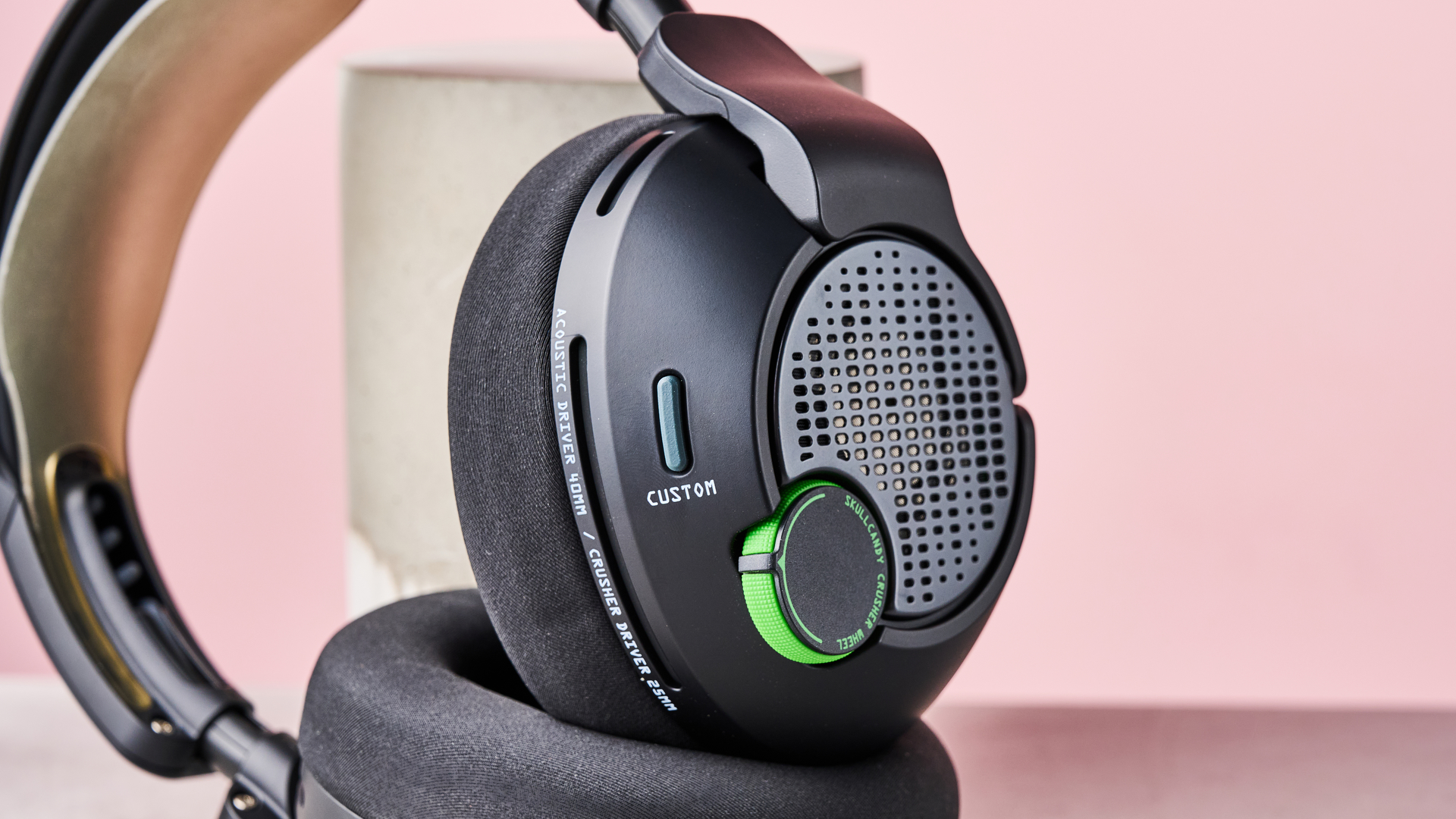
Close-up of outside of right-hand driver of Skullcandy Crusher PLYR 720, leaning on plinth on desk against a pink background

(Image credit: Future)

The switches and other controls on the Crusher PLYR 720 operate with a satisfying solidity and smoothness. There are three main buttons, all of which are easy to reach, thanks to their convenient positioning and generous size. One is named Custom, which is misleading, since as far as I can work out, can only be used to toggle THX Spatial Audio Head Tracking on or off.

The joystick for adjusting volume and other parameters is easy to use for the most part, although there isn’t much feedback when you move it. At least it’s hard to trigger accidentally, by, say, leaning against the back of your chair — something I’ve experienced numerous times with conventional volume wheels.

It’s a slight shame, though, that the jumps between the volume increments are quite large, meaning it's hard to dial in a very precise volume with the joystick; for such purposes, you’d be better served by the volume settings of your connected device or inside Skullcandy’s software.

Thankfully, the Crusher wheel doesn’t suffer from accidental triggering or overlarge increments. It’s tactile and smooth to operate, while the small point that sticks out makes it easy to know where exactly you are in the setting.

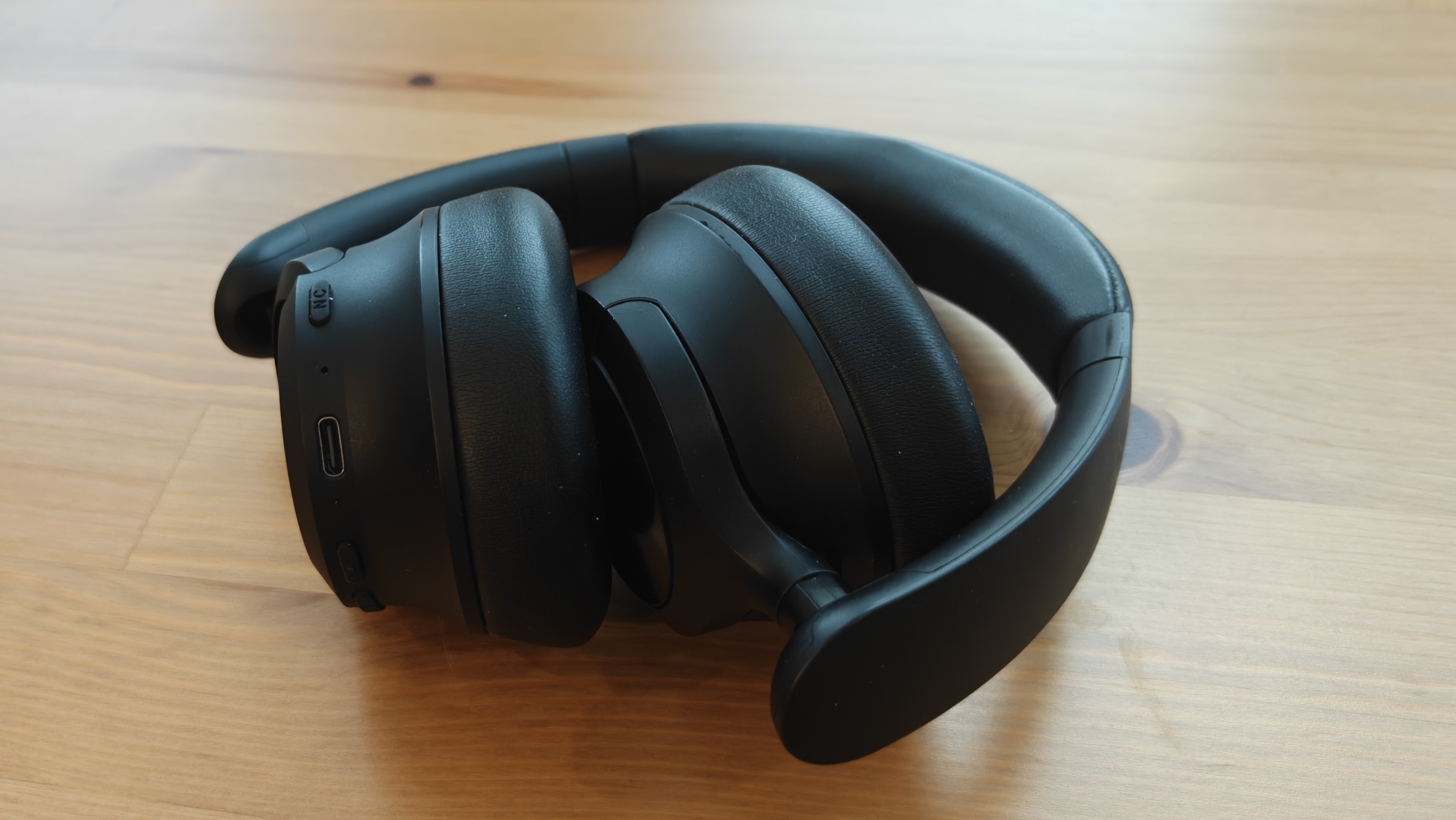
There are three ports on the Crusher PLYR 720: a USB-C port for charging and playback, a 3.5mm audio jack, and the microphone input. All are located on the left-hand driver. The various cables fit securely in these ports, and what’s more, they’re nicely recessed for protection from accidental disconnections.

The microphone appears to be as well made as the rest of the headset. The soft rubber feels more upmarket than many others, but while it can bend around, it’s not a true gooseneck, so gamers who are particular about their mic placement might be a little disappointed by its lack of maneuverability.
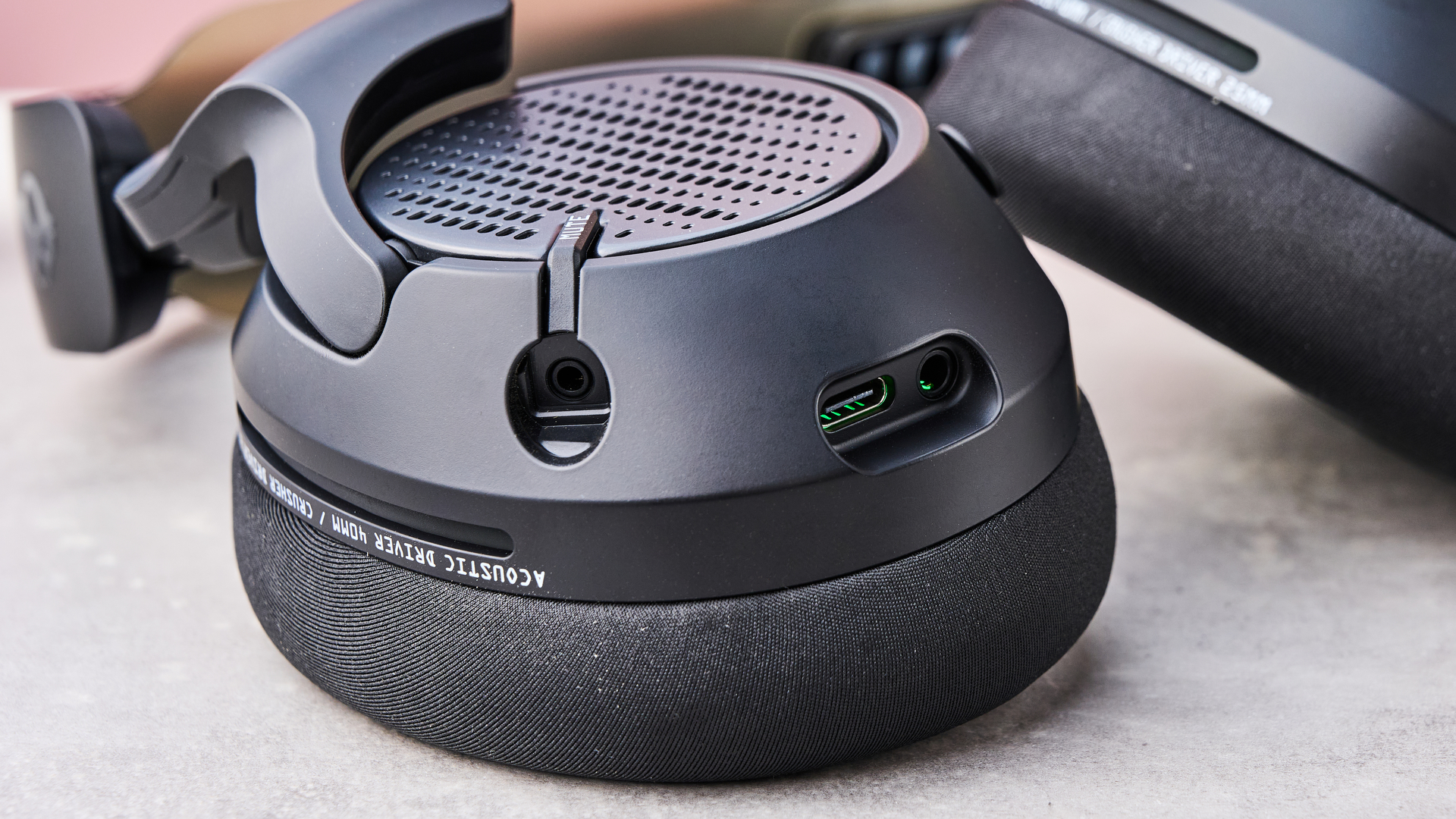
Close-up of ports on left-hand driver of Skullcandy Crusher PLYR 720

(Image credit: Future)

Skull-HQ, the desktop app for the Crusher PLYR 720, is feature-packed and quite easy to use. It has a faux-retro interface that employs the terminal font, tapping into that mid-nineties hacker vibe. It ran smoothly during my time with it; I didn’t experience any slowdown or bugs.

The layout is clear, although I was a little disappointed by the lack of explanations for certain features. Some are only denoted by symbols, which aren’t always self-explanatory. A tutorial for the joystick controls would’ve been appreciated, too, rather than having to always refer to the manual.

There are plenty of tweaks that can be made to the Crusher PLYR 720 in the app. These range from rudimentary RGB customizations and basic adjustments volume, game mix, and the sidetone function.

Beyond these, there’s an parametric EQ with FPS, RPG, Music, and Default (flat) presets to choose from. There are also four custom slots, allowing you to save your own sculpted sound. This is achieved by dragging eight points on a graph, with a range of 32Hz to 16KHz, to cut or boost frequencies by 12BD.

Various adjustments for THX Spatial Audio are available, too, including the ability to set speaker distance. Strangely, however, there isn’t a toggle for the Head Tracking function, as there is in the Skullcandy mobile app (which has a better, cleaner interface than Skull-HQ, by the by).

Then there’s a section for the Crusher bass enhancement. Here, you can alter the cut-off points for the low and high frequencies on another EQ graph. This is rather overkill for such a setting, but nonetheless I always welcome a visual representation for sonic settings. It’s also accompanied by a humorous ditherpunk face depicting various expressions depending on the strength of the Crusher setting.

Skull-HQ even features a hearing test, designed to calibrate the Crusher PLYR 720 based on your individual hearing. What’s more, a knock-off version of Space Invaders is buried in the app, too.

Beyerdynamic MMX 150 Wireless review: performance

  • Skull-shaking bass feature
  • Great overall for gaming and music
  • Clear mic

The general sound of the Crusher PLYR 720 is punchy and clear, with all frequencies represented well. Overall fidelity isn’t quite up there with the best wireless headphones, though, which is most apparent when listening to music. This is due to the slight lack of crispness and clarity at the high end.

It’s the bass response that the Crusher PLYR 720 is sold on, though — thanks to its Crusher feature. Whether this is something you like comes down to personal preference, but I have to say that when the mood struck, I loved cranking the wheel to maximum and letting the drivers shake (and they really do shake) to my favorite bass-heavy tracks or to gunfire, something I certainly noticed when playing Counter-Strike 2.

However, you’ll find yourself riding the Crusher level frequently, as the prominence of the bass enhancement can vary widely between sources; even those you thought had a relatively tame low-end suddenly become a booming mess, causing the drivers to audibly rattle — even before you’ve enabled the extra Crusher Bass Boost on top. In fact, I wouldn’t want maximum “Crushing” for an entire session, even for sources that can handle it without distorting.

The THX Spatial Audio is reasonably effective. With Head Tracking enabled, changes to the audio space react quickly to head movements, without being too disconcerting or disorientating.

However, you’ll have to move your head by large degrees to notice the effect. Also, it’s a shame that the sensitivity of the effect can’t be adjusted, as it lacks the precision and subtlety of some of the best THX headsets and headphones. Adjusting the virtual distance of the surround sound speakers noticeably changes the soundscape, but at the cost of reducing fidelity. What’s more, I found it largely ineffective at imparting a realistic sense of space.

The microphone for the Crusher PLYR 720 is clear and largely free of distortion. The Sidetone mode allows an appropriate level of ambient noise to spill through, so you can hear your own voice more clearly.

Hands holding Skullcandy Crusher PLYR 720 headset and attached microphone, leaning on a plinth on desk against a pink background

(Image credit: Future)

During my time with the Crusher PLYR 720, it proved easy to connect to the various devices I tested it with. The 2.4GHz USB dongle allows for instant plug-and-play, and merely requires the flip of a switch on the dongle itself to change compatibility modes from PC to Xbox.

In terms of connectivity to Microsoft’s console, then, the Crusher PLYR 720 up there with the best Xbox Series X headsets. It also connected to my Nintendo Switch just as easily, via the dongle and Bluetooth.

Oddly, even though I had the Xbox version of the Crusher PLYR 720, it still worked with my PlayStation 5 via the dongle. There’s conflicting information as to whether this is intended or not: the printed manual states that the Xbox variant only works with the PS5 when connected via the 3.5mm audio cable, while the product page on Skullcandy’s website states that wireless play is possible with Sony’s console. If the latter is correct, it then begs the question as to why there are two versions of the Crusher PLYR 720.

It connected seamlessly to my Android smartphone via Bluetooth, with no discernable drop in audio quality. Better yet, you can connect to your phone and console or PC at the same time; during my testing, I was impressed by the ease with which it established and maintained these simultaneous connections. The benefit of this is that you can adjust settings in the mobile app on the fly, taking effect while playing your game.

Even with this multiplatform use, the battery of the Crusher PLYR 720 endured admirably well. Skullcandy claims it can last 48 hours, but with all the bells and whistles enabled, you can see lifespan deplete at a considerable rate in the software readouts. Still, it managed to last several long sessions over a few days, which, in addition to connecting to various devices, also involved activating all its various sound features and keeping the RGB lighting on.

Should I buy the Beyerdynamic MMX 150 Wireless?

Buy it if…

You’re a bass head
Cranked all the way up, the Crusher function is truly monstrous, adding real impact to music and sound effects.

You want all-day comfort
I’m not sure I’ve tried a more comfortable headset than this. After very long periods, there were no aches on my head or ears.

Don’t buy it if…

You want isolation
This is an open-back headset, so you won’t be getting much isolation from the outside world.

You’ll be listening to lots of music
Although the fidelity is more than adequate when gaming, audiophiles might be disappointed with the lack of top-end clarity when listening to their favorite tunes.

Beyerdynamic MMX 150 Wireless review: also consider

Skullcandy Crusher PLYR 720

Razer BlackShark V3

Beyerdynamic MMX 150 Wireless

Price

$269.99 / £229.99 / AU$449.99

$149.99 / £149.99 / AU$350

£159 (around $210)

Weight

0.78lbs / 354g

0.6lbs / 270g

0.7lbs / 336g

Compatibility

PC, Xbox Series X/S, PlayStation 5, Nintendo Switch, Android, iOS

Xbox Series X|S, Xbox One, PlayStation, Nintendo Switch, PC, Mobile

PC, Xbox Series X/S, PlayStation 5, Playstation 4, Nintendo Switch 2, Steam Deck

Connection type

Bluetooth, wired (USB-C, 3.5mm AUX), 2.4GHz wireless (USB-A dongle)

2.4GHz wireless, wired (USB), Bluetooth

Bluetooth, wired (USB-C), low-latency 2.4GHz wireless (dongle)

Features

THX Spatial Audio, Crusher bass enhancement, eight-band EQ, 4 sound presets, Sidetone mode, plug-in mic

THX Spatial Audio, detachable Razer HyperClear Super Wideband 9.9mm mic

Five-band EQ, 10 sound presets, Sidetone mode, custom button settings, plug-in mic with noise reduction

Battery life

48 hours

70 hours

50 hours

Software

Skull-HQ (PC), Skullcandy mobile app (Android and iOS)

Arctis Companion App

Beyerdynamic app

Razer BlackShark V3
The Razer BlackShark V3 is an excellent all-round headset, and it costs much less than the Crusher PLYR 720. We were impressed by its comfort, battery life, and superb audio quality. All this helps to make it one of the best gaming headsets currently available.

Read our full Razer BlackShark V3 review.

Beyerdynamic MMX 150 Wireless
The Beyerdynamic MMX 150 Wireless has a strong focus on sonics — unsurprising from a brand famed for catering to music professionals. Again, it’s much cheaper than the Crusher PLYR 720, although it lacks the features and build quality.

Read our full Beyerdynamic MMX 150 Wireless review.

How I tested the Beyerdynamic MMX 150 Wireless

  • Tested for several days
  • Used for various scenarios and with multiple platforms
  • Experience reviewing gaming headsets

I tested the Skullcandy Crusher PLYR 720 for several days. Not only did I use it for gaming, but I also listened to music and watched videos with it on.

I tested it with a Windows PC, an Xbox Series S, a PlayStation 5, and a Nintendo Switch, connecting to each of these devices with the USB dongle. I also tested Bluetooth connectivity with the latter console, as well as with my Android phone. I used both the desktop Skull-HQ app and the Skullcandy mobile app to try out all the various features.

I’ve been gaming for decades, using a variety of headsets, headphones, and speakers for the activity. I’ve also reviewed a number of headsets professionally, all the way from budget wired offerings to premium multiplatform wireless options.

  • First reviewed: February 2026
  • Read more about how we test
Friday, February 27, 2026

Neo Mail review

Neo may not have the name recognition of the real major players in this space, like Google Workspace, Microsoft 365 or Proton Mail, but it is nevertheless making a concerted effort to join them as one of the best email hosting services around. 

Attempting to set itself apart from its competitors, Neo has set its sights on the small business market. This is an email provider that is geared towards entrepreneurs, startups, and small businesses. And what it does, it does well. If you are a small business, this is an email hosting platform that ticks a lot of boxes.

Neo comes with a good range of features, including appointment scheduling, email templates, and read receipts, and is available at an affordable price. It’s a great option if you want a custom email address, flexible cloud storage and the possibility of exploring whether some of those AI tools making headlines are really as important to business success as they claim to be.

It must be said, Neo isn’t perfect. We’ve found that the support on offer isn’t the most responsive and if you're a large enterprise you might require some of the advanced functionality that you find offered by some of the larger players out there. 

However, if you’re a small business on the lookout for a reliable, affordable email solution, then it’s certainly worth giving Neo a go. The email and marketing services on offer could help take your brand to the next level. 

Neo: Plans and pricing

Plan

Starting rate (paid annually)

Starting rate (paid monthly)

Business Starter

$2.49/mailbox/mo

$3.11/mailbox/mo

Business Standard

$4.99/mailbox/mo

$6.24/mailbox/mo

Business Max

$9.99/mailbox/mo

$12.49/mailbox/mo

Neo subscribers can choose from three plans: Starter, Standard, and Max. The Starter plan is priced at $2.49 per mailbox, per month when billed annually — a step up from its original launch pricing, but still highly competitive compared to most business email providers. The Standard plan comes in at $4.99, while the Max plan sits at $9.99 per mailbox, per month on an annual subscription.

One area where Neo still stands out is its billing flexibility. You can choose monthly, yearly, two-year, or four-year subscription terms, with longer commitments unlocking lower rates. This is fairly unusual in the email hosting market, and it's a nice option to have if you're confident in sticking with Neo for the long haul.

It's also worth noting that if you need more than 50 mailboxes, you'll need to contact Neo's sales team directly for custom pricing. That's standard practice for business software at this scale, but if you're already managing 50+ mailboxes, you may want to weigh up whether a platform built for larger enterprises might be a better fit.

AI tools

Neo has been quietly building out its AI capabilities and by now they're a meaningful part of what the platform offers, particularly on the Max plan. The headline feature is Smart Write, an AI email writer powered by OpenAI's ChatGPT API. You give it a prompt, pick a tone and length, and it produces a ready-to-send draft in seconds. You can also use it to reply to incoming emails with the "Reply with Smart Write" option, which automatically pulls in the context of the email you're responding to.

Smart Write supports multiple languages and handles everything from cold outreach to client negotiations. If the first draft isn't quite right, you can hit "Give me another option" for a fresh take.

However, it's worth knowing that the tool operates under a fair usage policy. You get 75 words per input prompt and Smart Reply autofills up to 1,000 words of context from the email you're replying to. Privacy-wise, OpenAI only accesses the specific content you share with Smart Write, and does not use it for model training.

On the Standard and Max plans, you'll also get access to a built-in Grammar & Spell Check feature, which gives your outgoing emails an extra layer of polish without needing a third-party tool. It's a small addition, but useful for day-to-day correspondence.

Beyond email, Neo has rolled out an AI-powered website builder under its AI Site product. The tool generates a ready-to-launch one-page website from a short text prompt, and you can refine it using an AI copy assist feature. Higher-tier site plans unlock more generations and access to the latest AI models. It's not a replacement for a dedicated website builder, but for small businesses that need a quick professional web presence alongside their email, it's a practical bonus.

Features

Neo email features

(Image credit: Neo)

As with all business email providers, the features that you receive depend heavily on the subscription you’ve signed up for. Let’s start by taking a look at the email storage on offer. With the Starter plan, you receive 15GB of mailbox storage, which matches the free 15GB that comes with a personal Gmail account. We did find that this amount of space filled up quickly, so if you’re a small business with big aspirations, you might find this somewhat lacking. If that is the case, you’ll probably want to look at the 50GB you get with the Standard plan or even the 100GB enjoyed by Max customers. 

In terms of the other features that Neo offers, there’s plenty on show. Subscribers to all three payment plans will receive access to Android and iOS mobile apps, a built-in calendar, and the ability to access their Neo inbox via a third-party mail platform. 

Some more advanced functionality is provided on the Standard plan, including a priority inbox and unlimited read receipts. But the really high-level stuff requires you to be signed up for the Max plan. For instance, customers here get a plethora of powerful business suite tools, such as access to campaign mode (great for email marketing), appointment booking, and the AI Smart Write feature. 

Support

Here’s an area where Neo could do better. While there is a help center, which comes with a host of useful articles and guides like help getting started and a general FAQ, it’s when you try to contact Neo directly that things become a little more tricky. 

There is a link that allows you to create a support ticket but getting a response can take a long time. This is a shame, because for small businesses especially, any issue could cause significant reputational damage that ends up sending customers elsewhere. 

Security

Neo’s security credentials are solid and this is clearly something that the platform takes very seriously. The platform offers data encryption both at rest and in transit with 256-bit ciphers, two-factor authentication, advanced antivirus and antispam functionality, and is hosted on Amazon Web Services, which should give users a little extra peace of mind. 

Neo is also fully GDPR compliant and allows users to include a digital signature with their message to add extra authenticity whenever they are sending an email. 

The competition

Although you might think that email is a bit old-fashioned, it remains essential to the business world. Sure, most successful organizations may have adopted an omnichannel strategy these days, meaning they can contact customers via WhatsApp or a social media platform, but email remains crucial.

In terms of email providers targeting the small business market, Neo has to compete with the likes of Zoho Mail, IONOS, and a growing array of others.  Neo fares pretty well in terms of price and does offer users a free .co.site domain, but for advanced functionality or more response support, you might be better off going with more established players. In fact, Neo's affordability is a massive strength when compared to its rivals - especially for smaller players where budgets may be a bit tighter.

(Image credit: Neo)

Final verdict

Neo is a very decent email provider - especially given that it hasn’t been around the longest. If you too are just starting out and don’t require some of the more advanced features you get with larger vendors, then be sure to check Neo out. This is an email hosting platform that really shines when it's used within the small business market - it's here where we think it truly excels. 

If you have expectations of scaling your business rapidly, you might find that you outgrow Neo, but until then, this platform is likely to have everything you need at a very reasonable price. 

We've featured the best email hosting services.

I tested this compact drip-coffee machine and it’s a fantastically fuss-free way to brew small batches of coffee — even if it can’t quite reach the intense flavor of more methodical methods

Ratio Four: one-minute review

The Ratio Four is a drip-coffee machine focused on smaller batches. That means it fulfils a valuable niche in the market, meaning it’s perfect for anyone who’s only likely to want a few cups of coffee at a time.

Rather than leaving your brew stewing for hours over a heating element, it allows you to quickly whip up a small batch of coffee on demand and not waste as much as with some traditional drip machines. While it may not be optimum for offices or big families, it’s great for couples or coffee fans that are flying solo.

And its smaller capacity has an extra benefit: its footprint takes up far less space on your counter than many of the best coffee machines. Instead it cuts a sleek figure on your counter, with its clamp-shaped form and smoky-colored glass carafe looking right at home in any kitchen. The only exception for me is its water tank. While I understand that helps it keep its size down, I’m not biggest fan of the way it’s hooked up to the machine with an umbilical cord pipe – I much prefer the built-in tanks of the more premium Ratio Six and Ratio Eight.

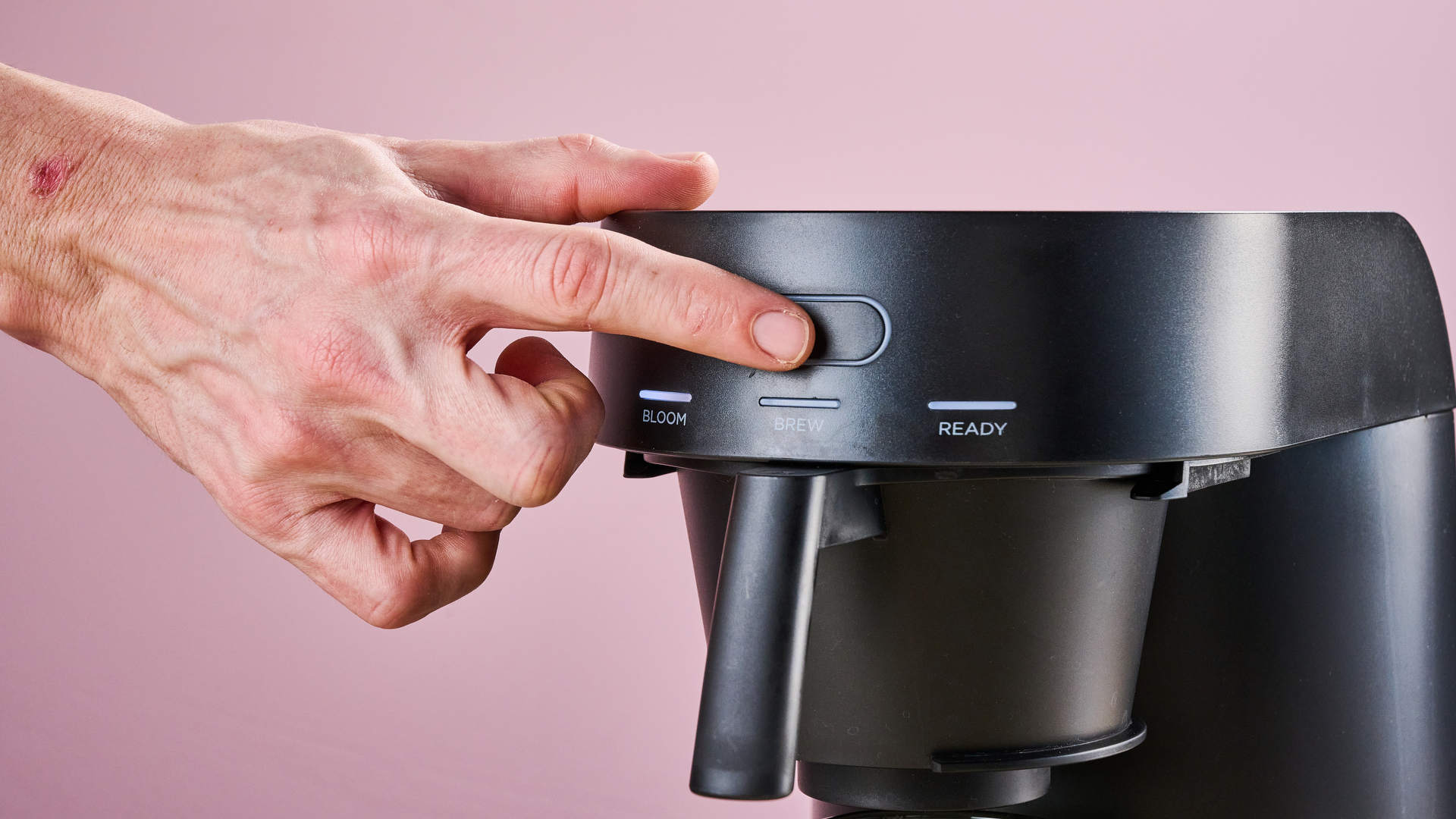
Using the Ratio Four couldn’t be easier. Once I’d filled the water tank, all I had to do was slip a compatible filter into the filter basket, grind my beans to a medium-coarse grind and pour them in. Pressing the single button on the front first runs a bloom cycle to pre-wet and stir up the grounds – a step many traditional drip machines skip – then the Ratio Four gets to work running water through your grounds to fill the carafe with sweet Costa Rican crude.

So how did my coffee turn out? Once I found the optimum grind for the Ratio Four, it made very solid coffee – it wasn’t too bitter and there was at least a hint of some of those volatile flavors that make speciality coffees so fantastic. But I wouldn’t say it packed the rich bouquet I associate with wonderfully extracted coffee and I’ve definitely experienced pour-over and pressure extracted coffees that expressed more character out of similar beans.

That doesn’t mean the Ratio Four isn’t worth it though. Pour-over coffee requires developing the knack for it, while many of the best espresso machines require you to spend much more and spend a lot of time cleaning. When you need a couple of cups of tasty coffee in mere minutes, the Ratio Four is definitely worth your time.

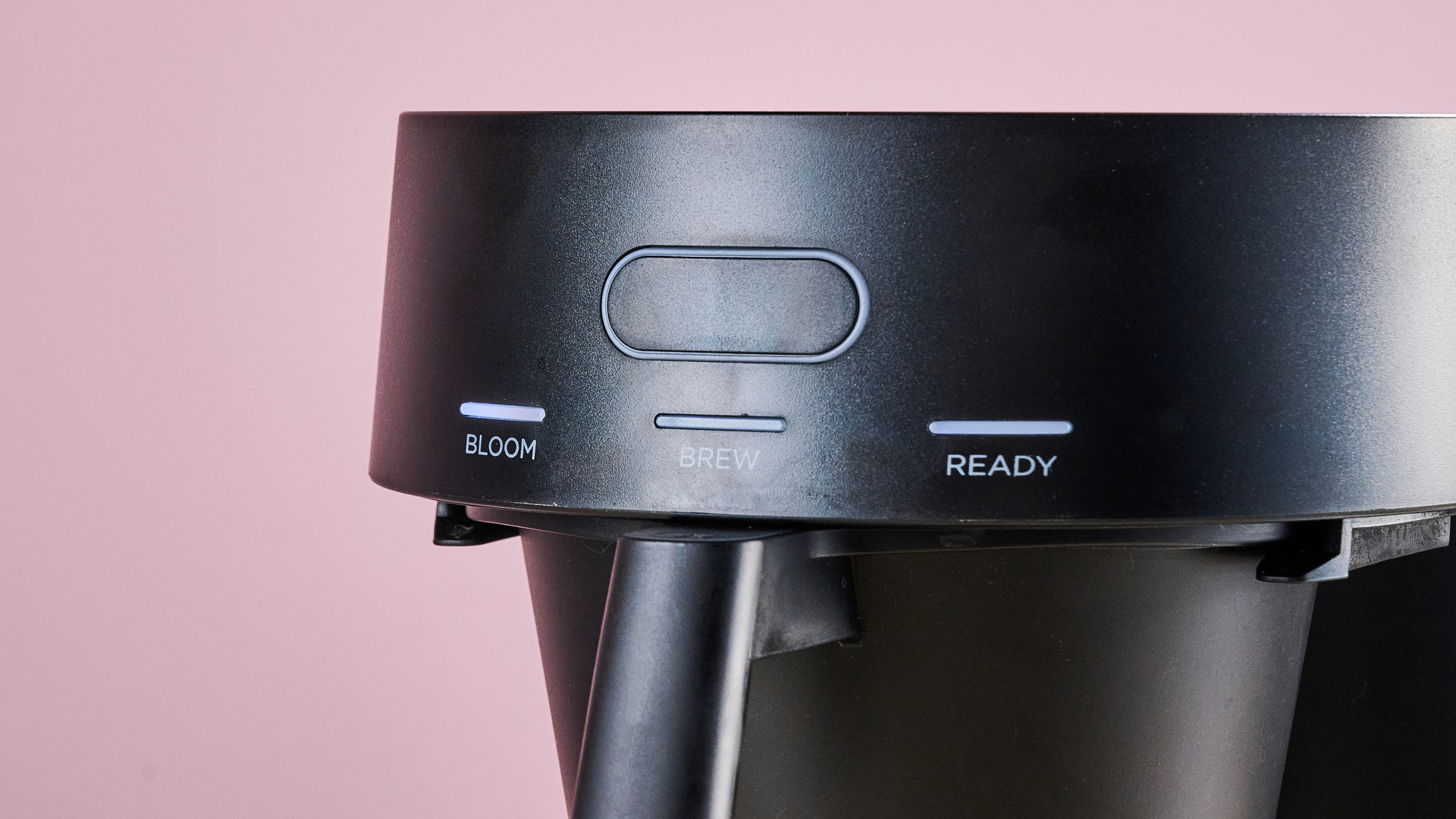
A closeup of the front of the Ratio Four, showing its button and lights that read 'Bloom', 'Brew' and 'Ready'.

(Image credit: Future)

Ratio Four review: price and availability

  • Launched November 2024
  • Retails for $279

Launched in November 2024, the Ratio Four is available now. It retails for a list price of $279 (around £205) – unfortunately, unlike its larger stablemates the Ratio Six and Ratio Eight, it’s not currently available in the UK. So those based on that side of the pond might have to content yourself with drip machines like the Sage Luxe Brewer Thermal or Ninja DualBrew Pro instead.

While the black version featured here isn’t currently available on Amazon, the white colorway is and looks just as classy. For that price, you’re getting pretty much everything you need included – such as the carafe and filter basket – but the one exception is compatible Ratio or Melitta filters so I’d absolutely recommend you grab some at the same time if you’re going to purchase the Ratio Four.

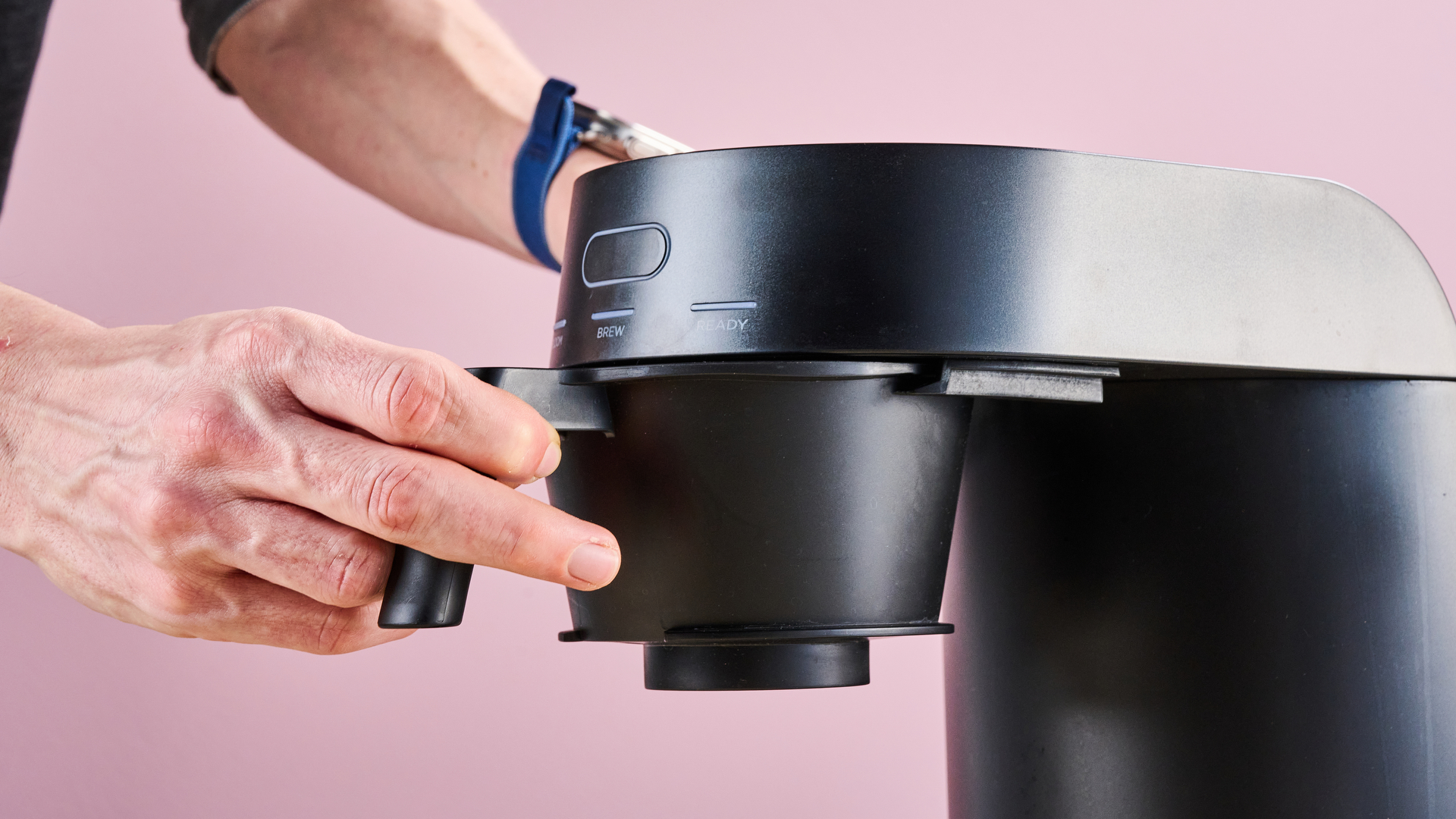
The Ratio Four's carafe and filter basket on a desk in front of a pink background.

(Image credit: Future)

Ratio Four review: specs

Type

Automatic drip machine

Dimensions (W x H x D)

10.6 x 7.5 x 11.5 inches / 26.9 x 19.1 x 29.2cm

Weight

24.18lbs / 10.97kg

Water reservoir capacity

20.3 ounces / 0.6l

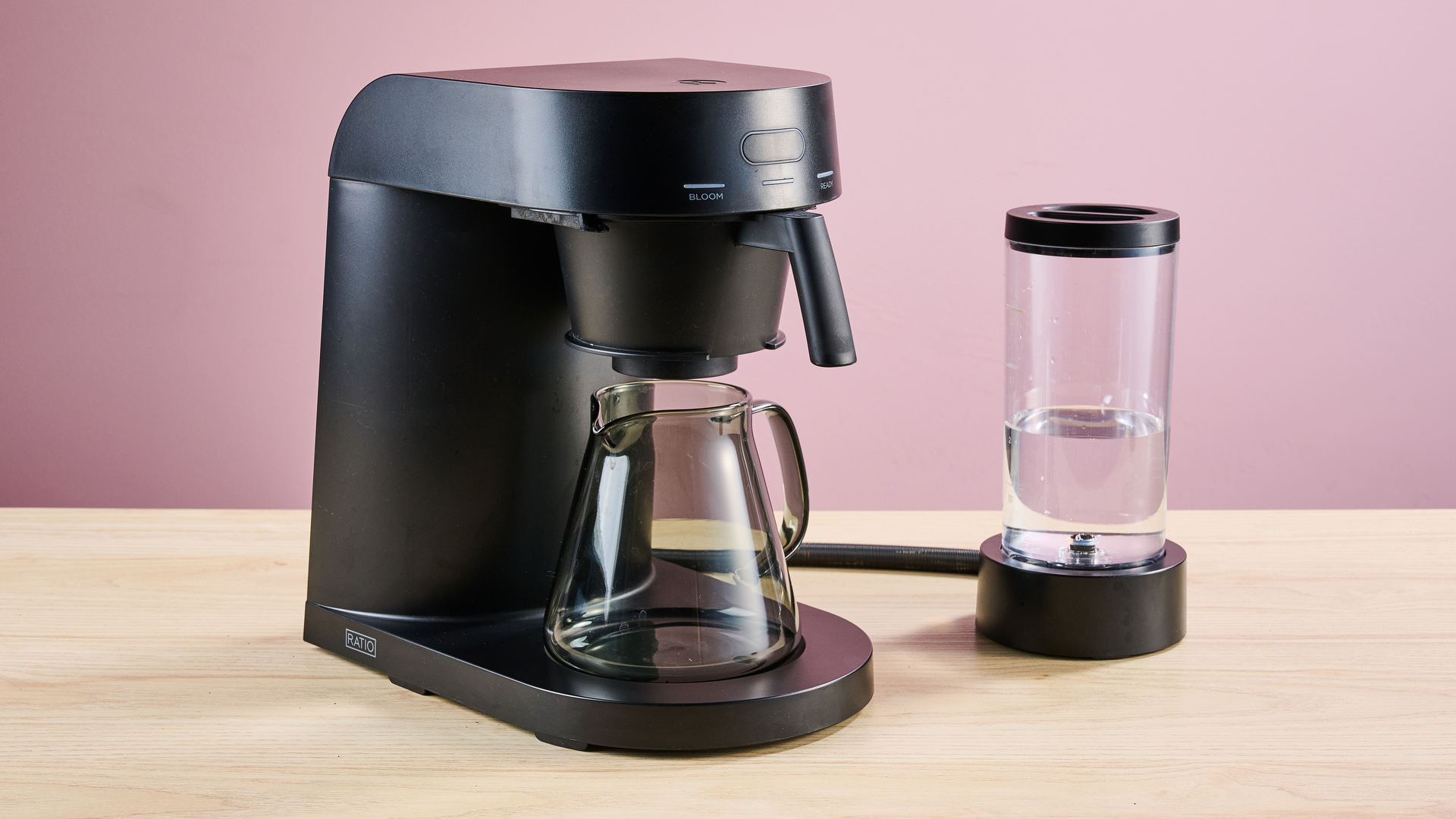
The Ratio Four, carafe and water tank on a desk in front of a pink background.

(Image credit: Future)

Ratio Four review: design

  • Sleek, attractive styling
  • Perfect for just one or two cups
  • Water tank looks less elegant

For some reason, not every brand seems to have gotten the memo about coffee maker design. Some manufacturers seem to think that just because an appliance is bulky, that means it has to be squat and utilitarian. Fortunately, Ratio is way ahead of the crowd here: all of its drip coffee machines are gorgeous and the Four is no exception.

Despite measuring in at 10.6 x 7.5 x 11.5 inches / 26.9 x 19.1 x 29.2cm, this coffee maker looks pretty sleek to my eye. Both its matt black finish and bracket-shaped form meant it cut a bold silhouette in my kitchen and stood out among all the chrome and squat boxes of my other appliances.

As the smallest product in Ratio’s range, the Four’s water tank only contains 20.3oz / 0.6l, which is approximately enough for two full mugs. There aren’t a whole lot of drip machines that cater to this size, so it makes it a great choice for individuals or couples. However, that does mean that if you want to brew enough for family brunch or your coworkers’ coffee order, you’ll probably want to size up.

A man's hands insert the Ratio Four's water tank into its dock.

(Image credit: Future)

The water tank is the one area I’d dock this machine some style points – the discrete reservoir and hose hookup here looks a little goofy to me, like it's connected to the device with an umbilical cord. Personally, I prefer the built in tanks of the more premium options.

By their very nature, drip coffee machines are far simpler affairs than espresso machines, so you won’t get a whole lot in terms of accessories here. But you will of course get everything you need – the packaged carafe is nicely made, with its darkened, heat-proof glass of the carafe gives it a smoky, sophisticated look. And it comes with its own filter basket, although you can swap in your Hario V60, Kalita Wave or Origami basket if you prefer.

Beyond this, you’re on your own. So to get the right coarseness of grind – pre-ground is unlikely to give you either the freshness or precision you’ll need here – you’ll want to pick up a coffee grinder. It’s also worth getting some compatible, flat-bottom filter papers: Ratio sells its own but the Ratio Four is also compatible with Melitta filters if those are more convenient for you.

  • Design score: 4.5/5
A man folds over the edges of a coffee filter into the Ratio Four's filter basket.
Future
A man pours coffee grounds into the filter paper inside the Ratio Four's filter basket.
Future
A man's hands insert the filter basket into the Ratio Four.
Future

Ratio Four review: performance

  • Quick to use and clean
  • Easier than pour over to get consistent results
  • Flavor is good but not top tier

If you’re looking at automatic drip-coffee machines, your biggest priorities are likely to be speed and convenience. And I’m happy to say that the Ratio Four offers both of these things in spades.

Larger drip-coffee machines can sometimes take between 5 and 10 minutes to brew but, thanks to the Ratio Four’s smaller batch-sizes, it often takes far less than this. While the first brew I did took around 1 minute 52 to bloom and 5 minutes 16 for the total pour, once the boiler had warmed up, this time shrank considerably. My final brew took 1 minute 29 to bloom and 4 minutes 28 for its total pour time, so pretty much bang on what I’d expect.

So how easy is it to use? All told, I felt the process was pretty straightforward. Once you’ve ground your beans, you just insert a compatible filter, fill it up and top up the tank, then you’re good to go. Press its single button and it’ll automatically bloom and brew your coffee. Compared to the more finicky process I’ve come to expect from pour over or my espresso machine, using the Ratio Four is a breeze.

And it achieves decent results… as long as you’re willing to experiment a little with dialing in the right grind. While you’ll be broadly fine with a medium-coarse grind – somewhere between sand and sea salt in texture – I found brewing a few test batches allowed me to really zero in on the right grind for the machine and filters I was using.

A man presses the button to start the Ratio Four's brew cycle.

(Image credit: Future)

Case in point, for my first batch I set TechRadar’s Mazzer Philos testing grinder to 100 (on a scale of 0 - 140). While the initial bloom of the grounds seemed to go well, the resultant pour looked a little weak to my eye – something I confirmed when I tasted it. Honestly, it was insipid, tasting indistinguishable from a stewed french press. Back to the grindstone then.

This is where I went down a bit of a rabbit hole. I brewed about eight more batches, dialing the grind down 60 microns at a time, producing more flavorful brews each time. I did eventually hit a sweet spot of richness and acidity but this came at a finer grind than I expected and didn’t quite produce the flavor-forward caffeine hit I was looking for. Don’t get me wrong: it makes for a tasty cup of joe but I honestly feel like pour-over or an espresso machine would have extracted more of those mouth-watering floral flavor notes I was hoping for.

But barring a little grind calibration, I have to hand it to the Ratio Four for being incredibly easy to use. And it’s similarly easy to clean. All I had to do was bang out the used filter and grounds into the bin, wash up the filter, carafe and water tank, wipe down the shower and it was good to go again. Compared to espresso machines, with their milk-encrusted steam wands and silt-clogged portafilters, it’s much easier to get the Ratio Four looking spotless.

All in all, the Ratio Four makes good coffee while being simple to operate. It probably ekes a little bit more flavor out of your grind than a standard drip coffee and it’s cheaper and far easier to use than the best espresso machines – although it can’t reach the same heights of flavor either.

  • Performance score: 3.5/5

A man pours rich black coffee out of the Ratio Four's carafe into a glass.

(Image credit: Future)

Should I buy the Ratio Four?

Attribute

Notes

Score

Value

Few coffee machines at this price are going to make a better brew. But many pour-over setups are a fair bit cheaper and more expensive espresso machines will likely give you better results.

4/5

Design

Stylish and sleek, although the separate water tank looks a little silly. A perfect size if you just want two cups of coffee, although this means it might be less good for families or workplaces.

4.5/5

Performance

Incredibly easy to use and clean afterwards. After you’ve properly calibrated your grind, it can produce tasty coffee – but if flavor is your biggest priority, you may find other setups more rewarding.

3.5/5

Buy it if…

You want pour-over style coffee without the hassle
With its bloom cycle and the way its shower agitates the grind, the Ratio Four gets you much closer to pour-over quality without you needing to spend ages honing your technique.

You’re tired of boxy kitchen appliances
As with all of Ratio’s coffee machines, this cuts a gorgeous silhouette. The umbilically connected water tank aside, this stylish machine will look seriously classy on your counter.

Don't buy it if…

You want the best possible tasting coffee
While the Ratio Four provides a tasty brew, I don’t think it can quite hit the heights of an exquisitely executed espresso or perfect pour over. So if you want truly exceptional coffee, I think it’s worth the extra expense or practice.

You want coffee for your whole house or office
The Ratio Four’s whole niche is that it provides small-batch drip coffee. That’s fantastic for individuals or couples but, naturally, if you want to serve more people, a bigger drip machine will suit you better.

Ratio Four review: also consider

Breville Luxe Brewer Thermal
Breville’s machine is everything a drip-coffee machine should be. It’s simple to use, has a well-designed interface and produces great-tasting coffee. But it has a few tricks up its sleeve as well: it’s both able to keep your java warm for hours without stewing it and produce authentic cold brew with far less mess. Read our full Breville Luxe Brewer Thermal review.

Ninja DualBrew Pro
This chimera of a device combines two easy-brew coffee-making methods in one handy gadget. Not only can it create a batch of drip coffee anywhere from 4oz to 55oz but its included K-cup adapter means you can also use pods to fire out a quick espresso instead. It can’t quite rival a dedicated espresso machine but it sure makes up for that in convenience. Read our full Ninja DualBrew Pro review.

How I tested the Ratio Four

  • Tested it over a week
  • Made around 8 - 10 batches of coffee
  • Have several decades of experience making coffee

I tested the Ratio Four over the course of a week. As it’s exclusive to the US and I’m testing in the UK, I used a voltage transformer to step down our 240V mains power to 120V. I exclusively used fresh roasted beans ground right before brewing to ensure as much of the delicate flavor profile was preserved as possible.

When it came to testing, I brewed around 8 - 10 batches of coffee at a range of grinds from coarse to medium, covering a much wider range of grinds than would usually be used for drip coffee. I followed the exact grounds to water ratio suggested by the manufacturer. I created multiple batches one after another, then made sure to compare the results to see how variations in the grind affected the finished results.

In terms of my experience, I’ve been drinking coffee on a daily basis for over two decades. My go-to brew methods are espresso using my Breville Bambino and cold-brew extracted at room temperature over 18 hours then filtered through a fine mesh. However, I’ve used an enormous array of coffee making devices over the years, from the Aeropress to a stove-top moka pot.

I've been using these super-cheap headphones for a month — I'm surprised to report they sound great

OneOdio Focus A1 Pro: Two-minute review

It’s a competitive world out there for the best cheap headphones — OneOdio should know, it’s contributed a fair few options. And with its most recent pair of budget blowers, it’s offered yet another fantastic-value headset with just a few rough edges.

The OneOdio Focus A1 Pro are the cheapest pair of headphones we’ve tested yet from the budget brand, and that’s really saying something. They cost just $35 or equivalent, undercutting the 4.5-star-rated OneOdio Focus A6. If you’re looking for a pair of headphones that’ll last you well, and really don’t want to spend much money, they’re a hit.

Last you they will, because they offer a battery life that reaches up to 70 hours, which is fantastic for the money. They’re also lightweight and easy to tote about, and these perks will likely be big draws to buyers on a budget.

My favorite element of the Focus A1 Pro is the audio quality: these headphones sound better than anything else I’ve tested under $50. That’s obviously a low bar, but the OneOdio easily clears it, with music sounding natural and bright with a decent sound stage.

When buying budget headphones, there’s always a big risk that you’re buying tat that’ll end up in landfill (or a box to take to your local recycling center) by the end of the month. I’m happy to report that the OneOdio certainly aren’t that… but they have a few issues too.

Lots of the weakest elements of the A1 Pro are things I’ve seen in other OneOdio headphones, such as the Focus A5 (which I only awarded three stars, in my review).

These new cans don’t have a tie-in smartphone app, and nor do they offer many of the features that an app would help open the door to. Most vitally, there’s no equalizer, which many consider an imperative feature for products such as this. The ANC performance is also weak, with the passive padding of the cups doing the lion’s share of the work in stopping surrounding sounds from distracting you. Now, we can easily argue that it would be churlish to expect these things for such a lowly fee, but it's my job to tell you what you'll be getting here if you click 'buy'.

I also found these cans a little uncomfortable to wear over longer periods of time, partly due to their rather tight clamping force, and partly because they sit somewhere between on-ears and over-ears. Your poor flappers are going to get a little crushed.

OneOdio Focus A1 Pro review: Price and release date

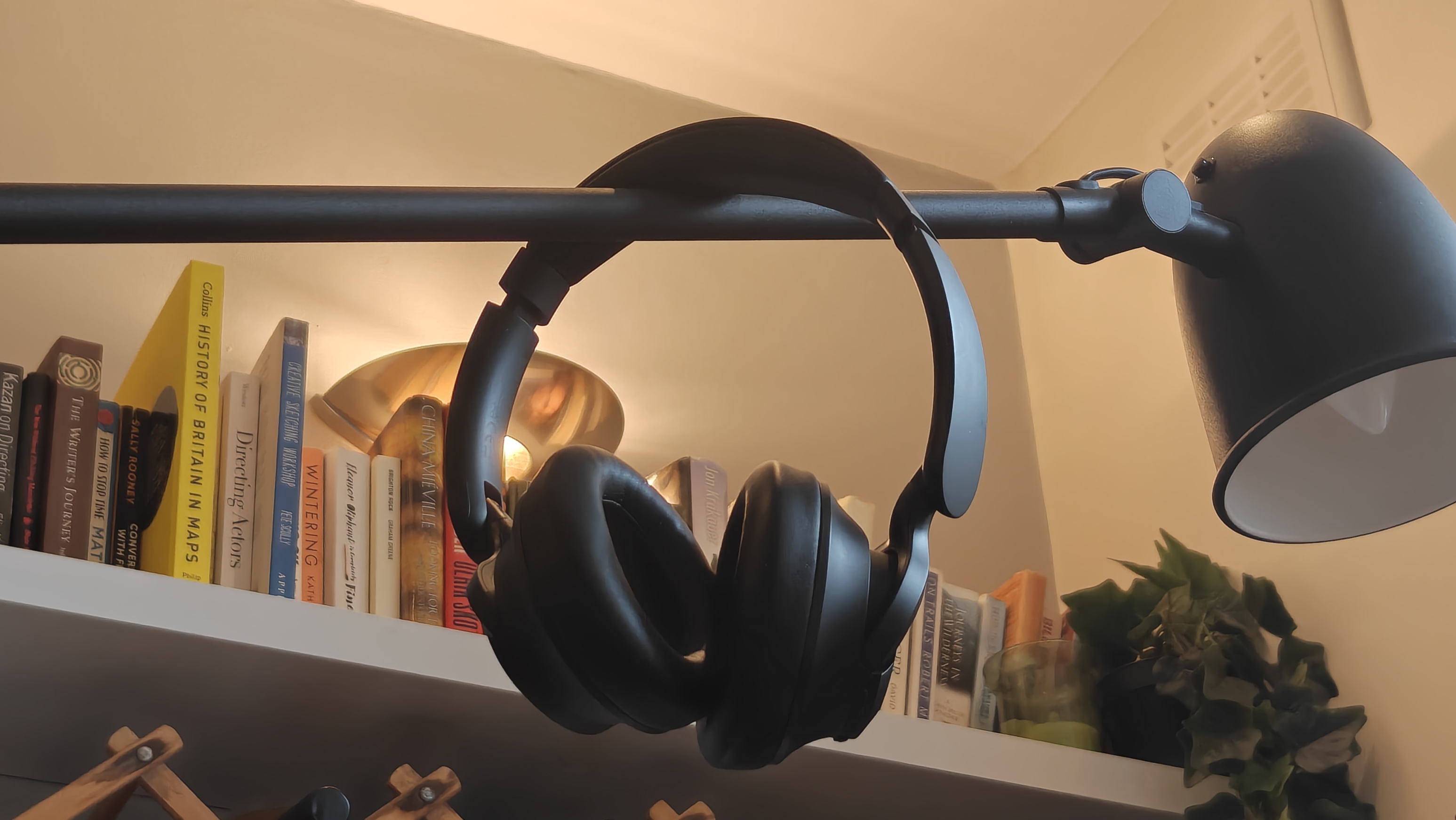
The OneOdio Focus A1 Pro a lamp, with a bookshelf in the background.

(Image credit: Future)
  • Released on January 20, 2026
  • Sells for $34.99 / £43.99 (roughly AU$85
  • On sale in UK and US, not Australia

You can pick up the Focus A1 Pro for $34.99 / £43.99 (roughly AU$85, but unlike many other cans from the company, they don’t yet seem to be on sale in Australia).

You think that makes them some of the cheapest headphones worth considering? Wait until you hear the actual price; within two weeks of the release date of January 23, I’d already found them discounted. Only by a couple of dollars or pounds, but it's still something, and OneOdio promises continued price cuts through the year.

The headphones were announced on January 20, 2026, and released shortly afterwards.

OneOdio Focus A1 Pro review: Specs

Drivers

40mm

Active noise cancellation

Yes

Battery life (ANC off)

70 hours

Weight

200g

Connectivity

Bluetooth 6.0

Frequency response

20Hz - 20kHz

Waterproofing

N/A

OneOdio Focus A1 Pro review: Features

The OneOdio Focus A1 Pro on a wooden table.

(Image credit: Future)
  • 70-hour battery life
  • ANC is resoundingly light-touch
  • No app

In what might come as a shock to headphone buyers in the year 2026, the Focus A1 Pro don’t have a smartphone app. Of all the features this rules out, an equalizer is the biggest: if you don’t like OneOdio’s mix, you'll have to lump it.

You do still get multipoint pairing, as well as a low-latency mode for gaming which is enabled by double-pressing the ANC button. But this department more than any other shows why the headphones are so cheap.

Talking of ANC, it’s not very good, but coupled with the natural passive noise cancellation of the ear cups, it’ll remove the top layer of annoying noise. When I was on public transport, I could still hear every screech of noisy rails or honk of nearby vehicles, but it was a little less onerous than normal.

The OneOdio Focus A1 Pro on a wooden table.

(Image credit: Future)

I personally took to keeping the ANC off, though, and it was for battery reasons. With ANC off, you get 70 hours of listening time, which is solid stamina. For context, if you listened for about three hours and 20 minutes every day, you’d only have to charge every three weeks.

That figure drops substantially with ANC on; OneOdio’s figures alternate between quotes of 40 or 50 hours, and the truth is likely somewhere in between. I’d rather have the longer listening time than the scant improvements this particular ANC solution brings.

I was surprised to read that the OneOdio has Bluetooth 6.0; it’s rare among headphones I’ve tested recently in having this enhanced standard. Not once in testing did I have any connection issues.

  • Features score: 3.5/5

OneOdio Focus A1 Pro review: Design

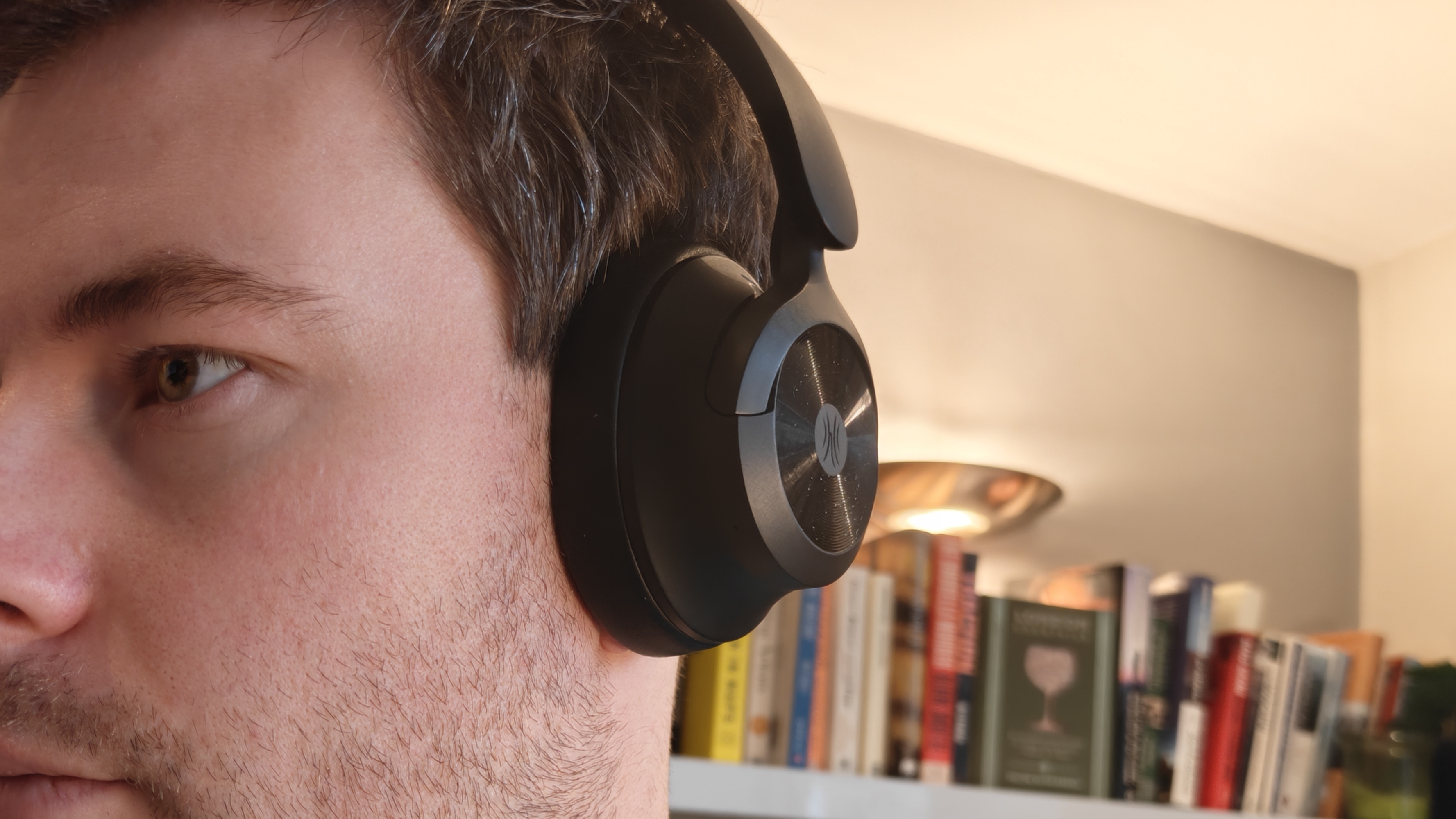
The OneOdio Focus A1 Pro on a man's head.

(Image credit: Future)
  • Sustainable build
  • Comfortable to wear
  • Incredibly handy joystick controls

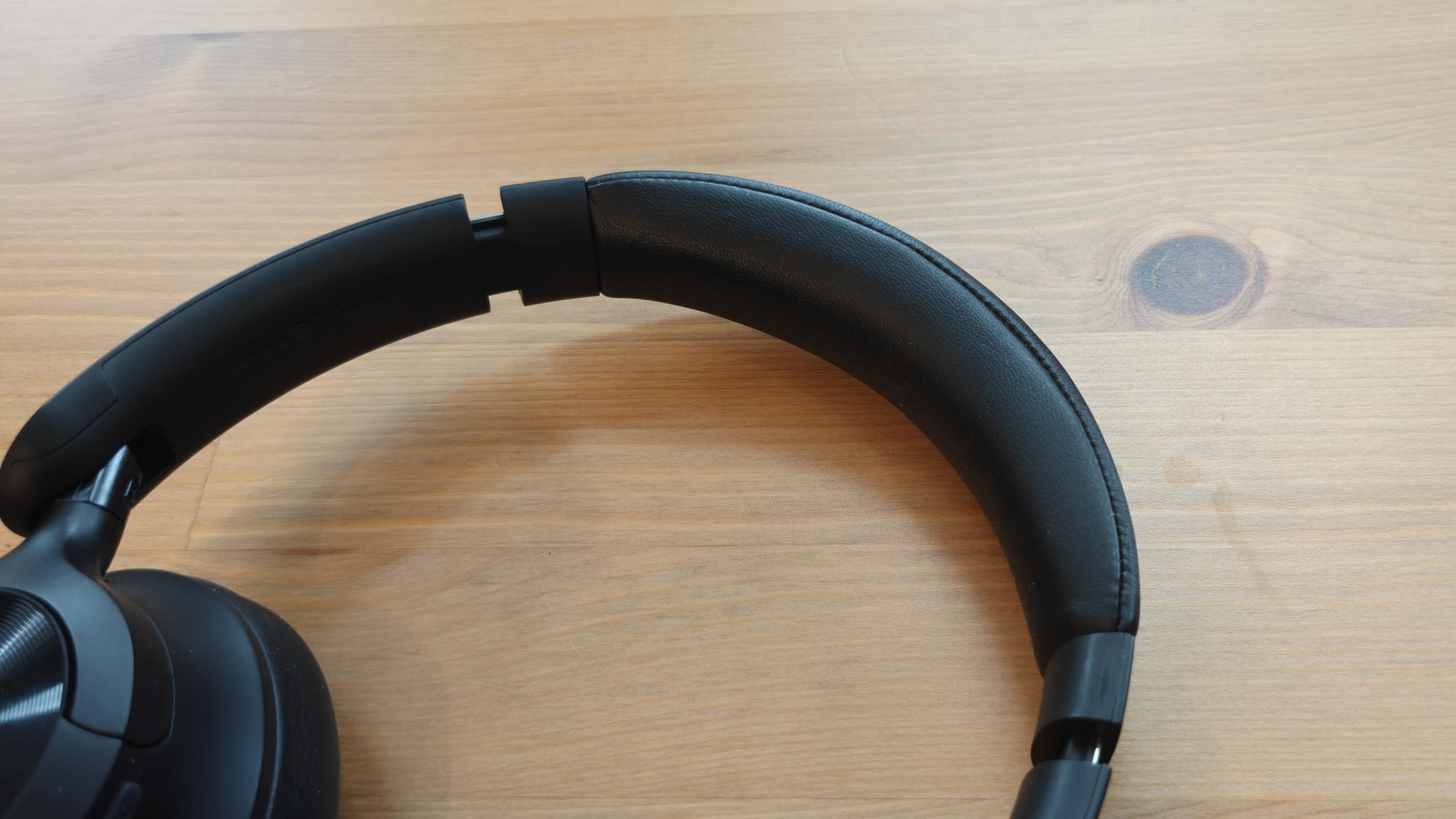
The Focus A1 Pro are, by and large, your standard headphones: big, black band with an ear cup at each end, that give you music. No-one was expecting OneOdio to reinvent the wheel for $35.

They weigh 200g, and while they have a few little design flourishes that differentiate them from your average budget cans (some curves and patterns in the appearance, for example), they do feel cheap. The build is plastic-heavy and some of the moving parts can wobble or creak a little bit.

You don’t get a carry case with the Focus, and I was a little scared to transport them in my bag, as they feel a tad fragile. They also have no IP rating. That said, during my testing month, they sustained no damage whatsoever.

The OneOdio Focus A1 Pro on a wooden table.

(Image credit: Future)

I’ve so far refrained from classing these as over-ears or on-ears, as they sit haphazardly in the middle of both. Forget Goldilocks’ messaging, though, because it’s not ‘just right’ either. They sit a little weirdly on the head, for me.

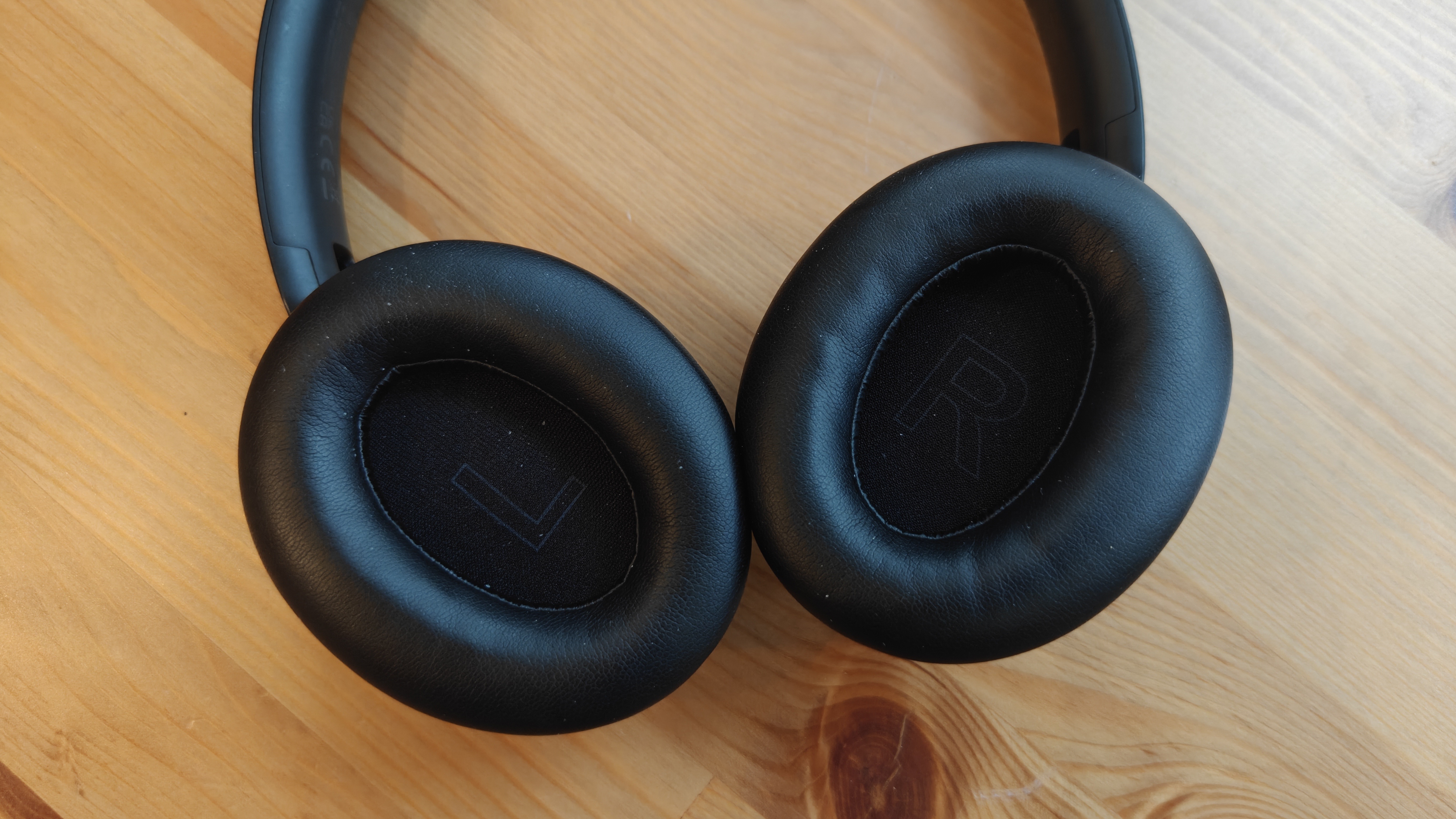
The pads, while soft, crush your ears a little over time; this was noticeable when listening for longer sessions, as my ears would get a bit achey. The rather tight grip of the cans doesn’t help here either. I also never quite figured out exactly how to wear them, due to this over/on dilemma.

On the right cup, there are some touch controls (volume up and down, power, ANC; the basics) as well as the USB-C port. These don’t stick out too much, so finding them by touch can be tricky. It took a little while for pressing these to become easy and natural. There’s no 3.5mm jack for wired audio; these are wireless or nada.

  • Design score: 3.5/5

OneOdio Focus A1 Pro review: Sound quality

  • 40mm driver
  • Crisp, natural audio
  • Max volume could be higher

The OneOdio Focus A1 Pro on a wooden table.

(Image credit: Future)

I’ve been positive about the Focus A1 Pro and that’s not going to stop now, but let’s get one thing straight: these are budget cans, and when I say they’re ‘good’, I mean ‘for the price'.

OneOdio has kitted out the headphones with 40mm dynamic drivers using PET diaphragms; so far, so budget.

Unlike many other budget headphones, the brand hasn’t fallen into the ‘more bass is more gooder’ trap — there’s a fairly natural-sounding V shape with distinct trebles in vocals, and bass that’s as rounded as you can hope for at this price point. I was surprised when songs like Starlight by Slash and Miles Kennedy offered layered instrumentation and palpable timbre, as it’s not something I’d expect for the cost.

The OneOdio Focus A1 Pro on a wooden table.

(Image credit: Future)

Naturally, the mids can fall through the cracks, so you can’t expect the whole band to show up. And when you get songs with lots going on, instruments blur together; Clarity by Vance Joy doesn’t quite live up to its title.

I’ve been constantly mentioning the price in this scene, and it’s to cover my back. Audiophiles won’t like these cans, as the mixing is messier than it would be on pricier options. But if you compare these to other offerings at the price, they’re nothing short of wonderful.

I would’ve liked to see the Focus A1 Pro manage a higher max volume, though. At full blast, the audio could mostly compete with a busy-ish road I was walking down, but Nigel Tufnel would malign the lack of any 11 to turn your music up to for that harder hit. Even when at home, anything below 50% volume was hard to hear.

  • Sound quality: 4/5

OneOdio Focus A1 Pro review: Value

The OneOdio Focus A1 Pro on a wooden table.

(Image credit: Future)
  • Great sound for price
  • Some rivals may beat in certain departments

The OneOdio Focus A1 Pro are fantastic for the price. They sound far better than you’d expect from budget cans, and I’ve tested rivals for twice the price which don’t hold a candle.

That’s not even touching on the solid battery life, the hardy connection or the useful-for-gamers latency mode.

If you look hard enough, you can probably find rival cans with better ANC, a comfier fit or an equalizer, and I’d like the OneOdio even more if it offered these. But for the price, it’s hard to knock the Focus for its absences.

  • Value: 4.5/5

Should I buy the OneOdio Focus A1 Pro?

OneOdio Focus A1 Pro score card

Attributes

Notes

Rating

Features

There’s no app and ANC isn’t great, though the battery life and connection are solid.

3.5/5

Design

For cheap earbuds, they look better than most, but have a few rough edges (literally).

3.5/5

Sound quality

These cans sound great for the price, with clearer audio and neater sound spacing than you’d expect.

4/5

Value

If you’re on a budget, these can’t be beaten

4/5

Buy them if…

You're on a tight budget
These headphones have been designed for people who don't want to pay for premium, or even mid-range, options.

Battery life is an important factor
The 70-hour battery life is going to be handy for all kinds of use cases.View Deal

You need lightweight headphones
Don't like a big helmet on your head? These are lighter than some alternatives I've tested.View Deal

Don’t buy them if…

You need something durable
The OneOdio feels a little fragile, and I don't imagine they'll stand up to some rough-and-tumble use.

You need heavy-duty noise cancellation
The ANC on these guys isn't fantastic, though it's better than nothing.

OneOdio Focus A1 Pro review: Also consider

OneOdio Focus A1 Pro

Soundpeats Cove Pro

OneOdio Focus A6

Drivers

40mm

40mm

40mm

Active noise cancellation

Yes

Yes

Yes

Battery life (ANC on)

70 hours

95 hours

75 hours

Weight

200g

251g

240g

Connectivity

Bluetooth 6.0

Bluetooth 6.0

Bluetooth 6.0

Waterproofing

NA

IPX4

NA

OneOdio Focus A6
These high-rated budget cans cost a touch more than the A1 Pro, but app access is the headline improvement.
Read our full OneOdio Focus A6 review

Soundpeats Cove Pro
These slightly pricier alternatives have a solid build and impressive feature set, though they don't sound as good. (Our review on the Cove Pro is currently in the pipeline; when we publish it, you'll be the first to know!)

How I tested the OneOdio Focus A1 Pro

  • Tested for 1 month
  • Tested at home, on walks, on public transport and the gym

The OneOdio Focus A1 Pro on a wooden table.

(Image credit: Future)

I used the OneOdio Focus A1 Pro for the best part of a month before writing this review, so they got a lot of use.

For most of the test period, the headphones were paired with my Android smartphone, though I also used them alongside an Android tablets at several points.

Testing was done streaming music, watching TV shows and playing games. I tested the headphones in various interior settings, while out and about, and during gym sessions.

I've been tested audio gadgets for TechRadar for years, including several previous OneOdio headphones and earbuds.

  • First reviewed in February 2026

Thursday, February 26, 2026

I've been using the Onyx Boox Note Air5 C for a few weeks and it's an excellent color epaper tablet — it just doesn't feel 'new'

Onyx Boox Note Air5 C: One-minute review

I’ve been a fan of the Boox Note Air series of epaper tablets since I first tried the Note Air 2, and the Note Air5 C — announced in October 2025 — continues the tradition of solidly built devices that work well.

The headline act here is an updated operating system. It’s the first epaper tablet to run an Android 15-based software and Boox has promised that the device will receive three years of support, much more than previous iterations.

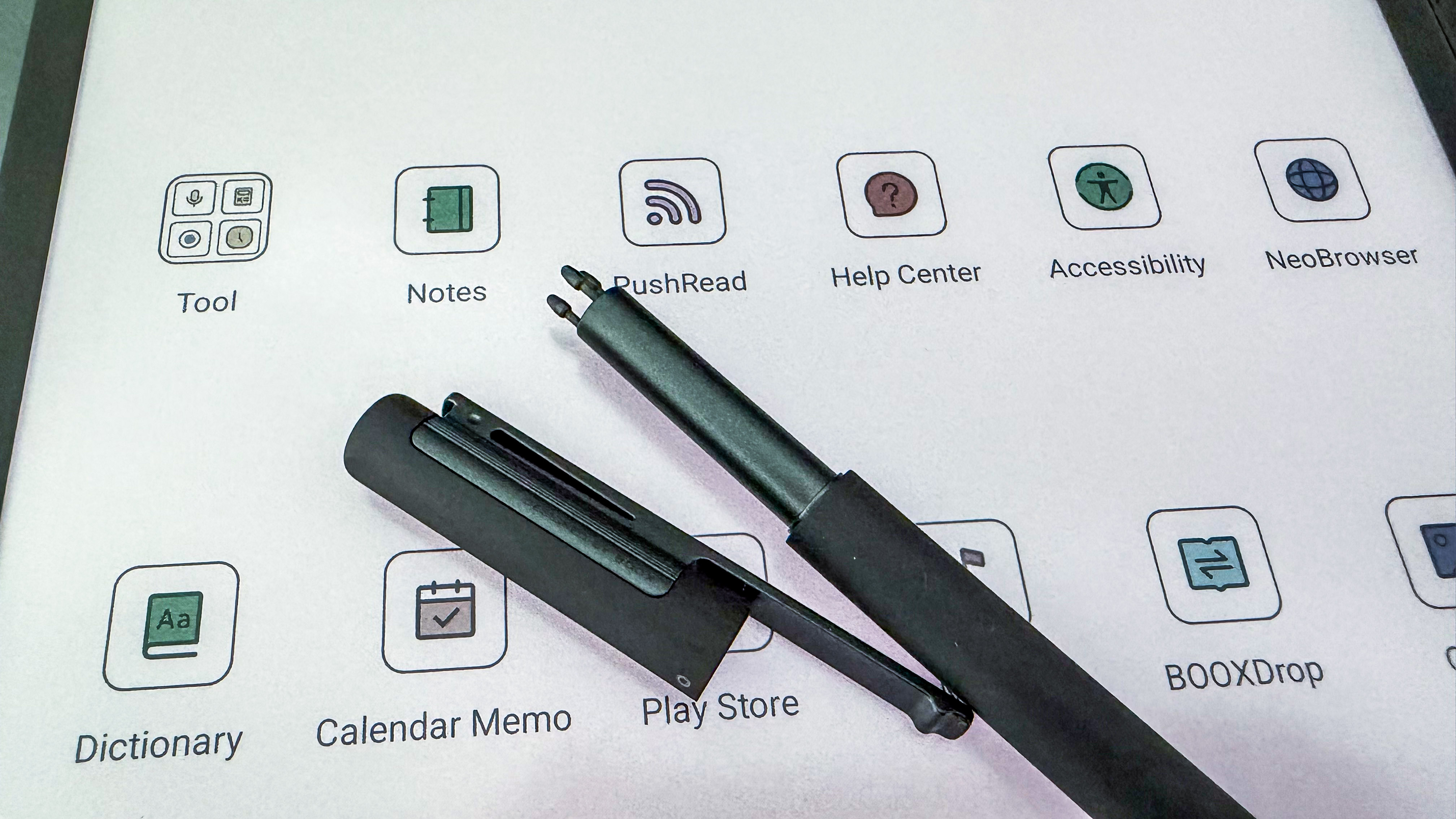
The second thing that’s new here is the pen. It ships with the Boox Pen 3, which is unlike anything I’ve seen from the Chinese ereader maker. It continues to have the felt tip-like writing experience, but unique is the storage space for three replacement nibs on the top, covered by its own cap. Sadly this top cover is loose and pops off easily.

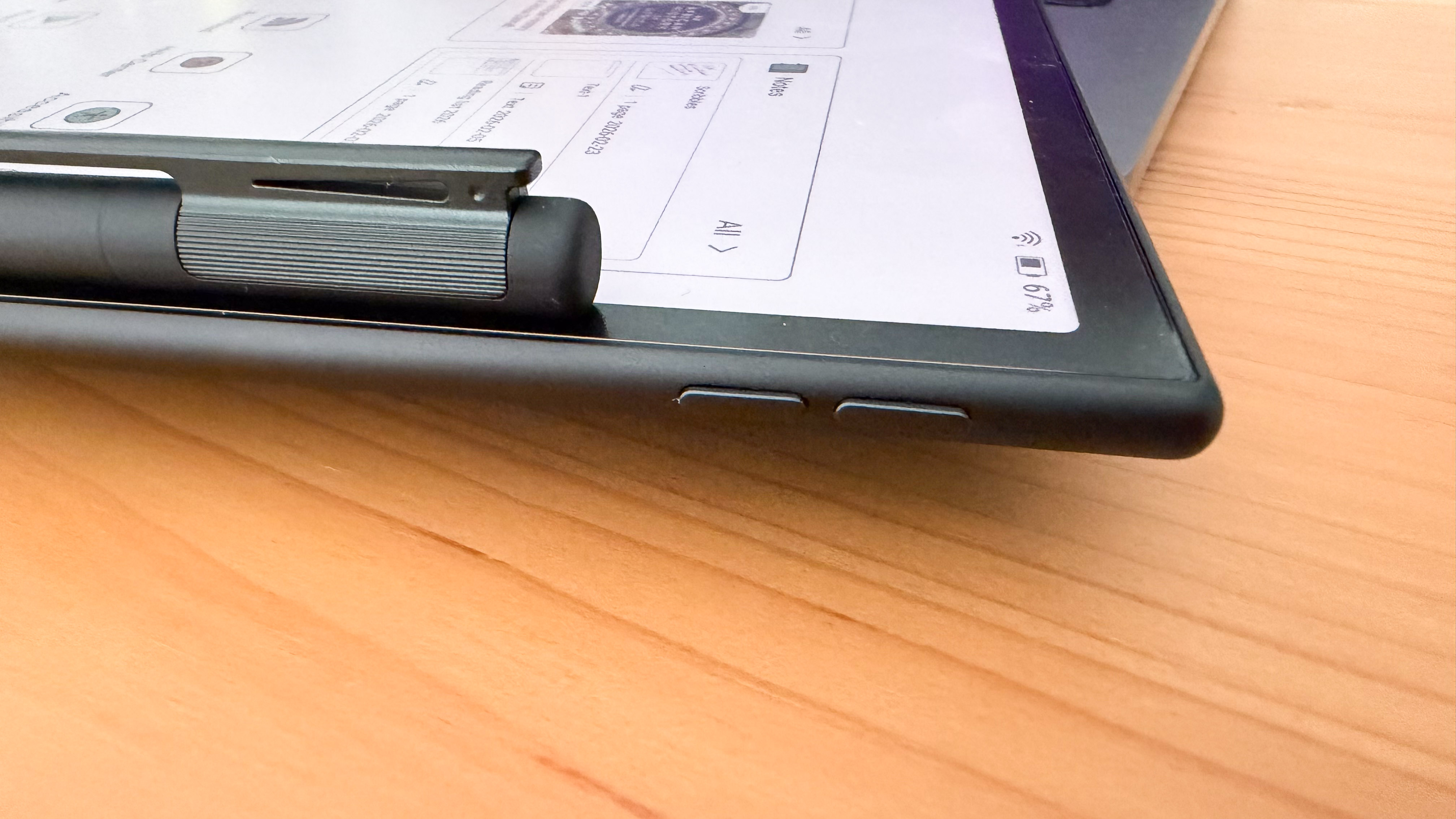
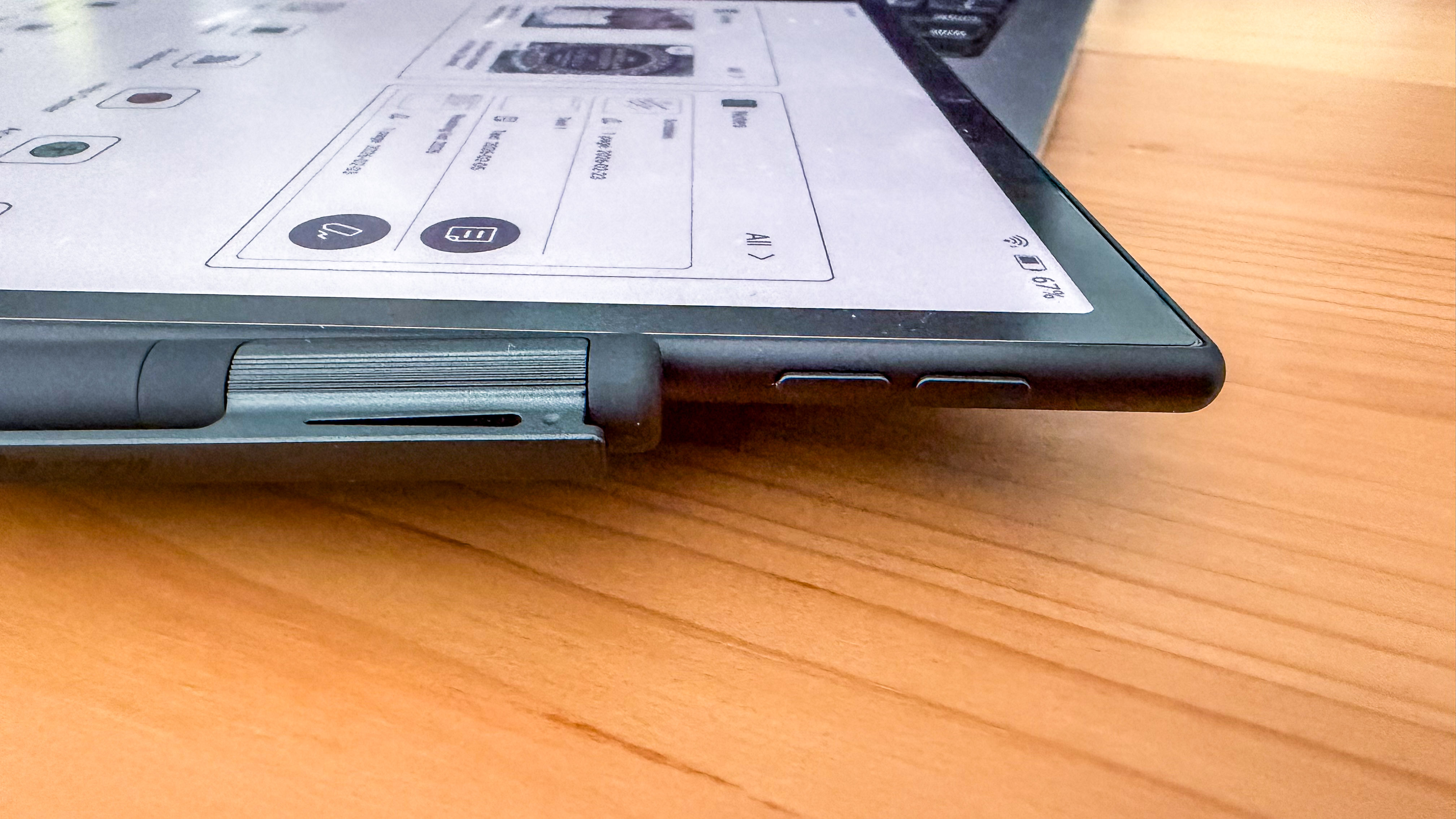
Lastly, the Note Air5 C features a set of pogo pins on its rear that allows it to attach seamlessly to the optional keyboard folio from Boox, and there’s a pair of buttons on the magnetic side for page turns or volume adjustment.

That’s all that’s new here — nothing really groundbreaking except the software upgrade. That’s not necessarily a bad thing as the Note Air5 C, like its predecessors, is solidly built and performs well. It just doesn't feel very different from other Boox devices and, if I was asked to recommend a 10-inch e-notebook, I'd probably pick the lighter (albeit grayscale) Boox Go 10.3 or the reMarkable Paper Pro for its color display (although you won't get Android's versatility).

There are a few other small issues that I think is important to note: while the screen light is great at its brightest, it's comparatively darker at low and mid levels. The magnet to secure the pen to the side of the tablet is also not very strong — the only position where it secures well covers the bottom page-turn button, but even that isn’t great.

The Qualcomm Snapdragon 690 CPU used here helps the device perform well, but I found some lag when using the on-screen keyboard. There's a much more significant lag when using the optional keyboard folio, which makes touch typing annoying. You might also experience some ghosting, particularly if the document you're perusing is image-heavy.

While my complaints aren't serious, I think they diminish the Note Air5 C’s overall value and make it harder to recommend over its own Go 10.3 sibling, or the reMarkable Paper Pro if color is important.

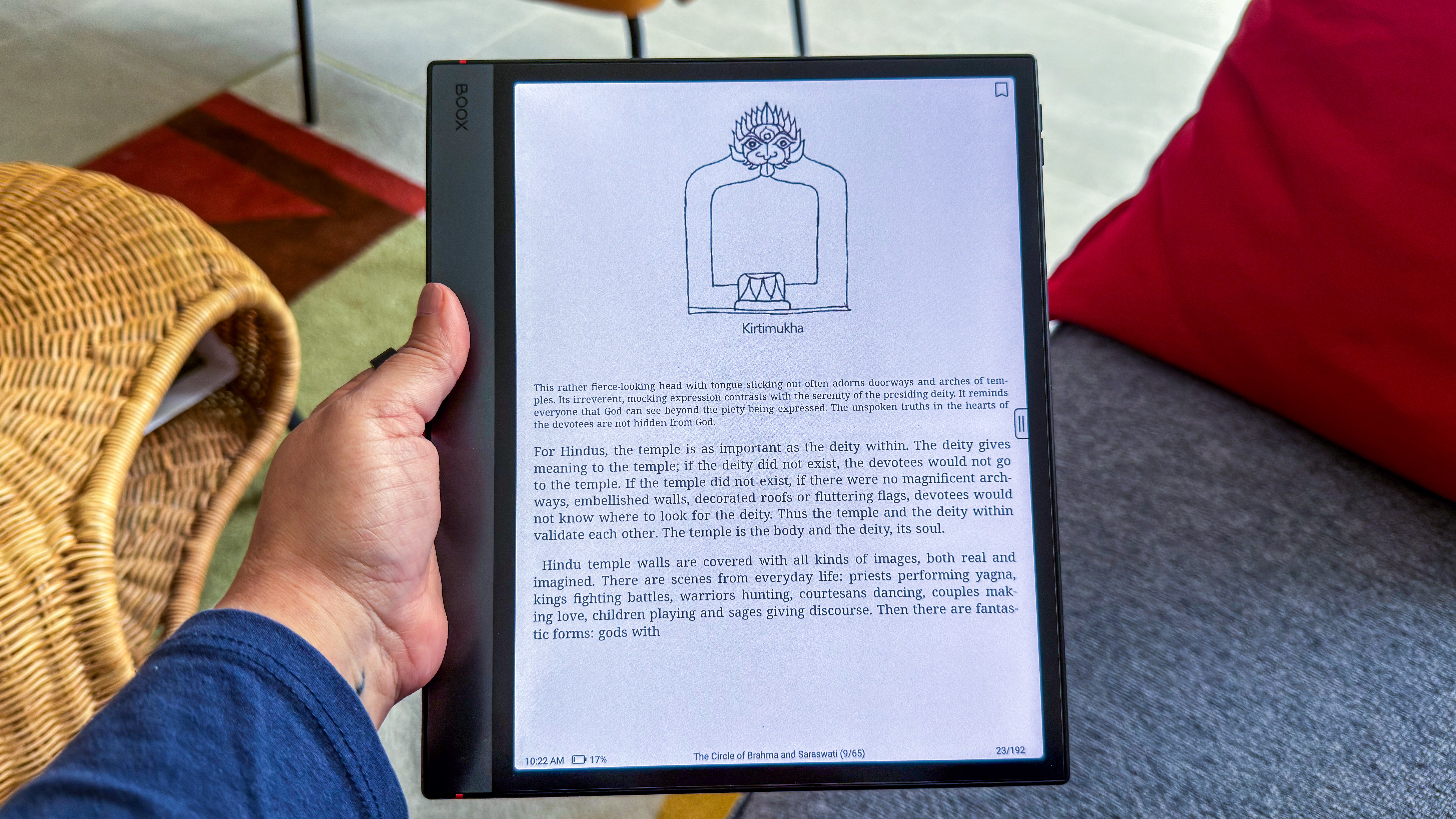
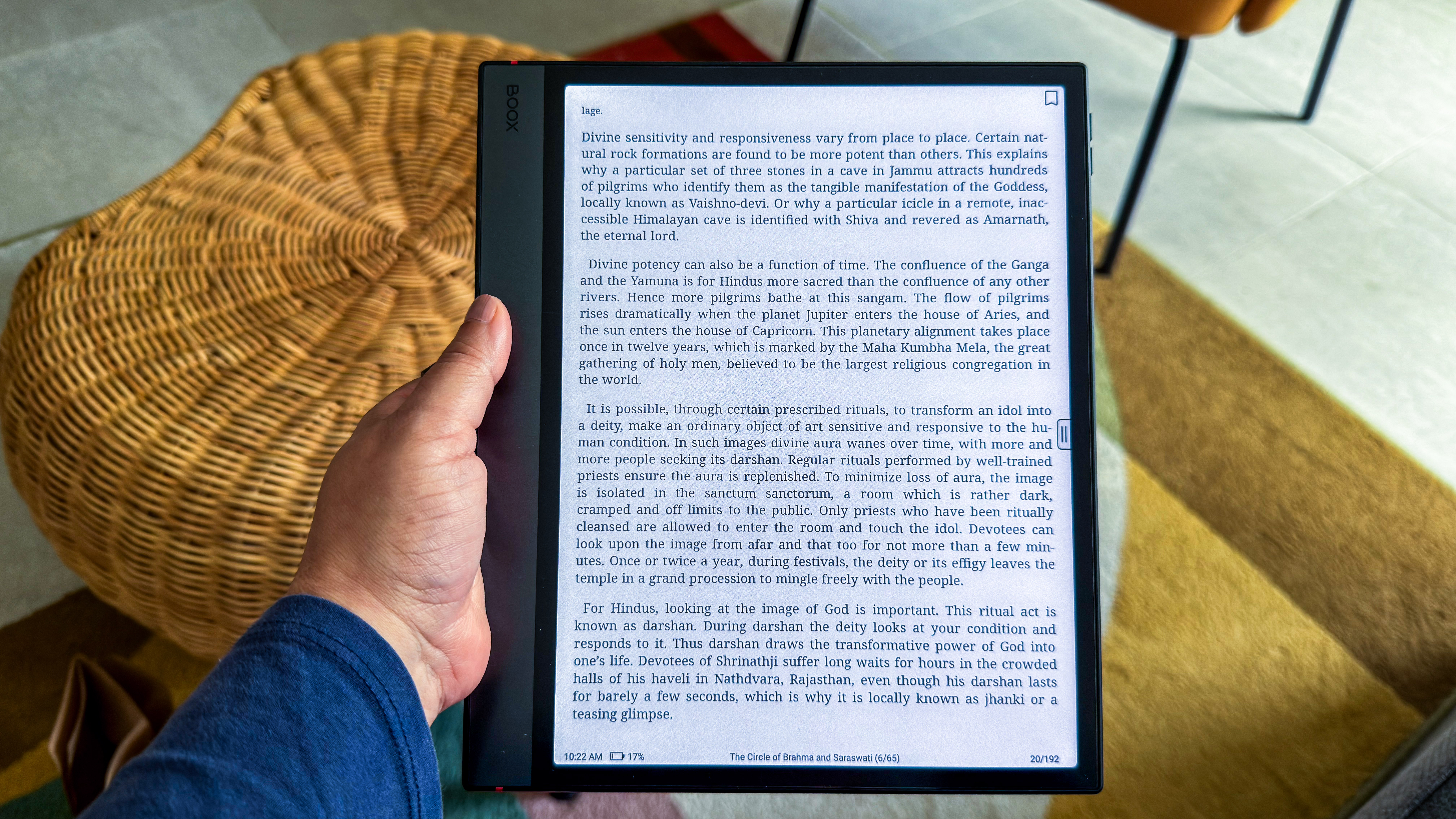
A person holding the Boox Note Air5 C that's displaying a page of a book

(Image credit: Sharmishta Sarkar / TechRadar)

Onyx Boox Note Air5 C review: Price & availability

  • Released October 2025
  • Available now for $529.99 / €529.99 / AU$919
  • US and European price includes folio and box of 5 replacement nibs; Australian price is for device and stylus only

If you’re in the US or in the UK, (or anywhere in Europe for that matter), the Boox Note Air5 C is well priced, especially when purchasing directly from the Boox Store where it’s bundled with a folio case and a box of five replacement pen tips. And given there are three spare nibs on the top of the new stylus itself, that’s a lot of spare tips for the price.

In Australia, however, it’s a very expensive prospect as you only get the tablet and the Boox Pen 3 — no extras are included.

In contrast, the reMarkable Paper Pro, which is also a 10-inch color e-notebook, starts at $579 / £559 / AU$929 with a basic Marker and no additional extras. However, it uses a better color display (a customized version of the E Ink Gallery 3 technology that no other ereader maker is currently using), so the saturation is much better. On the flip side, the Android-running Note Air5 C gives you more freedom on the apps you can use and is the more versatile device.

Then again, if you can forgo the color display, a monochrome epaper tablet would be a lot cheaper. For example, you can get the Boox Go 10.3 for around $410 / €420 / AU$699 (US and European price includes the folio and extra nibs), and it’s a fantastic e-notebook that’s lighter than the Note Air series. Even the Amazon Kindle Scribe (2024) would be a cheaper buy and I love its bright, monochrome display.

• Value score: 4 / 5

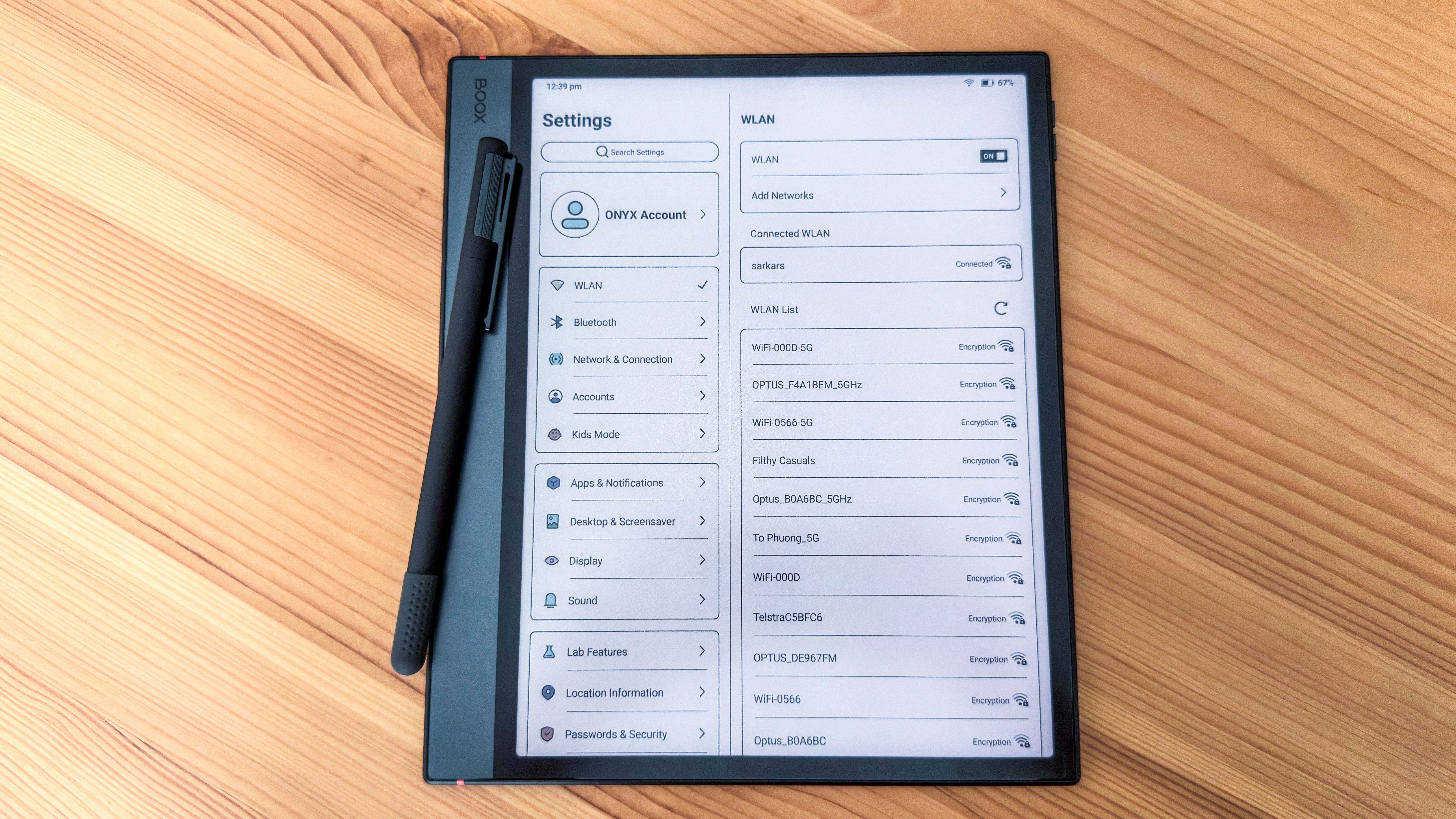
Settings meny on the Boox Note Air5 C

(Image credit: Sharmishta Sarkar / TechRadar)

Onyx Boox Note Air5 C review: Specs

Display type:

E Ink Kaleido 3

Screen size:

10.3 inches

Resolution:

300ppi (2560 x 1920 pixels) in b/w; 150pp (1240 x 930) in color

Processor:

2GHz octa-core Qualcomm Snapdragon 690

Frontlight:

Yes (warm and cold)

Storage:

64GB (expandable)

Battery:

3,700mAh

Speaker:

Dual (stereo)

Water protection:

None

Software:

Android 15

Connectivity:

Wi-Fi (2.4GHz + 5GHz); Bluetooth 5.1 USB-C

File support:

20 document, 4 image, 2 audio

Dimensions:

225 x 192 x 5.8 mm (8.9 x 7.6 x 0.23 inches)

Weight:

440g / 15.5oz (without case and pen)

Onyx Boox Note Air5 C review: Design & display

  • Solid build, but heavy to hold for long durations
  • Newly designed pen with spare nibs on the top
  • Customizable page-turn buttons
  • Excellent 10.3 E Ink Kaleido 3 display, but colors can appear muted

Physically, the Note Air5 C is identical to the previous two generations, with a couple of minor differences. As I’ve already said, that’s not a bad thing, as the overall design is still nice and the device is solidly built. So solid, in fact, that the Note Air series is on the heavier side when it comes to 10-inch epaper tablets.

For context, the Boox Go 10.3 weighs 375g and the ViWoods AiPaper tips the scales at 370, but neither of them have frontlights. In contrast, the Note Air 4C weighs 420g and the 5C comes in at 440g. It’s not the heaviest e-notebook — the reMarkable Paper Pro is 525g — but it’s not the most comfortable to use in one hand for long periods of time.

Despite being on the heavier side, I like the Note Air series’ metallic chassis and glass screen. While that makes the tablet cold to the touch (especially in winter months), it also makes it a hardy device. That said, there’s no waterproofing here.

A colorful wallpaper showing a lighthouse on the screen of the Boox Note Air5 C

(Image credit: Sharmishta Sarkar / TechRadar)

There are only two design differences between the Note Air5 C and the previous 4C and 3C generations. One is a set of pogo pins on the rear to connect to the optional keyboard folio, and the other is a pair of small buttons on the magnetized edge of the device for page turning or volume adjustments.

I’ve been waiting for a large-screen ereader with page-turn buttons but this placement means the device can’t be used single-handed — you will need one hand to hold the device via the larger bezel and use the other hand to press one of the buttons on the opposite side. In my time with the Note Air5 C, I never once found the need to use the buttons, but the long-press functionality can be set to various functions that can prove handy for some users.

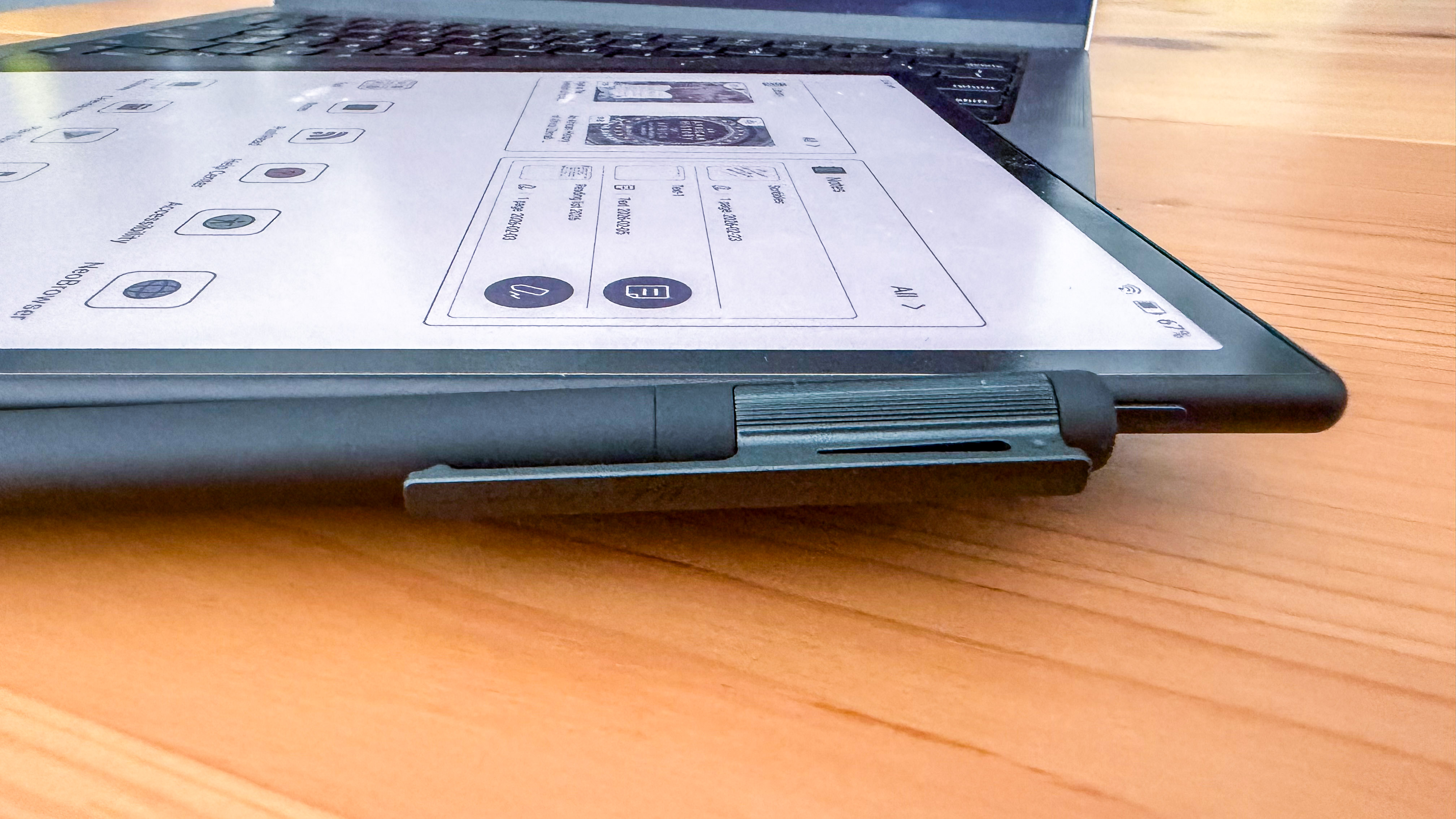
However, if you have the supplied stylus — called the Boox Pen 3 — secured to the side of the tablet, it covers the lower button. Place the stylus lower and the magnetism just isn’t strong enough for a secure hold.

Boox Pen 3 stylus attached to the top of the Boox Note Air5 C
Sharmishta Sarkar / TechRadar
Boox Pen 3 stylus attached to the side of the Boox Note Air5 C below the side buttons
Sharmishta Sarkar / TechRadar
Boox Pen 3 stylus attached to the Boox Note Air5 C, covering a side button
Sharmishta Sarkar / TechRadar

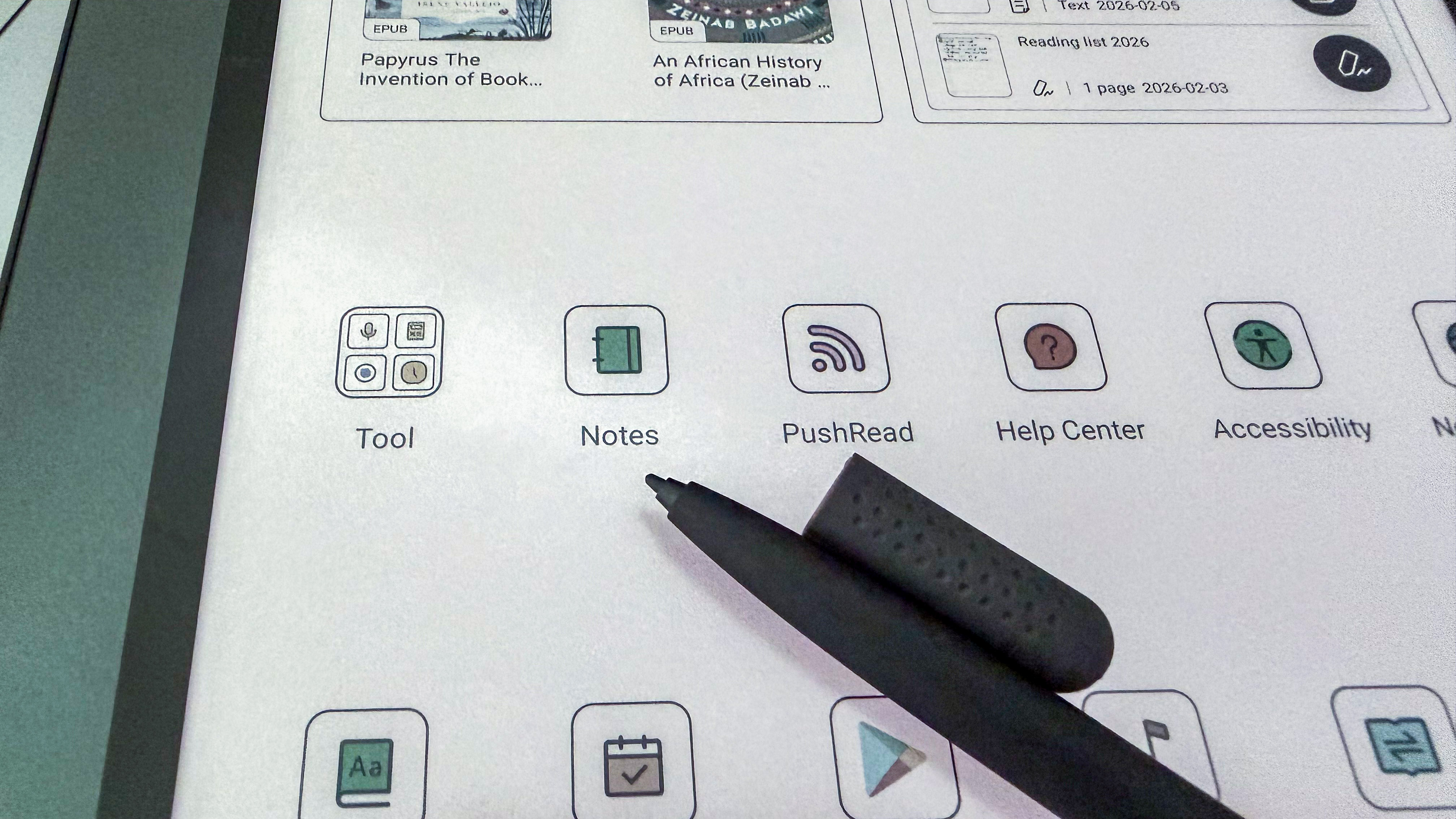
I have to take some time to describe this new pen too. It has an interesting design where, instead of an eraser on the top, three replacement nibs can be stored vertically. They’re covered by a cap with a side clip — much like an actual pen — but sadly the cap is loose and pops out easily. You also need to replace it carefully, and correctly, to avoid damaging the nibs. As thoughtful as the design is, I think the cap would have benefitted from being clipped into place rather than sliding on and off. Despite the addition of the spare nibs on the top of the stylus, the pen is well balanced, lightweight and lovely to write with on the Note Air5 C.

I should also mention that the most secure way to stow the stylus is to use a folio cover, but the one I was sent for this review didn’t have a loop. Instead, it had a removable flap that I found very annoying to use. Even the keyboard folio designed for the Note Air5 C has the same flap and it’s just as annoying there as it comes off easily or shifts position with the merest of touches.

Replacement nibs on the top of the Boox Pen 3 stylus lying atop the Boox Note Air5 C
Sharmishta Sarkar / TechRadar
The writing tip of the Boox Pen 3 stylus lying atop the Boox Note Air5 C
Sharmishta Sarkar / TechRadar

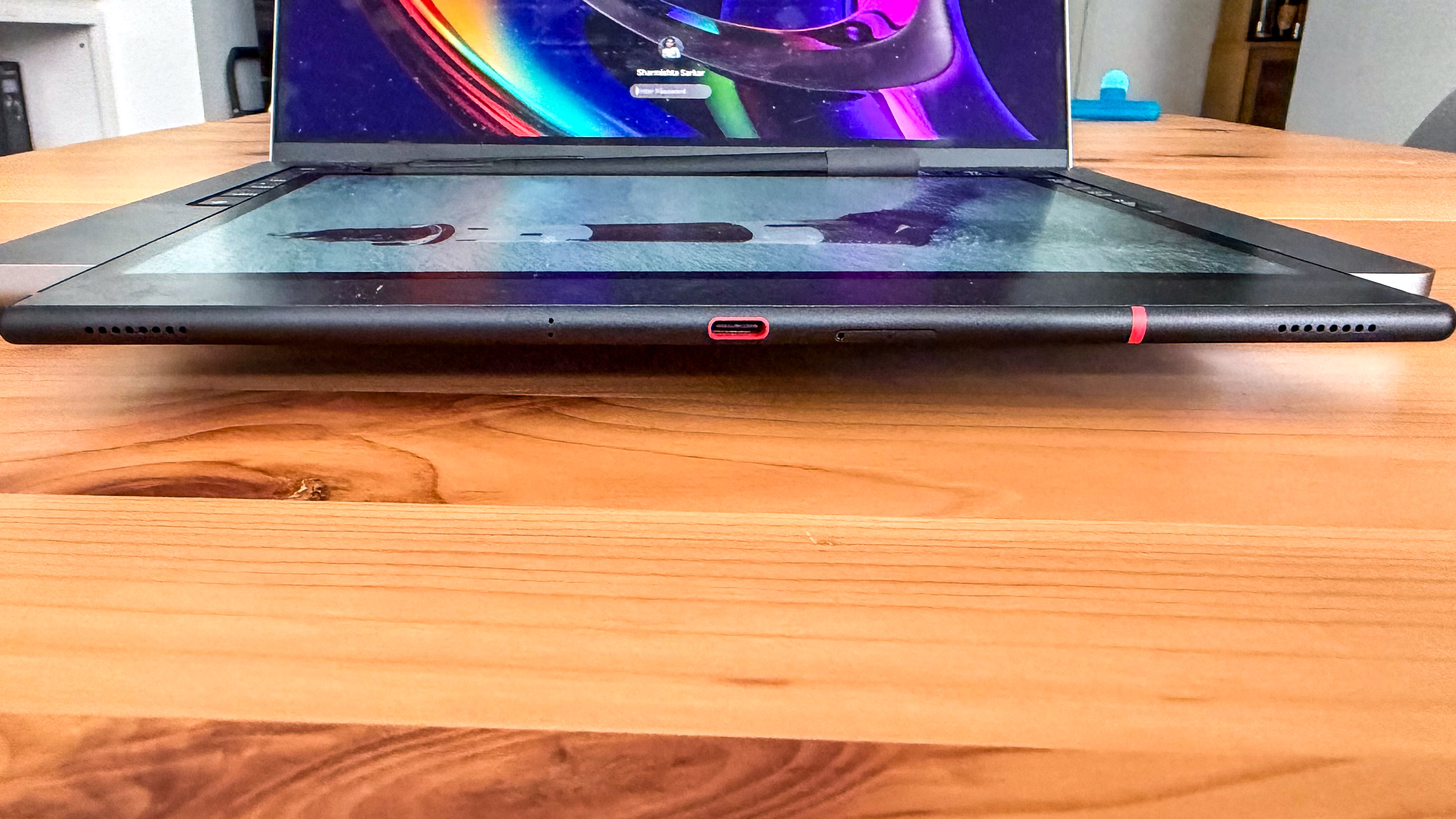
Going back to the tablet itself: there’s a USB-C port, a microSD card tray and dual speakers on the edge opposite to the page/volume buttons, while the top edge houses a power/sleep button that’s flush with the body. The power button is also a fingerprint scanner and I didn’t find its placement very intuitive — I kept expecting the button to be on the corner, but it’s placed slightly away and I kept having to feel for it.

As expected, one bezel is thicker than the other three, with the top corner of the bigger bezel featuring the Boox branding. Small orange strips on three of the edges add some trim to the device, and the same orange surrounds the USB-C port.

The USB-C port with orange trim on the side of the Boox Note Air5 C

(Image credit: Sharmishta Sarkar / TechRadar)

This chassis encloses a 10.3-inch E Ink Kaleido 3 screen with LEDs under the glass panel for a frontlight. The light can be adjusted for both brightness and temperature, although keep in mind that warmer (yellow) light will affect the colors displayed on the screen. While this won’t affect those of us who mostly read and write in black and white, fans of comics, manga and graphic novels — or anyone using the color inks to mark up documents — may find colder light the better option.

At its brightest, the frontlight is excellent, but dip it a little bit and the difference is quite dramatic, with the screen appearing darker than expected, but this is a common feature among Boox's color epaper devices like the Go Color 7 (Gen II).

The display, with a monochrome resolution of 300ppi and color resolution of 150ppi is standard, is good. Text is sharp and clear for reading, while colors are good… in the context of being an E Ink display, not compared to an LCD screen. That said, they are relatively muted compared to the reMarkable Paper Pro, which uses the E Ink Gallery 3 screen technology that no other epaper device has yet adopted.

• Design & display score: 4 / 5

A person holding the Boox Note Air5 C

(Image credit: Sharmishta Sarkar / TechRadar)

Onyx Boox Note Air5 C review: Software & user experience

  • First 10-inch epaper tablet to adopt Android 15
  • Boox promises three years of software support
  • Good native apps, but complex user interface

Where the Note Air 4C runs on Android 13, Boox has adopted Android 15 for the 5C. Running a later version of Android means the newer epaper tablet will get better software support — and Boox has promised three years of security updates — and there’s better app compatibility too.

It’s important to note, however, that my review of the 5C’s software is based on the firmware it was running at the time of writing (v4.1.2) and the experience could change slightly depending on what future firmware versions add. The current software fixed a major issue the tablet suffered from at launch (and one I experienced as soon as I started using it) — being unable to write comfortably along the four sides of the screen in the native Notes app.

Android OS & apps

The custom version of Android 15 running on the Note 5C doesn’t feel very different from the software on older Boox devices as the company has its own user interface overlaid on the operating system. Boox has done a lot of work over the years to simplify its interface, making it cleaner and easier to use, but there’s still plenty to wrap your head around.

That said, I love the look of the default home screen on Boox’s larger tablets, which has a box for your books, another for notes, below which are the apps — both native and those downloaded from the Google Play Store — and, finally, a few icons to access the native library app, a bookstore (with titles that are available in the public domain), the folders within the device’s storage section, and all settings.

Settings meny on the Boox Note Air5 C

(Image credit: Sharmishta Sarkar / TechRadar)

Unlike older Boox devices, the Google Play Store is preinstalled and all you need to do is sign in to download any app. While you won’t be using video streaming services, you can download audio platforms — the built-in speakers are fine, but I’d highly recommend pairing Bluetooth speakers or headphones instead. You can also download some mobile games — I played a bit of Two Dots and it wasn’t too bad — but I suspect most users opting for a device like the 5C would want reading and productivity apps.

You can install Gmail, for example, to access your emails or install KoReader or Moon Reader instead of using the native NeoReader app. Personally, I use the Kindle and Kobo apps to access my existing purchases and get new content, but I also like Instapaper (for reading web articles offline) and Libby (to borrow library books), but the choice is yours.

However, I’ve found the native apps to be more than enough for most users. Not only will you get a full-featured library and notes applications, but there’s also a browser, music player, calendar and a gallery. There are a couple of applications to help you transfer files — although you can use Google Drive and/or Dropbox for easy cloud transfers. Wired transfers are possible on Windows PCs and, as a Mac user, I stuck with the OTG support on the USB-C port that allowed me to plug in a portable SSD.

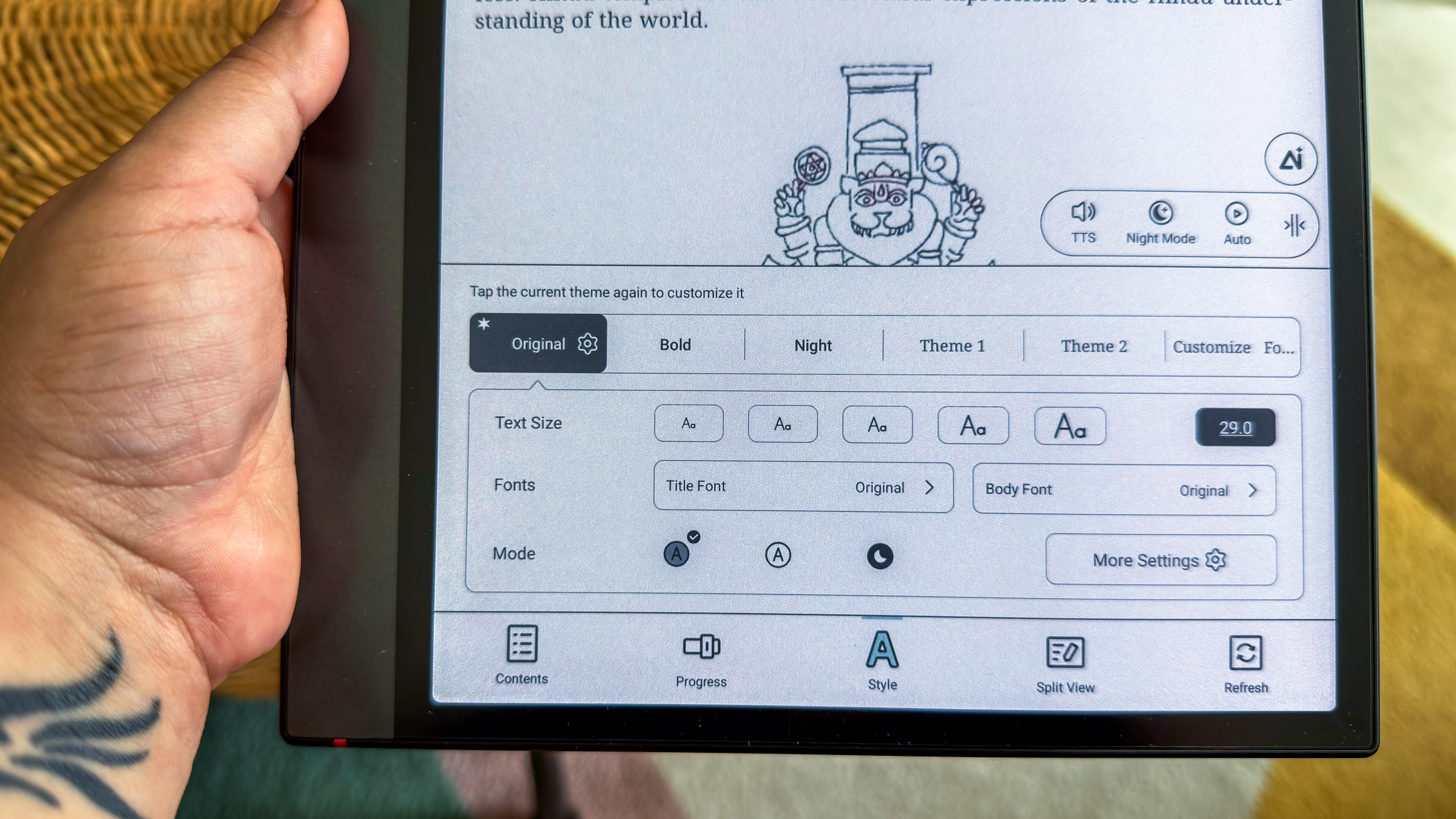
Font styling options within the native library app on the Boox Note Air5 C

(Image credit: Sharmishta Sarkar / TechRadar)

Swipe down from the top right of the screen to open the Control Center and you’ll find plenty more options there, including buttons for taking screenshots and splitscreen view. This is also where the volume and light control sliders are, but Boox introduced buttons for some preset light options in 2025 and, honestly, I don’t like either the Bright or the Soft settings. I choose custom and make adjustments as I need them — something I did in my Boox Go 7 review as well.

There’s a long list of settings to get through as well, but what’s irksome about the Boox interface are the smaller hidden menus that you need, especially in the native reading app. Unless you’ve already used a Boox device previously, you’ll likely miss them, or you’ll stumble upon them when you’re looking for something specific to change. Ironically, this is a massive improvement over the previous versions of the UI but, if you’re a first time Boox user, be prepared to be patient while learning your way around.

• Software score: 4 / 5

Reading experience

While I had issues with how text rendered on the 7-inch E Ink Kaleido 3 screen in my Boox Go Color 7 (Gen II) review, thankfully none of that affects the Note Air5 C. Reading, whether you’re using the native NeoReader application or you’ve downloaded a third-party app, is a pleasurable experience. Text is sharp and there’s a wide variety of font sizes to choose from.

What I like about the open Android ecosystem of Boox tablets is the ability to sideload any font I like — I’m partial to Amazon’s Bookerly — and use that in the native library app for any sideloaded DRM-free content.

A person holding the Boox Note Air5 C that's displaying a page of a book
Sharmishta Sarkar / TechRadar
Stylus options within the library app of the Boox Note Air5 C
Sharmishta Sarkar / TechRadar

As an avid reader who has used the Boox Go 10.3 as well, I’m pleased to say that the text contrast on the 5C is better, which adds clarity and makes for a better reading experience over the monochrome sibling. Plus, the frontlight on the 5C makes a difference — if you want more contrast, you have to set it to high brightness with no warmth. Adjusting the light temperature can have an effect on the clarity via the contrast, but at no point did it make the text look fuzzy or unreadable. It’s a marked improvement over the Go 10.3 which uses the E Ink Carta 1200 display technology.

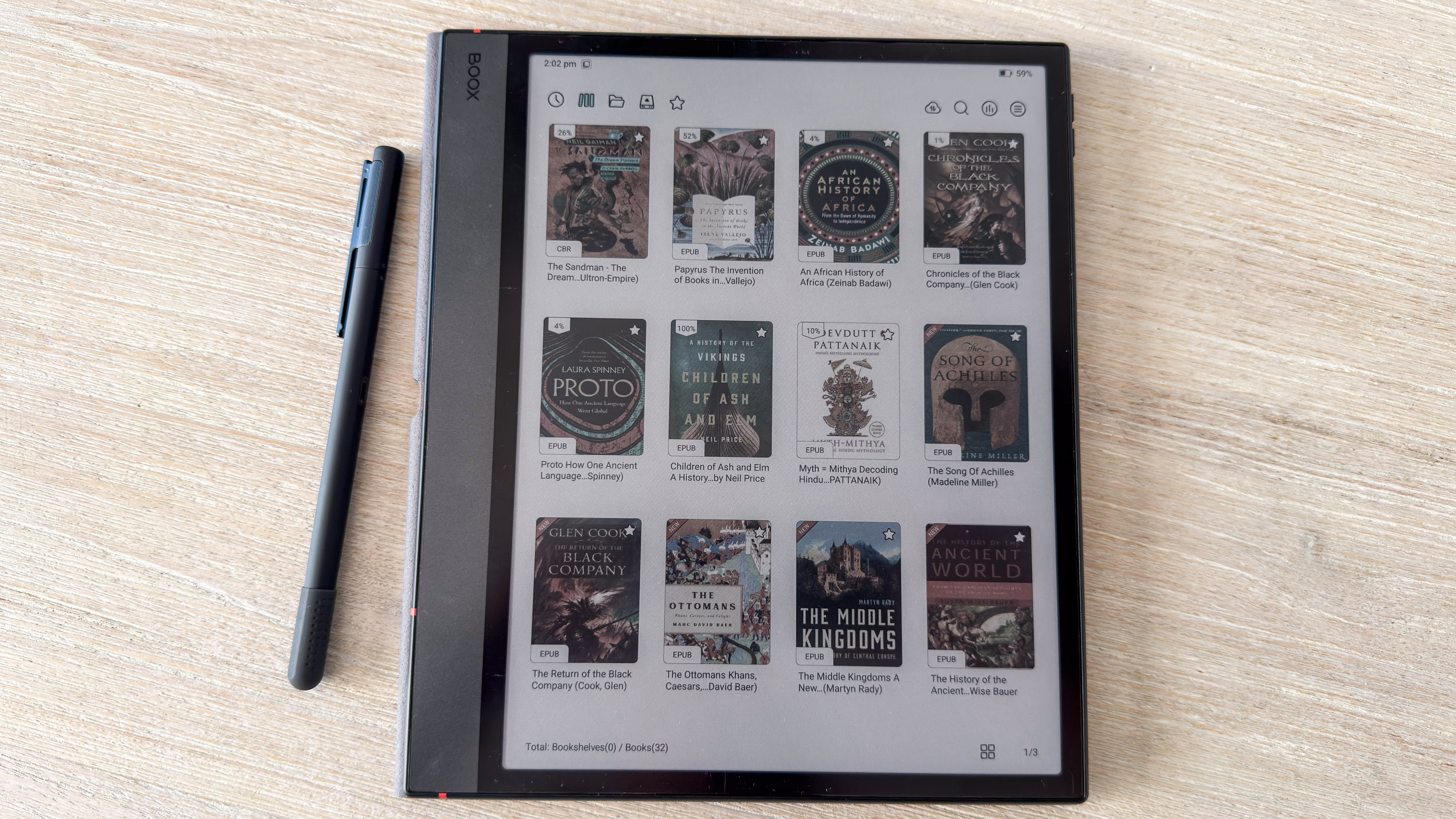
Colors, while not as saturated as on the reMarkable Paper Pro due to the difference in screen tech being used, are not bad and I found book covers looking good. However, my favourite graphic novel series, The Sandman, looked washed out compared to when I was reading it on my Kobo Libra Colour or even the Boox Go Color 7 Gen II. I’m not much of a comic or graphic novel reader, so the muted colors didn’t really bother me as I’m very used to looking at the frames in black and white on a monochrome ereader.

Tabs on the native library app on the Boox Note Air5 C

(Image credit: Sharmishta Sarkar / TechRadar)

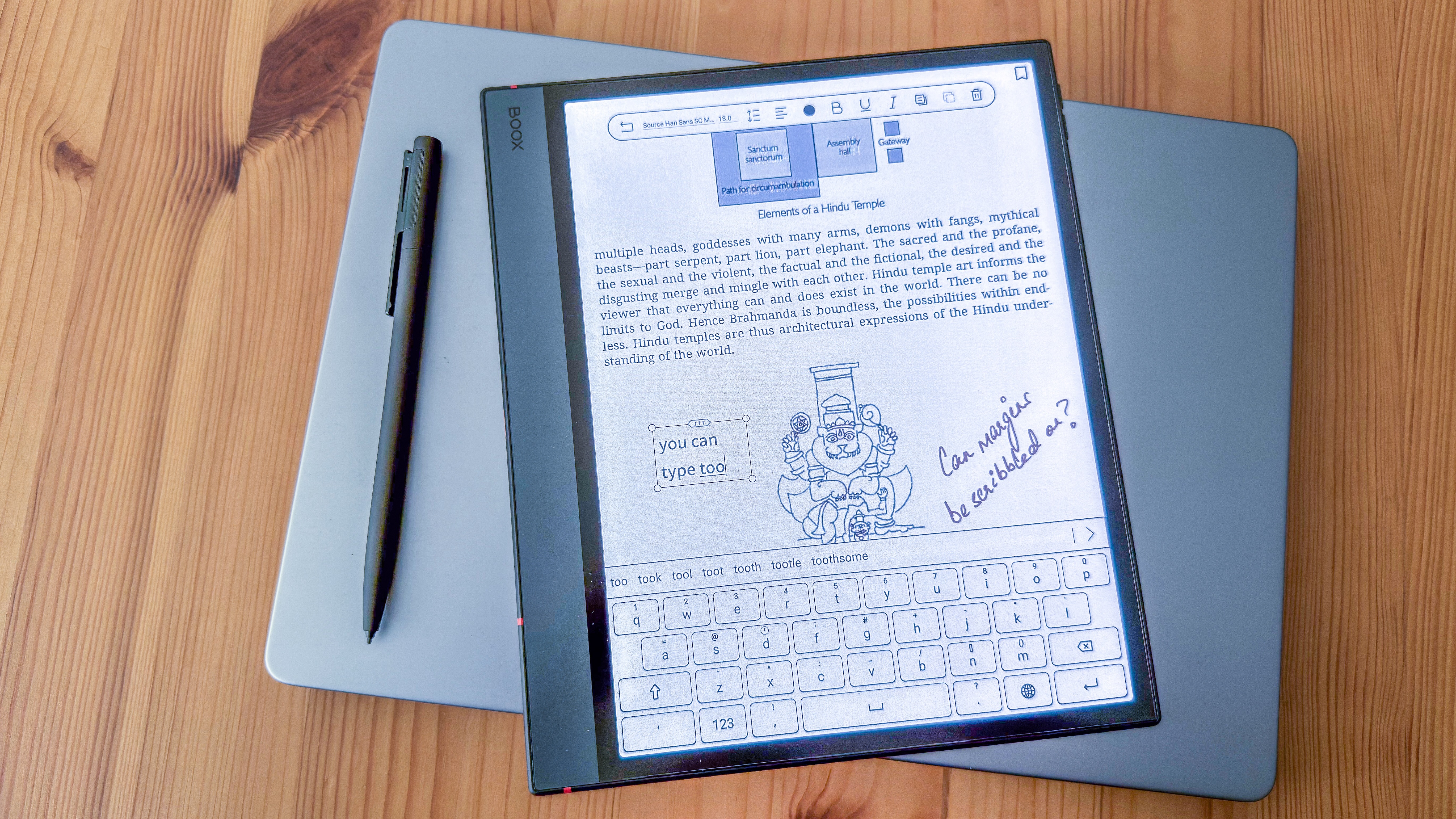
If you need to make notes on ebooks in the native reading app, you can either scribble or type, and there are menu options within the app to help you do so. These get saved automatically in the document you’ve annotated and you should see them when you open it again. You can use colored ink to write, but all typed text will be grayscale. Highlights can be in a variety colors too.

Overall, the Note Air5 C makes for a lovely ereader, but its weight can make it uncomfortable for using beyond, say 30 to 40 minutes, and if you leave the folio on, that’s added bulk to take into consideration. Whether you’re reading in bed or sitting up, this is definitely a two-handed device.

• Reading score: 4 / 5

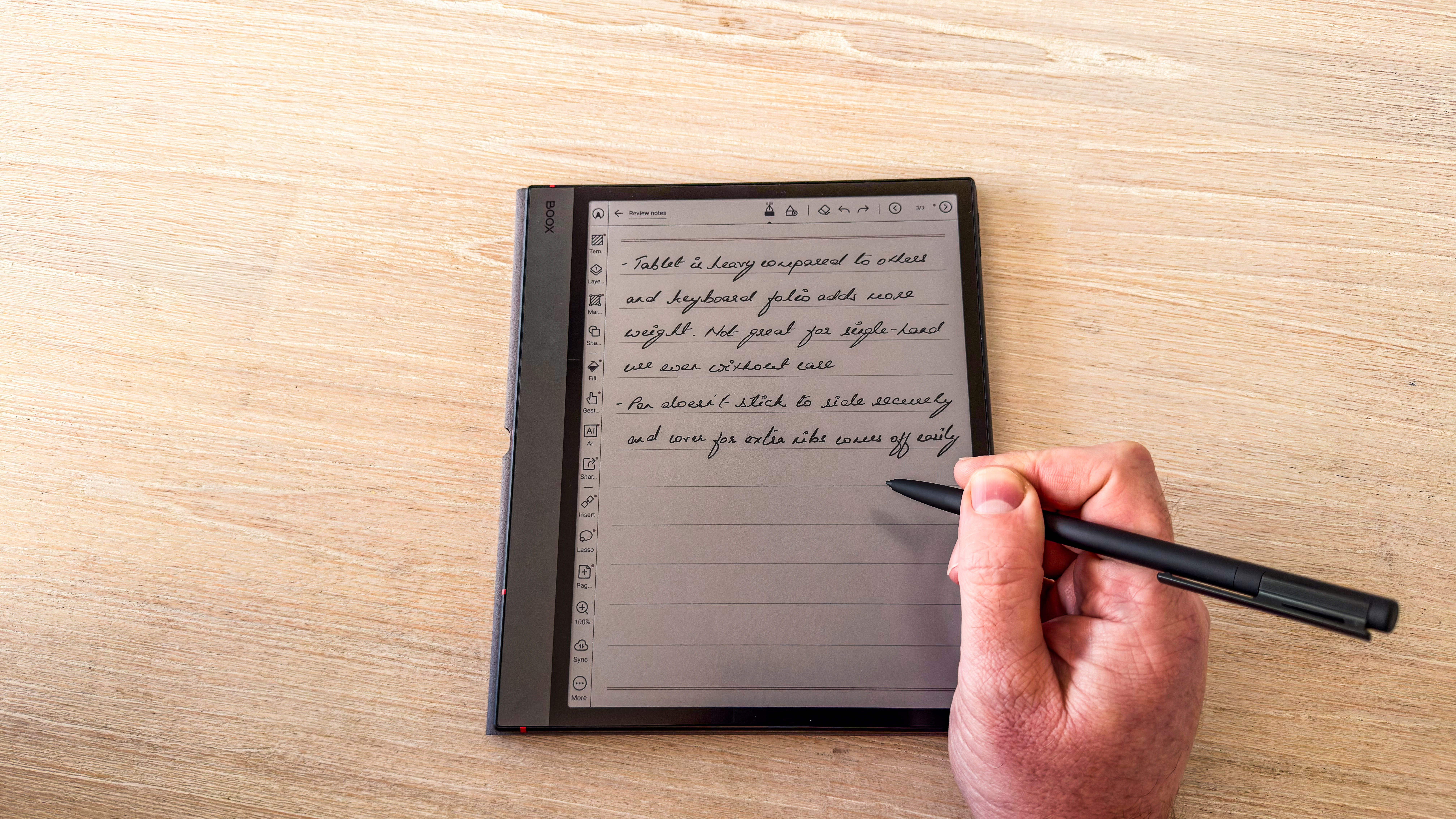
A person writing with the Boox Pen 3 on the Boox Note Air5 C

(Image credit: Sharmishta Sarkar / TechRadar)

Writing & typing experience

The Note Air5 C offers one of the best writing experiences I’ve had. The Pen 3 is designed to offer a felt-tip experience, which is smooth, and there’s just enough friction to make it feel like you’re writing on paper. You can even hear an almost-audible scratch on the screen that you’d hear when scribbling with pen and paper.

However, if you’ve used an epaper writing tablet without a frontlight before — like the Boox Go 10.3, ViWoods AiPaper or the reMarkable 2 — and decide to move to one with a light, you might find the gap between the pen and its stroke a little disconcerting. This gap is due to the LEDs occupying the space between the top glass and the actual E Ink layer below — but you get used to it very quickly, so this isn’t a complaint, merely an observation.

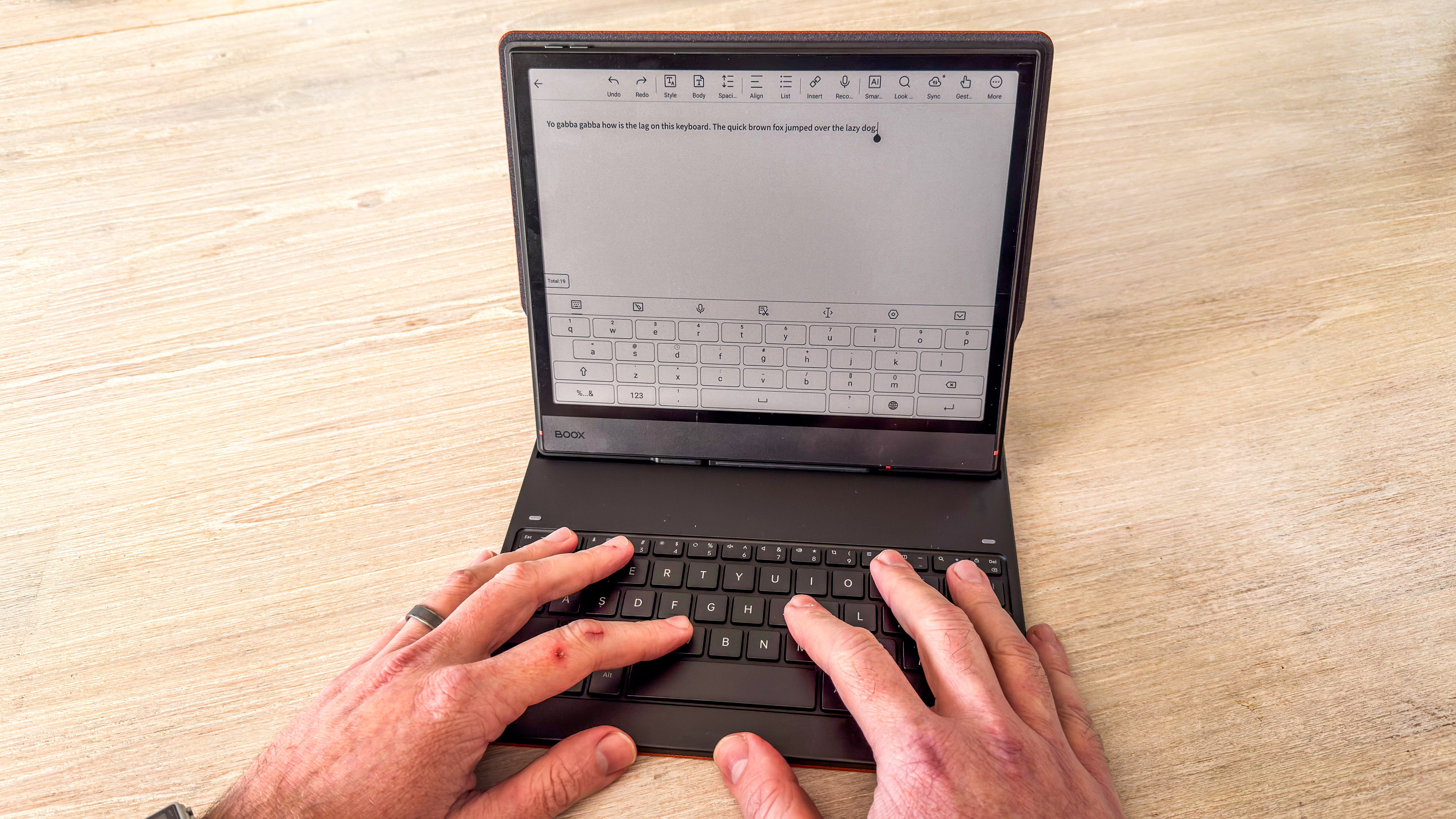
A person using the Boox Note Air5 C with its keyboard folio

(Image credit: Sharmishta Sarkar / TechRadar)

I found no lag between pen movement and the mark appearing on the screen, although there were occasions when the device didn’t register a pen stroke — a page refresh usually fixed this issue, although I did restart the device a couple of times when a simple refresh didn't work.

Despite that, the overall writing experience is excellent. Typing, on the other hand, not so much.

Whether you’re using the on-screen keyboard or you’ve opted to purchase the optional keyboard folio, there is a lag. The former is the faster option with only the slightest lag, but using the physical keyboard is slow and makes touch typing difficult. I tested the Note Air5 C with a Logitech wireless Bluetooth keyboard and found the lag is slightly less compared to Boox’s own keyboard folio. This allows for a better touch-typing experience in my opinion.

In fact, my experience typing on the 5C was so slow that I stopped using physical keyboards and stuck with the on-screen one when necessary (like inputting a password).

• Writing & typing score: 4 / 5

Onscreen keyboard and notes on a page of a book on the Boox Note Air5 C

(Image credit: Sharmishta Sarkar / TechRadar)

Onyx Boox Note Air5 C review: Performance

  • Smooth and fast performance overall
  • Some ghosting, but mostly when viewing image-heavy documents
  • Disappointing battery life, but standard for an Android device

Boox doesn’t reveal what specific processor it uses in its devices. To determine that, I downloaded the CPU X app — a free download from the Google Play Store — and this told me there’s a Qualcomm Snapdragon 690 chip inside doing the heavy lifting.

This chip is also in use in the smaller Boox Go 7 ereader and works well there, and is an upgrade over the Snapdragon 680 in the original Boox Go 10.3. So, does it make the 5C the better device? To answer that, I began by first benchmarking the CPU, something I’ve done for previous Android-based epaper tablets because it’s easy to install the Geekbench 6 app on them.

The single-core score for the Note Air5 C recorded was 576, while multi-core was 1424. In comparison, the Boox Go 10.3 scored 403 and 1261 respectively, while the ViWoods AiPaper produced a result of 299 and 1114 from its MediaTek MT8183 CPU.

To be honest, these numbers don’t really mean much for devices like ereaders and e-notebooks — it’s how well the operating system has been implemented that will make or break the performance. For instance, despite a lower score, I found the ViWoods AiPaper to be the better device compared to the Boox Go 10.3 in real-world use because of how well the Android 13-based OS had been implemented.

Handwritten note on the Boox Note Air5 C

(Image credit: Sharmishta Sarkar / TechRadar)

On the Note Air5 C, the Snapdragon 690 chip doesn’t really make much of a difference in overall performance when compared to the Go 10.3, although it’s a lot better compared to the Note Air 3, which was the previous device in this series that I have experience with.

Other than the typing lag I’ve previously mentioned, I’ve had no other significant issues with the 5C: apps open quickly and none crashed during my testing, page turns are quick and any adjustments — like brightness or volume — happened instantly. Ghosting can still be a problem for some users though, and I found it to be particularly noticeable when reading image-heavy documents and books.

A hand holding the Boox Note Air5 C showing a page of a book with words and diagrams

(Image credit: Sharmishta Sarkar / TechRadar)

The only reason I would opt for a non-Android e-notebook like the Kindle Scribe or the Kobo Elipsa 2E would be for the battery life. As I expected, the 3,700mAh battery doesn’t last very long as Android is a power-hungry OS.

You might find yourself charging the device every 3 to 4 days, depending on how much you use it and what some of your settings are. During my testing, I found that an hour of reading at mid-brightness and some warmth to yellow the screen dropped battery life by 2%. An hour of notetaking will drop it quicker — in my case, about 8% at the same light settings with Wi-Fi and Bluetooth switched off.

Bump the frontlight to full brightness (and no warmth) and those battery drops for the same amount of use increases to a 5% and 10% respectively. If you have Wi-Fi turned on at all times, expect a touch more battery use, but it’s not a significant drop. If you happen to use some apps, like the browser or the music player, the battery will drain faster.

A page of a graphic novel displayed in color on the Boox Note Air5 C

(Image credit: Sharmishta Sarkar / TechRadar)

Long story short, prolific use will get you 2-3 days on a single charge, which can be extended to about 5 or 6 days if you use the device for maybe 30 minutes every day.

Topping up the battery is also a bit of a time investment — it took 2 hours and 3 minutes for my review unit to go from 16% to full, and that’s when plugged directly into a GAN wall charger using a high-quality USB-C to C cable. In my experience, this charging rate is slower than the 4,100mAh capacity battery in the ViWoods AiPaper, but about the same rate as the Boox Go 10.3 (which also uses a 3,700mAh battery).

• Performance score: 4 / 5

Should I buy the Onyx Boox Note Air5 C?

Attribute

Notes

Score

Value

It’s well priced, but expensive compared to grayscale e-notebooks.

4 / 5

Design & display

Solidly built with a good display, but there’s not a lot that’s actually ‘new’ about it physically.

4 / 5

Software & apps

The first Android e-notebook to run on an Android 15-based OS, it will get a few years of updates. The UI, however, still remains relatively complicated.

4 / 5

Writing & typing

Using the new stylus on this device is a wonderful and smooth experience, but there’s a lag when typing, whether via a physical keyboard or the on-screen one.

4 / 5

Reading

Clear text with very good contrast, but some colors appear muted, especially when compared to the similarly priced reMarkable Paper Pro.

4 / 5

Performance

Good general performance, but nothing that stands out from the competition.

4 / 5

Buy it if...

You want to upgrade from a much older Boox Note series tablet

If you're using an older Note series tablet, the 5C is a worthy upgrade, with software and performance enhancements that make a huge difference to usability.

You want a color e-notebook that offers an open ecosystem

There still aren't too many 10-inch epaper tablets with a color display — if that's an important consideration, the 5C is cheaper than the reMarkable Paper Pro and there are perks to using an Android device.

You want a versatile epaper tablet

One of the perks I mentioned above is the ability to download apps from the Google Play Store to make the most of your e-notebook. And that can make such a device very versatile indeed.

Don't buy it if...

You want more saturated colors displayed on the screen

While book covers look fine, I found some others appearing washed out on the 5C. Moreover, the ink and highlight colors are a lot better on the reMarkable Paper Pro, if you want more saturation.

Battery life is important

Android epaper tablets don't offer good battery life. If that's a major criteria, you should opt for a Kindle or Kobo writing tablet instead.

You don't need a plethora of features

There's a lot you can do with the Note Air 5C, or other Android e-notebooks, but this could be overkill for many users. If you want a more streamlined UI and don't need third-party apps, you could save money by opting for smaller e-notebooks like the Kobo Libra Colour, or larger grayscale ones like the Kindle Scribe.

Also consider

If you're unsure whether the Boox Note Air5 C is right for you, there are other options to consider. However, keep in mind that any such device with a color display will be expensive, while monochrome options can save you some cash.

reMarkable Paper Pro

If it's a color display on a 10-inch e-notebook that's got your attention, then there's none better than the reMarkable Paper Pro. It's the only epaper tablet using the E Ink Gallery 3 screen tech and it offers a simple, streamlined interface that has absolutely no distractions.
Read our in-depth reMarkable Paper Pro review for the full details

Amazon Kindle Scribe (2024)

Given the Colorsoft version of the Kindle Scribe still isn't widely available, I think the second-gen Scribe is still a worthy option with a grayscale screen. The ambient light sensor makes a huge difference to usability (I love it!) and it's arguably the nicest screen I've written on.
Read our full Amazon Kindle Scribe (2024) review to learn more

ViWoods AiPaper

It's a frightfully expensive Android e-notebook, but I much prefer its interface to Boox. It's also the thinnest large-screen epaper tablet I've tested. It works wonderfully well and has more native apps than Boox as well. If money's no object, I couldn't recommend this highly enough, albeit no color screen here.
Read my in-depth ViWoods AiPaper review to find out more

How I tested the Onyx Boox Note Air5 C

The native library app on the Boox Note Air5 C

(Image credit: Sharmishta Sarkar / TechRadar)

I've been testing and writing about ereaders and epaper tablets for nearly a decade now, and have a wealth of knowledge when it comes to E Ink devices. That puts me in an excellent position to compare and just new devices coming into the market, just like the Boox Note Air5 C.

As with any new epaper device, I first go through all the settings options to ensure I have the tablet set up the way I like it, as it becomes my person device for a few weeks. Having done that, I connected the 5C to Wi-Fi and logged into the Play Store.

Plugging my 2TB Samsung T7 Shield portable SSD into the USB-C port, I was able to access a bunch of ebooks I keep as test files for my ereader reviews, plus a few PDFs. While this was the primary way of transferring files during my testing, I also signed into Google Drive to download some old notes I had saved from an older Boox device. I also used BooxDrop, which has some EPUBs stored in the cloud, that I could transfer to the 5C. These were the methods I tested for file and font (Bookerly specifically) transfer.

I spent about an hour each day over four weeks reading, but I spent a lot more time taking notes, including for this review — the Note Air5 C essentially became my e-notebook for work and for personal use. I tried annotating PDFs and some DRM-free ebooks as a test, but I also used the on-screen keyboard, the Boox keyboard folio made specifically for the 5C and a Logitech Bluetooth keyboard as part of my review process.

I kept tabs on battery use in 1-hour blocks, but I also changed settings to see how it affected battery usage. And, finally, I timed how long it took to charge when I allowed it to drop below 20%.

Read more about how we test
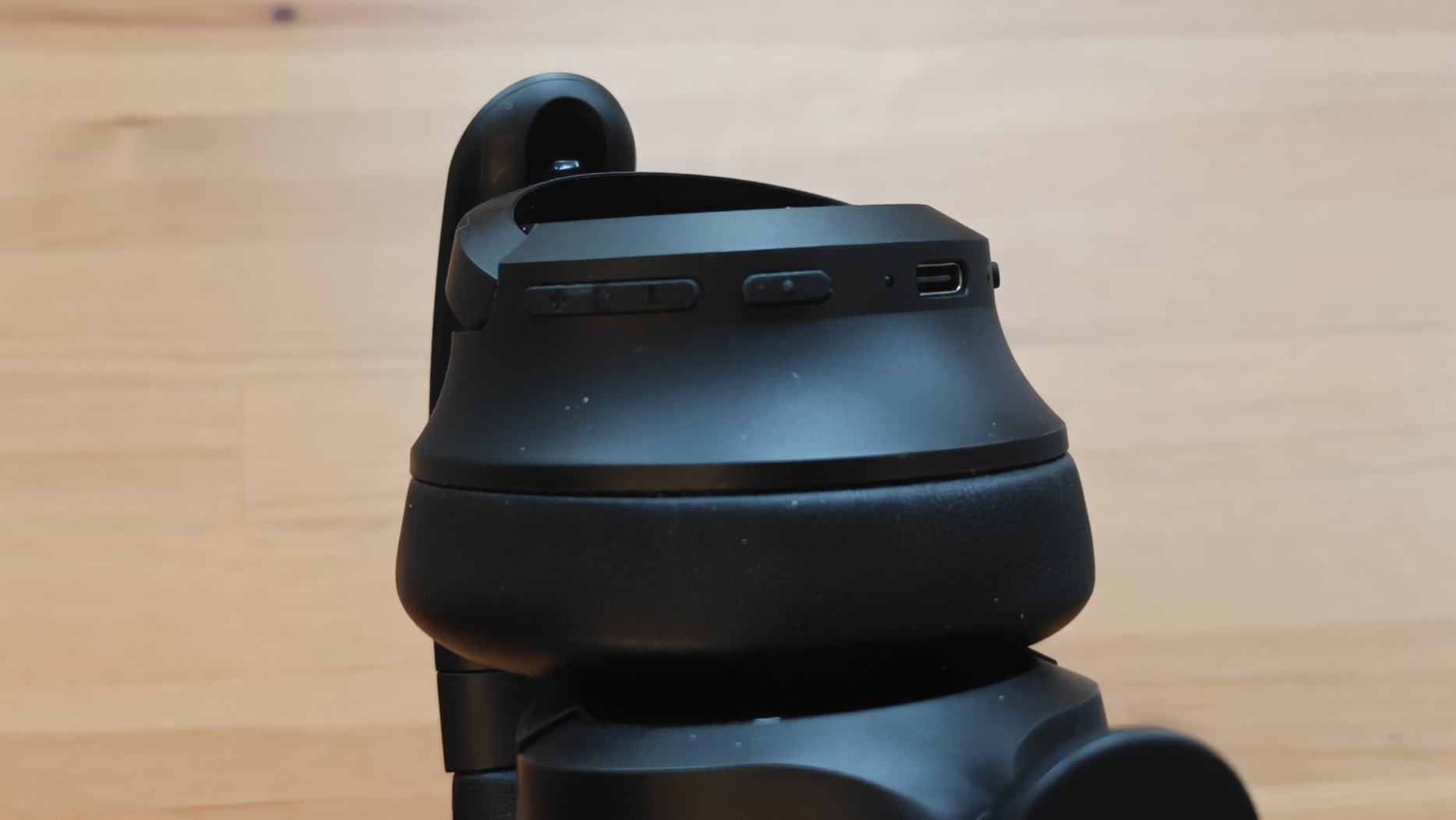
[First published February 2026]
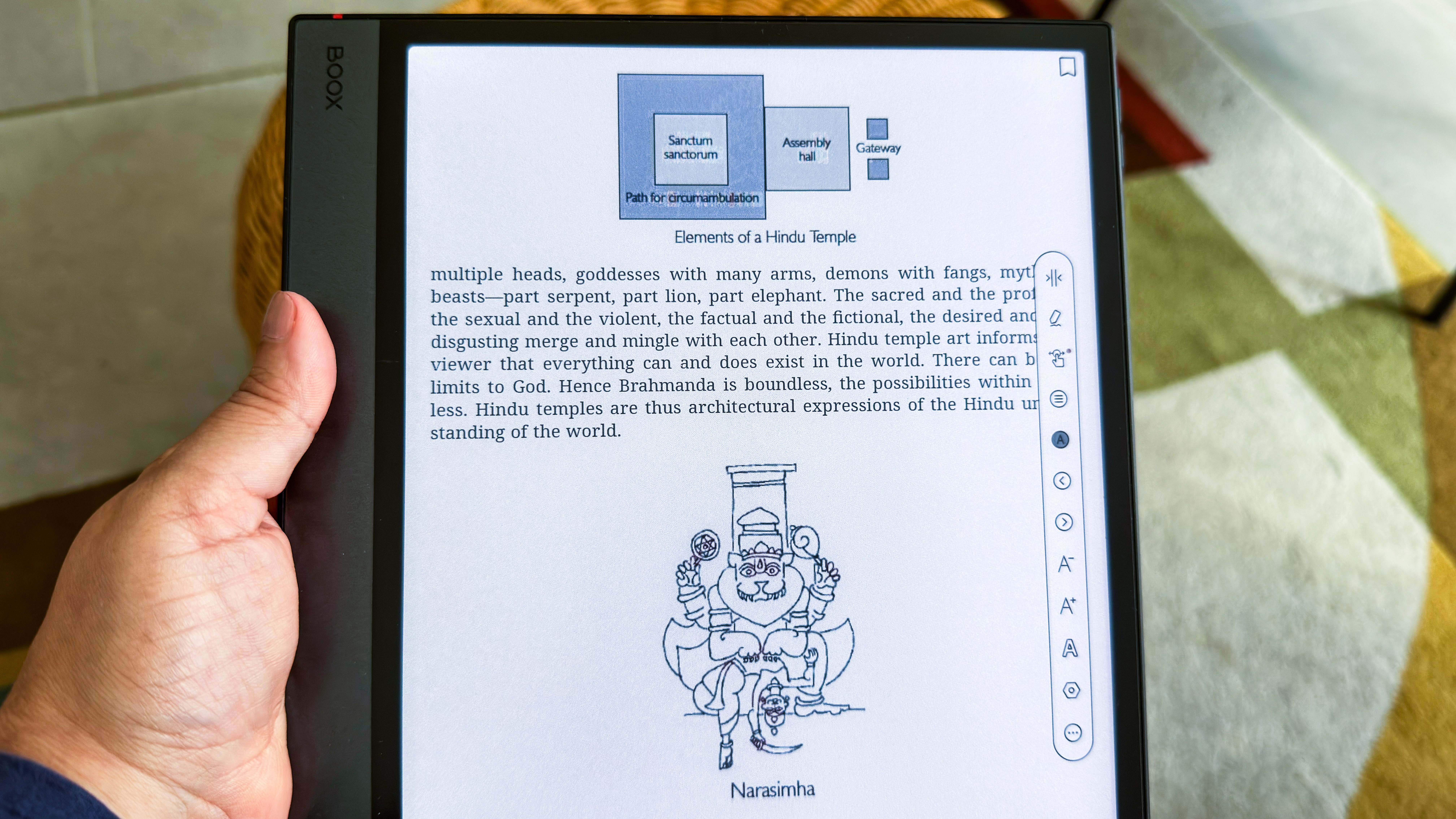
!!!!!!!!!!

Popular Posts

Categories

Blog Archive